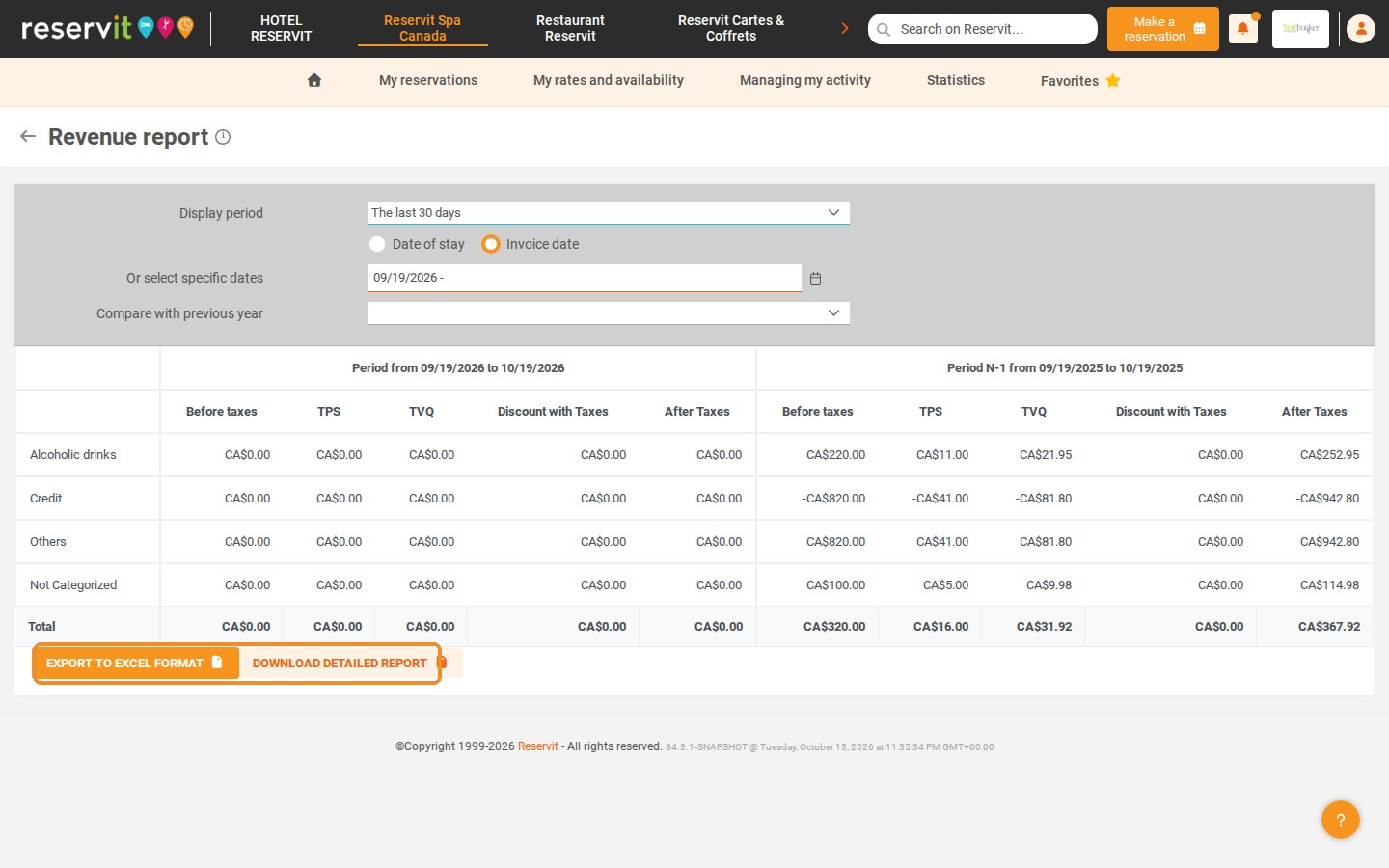
Article Summary: This tutorial explains how to generate and analyze your Revenue report by invoice date in Reservit Activities. Unlike an analysis by date of service (the day the activity takes place), this filter uses the official issue date of your billing documents as its only reference. You will also learn the rules that apply to credit notes with this filter.
The 4 Key Steps to Analyze Your Revenue by Invoice Date:
-
Open the Revenue report: Click "Statistics" > "Billing", then "GO TO PAGE" on the "REVENUE REPORT" tile.
-
Select the invoice date filter: Select "Invoice date" so that the report uses the date shown on the invoices, then choose your period.
-
Take credit note dates into account: With this filter, a credit note is only counted in the period in which it is issued, regardless of the date of the original invoice.
-
Analyze the "Credit" category: Credit notes no longer offset the service categories (activities, spa, gift cards, etc.): they are all grouped in a single "Credit" category.
Why Follow This Guide? Extracting your sales by invoice date is the best way to reconcile your Reservit data with the sales journals of your accounting or your tax returns. Understanding how credit notes are grouped in their own category helps you avoid misreading the actual revenue of each of your departments.
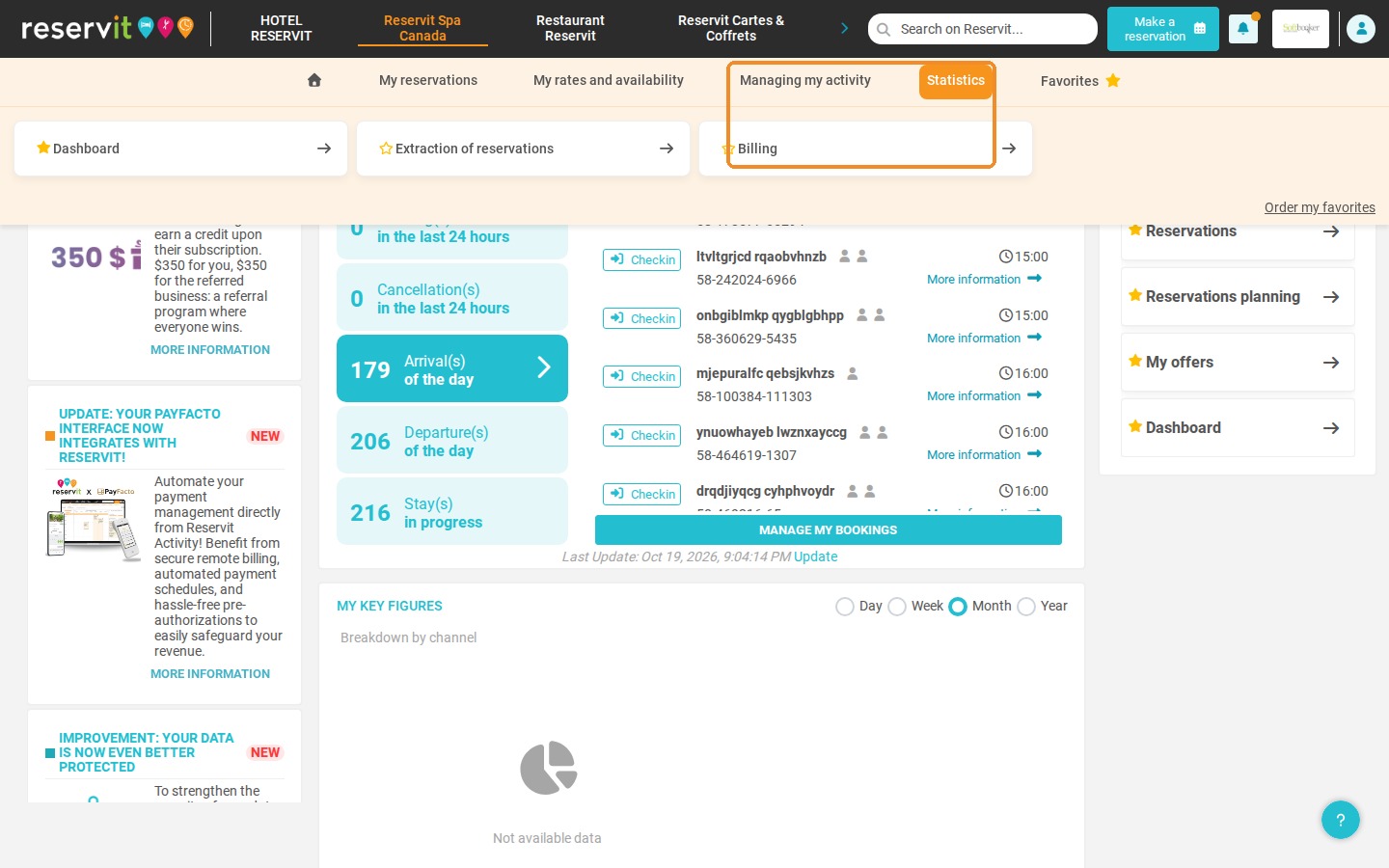
1. Click "Statistics", then "Billing".
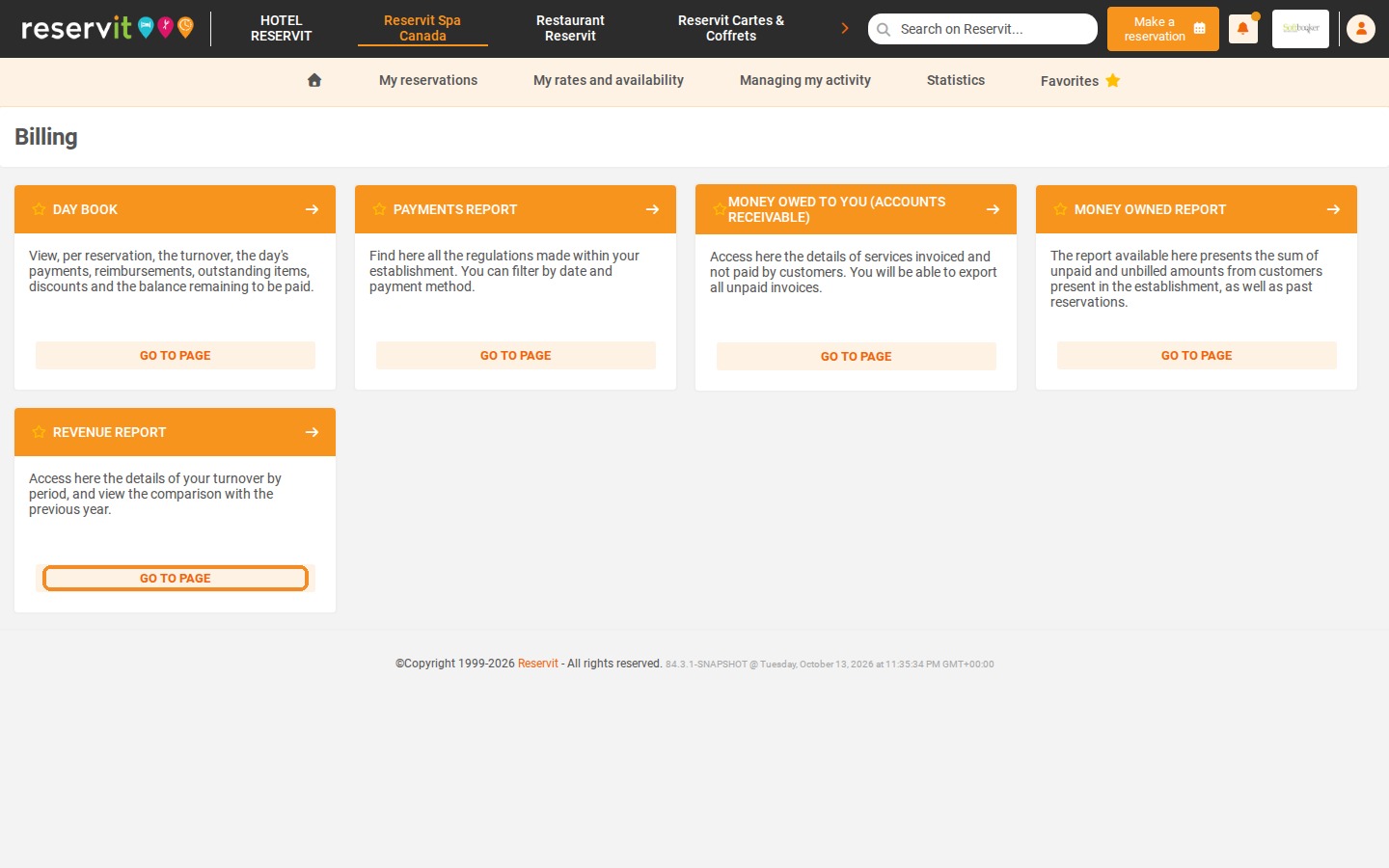
2. Click "GO TO PAGE" on the "REVENUE REPORT" tile.
3. The Revenue report lets you display your data by invoice date: select "Invoice date" instead of "Date of stay". The reference date is then the date shown on the invoice.
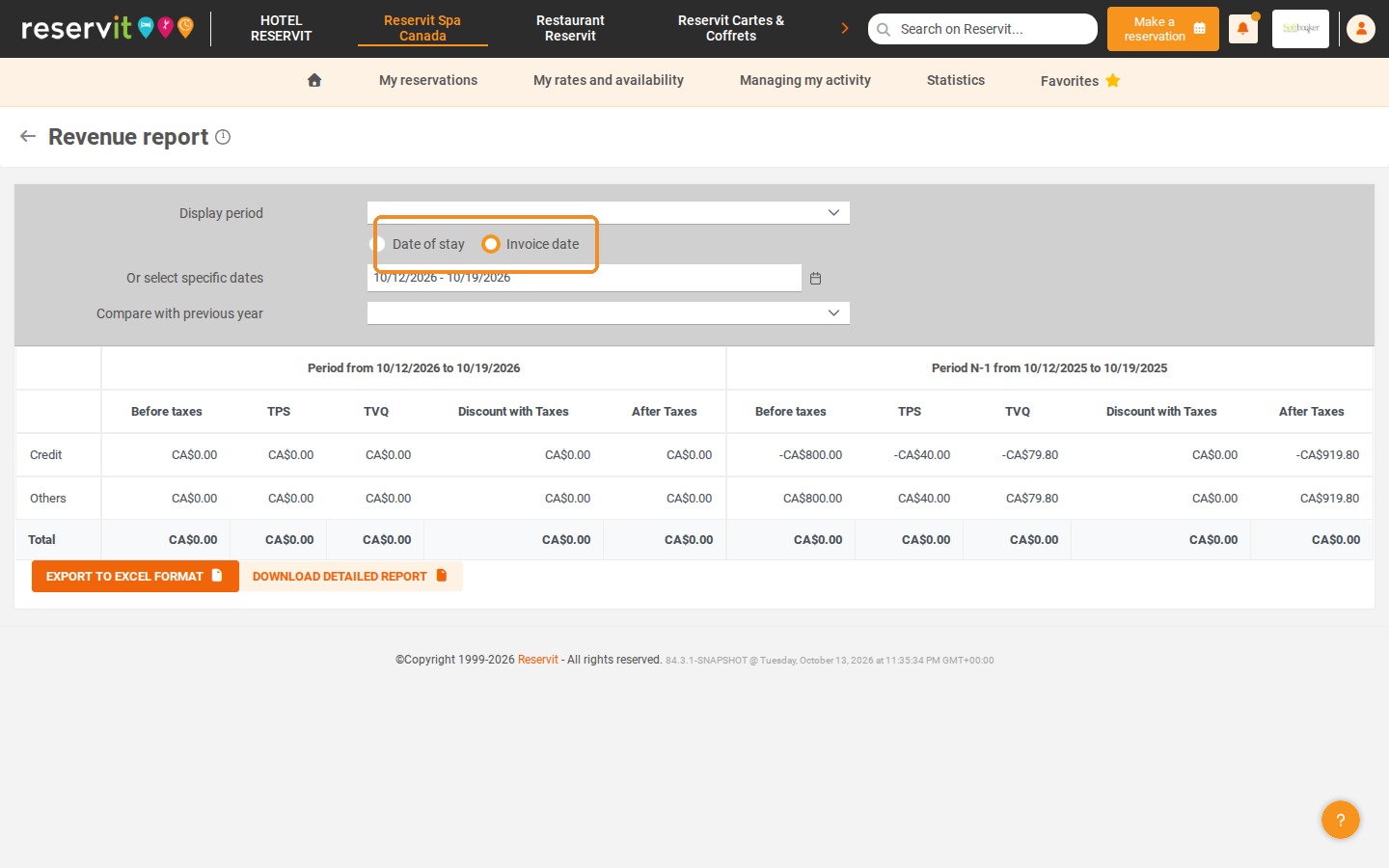
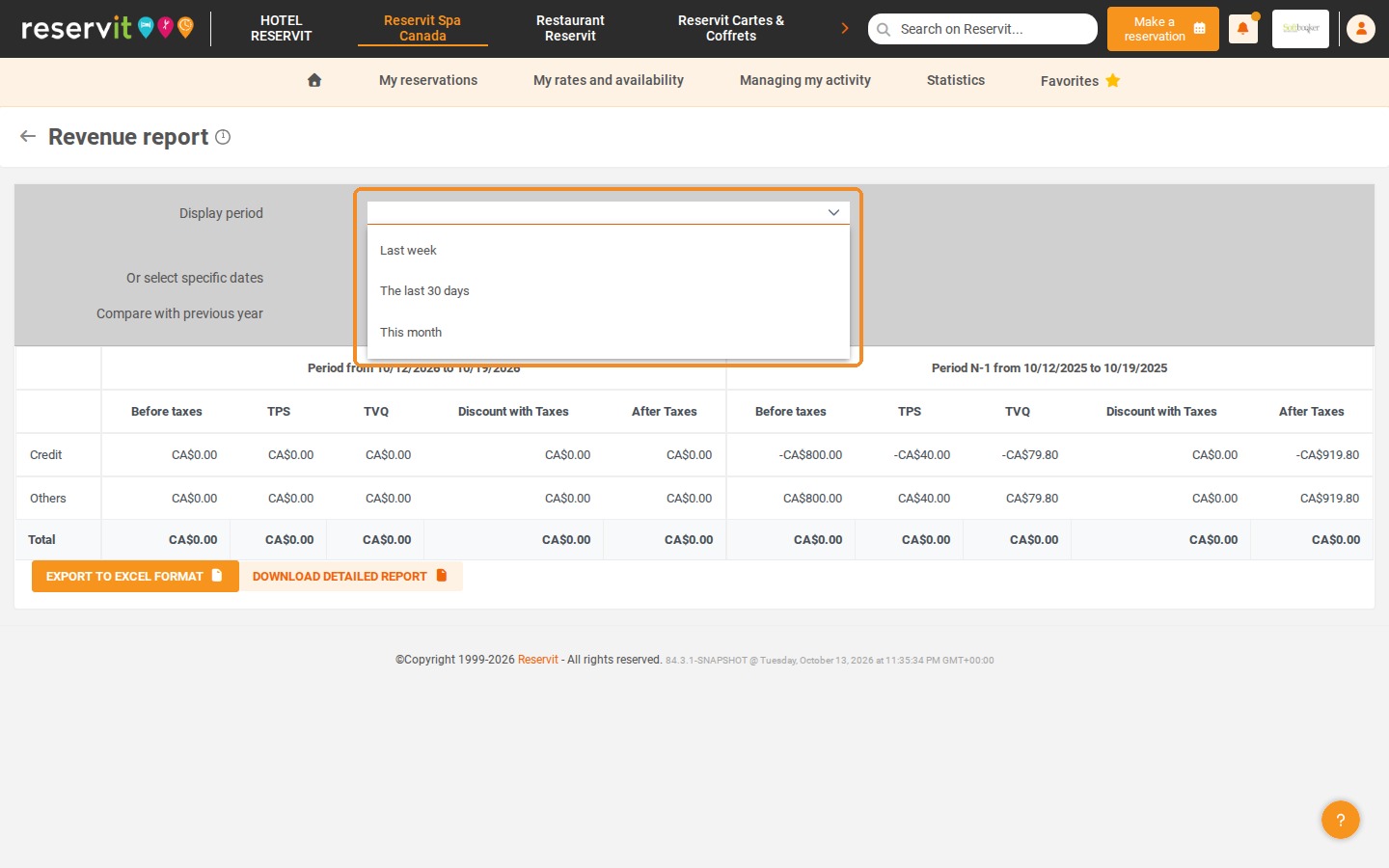
4. Choose the period in the "Display period" list (Last week, The last 30 days, This month).
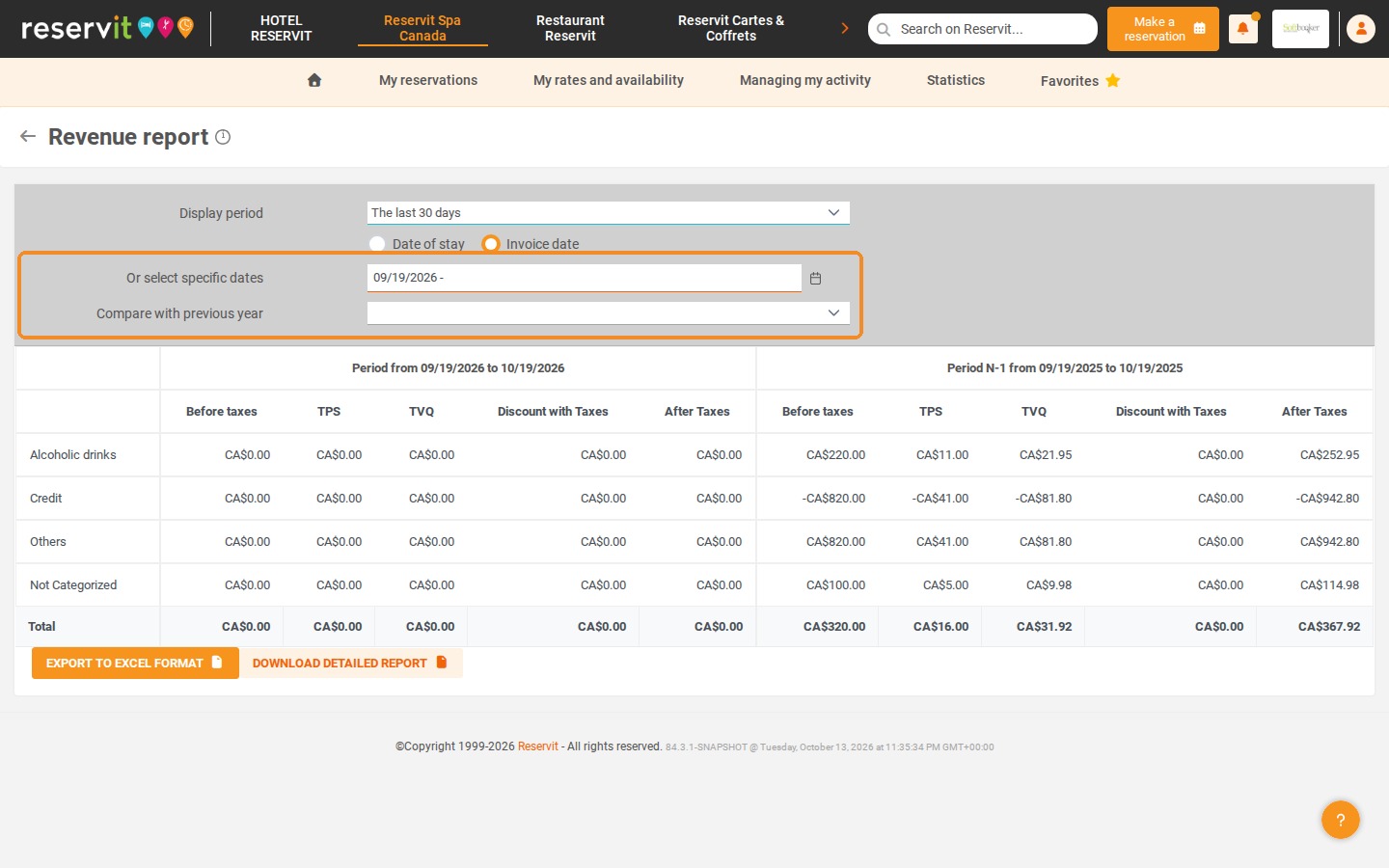
5. You can also enter a date range in "Or select specific dates". The "Compare with previous year" list adds the same period of the previous year (N-1) next to your figures.
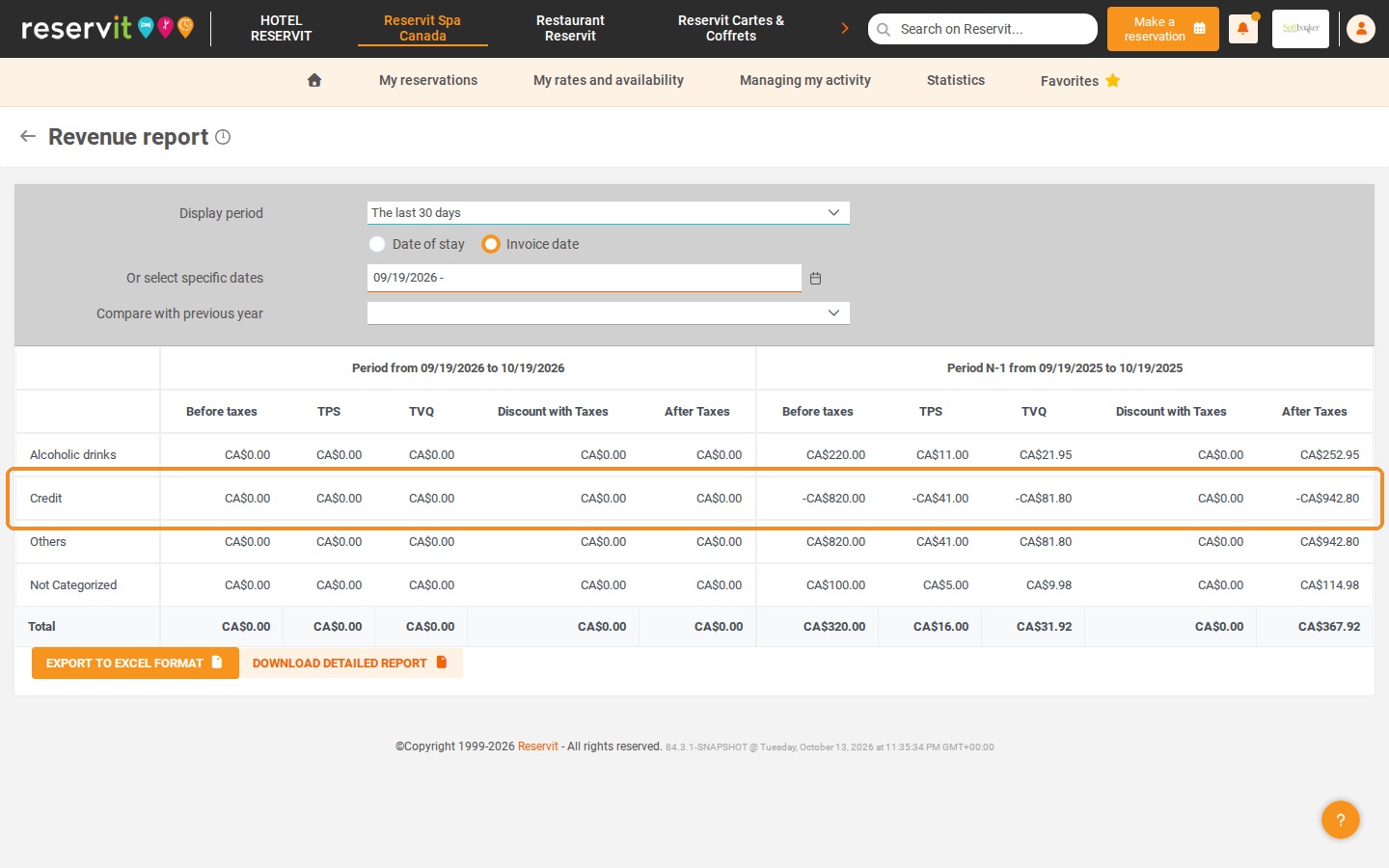
6. Important: when the data is filtered by invoice date, a credit note is only counted in the period in which it is issued, regardless of the date on which the original invoice was generated. Invoices and credit notes no longer offset each other within the service categories concerned (activities, spa, gift cards, etc.).
7. All credit notes are listed in the "Credit" category, which groups credit notes of every type (activities, spa, accommodation, etc.).
8. If needed, use "EXPORT TO EXCEL FORMAT" or "DOWNLOAD DETAILED REPORT" below the table to keep a copy of the report.