Article Summary: This practical guide explains how to easily add or modify your property description on automated booking confirmations within Reservit Accommodation. You will learn how to navigate your property settings to customize the establishment details that appear directly on your guests' post-booking emails. Mastering this feature ensures your customers receive accurate, helpful, and multilingual information immediately after booking, elevating their overall guest experience.
The 4 Key Steps to Edit Your Property Description:
-
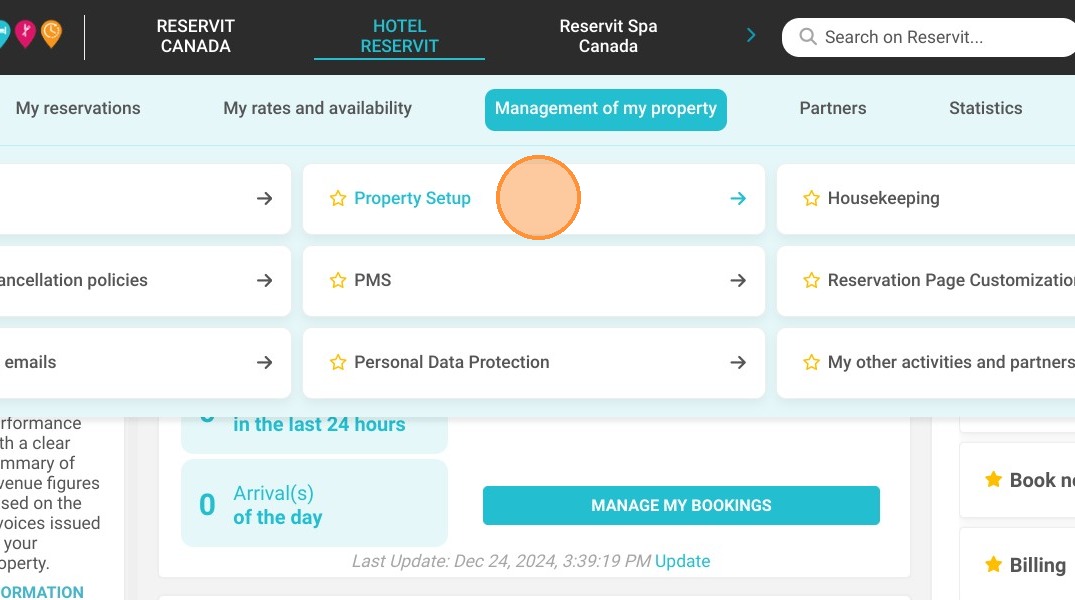
Access Property Setup: Navigate to "Management of my property" from your main dashboard and select "Property Setup."
-
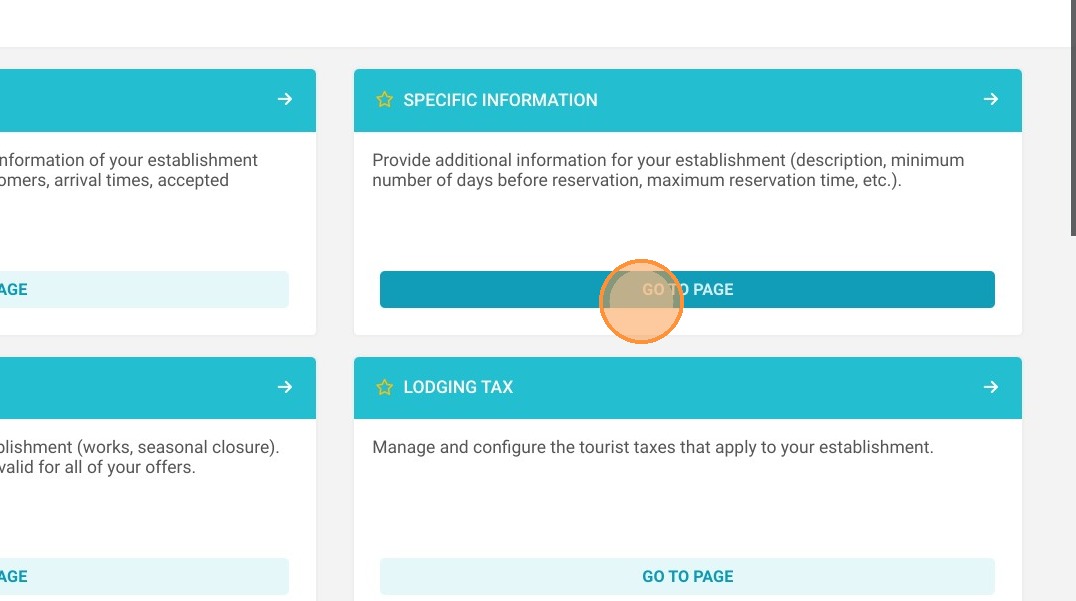
Navigate to Descriptions: Open the "Specific information" tab and click on "Description" to access the text fields dedicated to your automated confirmation emails.
-
Update Multilingual Details: Add or edit your establishment's information, making sure to complete at least the mandatory English and French text fields so the system allows you to save.
-
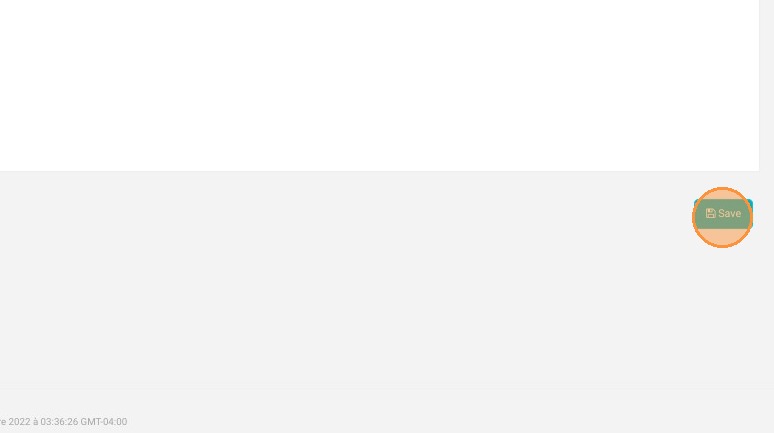
Save Your Modifications: Scroll to the bottom of the page and click "Save" to instantly apply the updated text to all future booking confirmations.
Why follow this guide? Following this guide ensures your guests receive vital, up-to-date property information directly in their inbox, significantly reducing repetitive front-desk phone calls. It allows you to maintain a highly professional brand image and saves valuable administrative time by automating essential multilingual communication.
1. Go to Management of my property > Property Setup
2. Go to Specific information
3. Click on "Description"
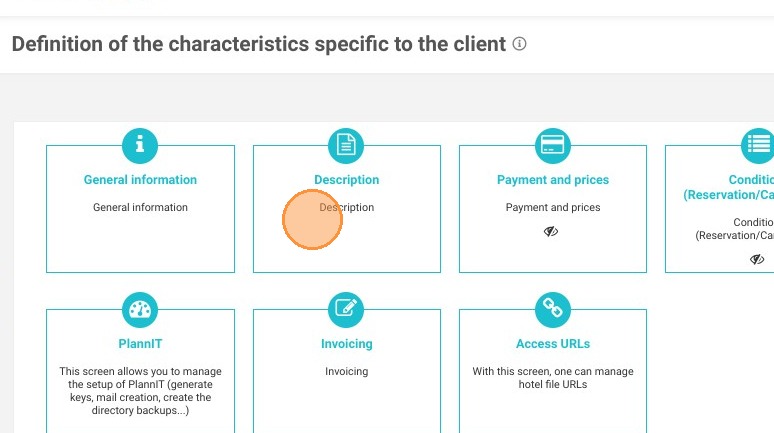
Tip: This tab allows you to give various information about your establishment. These elements will not be visible online but will be present on the booking confirmation that your customer will receive.
Alert: It is mandatory to fill in at least the following 2 languages: French and English. You can also fill in other languages if you wish.
You won't be able to save the changes if French and English aren't filled in.
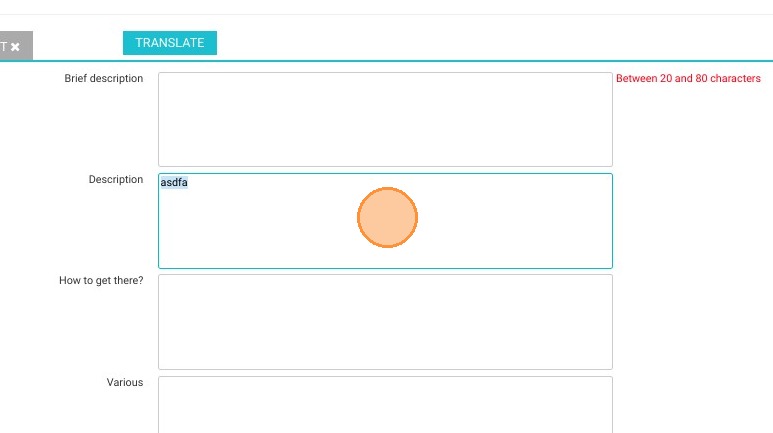
4. You can modify anything easily.
5. On the bottom of the page don't forget to click on save once you are done.