Help for use

How to Apply Lengths of Stay in Reservit | Set Minimum and Maximum Stay Requirements

Article Summary: This step-by-step tutorial explains how to easily configure lengths of stay, including minimum and maximum stay requirements, within Reservit Accommodation. You will learn how to adjust these rules directly from your planning calendar or utilize the advanced editing tool to apply bulk changes across multiple room categories and date ranges. Mastering this configuration allows you to optimize your occupancy, prevent undesirable one-night scheduling gaps during peak seasons, and seamlessly enforce your property's strategic booking rules.

The 5 key steps to apply lengths of stay:

  • Access your planning calendar: Navigate to the "My rates and availability" menu and open the "My planning" dashboard.

  • Edit directly on the grid: Expand your standard rate line, click your desired start date, and manually input a minimum or maximum stay for that specific period.

  • Open the advanced editor: For bulk updates across your calendar, click the "Advanced Editing" button and select "Length of stay" as your specific data type.

  • Define your targeted parameters: Choose the exact rate plans, room categories, specific date ranges, and applicable days of the week where you want to enforce these restrictions.

  • Validate and finalize: Enter your desired length of stay, review the modification summary screen to verify your selections, and click "Apply" to secure your bulk changes.

Why follow this guide? Following this precise setup empowers you to implement advanced yield management strategies by automatically enforcing stay restrictions during your highest-demand periods. Whether applying quick date-specific fixes or massive bulk calendar updates, configuring these rules accurately prevents revenue-draining schedule gaps and saves your team hours of manual inventory management.

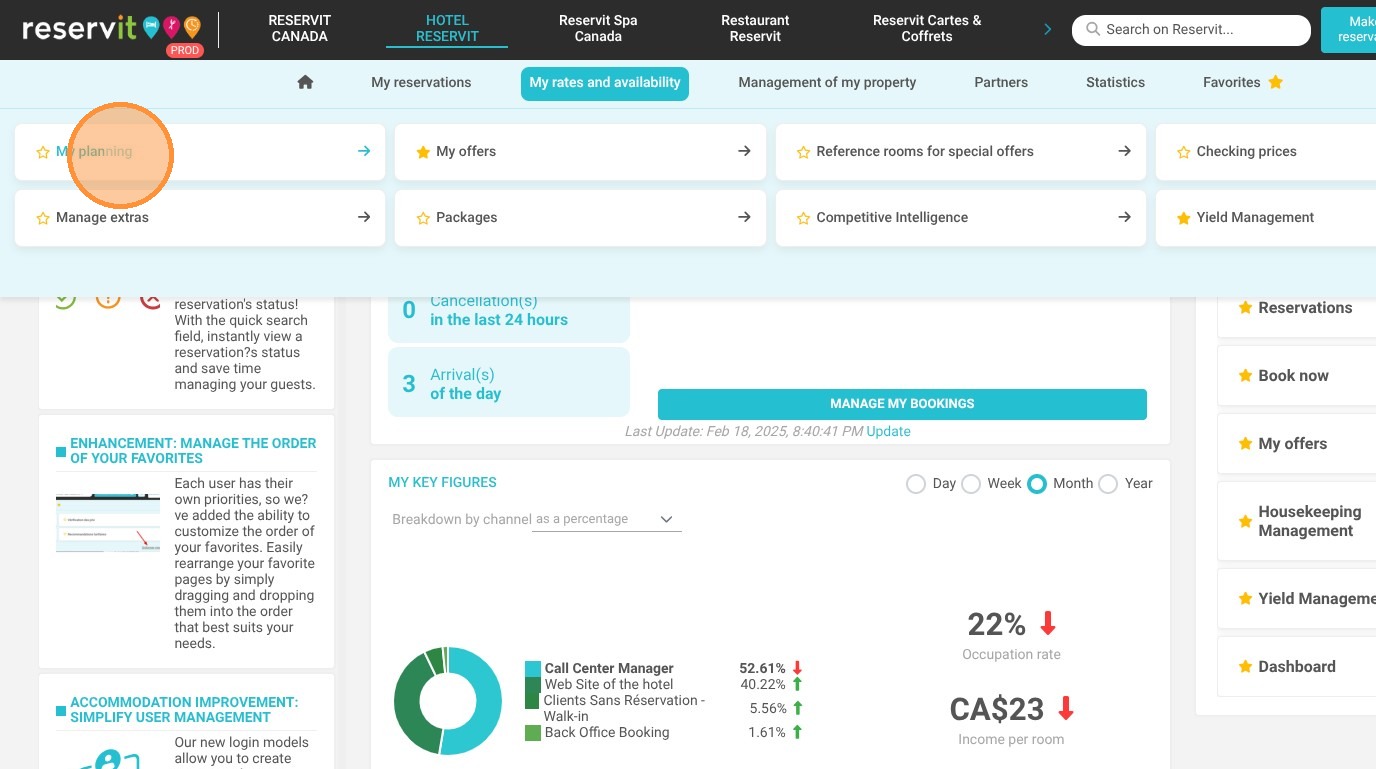
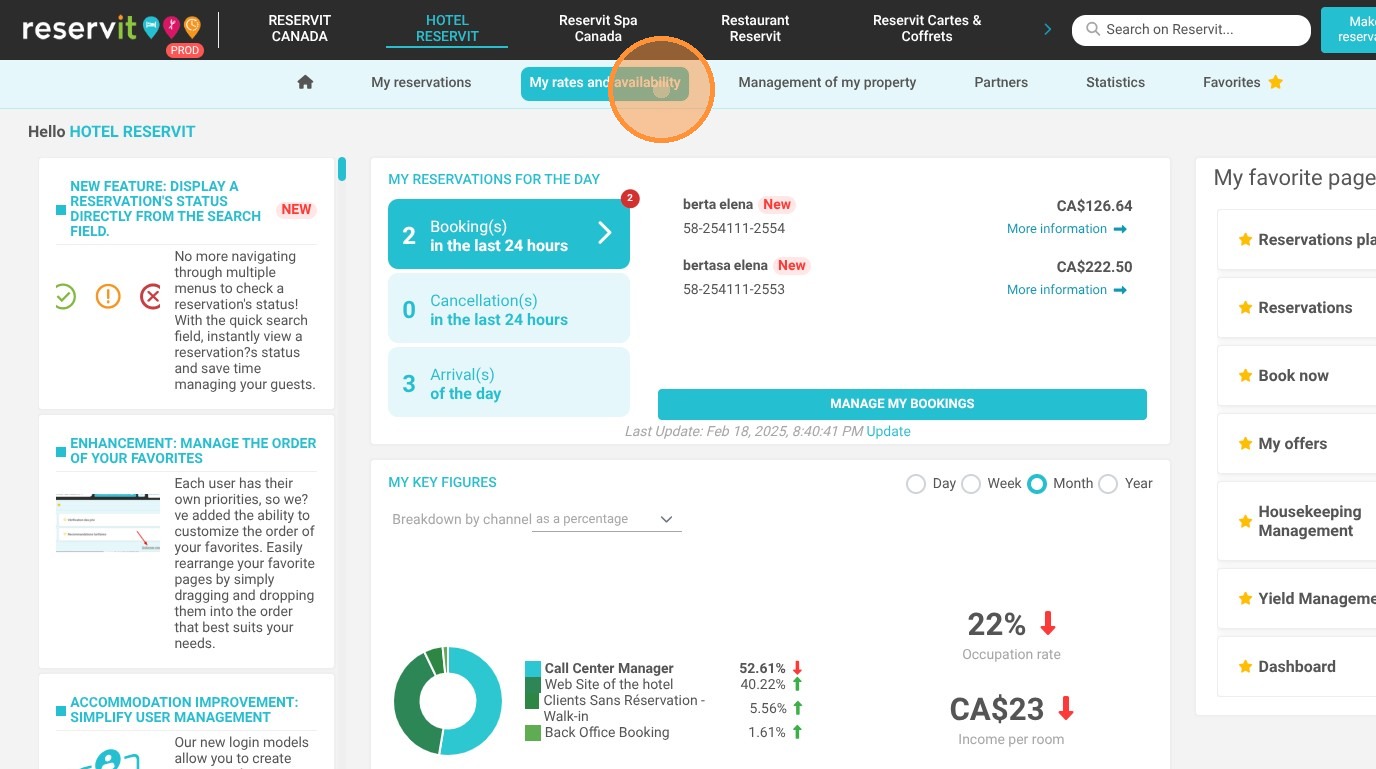
1. Click "My rates and availability"
https://colony-recorder.s3.amazonaws.com/files/2025-02-19/9de72ee8-0d4d-433a-af2b-87d1e9a10200/ascreenshot_888e699b24c2468c9c78c020473b231c_text_export.jpeg

2. Click "My planning"

https://colony-recorder.s3.amazonaws.com/files/2025-02-19/79622326-3b5e-434b-86bf-53da5e37faf3/ascreenshot_5987d0445f154f119c8ef1babb3bb7cd_text_export.jpeg

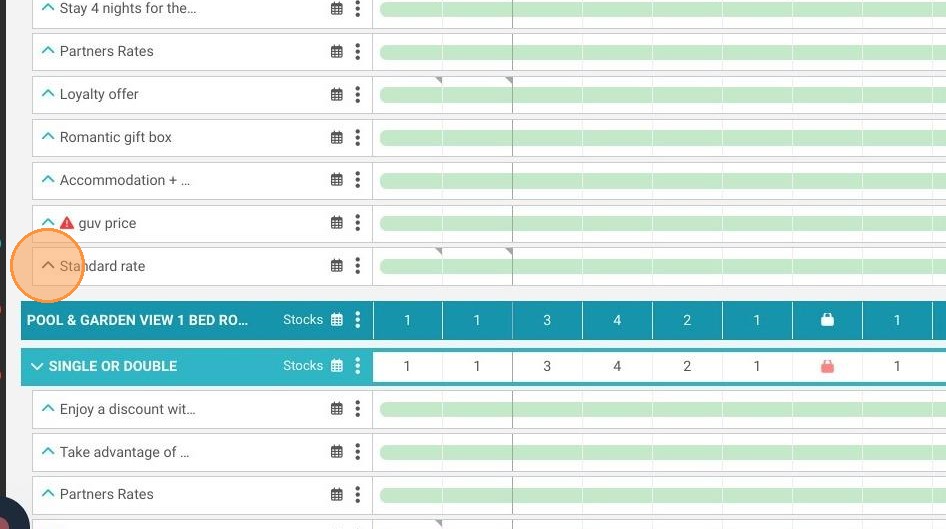
3. On the Standard rate line for the corresponding category, click to expand the display.
https://colony-recorder.s3.amazonaws.com/files/2025-02-19/f544c9bc-4cef-4029-98a8-116dcb15884f/user_cropped_screenshot_0c884ee996484f03add8bbea7a586453_text_export.jpeg

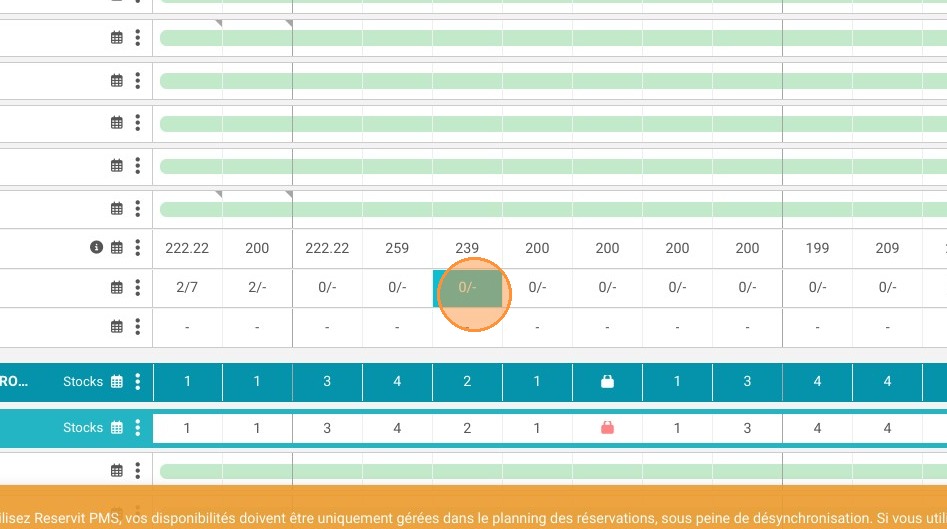
4. On the Lengths of stay line, click on the start date of your choice.
https://colony-recorder.s3.amazonaws.com/files/2024-04-05/5d65f298-5692-41d9-b664-be621b1cb8b2/ascreenshot_14b716e27e54464fb58b223ead1305b1_text_export.jpeg

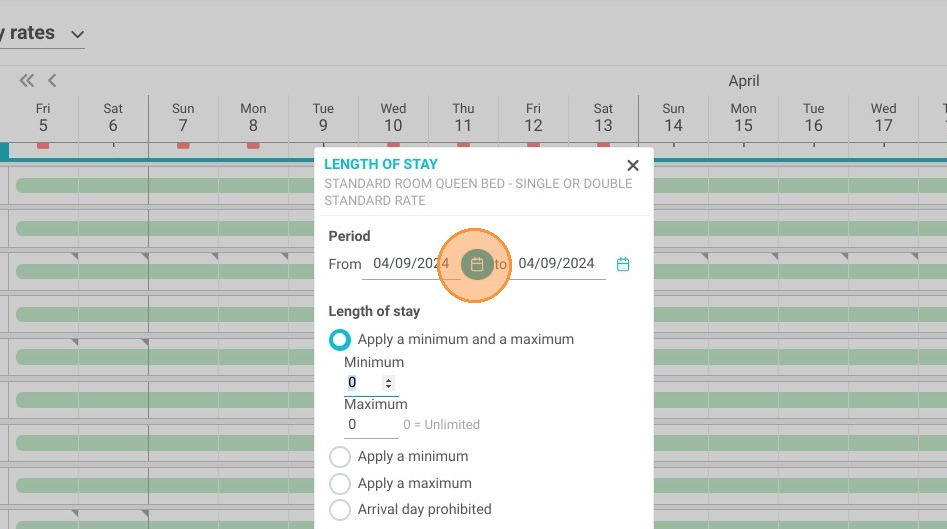
5. You can choose the period to modify.
https://colony-recorder.s3.amazonaws.com/files/2024-04-05/b6b34bdf-da04-4ec5-88bb-78811efaac91/ascreenshot_5951def55c7c4bd5901fa709e7e6c2b0_text_export.jpeg

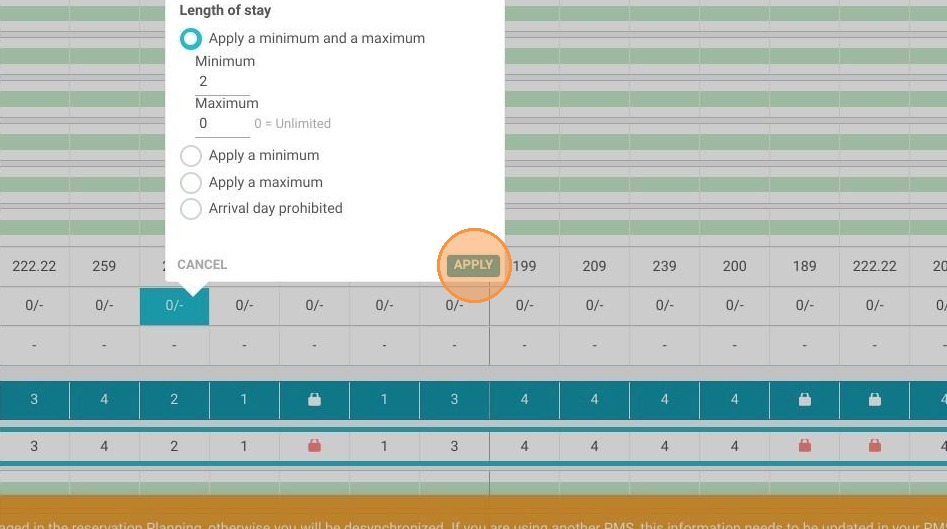
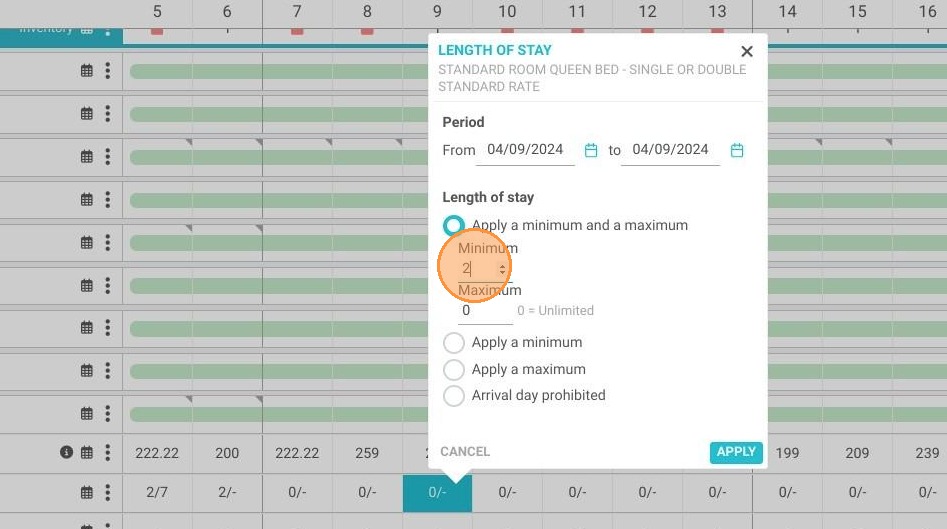
6. You can then choose to apply a minimum and a maximum. Or just one of the two.
https://colony-recorder.s3.amazonaws.com/files/2024-04-05/f95d34d8-2b2c-4eb6-a513-92d569fffd12/user_cropped_screenshot_0ef9ae32df774bf98b50a0284cfc5fbd_text_export.jpeg

7. Une fois cela fait, cliquez sur "APPLIQUER".

https://colony-recorder.s3.amazonaws.com/files/2024-04-05/e46c2c61-84d6-42e9-8a6b-a3c3cc78a72a/user_cropped_screenshot_2a2d7de01f8a40018ad870bf5fc92a06_text_export.jpeg

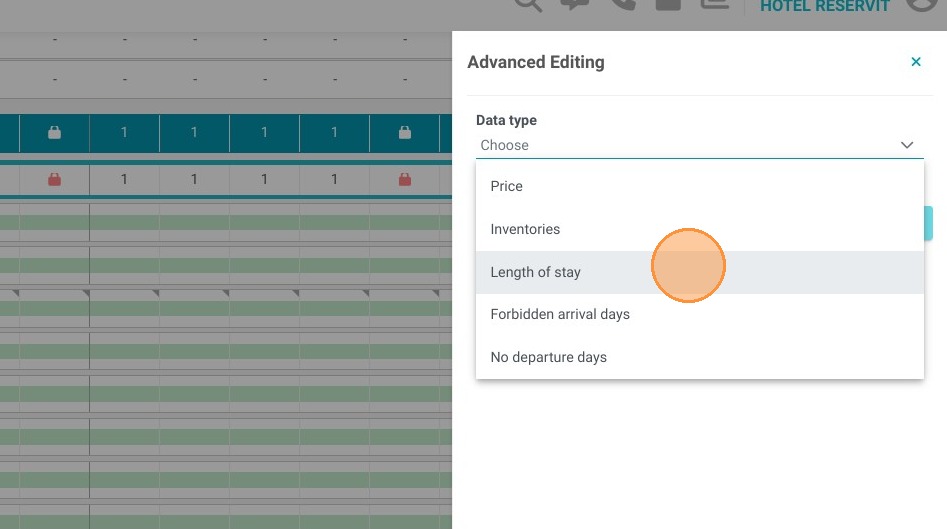
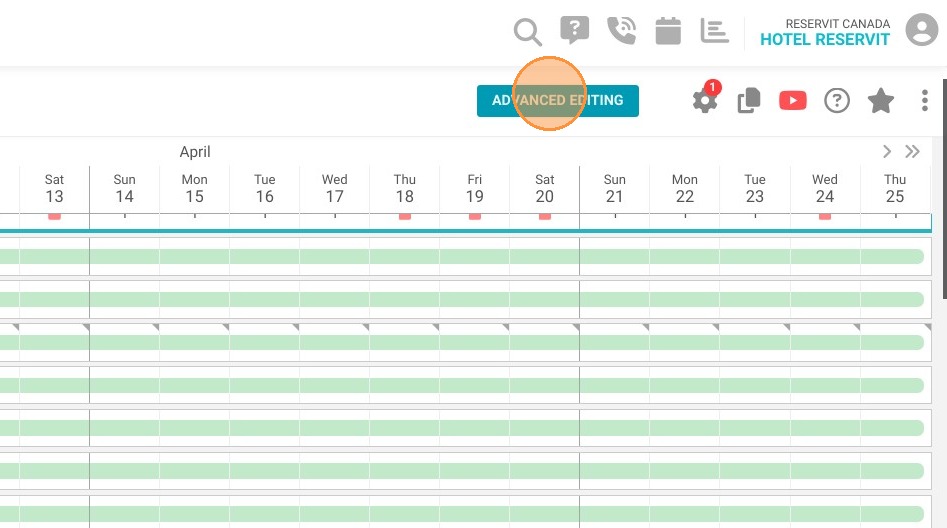
8. A second method is available in "ADVANCED EDITING".
https://colony-recorder.s3.amazonaws.com/files/2024-04-05/956193a9-8cdc-4590-9f07-ec57442b17dd/ascreenshot_9ac818751d35478b8c9eac8a8e9b98a0_text_export.jpeg

9. [[Choose the data type]] "Length of stay".

https://colony-recorder.s3.amazonaws.com/files/2024-04-05/80f1c6fe-c5d9-4900-b2eb-c44ec1fc6d51/ascreenshot_d3c411e05caf4c4b893b332970c6fd35_text_export.jpeg

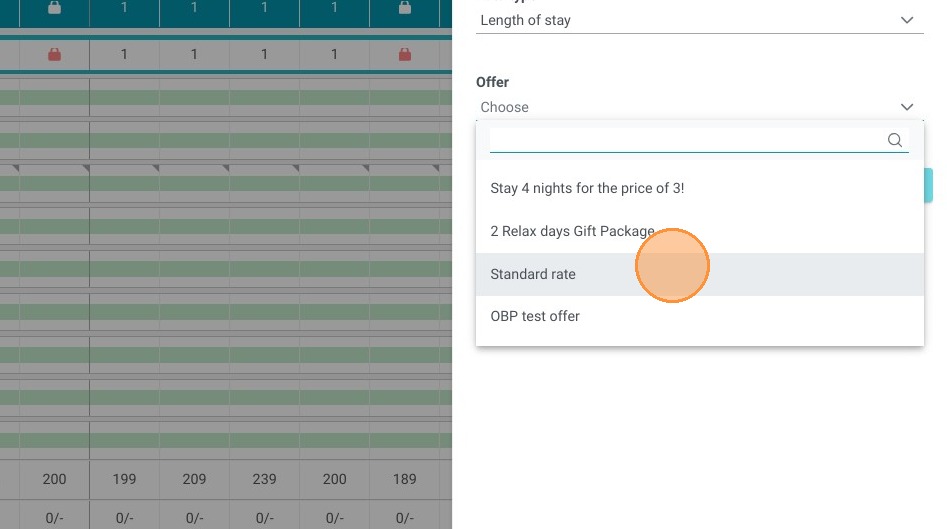
10. Choose the Standard Rate.

https://colony-recorder.s3.amazonaws.com/files/2024-04-05/91e859f2-1f2a-4751-8bd4-f38d0f735559/ascreenshot_a4ce3e96639d428385e11019281fa2c7_text_export.jpeg

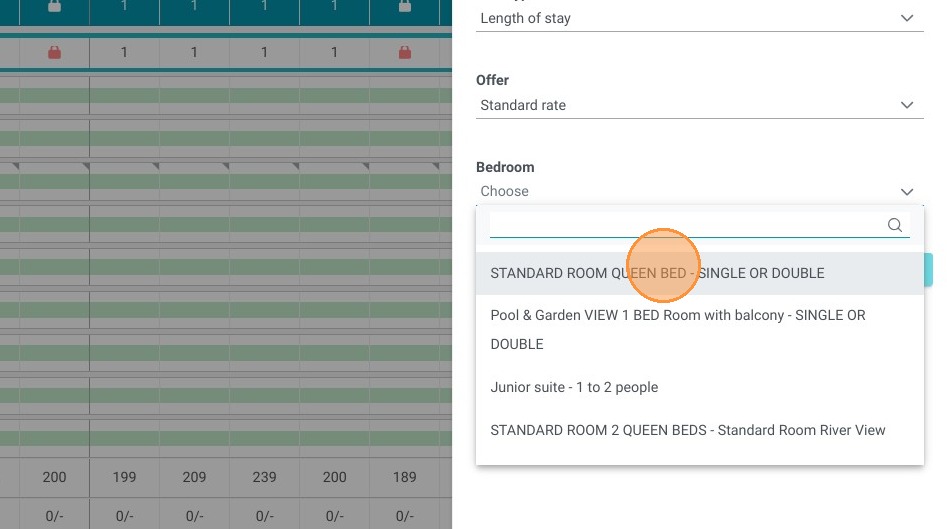
11. Then the category to modify.

https://colony-recorder.s3.amazonaws.com/files/2024-04-05/c779891e-e34b-4981-a4e2-211b51e48a8d/ascreenshot_437d15095447450ea08b950039748c51_text_export.jpeg

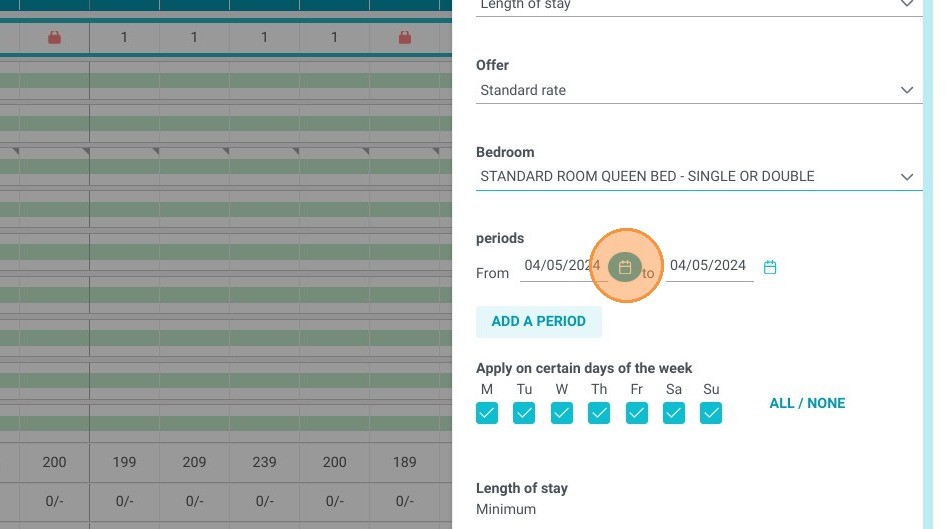
12. Set the period.

https://colony-recorder.s3.amazonaws.com/files/2024-04-05/458a67de-ca43-4dd2-b8cf-d1a9082ec367/ascreenshot_9f631e04e6e94d709d2e07f2a4135c73_text_export.jpeg

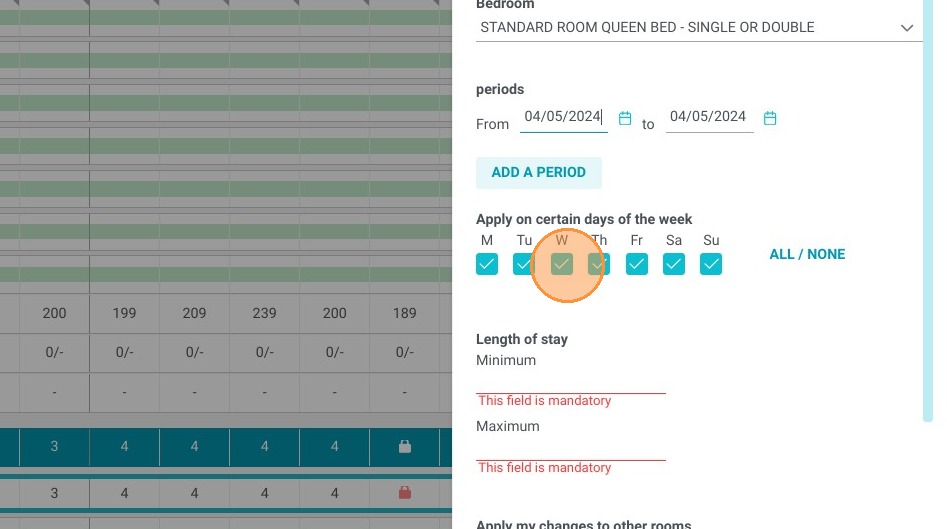
13. You can choose the applicable days.
https://colony-recorder.s3.amazonaws.com/files/2024-04-05/9a534130-a8f1-4089-9255-e370155c9745/ascreenshot_cc1075dc1db345fd875a055e0ccdae13_text_export.jpeg

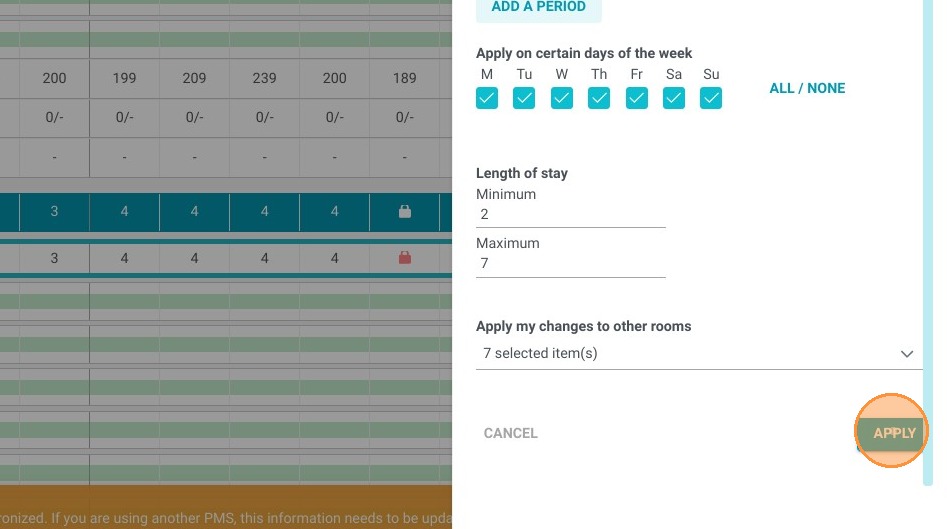
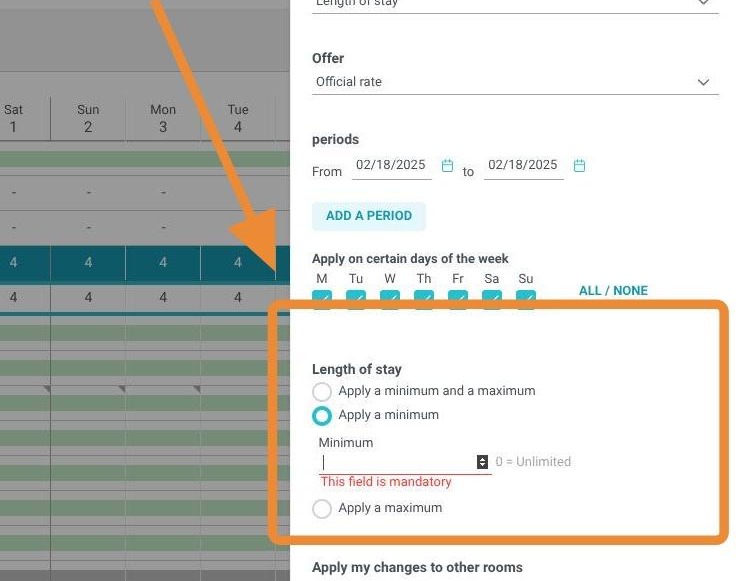
14. Enter the length of stay you wish.
https://colony-recorder.s3.amazonaws.com/files/2025-02-19/853d828d-6bf8-4503-9c90-b9b10e0fafb8/user_cropped_screenshot_d61cf33835df416ba2de1c0bf5705780_text_export.jpeg

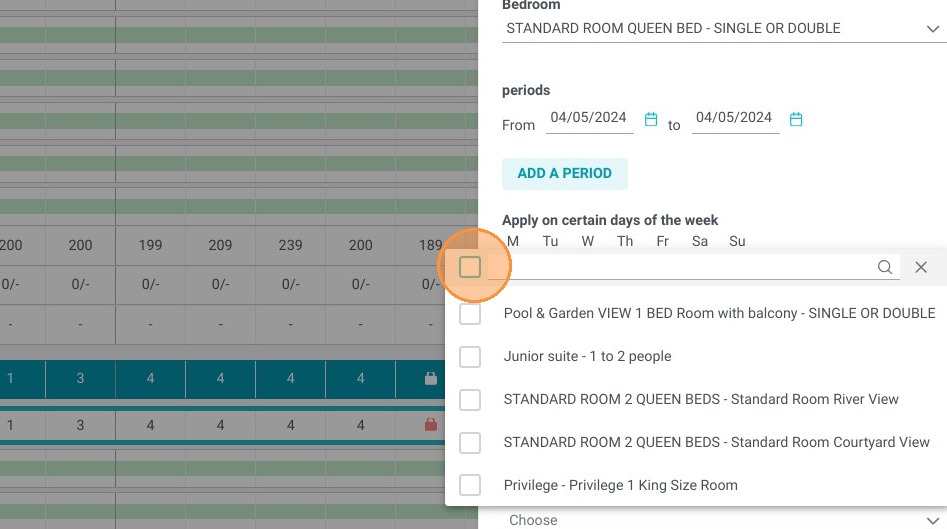
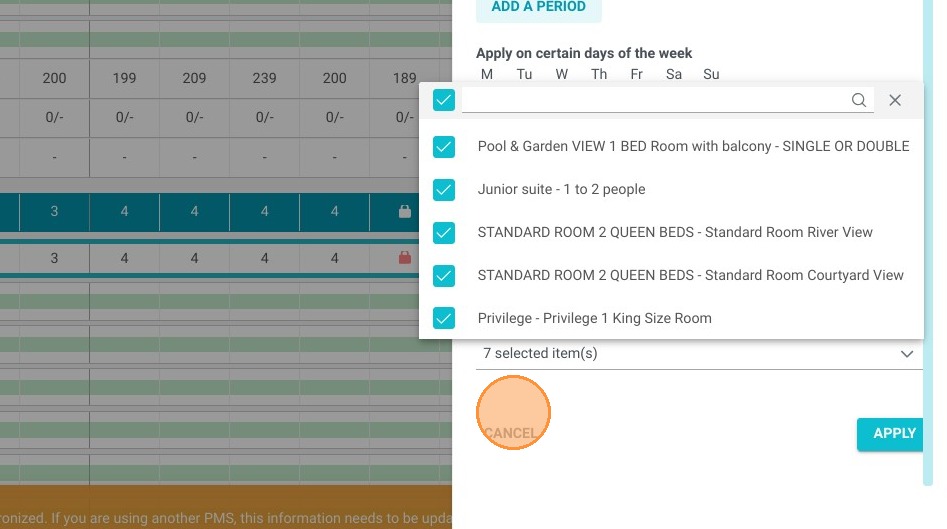
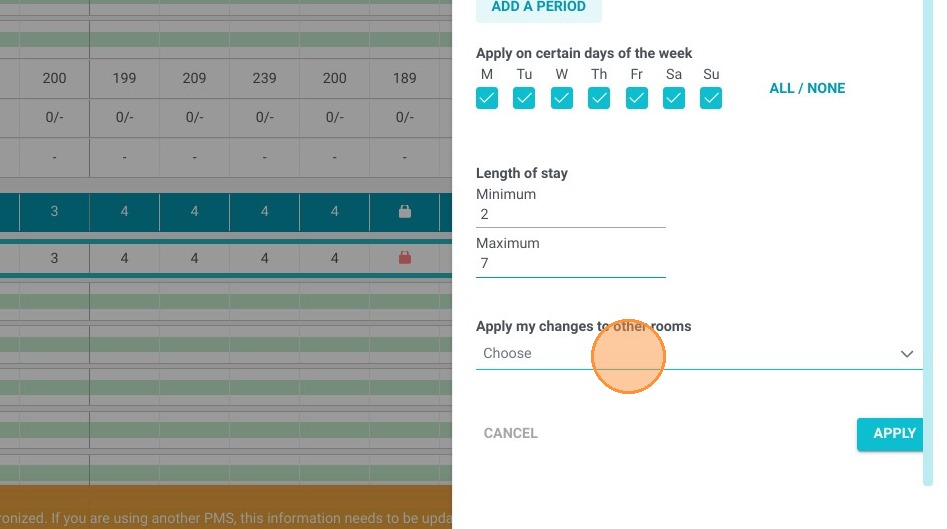
15. You will be able to apply this modification to all of your categories.
https://colony-recorder.s3.amazonaws.com/files/2024-04-05/67e39d22-8df2-4ddd-b69d-0c1d8cff1385/ascreenshot_3efe60efc9e146b986fe085a5ef72f48_text_export.jpeg
https://colony-recorder.s3.amazonaws.com/files/2024-04-05/b0cab29a-1f0a-48d8-821d-32760e81fb53/ascreenshot_156277d07f7a4aa9993236fffbd10374_text_export.jpeg
https://colony-recorder.s3.amazonaws.com/files/2024-04-05/3b9d64b8-08e1-4586-85fb-6736d72c6611/ascreenshot_9b082b3e8789484583e62d597a083e2b_text_export.jpeg

16. To validate, click on “APPLY”.

https://colony-recorder.s3.amazonaws.com/files/2024-04-05/b74ffd12-bec8-40c0-98e7-e55ef9e07ac7/ascreenshot_532103c642aa4522bbb92824879938a5_text_export.jpeg

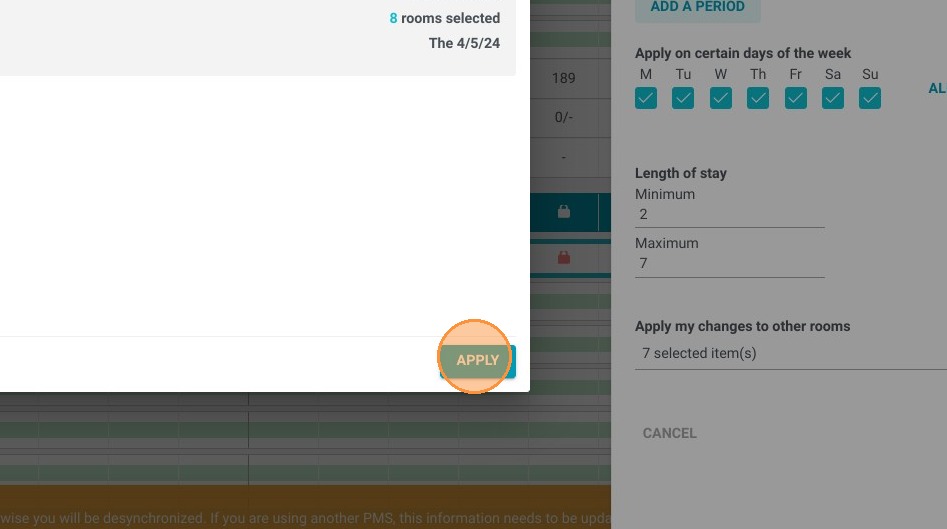
17. You then view a summary. Click “APPLY” again to finalize.
https://colony-recorder.s3.amazonaws.com/files/2024-04-05/61b7135d-c861-47fb-bfdf-f89889a7d5b7/ascreenshot_9cf5c8abe5214c67955e796a4d096c38_text_export.jpeg