

Article Summary: This tutorial shows you how to enable inventory updates from your Reservit interface. You will learn how to allow the inventory planning overload in the settings of "My planning" and save this setting, so you can update your inventory directly in Reservit when you do not use a PMS.
The 3 Key Steps to Enable Inventory Updates:
-
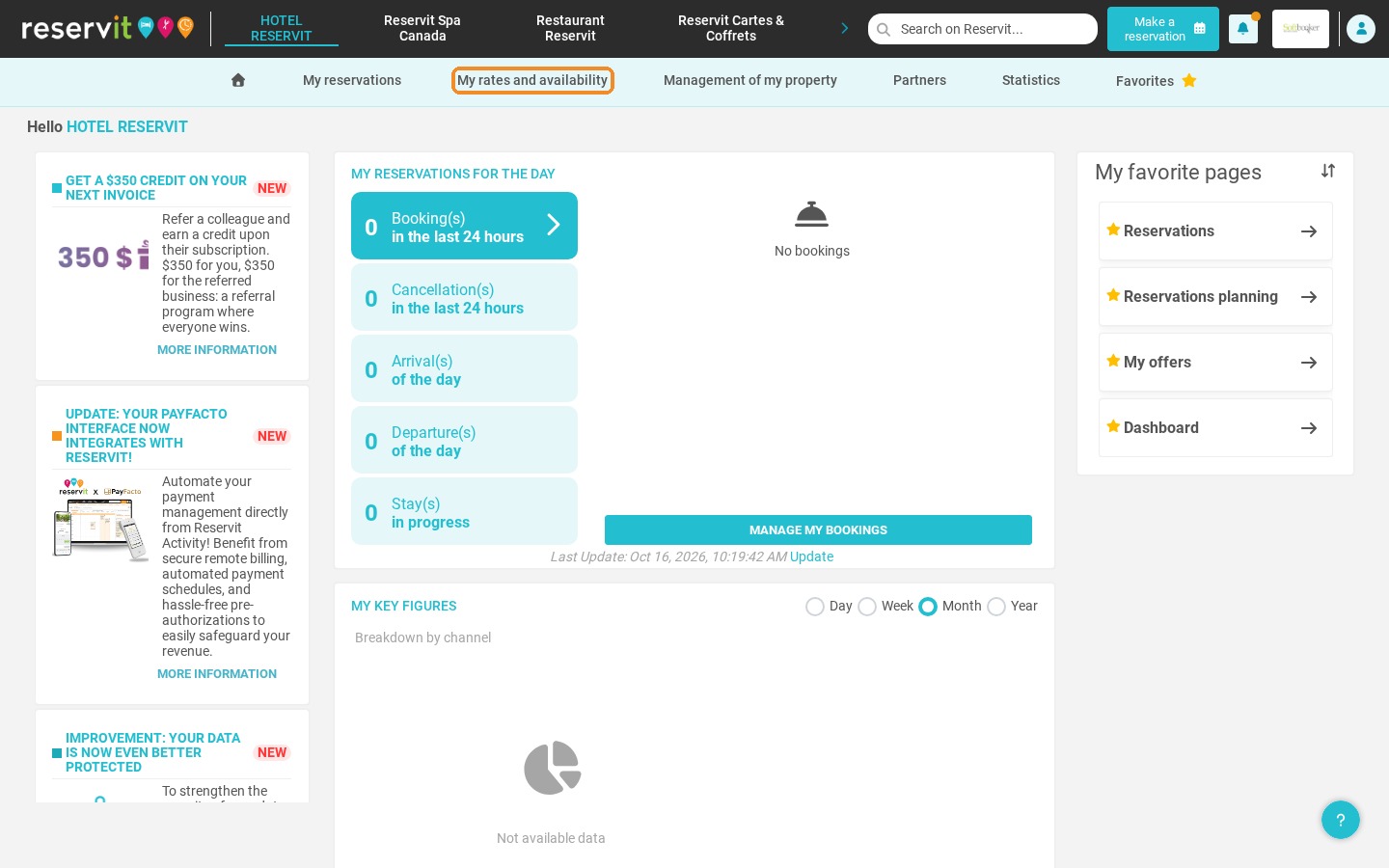
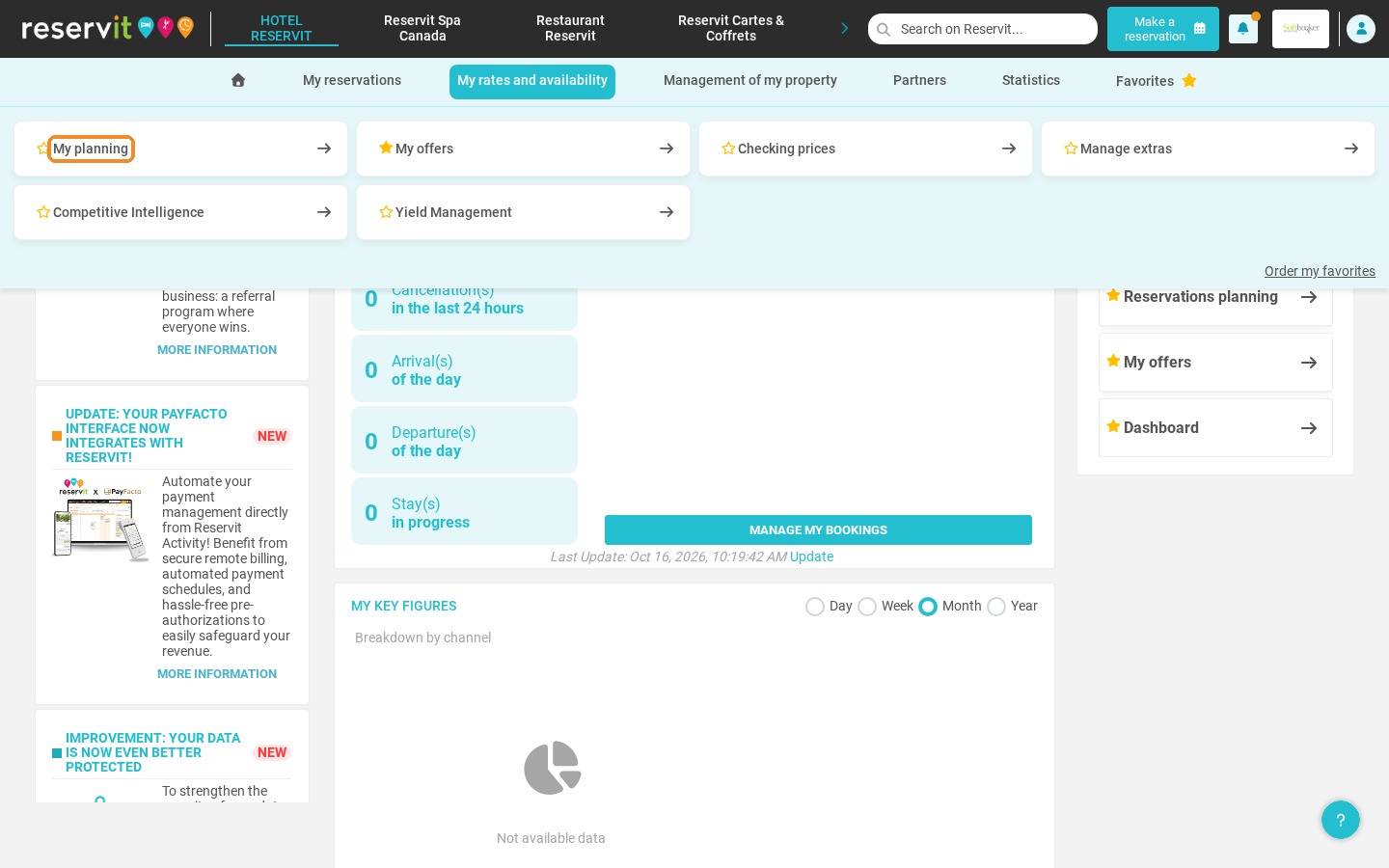
Open your planning: Go to "My rates and availability", then "My planning".
-
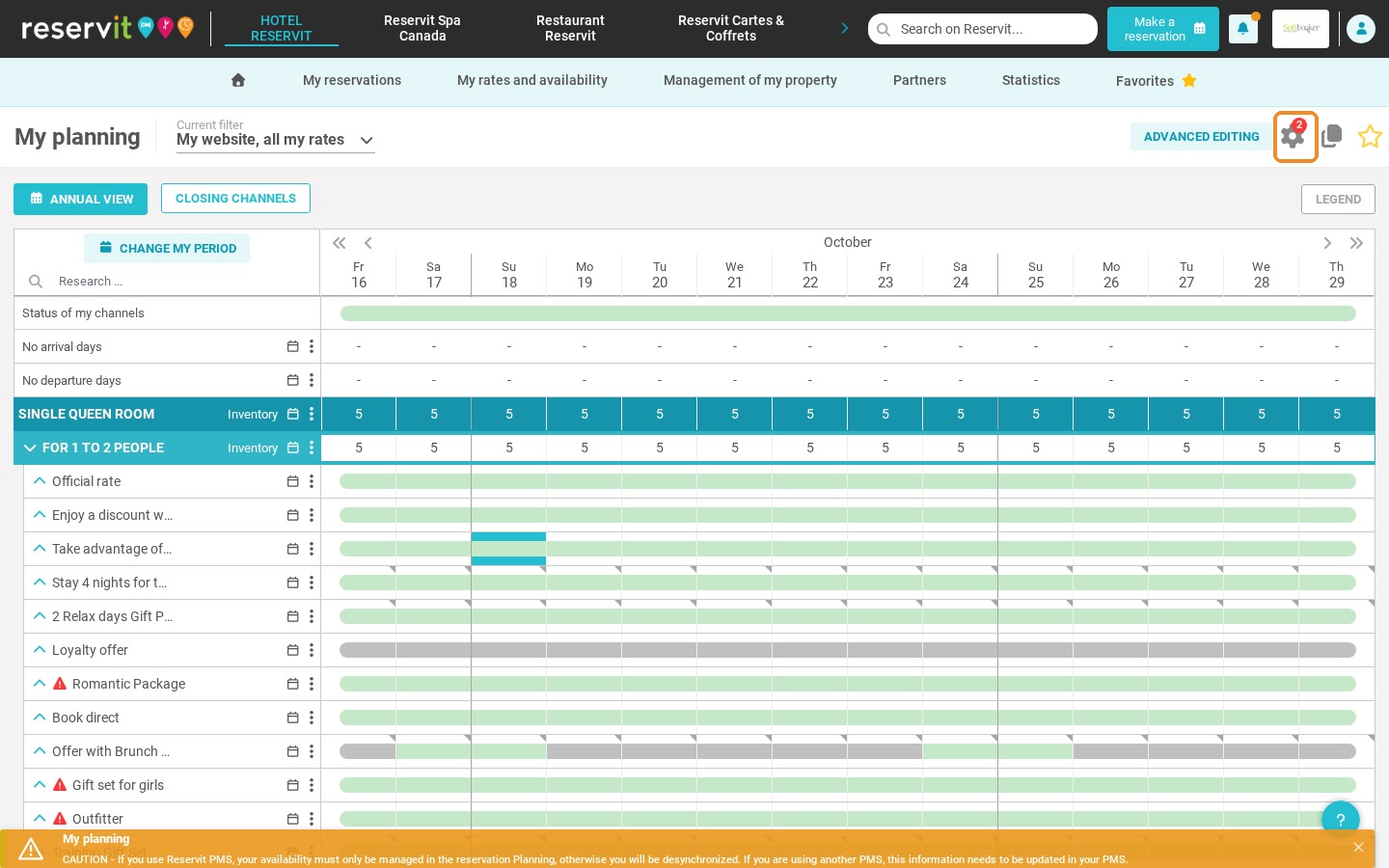
Open the planning settings: Click the settings icon at the top right of the planning.
-
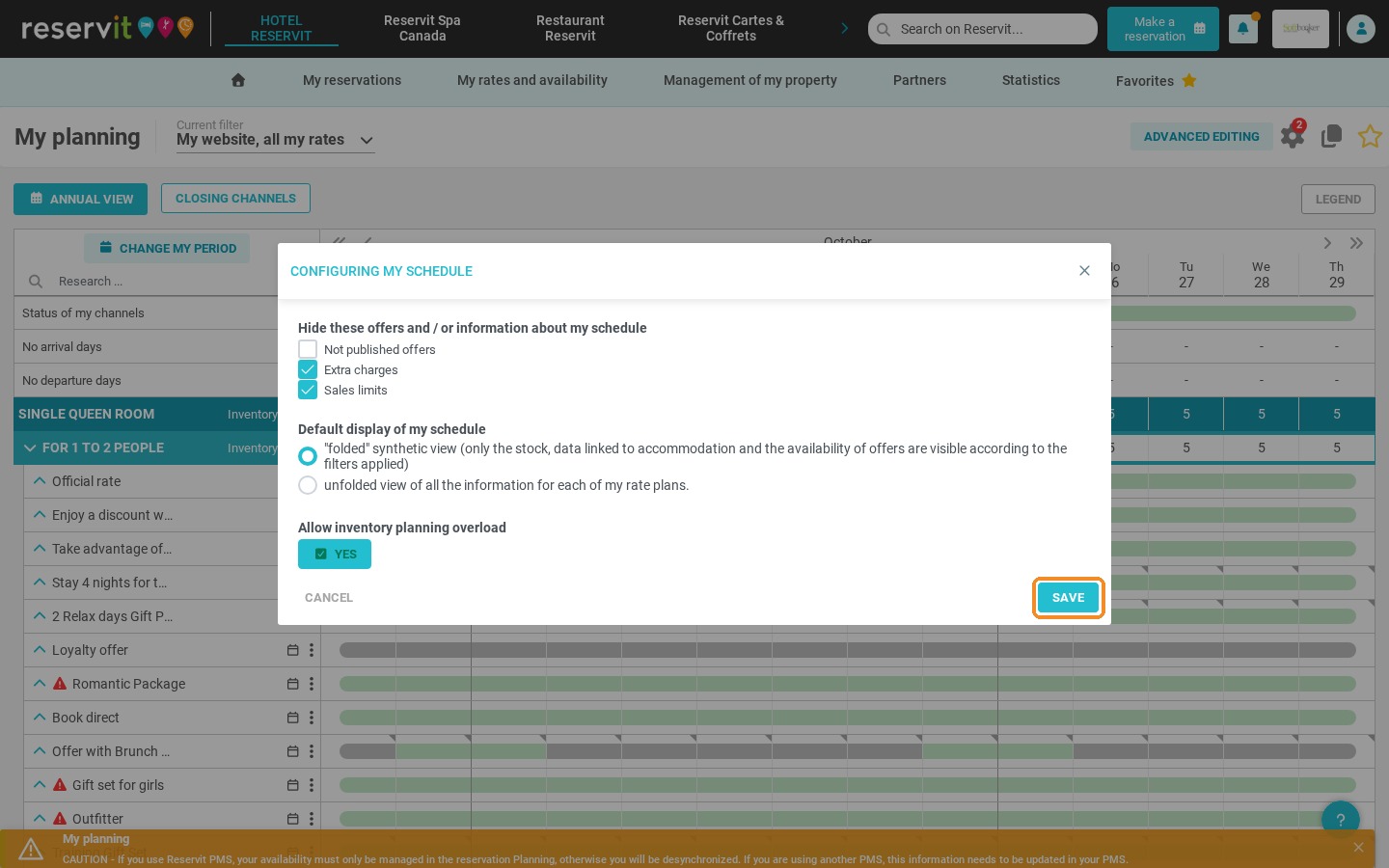
Allow the inventory overload: Under "Allow inventory planning overload", select "Yes", then click "Save".
Why Follow This Guide? Without a PMS, Reservit is where your inventory is managed. Enabling this setting lets you update your available rooms yourself, directly from the planning, and keep your availability accurate on all your channels.
My planning
1. Click "My rates and availability", then "My planning".
2. Click the settings icon of the planning.
Configure the planning settings
3. Under "Allow inventory planning overload", select "Yes".
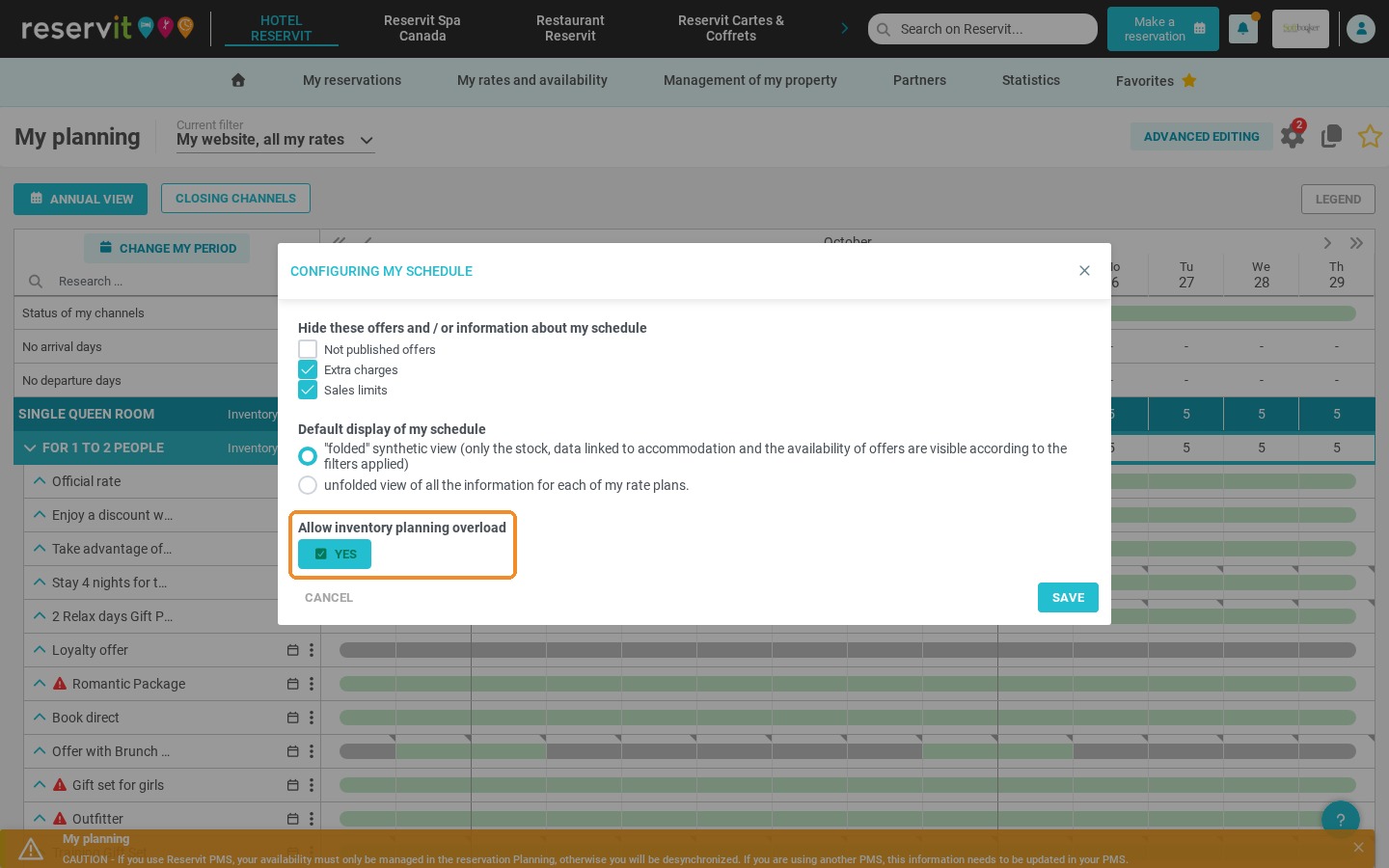
4. Click "Save".
If you use Reservit PMS, your availability must only be managed in the reservation planning, otherwise it will be desynchronized. If you use another PMS, your inventory must be updated in your PMS.