Article Summary: This step-by-step tutorial explains how to efficiently make relative adjustments to your prices within Reservit Accommodation. You will learn how to leverage the advanced editing tool to apply bulk rate increases or discounts by specific flat amounts or percentages. Mastering this feature allows you to swiftly adapt your pricing strategy to shifting market demands, ensuring your lodging remains perfectly priced and highly competitive.
The 4 key steps to make relative adjustments to your prices:
-
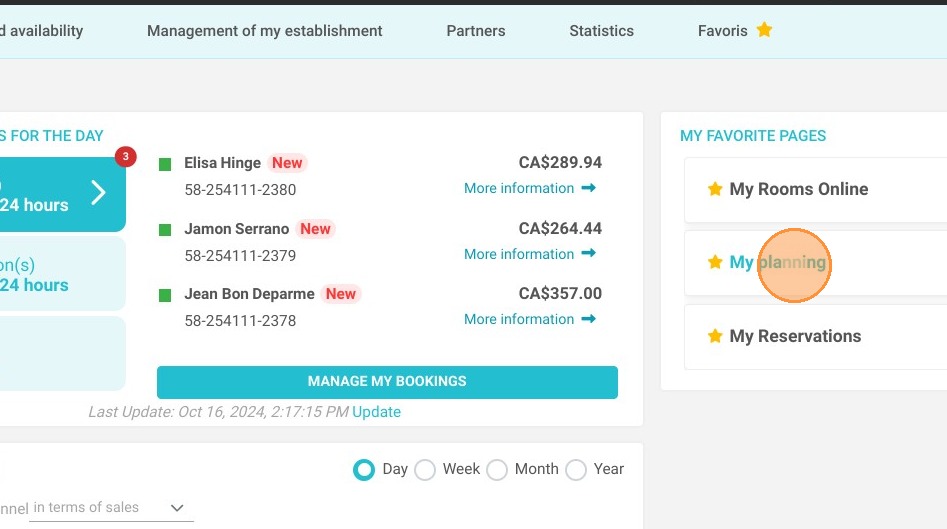
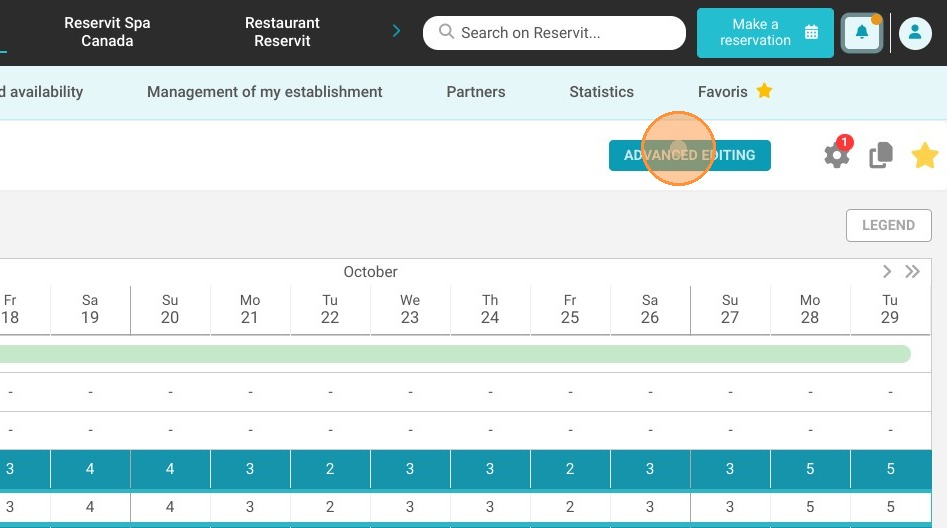
Access the advanced editor: Navigate to your "My Planning" dashboard and click the "ADVANCED EDITING" button to initiate bulk rate modifications.
-
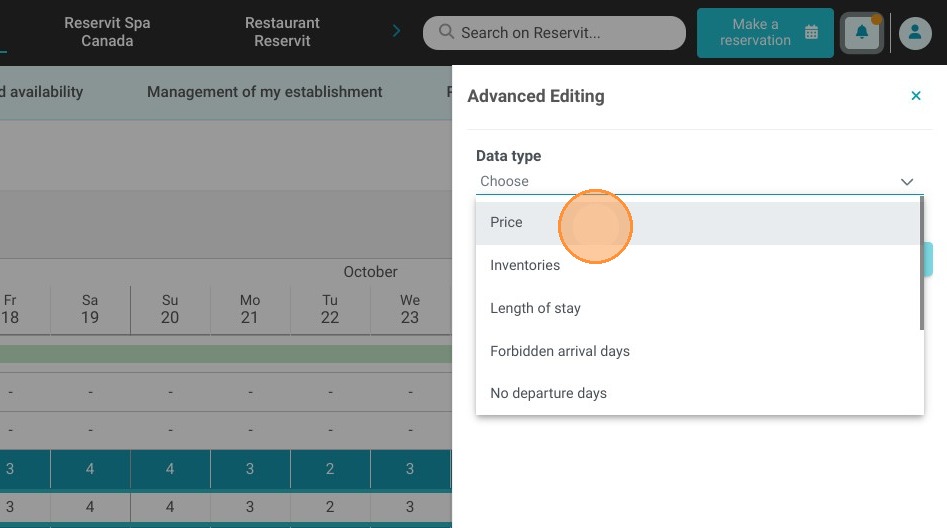
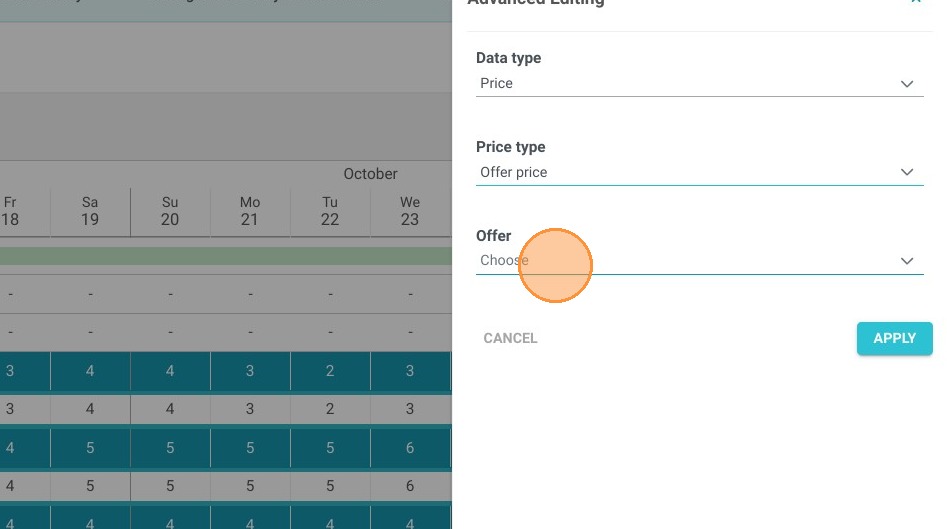
Define your target parameters: Select "price" as your specific data type, then choose the targeted offer, date ranges, and exact room types you wish to update.
-
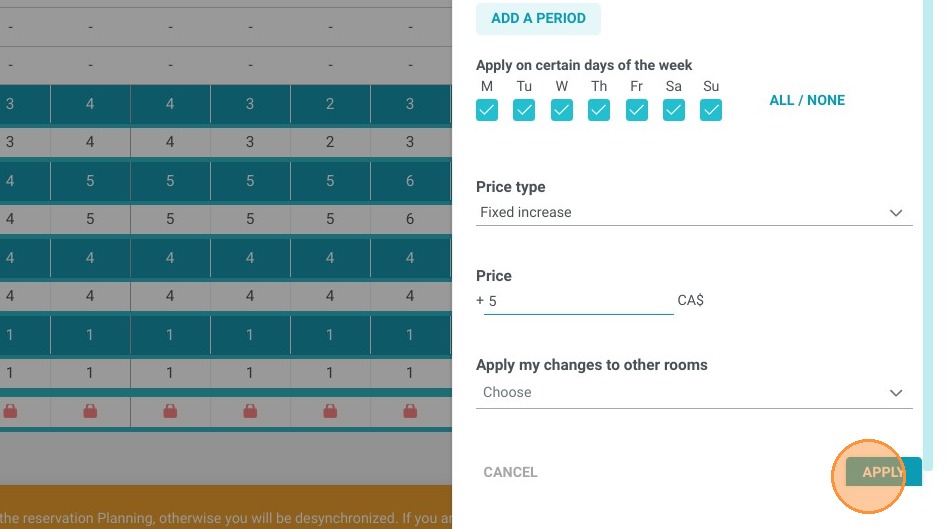
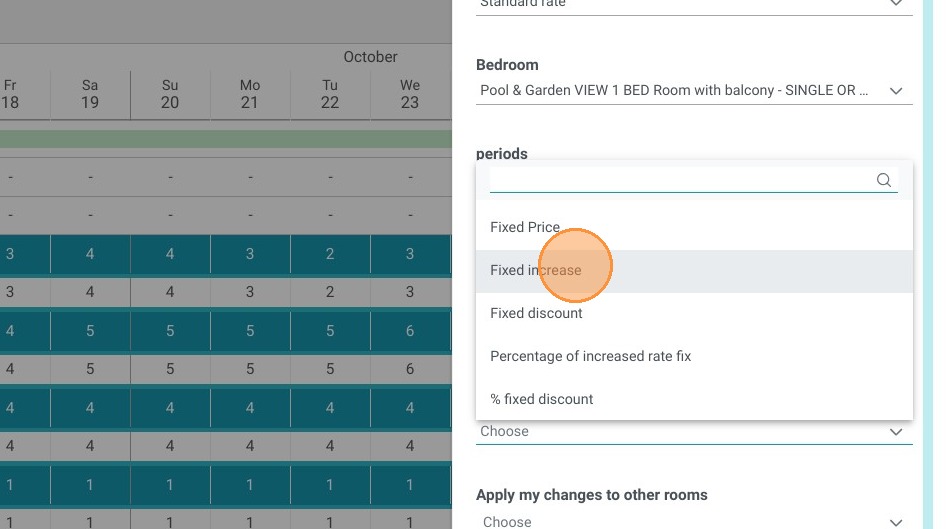
Select the adjustment type: In the "price type" section, select the specific action you want to perform, such as applying a fixed dollar amount or a percentage-based increase/decrease.
-
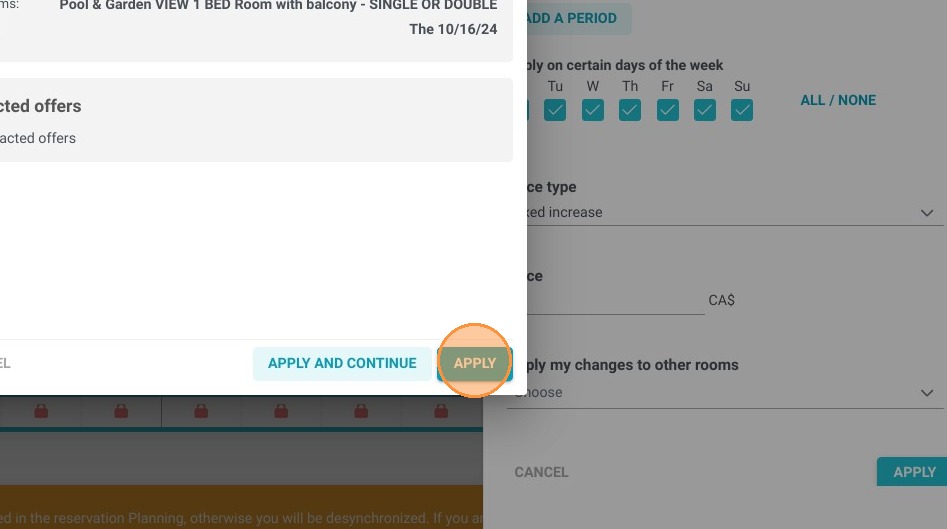
Apply and finalize: Verify your selected modification parameters and click "Apply" to instantly push the calculated price changes to your calendar grid.
Why follow this guide? Following this precise bulk editing process eliminates the need to manually recalculate and update daily rates one by one, saving you hours of administrative time. It ensures your seasonal markups or flash-sale discounts are applied accurately and securely across your entire inventory, significantly reducing the risk of costly pricing errors.
1. If you wish to increase or decrease your prices by a certain amount or percentage on an offer you can do so simply by going to My Planning then clicking on the "ADVANCED EDITING" button
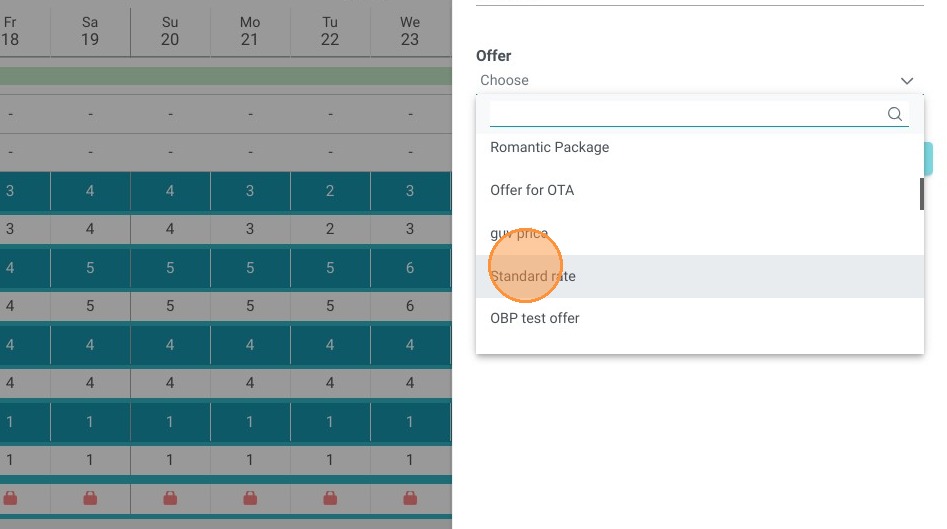
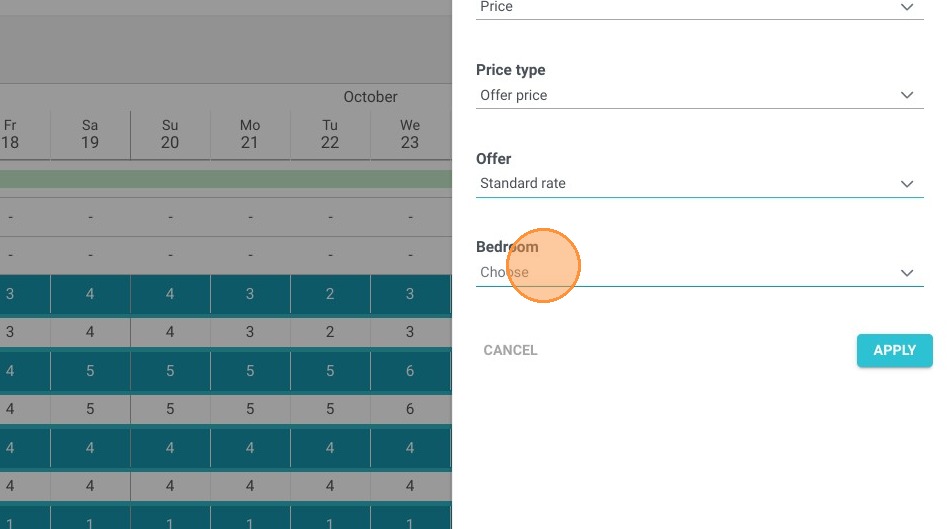
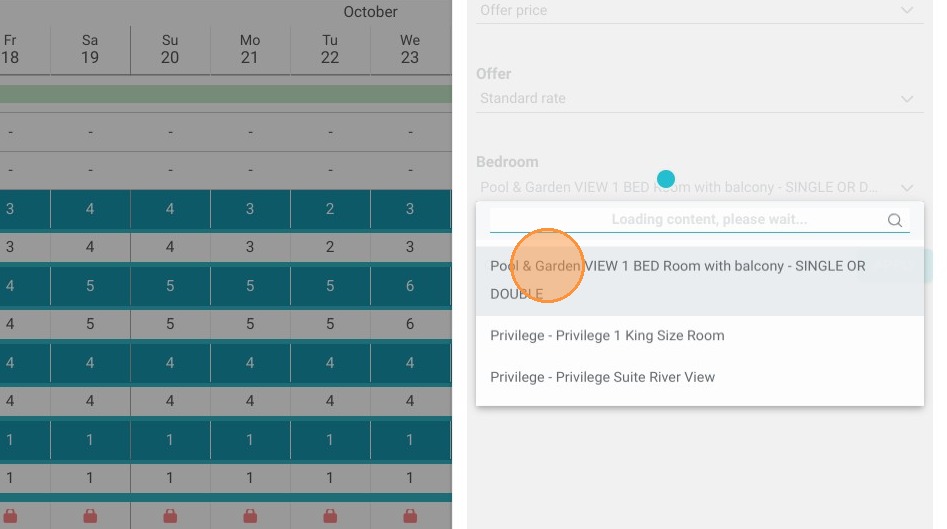
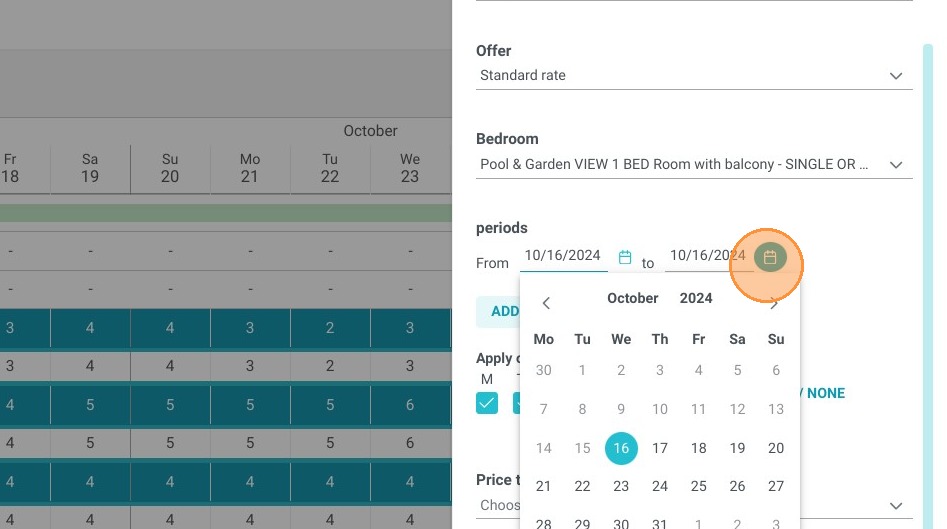
2. Then complete the following fields by selecting "price" then the offer concerned. Enter the dates and the room to which you wish to make the modification.
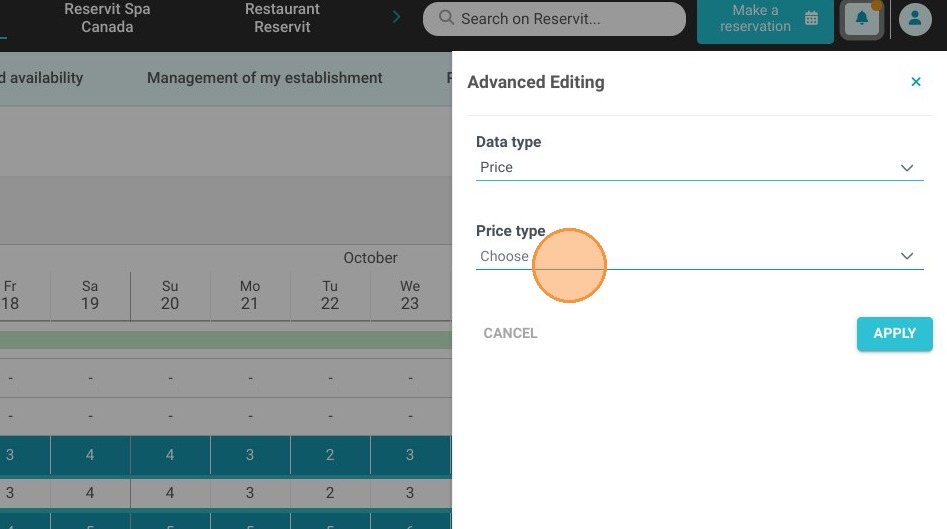
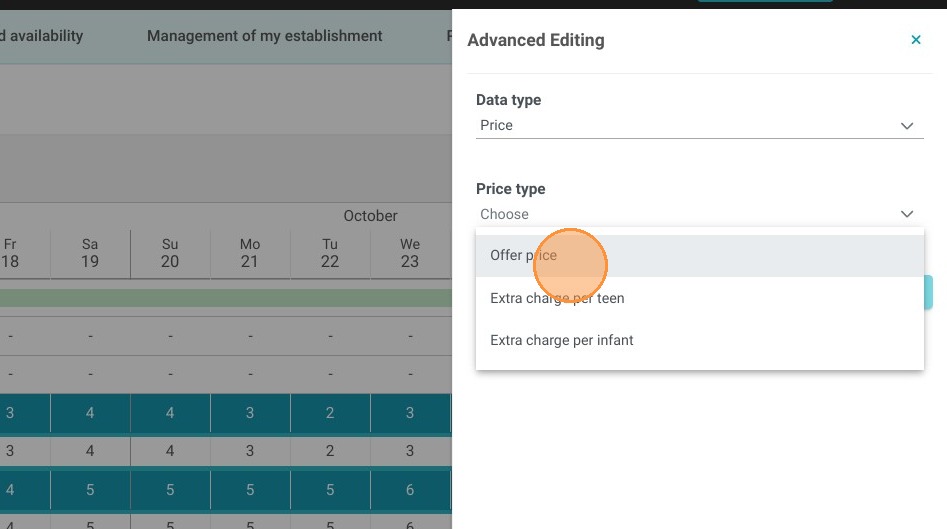
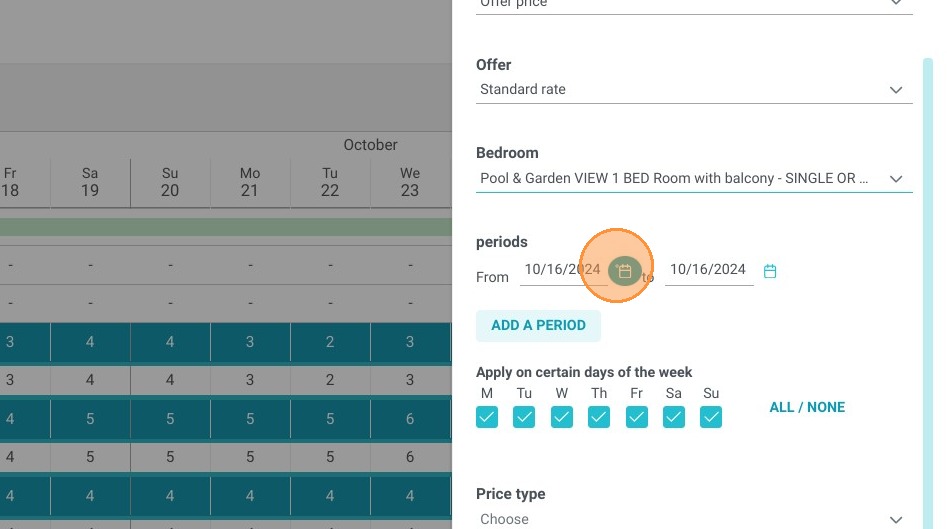
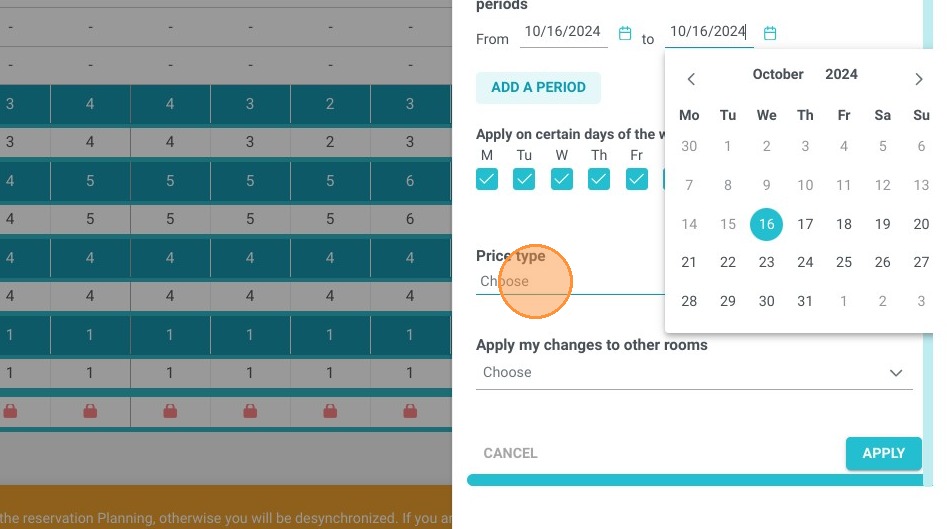
3. Then in the “price type” section select the action you want to perform.
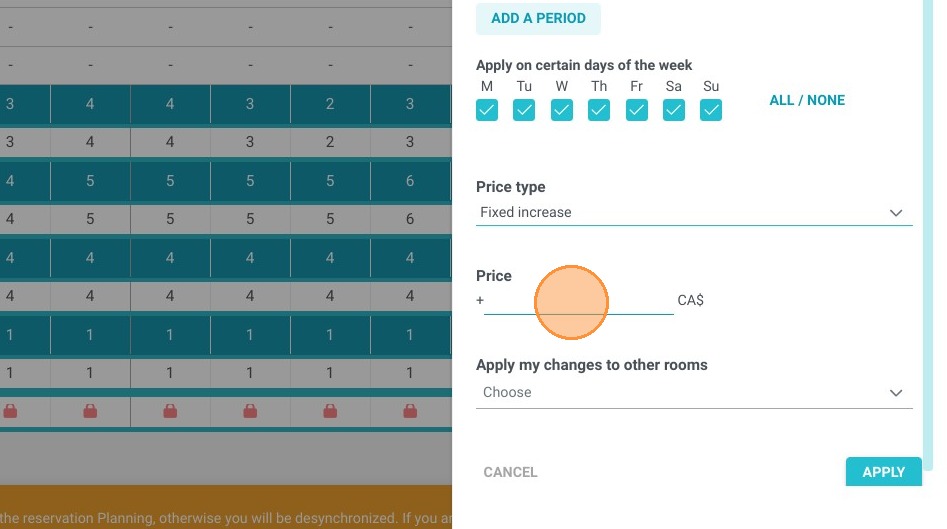
4. Then, click Apply.