Article Summary: This tutorial guides you step by step through the navigation and management of your planning in Reservit Accommodation. You will learn how to check your availability, prices and restrictions from a single screen, switch between the different views and close your distribution channels in a few clicks. Mastering this tool makes the day-to-day management of your property much simpler.
The 5 Key Steps to Master Your Planning:
-
Open the planning: Go to "My rates and availability", then "My planning" to view all your units and the offers linked to them.
-
Check the details of your offers: Unfold an offer to see the prices configured for each occupancy.
-
Apply changes: Use "Advanced editing" to adjust your prices, lengths of stay, offer validity and other restrictions.
-
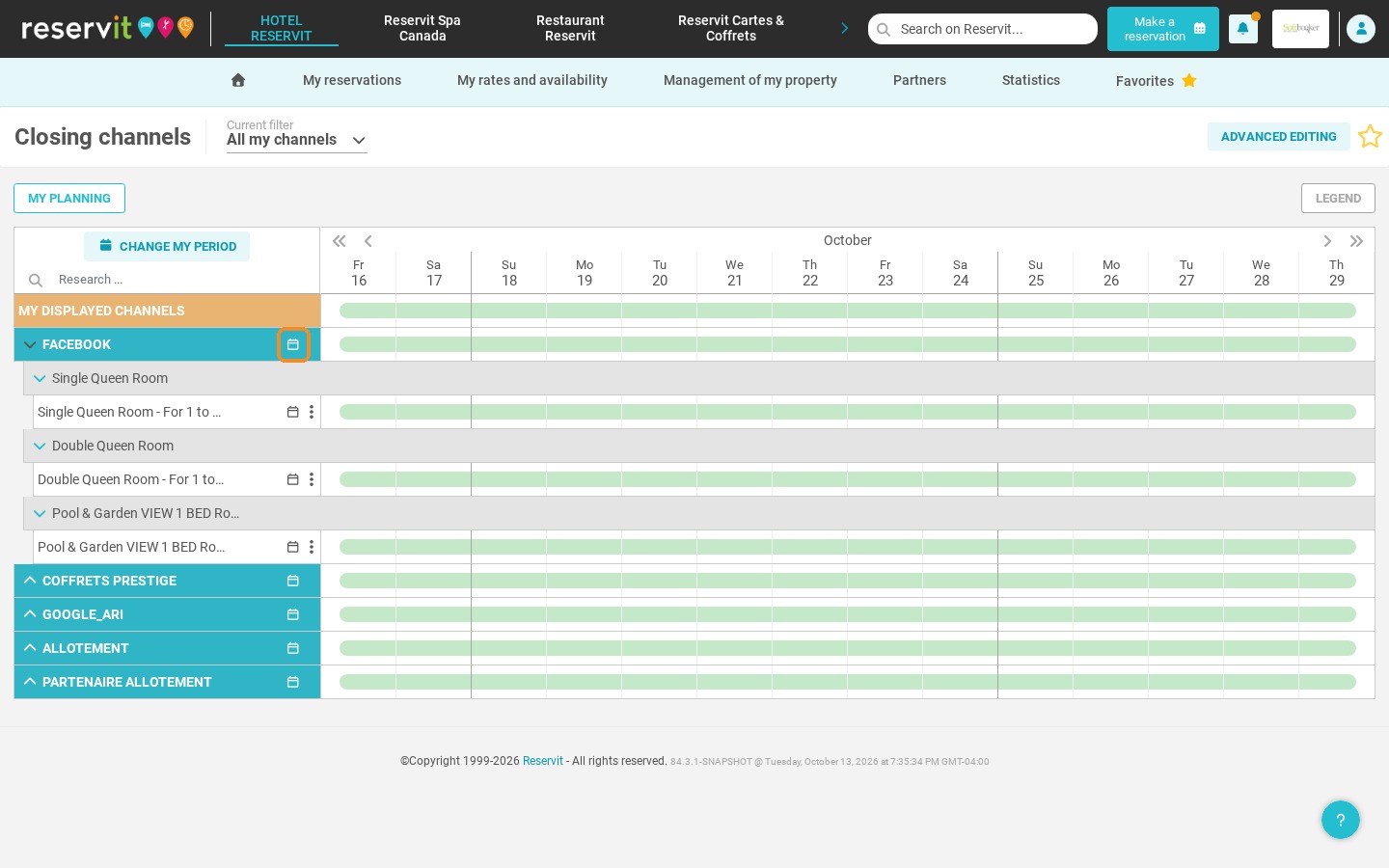
Switch views and periods: Change the period displayed, open the annual calendar of an offer or switch to the "Annual view".
-
Close your channels: Use the "Closing channels" shortcut to stop sales on a distributor, for the whole property or for specific rooms.
Why Follow This Guide? Managing your rates and restrictions from a single planning saves you valuable time and greatly reduces the risk of errors and overbooking. You keep full control over your online distribution and can adapt your pricing strategy quickly to demand.
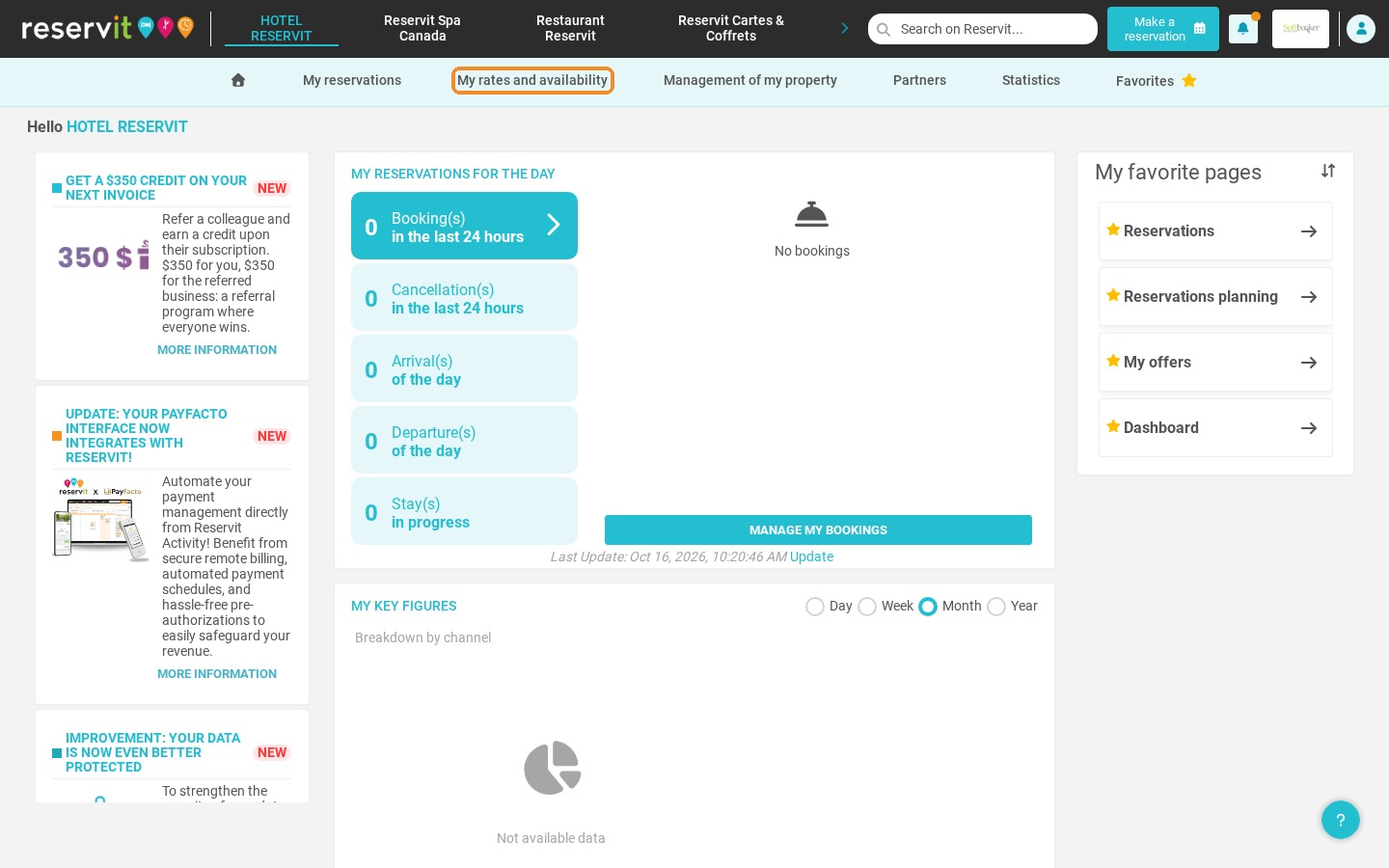
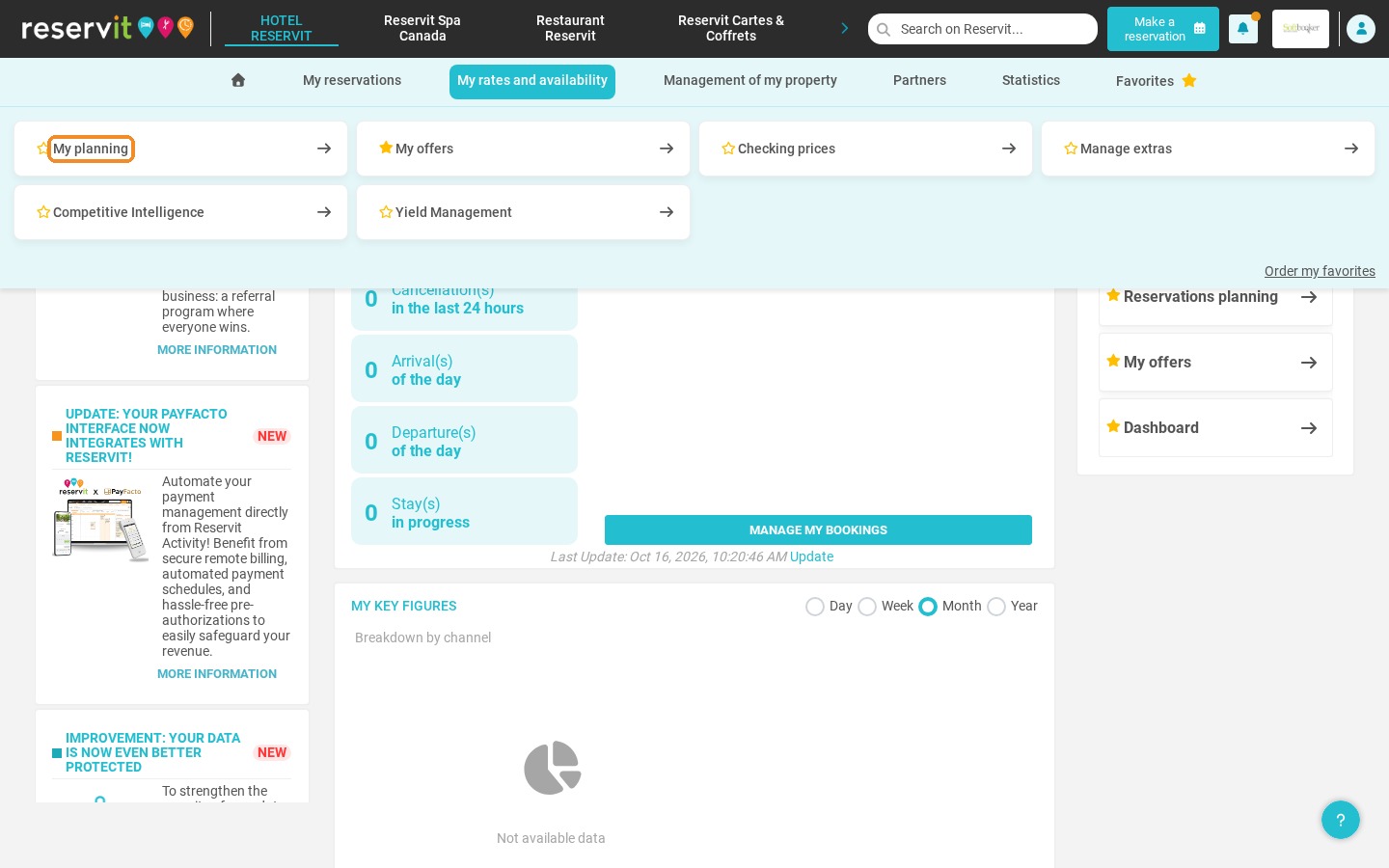
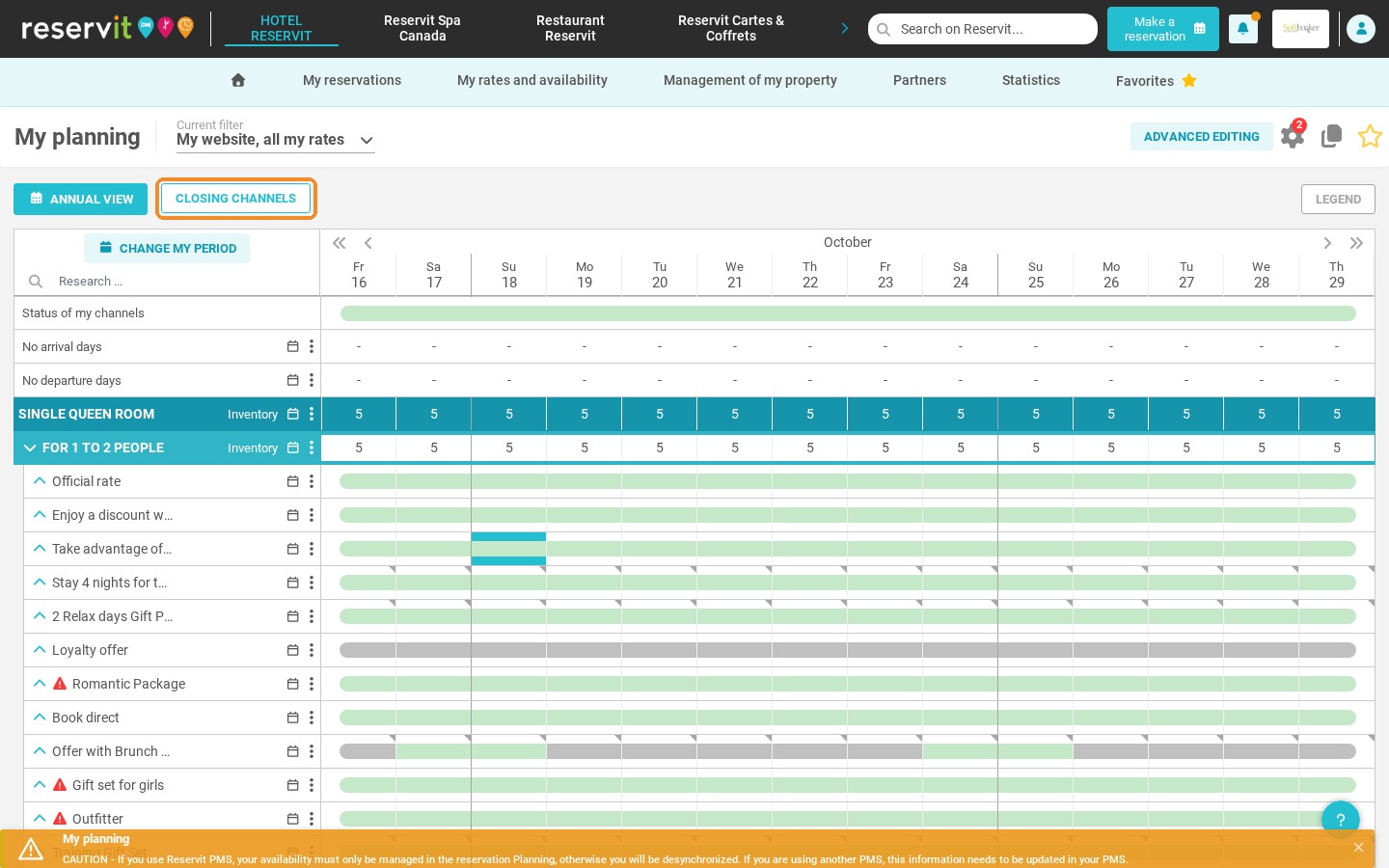
1. You can check and change the prices, restrictions and validity of your offers either from the offer itself or from your planning. To do so, click "My rates and availability", then "My planning".
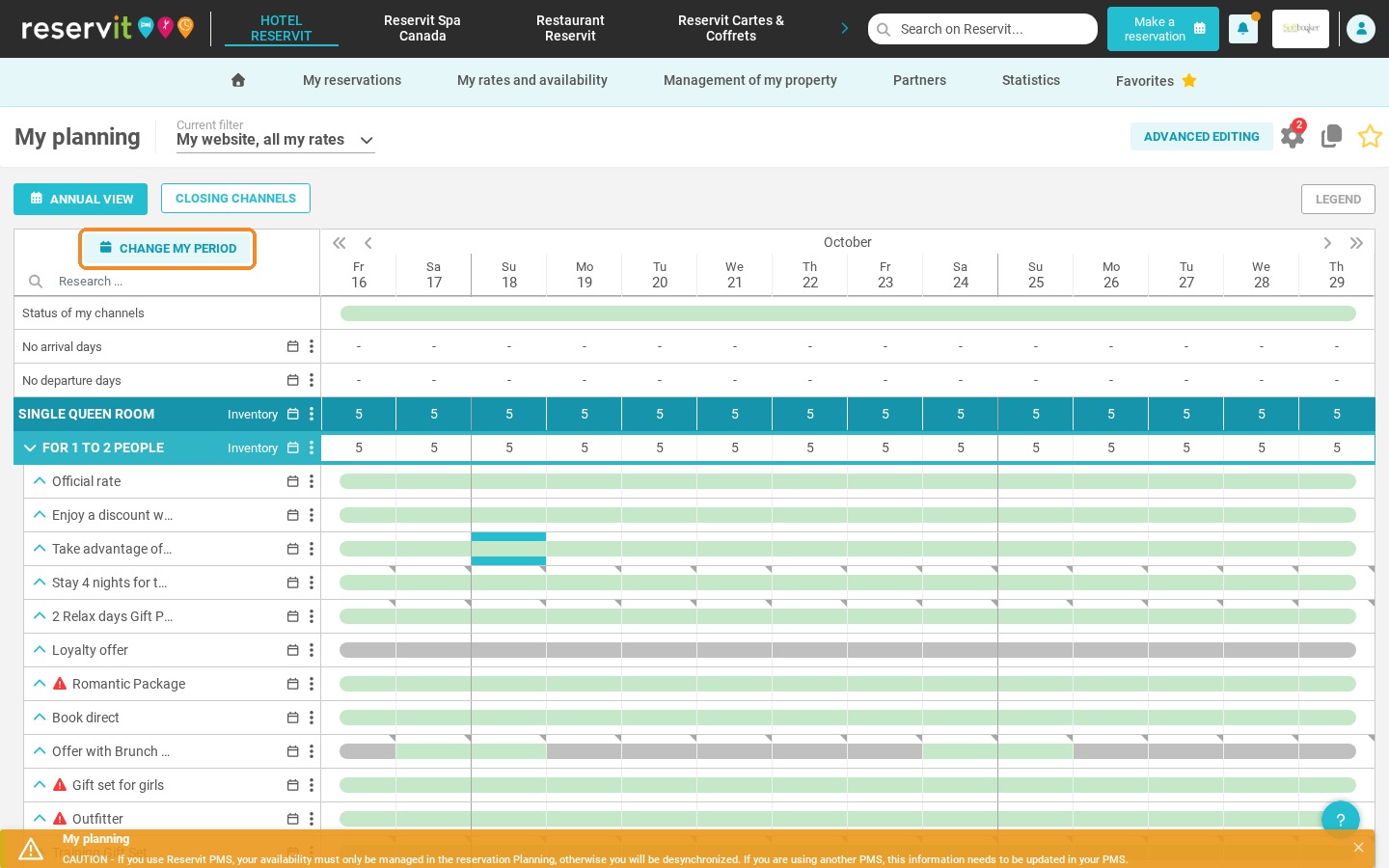
2. This is your planning. It shows all your units and all the offers linked to them.
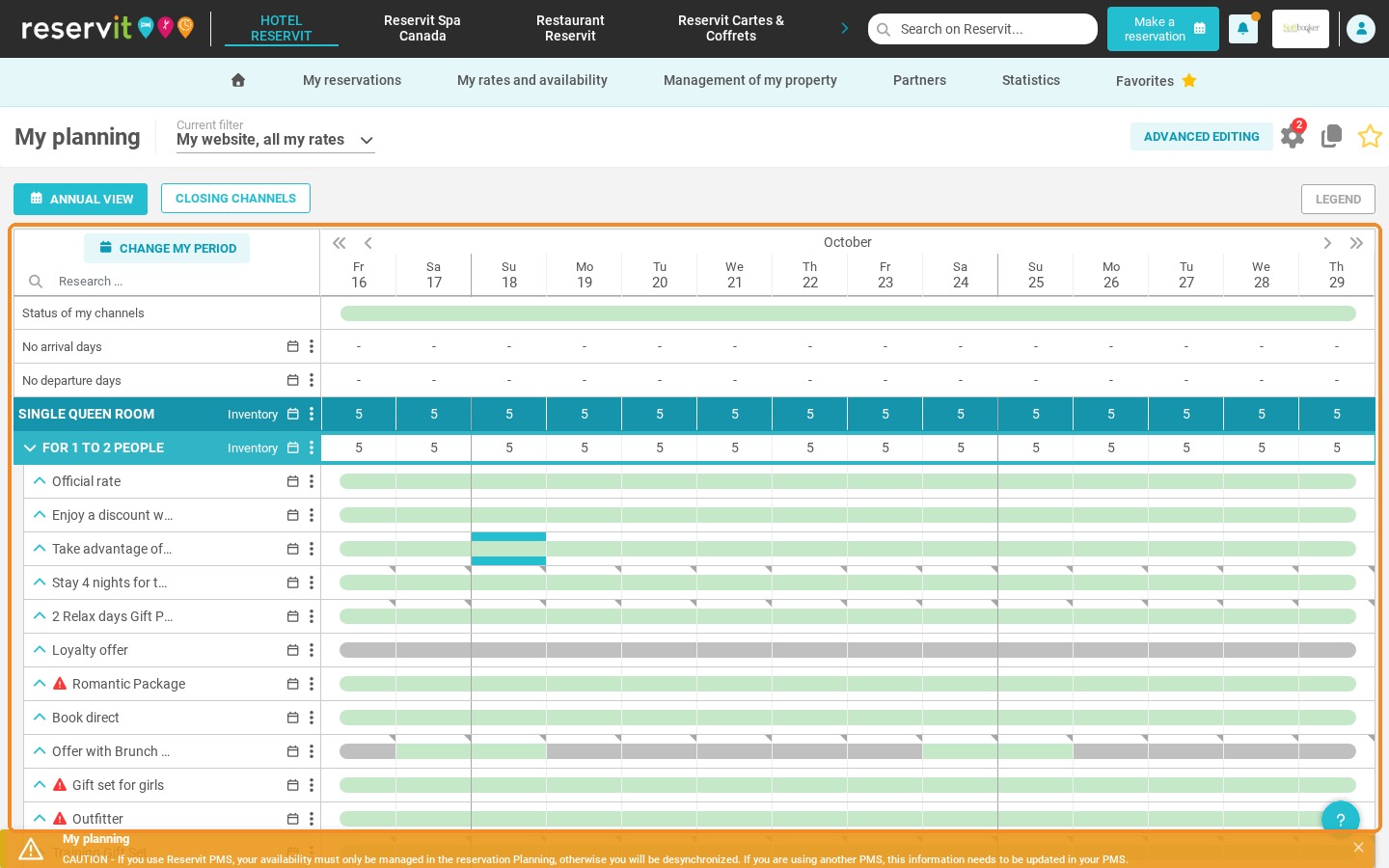
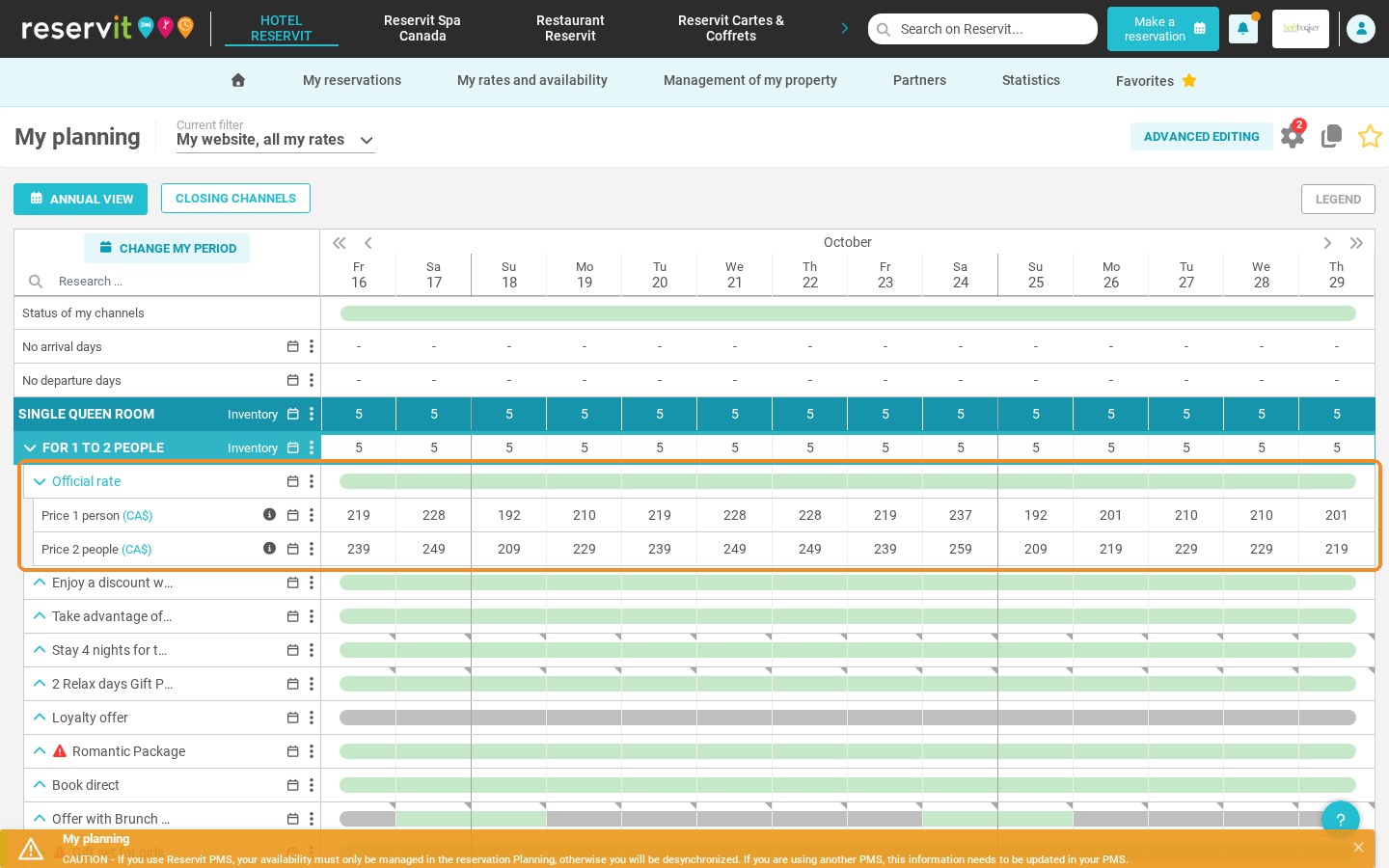
3. Click the name of an offer, or the arrow to its left, to see what is configured. Here you can see the prices set for the "Official rate" offer for each occupancy. To set these prices, see How to Configure Your Reference Rate by Occupancy in Reservit.
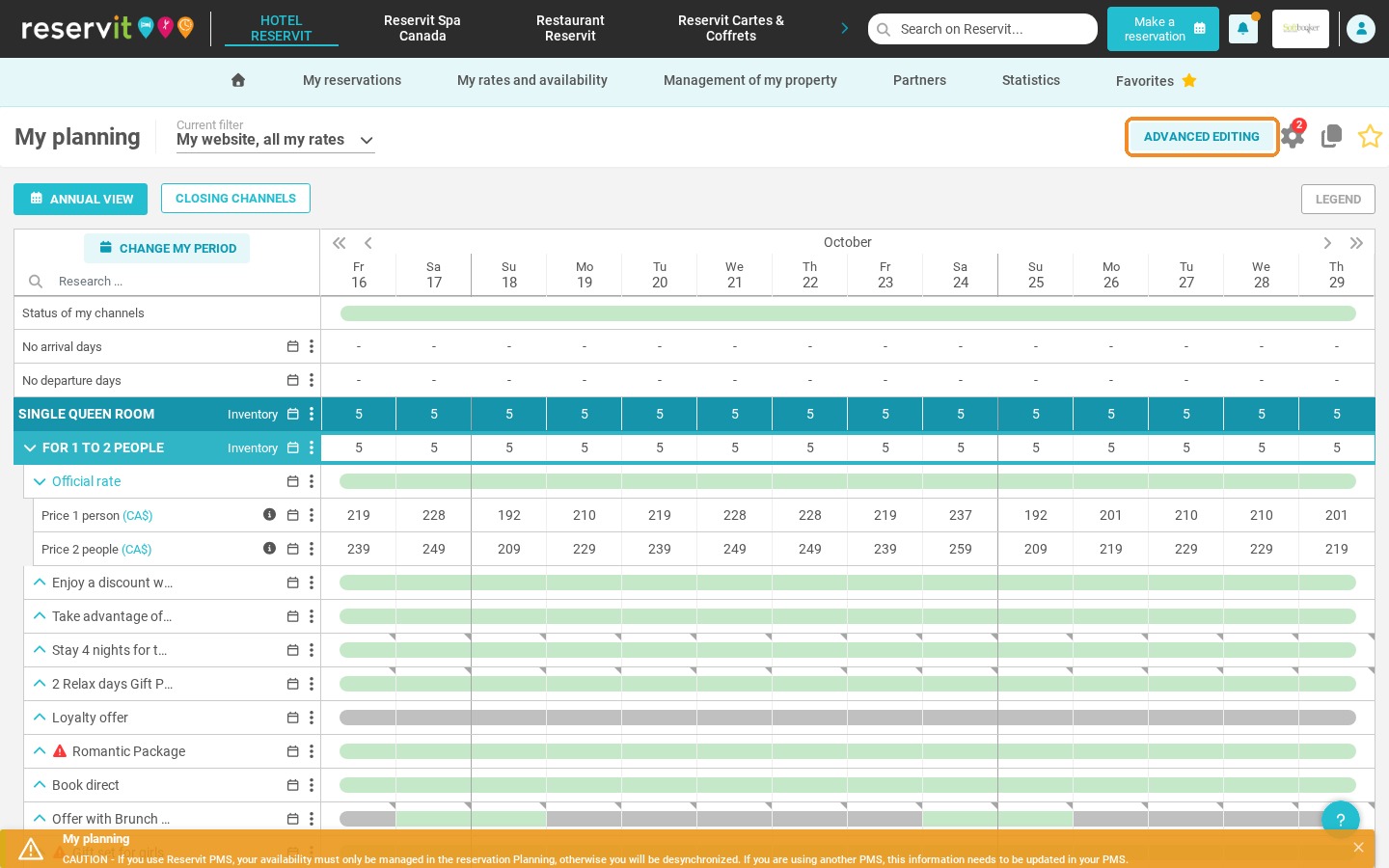
4. Use the "Advanced editing" button to change prices, lengths of stay, offer validity and other restrictions.
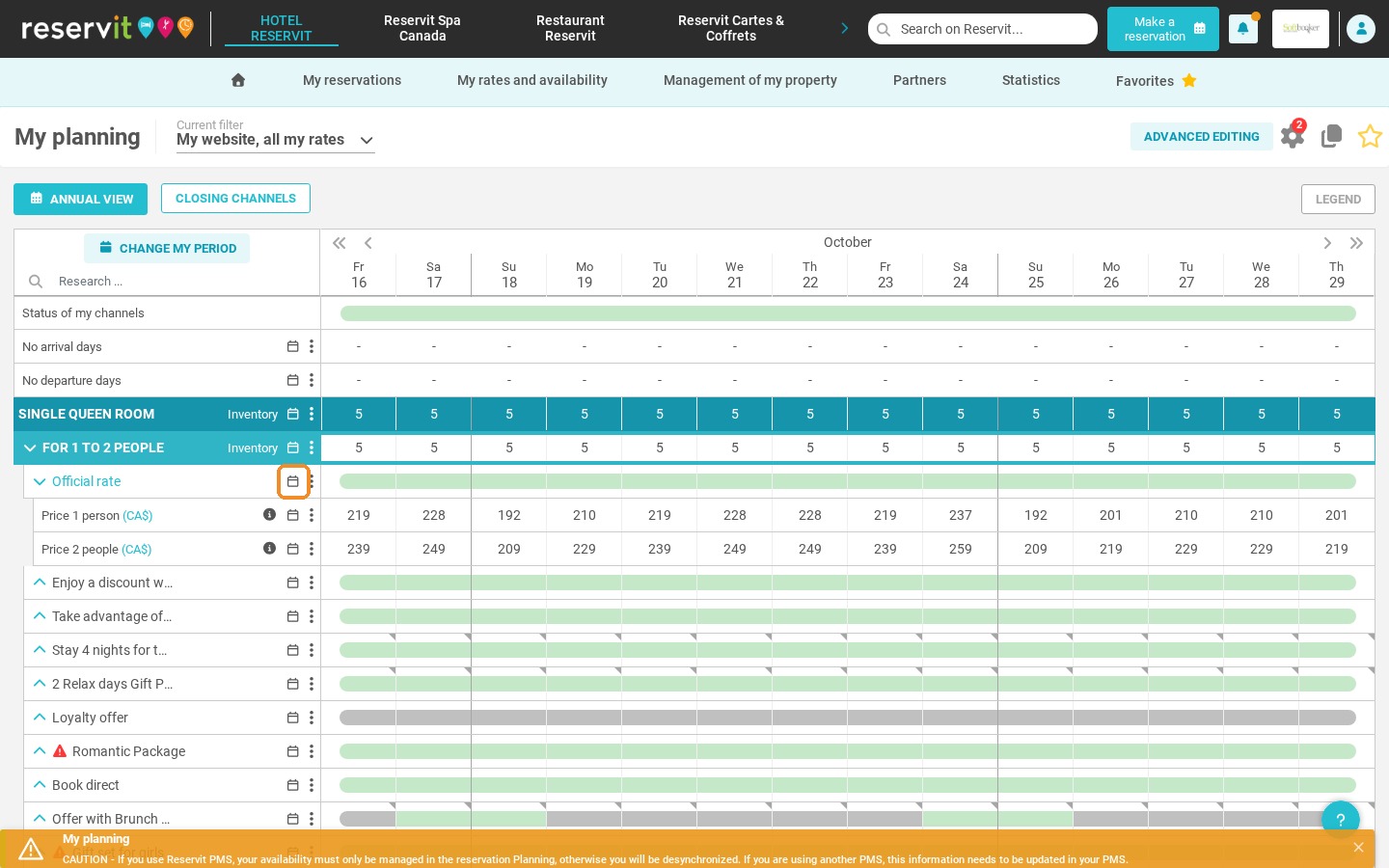
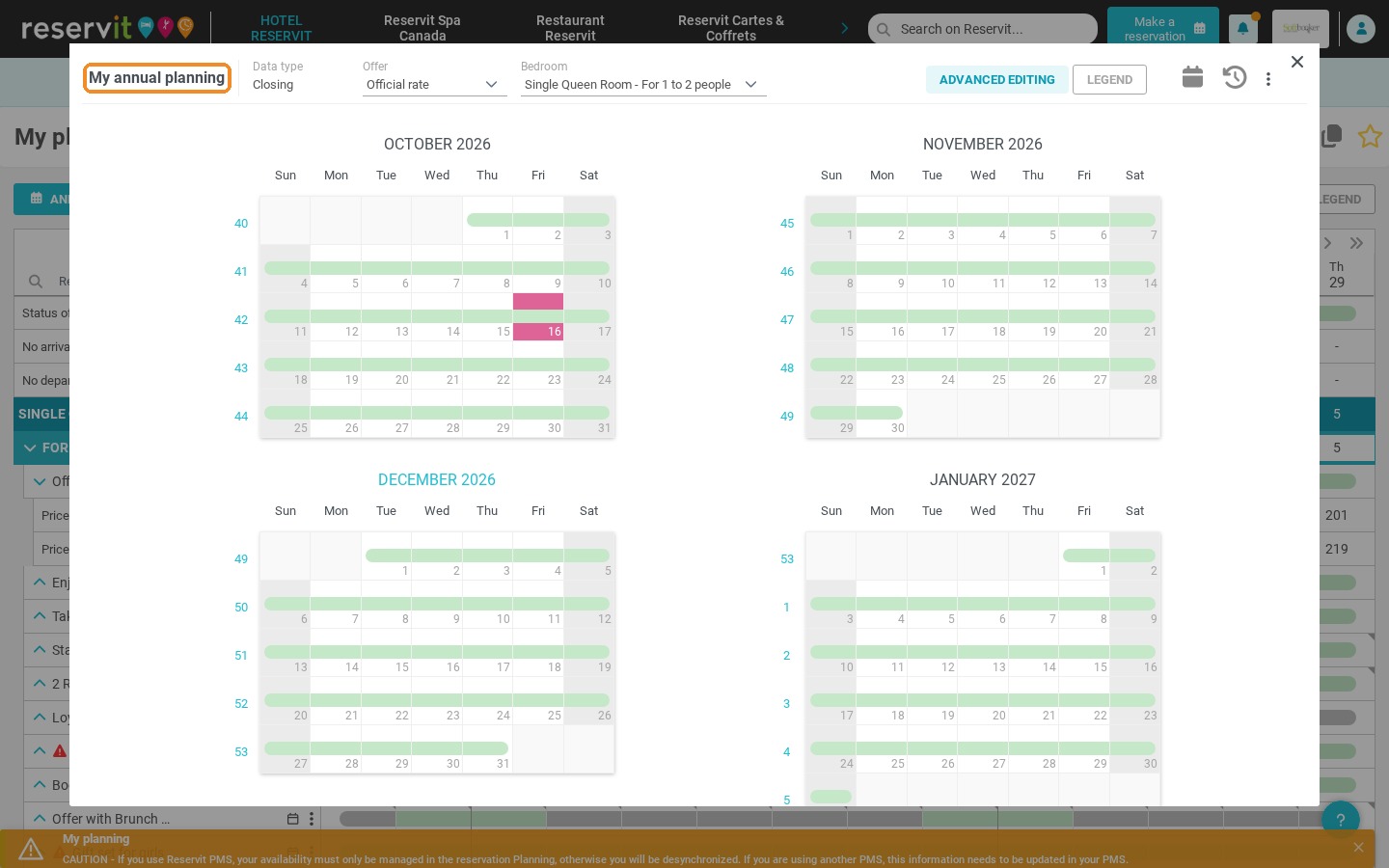
5. The small calendar next to each offer shows when the offer is valid over the whole year.
6. Click "Change my period" to change the start date and the number of days displayed on the planning.
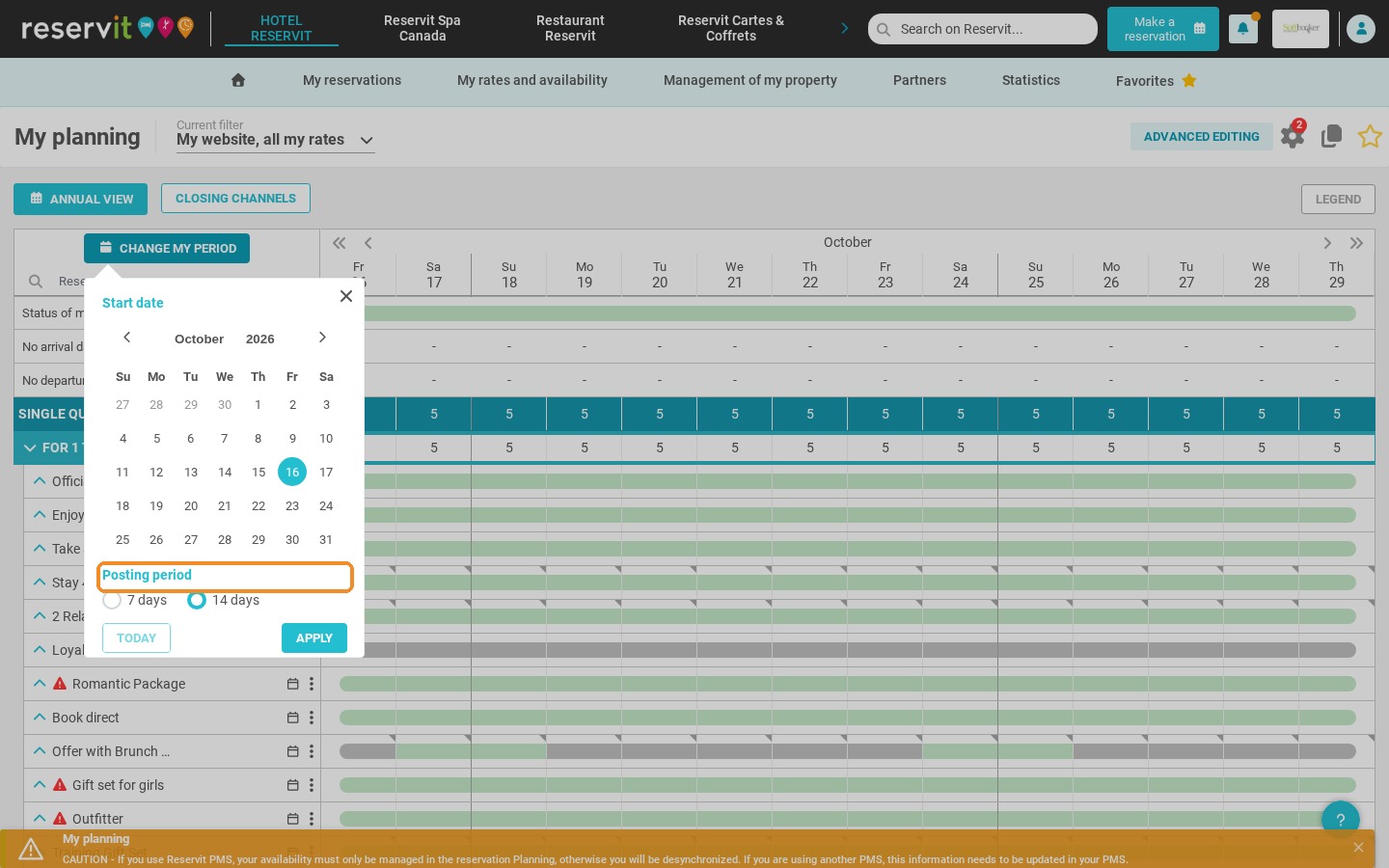
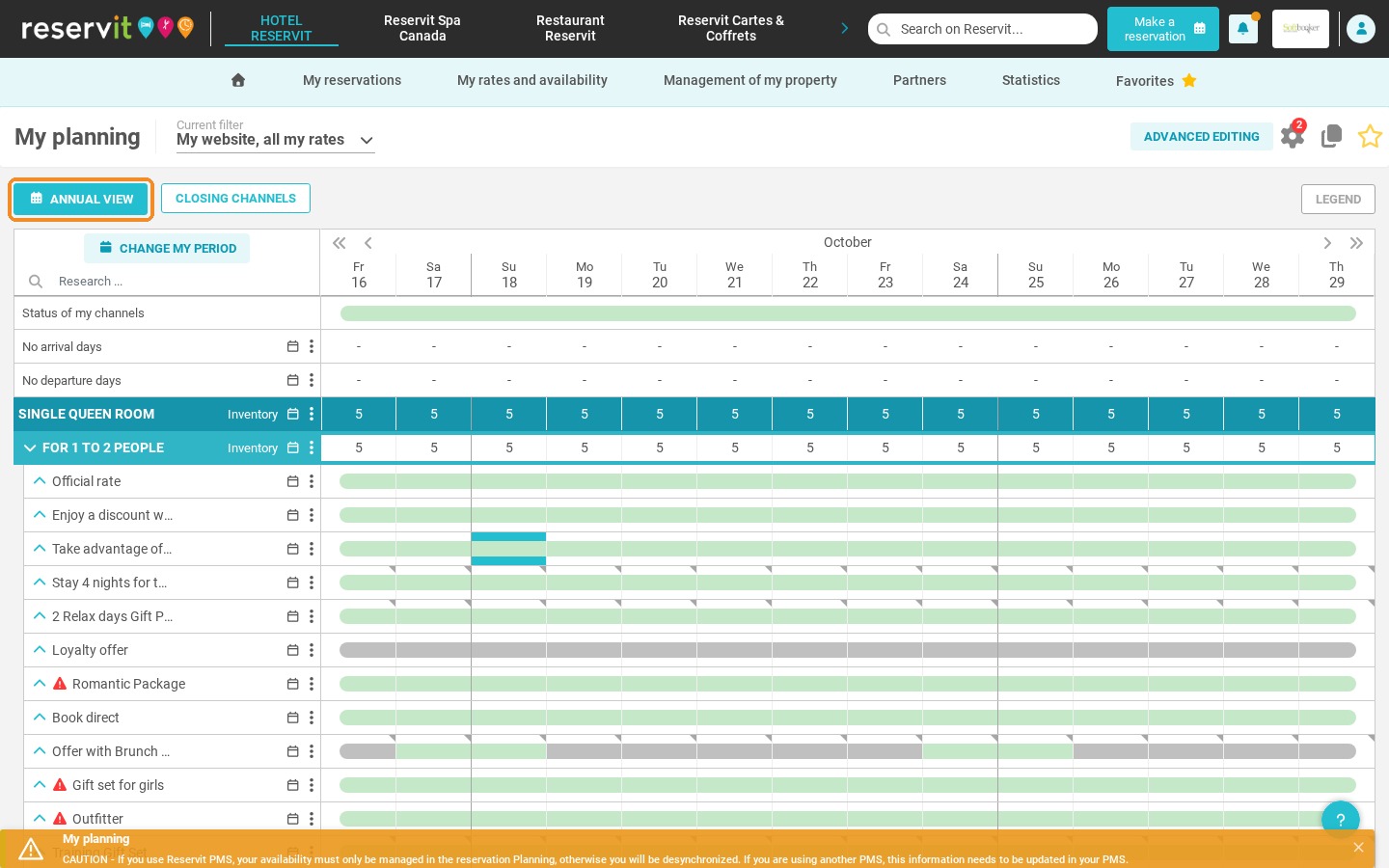
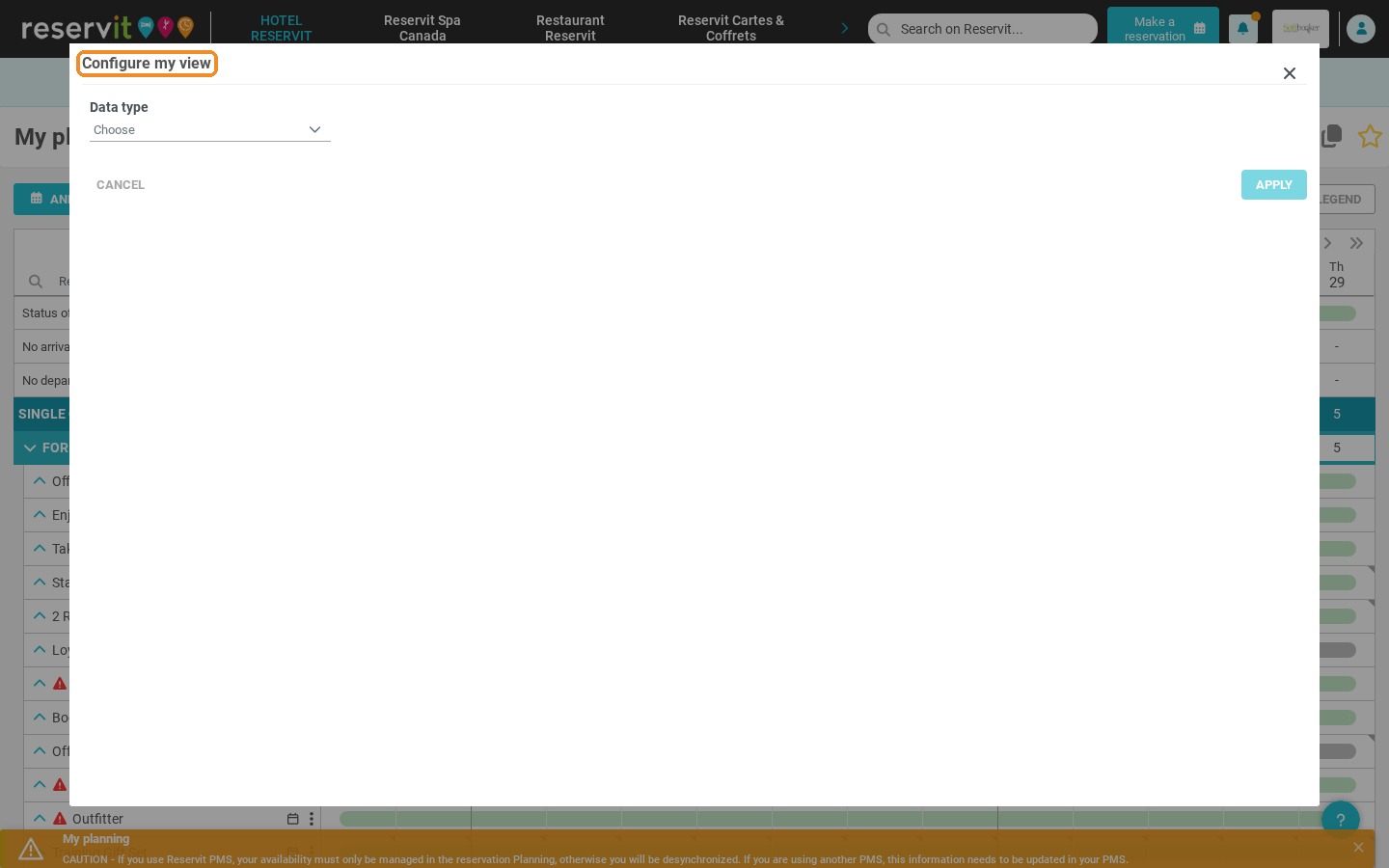
7. Click "Annual view" and choose the type of data to display. You can also make changes directly from the annual view with the "Advanced editing" button.
8. The "Closing channels" shortcut lets you stop sales on your distributors.
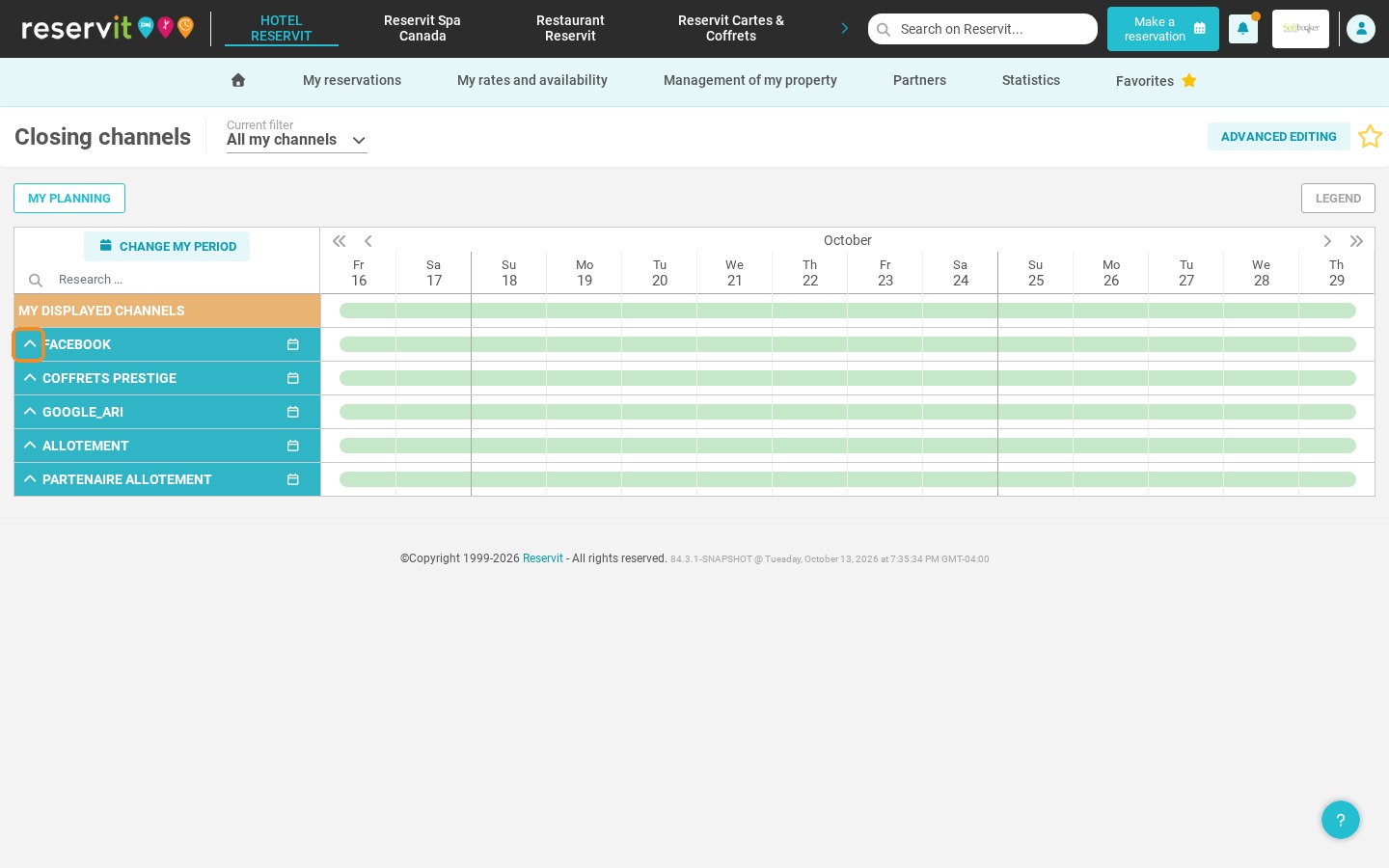
9. You can close all rooms for a distributor, or only some of them: click the arrow to the left of the distributor's name to display its rooms.
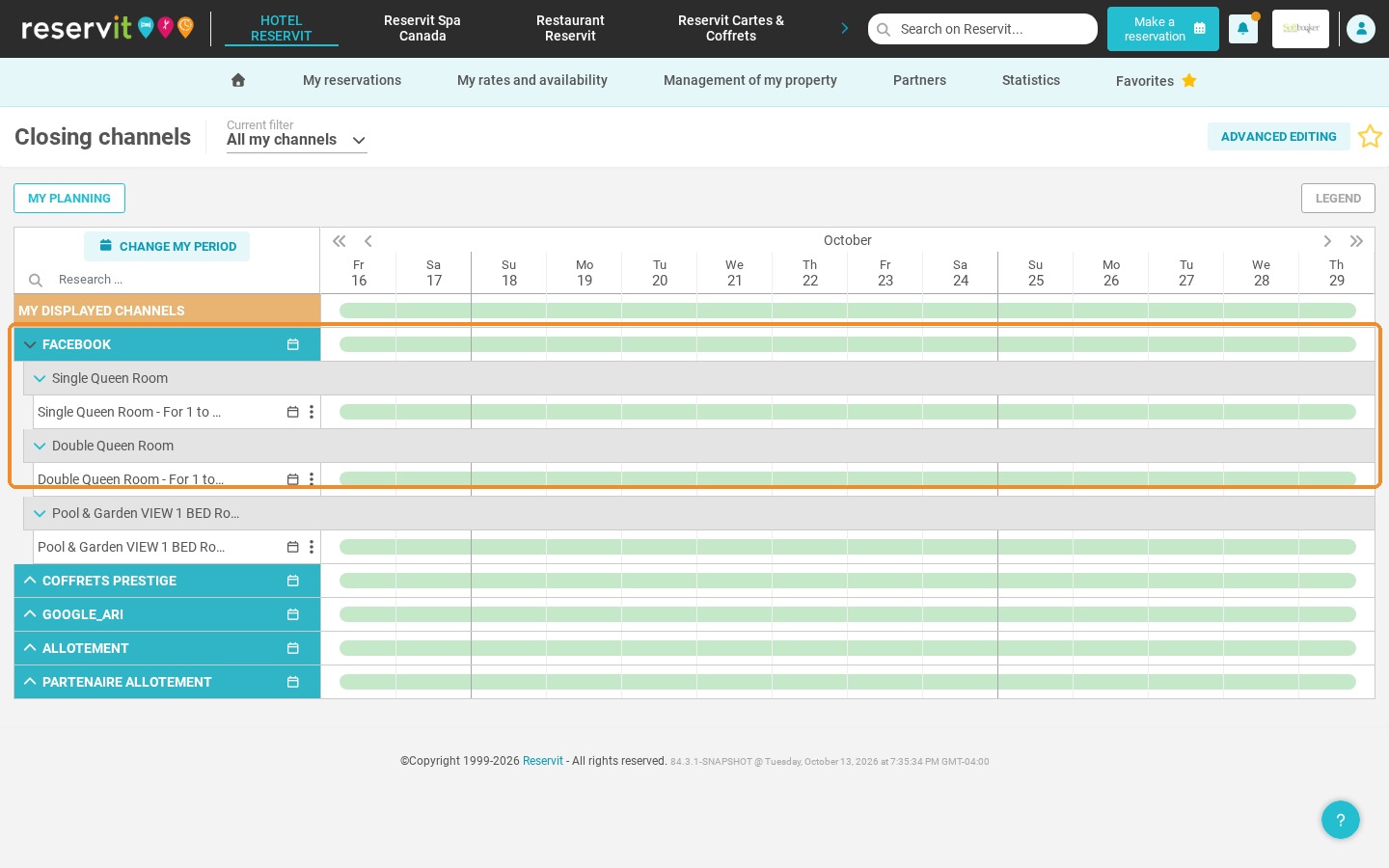
10. The calendar icon shows the closing periods over the year.