Help for use

How to Open and Close Booking Channels in Reservit | Manage Distribution Sources

Article Summary: This step-by-step tutorial explains how to effectively open and close your online booking channels within Reservit Accommodation. You will learn how to quickly toggle availability for specific distribution sources, manage individual room categories, and utilize advanced editing tools for mass calendar updates. Mastering this channel management process allows you to maintain total control over your online inventory and easily align your distribution strategy with real-time occupancy.

The 5 key steps to open and close booking channels:

  • Access channel settings: Navigate to the "My rates and availability" menu, click on "My planning," and select the "Closing channels" tab.

  • Perform quick updates: Click directly on a specific channel's calendar dates to quickly toggle its general status between "Open" and "Close."

  • Manage specific categories: Expand a channel to view its details and precisely update the open or close status for individual room types or units.

  • Initiate bulk editing: Click the "Advanced Editing" button to confidently select multiple distribution channels and room categories simultaneously.

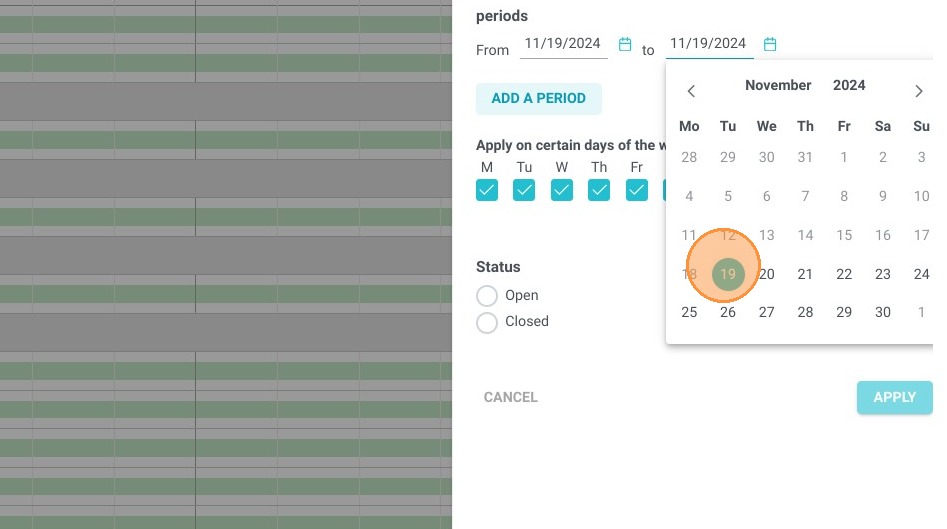
  • Apply mass date changes: Add multiple custom date periods at once, define their open or close status, and click apply to instantly update your entire distribution calendar.

Why follow this guide? Following this guide ensures you prevent costly overbookings by rapidly closing channels during peak occupancy or instantly reopening them when cancellations occur. Utilizing the advanced bulk editing features saves significant administrative time, allowing you to seamlessly update multiple distribution sources at once without tedious manual repetition.

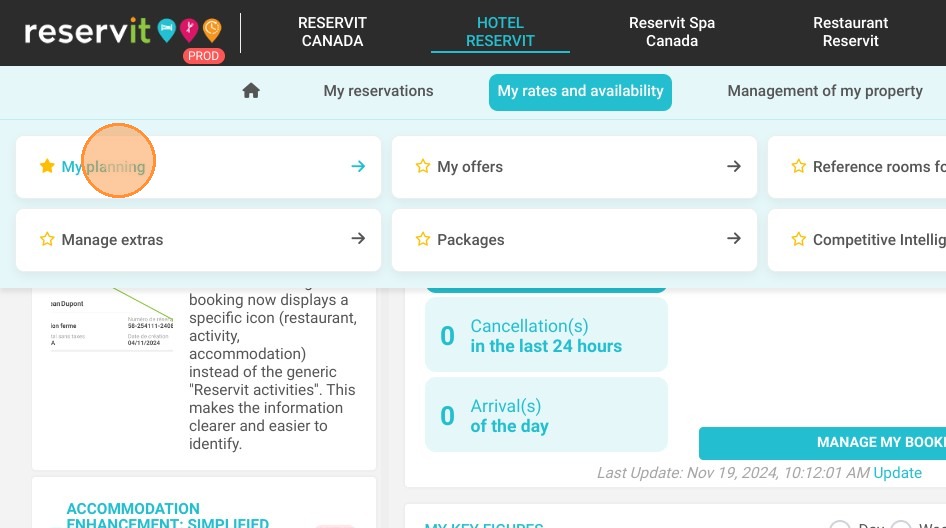
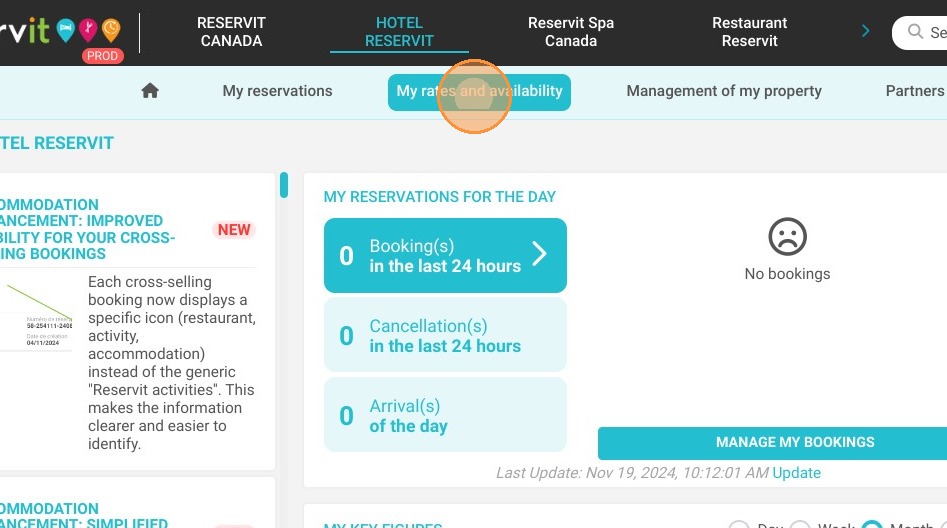
1. Click "My rates and availability"
https://colony-recorder.s3.amazonaws.com/files/2024-11-19/37dc651f-25ae-4bb9-a949-5c87731e93c8/ascreenshot_9c7ab8bd880b4cef9b7d217a0a099d05_text_export.jpeg

2. Click "My planning"

https://colony-recorder.s3.amazonaws.com/files/2024-11-19/56717811-20ef-4ad4-b61f-cc0e956ae853/ascreenshot_1d0dfa5e5b8a4fee91d2b860deef6702_text_export.jpeg

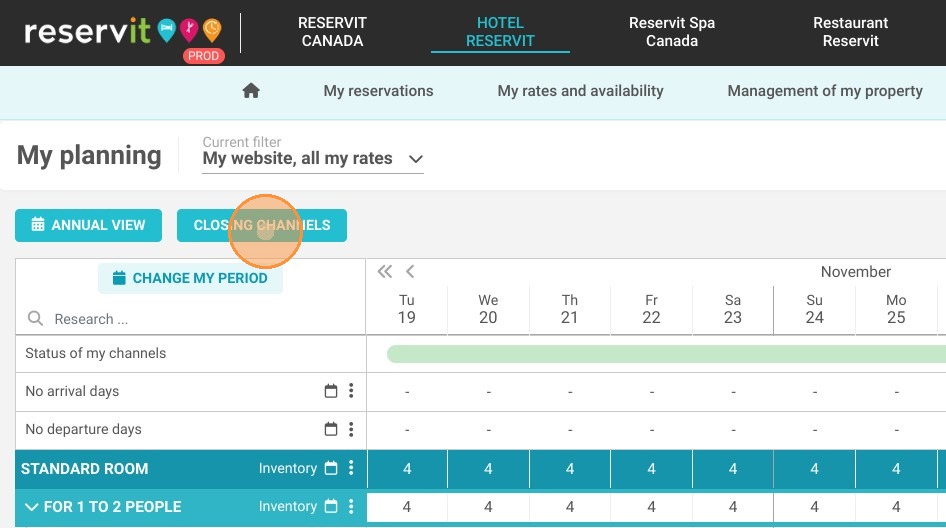
3. Click "CLOSING CHANNELS"

https://colony-recorder.s3.amazonaws.com/files/2024-11-19/075714e9-d046-47ad-b0c6-8c2b72a38774/ascreenshot_0338884fbf7f49a1bd24599258b41077_text_export.jpeg

Open / Close a channel

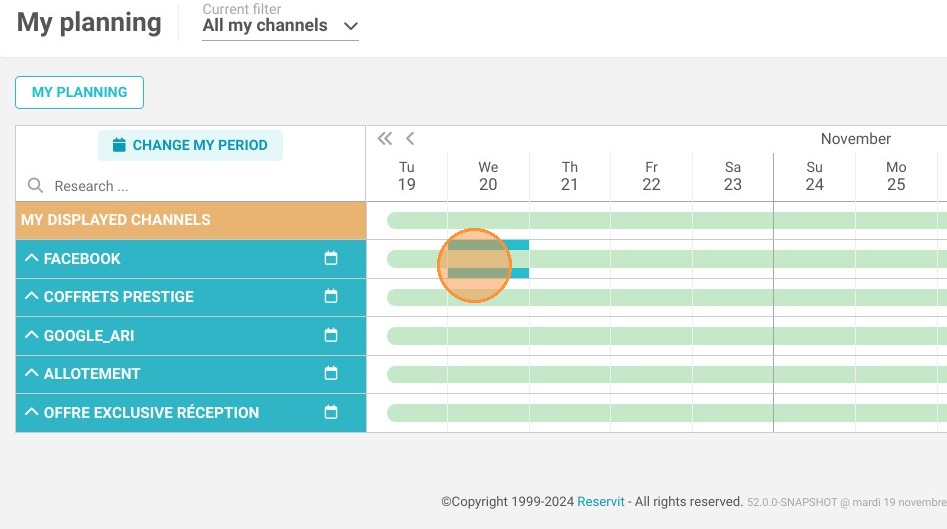
4. Here you will find your online channels. For a quick closing, click on one of these channels dates

https://colony-recorder.s3.amazonaws.com/files/2024-11-19/b2048d04-4bd4-48b5-91b7-31d6464c5858/ascreenshot_b6730bd20b574c11be8e3f03d3dc2367_text_export.jpeg

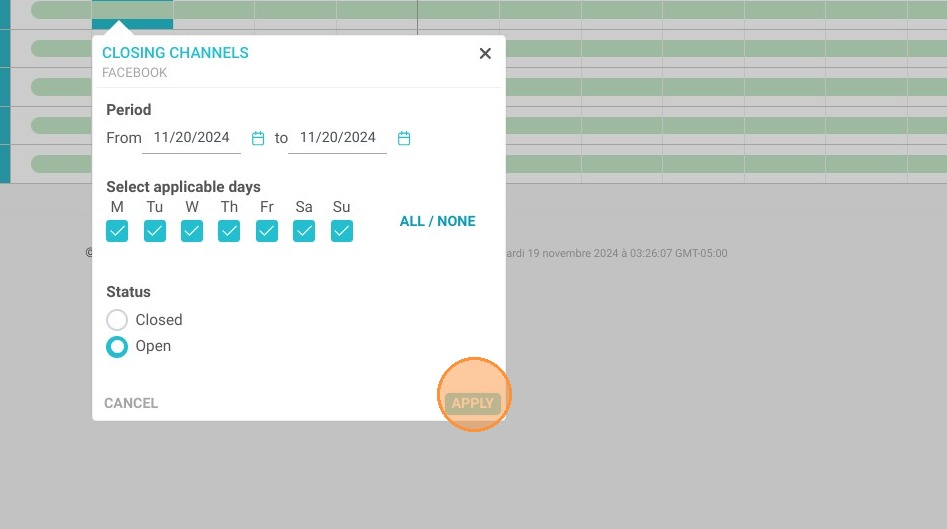
5. A window will be displayed, so you can select the dates you want. Change the status to "Open"/"Close" then click on apply.
https://colony-recorder.s3.amazonaws.com/files/2024-11-19/d2f6c7a2-9afa-47b1-bfab-cca3053b9035/ascreenshot_0efa8f30aa934bd99b7f79a645bf1c73_text_export.jpeg

Open / Close one category or type.

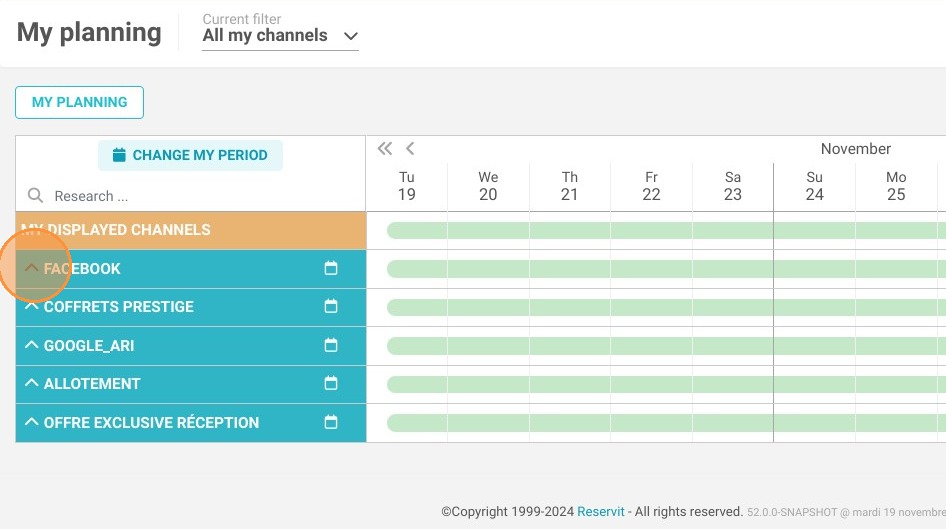
6. Select the channel to get the details.
https://colony-recorder.s3.amazonaws.com/files/2024-11-19/5f495f0f-2655-431c-b6a9-7d51f8014e3d/ascreenshot_51d01e4fcf244c4b8da12a4f877a89d4_text_export.jpeg

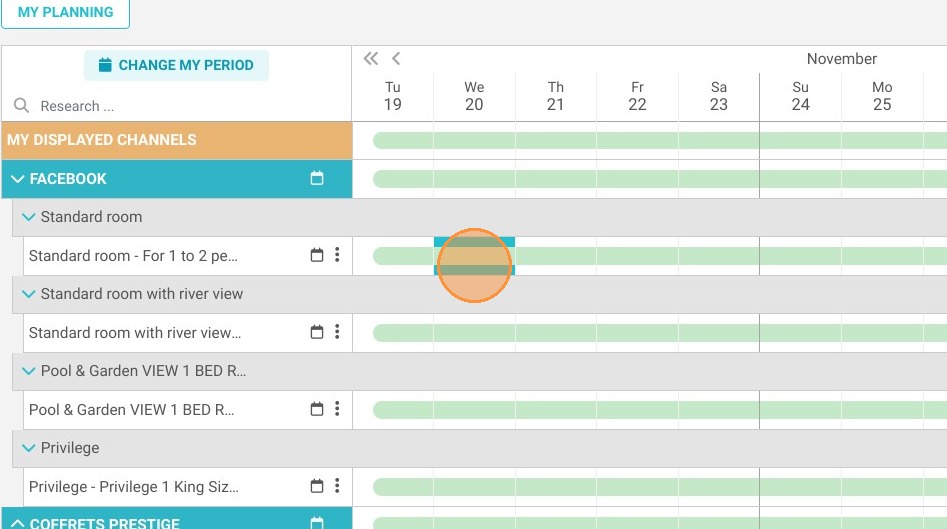
7. Select the unit that you wish to change.
https://colony-recorder.s3.amazonaws.com/files/2024-11-19/80fb7c72-809d-4ab9-9d73-e31fa03f8a61/ascreenshot_dd795578987f45c686cf12f72aa63723_text_export.jpeg

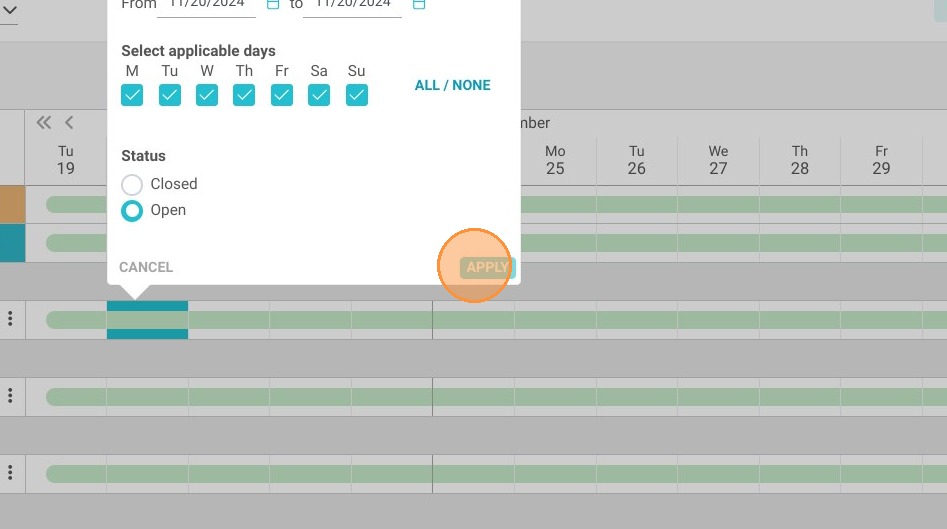
8. A window will be displayed, so you can select the dates you want. Change the status to "Open"/"Close" then click on "Apply."
https://colony-recorder.s3.amazonaws.com/files/2024-11-19/670341d8-89a5-46ea-8bb5-afe94b8c5b0c/ascreenshot_ea294949781d41659e55f54a3c245df7_text_export.jpeg

Open / Close your channels massively

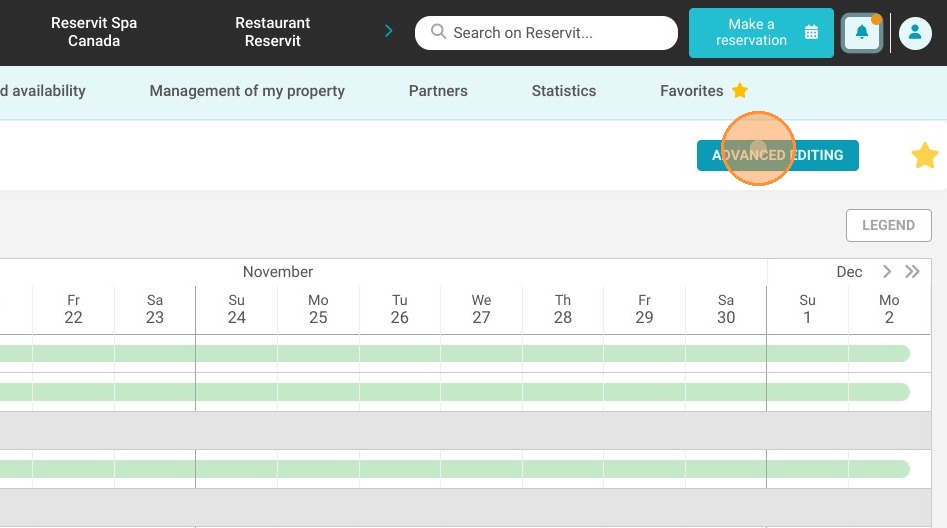
9. Click "ADVANCED EDITING"

https://colony-recorder.s3.amazonaws.com/files/2024-11-19/6d684de4-1905-4b93-87e3-27674547798f/ascreenshot_0873204108a842e9830d1247ab148803_text_export.jpeg

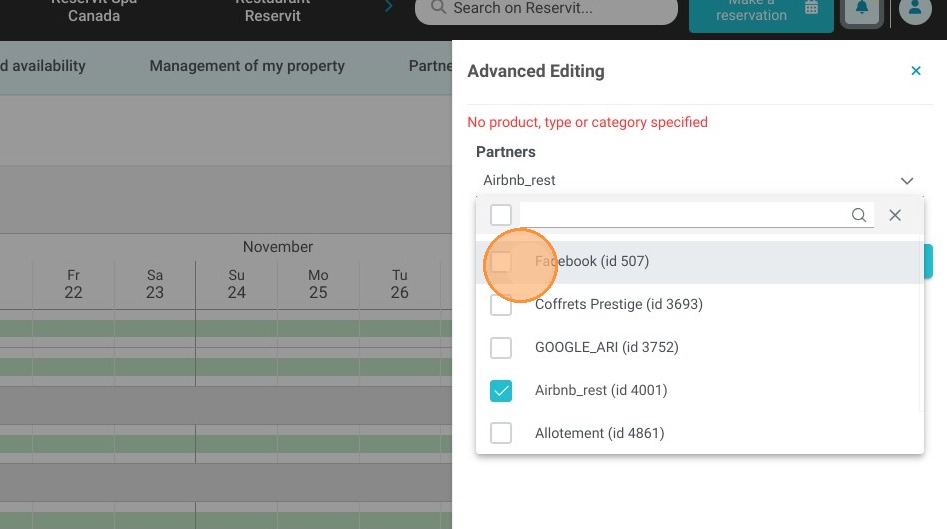
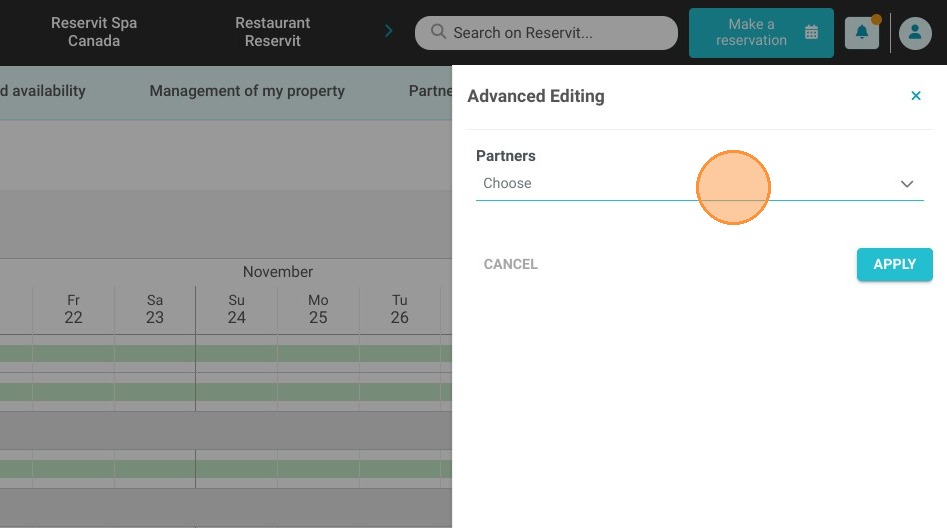
10. Select the channel(s) that you want to modify.
https://colony-recorder.s3.amazonaws.com/files/2024-11-19/5f40eb44-8dfe-4d43-aa4e-e8c01a0c4771/ascreenshot_53a6defbbae440fd9f5314eb152caaa8_text_export.jpeg
https://colony-recorder.s3.amazonaws.com/files/2024-11-19/0949eea5-8a4f-4f83-aff6-dba7830e3030/ascreenshot_5ca480e311334695aa628f963f82ae10_text_export.jpeg

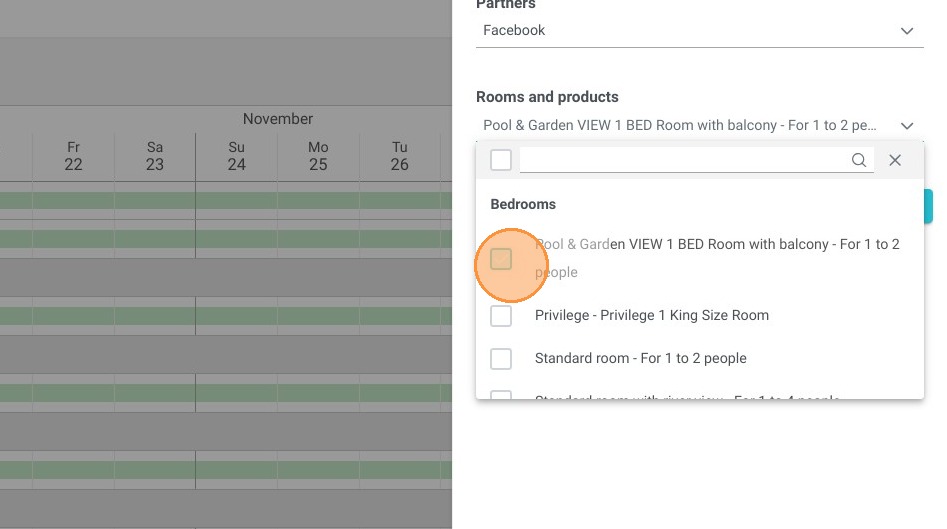
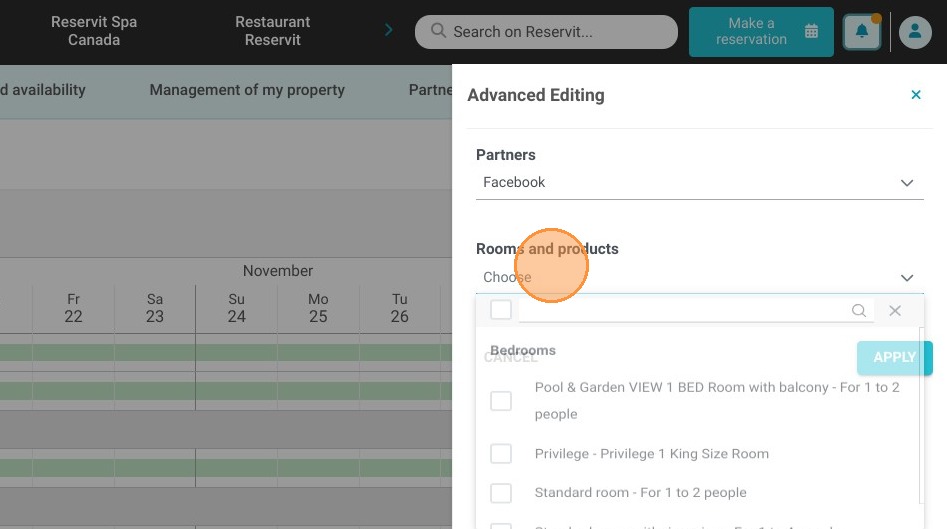
11. Then, choose the categories you want to modify.
https://colony-recorder.s3.amazonaws.com/files/2024-11-19/19c26773-38f0-4b4f-9f45-ebcce9879794/ascreenshot_007f83f9d9db4b5bb4821252e8f21c2f_text_export.jpeg
https://colony-recorder.s3.amazonaws.com/files/2024-11-19/b3cb7b70-cfa2-4258-963d-1cecd10c293f/ascreenshot_3620446204de47be8650e63a087cc790_text_export.jpeg

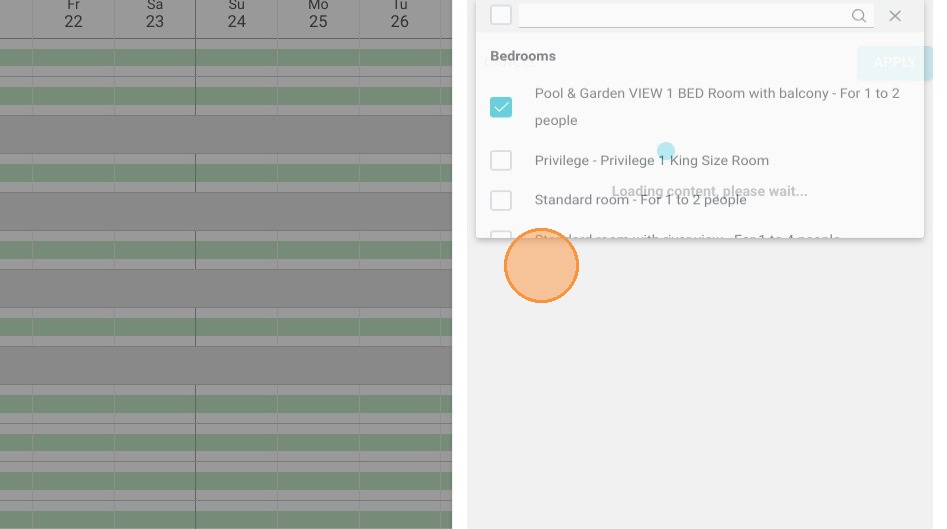
12. Click here.

https://colony-recorder.s3.amazonaws.com/files/2024-11-19/5b8e68a7-ef5b-4994-8f52-527117537cac/ascreenshot_aaca0c93648f44f3930aaf085f99dd31_text_export.jpeg

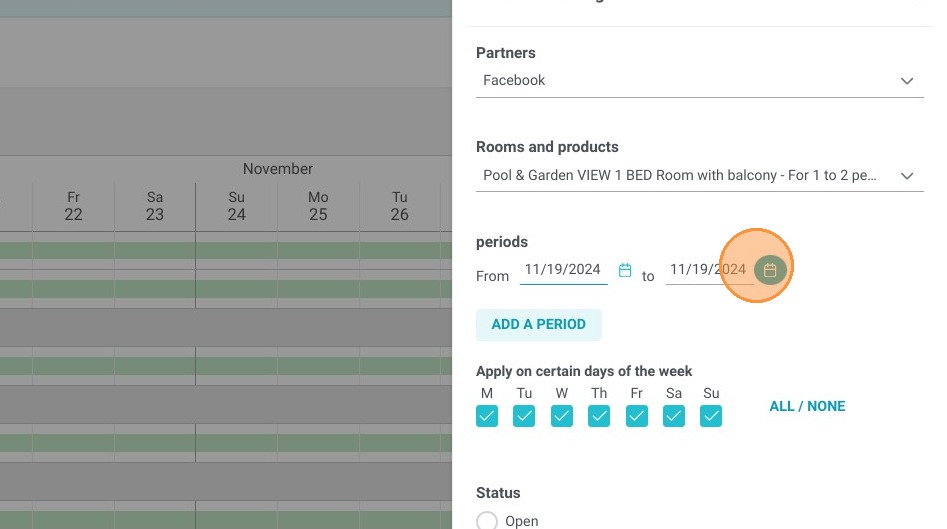
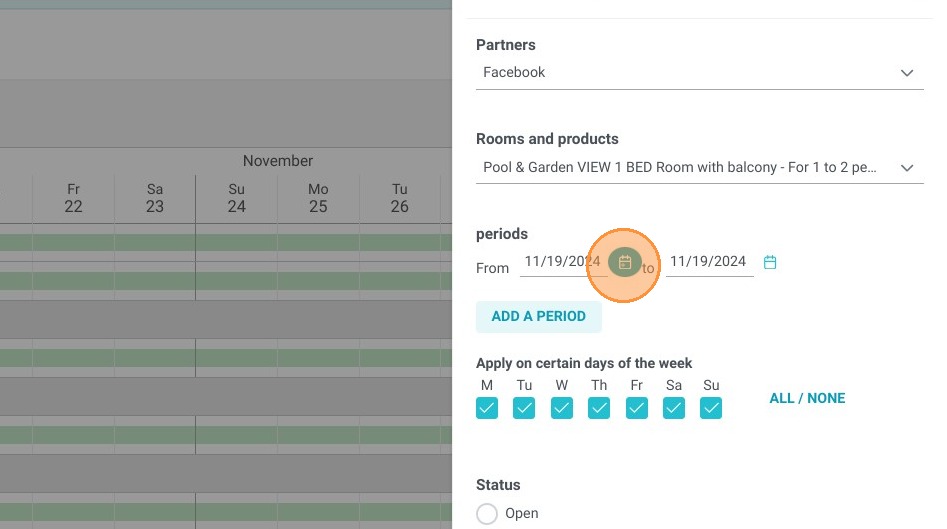
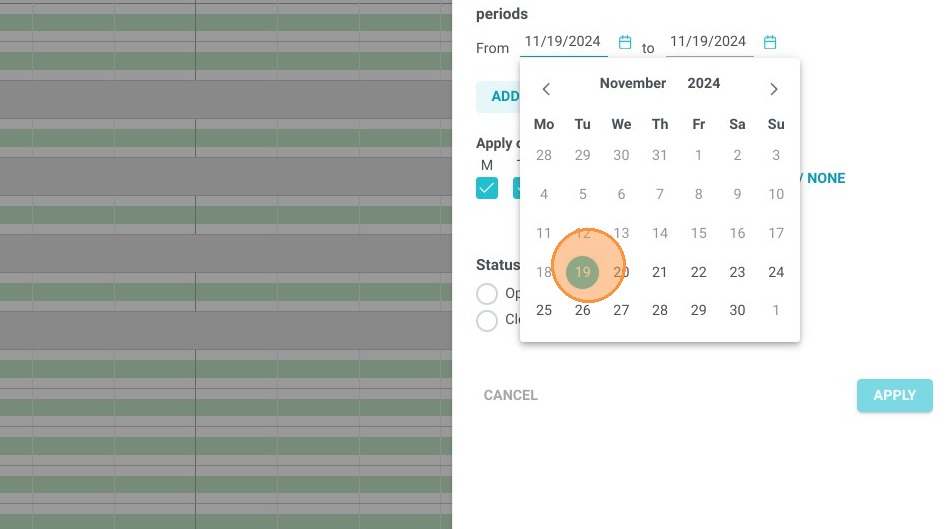
13. You have the possibility to add several periods to open or close by clicking on "Add a period".
https://colony-recorder.s3.amazonaws.com/files/2024-11-19/bca8ab47-f45b-45cd-923f-66eeba0c86f1/ascreenshot_b15048dae01b4aada60d09f85469a463_text_export.jpeg
https://colony-recorder.s3.amazonaws.com/files/2024-11-19/b955d167-85a5-4a81-8875-75ca4675762f/ascreenshot_ef27abcb71df4a82af5873662bfceaa4_text_export.jpeg
https://colony-recorder.s3.amazonaws.com/files/2024-11-19/2a3d9733-19d4-4676-92ee-8498e4411d12/ascreenshot_9b22fe780f864340b44952f463e94529_text_export.jpeg
https://colony-recorder.s3.amazonaws.com/files/2024-11-19/a931f45b-3b55-4170-8416-699f9cd8fbfd/ascreenshot_96c4d72c9b644e25b87a0f9b59c6c0a0_text_export.jpeg

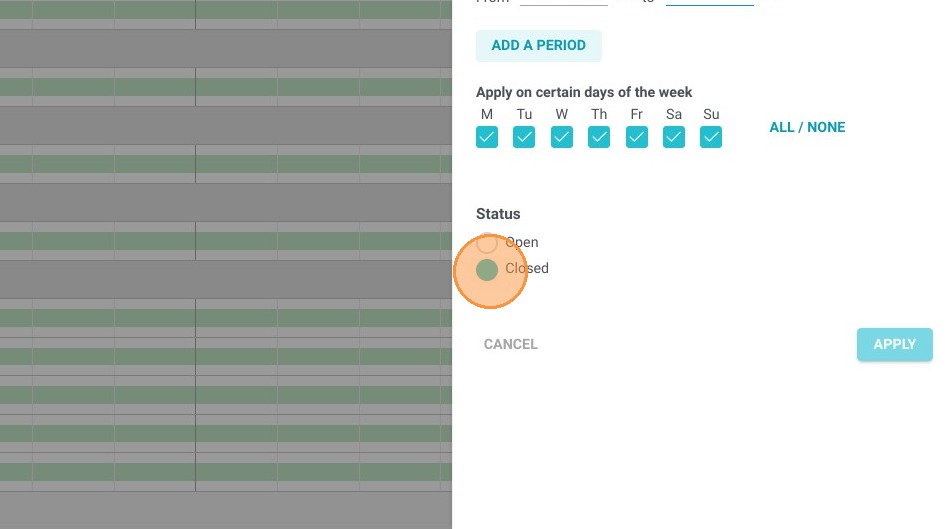
14. Then choose your status.

https://colony-recorder.s3.amazonaws.com/files/2024-11-19/53eb44f5-54c6-40de-aa82-185f9217dcdb/ascreenshot_0e3c2dbc5fb14dda825d0737ae44d3c0_text_export.jpeg

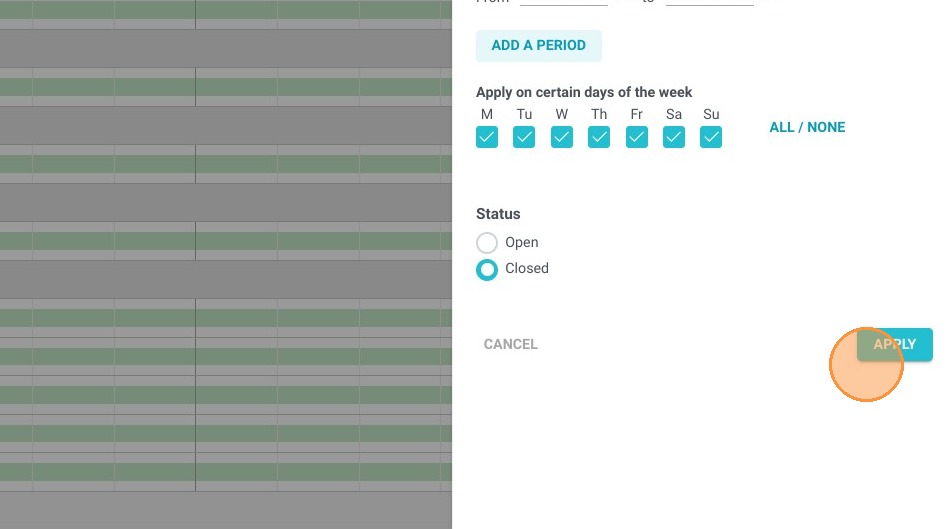
15. Click "Apply" to save.

https://colony-recorder.s3.amazonaws.com/files/2024-11-19/6dd04f99-362f-44ae-a836-148839e60308/ascreenshot_de347de5481340b198e434fea9bb3cbd_text_export.jpeg