

Article Summary: This tutorial walks you through the different ways to adjust and update your rate grids in Reservit Accommodation. You will learn how to change a price directly from the planning calendar and how to update many dates at once with Advanced editing. Keep your reference rate (RACK) up to date and save valuable time when setting up your nightly prices.
The 5 Key Steps to Update Your Rates in Reservit Accommodation:
-
Open your planning: Go to "My rates and availability", then "My planning" to display your rates and availability.
-
Change a price from the calendar: Unfold the offer, click the price of the day, adjust the period and the price, then click "Apply".
-
Update your rates in bulk: Use "Advanced editing": select the price data, the offer, the room and the occupancy, then define the period and the applicable days.
-
Check the summary: Review the summary of your changes and the offers impacted before confirming.
-
Check your PMS synchronization: If your prices are managed by your PMS, make your changes there to avoid them being overwritten.
Why Follow This Guide? Updating your rates from the planning lets you react quickly to demand without entering prices one by one. With Advanced editing, you can change a whole season in a few clicks while keeping full control thanks to the summary displayed before any change is applied.
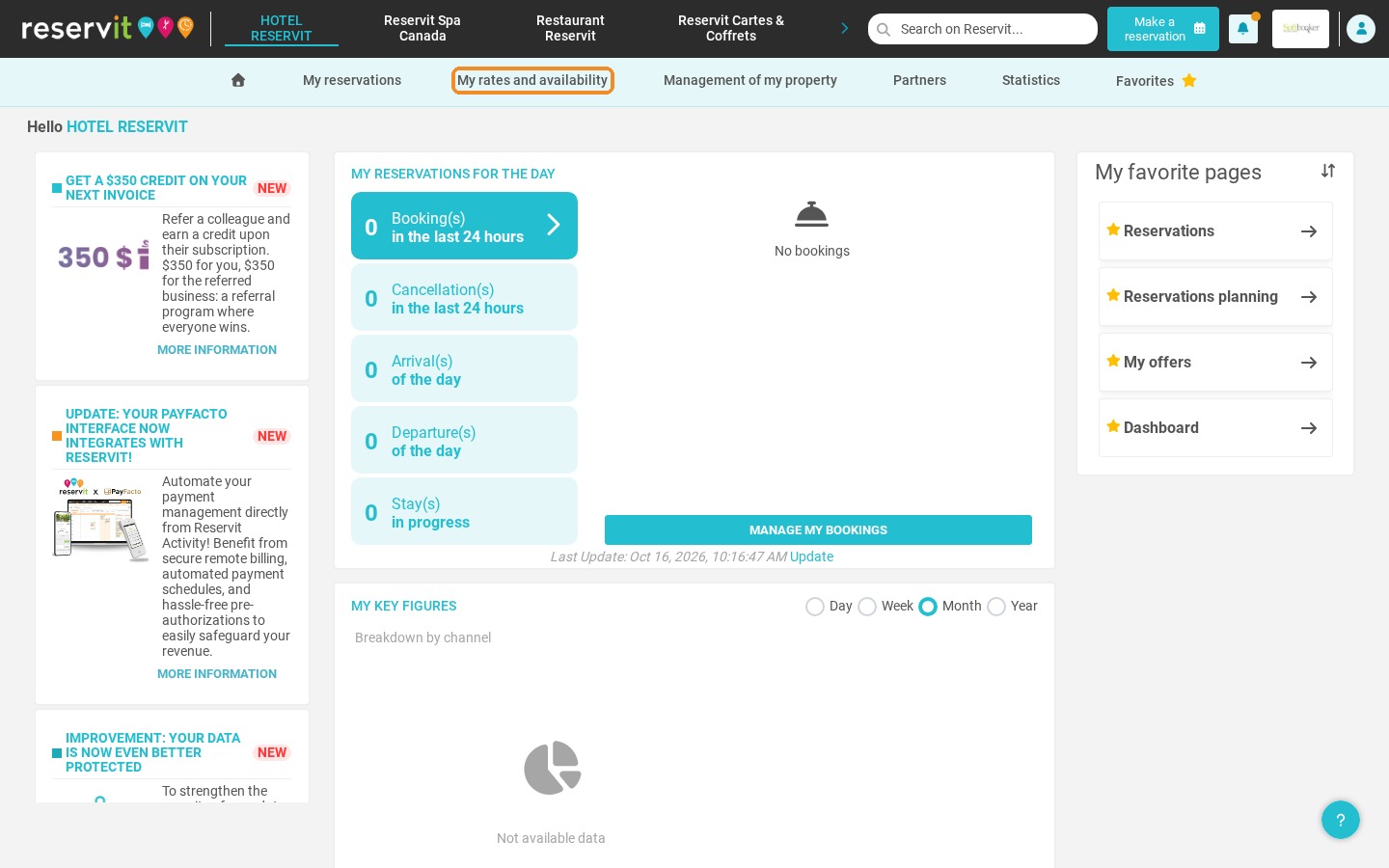
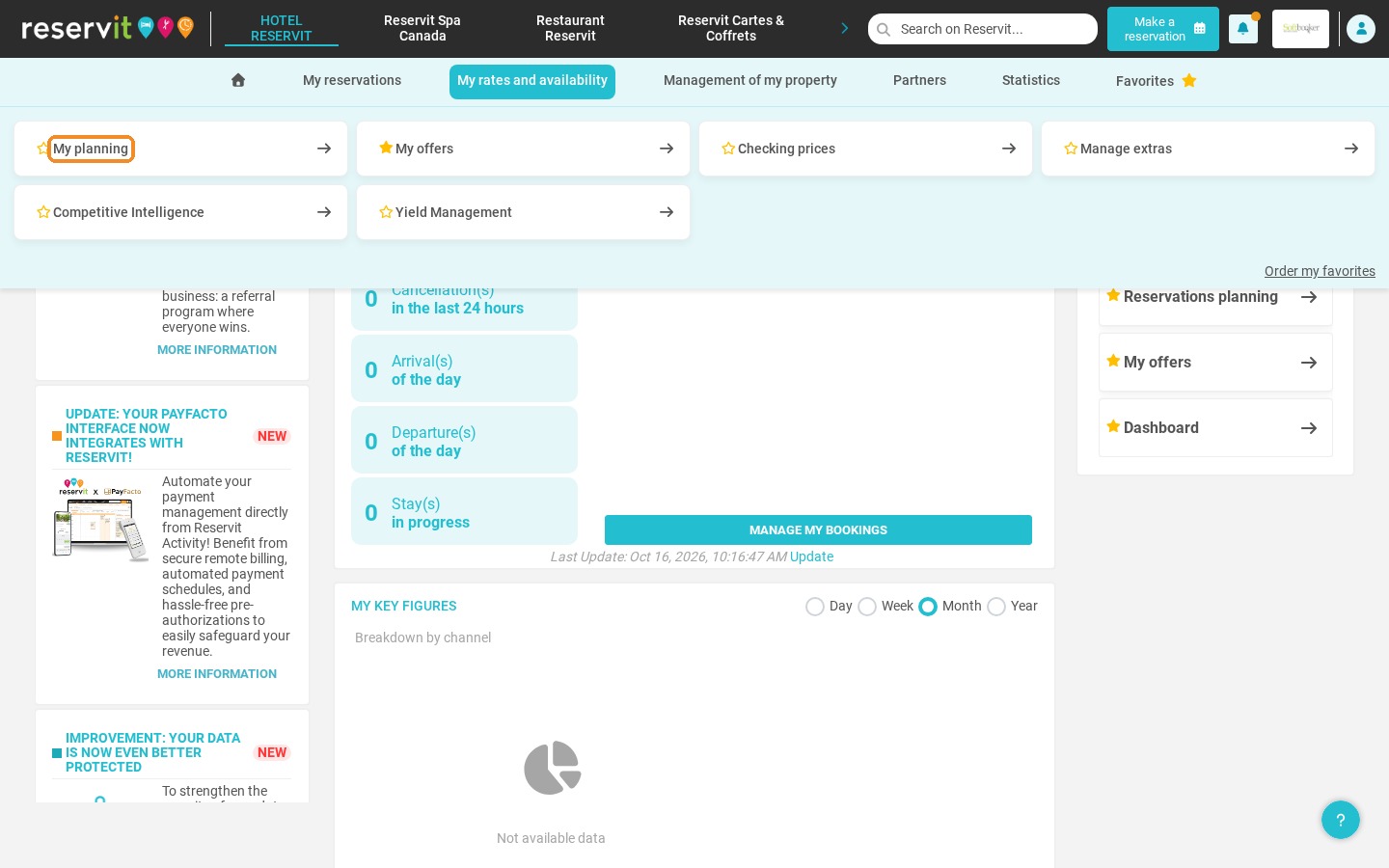
1. From the Reservit Accommodation home page, click "My rates and availability", then "My planning".
Change your prices directly from the calendar
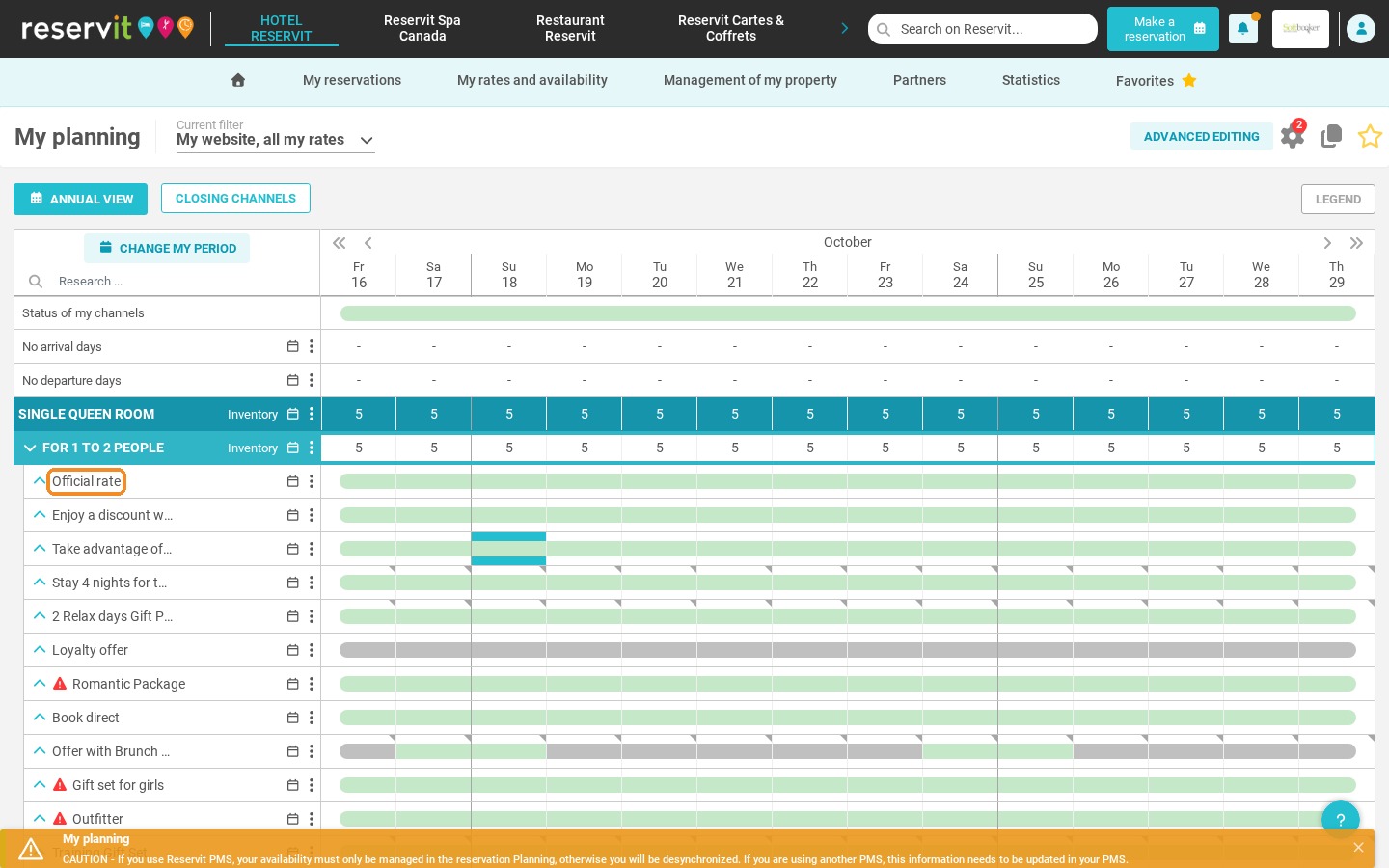
2. Click the name of the offer, for example your reference rate "Official rate", to display its prices for each occupancy.
3. On the line of the occupancy concerned, click the price of the day you want to change.
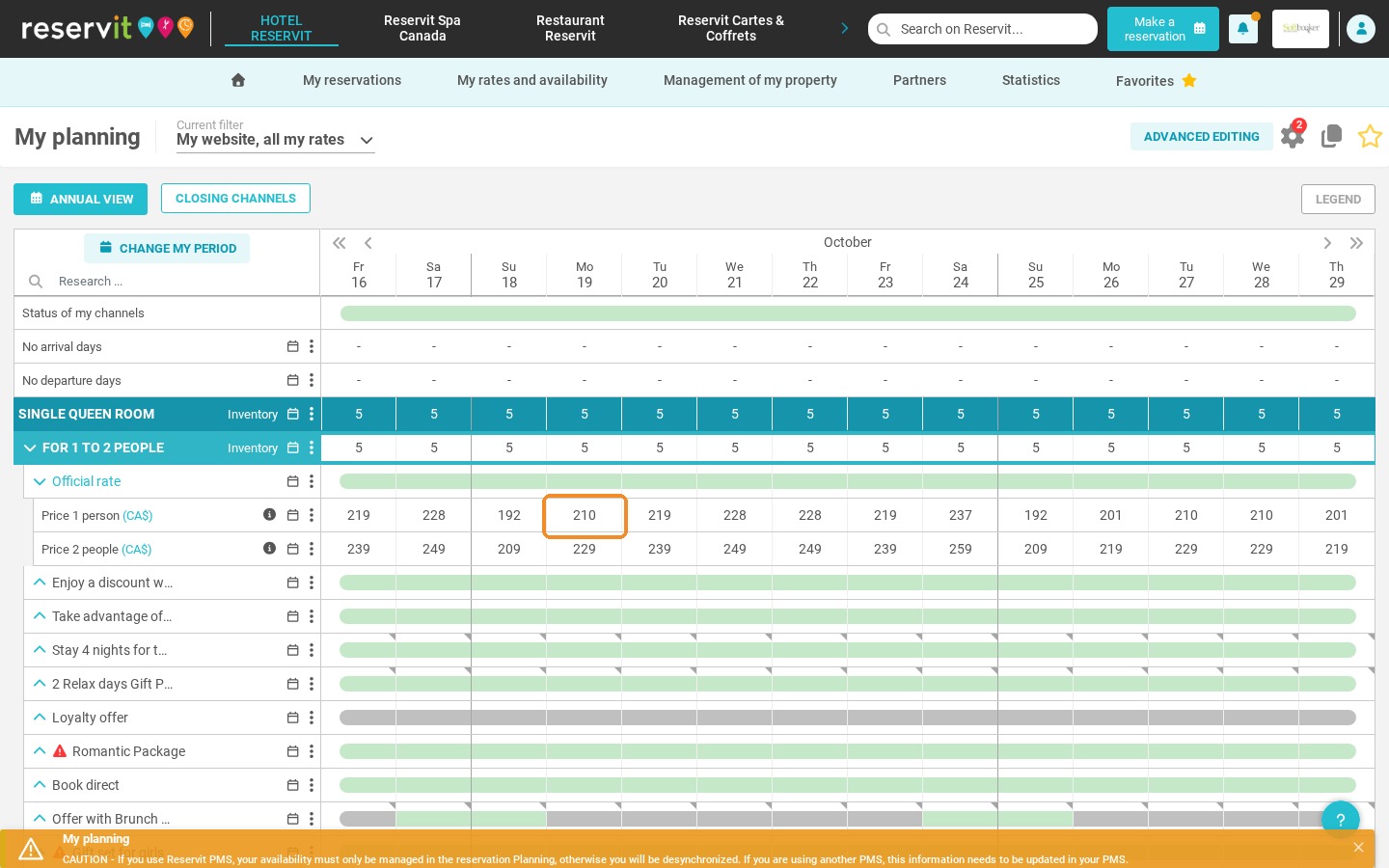
4. Choose the period to update.
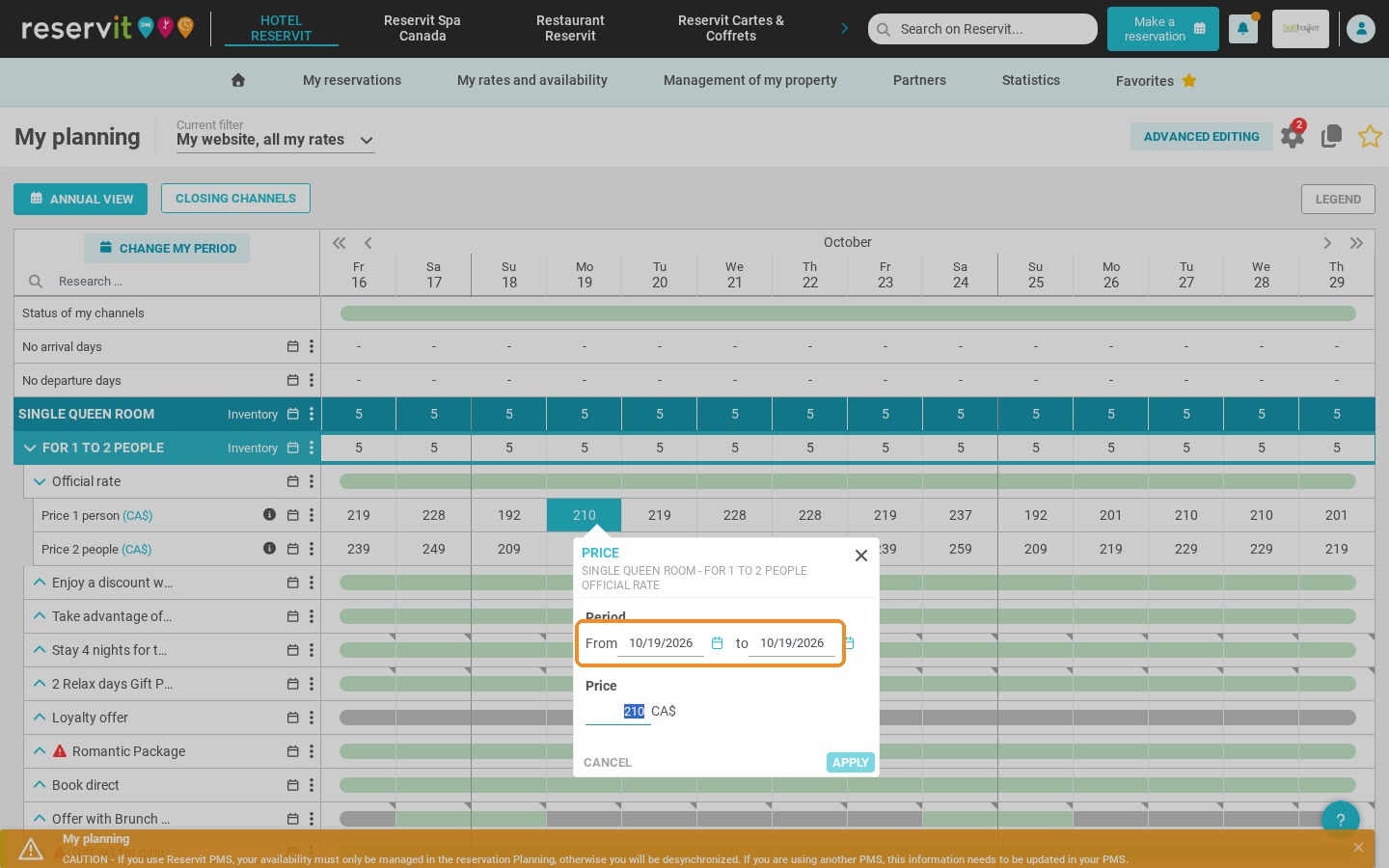
5. Enter the new price.
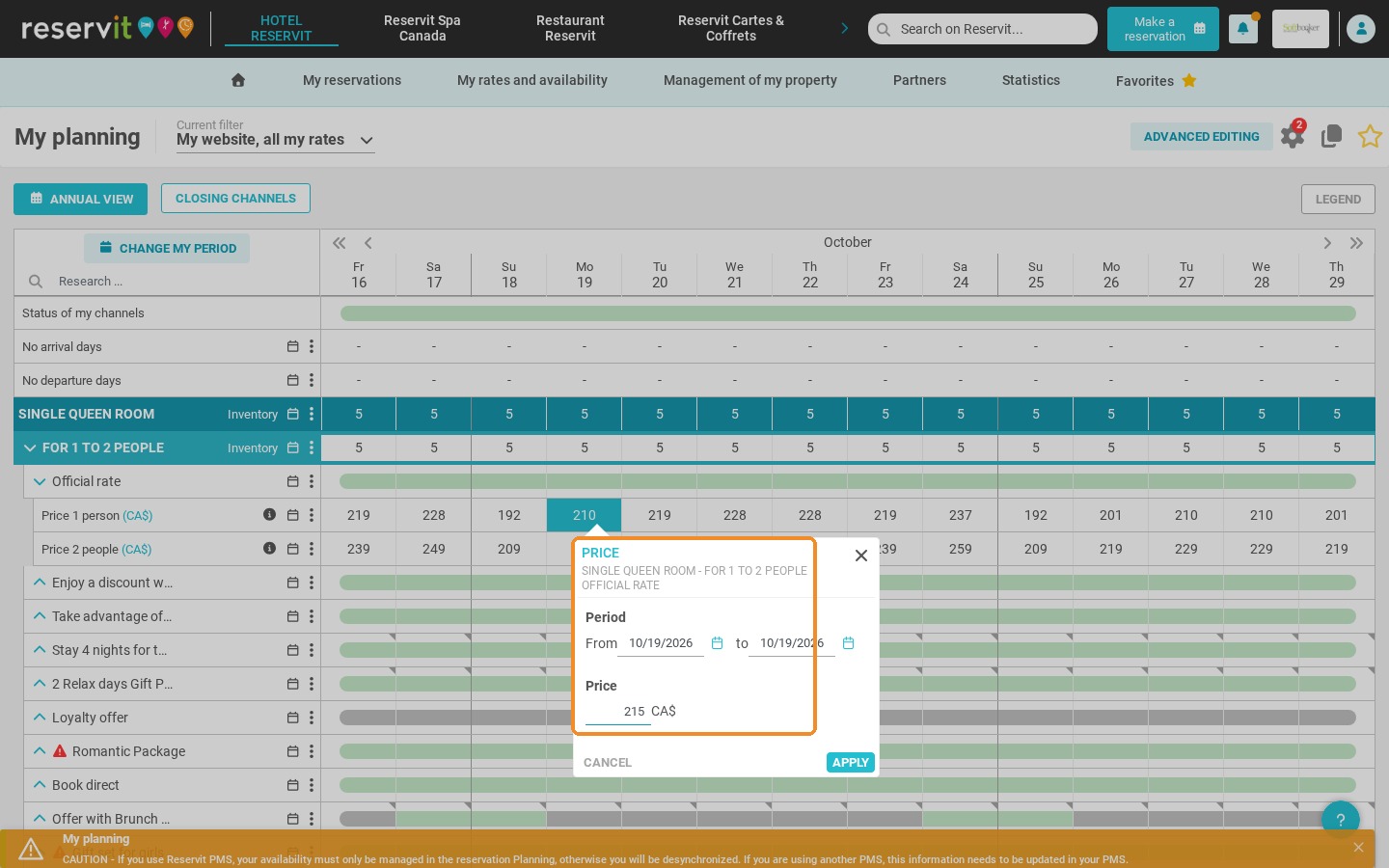
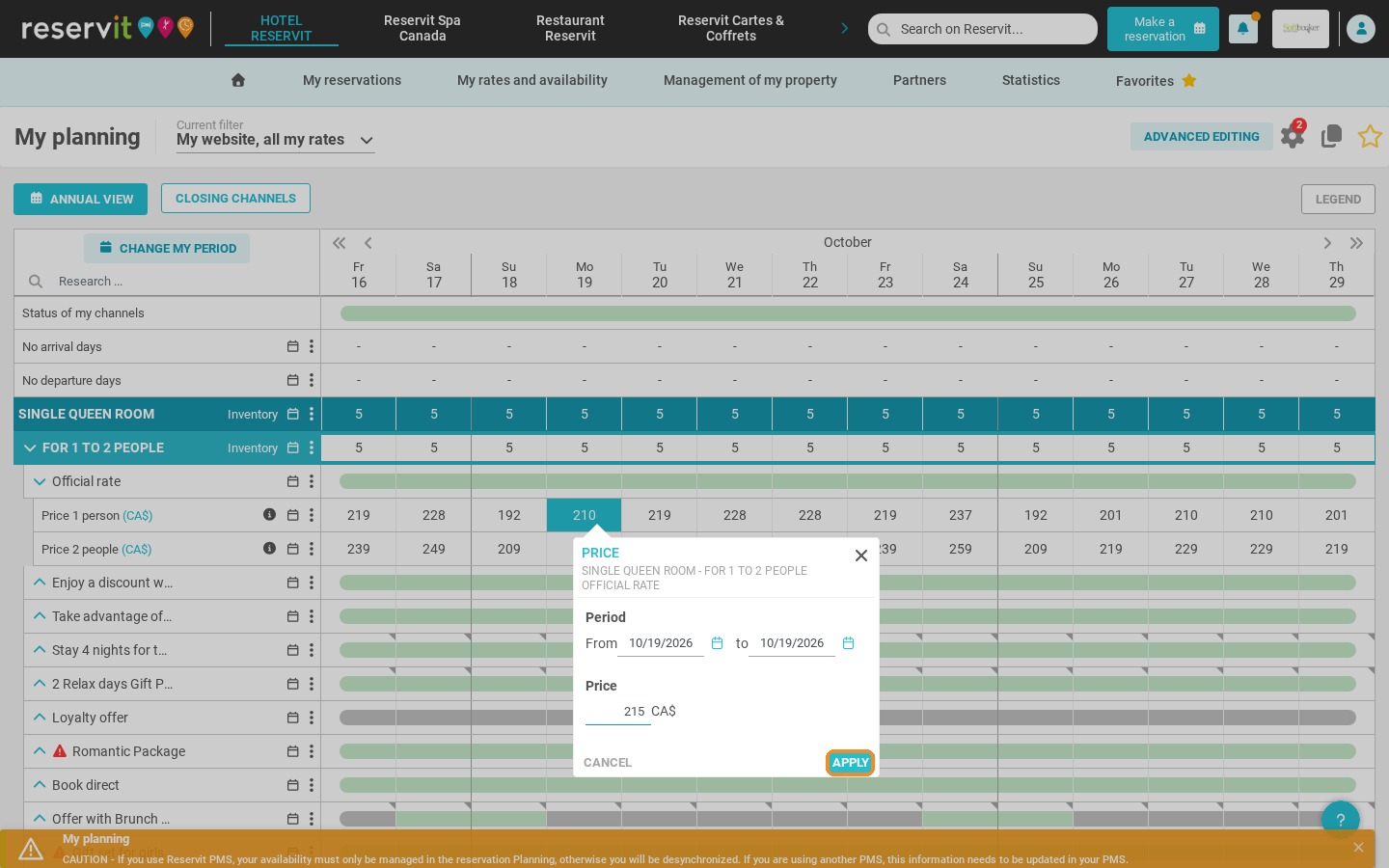
6. Click "Apply".
Use Advanced editing to update your rates in bulk
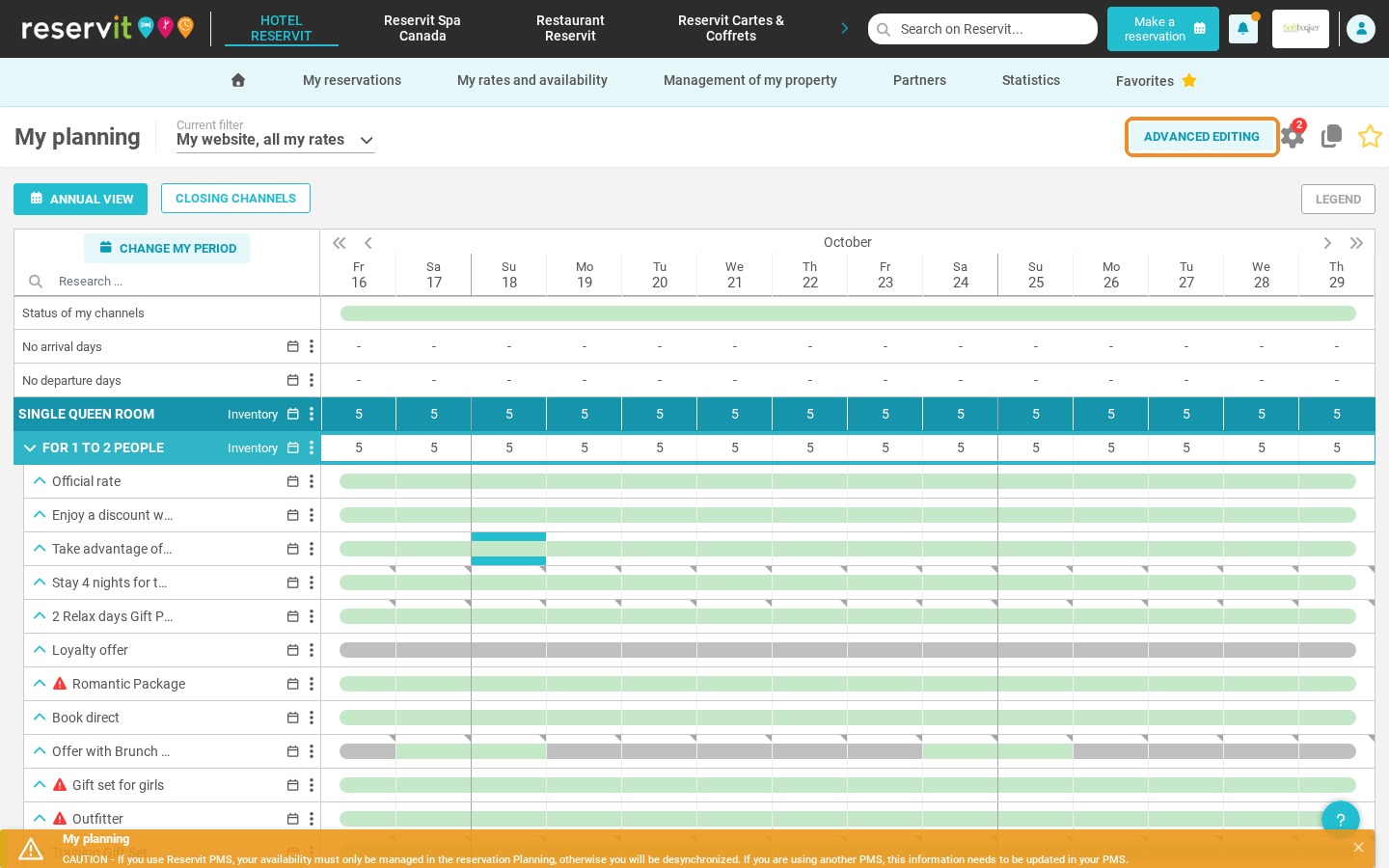
7. A second method lets you update your rates for several dates at once. Click "Advanced editing".
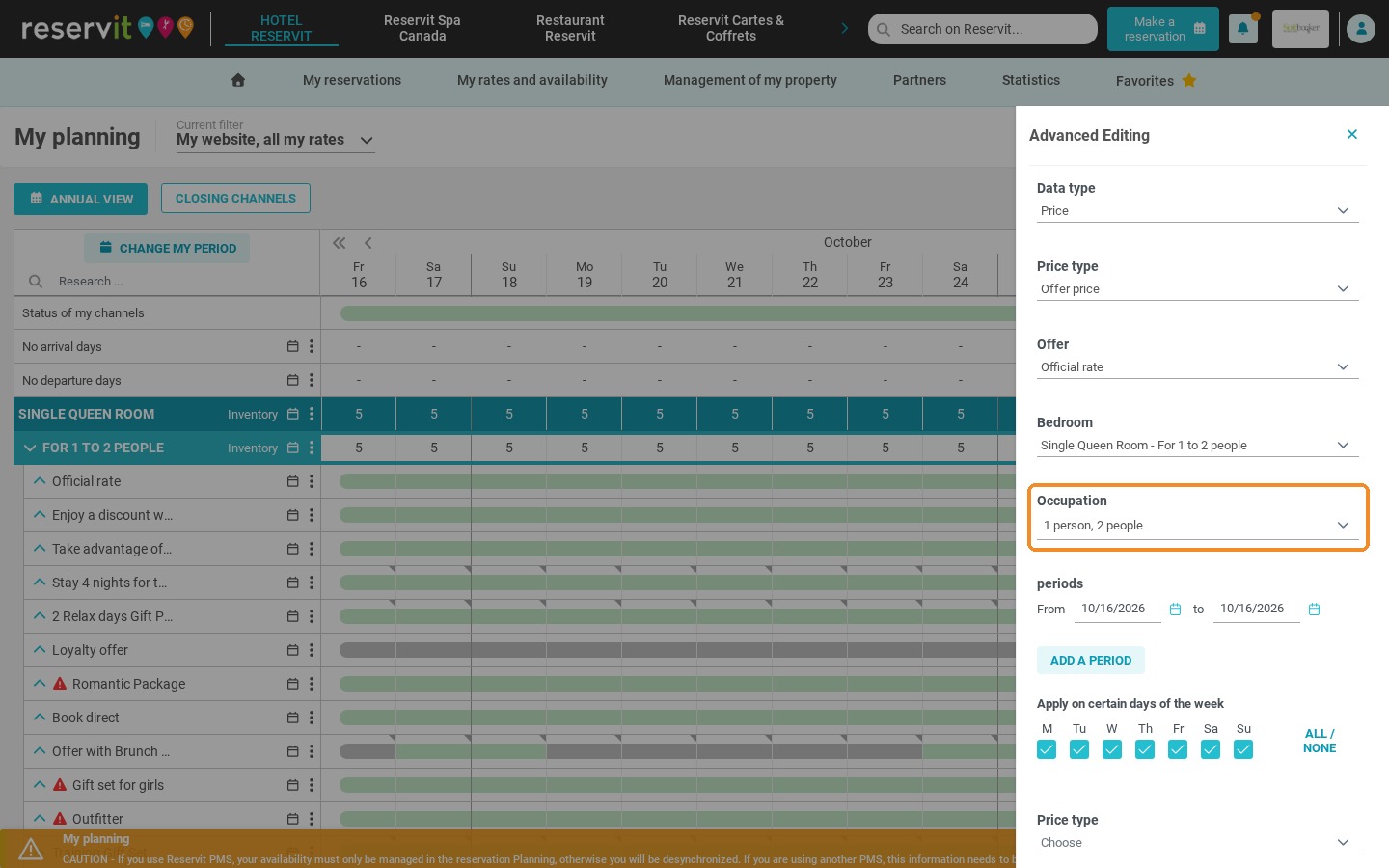
8. In "Data type", select "Price".
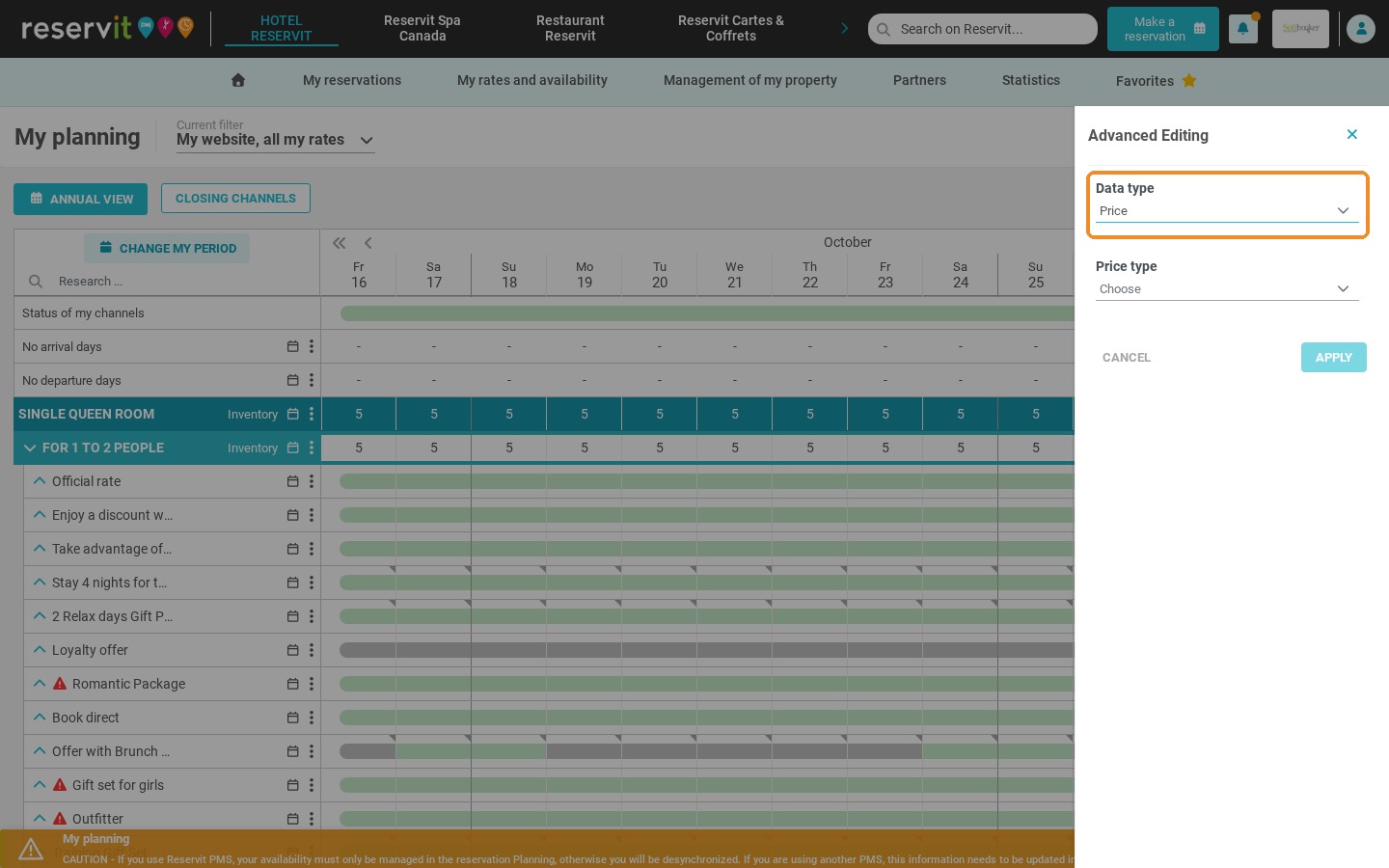
9. In "Price type", select "Offer price".
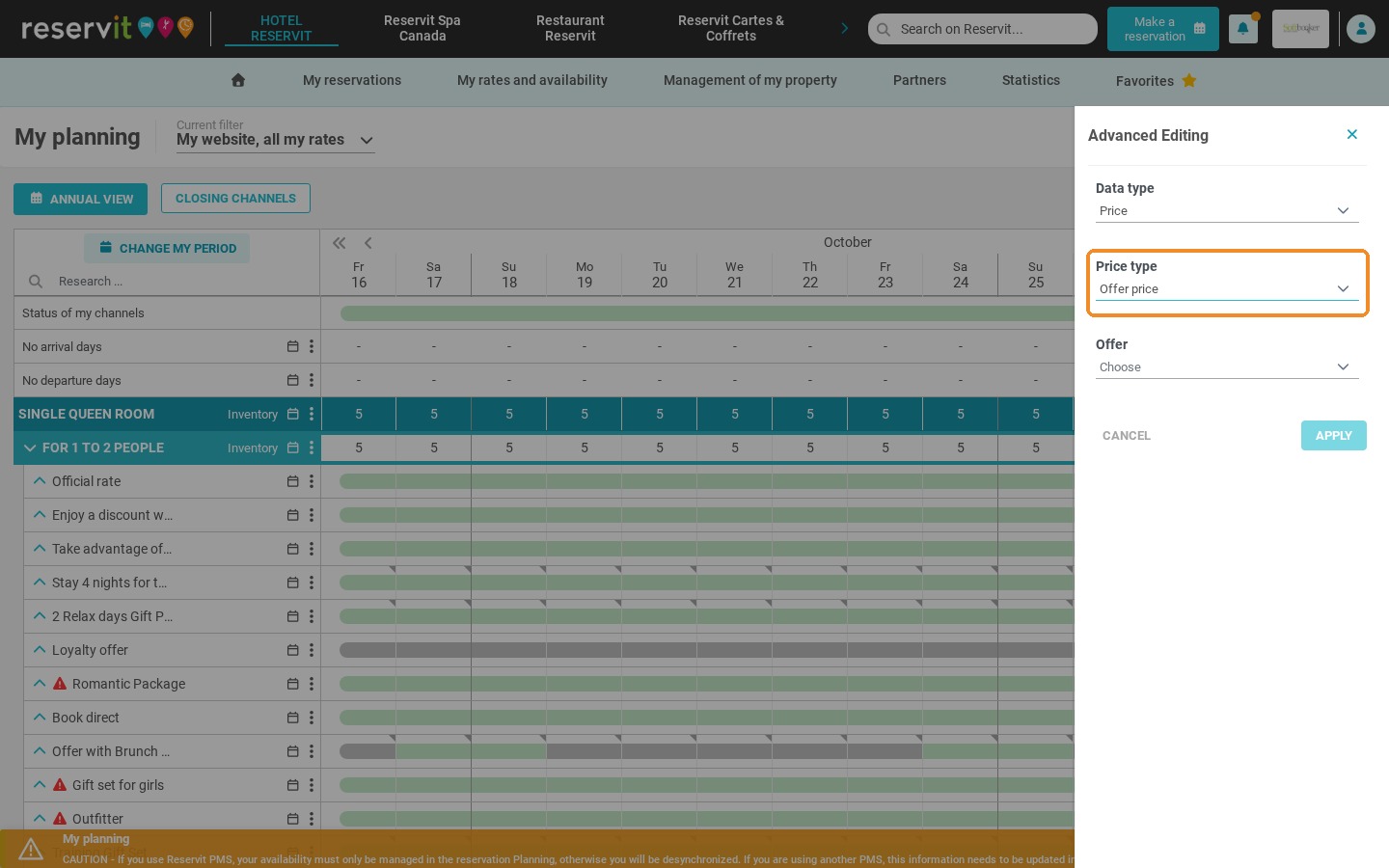
10. Select the offer to update.
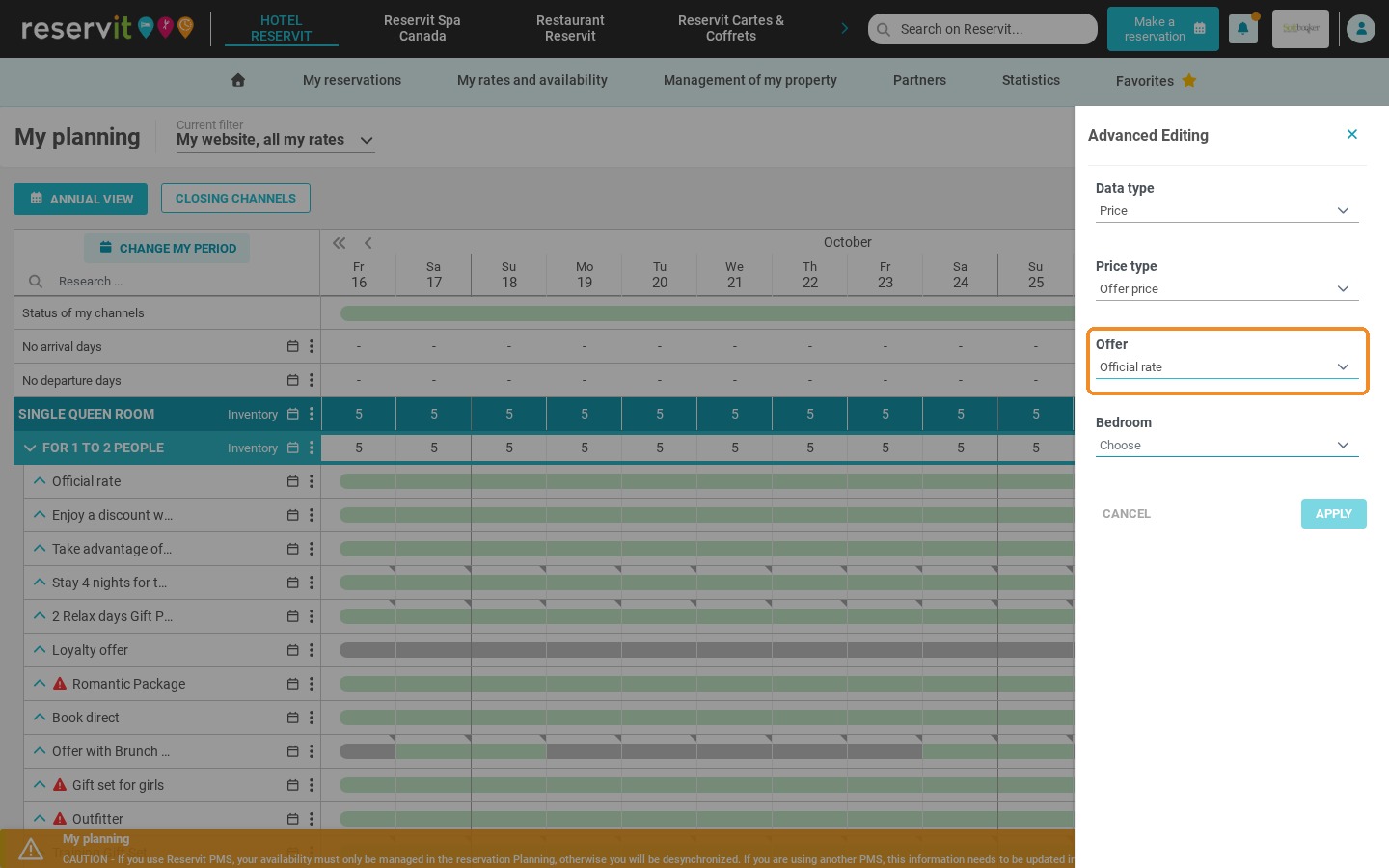
11. Select the room.
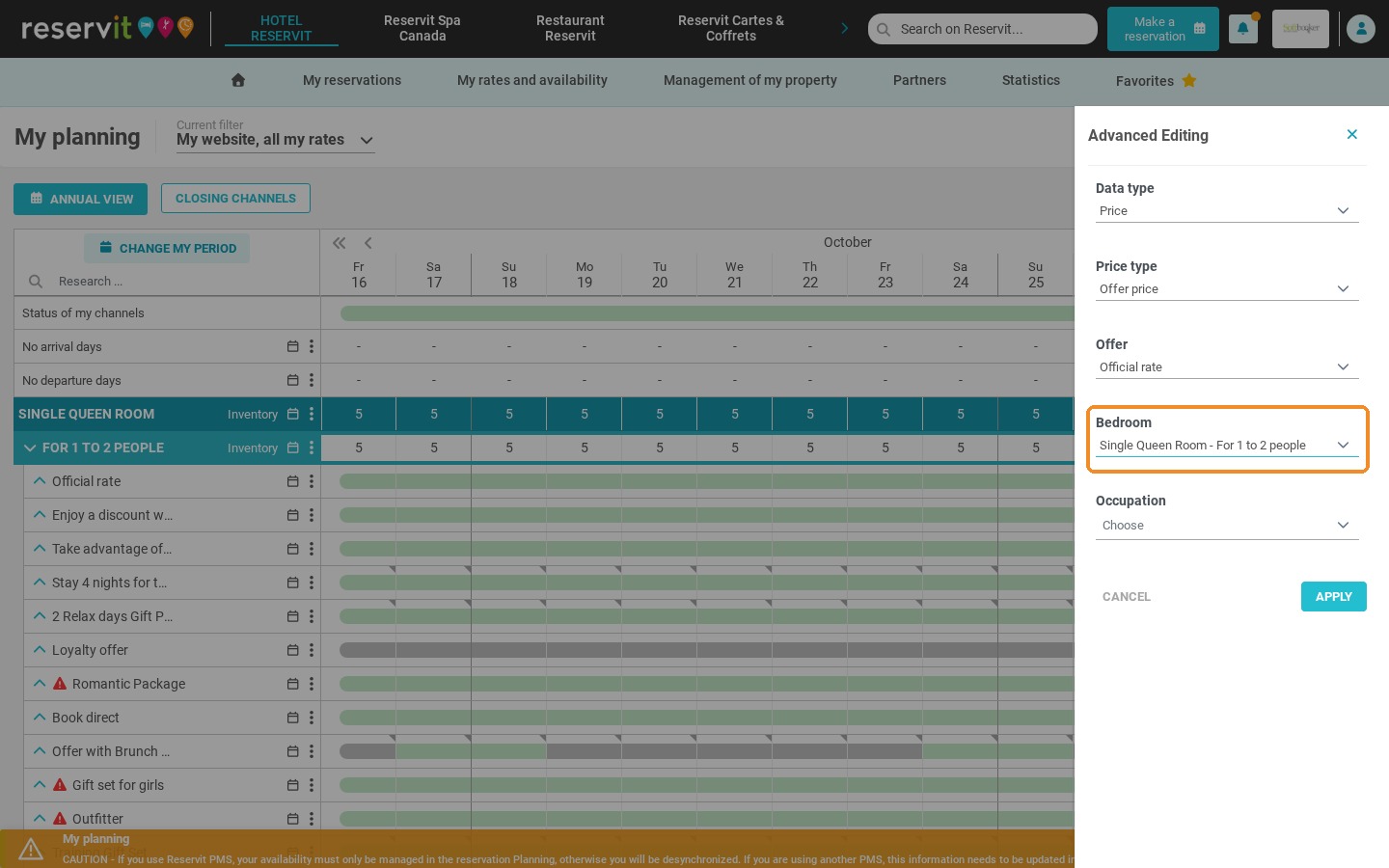
12. Select the occupancy or occupancies concerned.
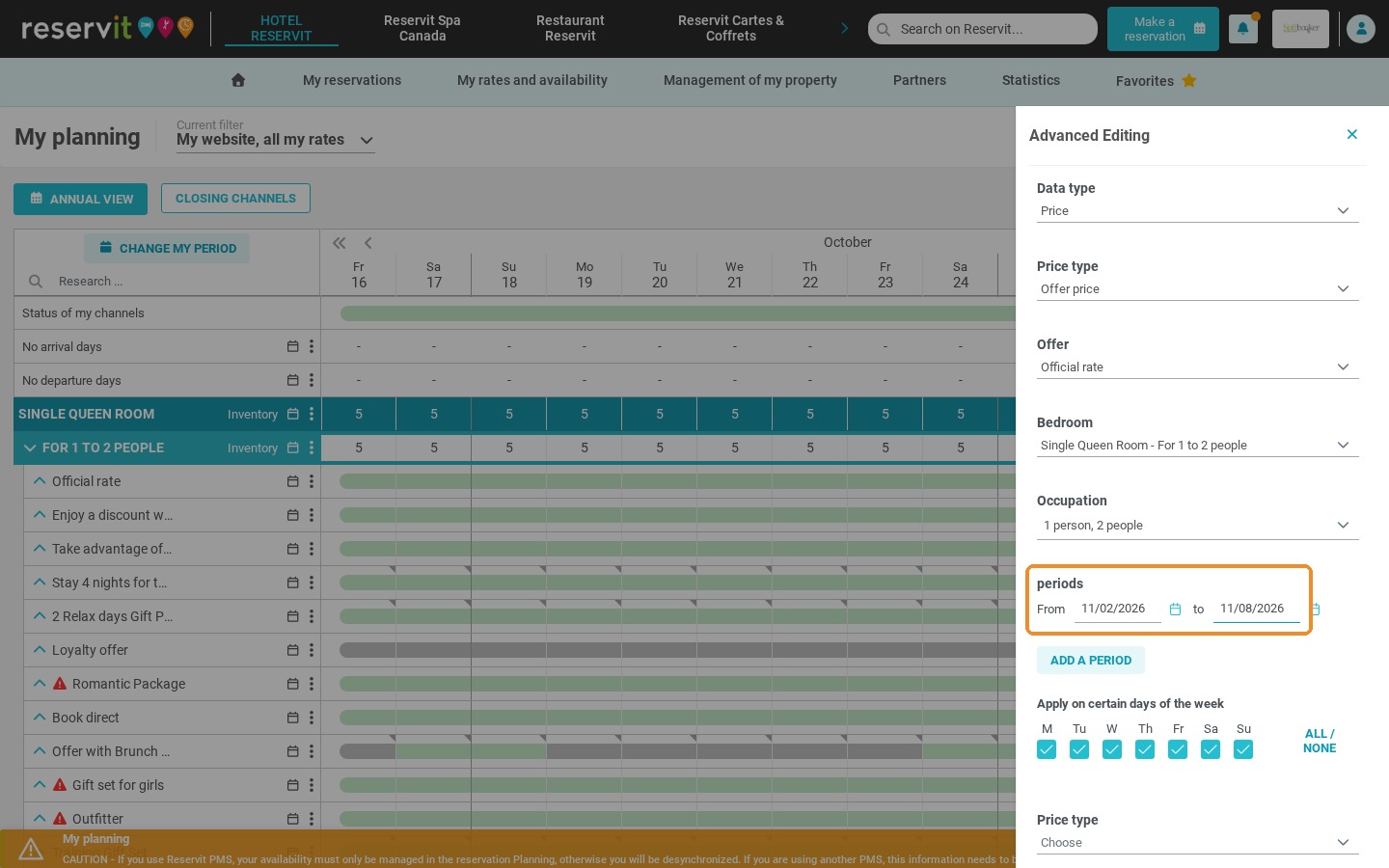
13. Enter the period of your choice. Click "Add a period" if you want to apply the same change to other dates.
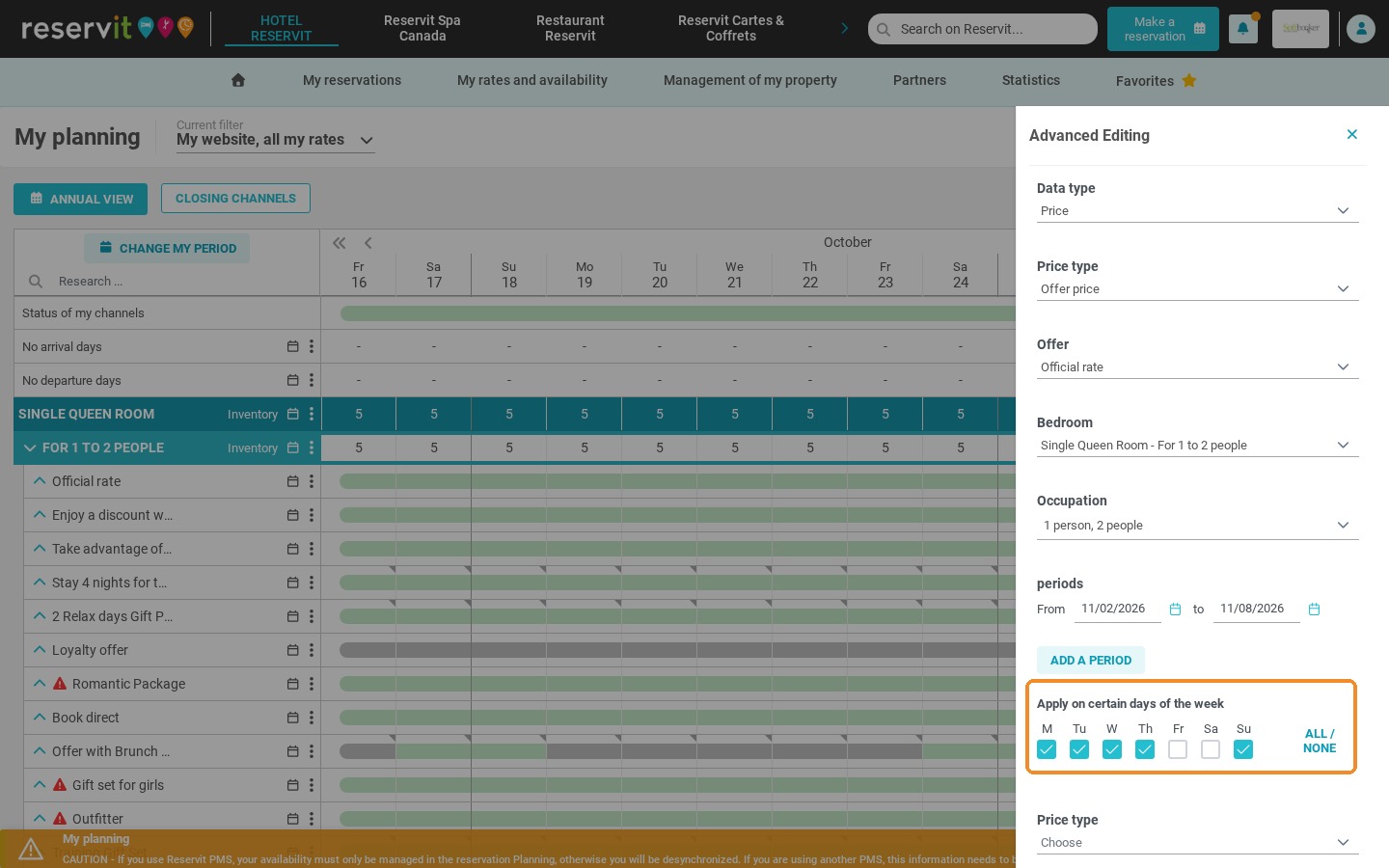
14. If needed, untick the days of the week the change should not apply to. In this example, Friday and Saturday are excluded.
15. In the second "Price type" field, choose "Fixed Price", then enter the price per night.
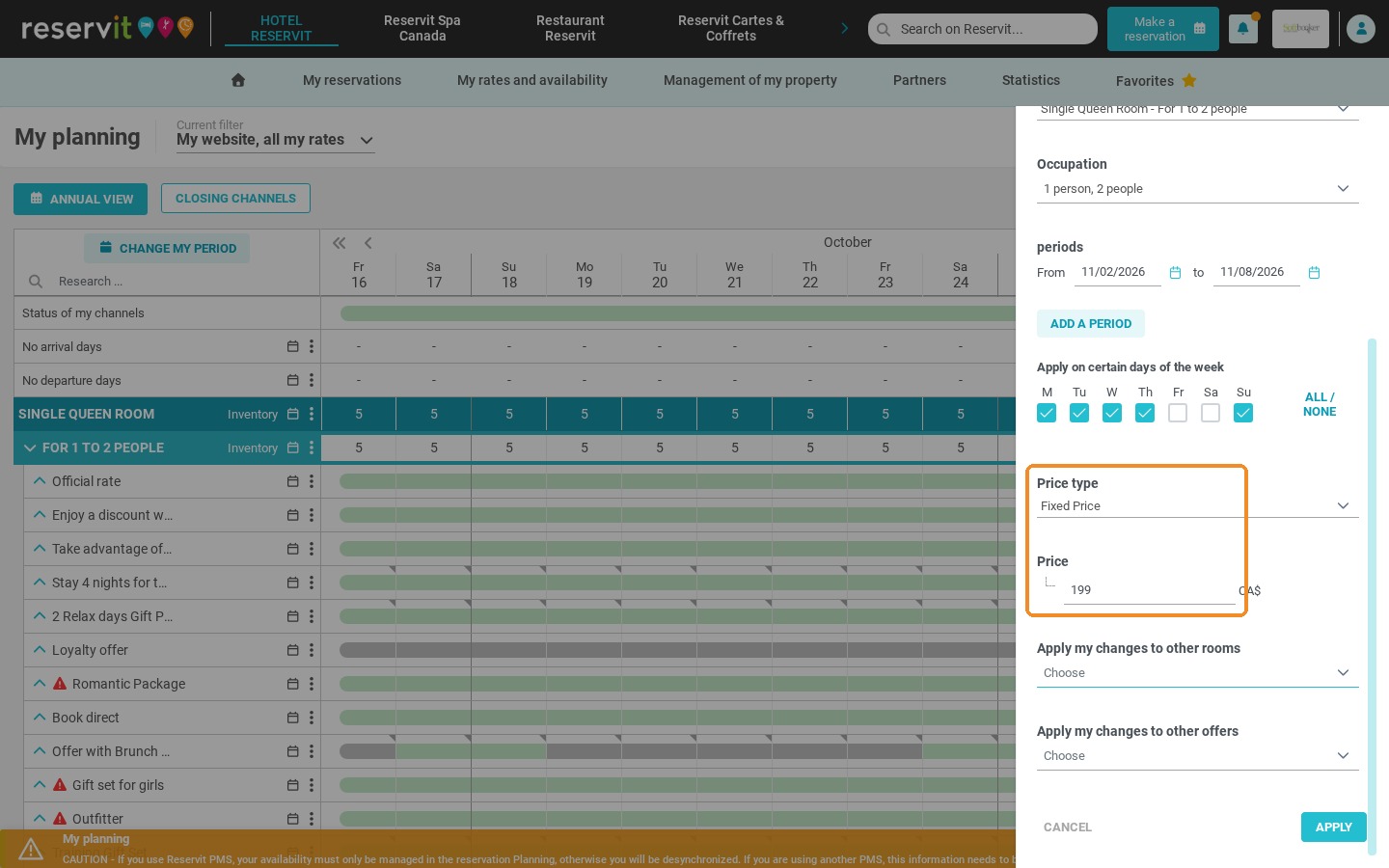
16. If needed, choose the other rooms and offers the same change applies to.
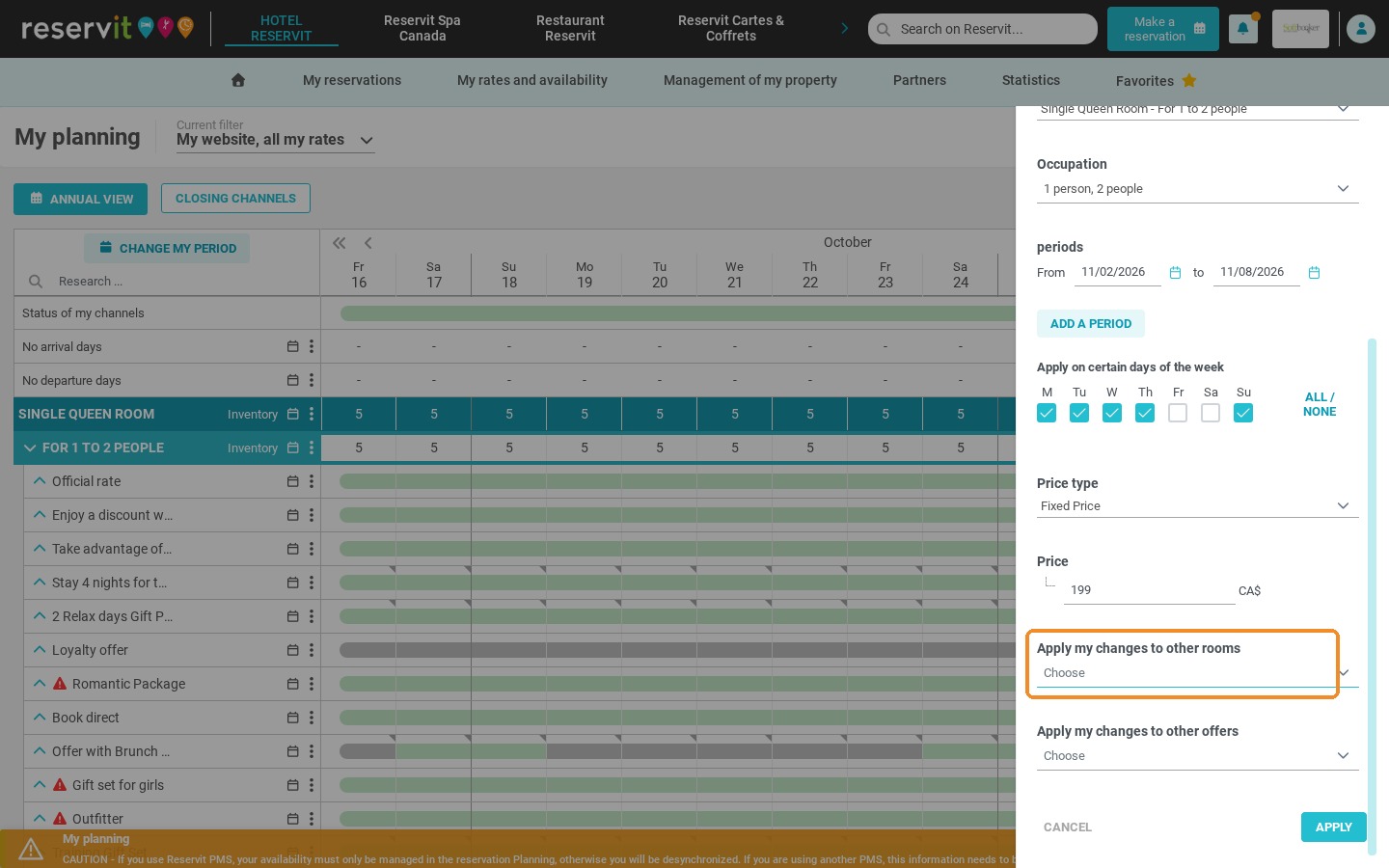
17. Click "Apply".
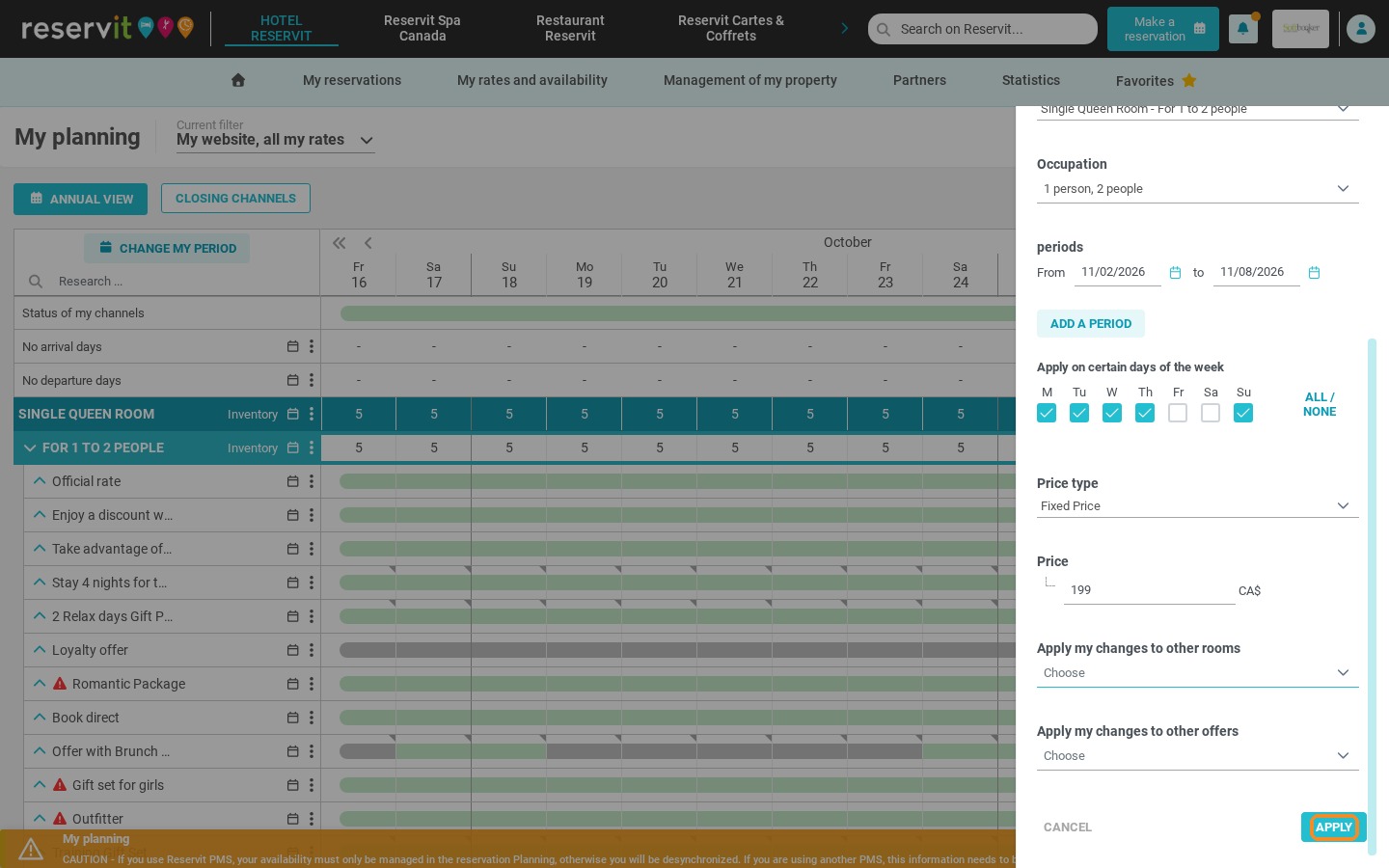
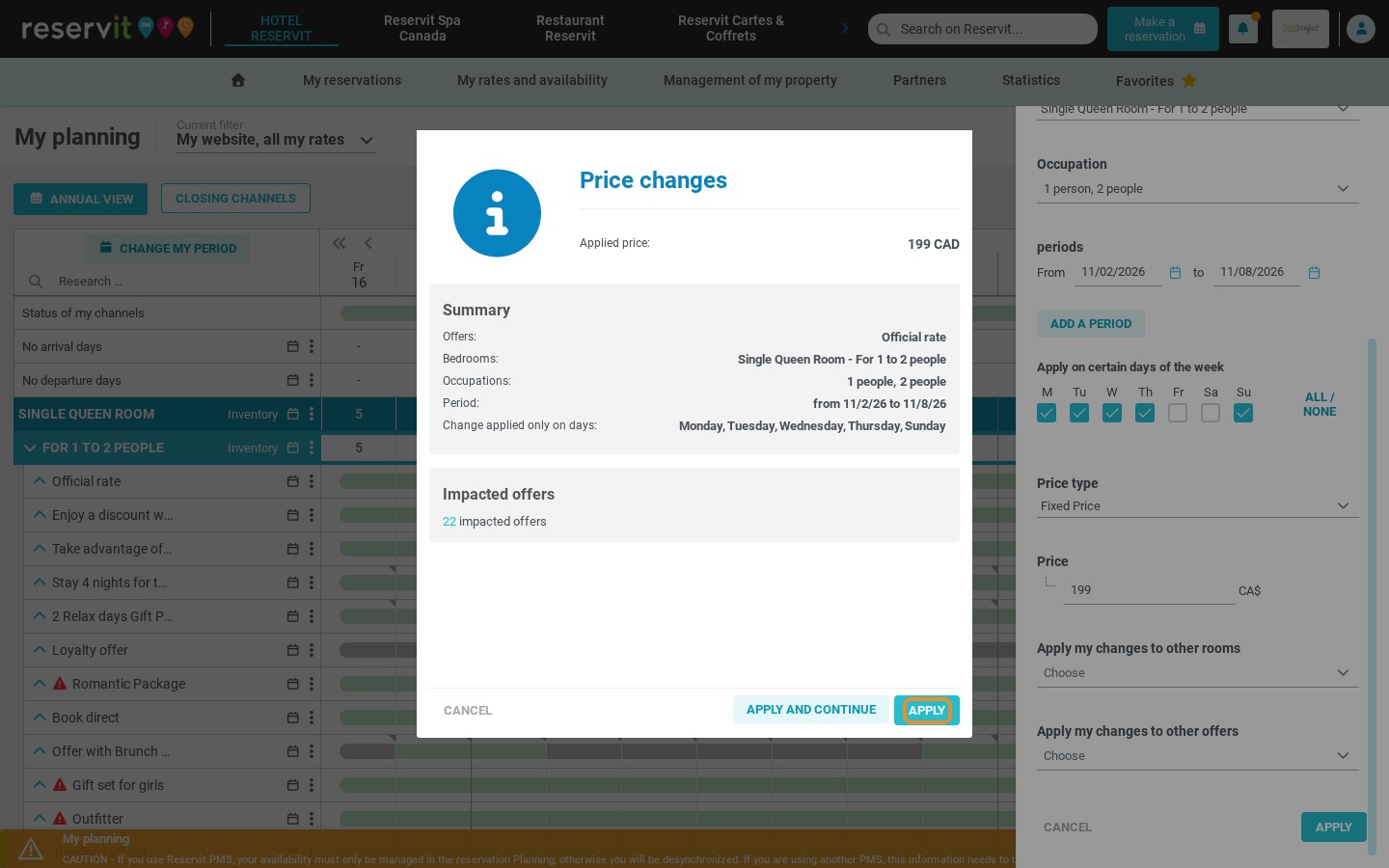
18. A summary of your changes is displayed, with the number of offers impacted. Click "Apply" to confirm, or "Apply and continue" to make another change.
To carry your prices over from one year to the next, as is or with an increase or decrease, see How to Copy and Adjust Rate Grids for Future Years on Reservit.
If you use a property management system (PMS), first check whether your rates must be created or changed directly in it. If so, changes made in Reservit could be overwritten or ignored.