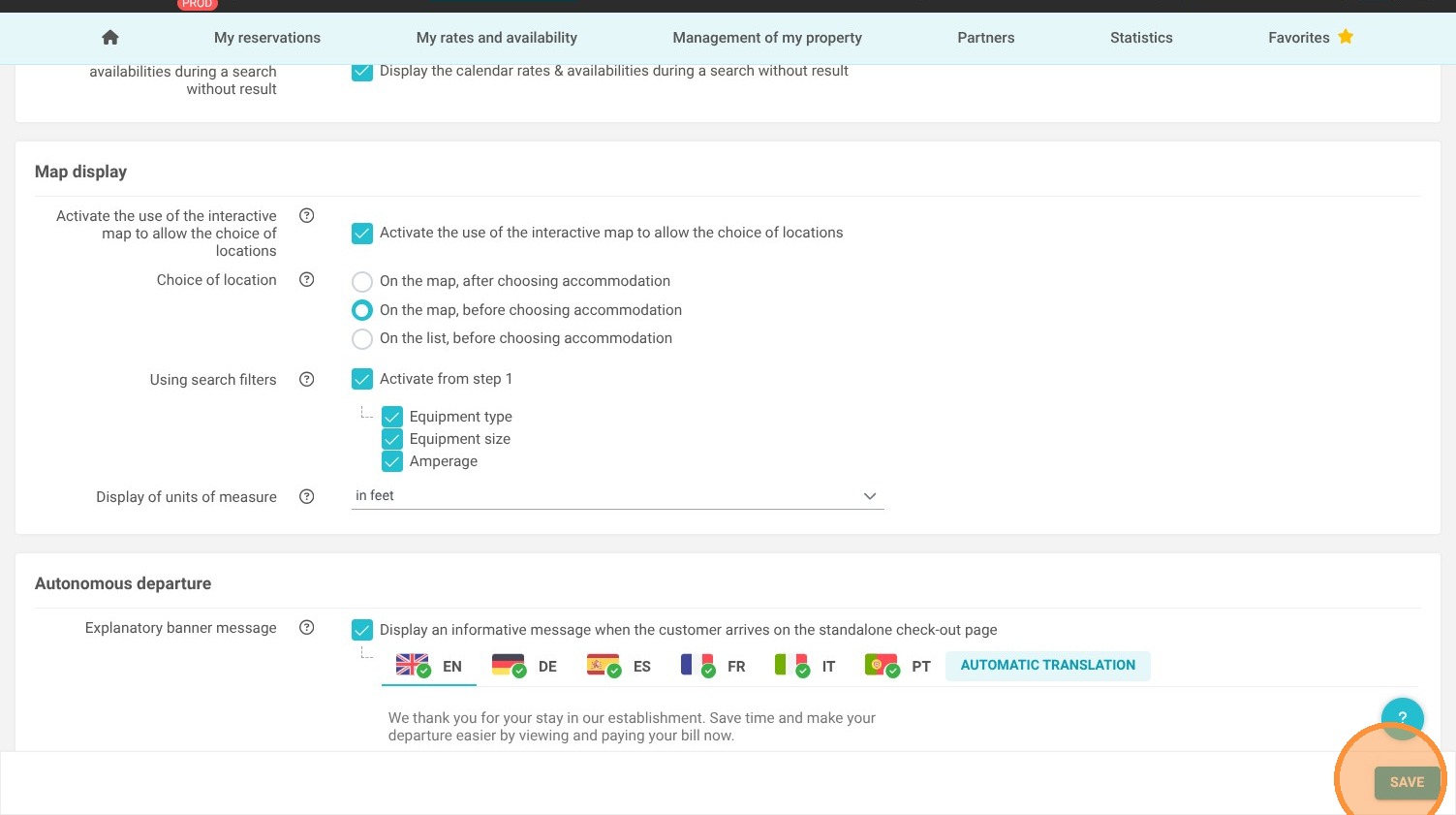
Article Summary: This tutorial explains how to effectively configure the display of the interactive map directly on your Reservit Booking Engine. You will learn how to enable or disable the map feature, customize location settings, and select specific search filters such as equipment type, size, and amperage. By personalizing these map settings, you can significantly enhance the user experience and make the reservation process much more intuitive for your future guests.
The 4 key steps to configure your interactive map:
-
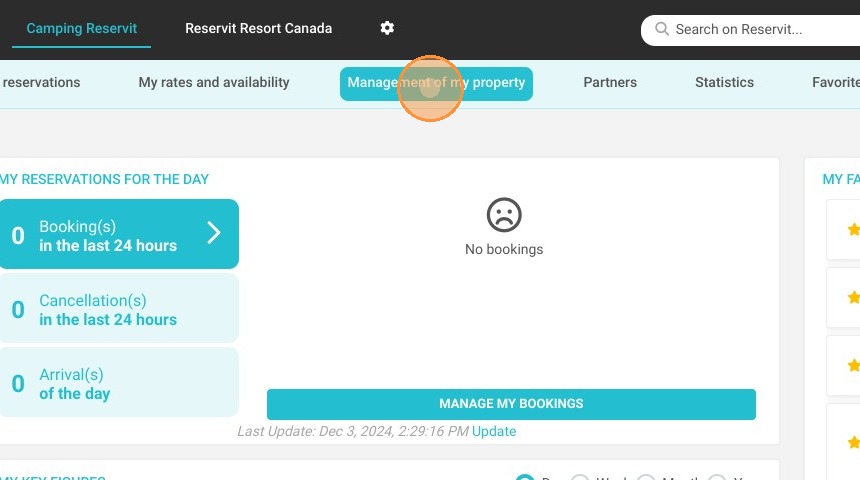
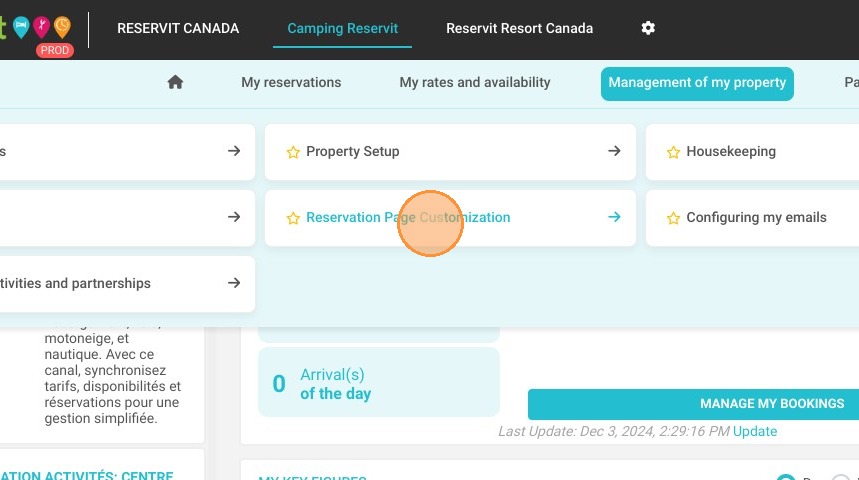
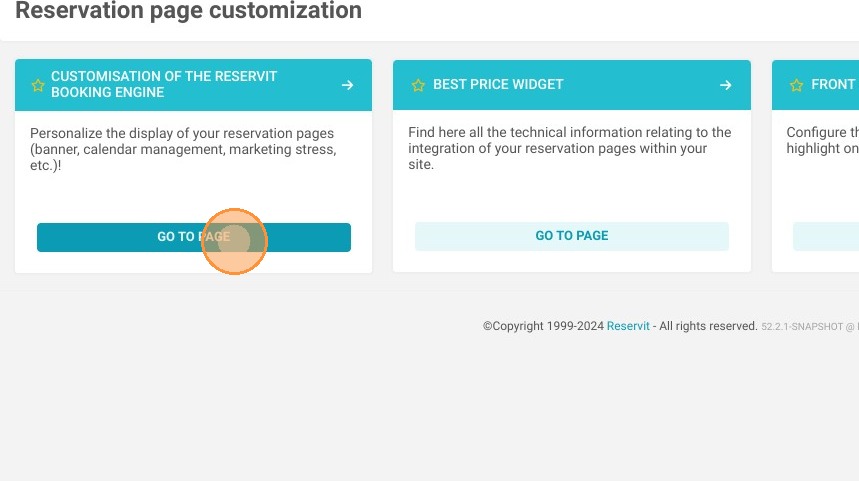
Access Customization Settings: Navigate to the "Management of my property" menu, select "Reservation Page Customization," and open the Reservit Booking Engine settings.
-
Toggle Map Activation: Scroll to the bottom of the configuration page to locate the map options and activate or deactivate the interactive map display as needed.
-
Set Locations and Filters: Choose your preferred location setup and select the essential search filters that will appear during the first step of a user's search.
-
Save Your Configurations: Click the "Save" button to instantly apply your new interactive map settings to your live booking engine.
Why follow this guide? A well-configured interactive map directly improves your guests' navigation, helping them visualize your property and find their perfect accommodation or site faster. This guide saves you valuable time by showing you exactly where to adjust these specific settings, ensuring a seamless, highly optimized booking journey that can boost your overall conversion rate.
1. Click "Management of my property" then "Reservation Page Customization"
and ''Customisation of the Reservit Booking Engine''
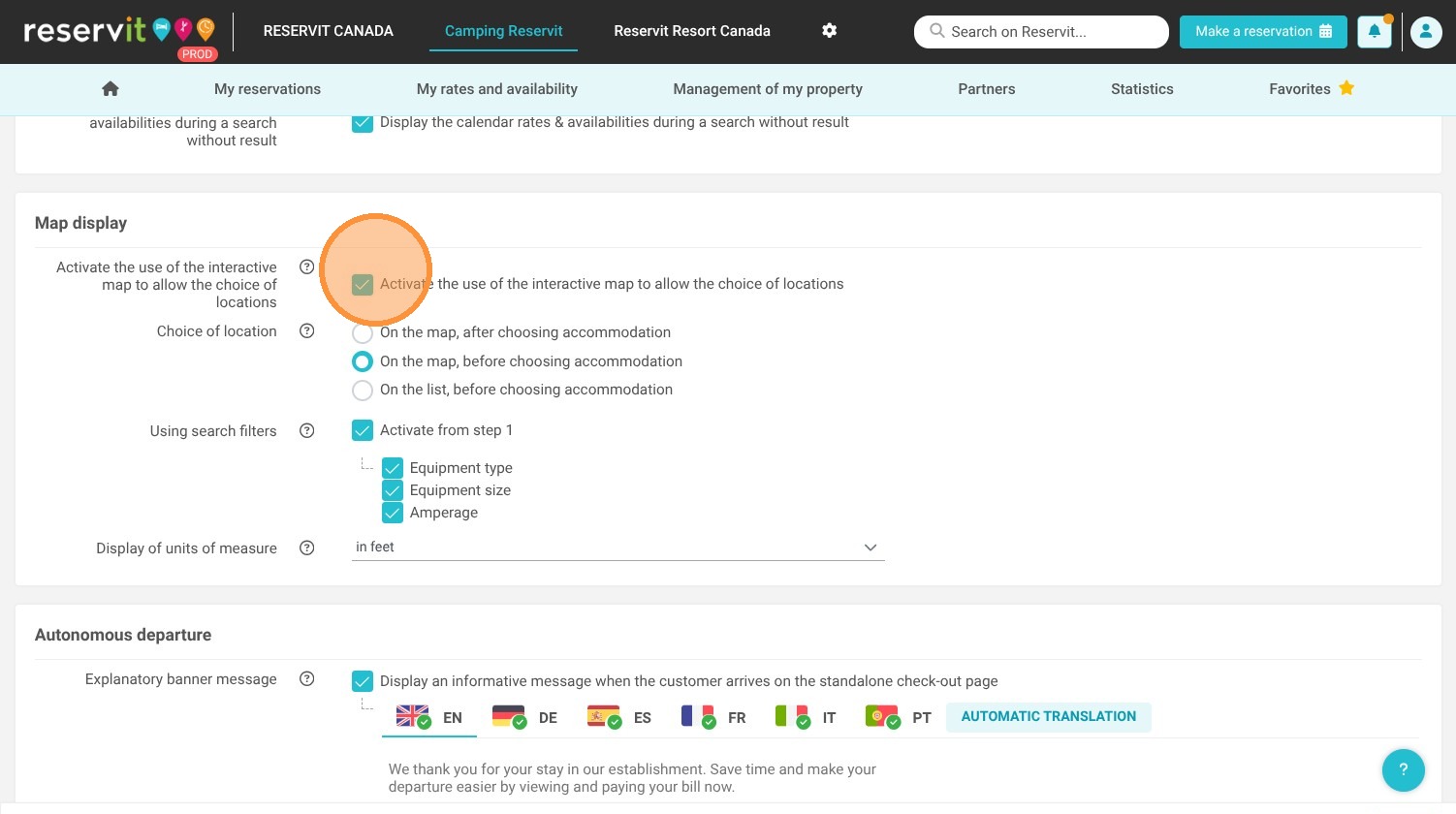
2. At the bottom of the page, you will find the settings related to the map. You can activate or deactivate the map as needed.
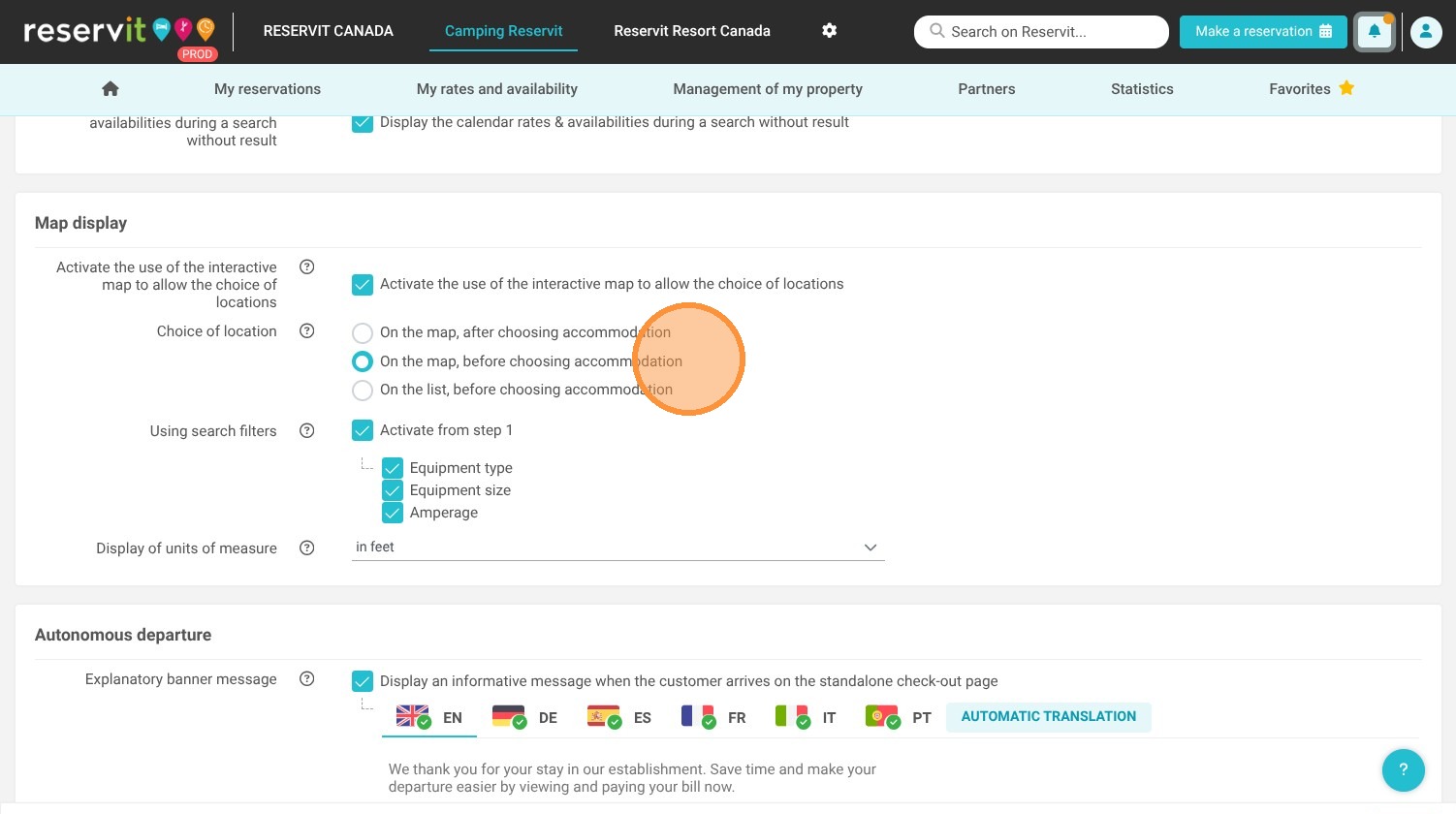
3. Choose where to select the location.
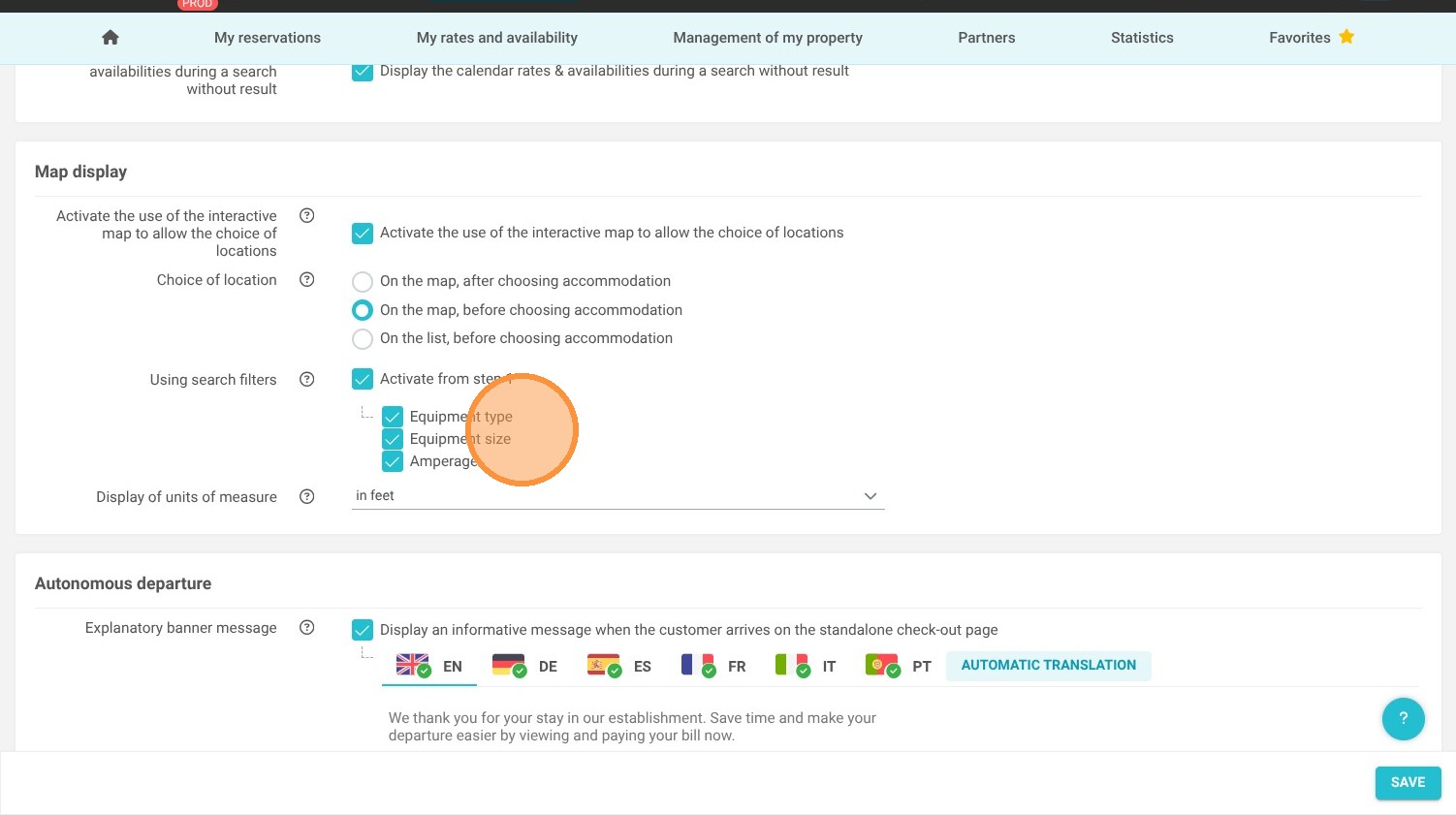
4. You can choose the search filters that appear in the first step of the search among: type of equipment, size of equipment and amperage.
5. Click "Save"