Help for use

How to Make a Reservation Using the Interactive Map in Reservit (Booking Campsites)

Article Summary: This tutorial explains the step-by-step process of making a reservation using the interactive map feature within your Reservit Booking Engine. You will learn how the user navigates the booking journey, from inputting specific camping equipment dimensions to filtering pitches by amperage and services. By understanding exactly how guests interact with this tool, you can ensure your map is optimized to deliver a seamless user experience and boost your direct booking conversions.

The 5 key steps to make a reservation with the interactive map:

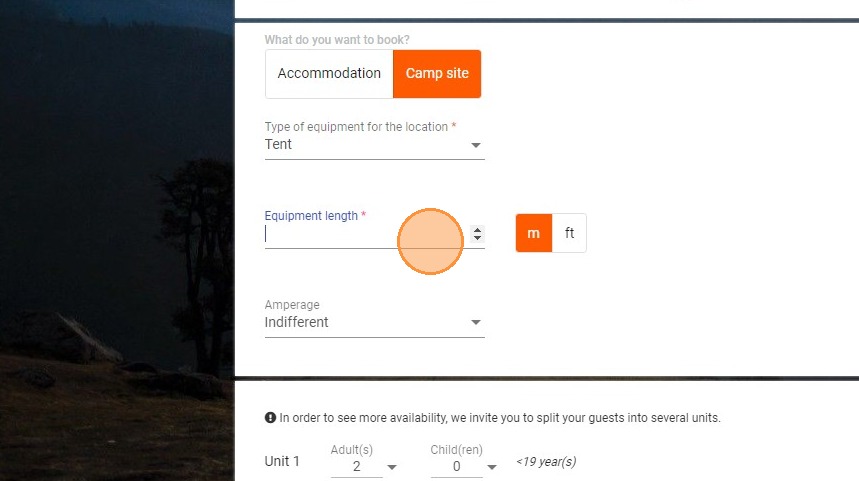
  • Define Search Criteria: Select the "Accommodation" or "Camp site" category and specify the equipment type and length to begin the search.

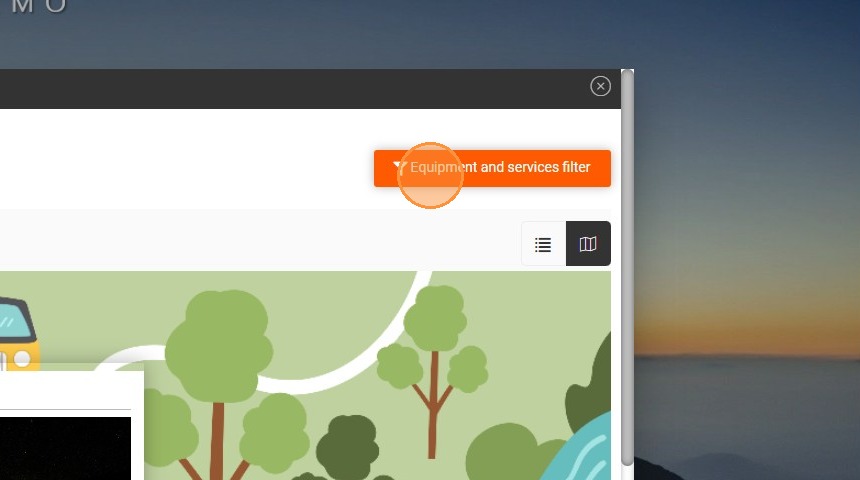
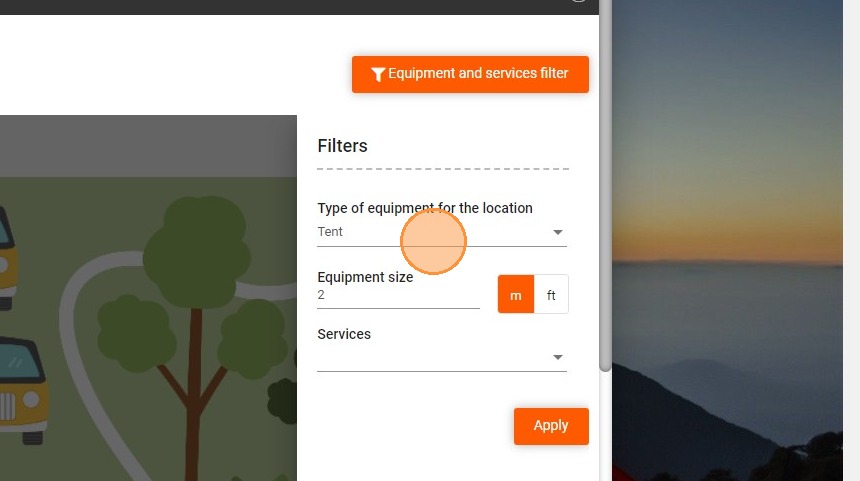
  • Apply Advanced Filters: Use the "Equipment and services filter" to narrow down available pitches based on specific needs like amperage, size, or extra amenities.

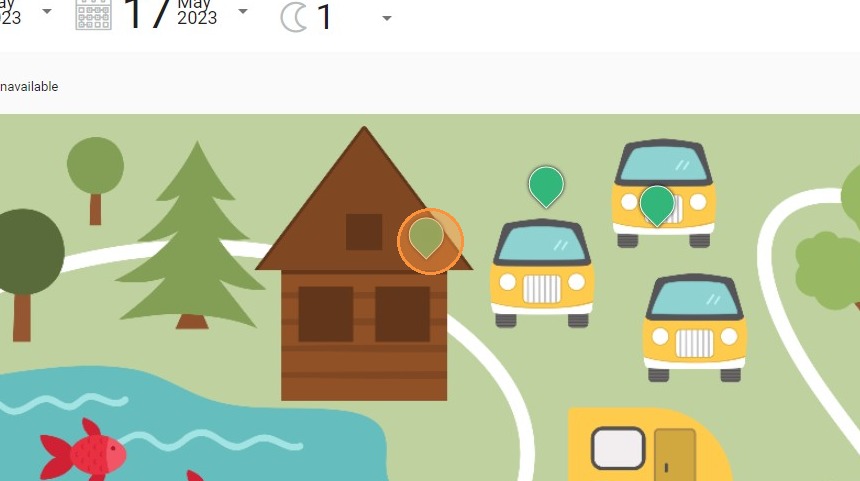
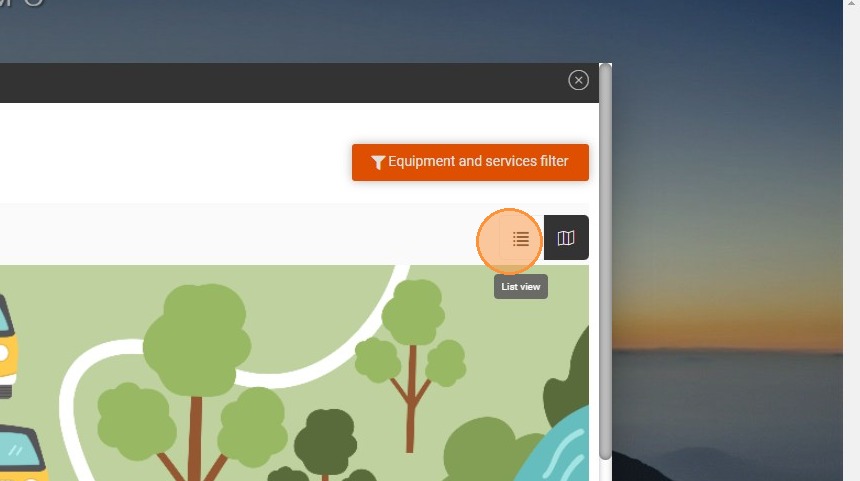
  • Navigate the Interactive Map: Browse the full map to see the exact location of available pitches, or toggle to the list view for a detailed breakdown of equipment options.

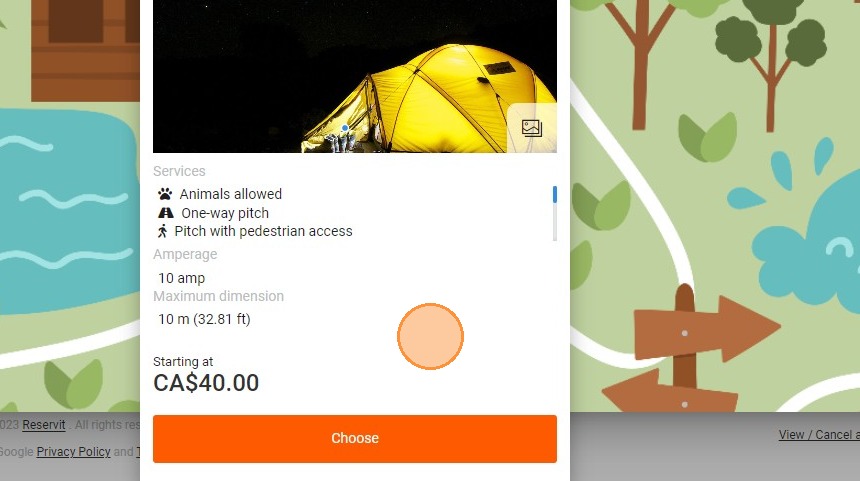
  • Select the Ideal Pitch: Click directly on a map location to review its specific details, then click "Choose" to select the pitch and pick your desired rate.

  • Finalize the Booking: Add any additional optional services to your cart and complete the standard reservation checkout process.

Why follow this guide? Understanding the interactive map from a guest's perspective allows you to verify that your online inventory and filters are correctly configured, preventing booking errors and frustrated customers. This guide helps you streamline the reservation process, ensuring a frictionless user journey that ultimately maximizes your direct revenue.


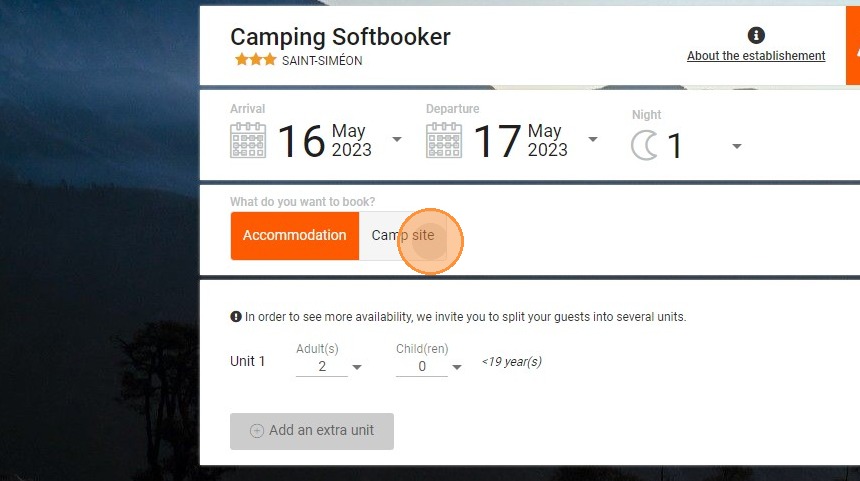
1. On the reservation pages, select "Accommodation" or "Camp site.

https://colony-recorder.s3.amazonaws.com/files/2023-02-02/4b885fb6-7885-445e-9091-57f013c776b9/ascreenshot_c3020ae26b5d4151bf3b63180d4e3a01_text_export.jpeg

2. By selecting camp site, new fields appear.
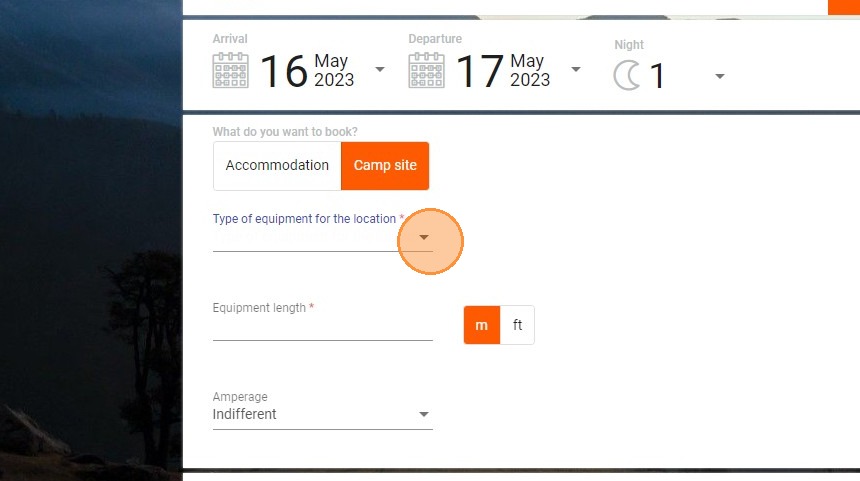
https://colony-recorder.s3.amazonaws.com/files/2023-02-02/3d7adddd-9eb5-40a7-a908-af7b6e179771/ascreenshot_d8c3d23f4d3d4be6862a9b5c0f5e152c_text_export.jpeg

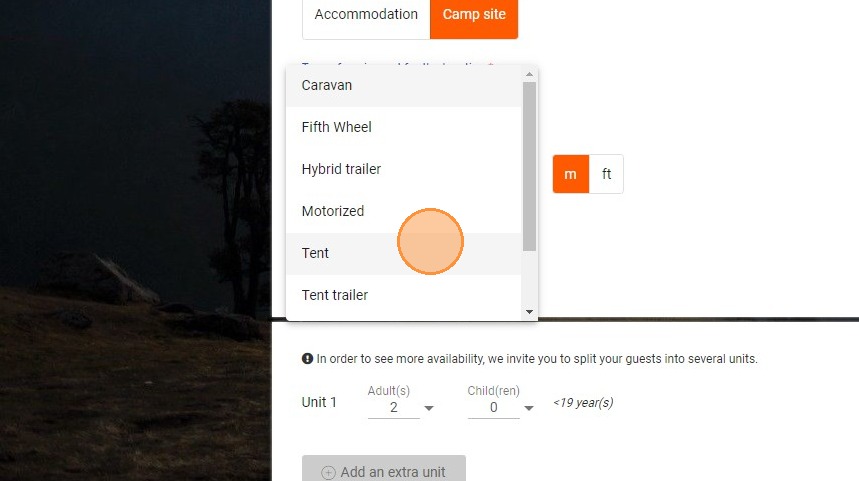
3. Choose the equipment type.

https://colony-recorder.s3.amazonaws.com/files/2023-02-02/e2bc8461-8014-46b2-93b8-e2516d6c58f1/ascreenshot_e8a9c6b803ff421b9909acc560f66b54_text_export.jpeg

4. Indicate the length of the equipment.
https://colony-recorder.s3.amazonaws.com/files/2023-02-02/92119d0e-bb6a-4df2-9bc9-2e9abfcdf680/ascreenshot_eb67e7ebaa4d467dbafb4fd83bf04829_text_export.jpeg

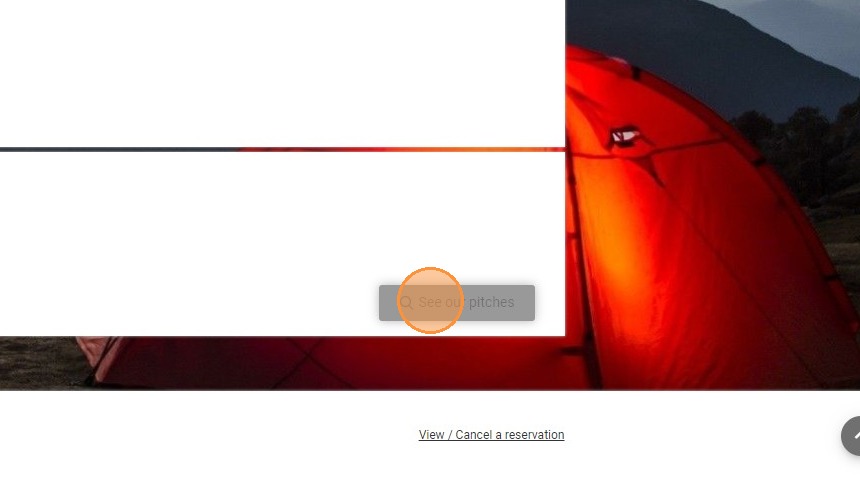
5. Click "See our pitches"

https://colony-recorder.s3.amazonaws.com/files/2023-02-02/f725a06d-f768-4341-9ab4-9b9f39429892/ascreenshot_a9b22422f0874e1f993bcb2f838d74bb_text_export.jpeg

6. You will then see the complete map.
https://colony-recorder.s3.amazonaws.com/files/2023-02-02/dd577930-f009-485e-9628-2d79248549d9/ascreenshot_0a13c8cbf1f646a8be9bff8b5acd248c_text_export.jpeg

7. You can click directly on a location to see the details.
https://colony-recorder.s3.amazonaws.com/files/2023-02-02/68d307c0-beb2-460e-bd68-02c2bca3b726/ascreenshot_bed7c9c85d65428a894ba338c2316300_text_export.jpeg

8. You can also click on "Equipment and services filter" at the top of the page.
https://colony-recorder.s3.amazonaws.com/files/2023-02-02/e7aa769c-50a9-4eba-a724-85cb1dc1b5cf/ascreenshot_4ac47752e5114aad8513990620d53a5a_text_export.jpeg

9. Fill in the amperage, size and type of equipment if necessary.
https://colony-recorder.s3.amazonaws.com/files/2023-02-02/9ad506e7-d9cd-4312-92c6-e06fe51dd01d/ascreenshot_a4f9efb4d3be42a1b166cd83019833dc_text_export.jpeg

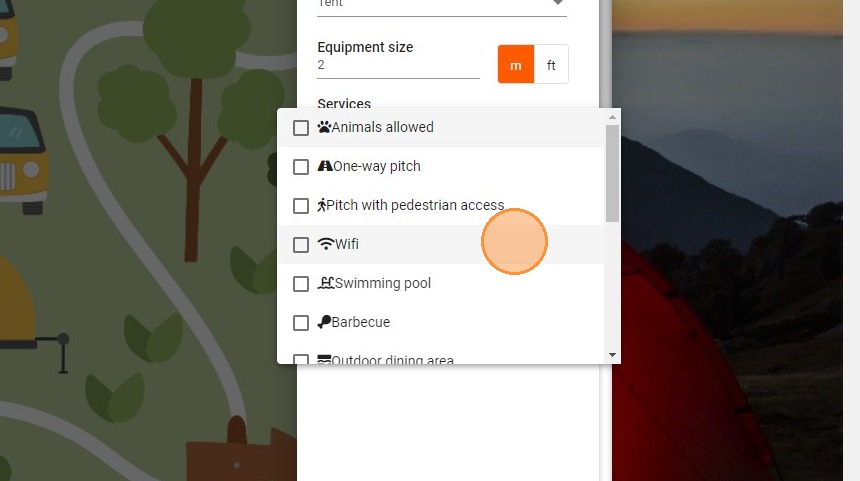
10. You can also select additional services.
https://colony-recorder.s3.amazonaws.com/files/2023-02-02/06d8f85f-8992-4556-b77f-f24df5c1d12e/ascreenshot_ed085f69ff744aed9100e888a99c7eed_text_export.jpeg

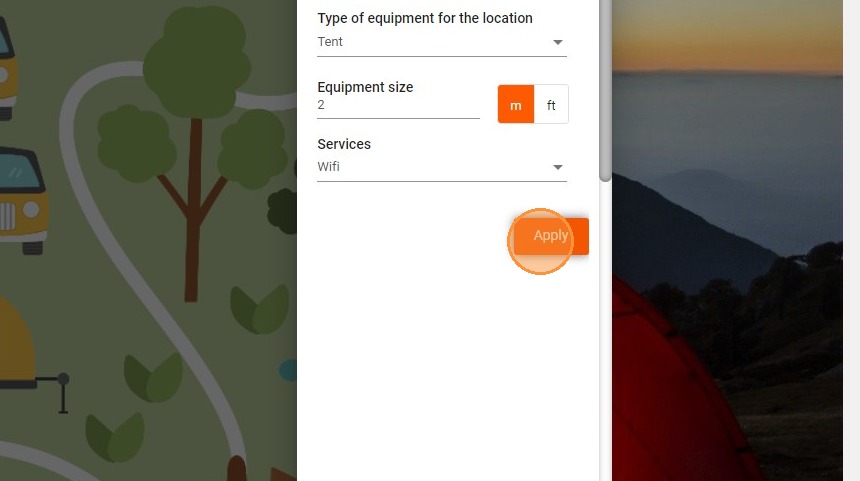
11. Apply these criteria to update the search.
https://colony-recorder.s3.amazonaws.com/files/2023-02-02/b7c28d5c-0af5-4d9a-b739-1f57cc5b38cf/ascreenshot_6f2f864656ac42dfa621c2d87e332856_text_export.jpeg

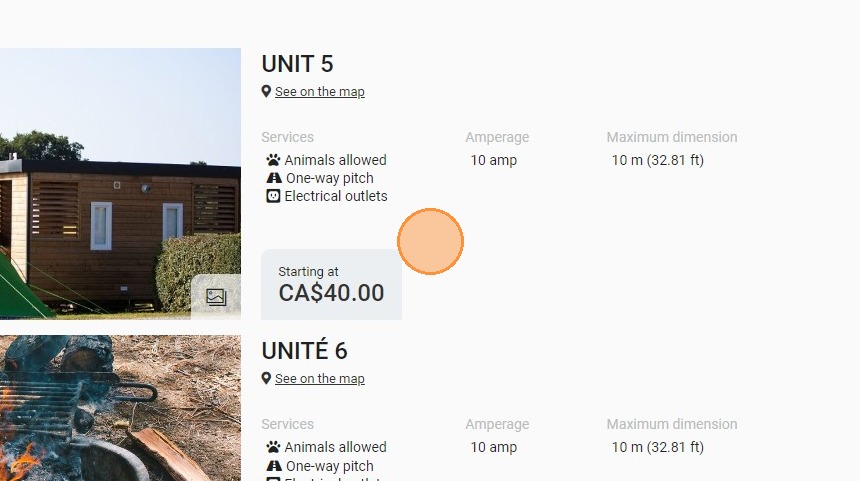
12. It is possible to display the results in a list rather than on the map
https://colony-recorder.s3.amazonaws.com/files/2023-02-02/0321286c-bb9b-439f-9057-2db287f0ad84/ascreenshot_6767b3f2f41a4c06be17d05b181a890f_text_export.jpeg

13. You will then see the available locations with the details of the equipment.
https://colony-recorder.s3.amazonaws.com/files/2023-02-02/1a0d6c52-a5d1-41d2-9ef0-110c7d1d86ac/ascreenshot_3db2dcc50115412d8e8eb85408f8bba0_text_export.jpeg

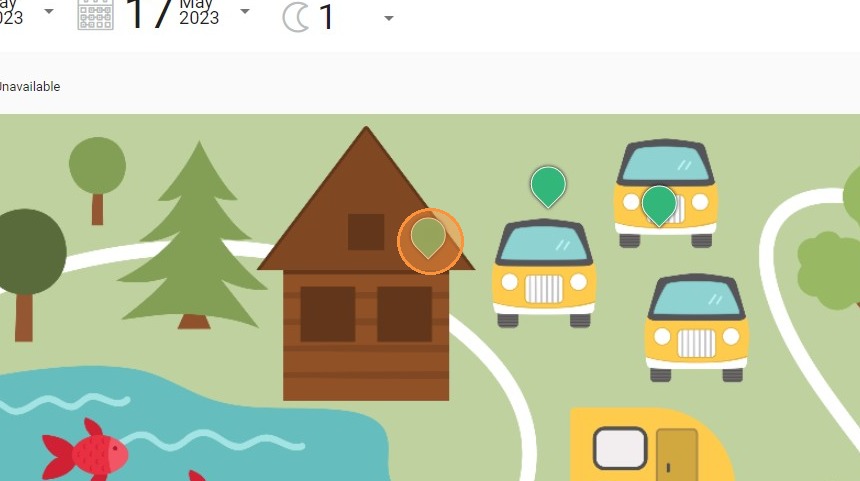
14. With the map view, click on the location.
https://colony-recorder.s3.amazonaws.com/files/2023-02-02/d7d42eeb-d440-4d9f-af6a-5b4548e29c02/ascreenshot_bd59985023b345e4aac7399f651266c8_text_export.jpeg

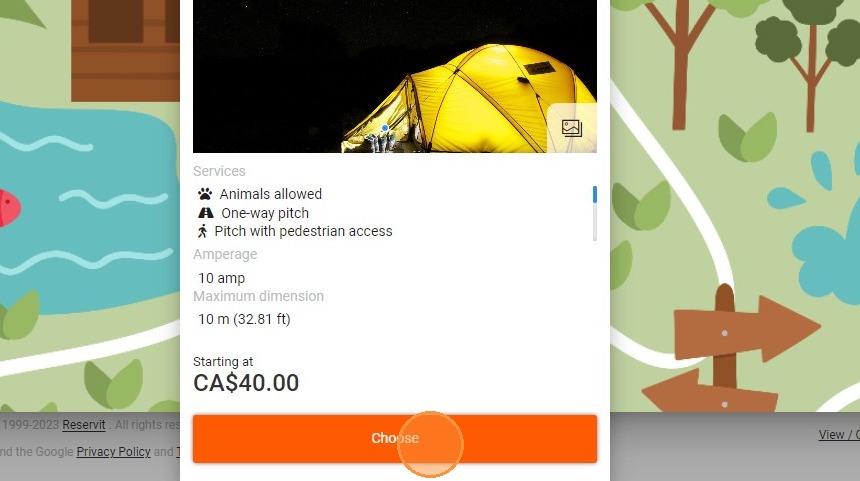
15. Click on "Choose" to choose this location.
https://colony-recorder.s3.amazonaws.com/files/2023-02-02/fdb30560-621d-46cf-adb4-a3f8c1e93852/ascreenshot_4861eade0c2045a4a21f95890a56fd15_text_export.jpeg

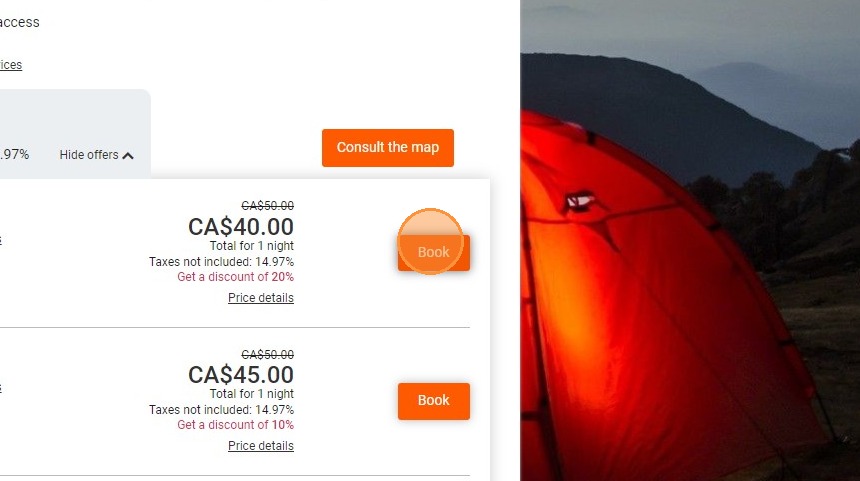
16. Select the rate you wish to book.
https://colony-recorder.s3.amazonaws.com/files/2023-02-02/15bcb7d9-78c8-4375-a2a7-4ed416b543b2/ascreenshot_5587b16c45ad4d229de7db20c99cd34e_text_export.jpeg

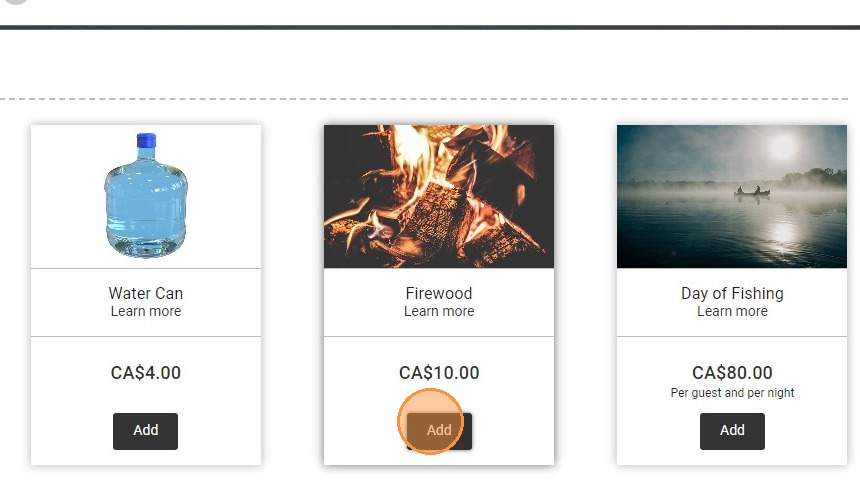
17. Add any other optional services to your search.
https://colony-recorder.s3.amazonaws.com/files/2023-02-02/0423631d-2818-4431-83f1-9208704f2f02/ascreenshot_2aea8fbf314e48e389fe4fe4da1f61fb_text_export.jpeg

18. Finalize the reservation as usual.