Article Summary: This tutorial explains how to accurately edit and customize your accommodation types within the Reservit platform, with a specific focus on camping setups. You will learn how to designate camping pitches, select accepted camping equipment, and define maximum equipment lengths. By updating these critical details, you ensure guests have precise information when booking their outdoor stays, directly improving their reservation experience.
The 5 key steps to edit your accommodation types:
-
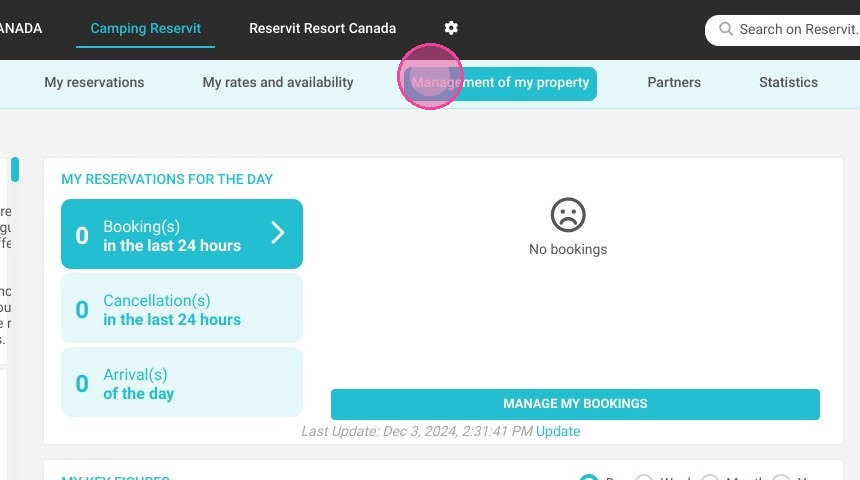
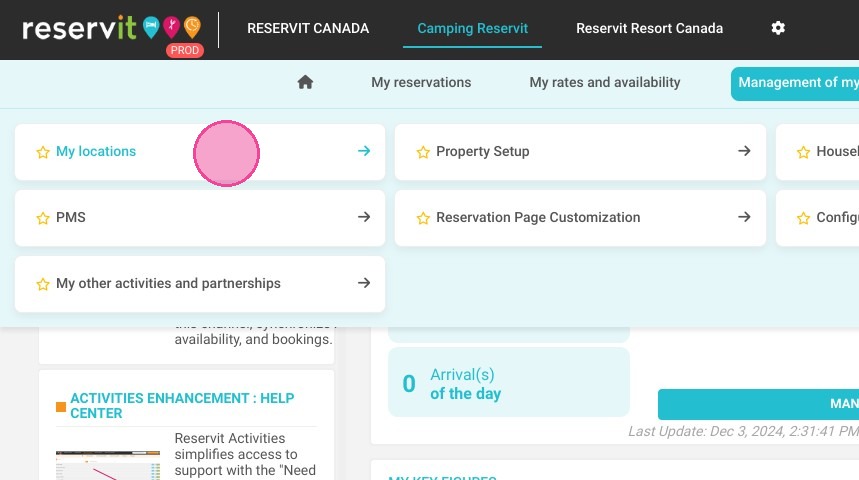
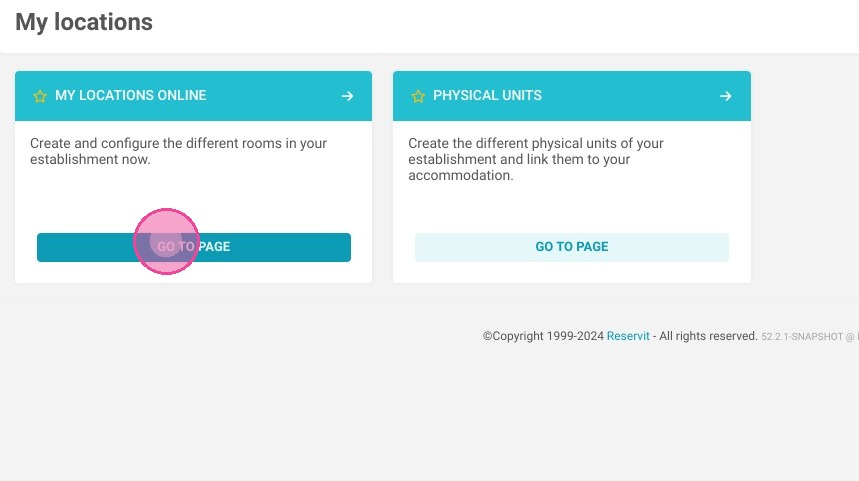
Access Your Locations: Navigate to the "Management of my property" menu, select "My location," and click on "My locations online."
-
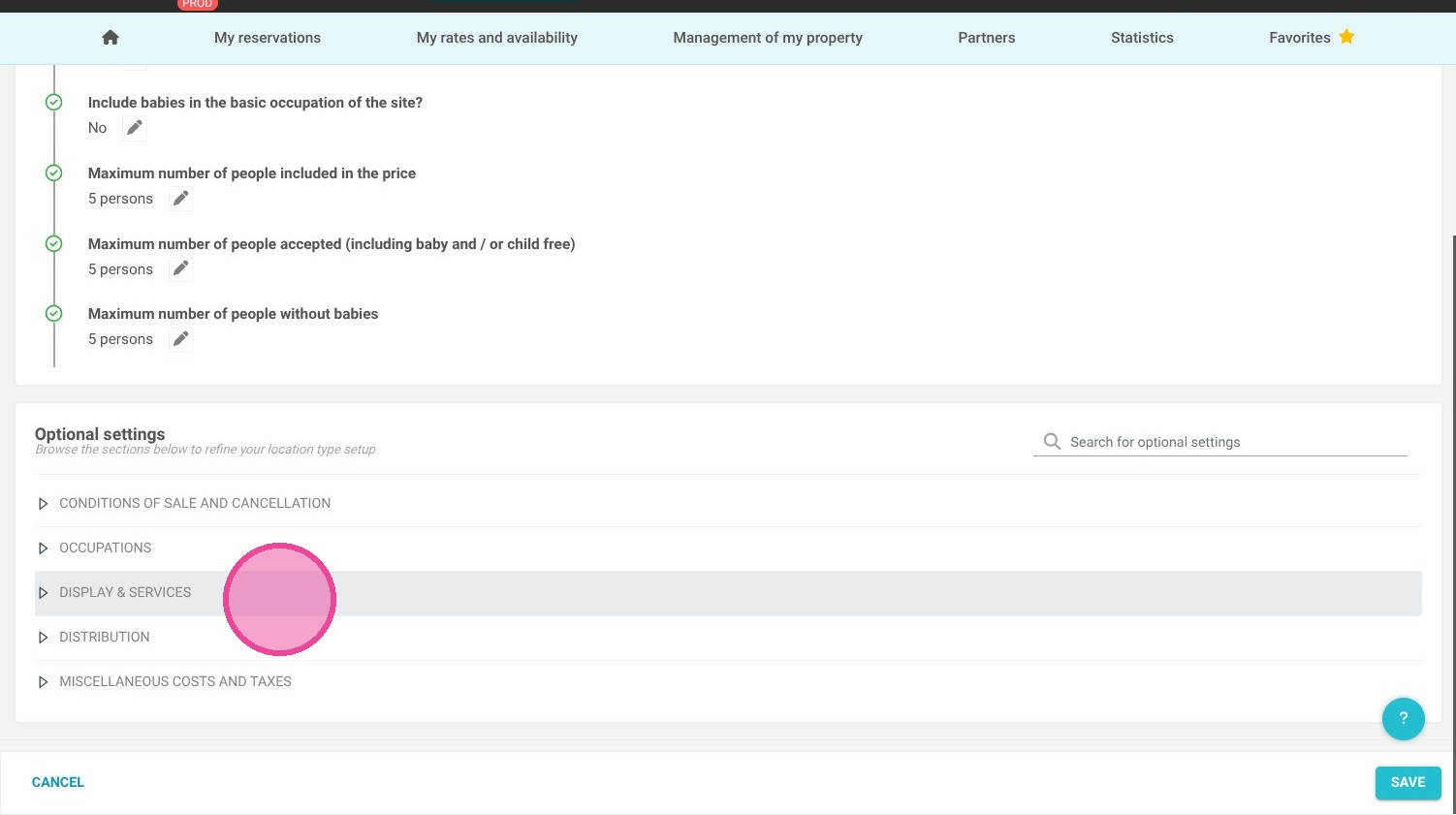
Edit Display Settings: Select the specific unit or location you want to modify, then click on the "DISPLAY & SERVICES" tab.
-
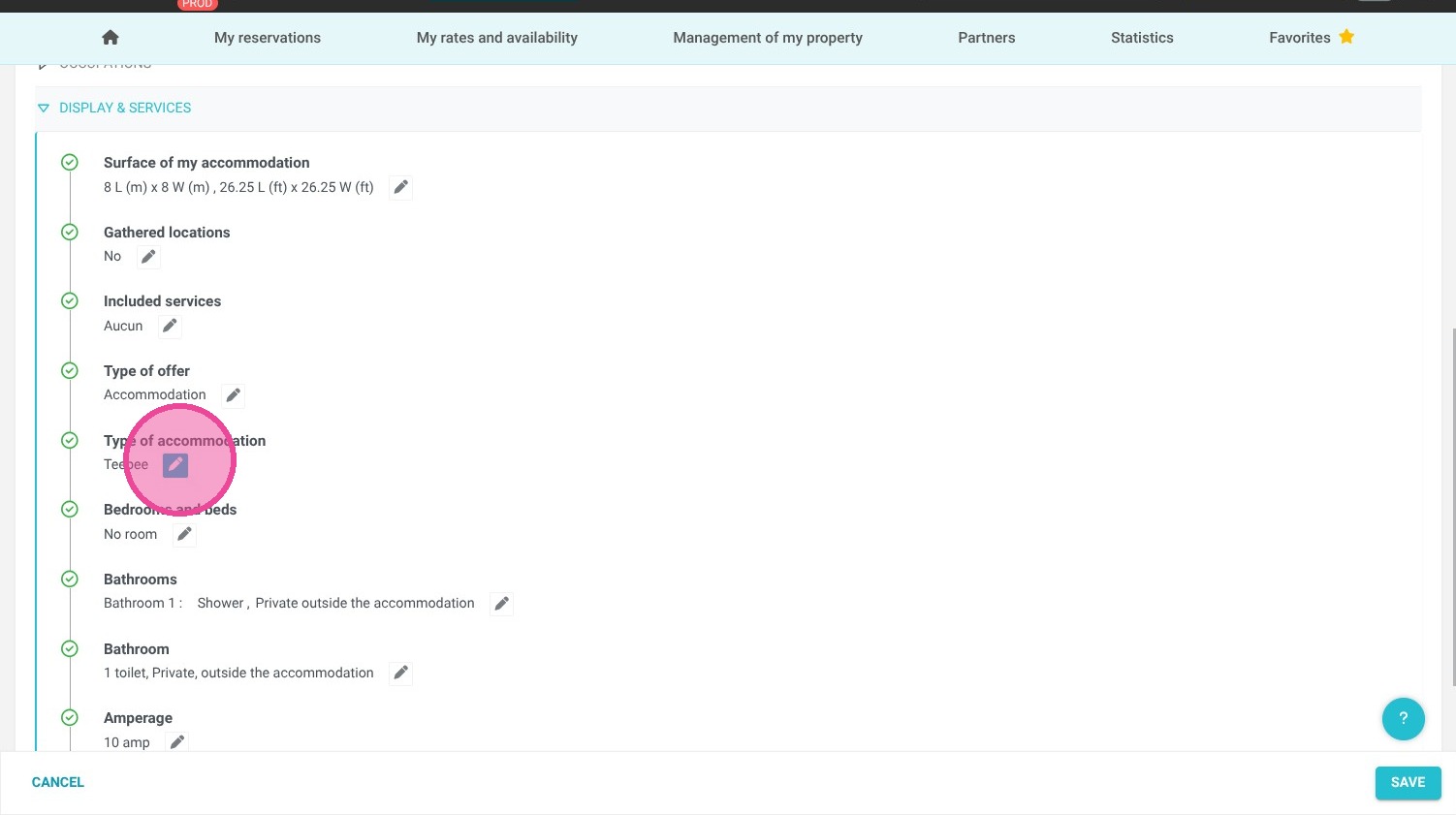
Select the Accommodation Type: Click on the "Type of accommodation" dropdown menu to view your available lodging categories.
-
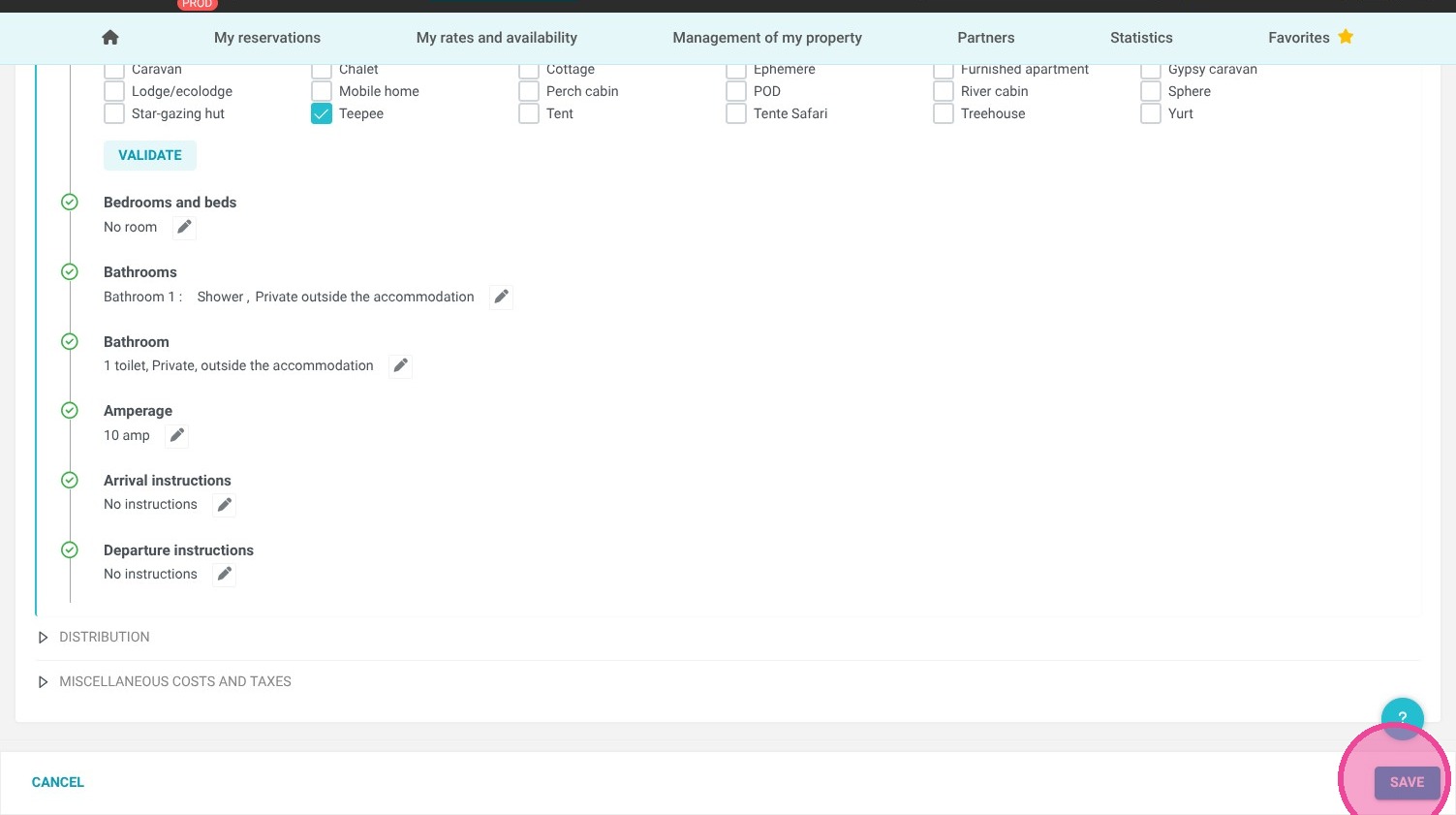
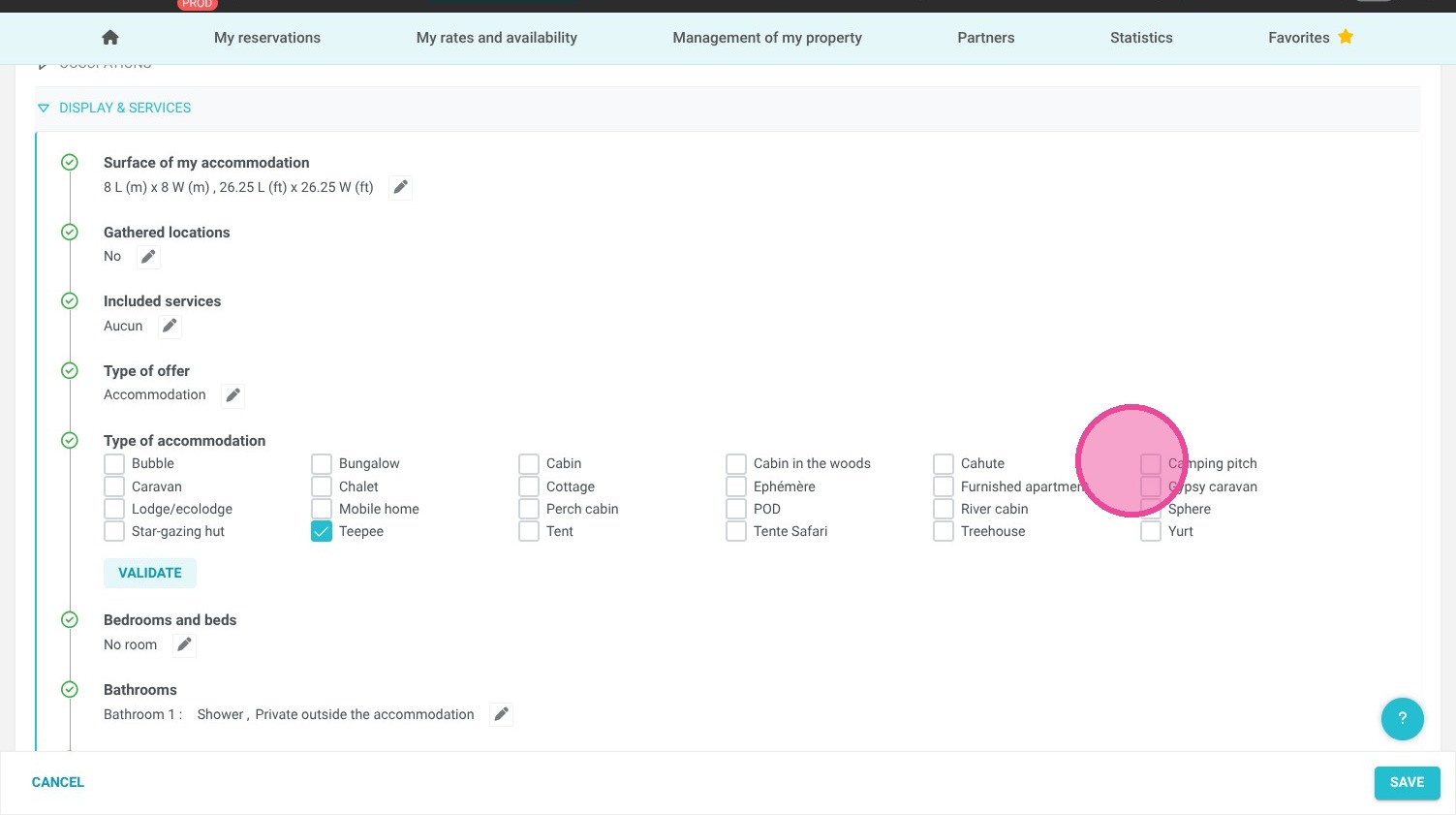
Configure Camping Details: Choose "camping pitch" from the list to reveal advanced settings, allowing you to define accepted equipment types and maximum lengths.
-
Save Your Configurations: Click the "Save" button to instantly apply your new accommodation settings and update your live booking engine.
Why follow this guide? Accurately configuring your camping accommodation types prevents costly booking errors and ensures guests arrive with compatible equipment. This straightforward setup saves you valuable time handling pre-arrival inquiries and optimizes your daily operations by clearly defining exactly what each specific campsite can accommodate.
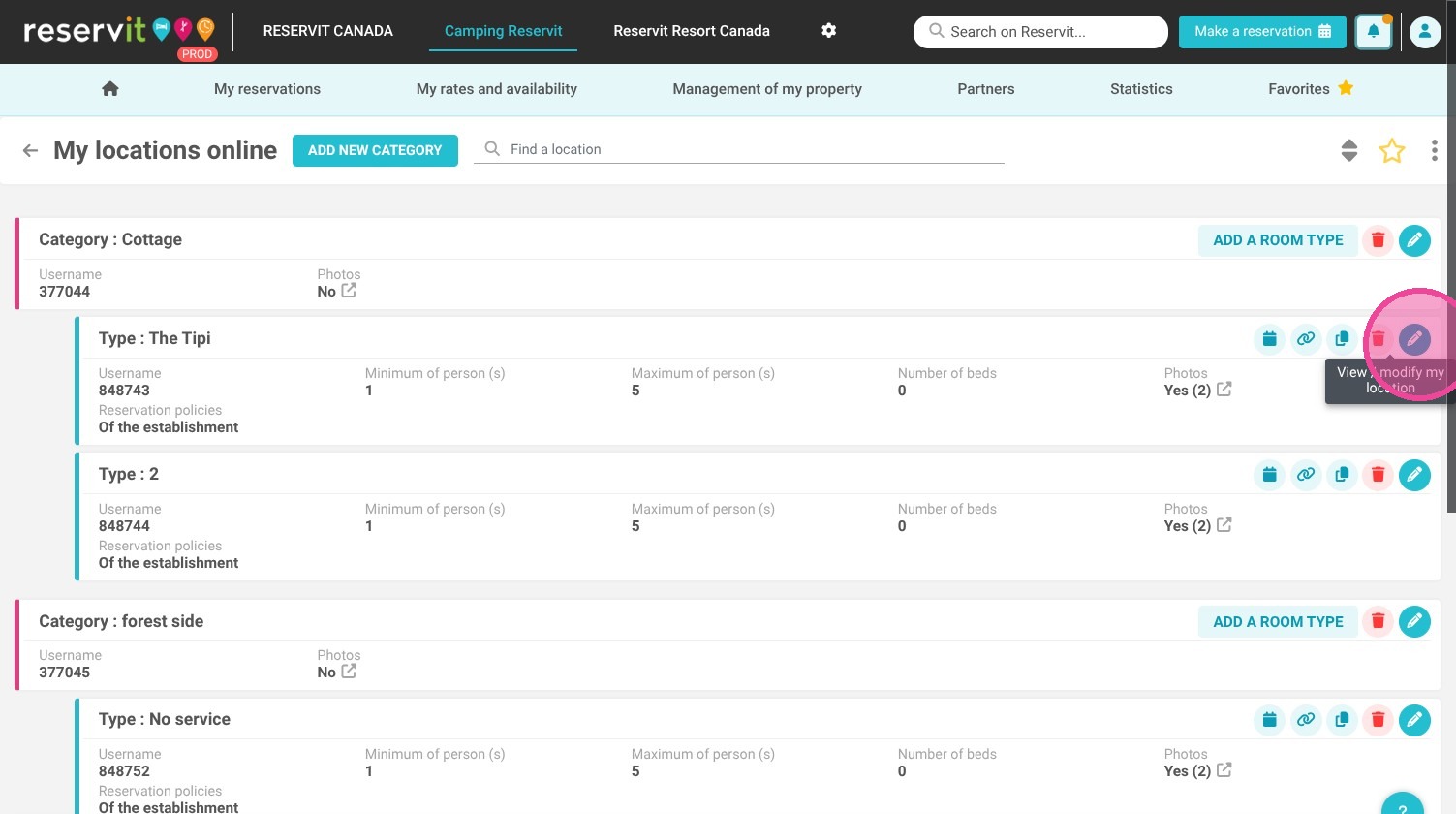
1. Click "Management of my property" then ''My location'' and ''My locations online''
2. Click the unit you want to edit.
3. Click "DISPLAY & SERVICES"
4. Click on "Type of accommodation"
5. Many choices appear. If you choose camping pitch, you will see new choices appear.
6. Click "Save"