

Article summary: This tutorial shows you how to create a personal access for each member of your team and choose the pages they can view, especially the homepage with the table layout. You will learn how to open the access codes, create or edit an access, then select the authorized pages.
The 3 key steps to give access to the table layout:
-
Open the access codes: Go to Managing my activity > Property Setup > ACCESS CODE.
-
Create or edit an access: Click ADD, or the pencil of an existing access.
-
Choose the pages: With SELECTION OF PAGES, enable Access to Table Layout, Access to my table plan and, if needed, Table Layout Setup.
Why follow this guide? One access per person lets you know who did what in the booking history, and limits each employee to the pages they need for the service.
Open the access codes
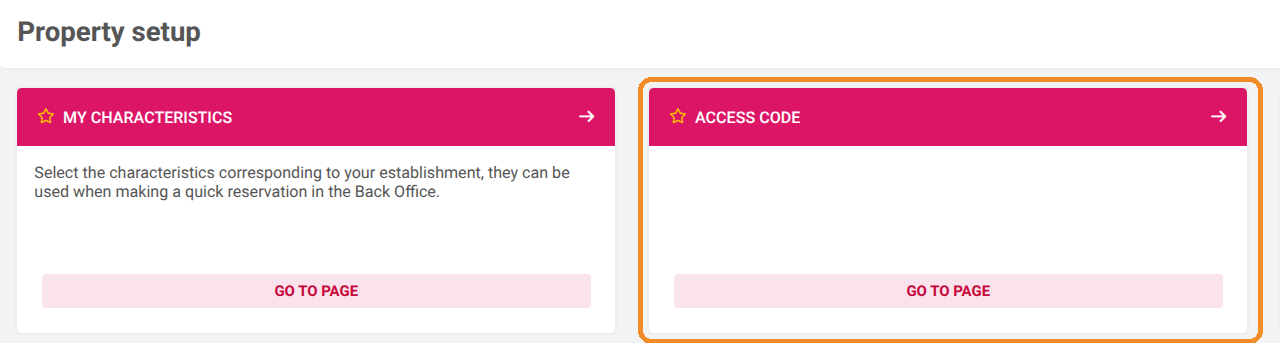
1. Go to Managing my activity > Property Setup.
2. In the ACCESS CODE tile, click GO TO PAGE.
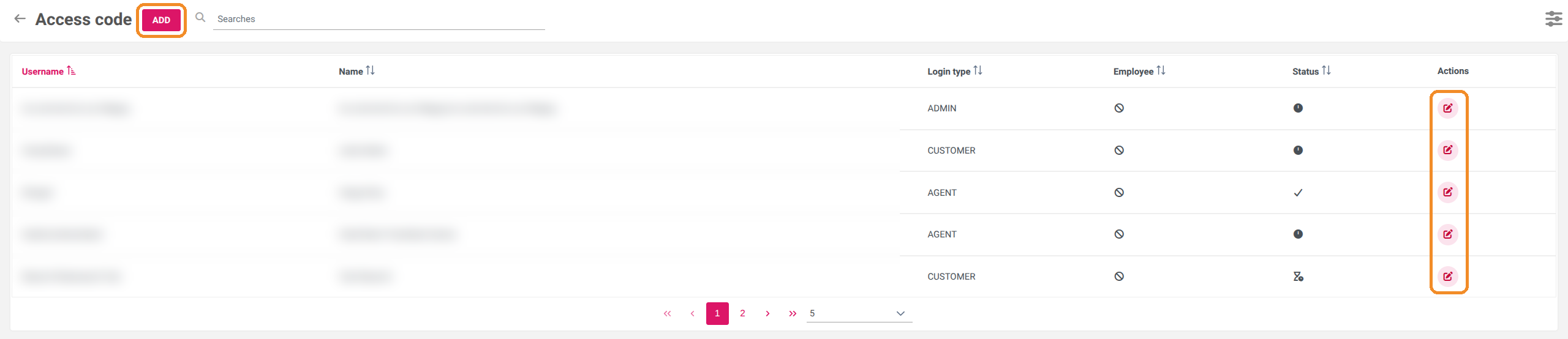
3. The list shows each access: Username, Name, Login type, Employee, Status and the pencil under Actions to edit it.
Create an access for an employee
4. Click ADD.
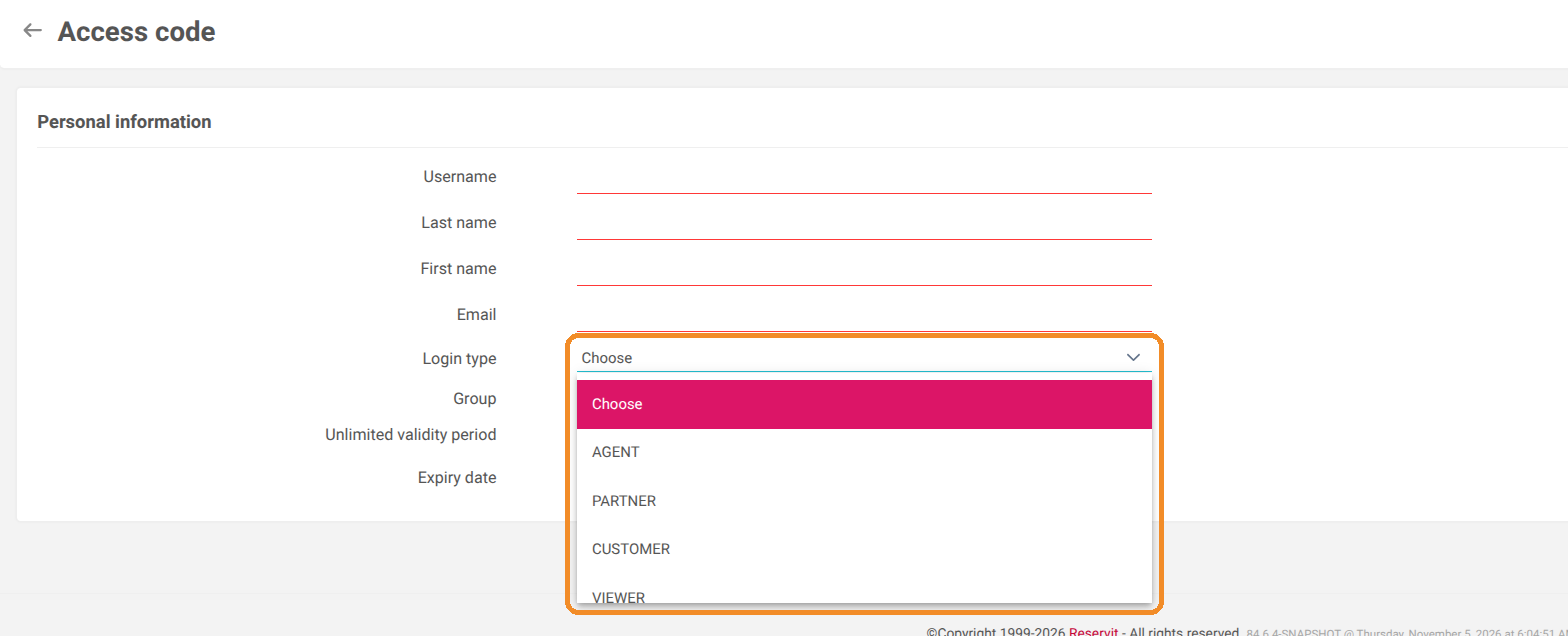
5. Enter the employee's Username, Last name, First name and Email.
6. Choose the Login type.
7. Tick Unlimited validity period, or enter an Expiry date (useful for a seasonal employee).
8. Click SAVE.
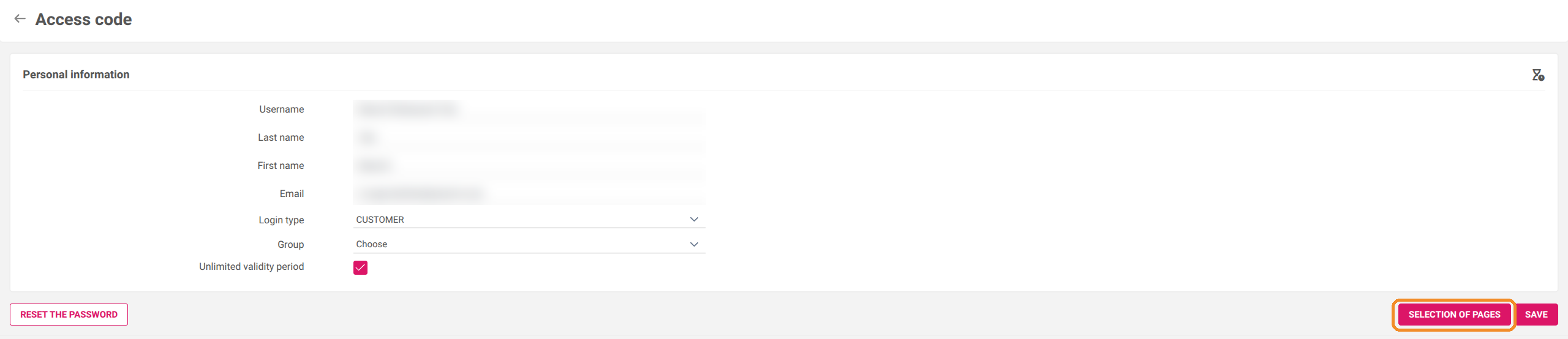
Pages are chosen once the access is saved: open it again with the pencil to reach the SELECTION OF PAGES button.
Give access to the table layout
9. In the list, click the pencil of the access to edit.
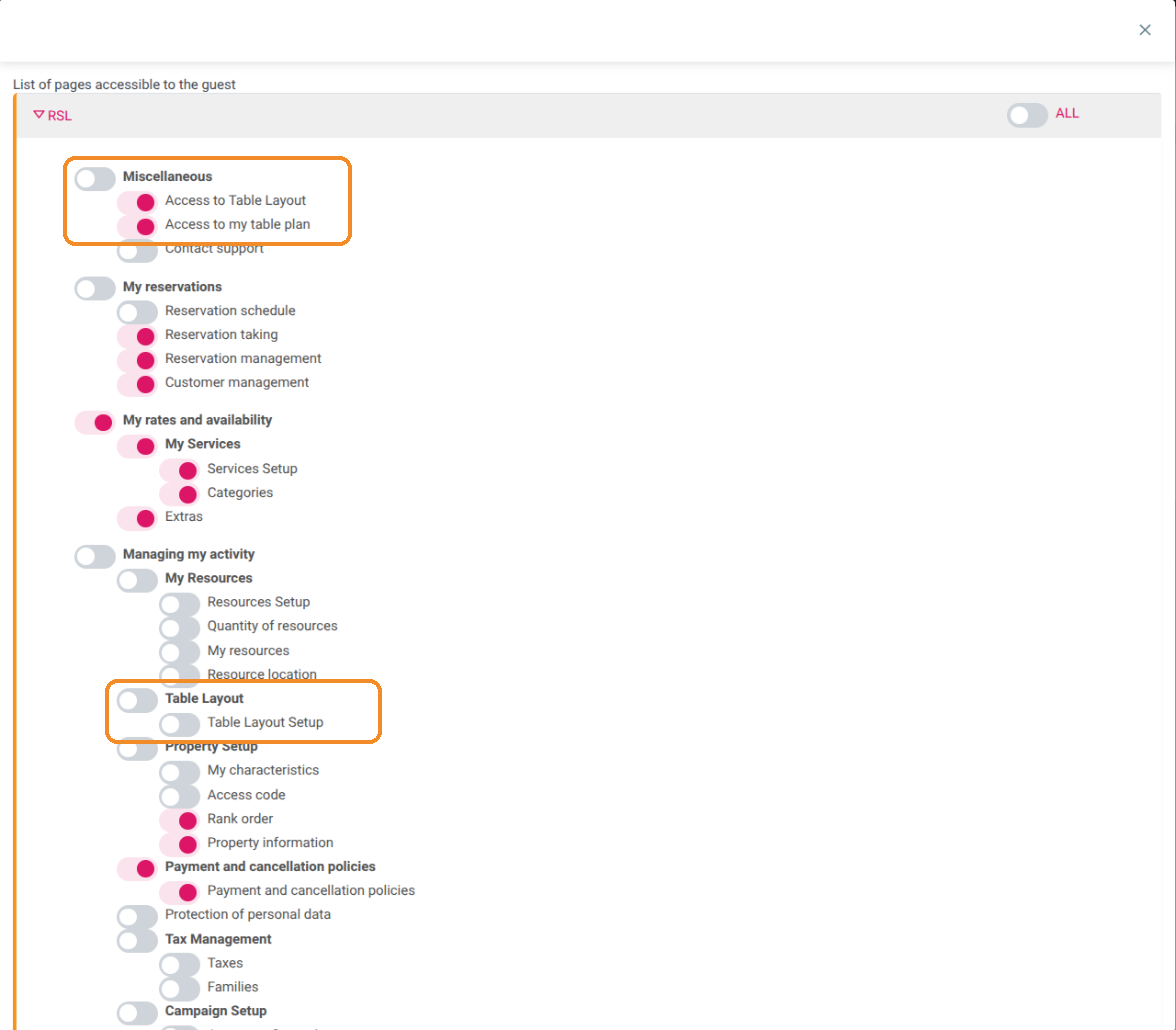
10. Click SELECTION OF PAGES.
11. In List of pages accessible to the guest, enable:
-
Access to Table Layout and Access to my table plan (Miscellaneous section) so that the employee sees the table layout and the bookings of the service;
-
Reservation taking and Reservation management (My reservations section) if they take and modify bookings;
-
Table Layout Setup (Managing my activity > Table Layout section) only if they need to place the tables on the room plan.
12. Click SAVE at the bottom of the window, then SAVE in the access form.
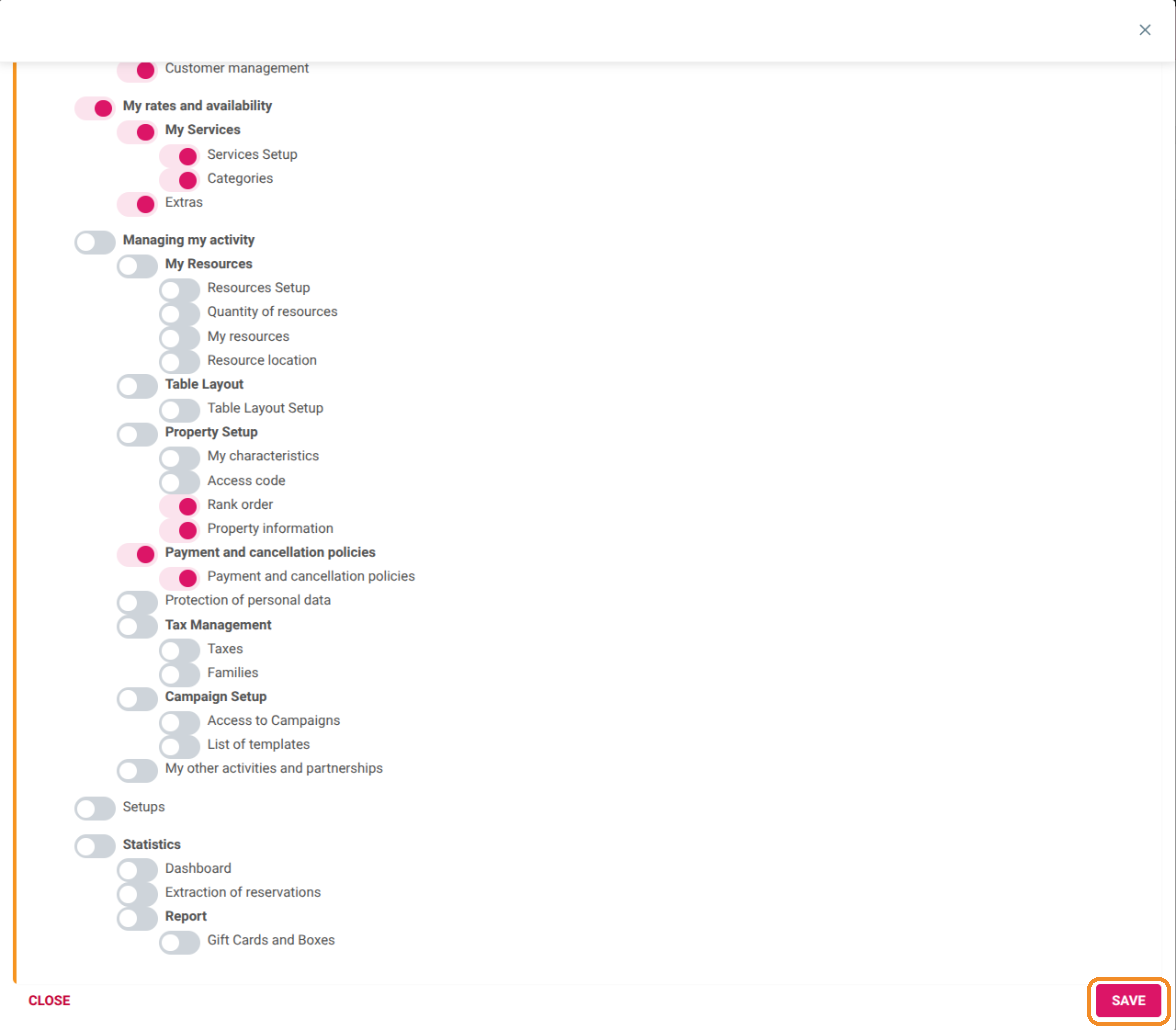
The ALL switch enables every page, including Access code and Payment and cancellation policies. Keep it for managers.