

Article summary: This tutorial shows you how to ask your guests to pay online for all or part of their table booking. Payment is set in your payment and cancellation policies: you choose whether payment is made online, then the type of amount (percentage or fixed amount) and the amount to be withdrawn.
The 4 key steps to activate online payment:
-
Open your policies: Go to Managing my activity > Payment and cancellation policies.
-
Keep the price visible: Check that Hidden price is set to "The price will not be hidden".
-
Activate payment: In Online payment, choose "Payment will be made online".
-
Set the amount: Choose the Type of payment and the Amount to be withdrawn, then save.
Why follow this guide? A deposit paid at the time of booking greatly reduces tables that are booked and then left empty, especially on busy evenings and for special menus.
Online payment requires a payment solution linked to your property (for example Stripe). To set it up, contact Reservit support.
Open the policy of your service
1. Go to Managing my activity > Payment and cancellation policies.

2. Find the policy used by your service (the Related offer(s) column shows how many services use it), then click its pencil.

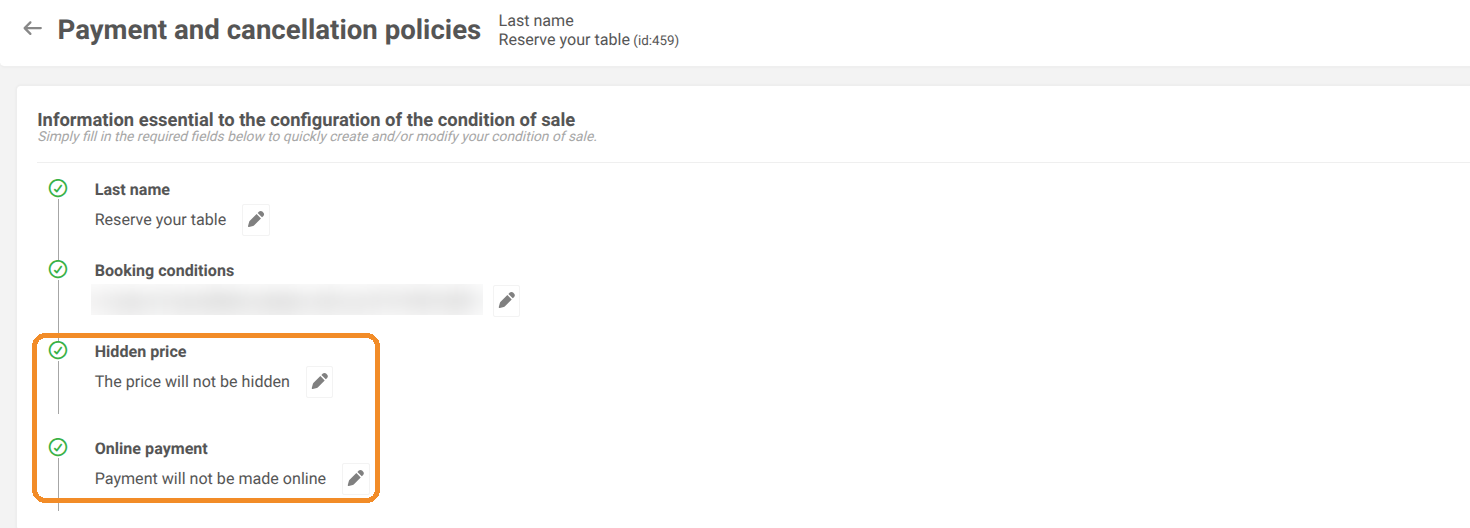
Activate online payment
3. In Hidden price, check that "The price will not be hidden" is selected. If not, click the pencil, choose this option and click TO VALIDATE.
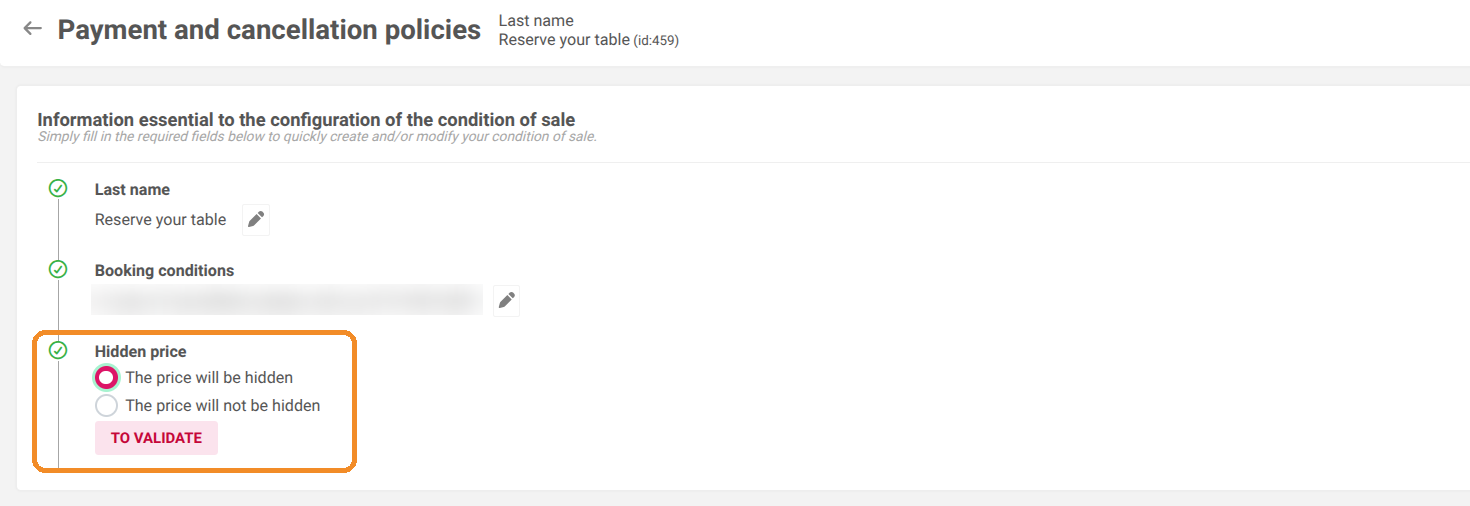
If the price is hidden, the Online payment section does not appear: online payment is not possible.
4. In Online payment, click the pencil, choose "Payment will be made online" and click TO VALIDATE. The Type of payment and Amount to be withdrawn sections appear.
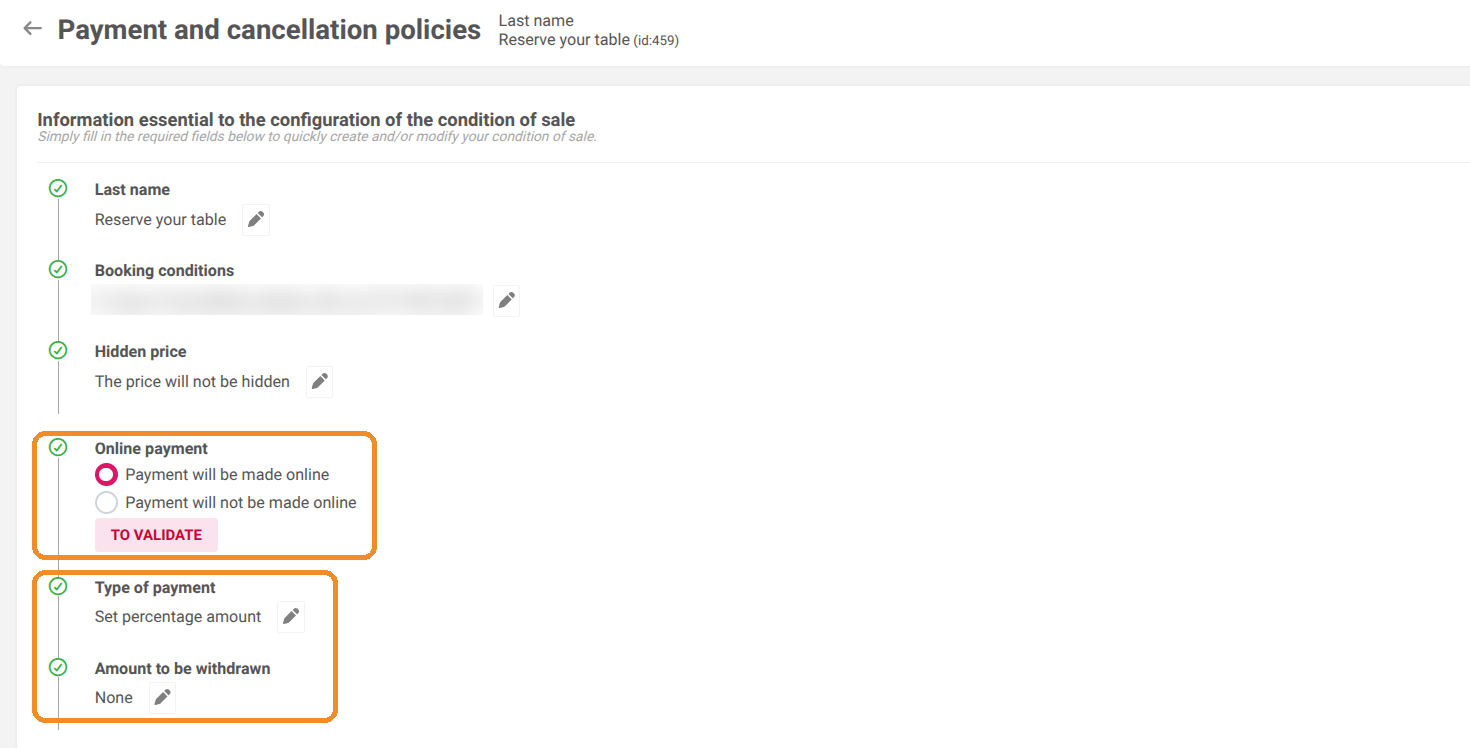
5. In Type of payment, choose Set percentage amount (for example 30% of the price) or Set a fixed amount, then click TO VALIDATE.
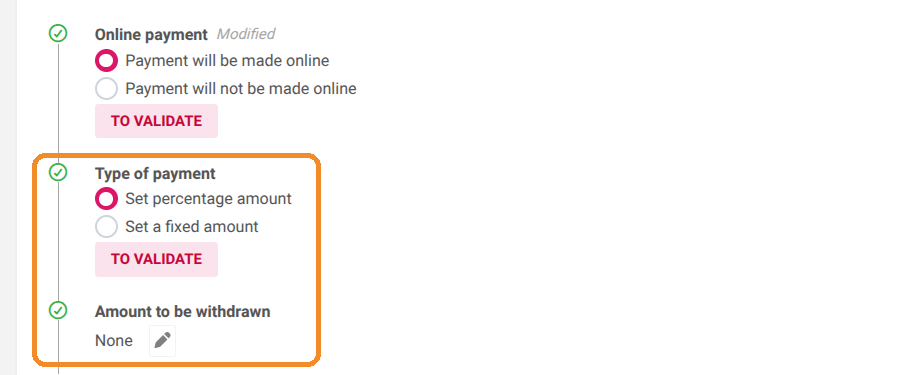
6. In Amount to be withdrawn, click the pencil, enter the amount or percentage, then click TO VALIDATE.
7. Click SAVE at the bottom right.

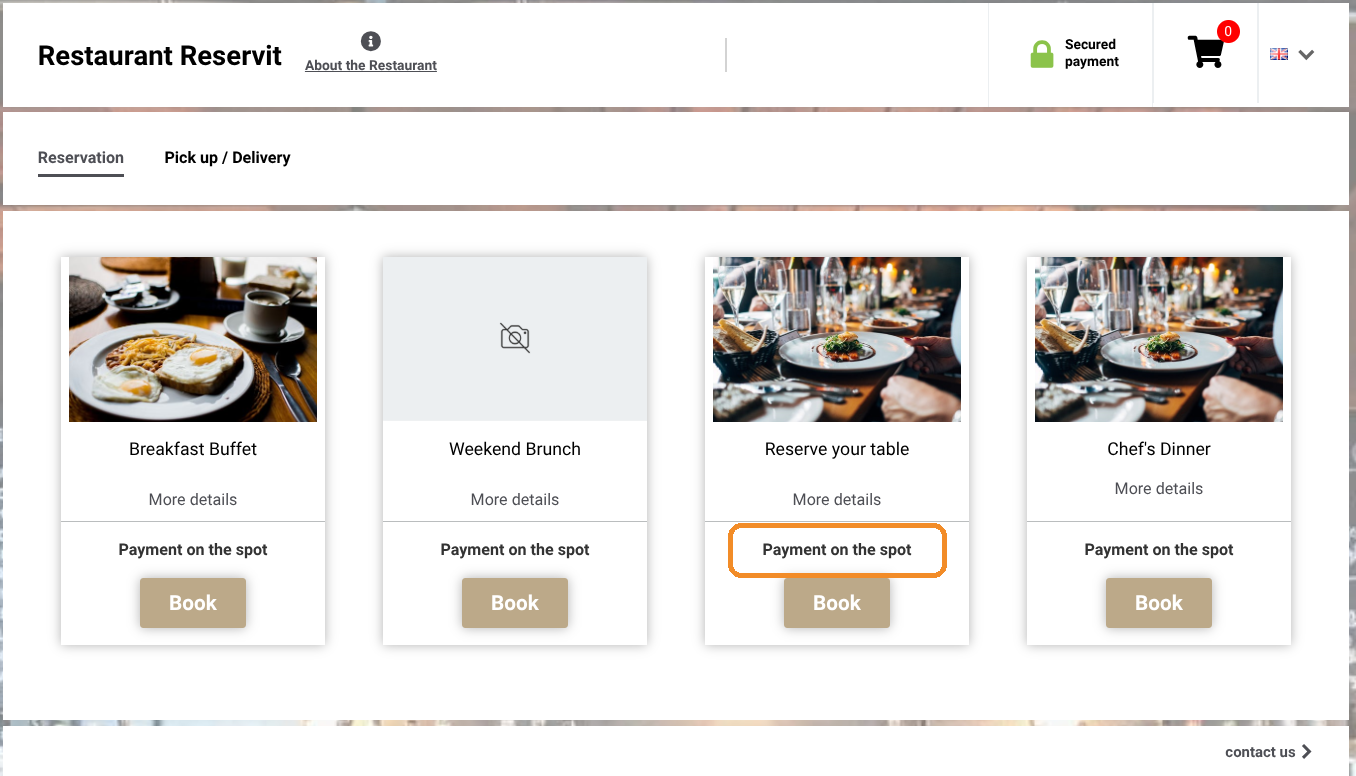
On your booking page, each service shows its payment method. Without online payment, the mention "Payment on the spot" is displayed.
Payment applies to all the services that use this policy. To request a deposit only for some services, create a dedicated policy with ADD, then choose it in the Prices tab of these services (Terms and Conditions field).