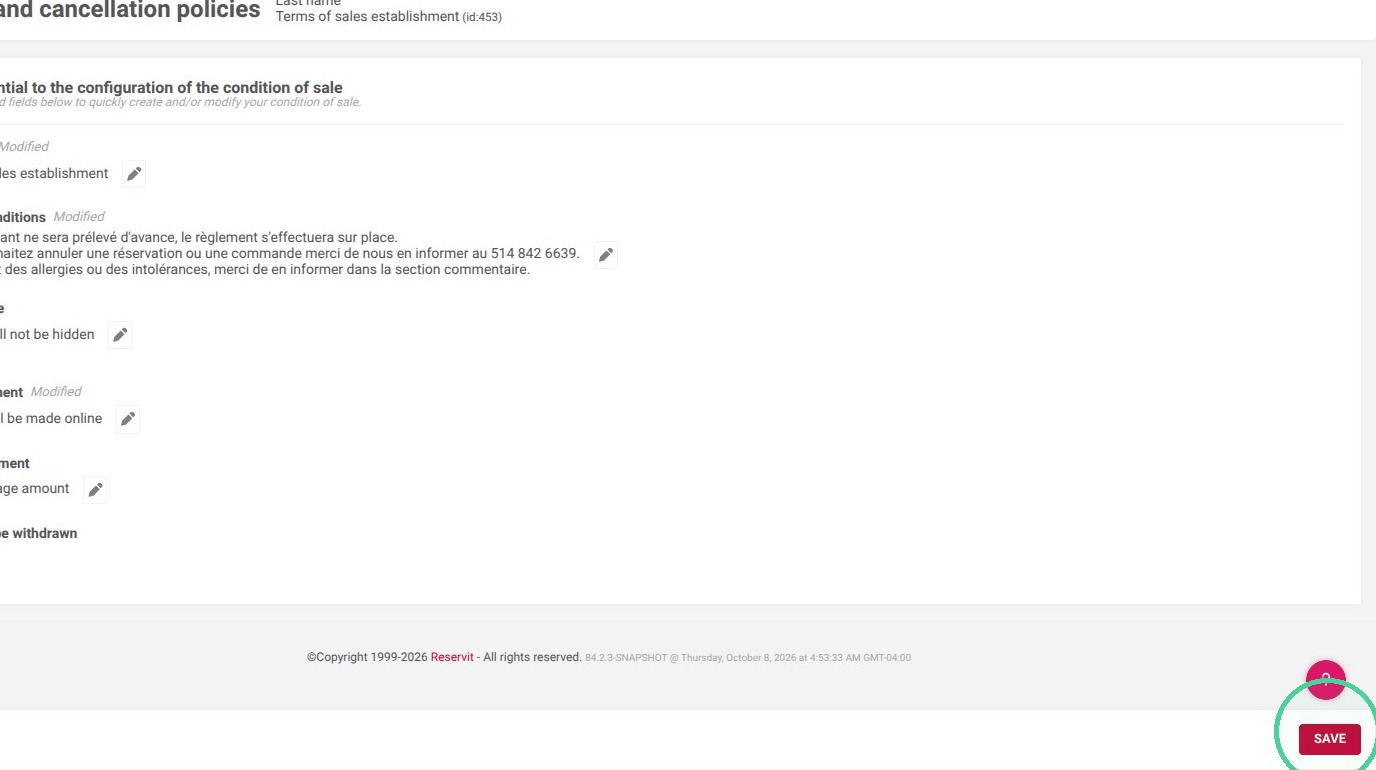
Article Summary: This tutorial explains how to configure and customize your Payment and cancellation Policies within the Reservit Restaurant platform. You will learn how to draft your commercial policies in multiple languages and link them directly to your online payment settings. By properly structuring your contractual terms, you will provide a clear, legal, and reassuring booking framework for all your customers.
The 5 key steps to configure your Payment and cancellation policies:
-
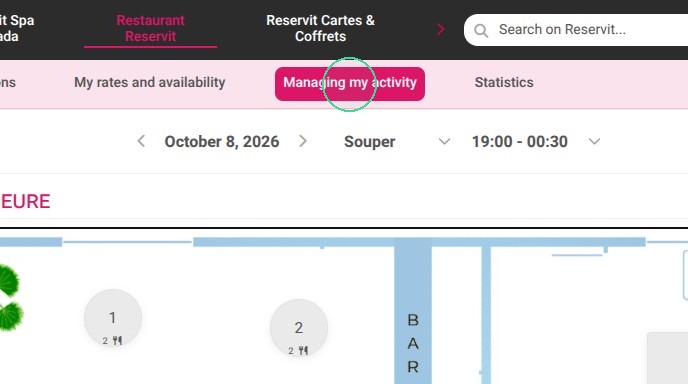
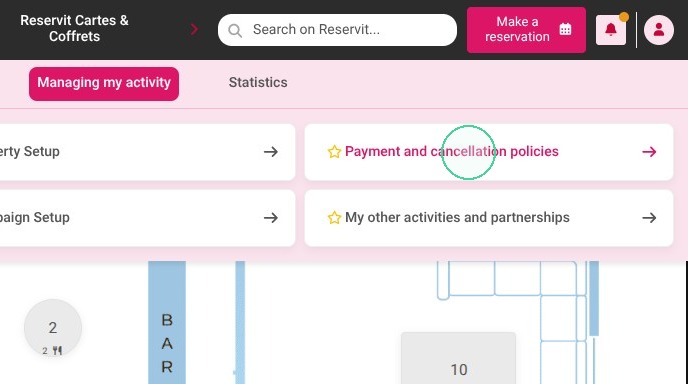
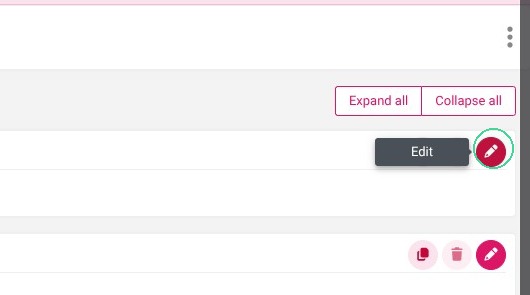
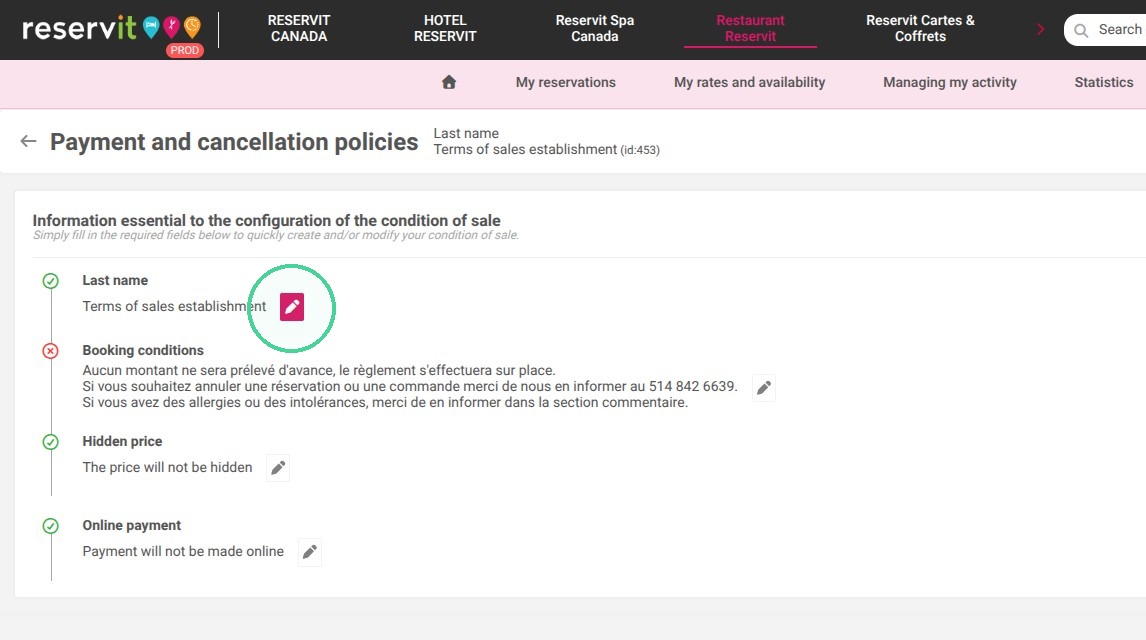
Access the edit menu: Go to "Manage my activity", select "Payment and cancellation policies", then click the pencil icon to edit an existing rule.
-
Draft and translate the text: Enter the content of your terms in English then translate to ensure clear understanding for your international clientele.
-
Manage price display: Choose whether to display or hide the price upon confirmation,a particularly useful option if you operate without taking immediate payments.
-
Set up online payment: Define whether the reservation requires direct online payment, then specify the exact type of payment required (deposit, fixed amount, or full amount).
-
Save and test: Click the save button to validate your new rules, then perform a test reservation to make sure the terms and payment rules trigger correctly.
Why follow this guide? Properly configuring your Payment and cancellation policies is an essential legal step to protect your business and clearly outline your cancellation policies. By linking your terms of sale to your online payment system, you automate your business rules, secure your revenue collection, and avoid potential disputes with your customers.
1. Click "Managing my activity"
Click "Payment and cancellation policies"
2. Click on the pencil to edit the Payment and cancellation policy
Alert: Alert: Your payment and cancellation policy define your online payment rules. It is therefore important to validate them once configured by making a test reservation.
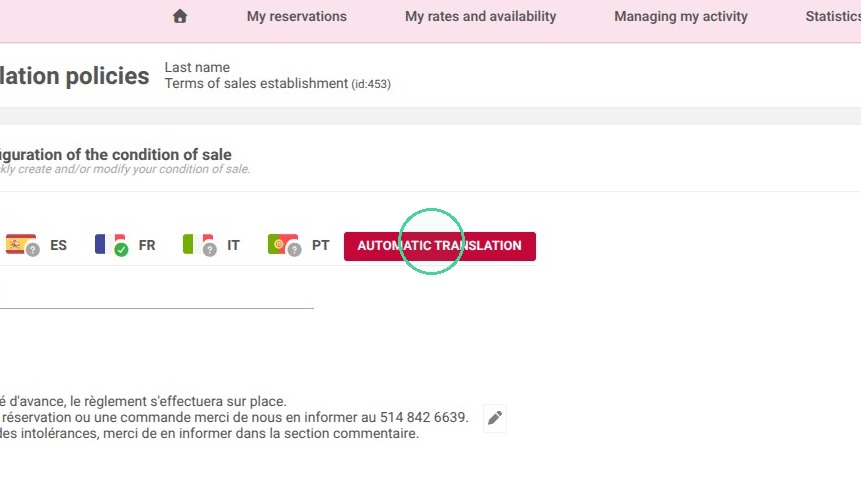
3. Write your payment and cancellation policy in English then
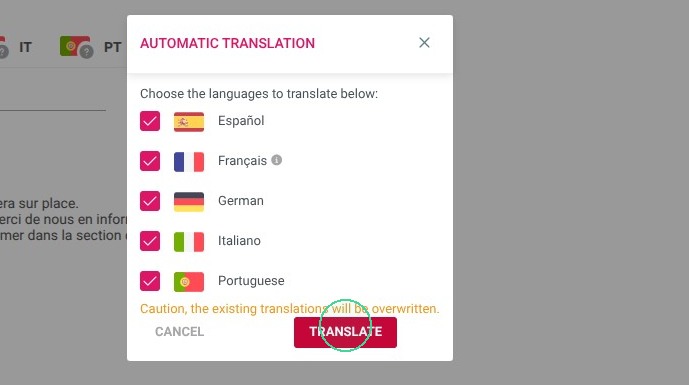
Click "Automatic translation" to translate in French
Click "Translate"
4. Choose whether or not to display prices to your customers, this feature is useful if you do not accept online payments.
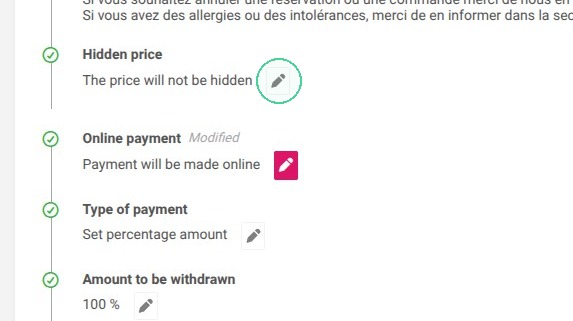
5. Set if you accept online payments.
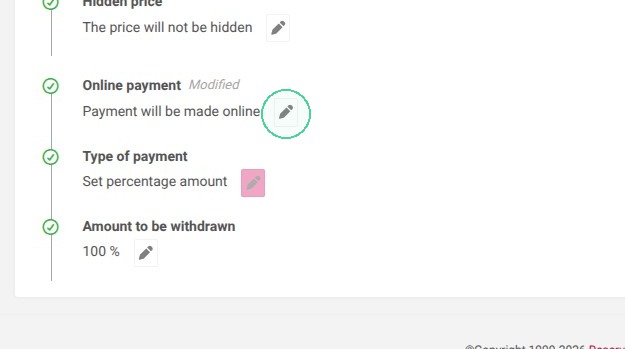
6. Then select the payment type to accept and the amount to be withdrawn
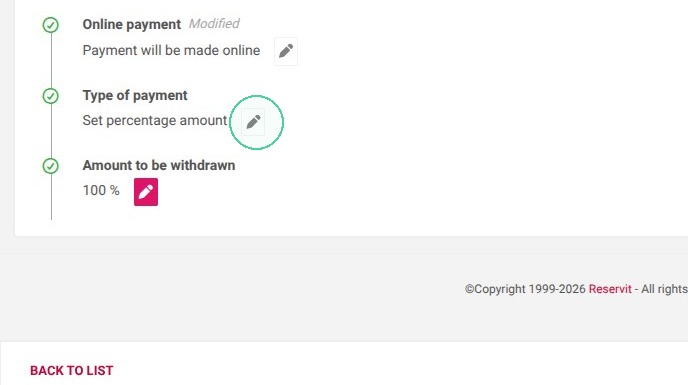
7. Click "Save"