

Article summary: This tutorial shows you how to refund a guest who paid a deposit or their booking, once the invoice has been created. You create a credit note from the invoice, add the refund to it with the payment method used, then generate the credit note.
The 4 key steps to refund a guest:
-
Open the invoice: Go to My reservations > Billing Management, then click the magnifying glass of the invoice.
-
Create the credit note: Click CREATE A CREDIT, choose the amount, then click PREVIEW.
-
Add the refund: Click ADD A REFUND, choose the refund method, then click CONFIRM.
-
Generate the credit note: Click GENERATE THE CREDIT NOTE.
Why follow this guide? Reservit Restaurant does not refund your guests automatically when they cancel: you decide, according to your policies. Going through a credit note keeps your accounts accurate and leaves a clear record of each refund.
Open the guest's invoice
1. Go to My reservations > Billing Management.

2. In the Invoice List, find the guest's invoice, then click its magnifying glass.

3. Below the invoice, the Payment list shows how the guest paid. Click CREATE A CREDIT.

Create the credit note
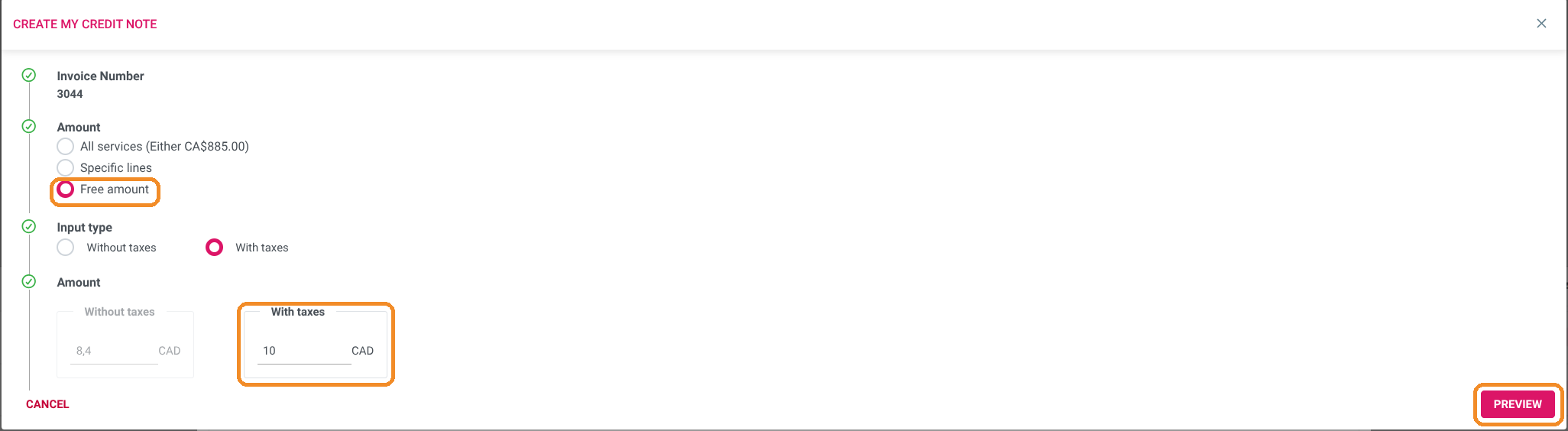
4. In Amount, choose what you are refunding: All services, Specific lines or Free amount (for example the amount of the deposit).
5. For a free amount, choose the Input type (Without taxes or With taxes), then enter the amount. The other amount is calculated automatically.
6. Click PREVIEW.
Add the refund
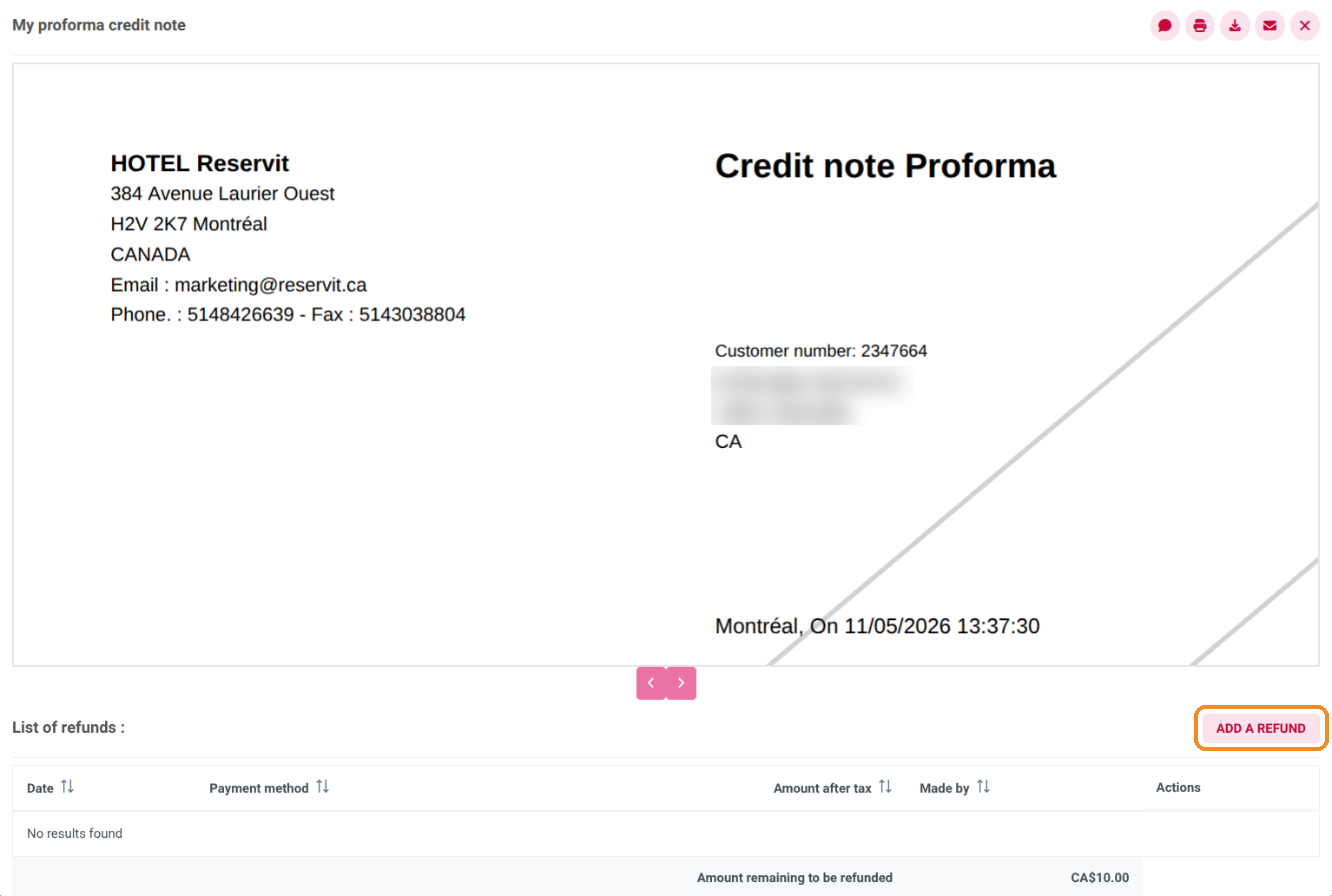
7. The credit note is displayed as a proforma. Below the document, click ADD A REFUND.
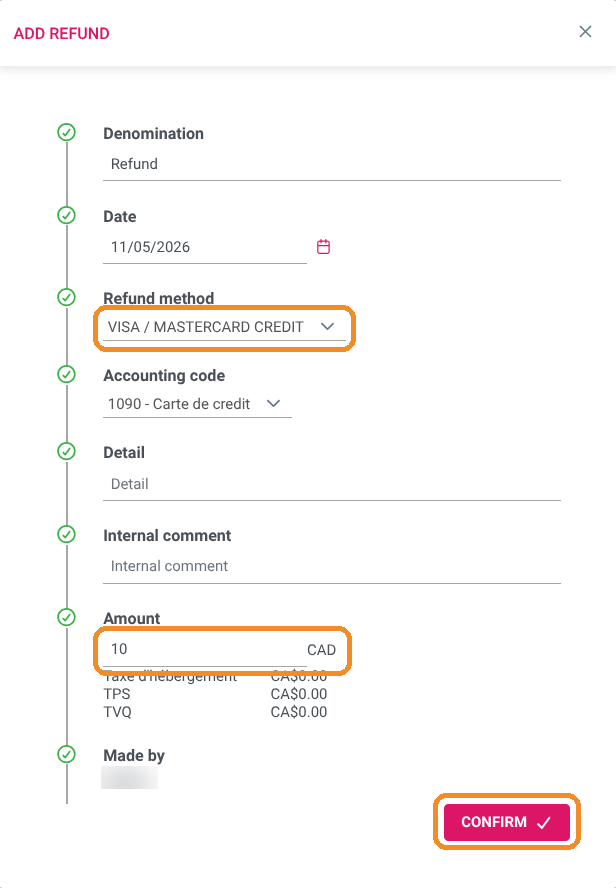
8. In Refund method, choose the method used to give the money back, usually the same as the payment (for example VISA / MASTERCARD CREDIT). The Accounting code is filled in automatically.
9. Check the Amount, add a Detail or an Internal comment if needed, then click CONFIRM.
For payment methods compatible with the virtual payment terminal, the system may offer to open the terminal after confirmation. This does not work for Reservit Restaurant: the transaction will fail if you try to refund this way. Give the money back to the guest from your payment solution, then record the refund here.
Generate the credit note
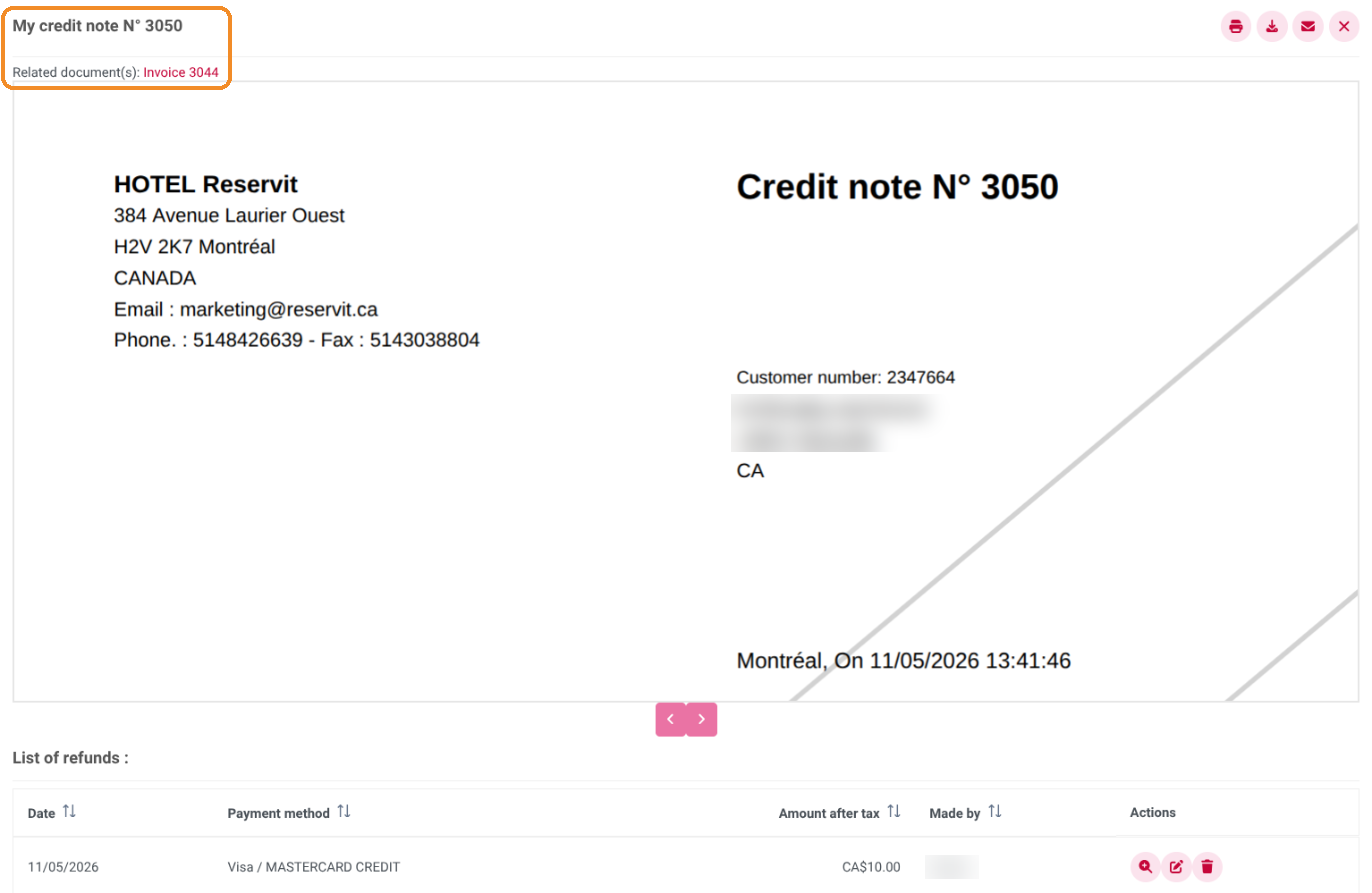
10. The refund appears in the List of refunds and the Amount remaining to be refunded drops to 0. Click GENERATE THE CREDIT NOTE.

11. The credit note gets its number and stays linked to the guest's invoice. You will find it in the Invoice List, and you can print it, download it or send it by email with the buttons at the top right.
Payment and refund rules (deposit amount, cancellation deadline) are set in Managing my activity > Payment and cancellation policies. See the tutorial on online payment and deposits.