Help for use

How to Implement Property Restrictions and Closure Dates in Reservit Accommodation

Article Summary: This comprehensive tutorial explains how to set up and manage property restrictions directly within Reservit Accommodation. You will learn how to easily configure annual closures, block specific arrival days, and prevent unwanted check-outs. Mastering these booking limitations gives you total control over your calendar availability and helps optimize your overall reservation strategy.

The 5 Key Steps to Implement Property Restrictions:

  • Enable Restriction Settings: Navigate to your Property Setup and activate the restriction features in your hotel specifications (remember to log out and back in to apply).

  • Access Your Restrictions Calendar: Open your property information and click on "My restrictions" to view your annual planning dashboard.

  • Schedule Property Closures: Select "My property's closing" to block out specific dates, or use the advanced editing tool to apply massive closures across multiple periods.

  • Manage Prohibited Arrivals: Click "No arrivals" and select dates on your calendar to instantly prevent guests from checking in on specific days.

  • Restrict Departure Days: Choose "Departures prohibited" to block guests from checking out on specific dates, using single-day selection or advanced bulk editing.

Why follow this guide? Following these steps automates your unique operational rules, strictly preventing unwanted reservations during your off-season or unstaffed days. It saves you the administrative hassle of manually canceling invalid bookings and ensures your Reservit Accommodation availability is perfectly accurate.


Display all restrictions sections

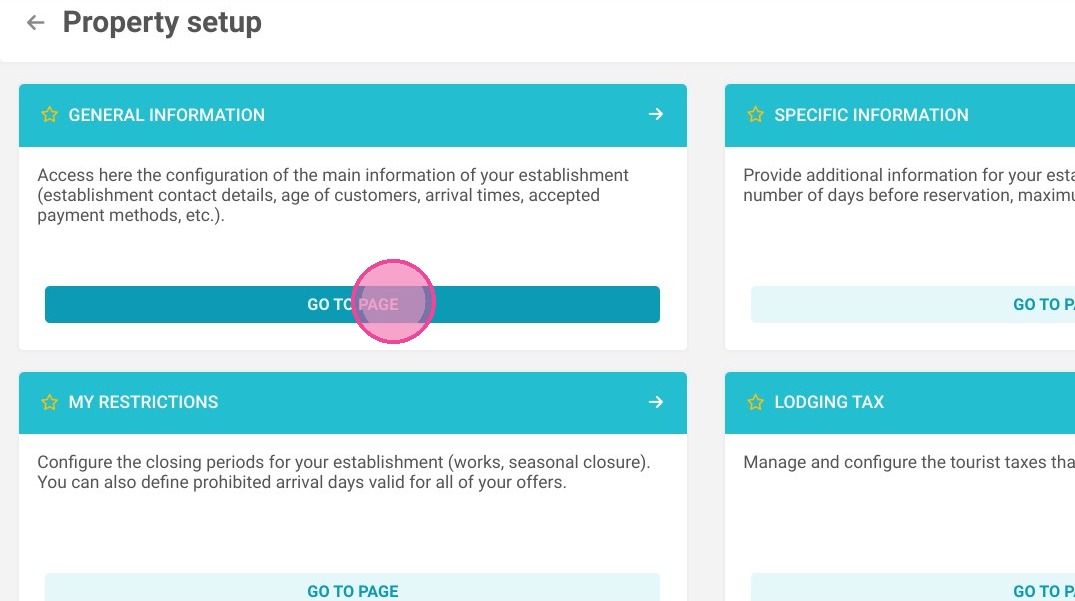
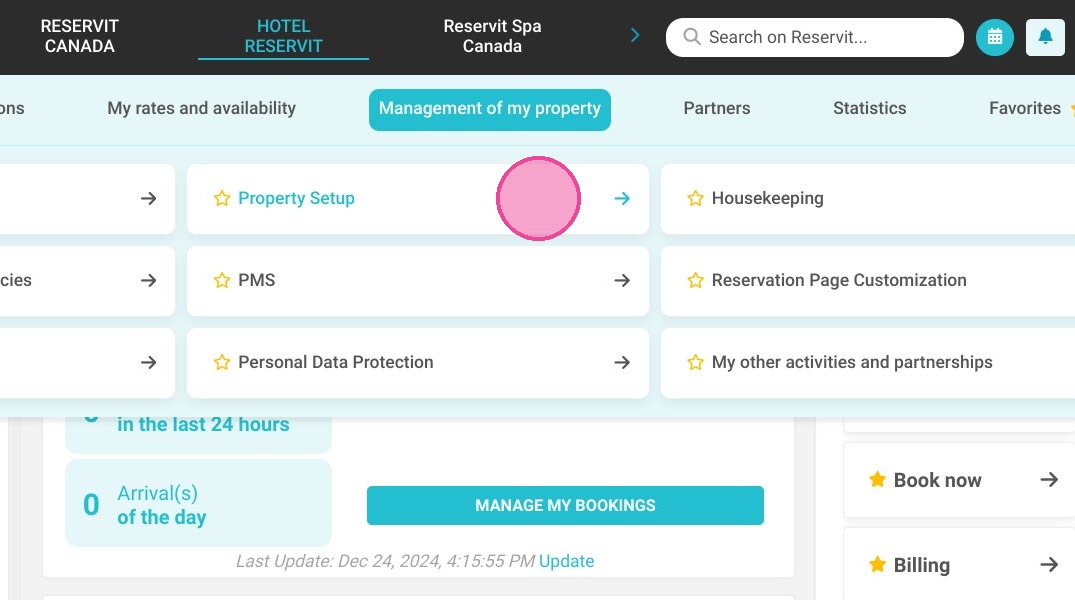
1. Go to Management of my property > Property Setup.
https://colony-recorder.s3.amazonaws.com/files/2024-12-24/628852dd-31d8-4624-8b39-0fc4968ecc59/ascreenshot_8ed20de89e9d48f09074b8e0b303a796_text_export.jpeg

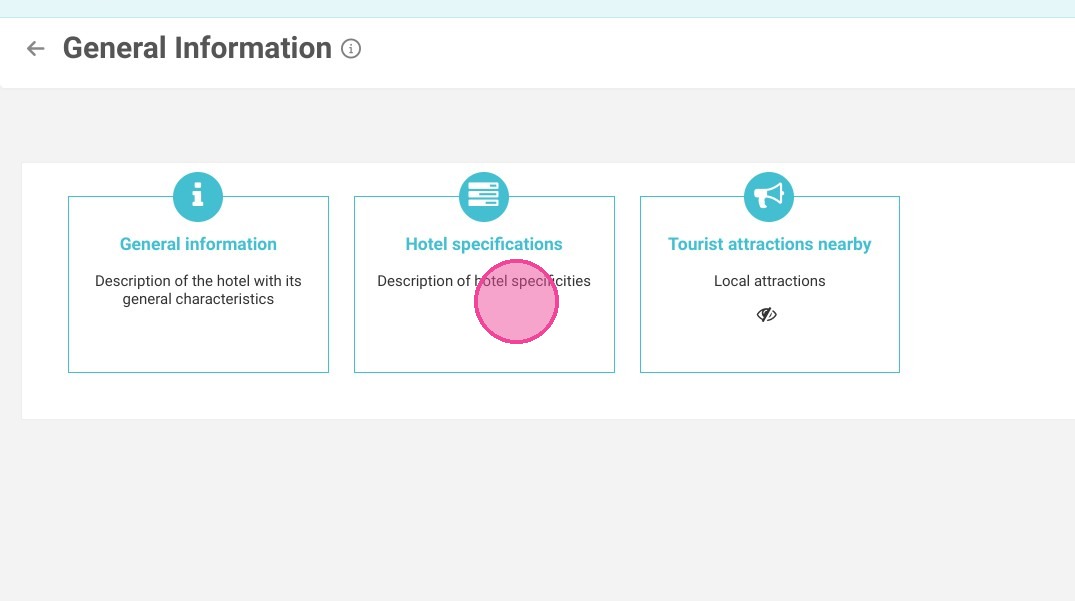
2. Go to General information.

https://colony-recorder.s3.amazonaws.com/files/2024-12-24/d57077a3-79c4-41e7-ba14-de43cc185ef5/ascreenshot_1f6f8871e66a429e8dd4f03a52c09094_text_export.jpeg

3. Click on Hotel specifications.

https://colony-recorder.s3.amazonaws.com/files/2024-12-24/11521bfa-c8c9-4fc5-8ced-6a40173eaaba/ascreenshot_e2456486a2814b0a86e1af10ed0f874e_text_export.jpeg

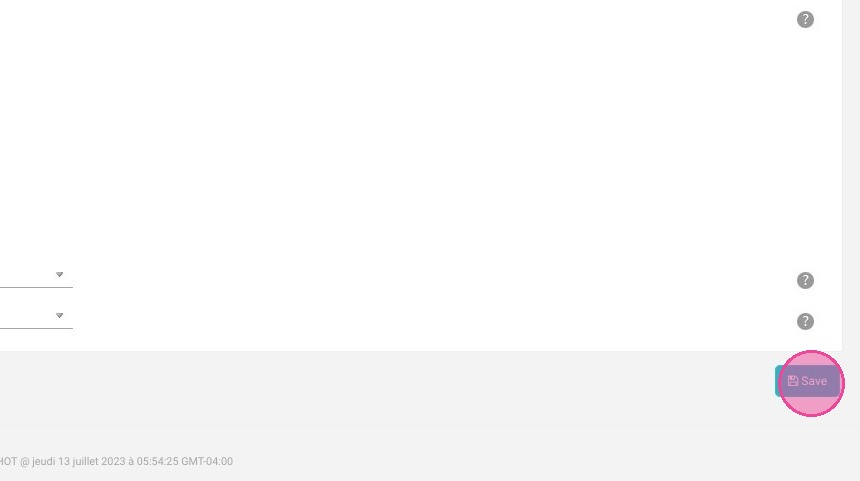
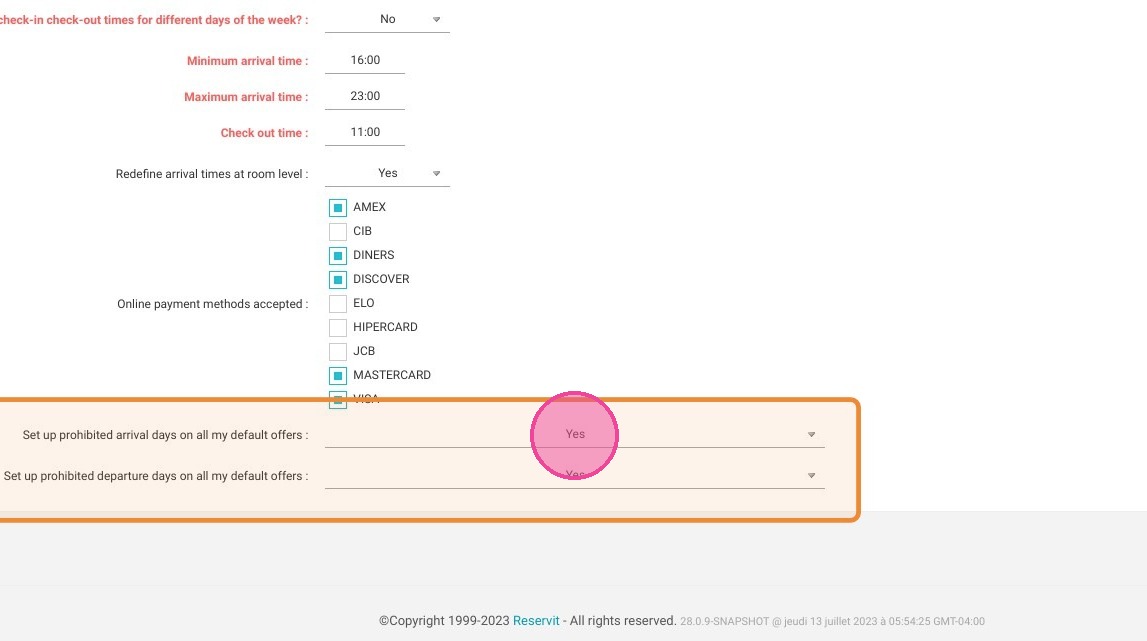
4. Scroll to the end of the page to the two setting questions and insert "yes" for both.
https://colony-recorder.s3.amazonaws.com/files/2023-07-14/56902a40-5deb-4b12-a077-16260d788701/user_cropped_screenshot_887b13a7c3be44bf94f18fcad0b60c7a_text_export.jpeg

5. Click on "Save"

https://colony-recorder.s3.amazonaws.com/files/2023-07-14/e76dbf02-39d0-4fc5-b518-9695777d0927/user_cropped_screenshot_119487ad9ed84013a883766524c0d220_text_export.jpeg

Alert: Do not forget to deconnect and reconnect to properly implement the changes

Manage the closing of your property

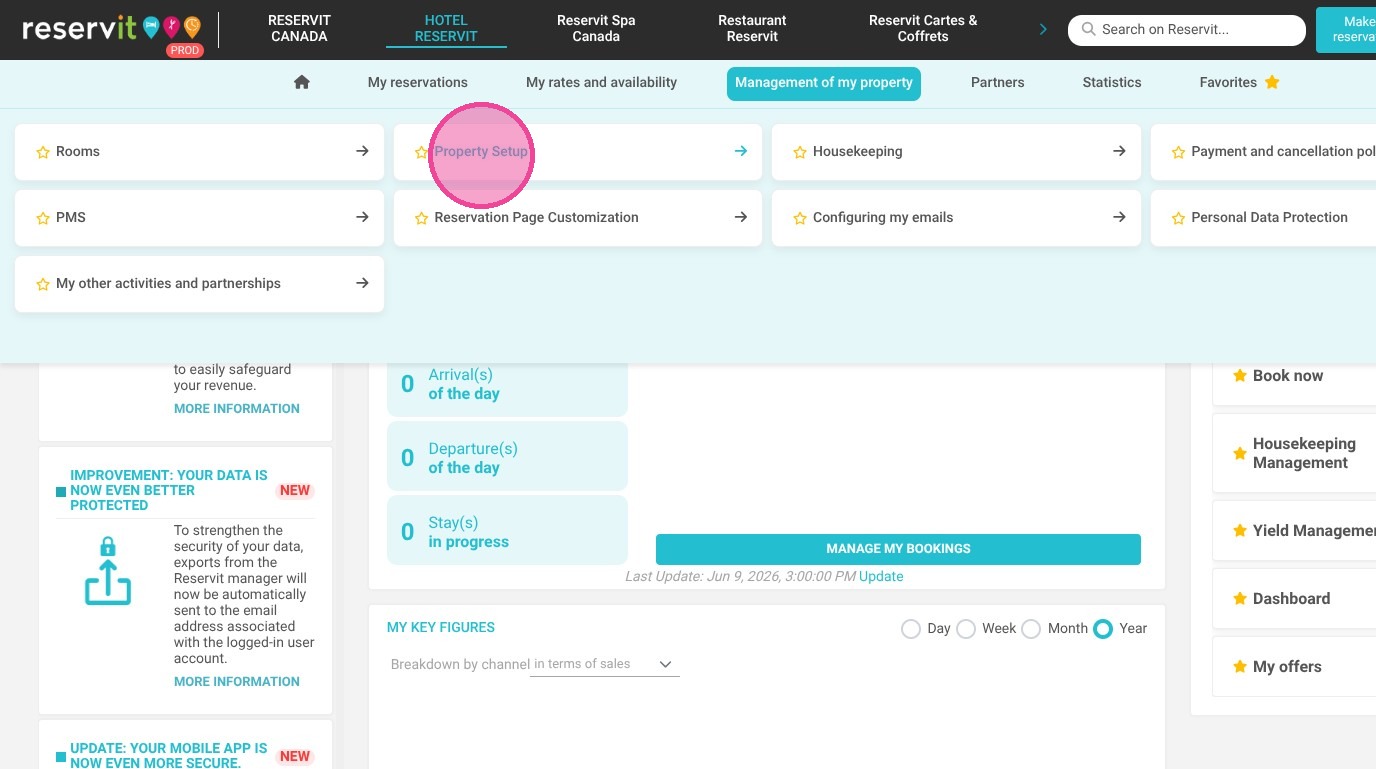
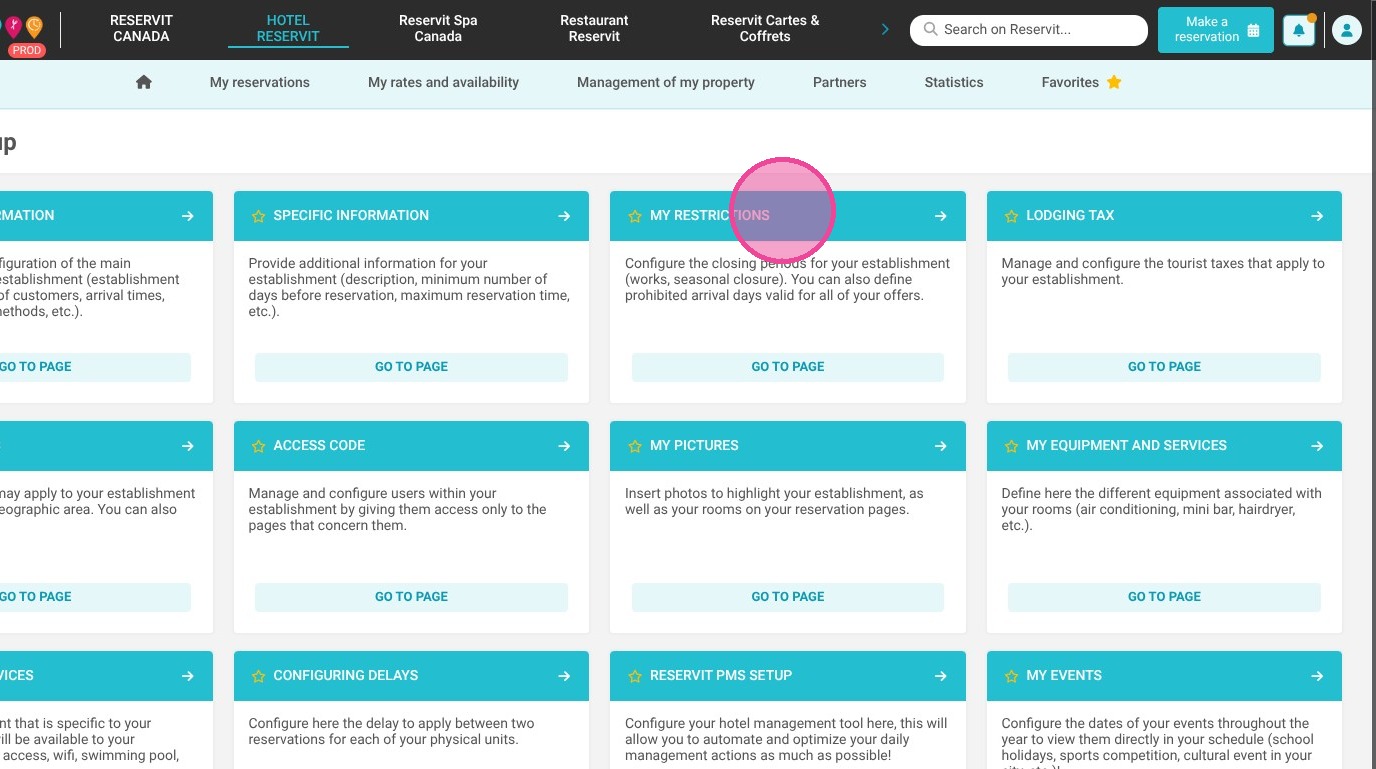
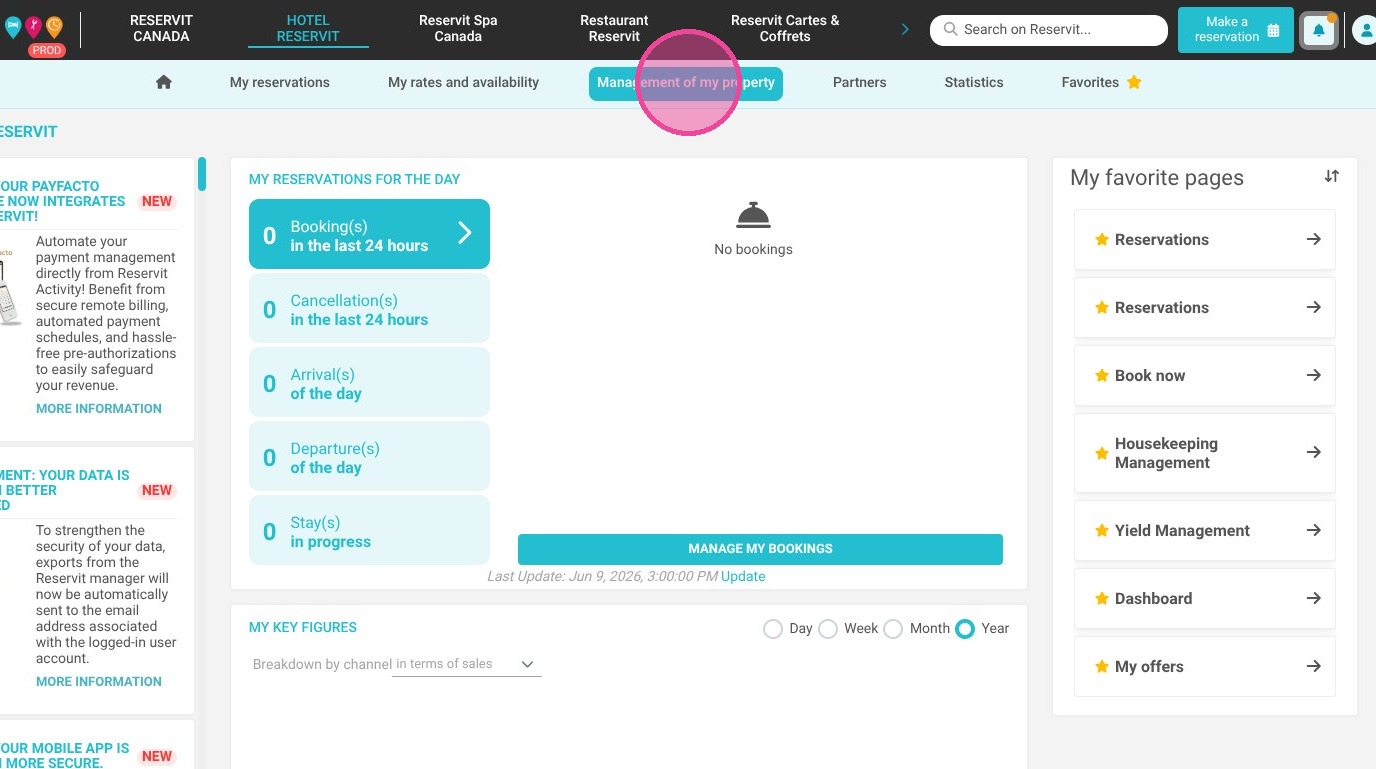
6. Select "Management of my property," then "Property Setup," and finally "My restrictions."
https://colony-recorder.s3.amazonaws.com/files/2026-06-09/4896fd62-8bce-4208-b6c0-7fa745e7aa64/ascreenshot_754bf77c088e430ca68f480b5585d914_text_export.jpeg
https://colony-recorder.s3.amazonaws.com/files/2026-06-09/1f9dc90d-8f20-4c96-a785-c9b50a0370e4/ascreenshot_9991dfb6e45d45418c02032e5608ff78_text_export.jpeg
https://colony-recorder.s3.amazonaws.com/files/2026-06-09/0b9c71b0-e7e3-4e94-96fc-37f53374c729/ascreenshot_fb553f9bf1704e7f9534f4f36702f420_text_export.jpeg

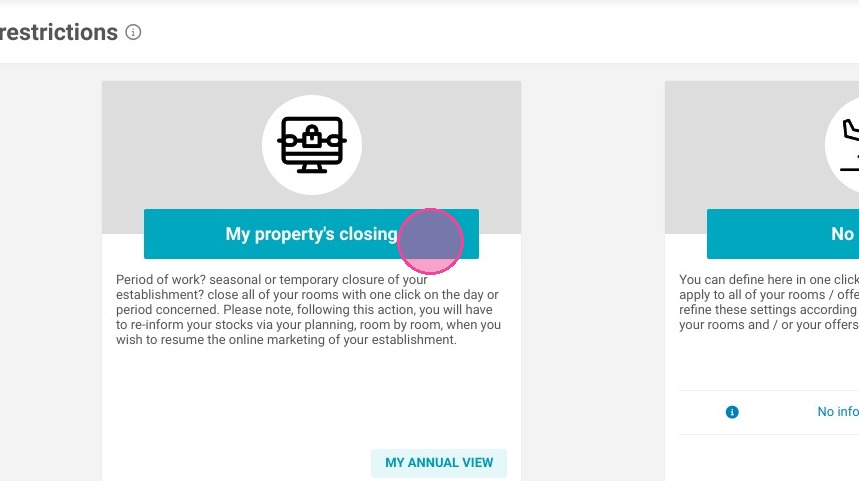
7. Click "My property's closing"

https://colony-recorder.s3.amazonaws.com/files/2023-07-14/6b8acfc9-f9f0-4b19-881a-3a3091bb877b/ascreenshot_ed32f436d13342b4ac9a0079b68a8801_text_export.jpeg

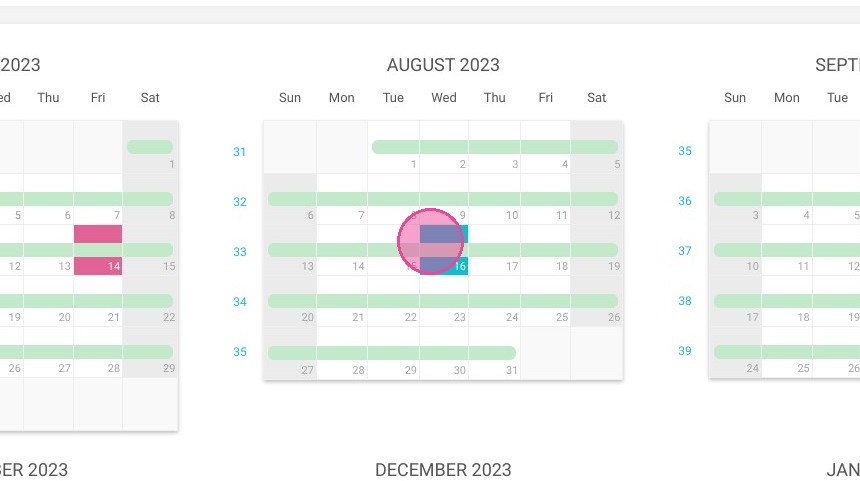
8. Your annual planning will appear, select the closing dates.
https://colony-recorder.s3.amazonaws.com/files/2023-07-14/e6f0a7a5-bba5-4c17-be50-8cef13c69c6d/ascreenshot_3bc9f7369dcb484fbe18dc43eb3da98a_text_export.jpeg

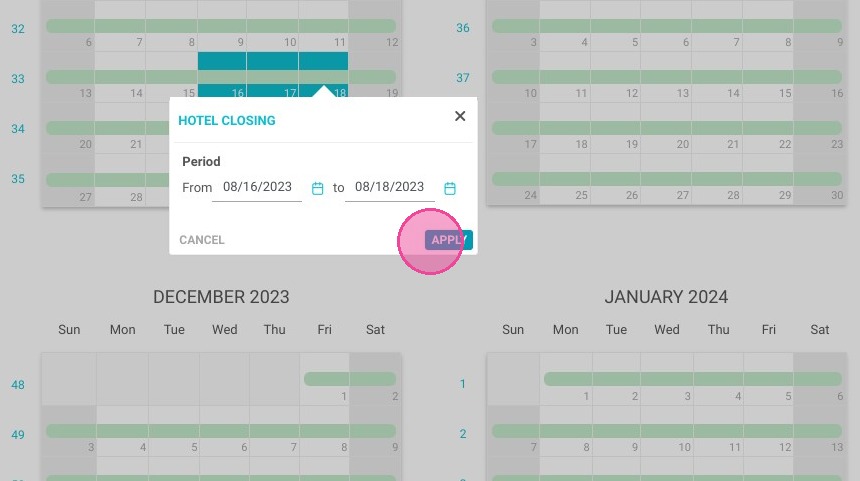
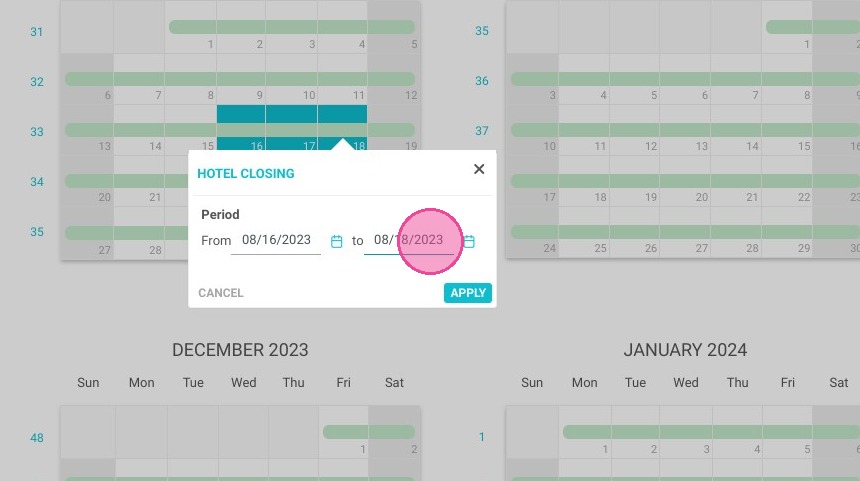
9. Click on a date in your planning and select the closing dates
https://colony-recorder.s3.amazonaws.com/files/2023-07-14/2340aa6a-f8d4-4820-8342-158a68aa7cea/ascreenshot_6145f2bc134a4fc58c292a256da11ddb_text_export.jpeg

10. Then click "APPLY"

https://colony-recorder.s3.amazonaws.com/files/2023-07-14/2e4d8f11-bd50-4f8c-b4e7-5c5bc6ae14e1/ascreenshot_38f51b23d5e94fe5916b1f6f4cce9ce3_text_export.jpeg

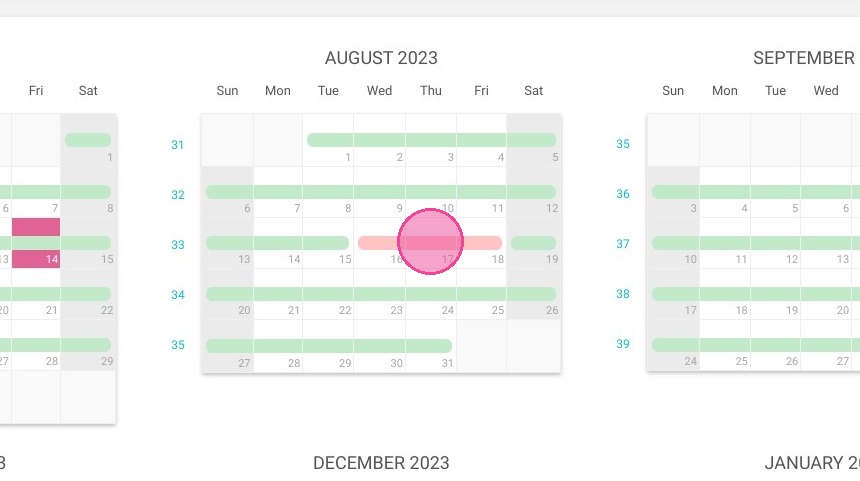
11. The closing period will appear in red on your planning
https://colony-recorder.s3.amazonaws.com/files/2023-07-14/c874930e-9799-4ed2-9f28-e782a036facc/ascreenshot_233b20fcb5884181896b90a35e4a7d82_text_export.jpeg

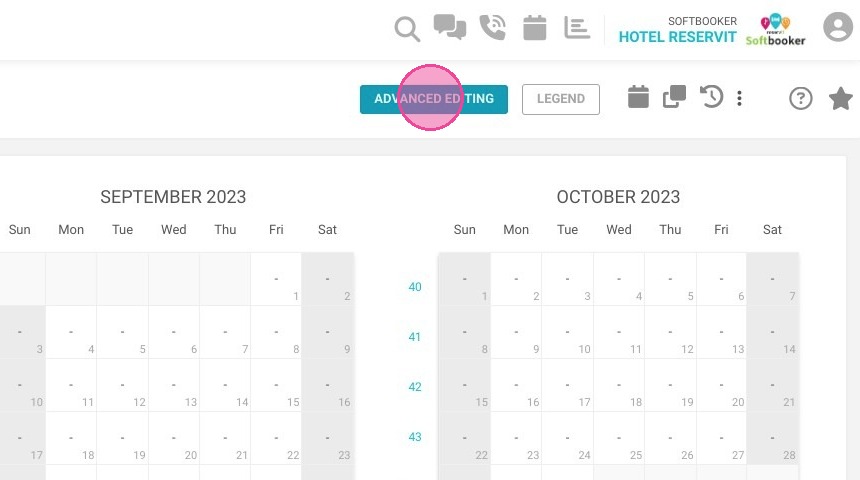
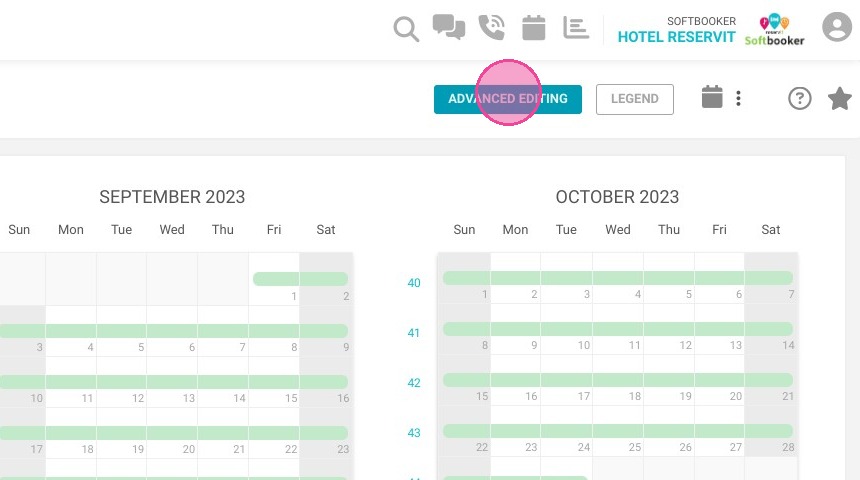
12. You can also add massiv closures at the same time. Click "ADVANCED EDITING"
https://colony-recorder.s3.amazonaws.com/files/2023-07-14/1efaa670-96d4-48d3-881d-073bf149206f/ascreenshot_2c9370bad74546e981db976856a17d6e_text_export.jpeg

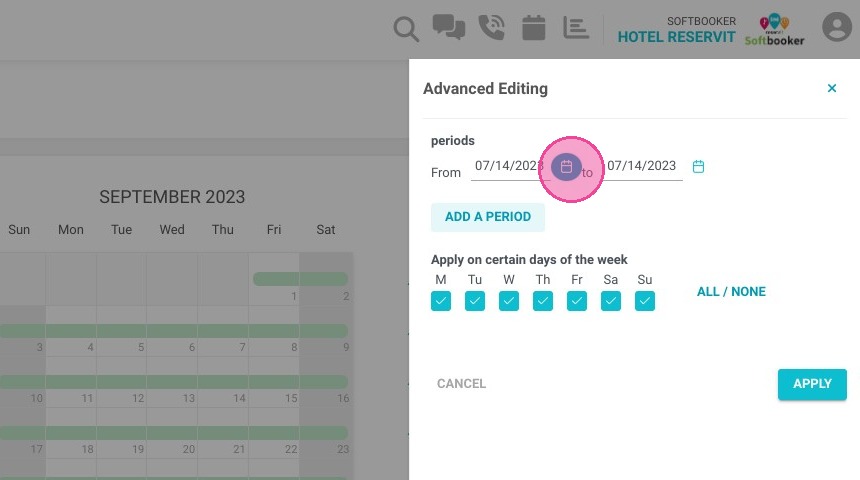
13. Select the periods of your choice.
https://colony-recorder.s3.amazonaws.com/files/2023-07-14/bf2fb2fa-b346-436a-9d48-dd9660dc0854/ascreenshot_c3fe4a402ccf4ccbba4649ff1724b1df_text_export.jpeg

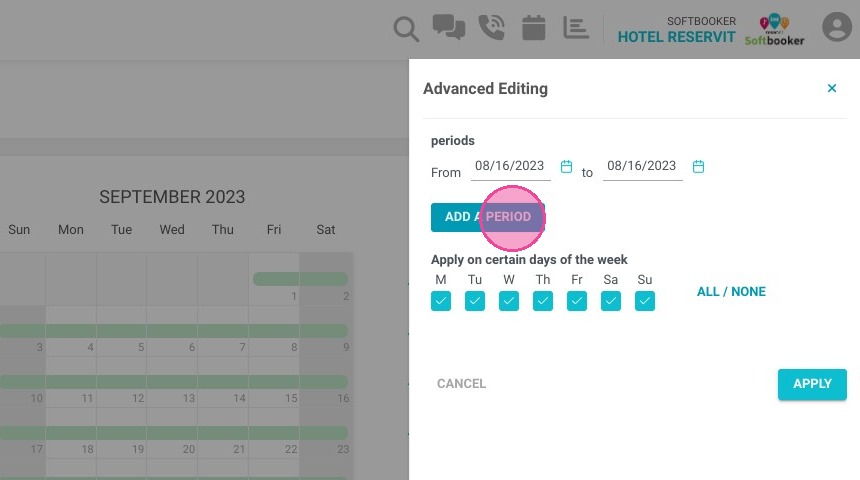
14. You can also add several periods by clicking "ADD A PERIOD"
https://colony-recorder.s3.amazonaws.com/files/2023-07-14/4bb42574-a57b-4315-ad2a-2c87fabd0b97/ascreenshot_c81fe9b6e73f4da89cef7652518d1af8_text_export.jpeg

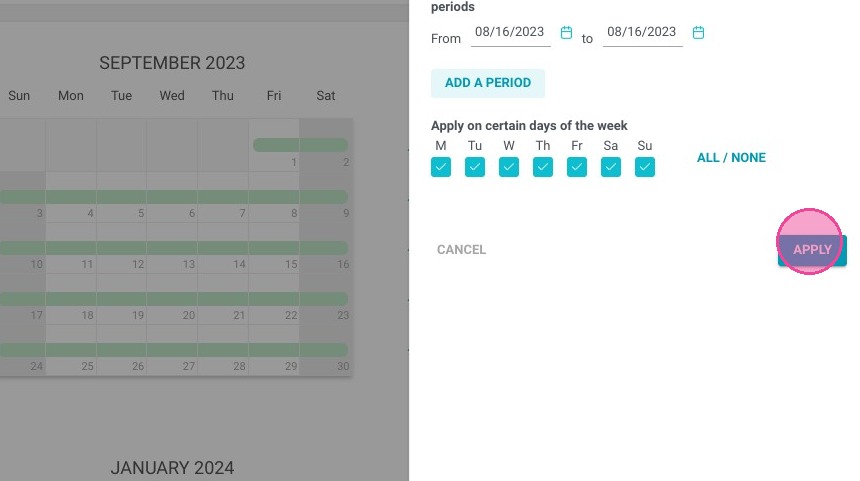
15. You can also select the applying days. Do not forget to "APPLY" your changes.
https://colony-recorder.s3.amazonaws.com/files/2023-07-14/e0080f5d-46e1-4fd5-884b-af3d347b5dd2/ascreenshot_8e8f0de3280744e5a7e216dfd6322839_text_export.jpeg

Manage the prohibited arrival days

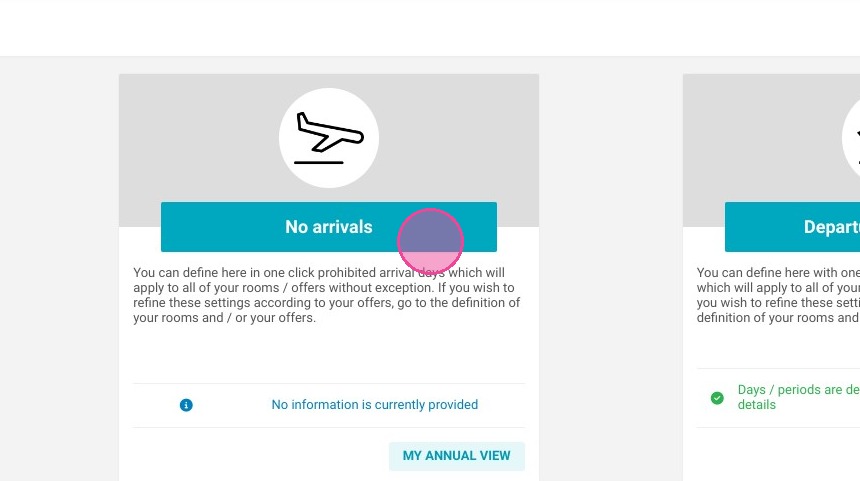
16. On the page "My restrictions", click "No arrivals"
https://colony-recorder.s3.amazonaws.com/files/2023-07-14/9b4fb43a-2fad-4cd9-a739-3642f45d0ac8/ascreenshot_a3815aa7ffd84d35a0f40ae2b1a3e1cc_text_export.jpeg

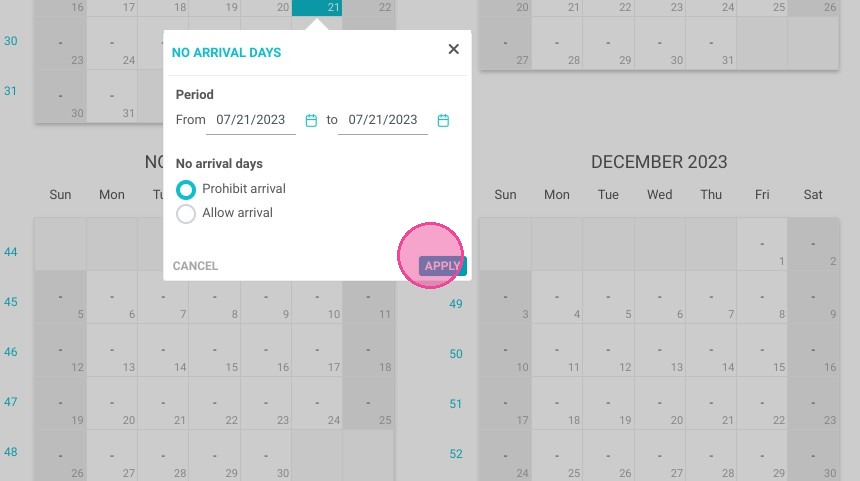
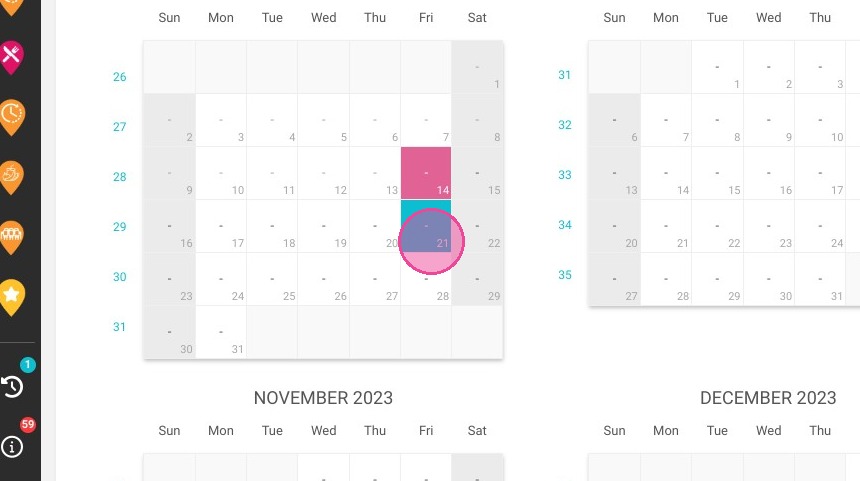
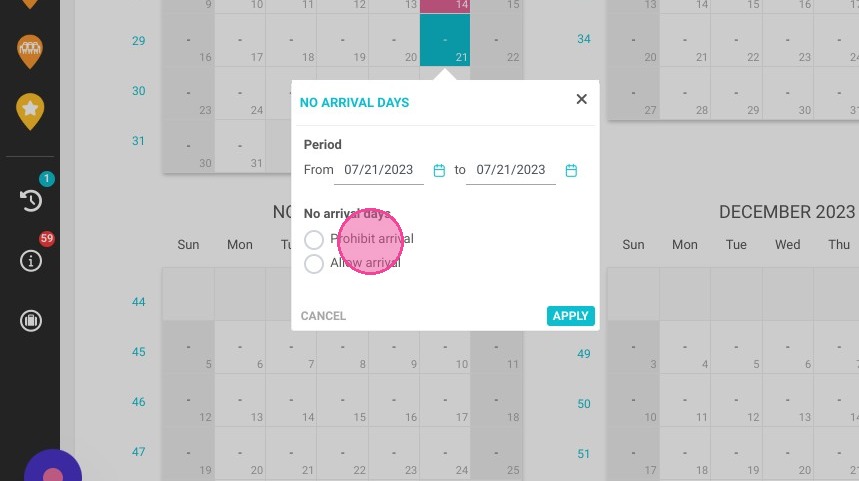
17. On the same principle as closure, select a date on the planning to define prohibited/authorized arrival days. Do not forget to "apply"
https://colony-recorder.s3.amazonaws.com/files/2023-07-14/a6a5ea10-ec3d-485c-839c-34ca722ba813/ascreenshot_c6d3c81544834023abe609f360108a0a_text_export.jpeg
https://colony-recorder.s3.amazonaws.com/files/2023-07-14/8aeb7437-c3c5-4bc6-b10f-26d9065fe9d7/ascreenshot_8b899140aaa34d35bc74c6429465e1ce_text_export.jpeg
https://colony-recorder.s3.amazonaws.com/files/2023-07-14/641ebeb6-362b-4eeb-a7c1-fe5e44106ca9/ascreenshot_8f0d0622b3d04e1c9c588ec8b36c766c_text_export.jpeg

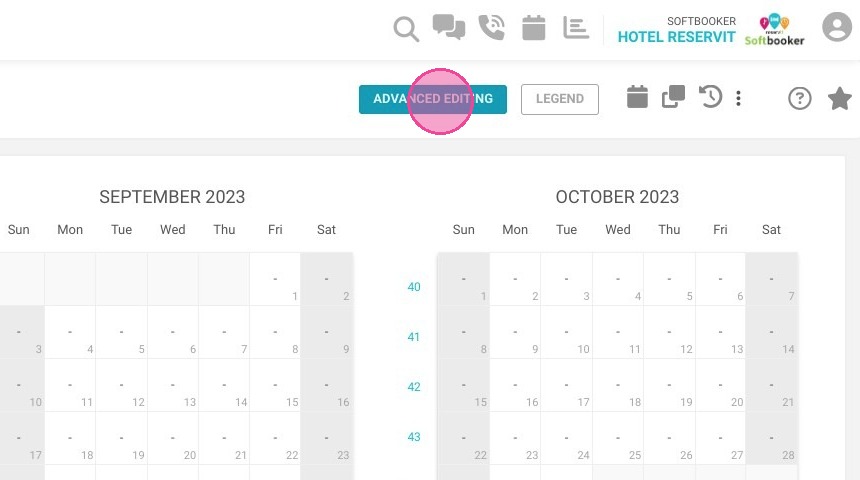
18. Here you can do advanced editing to add massiv changes. Click "ADVANCED EDITING"

https://colony-recorder.s3.amazonaws.com/files/2023-07-14/b40e1a53-a159-4f13-906f-fb74feefc414/user_cropped_screenshot_ca7928fb300b49da9f8ca92339fcb4b9_text_export.jpeg

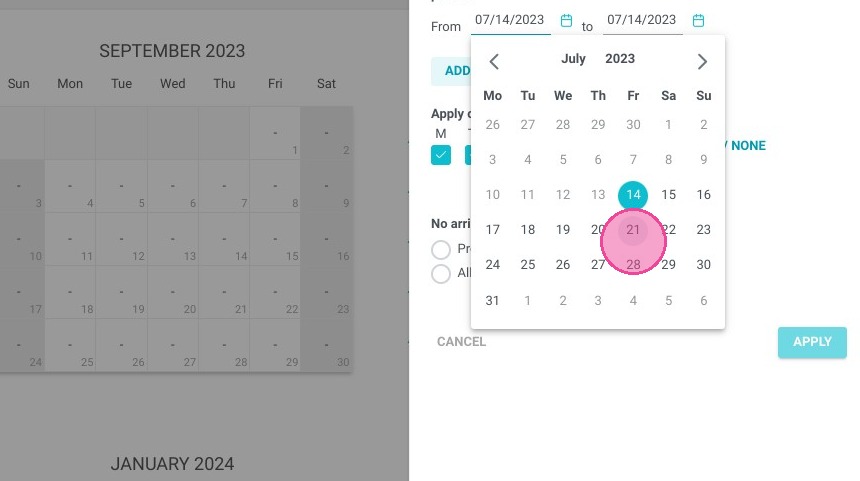
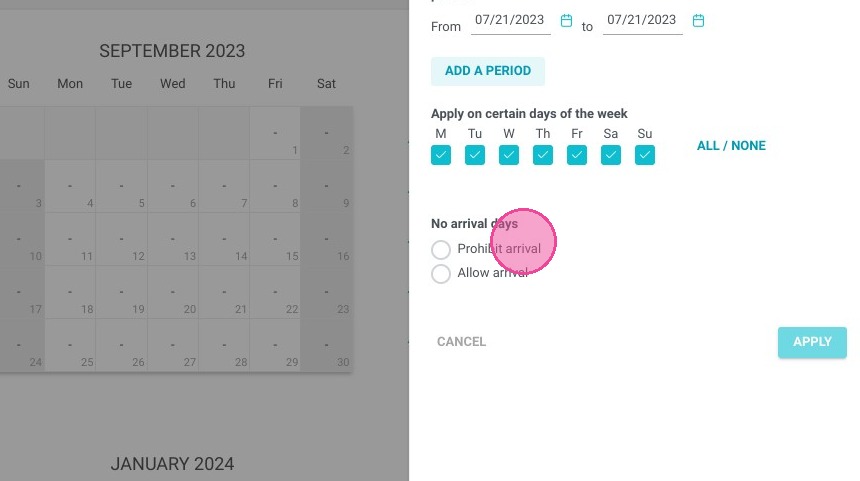
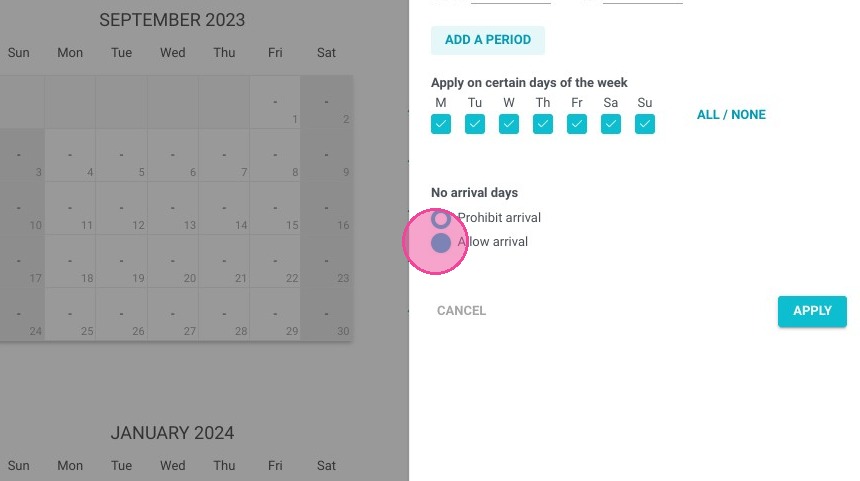
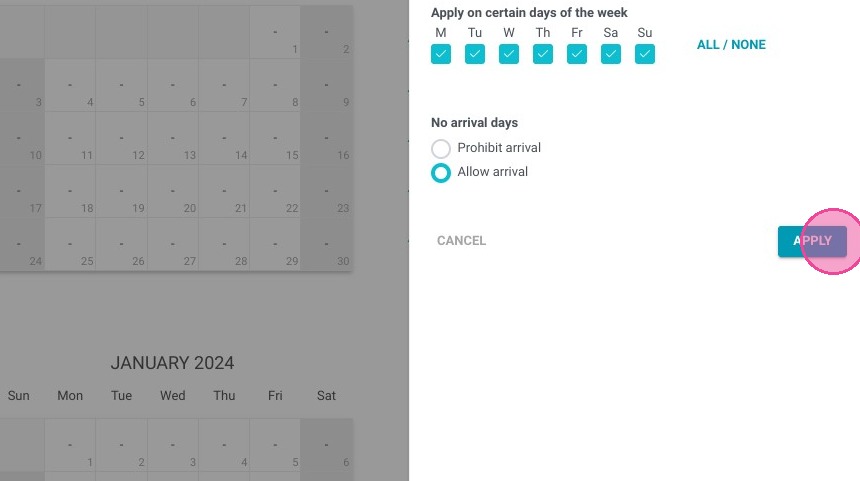
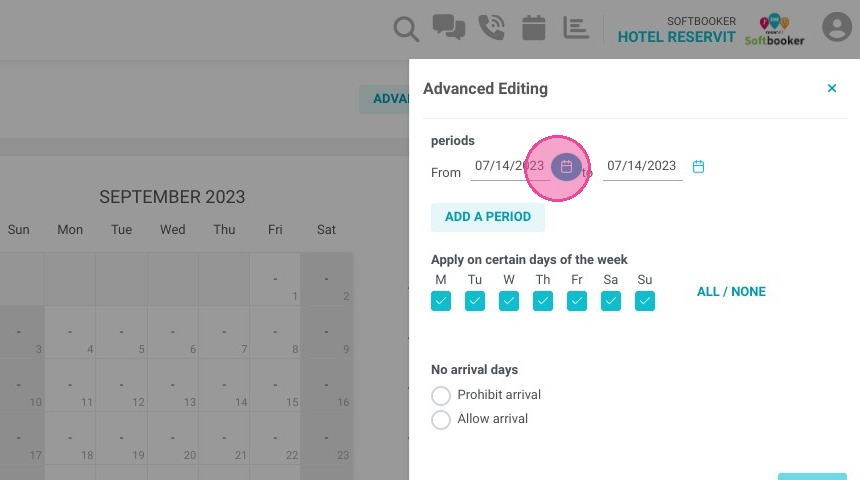
19. Define the period(s) of your choice and the days applicable. Do not forget to "APPLY".
https://colony-recorder.s3.amazonaws.com/files/2023-07-14/b0f3afd5-6527-4f1a-b98a-342e0ddefbb0/ascreenshot_80c45267e1aa4bac96ba7798192da427_text_export.jpeg
https://colony-recorder.s3.amazonaws.com/files/2023-07-14/27e56e56-f488-4550-9b14-e25232d10b58/ascreenshot_998e754aadd443b1be725d181324538e_text_export.jpeg
https://colony-recorder.s3.amazonaws.com/files/2023-07-14/233afb31-9b81-4c1b-ad67-3c10a4b65169/ascreenshot_625e3529e8b041e4a069ce978ec7217c_text_export.jpeg
https://colony-recorder.s3.amazonaws.com/files/2023-07-14/f5c6bce5-669a-4e1d-905c-c0b5cb23c37f/ascreenshot_2f2e72ccb05745f79cf21c0d482f21c0_text_export.jpeg
https://colony-recorder.s3.amazonaws.com/files/2023-07-14/5b58dd16-6e89-4ba9-b962-8d0834a9b92e/ascreenshot_589c3f8bed7a4e318067456cbdb58e33_text_export.jpeg

Manage the prohibited departure days

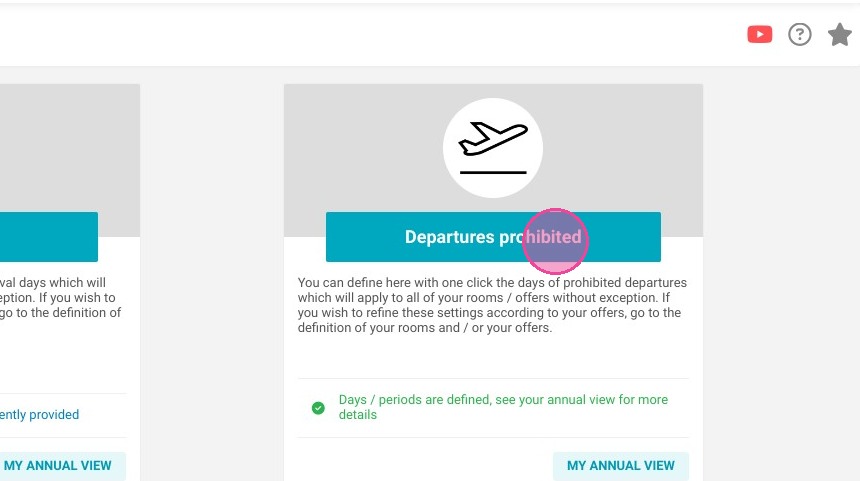
20. On the page "My restrictions", click "Departures prohibited"
https://colony-recorder.s3.amazonaws.com/files/2023-07-14/673c883f-c774-4c8a-9d32-94f2206327d7/ascreenshot_001587d1719e4361a8174d3e9f8045e5_text_export.jpeg

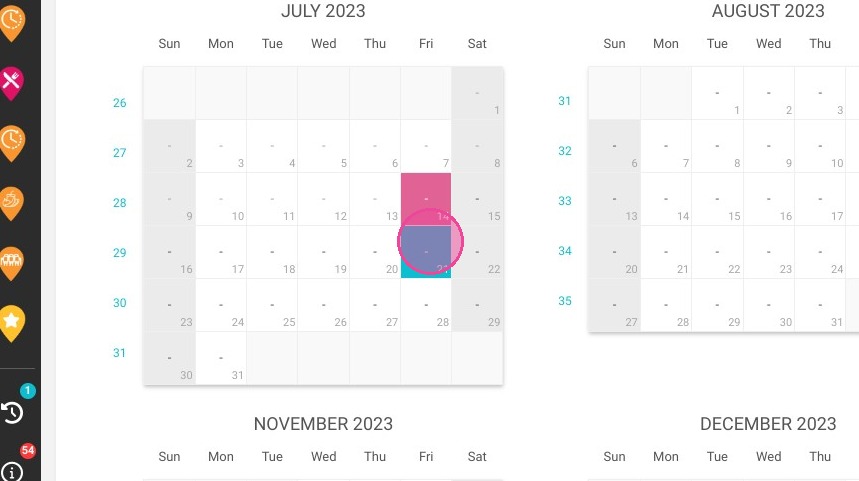
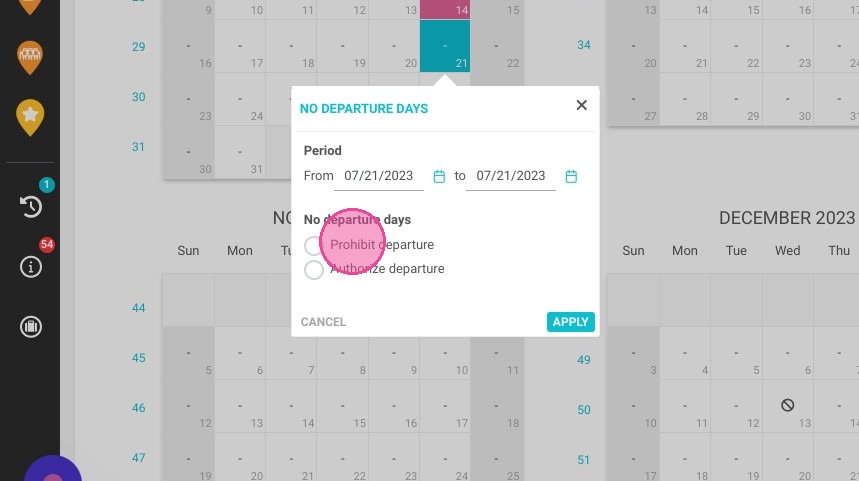
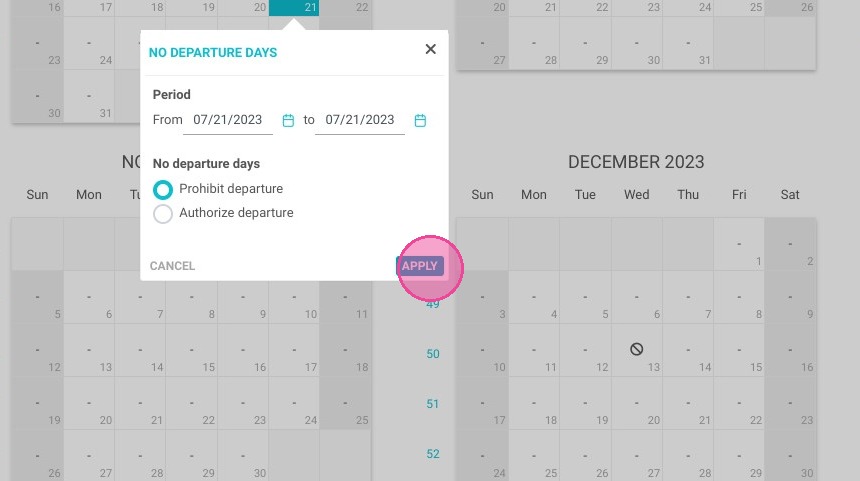
21. This feature is working on the same principle. Select the date and click on "APPLY"
Click "Prohibit departure"
Click "APPLY"

https://colony-recorder.s3.amazonaws.com/files/2023-07-14/a0c43057-a7a6-4391-aba5-4f78e5410a92/ascreenshot_fd115ef8c3554c7d94210c3347aeb57b_text_export.jpeg
https://colony-recorder.s3.amazonaws.com/files/2023-07-14/39ab8baf-ee13-4512-b7be-1009f02baa31/ascreenshot_01fd101cbe444eceb330d2debe268b88_text_export.jpeg
https://colony-recorder.s3.amazonaws.com/files/2023-07-14/630976ce-f2e5-4a67-bb7d-099cc1dffb25/ascreenshot_f48cc1994993424b8a703af51f603407_text_export.jpeg

22. You can also edit massiv changes by clicking "ADVANCED EDITING". Then click on "APPLY" to save the changes

https://colony-recorder.s3.amazonaws.com/files/2023-07-14/6373b3b9-5f19-42de-912e-933d7103957c/user_cropped_screenshot_7f55ff42963945ff8d709d7189ac3fc2_text_export.jpeg