

Article Summary: This practical guide provides step-by-step instructions on how to seamlessly process a payment refund using the integrated terminal in Reservit PMS. You will learn how to apply a generated credit note, select the appropriate direct debit payment mode, and securely validate the transaction through your payment gateway. Mastering this workflow ensures accurate financial tracking and provides a smooth, professional reimbursement experience for your guests.
The 4 key steps to refund a payment via the terminal:
-
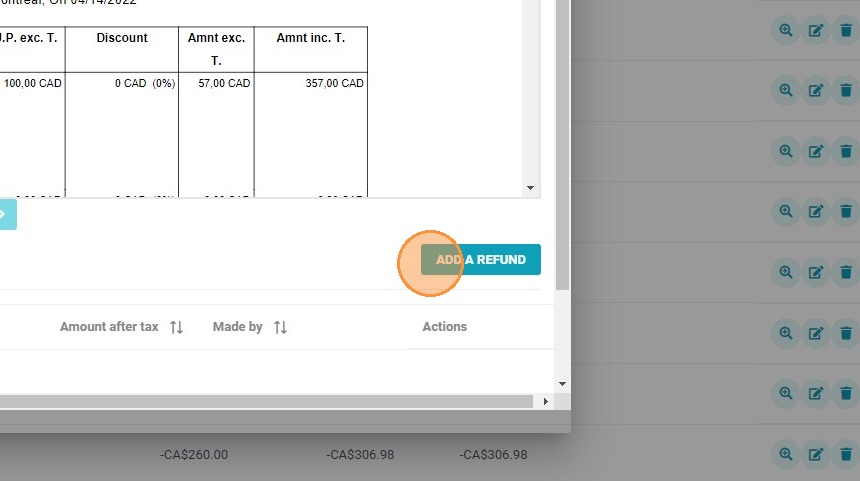
Initiate the Refund: After creating the necessary credit note for a booking, click on "Add a refund" to begin the reimbursement process.
-
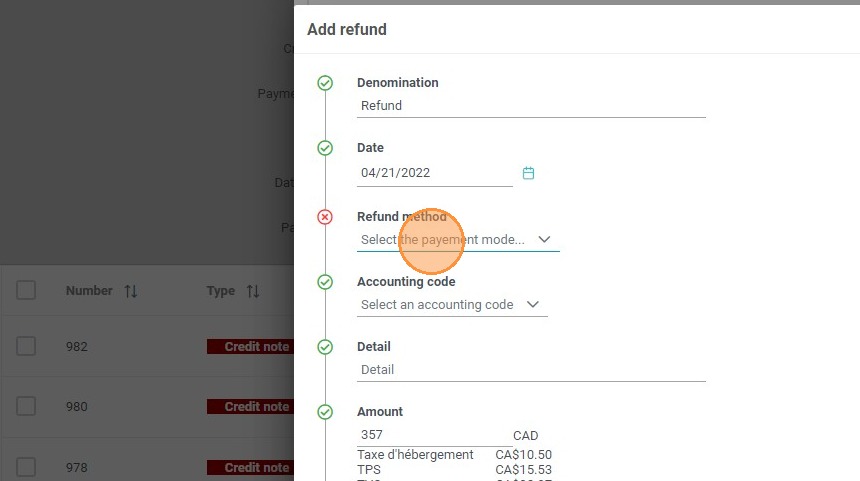
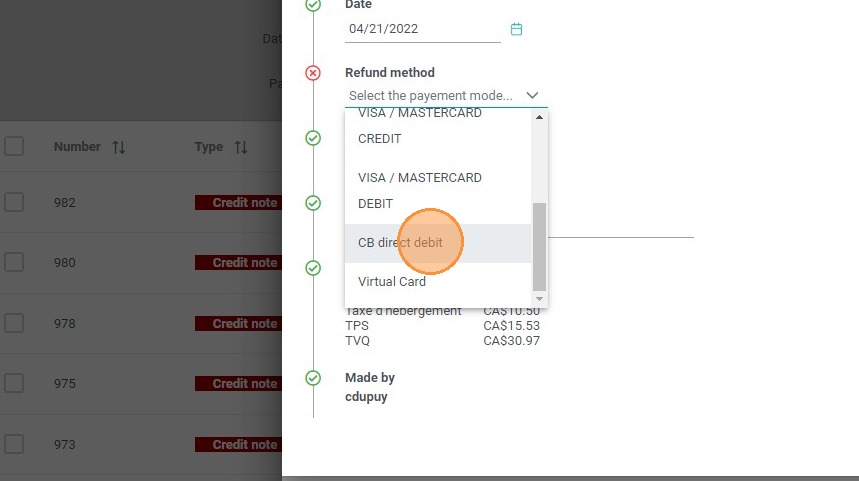
Select the Payment Method: Open the payment mode options and specifically choose "CB direct debit" to correctly route the return funds.
-
Access the Gateway: Click on "Access the payment terminal" to connect to your property's integrated financial system.
-
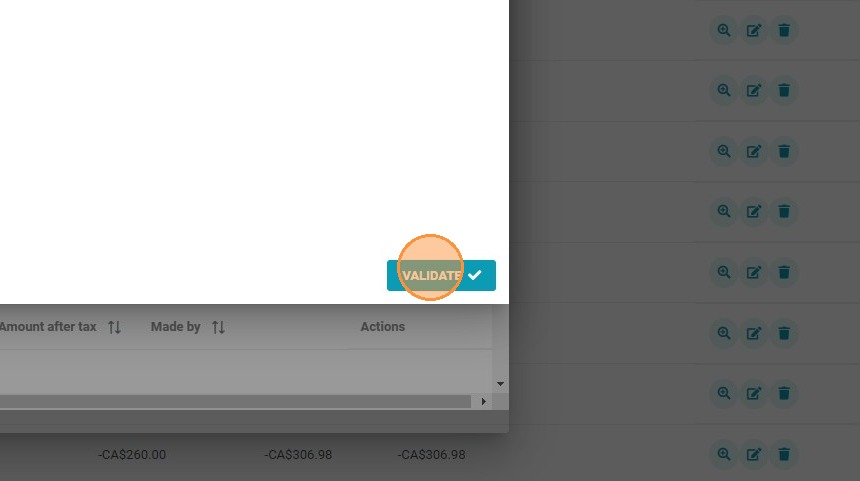
Validate and Confirm: Click "Validate" and follow the terminal's prompt to securely confirm the refund, which will automatically update the guest's invoice account.
Why follow this guide? Following this tutorial ensures secure and compliant financial transactions by accurately processing credit card refunds directly through your integrated gateway. It prevents manual accounting errors and streamlines your daily billing operations, saving your front-desk staff valuable time during booking modifications or cancellations.
1. If you need to refund a portion of the amount paid for a booking, you can create a credit note. Once created, click on "ADD A REFUND".
2. Select the payment mode.
3. Choose "CB direct debit".
4. Access the payment terminal.

5. Click on "VALIDATE".
6. You will be redirected to the terminal to confirm the refund. Once confirmed, the invoice account will be updated accordingly.