Article Summary: This step-by-step tutorial explains how to effectively set up and manage Airbnb promotions directly within Reservit Accommodation. You will learn how to configure default pricing policies—such as early booking discounts, last-minute deals, and length-of-stay rates—and securely map them to your property listings. Mastering this configuration allows you to fully optimize your pricing strategy, increase your visibility on Airbnb, and seamlessly drive more bookings.
The 5 key steps to set up Airbnb promotions:
-
Access distributor mapping: Navigate to the "Partners" menu and select "Distributor mapping" to open your specific Airbnb channel settings.
-
Configure default rate policies: Opt to create general promotions at the property level by clicking the "Configure Default Rate Policy" button.
-
Define your promotional offers: Choose between early booking, last-minute, or length-of-stay discounts, and input your specific discount percentages and required booking windows.
-
Apply policies to specific units: Open the pricing policy for each individual unit and select "Default" to apply your general rules, or select "Custom" to build unique promotions for that specific room type.
-
Sync directly to Airbnb: Click the synchronization arrows to push your newly configured pricing updates to Airbnb for up to a year, then verify the live changes on the platform.
Why follow this guide? Following this precise setup ensures your promotional rates are pushed accurately to Airbnb without requiring tedious manual duplication on the OTA platform itself. By efficiently managing your pricing policies centrally through Reservit, you prevent syncing errors, save valuable administrative time, and keep your property highly competitive.
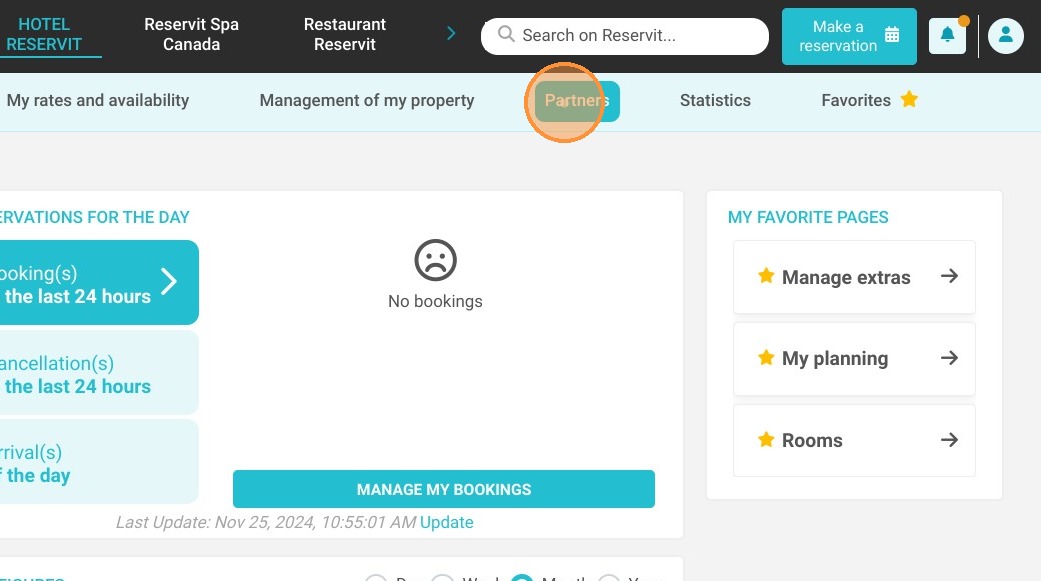
1. Click "Partners"
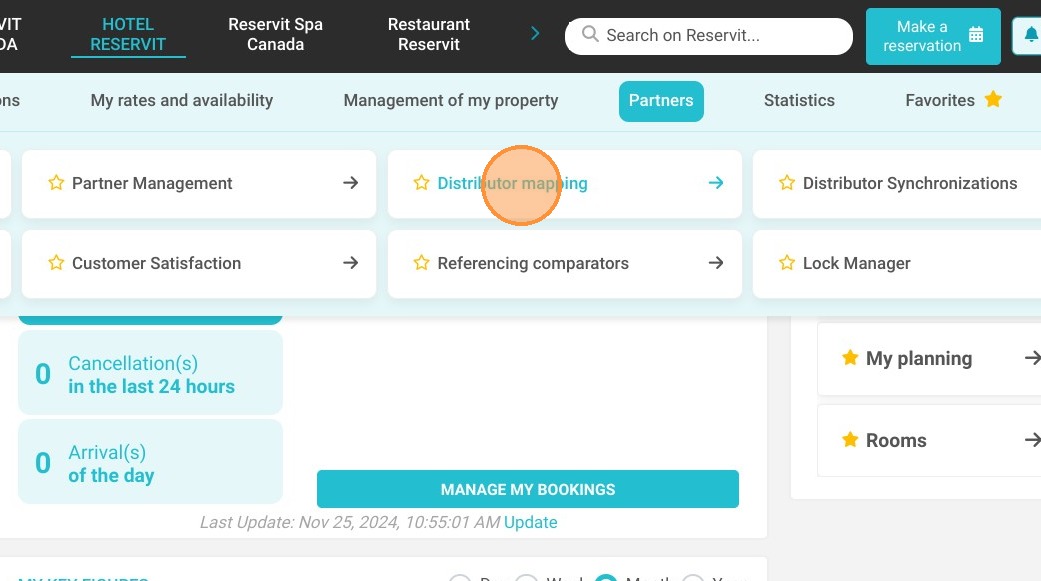
2. Click "Distributor mapping"
3. Click "GO TO PAGE"
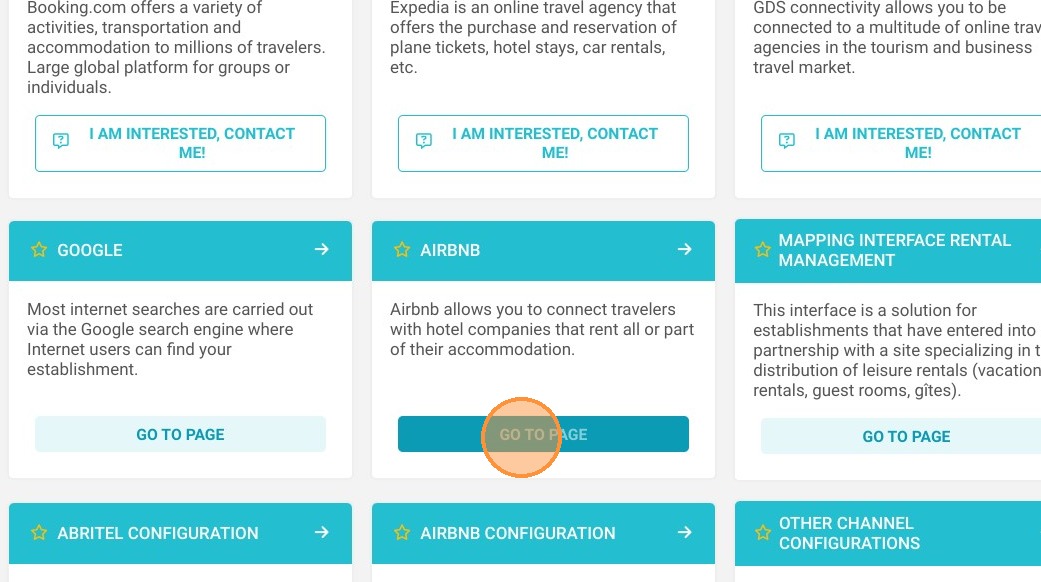
4. You will see a screen similar to this one.
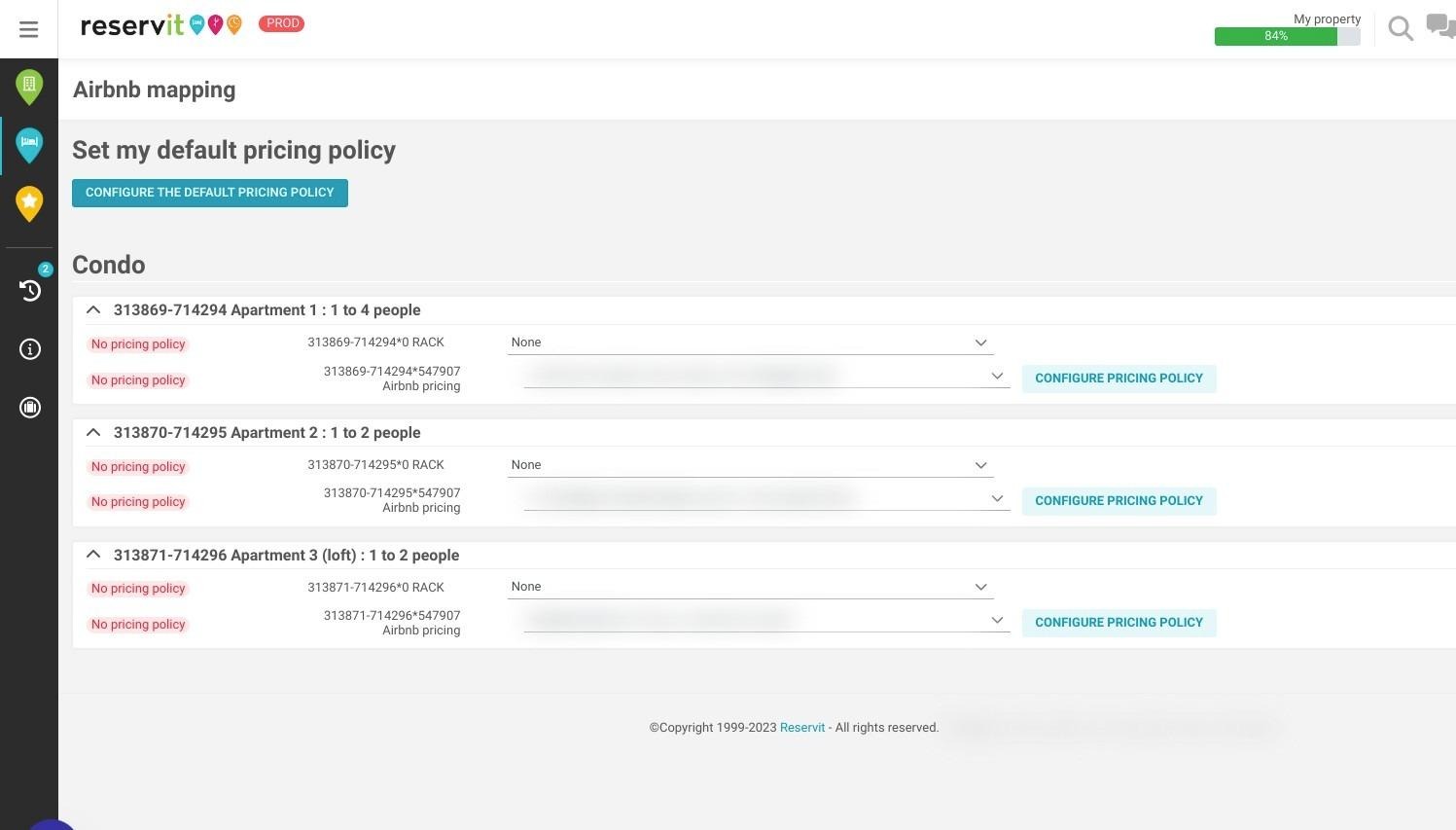
Alert: You have two options for creating promotions with Airbnb:
1 - Create general promotions at property level
2 - Create customized promotions per unit
5. 1 - To create general promotions at property level.
Click on "CONFIGURE DEFAULT RATE POLICY".
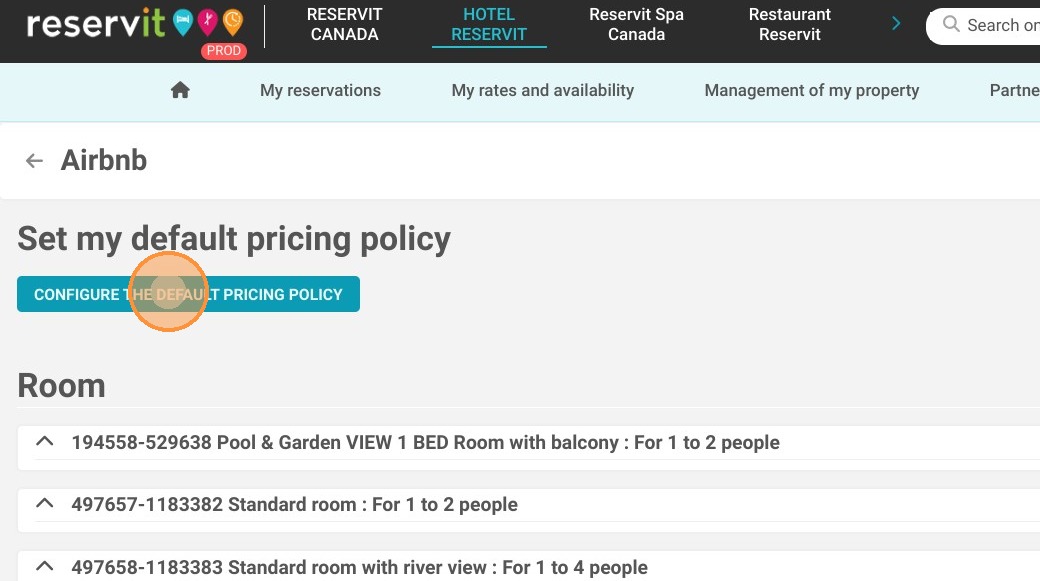
6. 3 types of offer are possible:
-
Early booking
-
Last minute
-
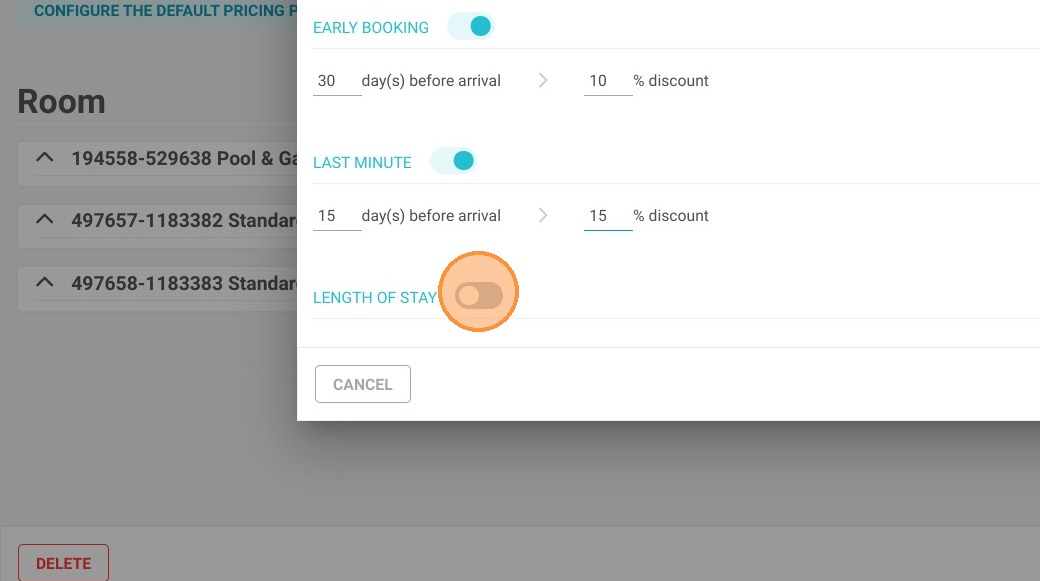
Length of stay (please note, the latter does not appear as a promotion in Airbnb but as a regular rate).
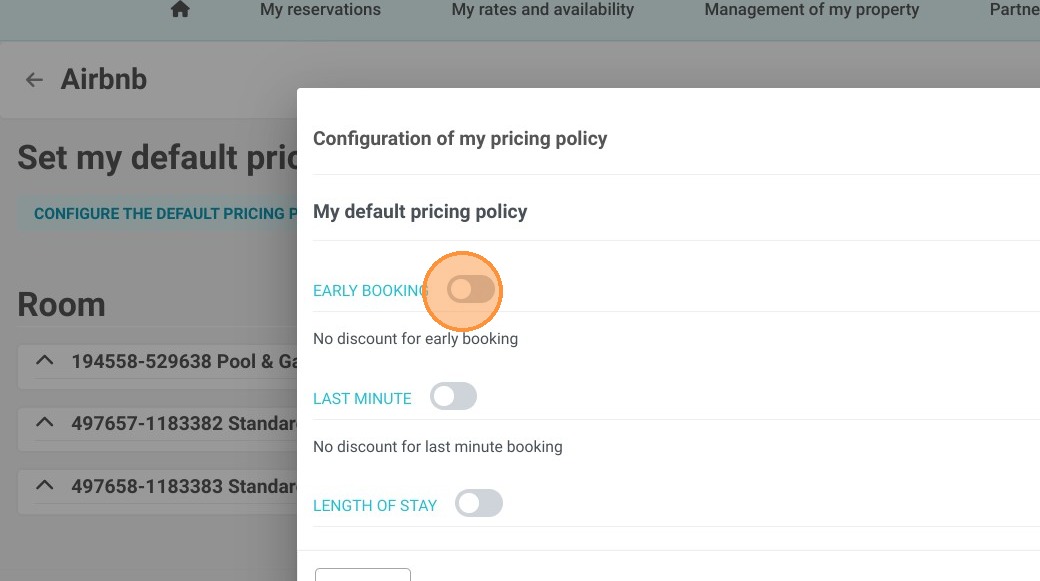
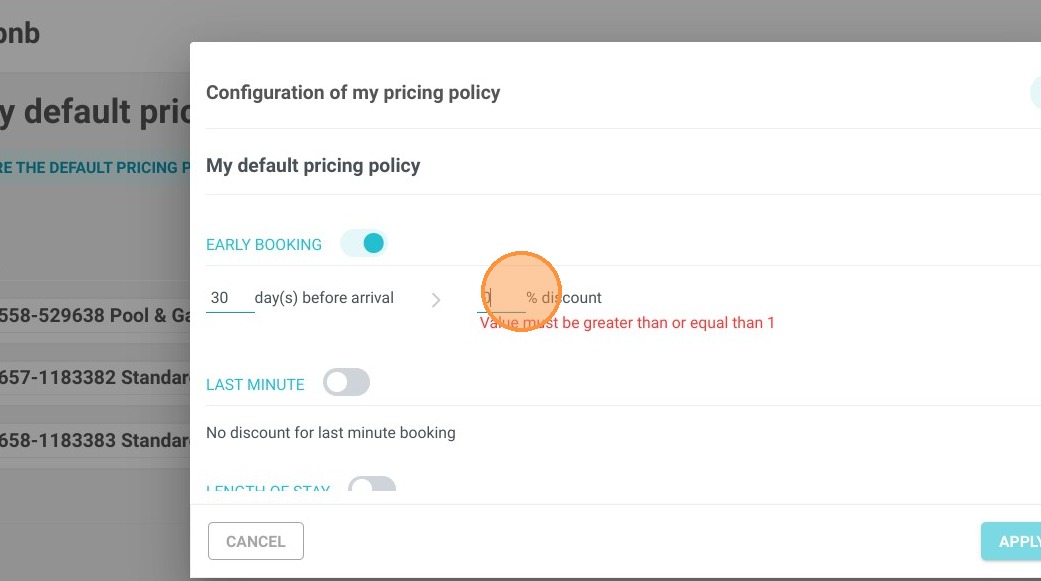
7. To create an "Early booking" promotion, click on the button to open the promotion program. Select the number of days before arrival to benefit from this promotion, and indicate the percentage discount per night.
Click here.
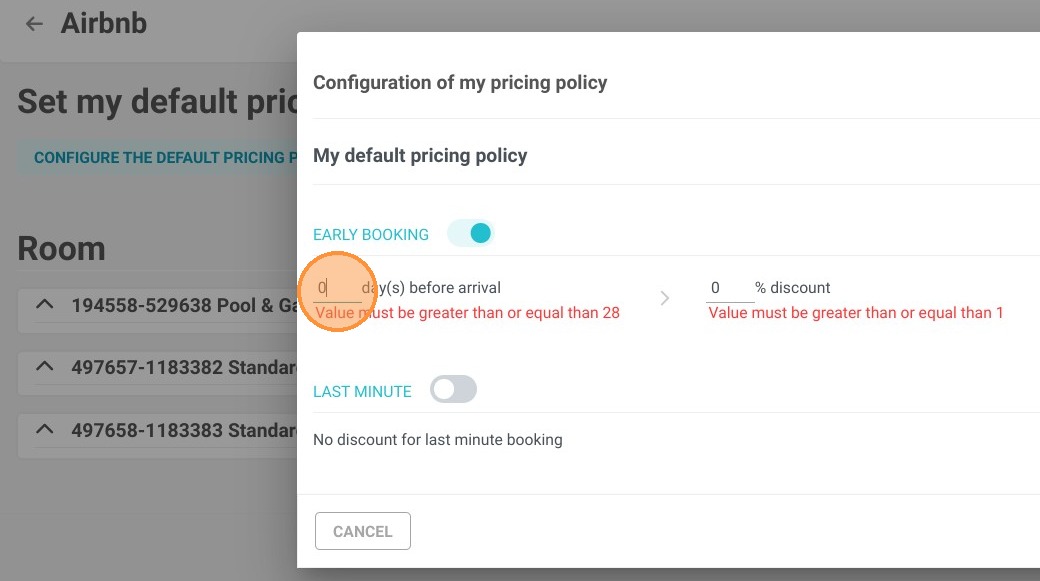
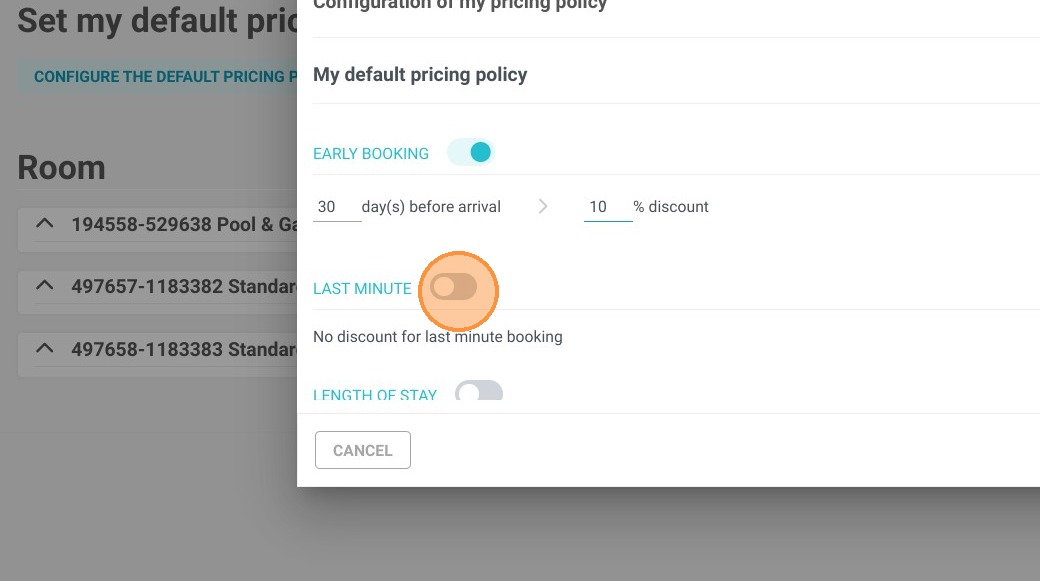
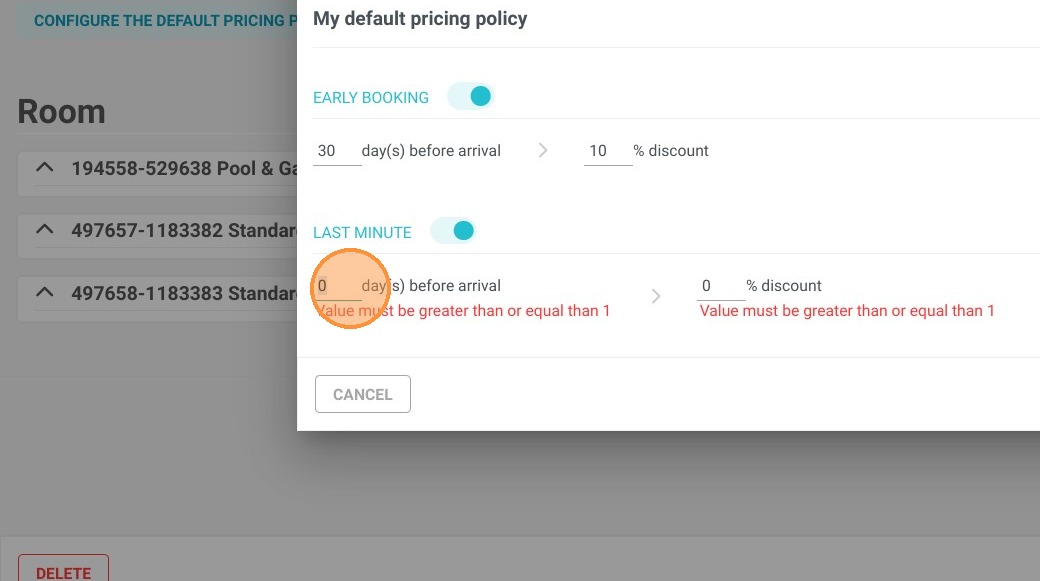
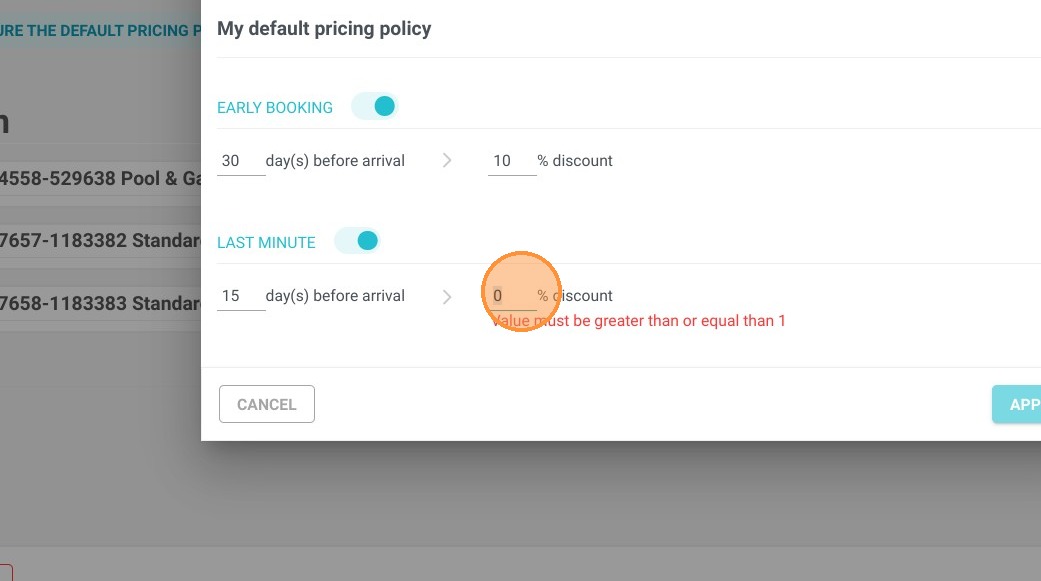
8. You can also create a last-minute promotion using the same principle.
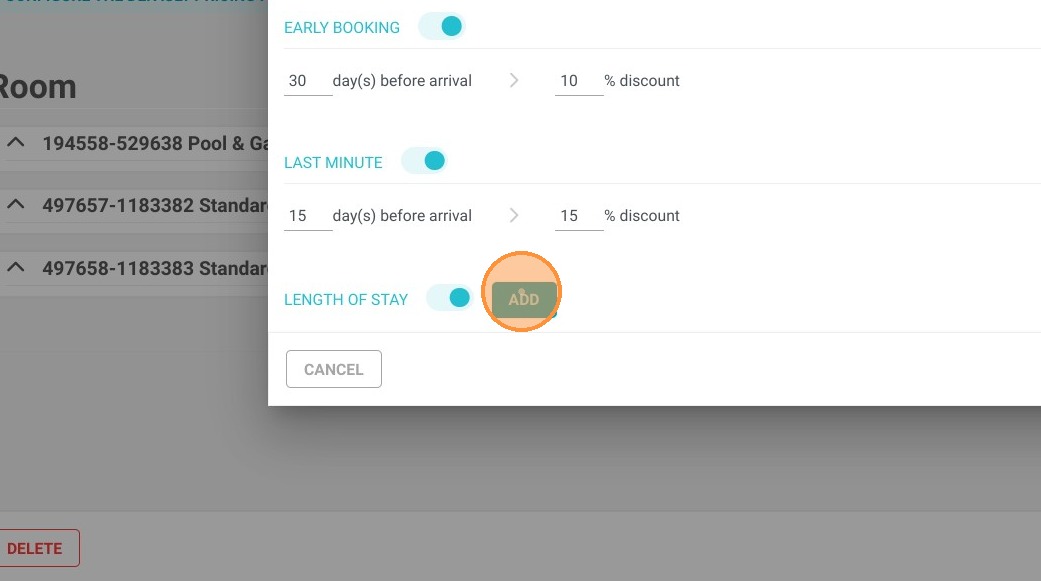
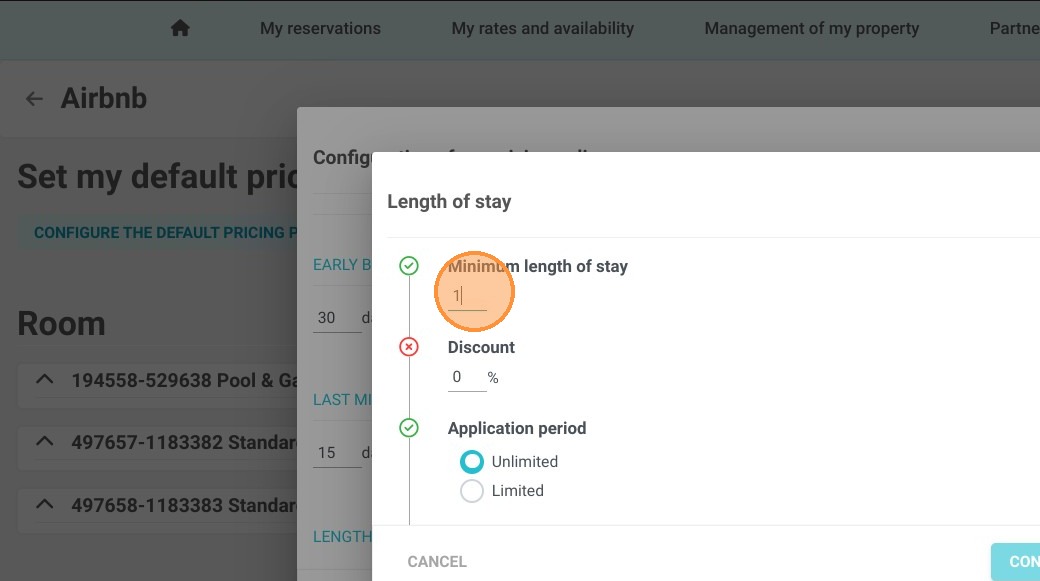
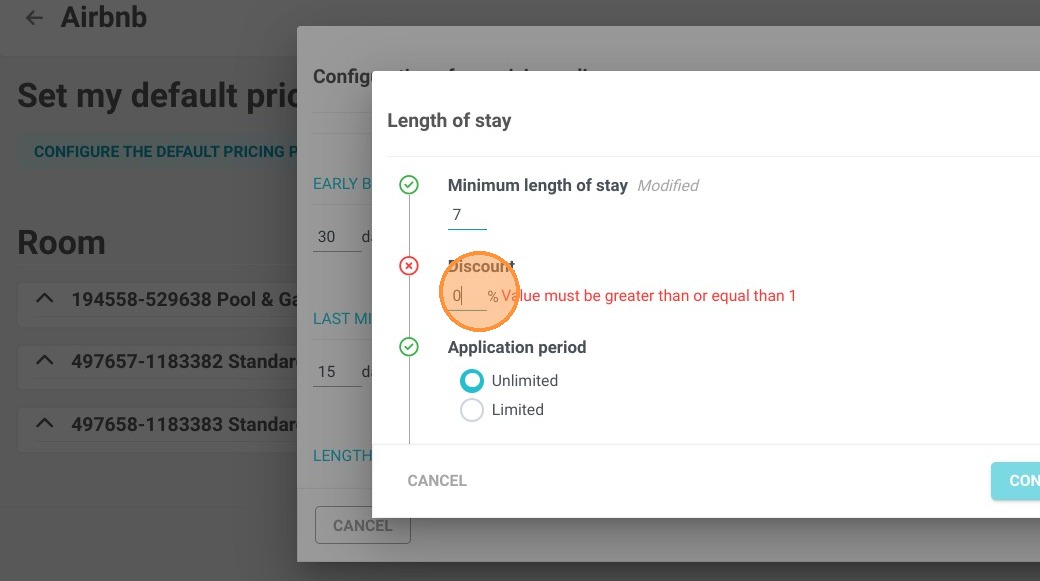
9. The last option is to create an offer based on the length of stay, which is not displayed as a promotion in Airbnb, but as a regular rate.
When you've completed your configurations, apply your changes to save.
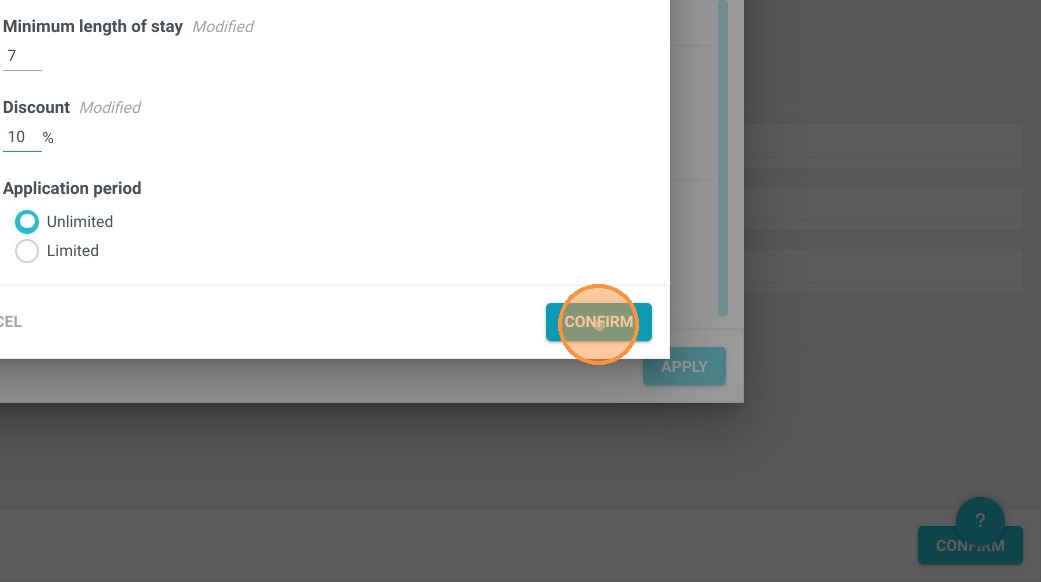
10. You can then view the Airbnb offers you've set up for your establishment, but now you need to apply them to your units.
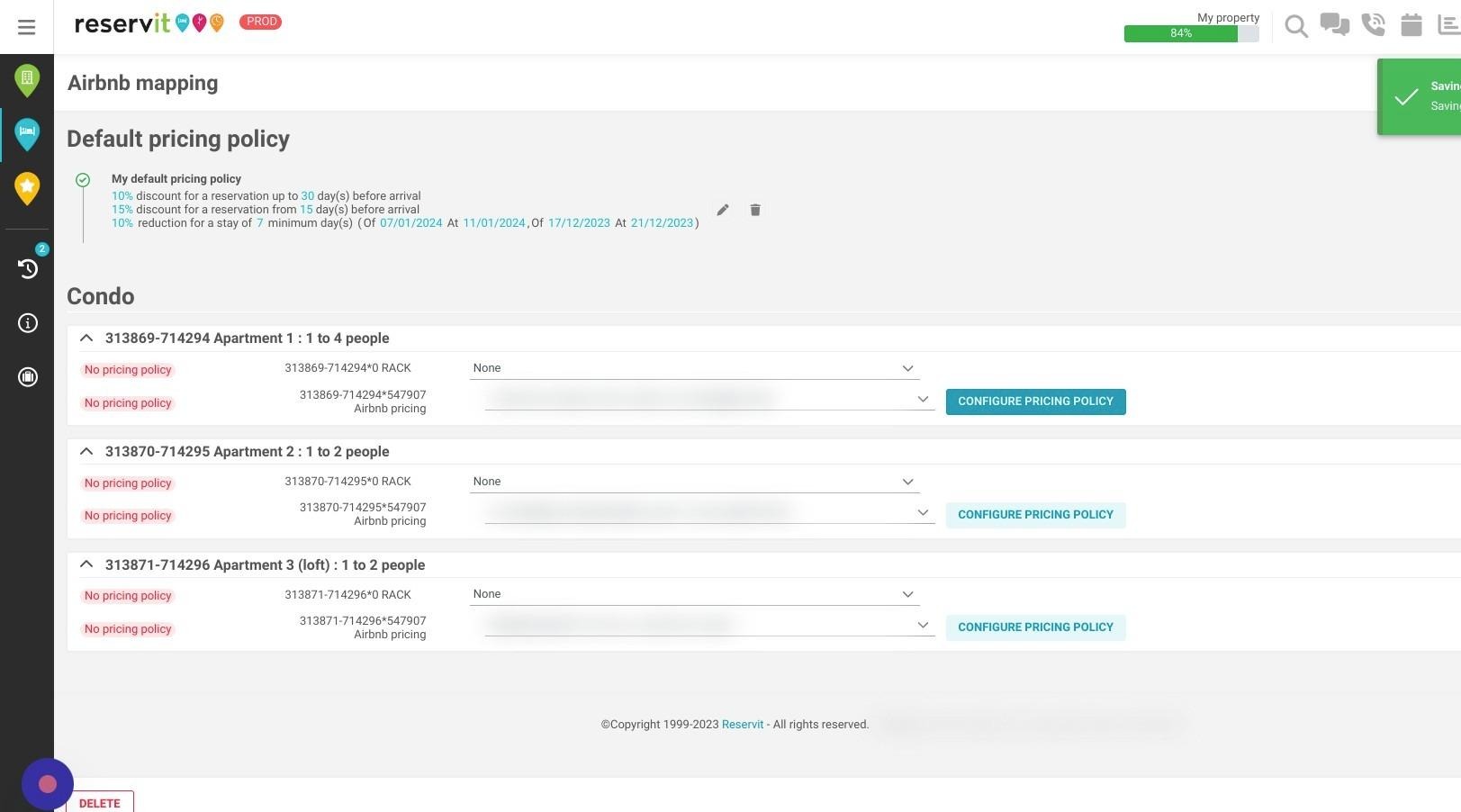
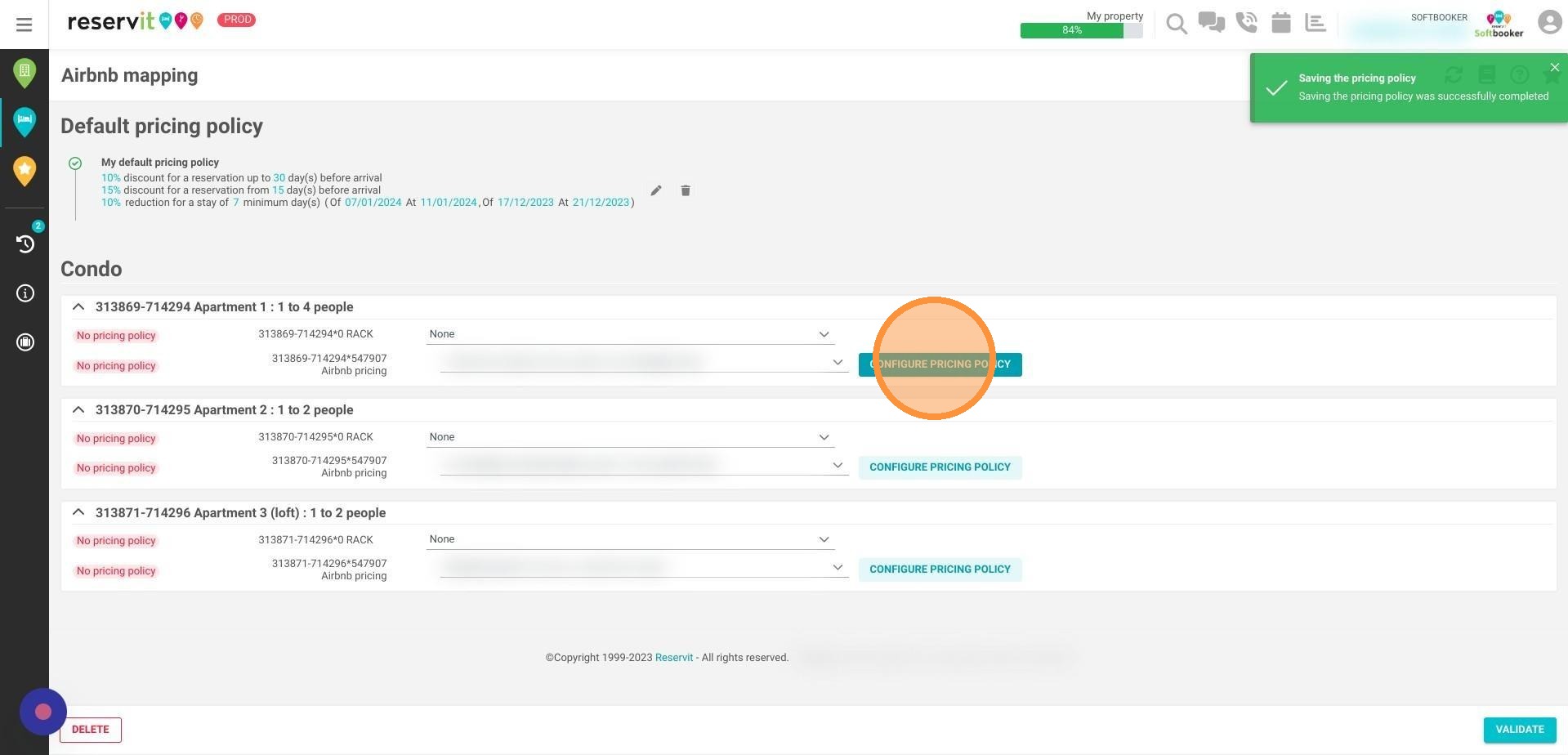
11. To do this, click on "CONFIGURE PRICING POLICY" in each unit.
12. Select "By default" to apply the promotions created at property level and apply the changes.
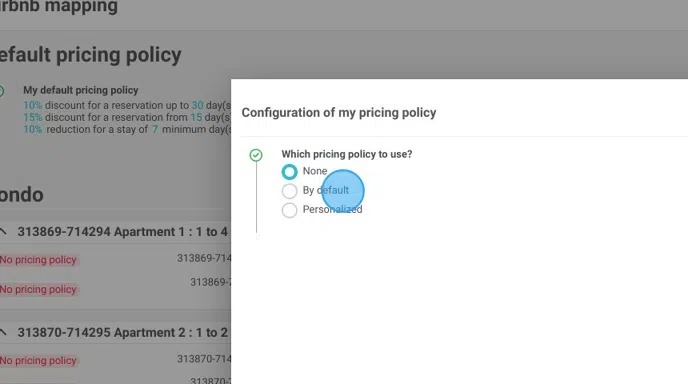
Alert: As you can see, we could have created customized promotions on a specific unit.
13. To create one or more promotions for a specific unit, select "Custom".
Click "Personalized"
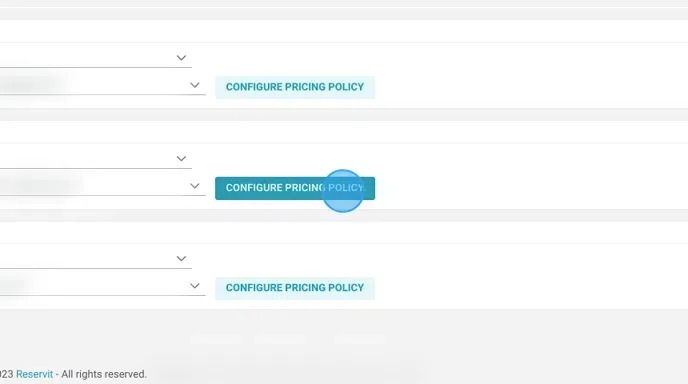
14. You can then follow the steps illustrated above to configure your promotions on a specific unit.
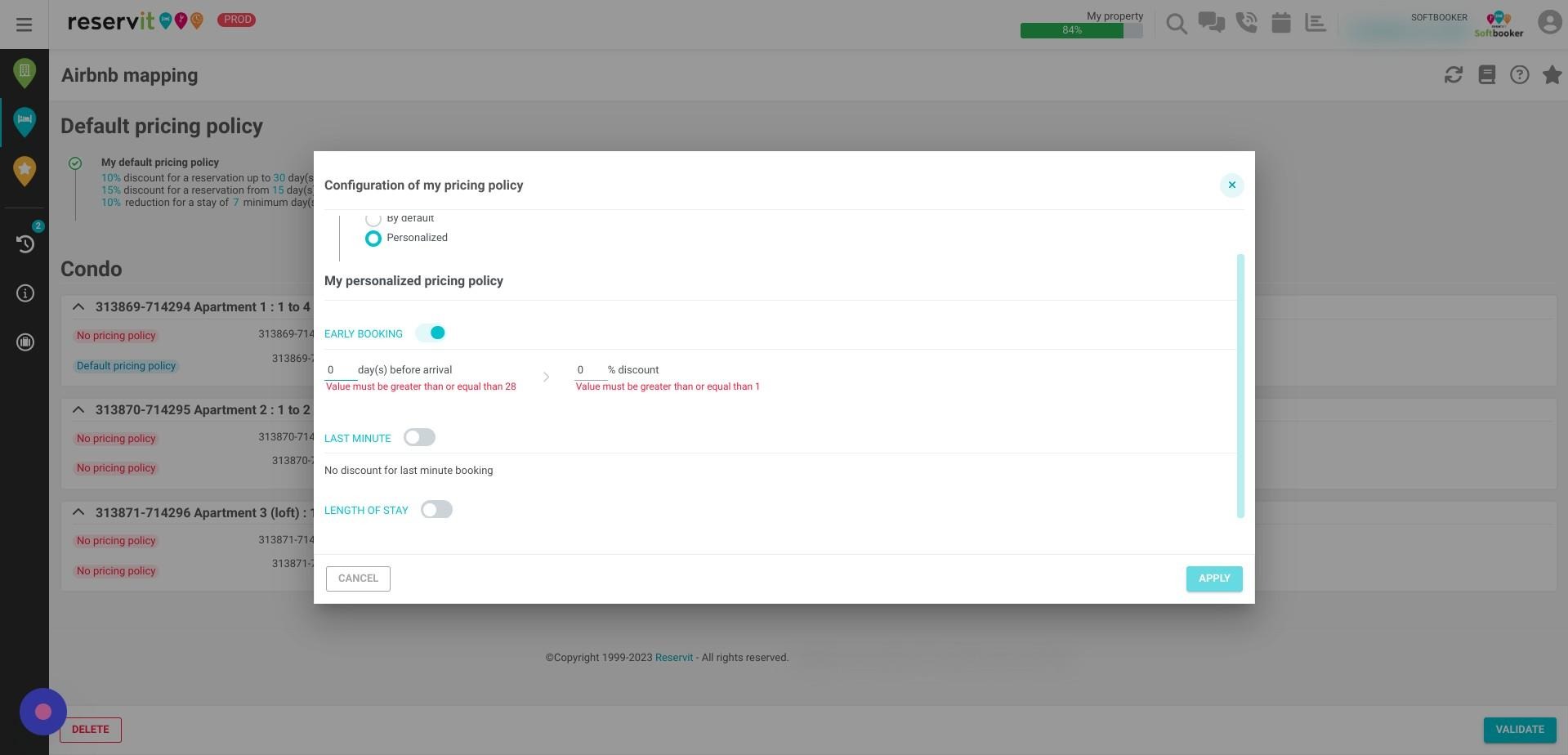
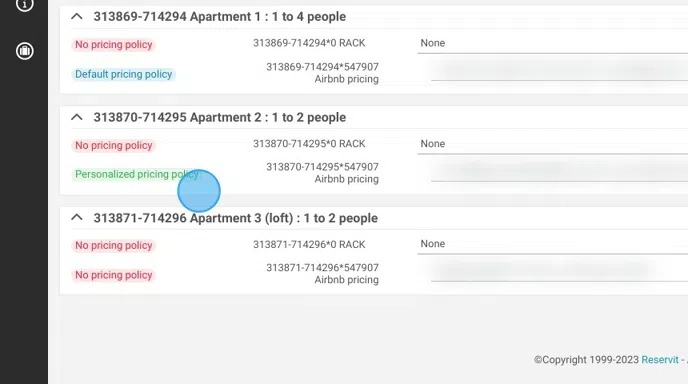
15. When you have finished configuring your unit, click on validate to save everything. You can see a blue label on the left of the unit when the default pricing policy has been successfully configured on your unit or a green label for a personalized pricing policy.
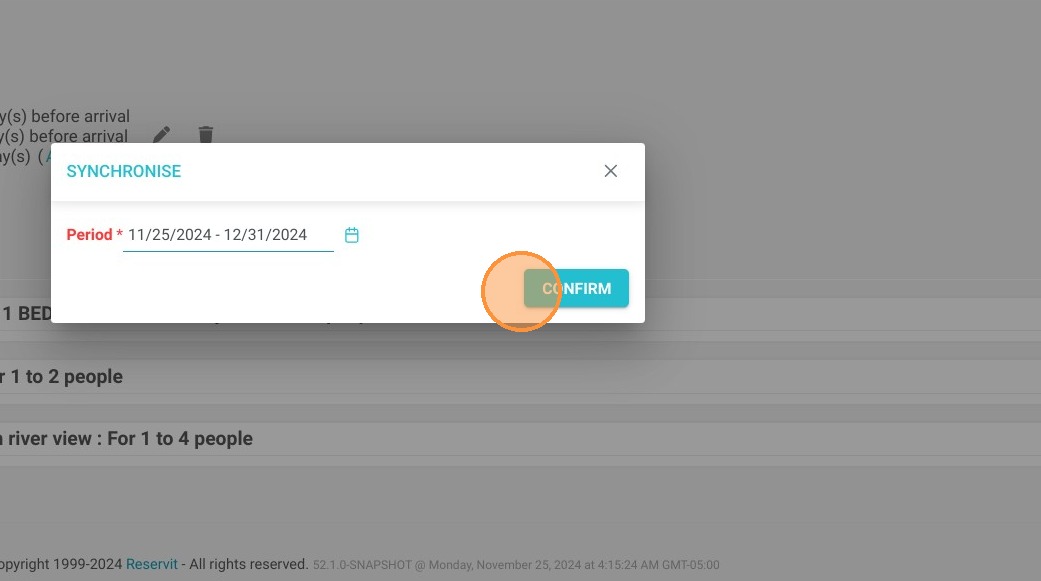
16. Then click on the two arrows to push a synchronization to Airbnb for 1 year max.
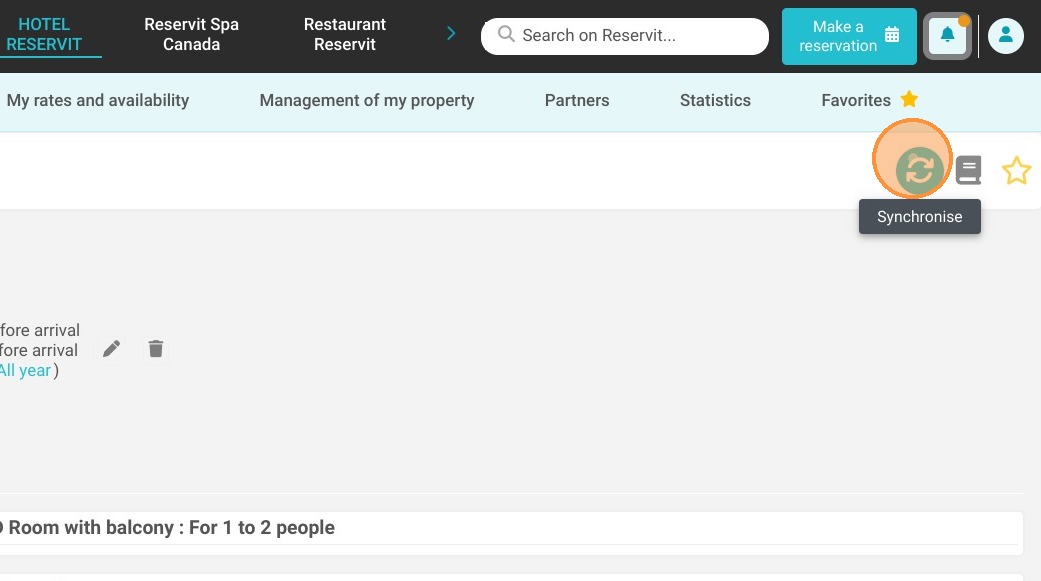
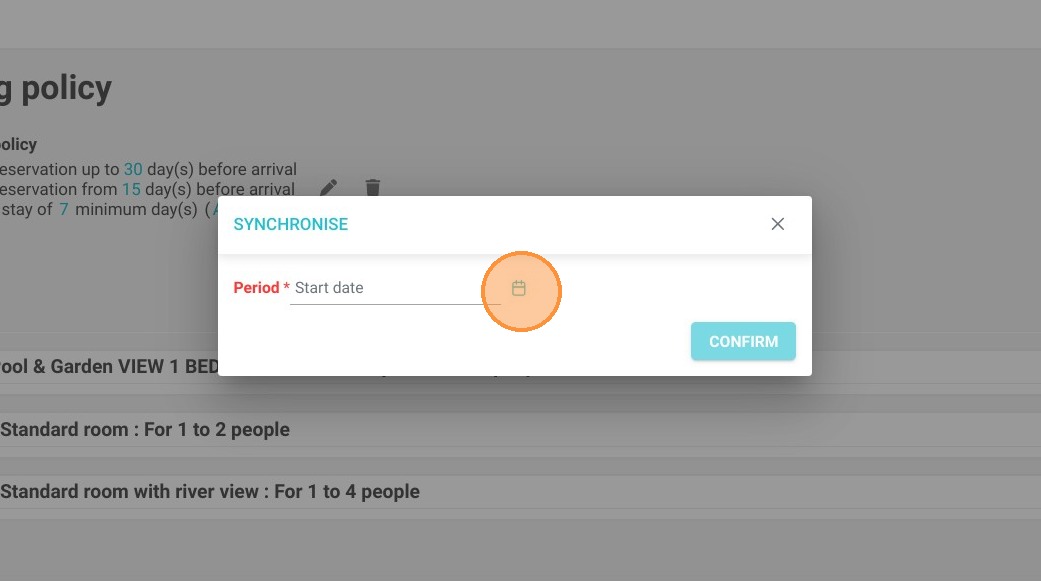
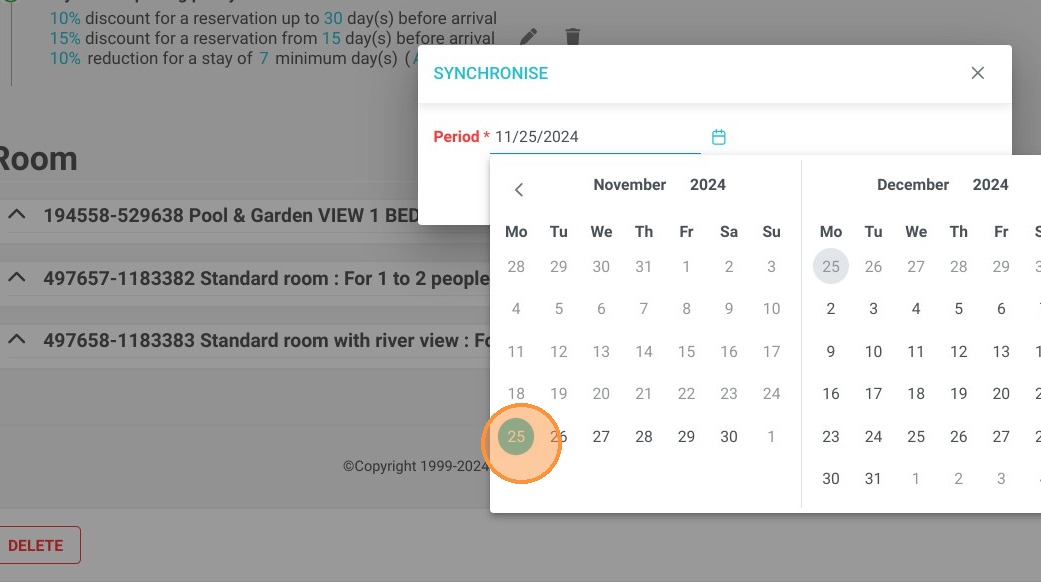
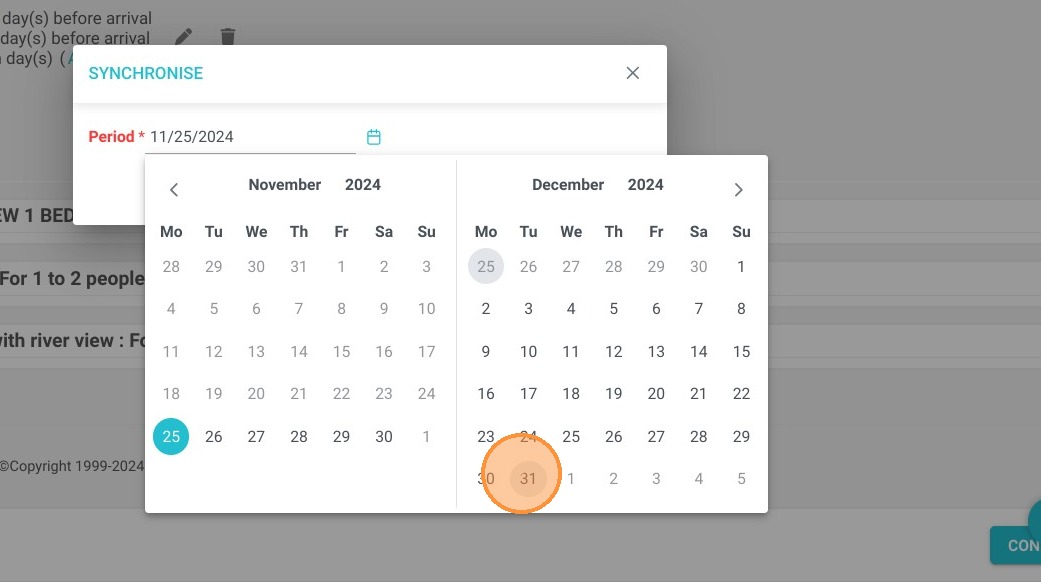
Tip: And don't forget to check that the promotions appear on Airbnb by viewing your listing as a guest. Synchronization can take several minutes.
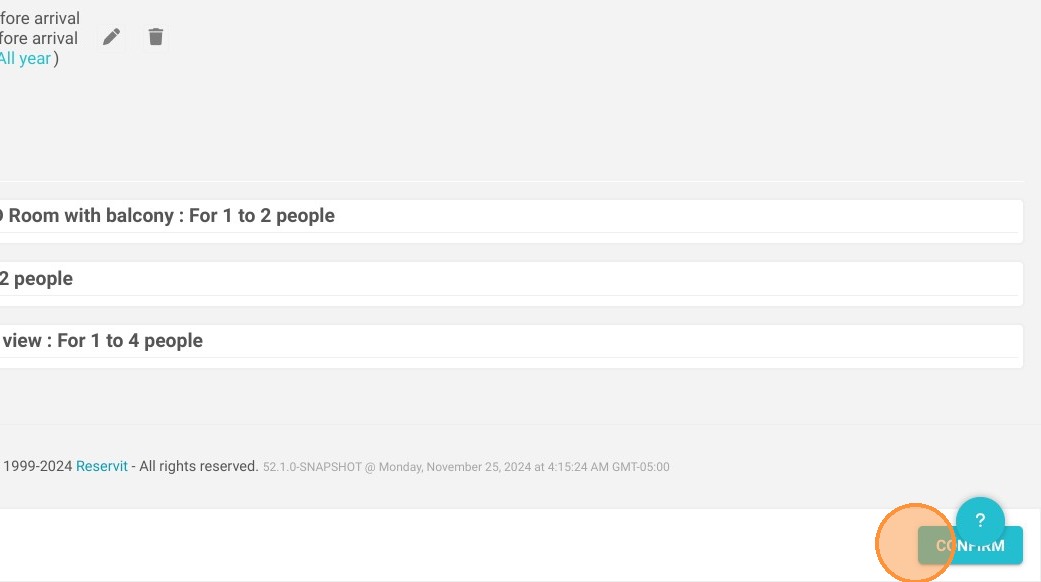
17. Click "CONFIRM".