Article Summary: This comprehensive tutorial provides clear instructions on how to easily update property and room pictures within your Reservit Accommodation booking engine. You will learn how to upload new images and accurately assign them to your overall establishment or specific accommodation categories. Mastering this visual management process helps you significantly improve your property's online presentation, instantly attracting more potential guests and boosting your reservation conversion rates.
The 4 Key Steps to Update Your Property Pictures:
-
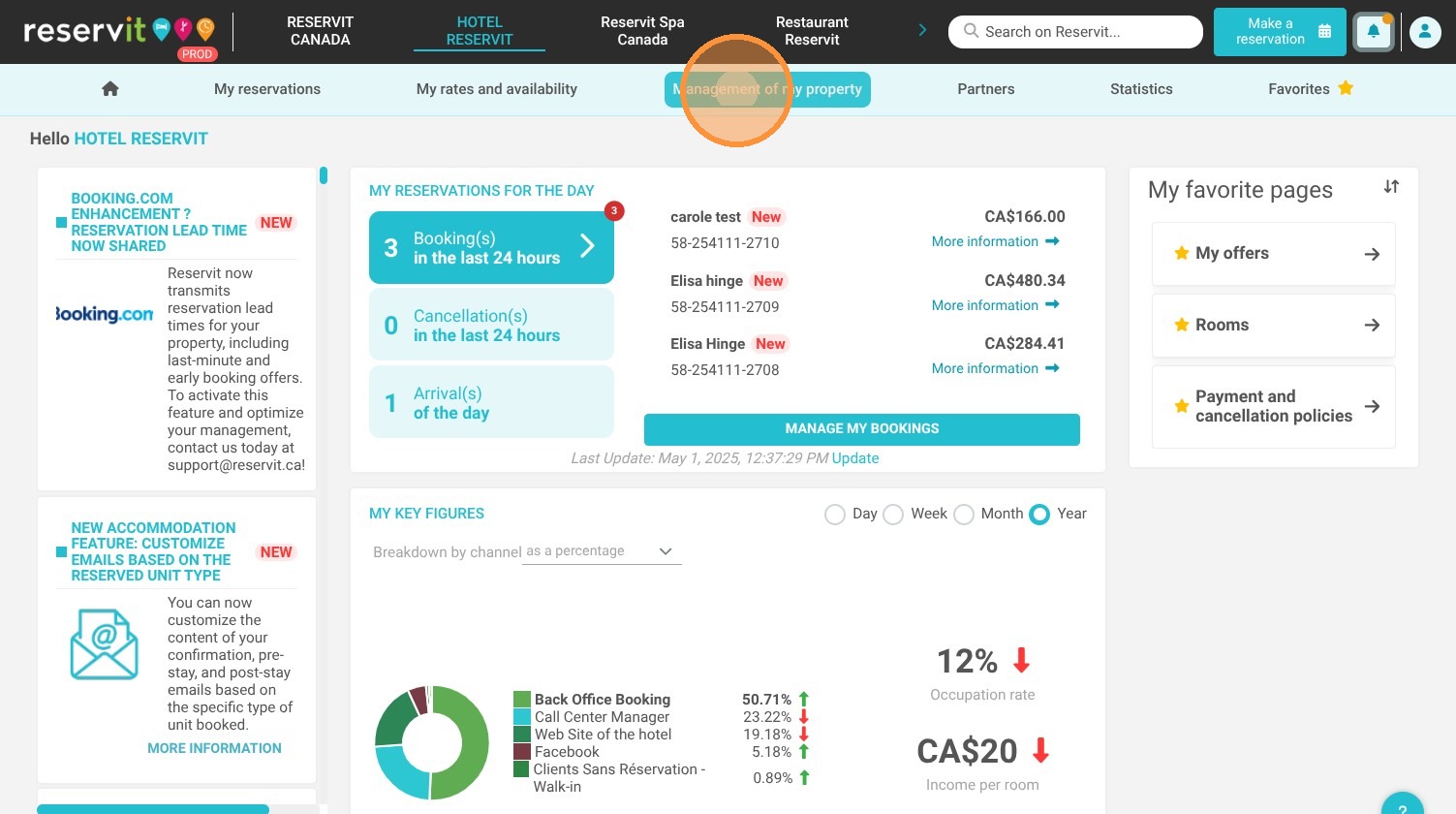
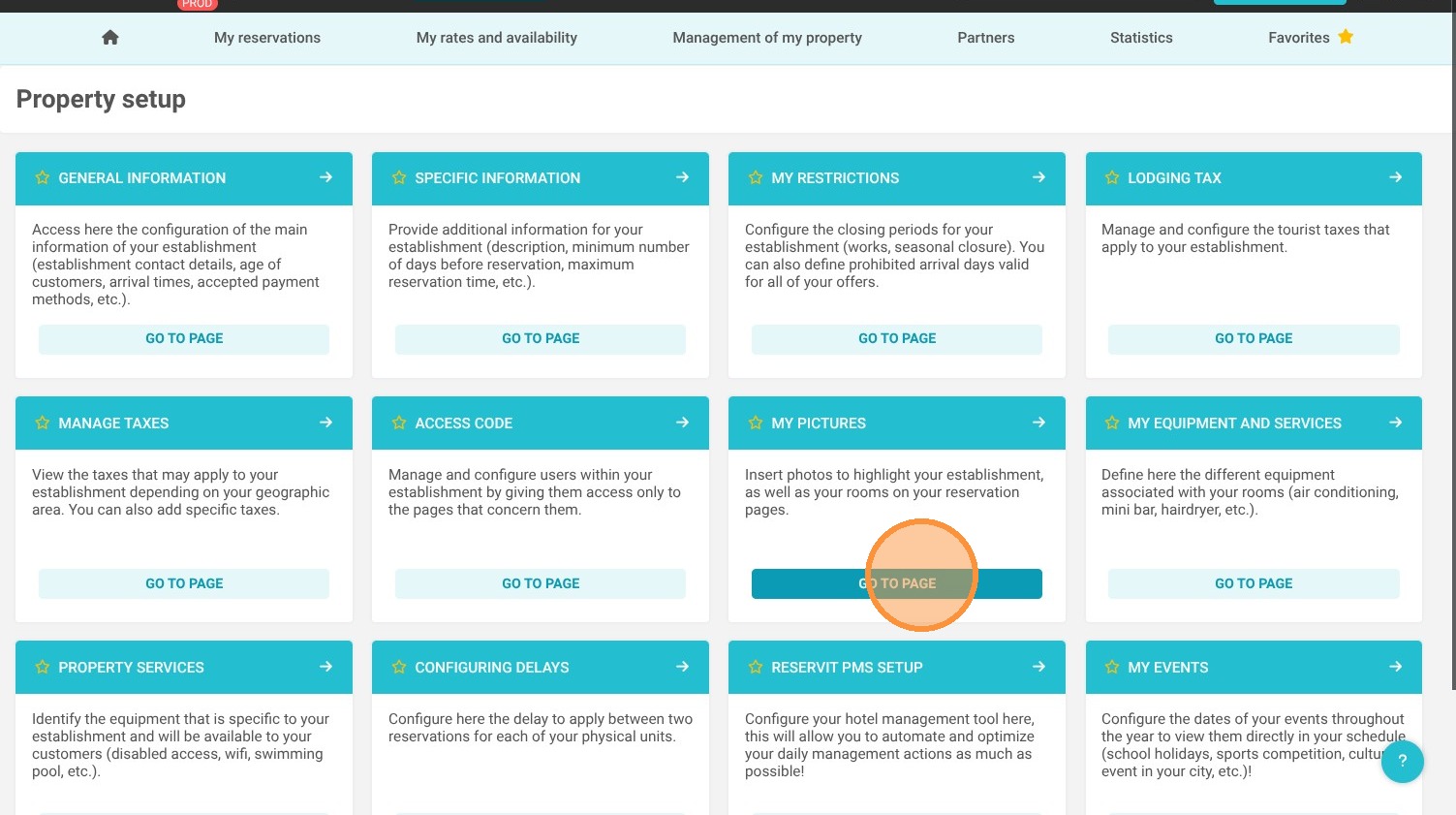
Access the Media Management: Navigate to "Management of my property" from your main dashboard and proceed to the dedicated picture management page.
-
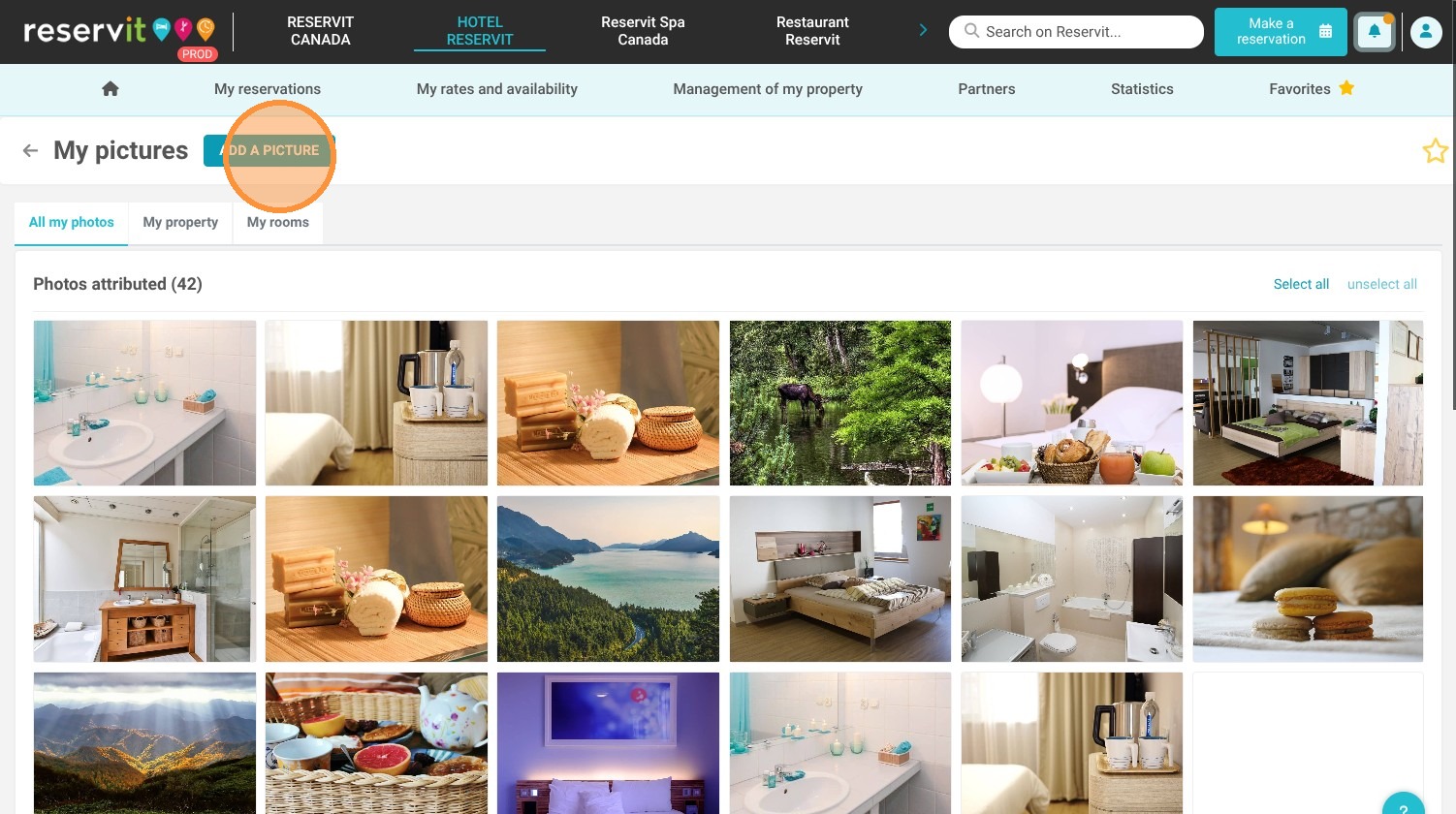
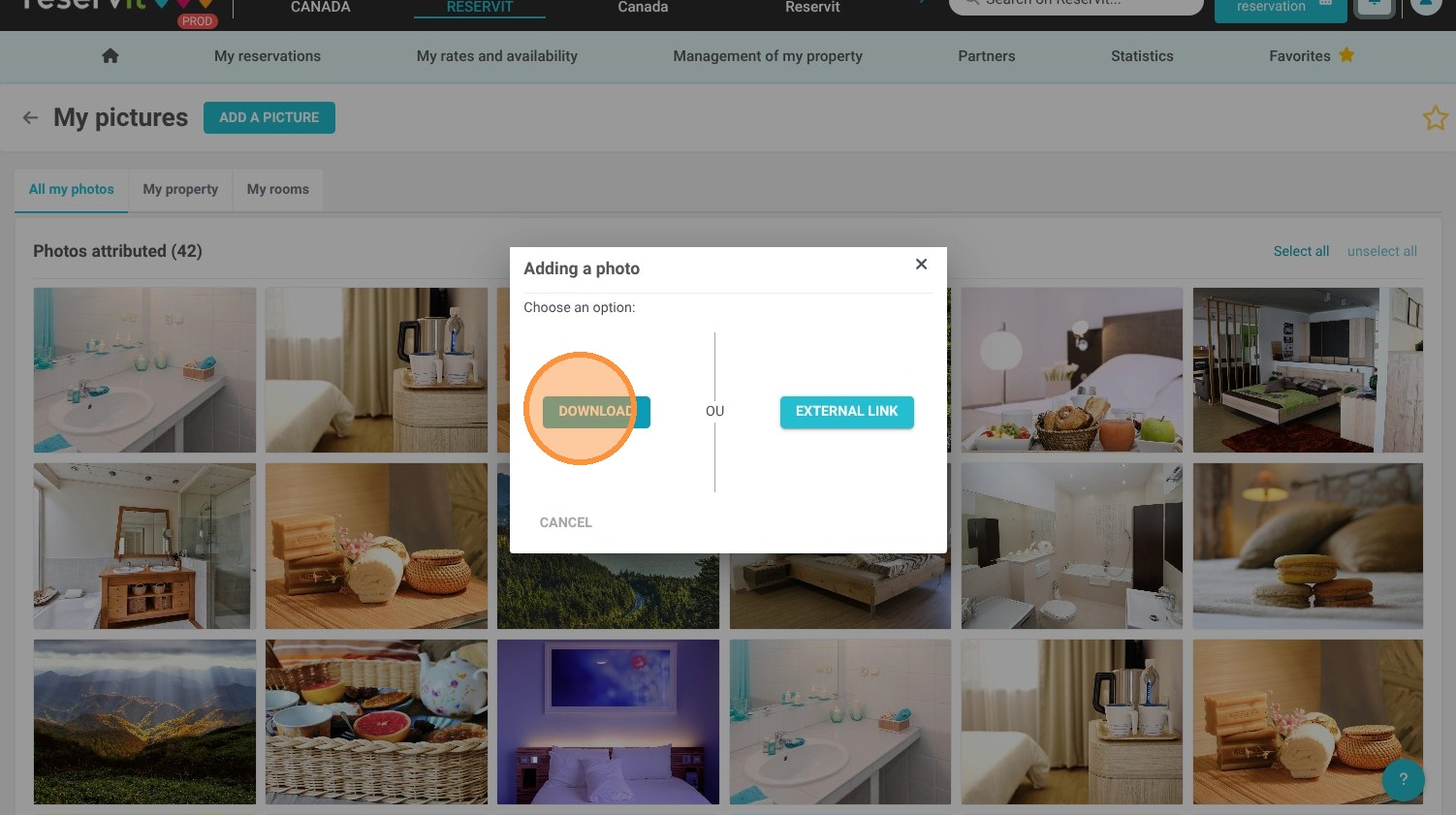
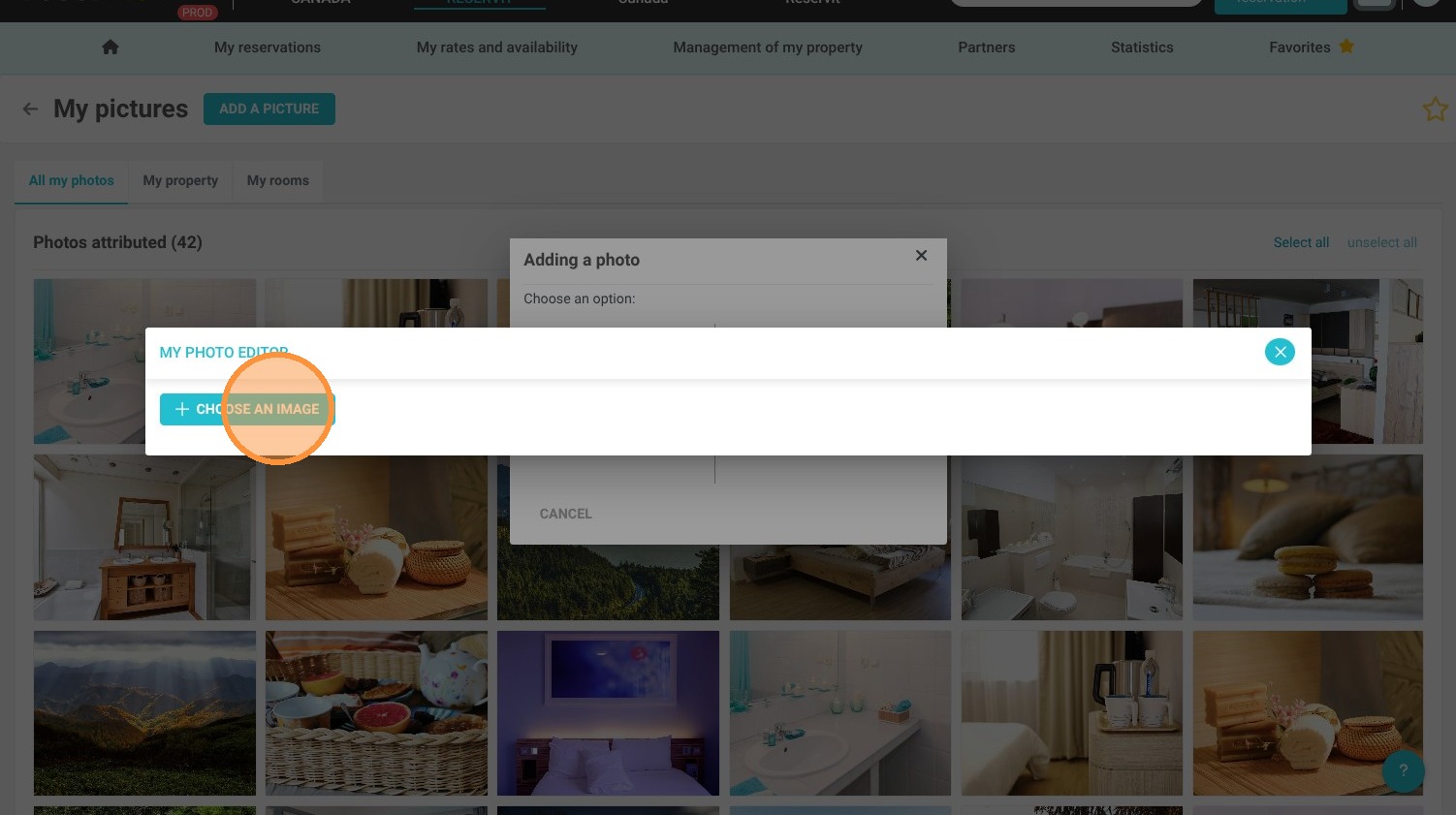
Upload a New Image: Click on "Add a picture" and choose the desired high-quality photo from your computer files to begin the upload process.
-
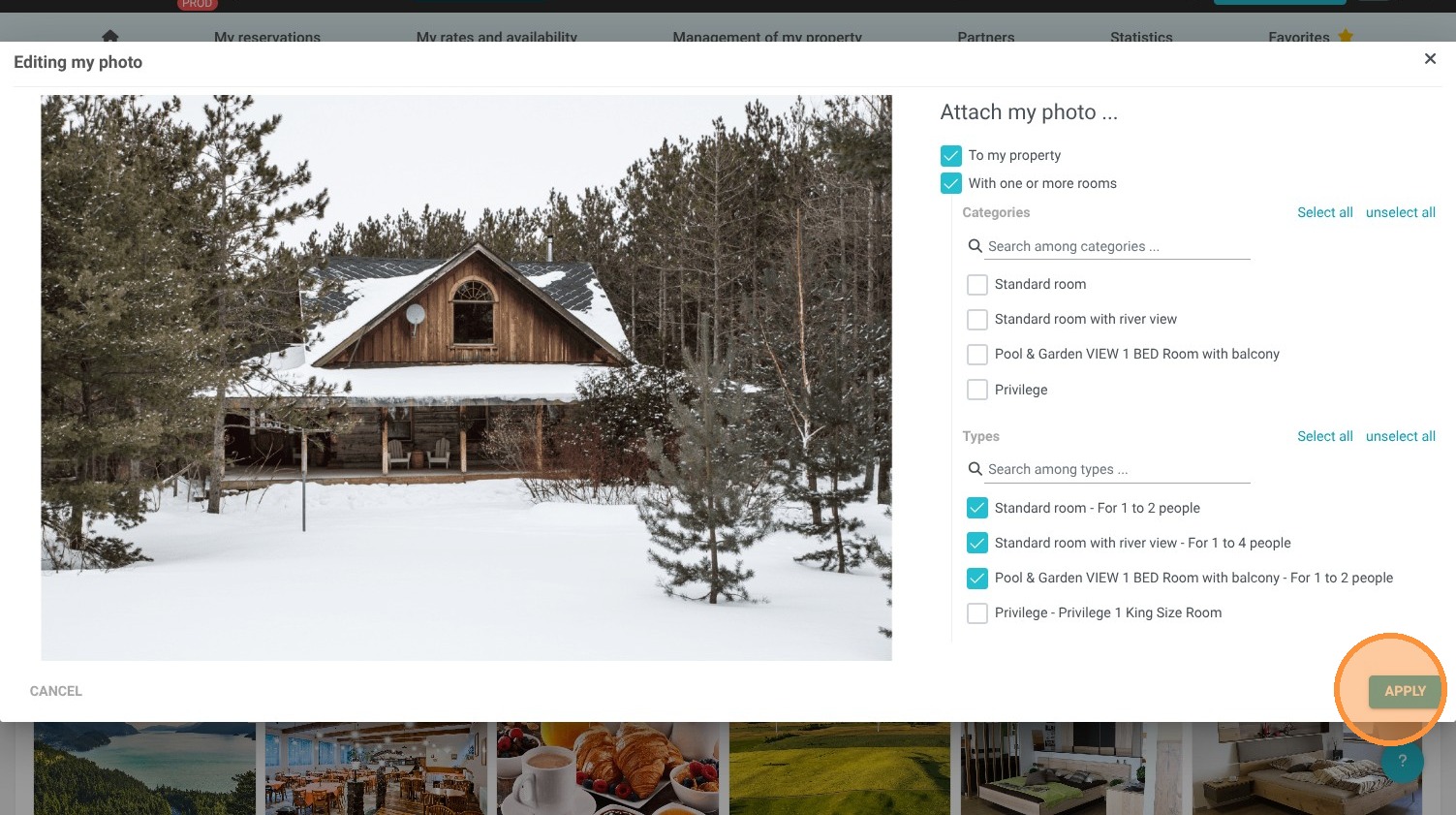
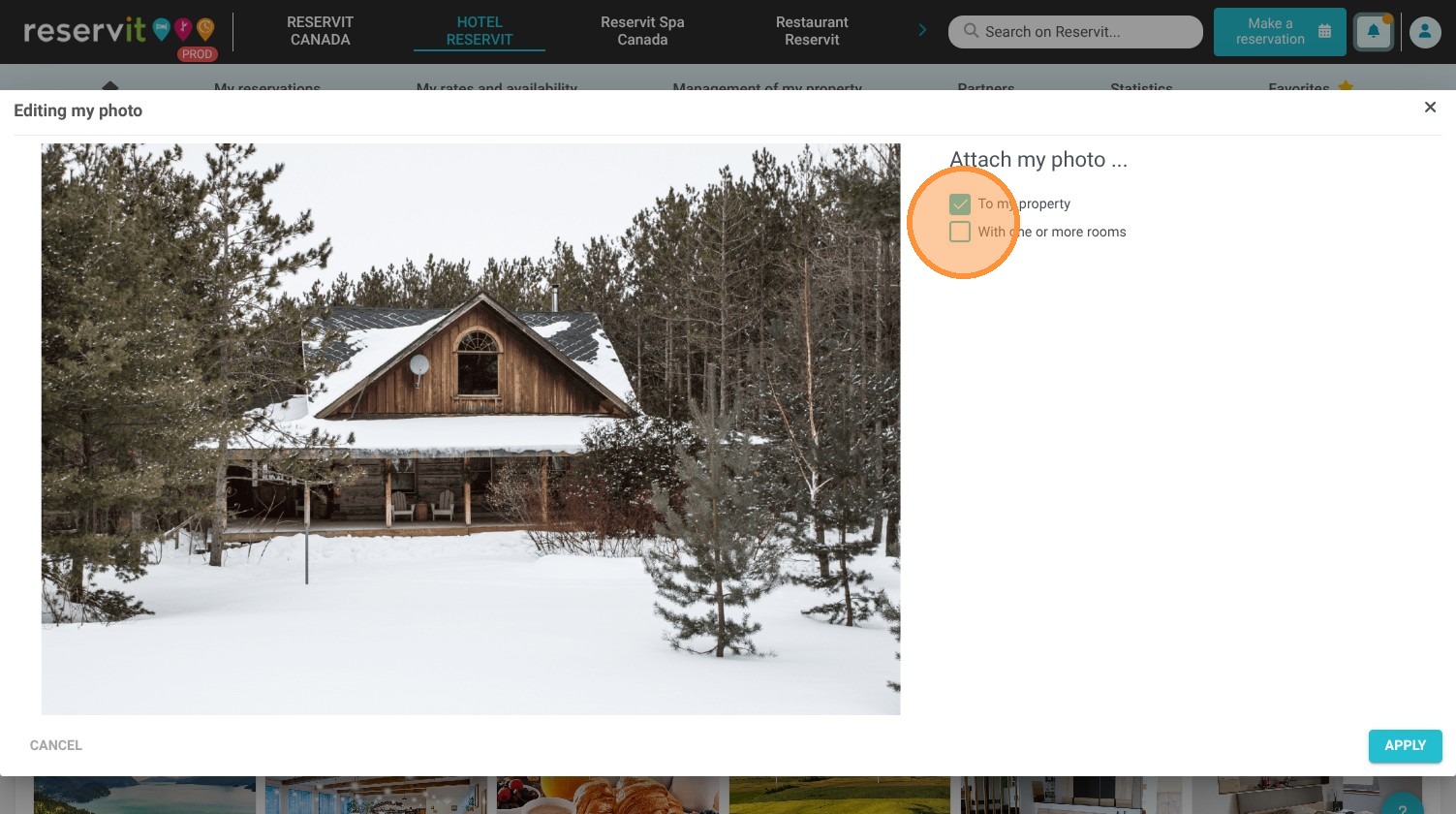
Assign the Photo correctly: Decide whether to attach the newly uploaded picture to your general establishment profile or link it directly to specific room categories.
-
Apply and Save Changes: If linking to rooms, check off the specific accommodation categories the image corresponds to, then click "Apply" to instantly update your public gallery.
Why follow this guide? Following this guide ensures your online booking engine displays highly accurate and appealing visuals, preventing guest disappointment or misrepresentation claims. Keeping your Reservit Accommodation photo gallery up-to-date optimizes your merchandising strategy and guarantees a professional, trustworthy online presence.
1. Click "Management of my property"
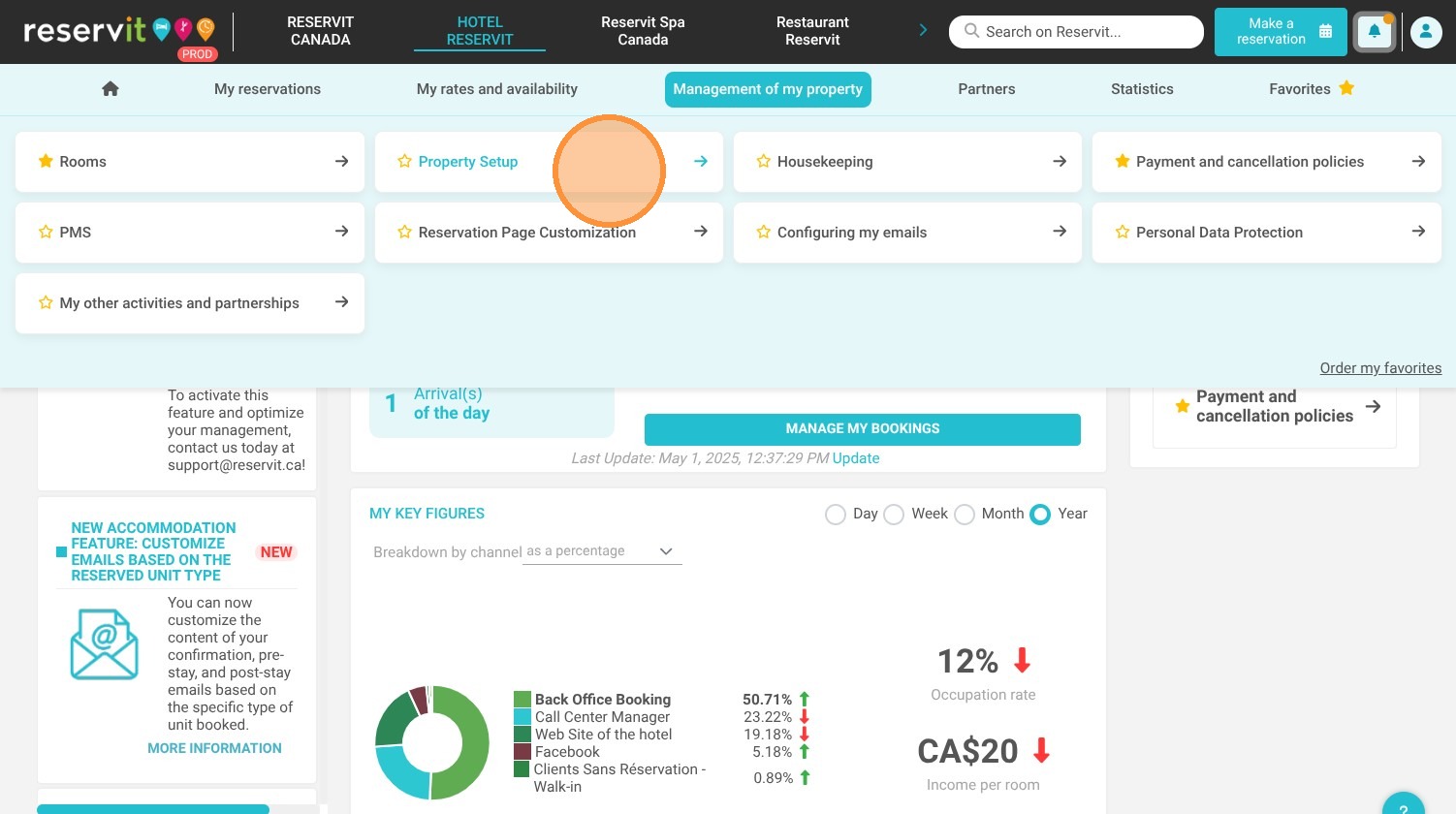
2. Click here.
3. Click "Go to page"
4. Click "Add a picture"
5. Click "Download"
6. Click "Choose an image"
7. You can attach the picture to your establishment or to one or more accommodation categories
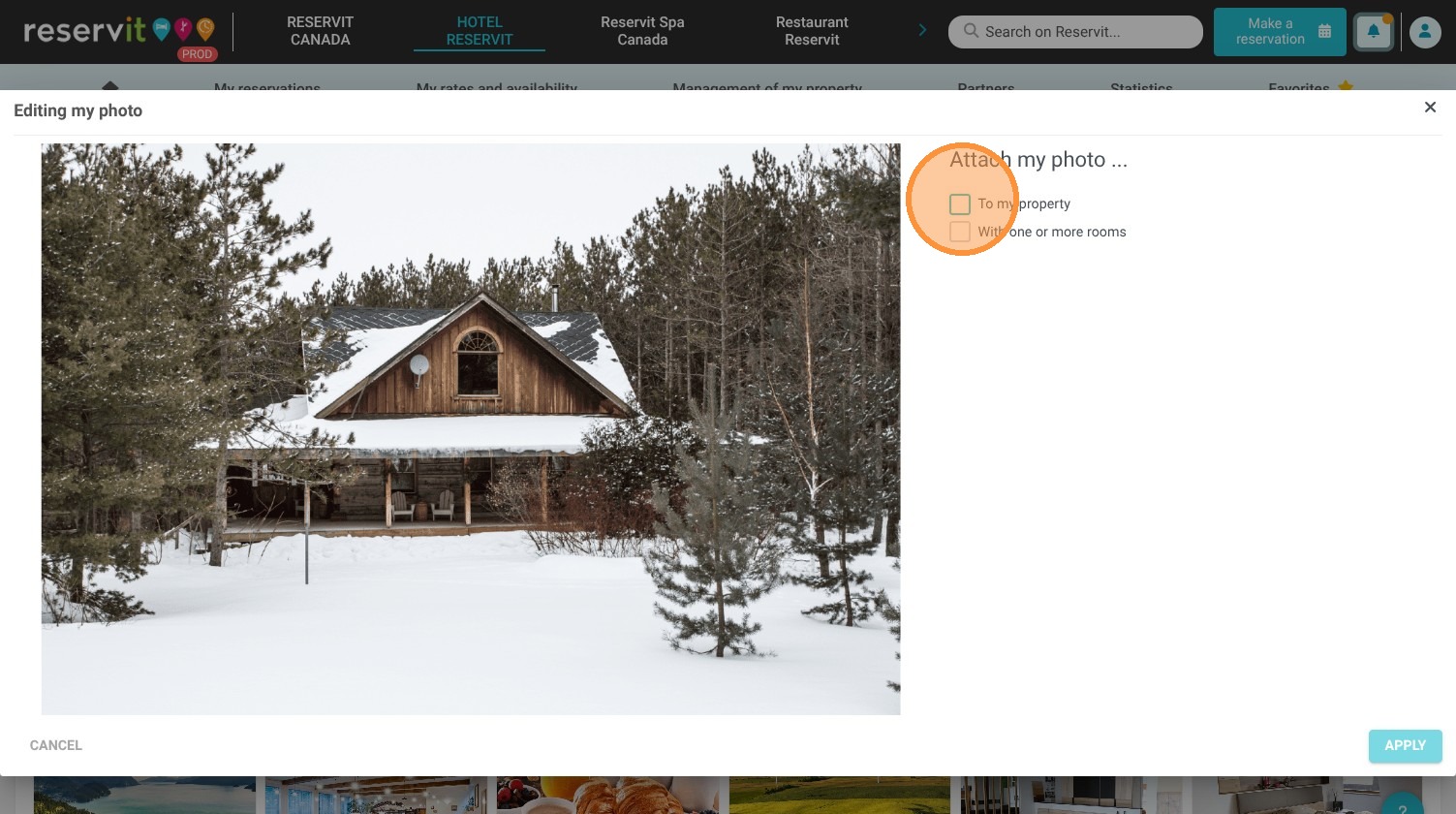
8. If you choose the categories,
9. You can then choose to which categories it corresponds
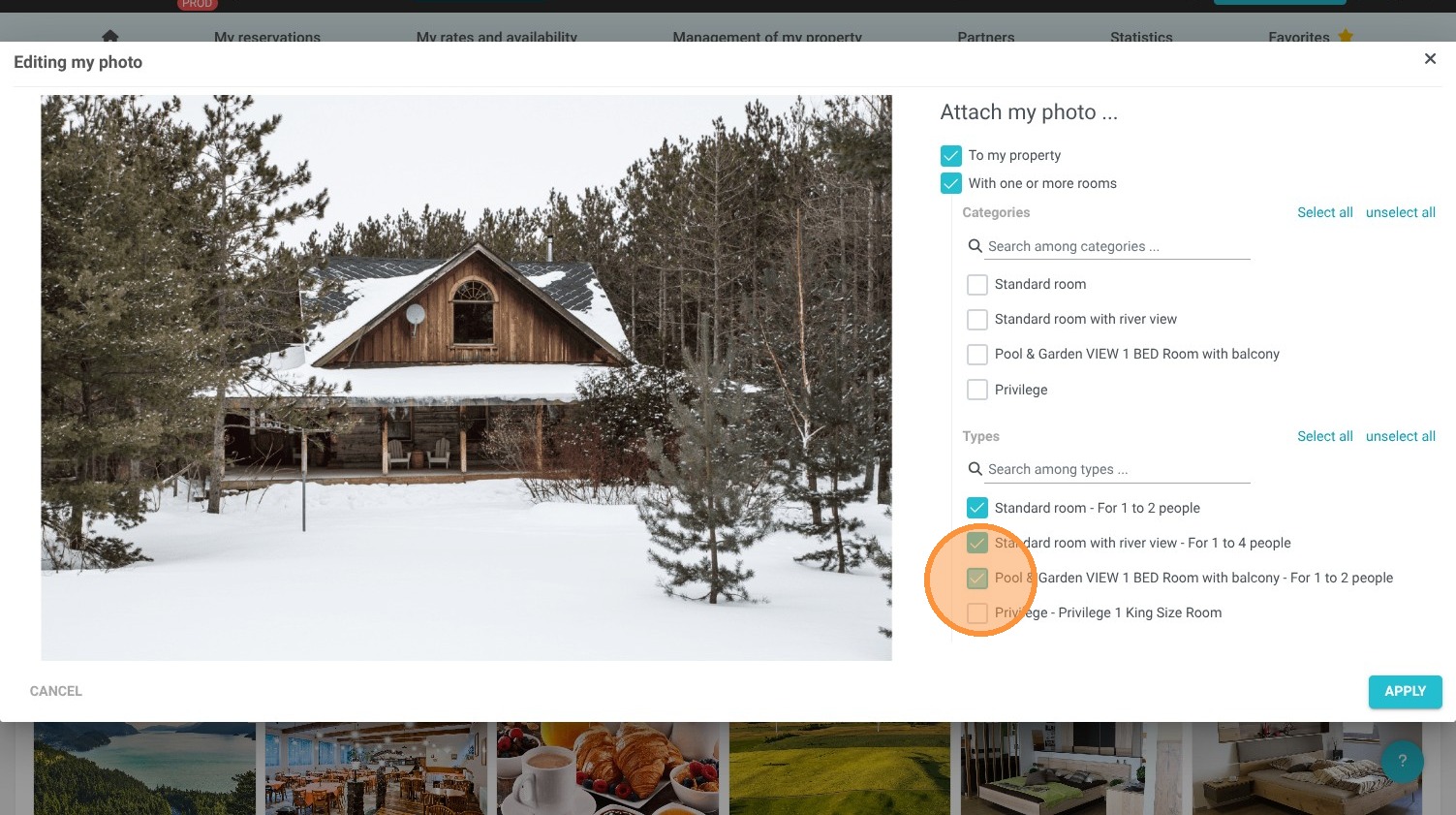
10. Click "Apply"