Article summary: This guide provides a straightforward process for assigning and managing special promotional offers across a multi-property portfolio within the Reservit platform. You will learn how to efficiently apply custom rates to individual hotels or your entire group simultaneously, as well as how to easily track customer subscriptions to these deals. Mastering this feature allows you to centralize your marketing strategies and maximize direct booking revenue across all your locations.
The 5 key steps to assign multi-property special offers:
-
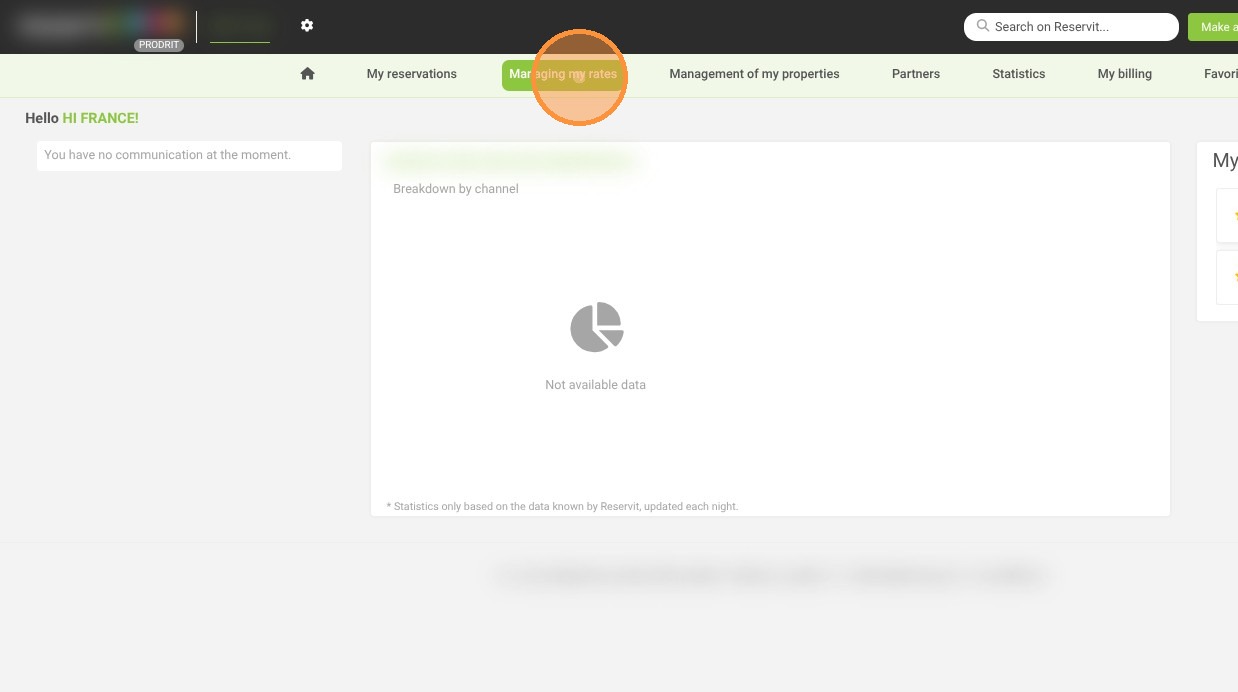
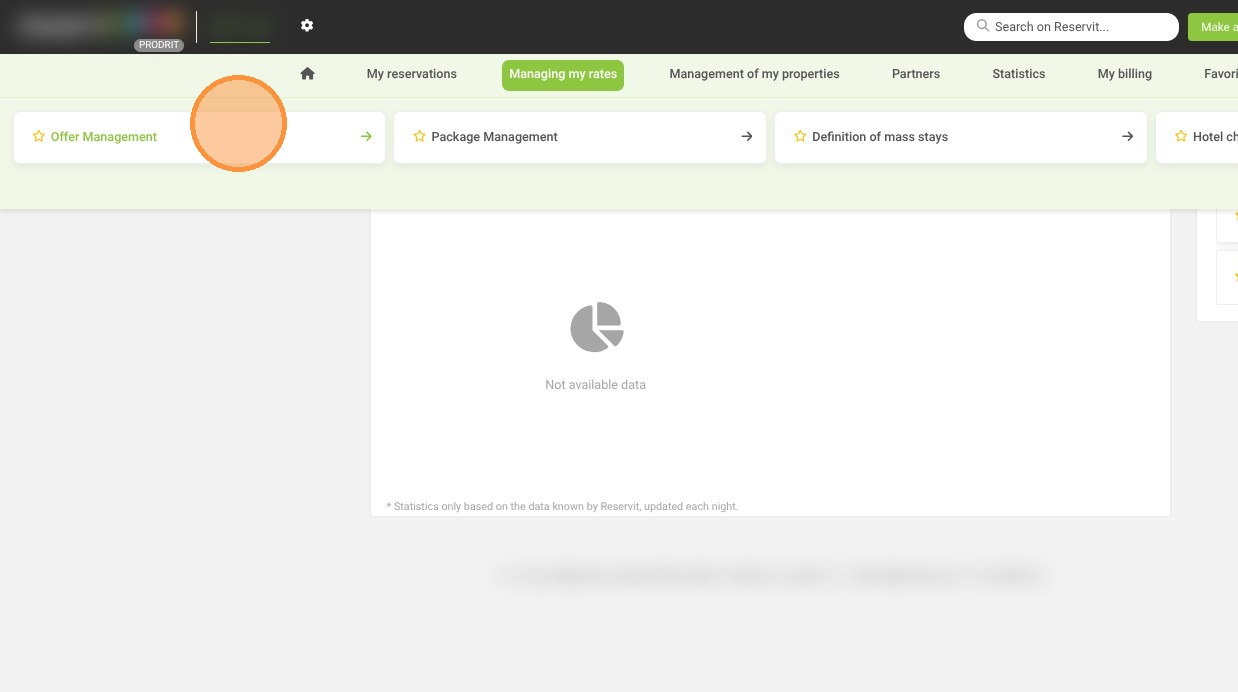
Access the assignment dashboard: Navigate to "Managing my rates," select "Offer Management," and click on "Offer assignment."
-
Select the promotion: Choose the specific special offer or targeted rate you want to distribute from the available menu.
-
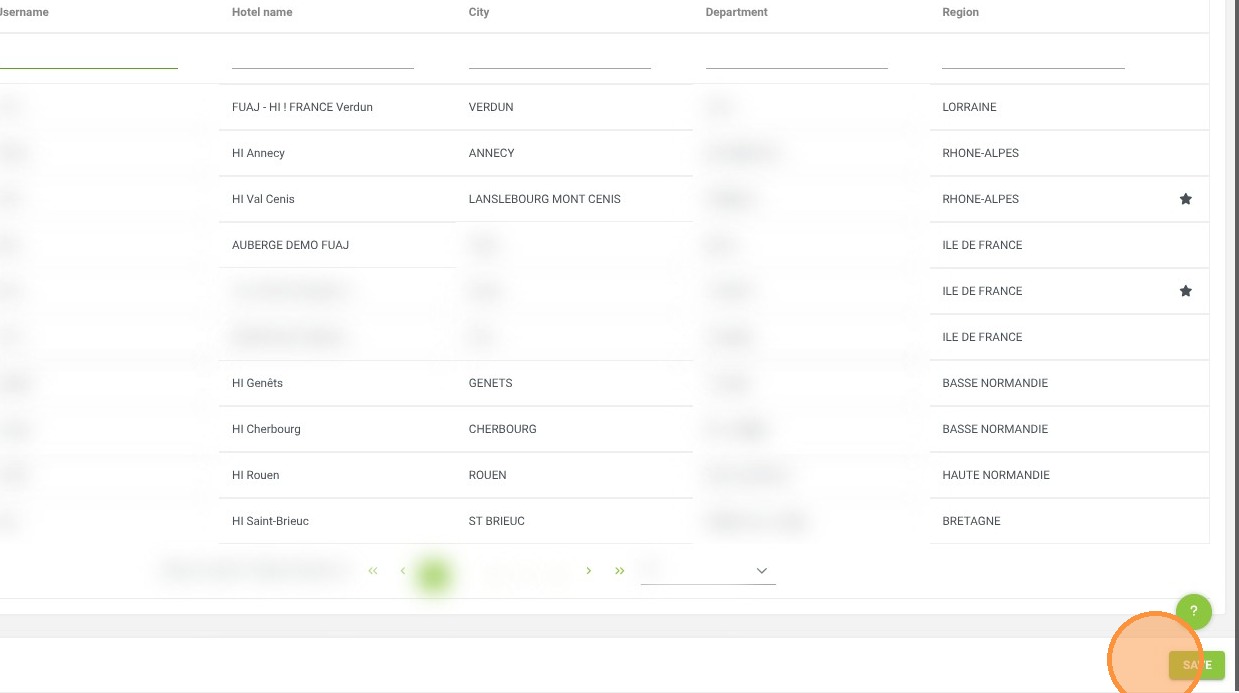
Target your properties: Search for specific hotels using their ID, name, or location, or simply check the box to apply the offer globally across all your properties.
-
Monitor customer subscriptions: Utilize the "Member" column to view your customer list and track who has successfully subscribed to the targeted rate.
-
Save your configuration: Finalize your property selection and click "Save" to instantly deploy the special offer across the chosen locations.
Why follow this guide? Following this centralized workflow saves your revenue management team hours of manual setup by applying group-wide promotions in just a few clicks. It ensures absolute consistency in your pricing strategy across your entire portfolio, eliminating the risk of configuration errors during major marketing campaigns.
1. Click "Managing my rates" then ''Offer Management'' and ''Offer assignment''
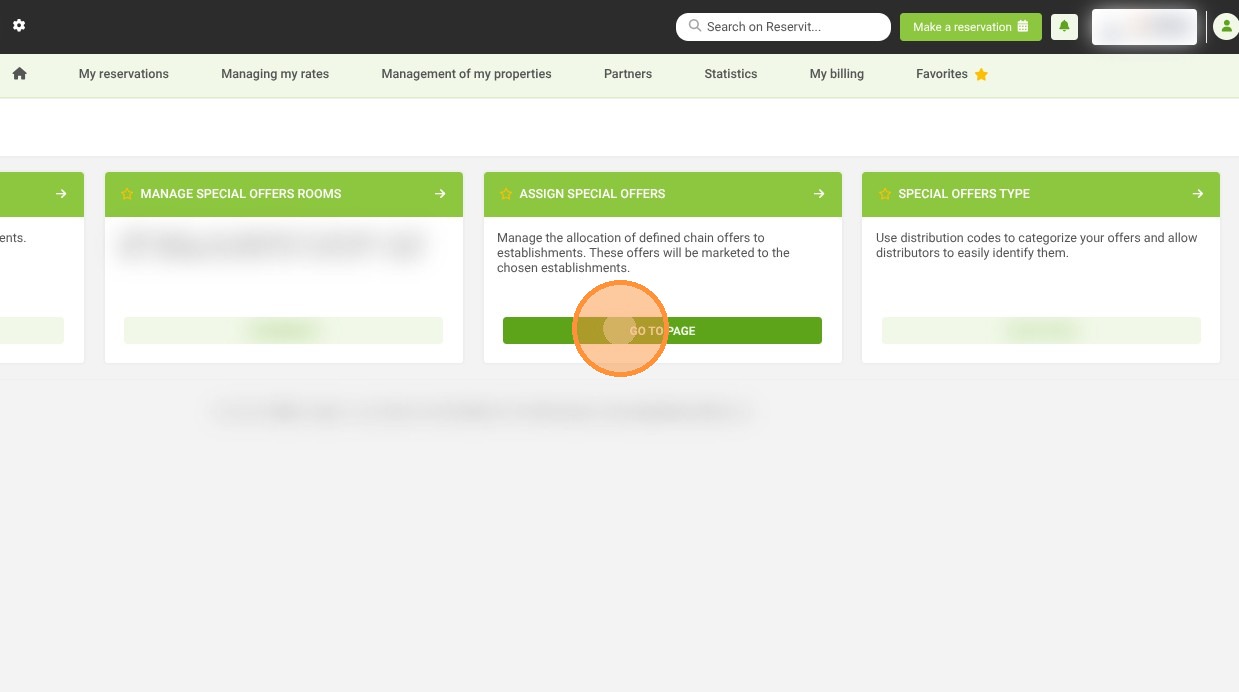
2. Choose your special offer
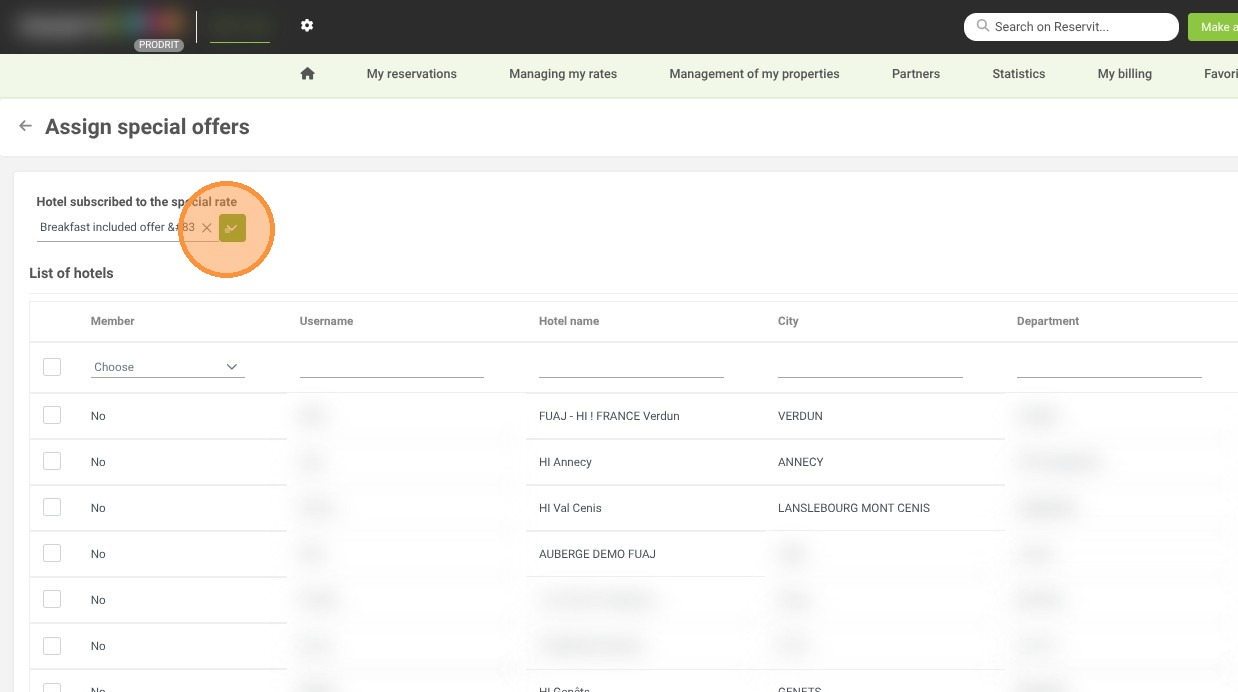
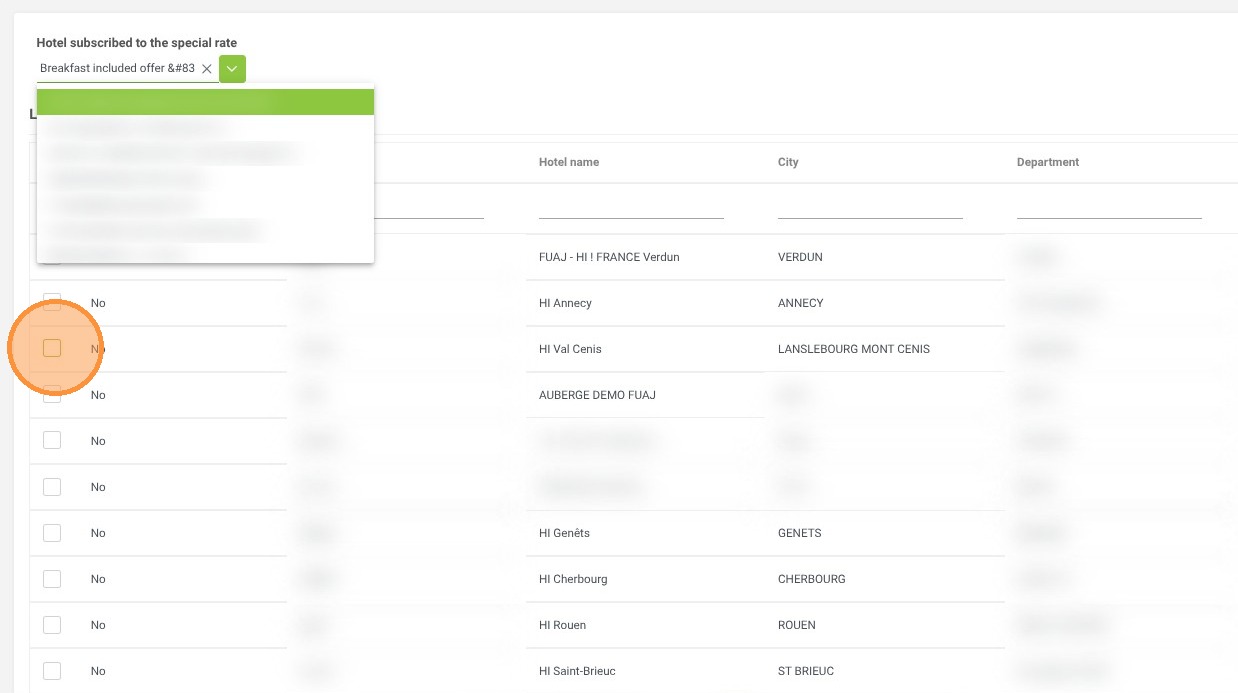
3. You can check the box to select all properties or choose them individually from the row below.
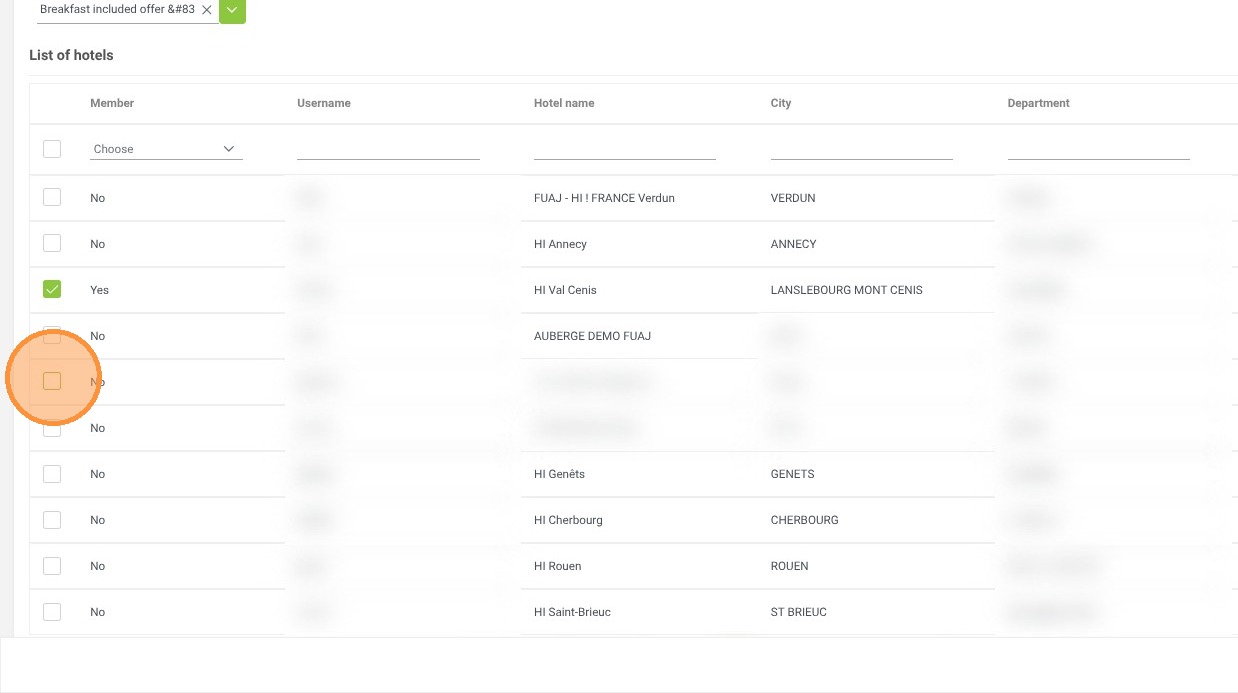
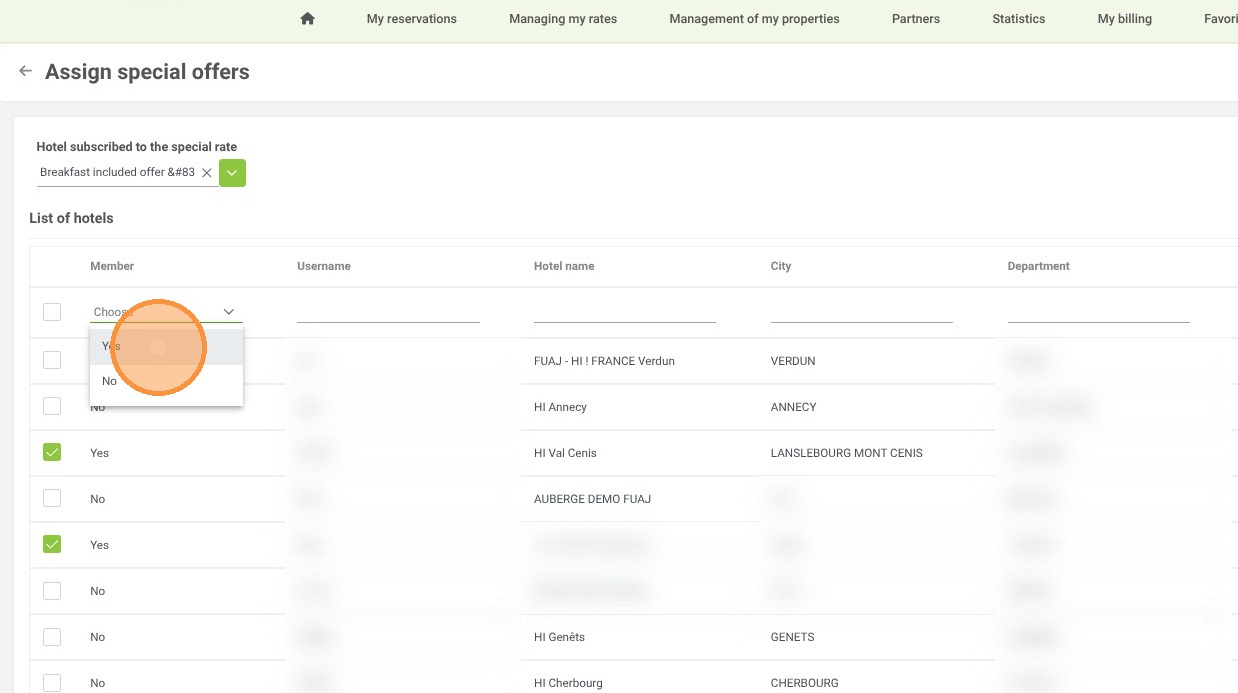
4. The "Member" column allows you to see all customers, whether they have subscribed to this rate or not.
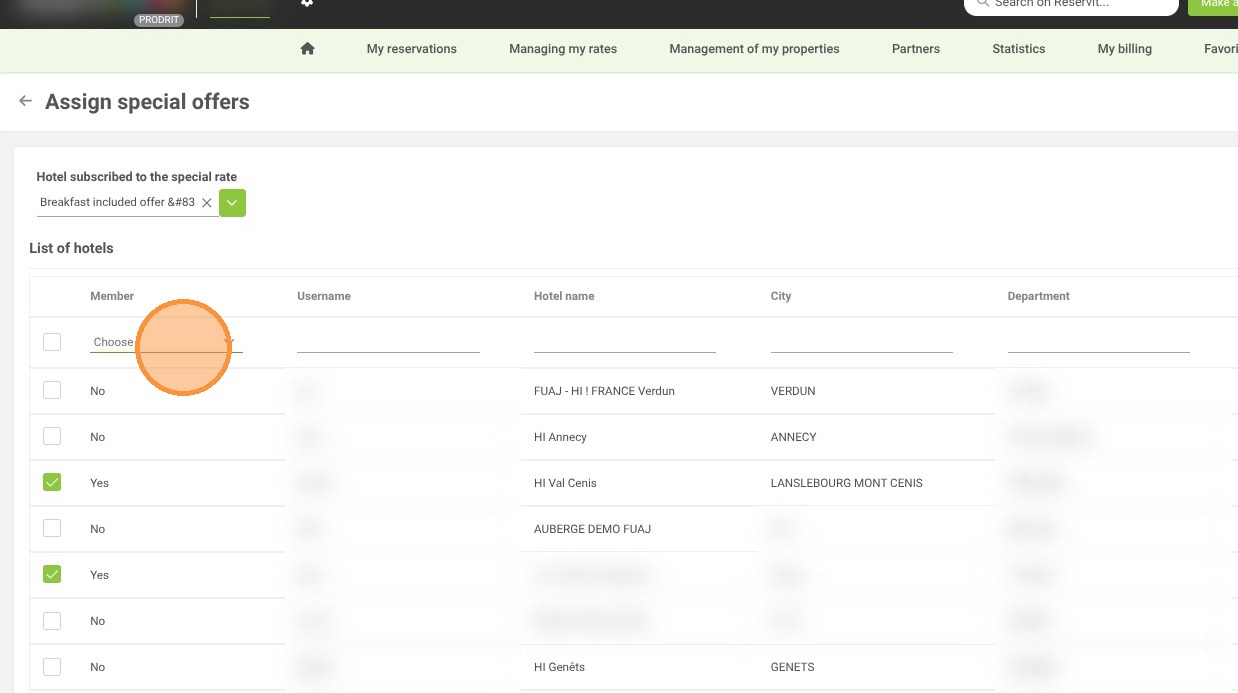
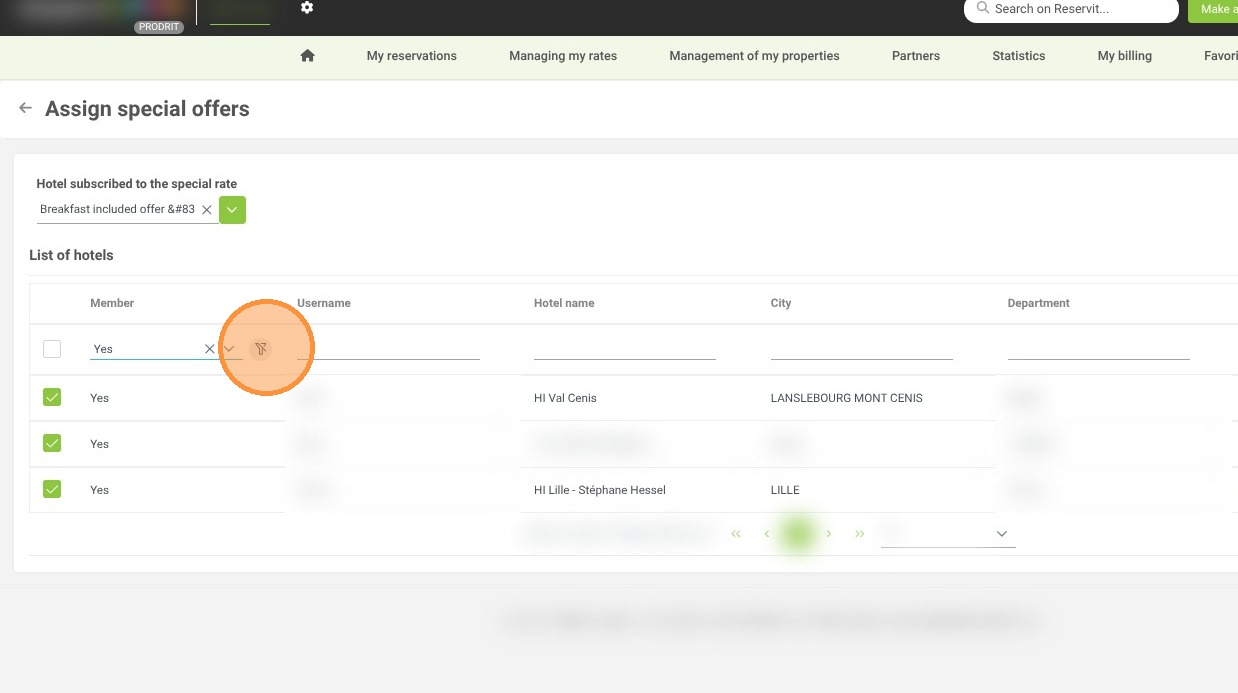
5. To remove the filter, click on the icon.
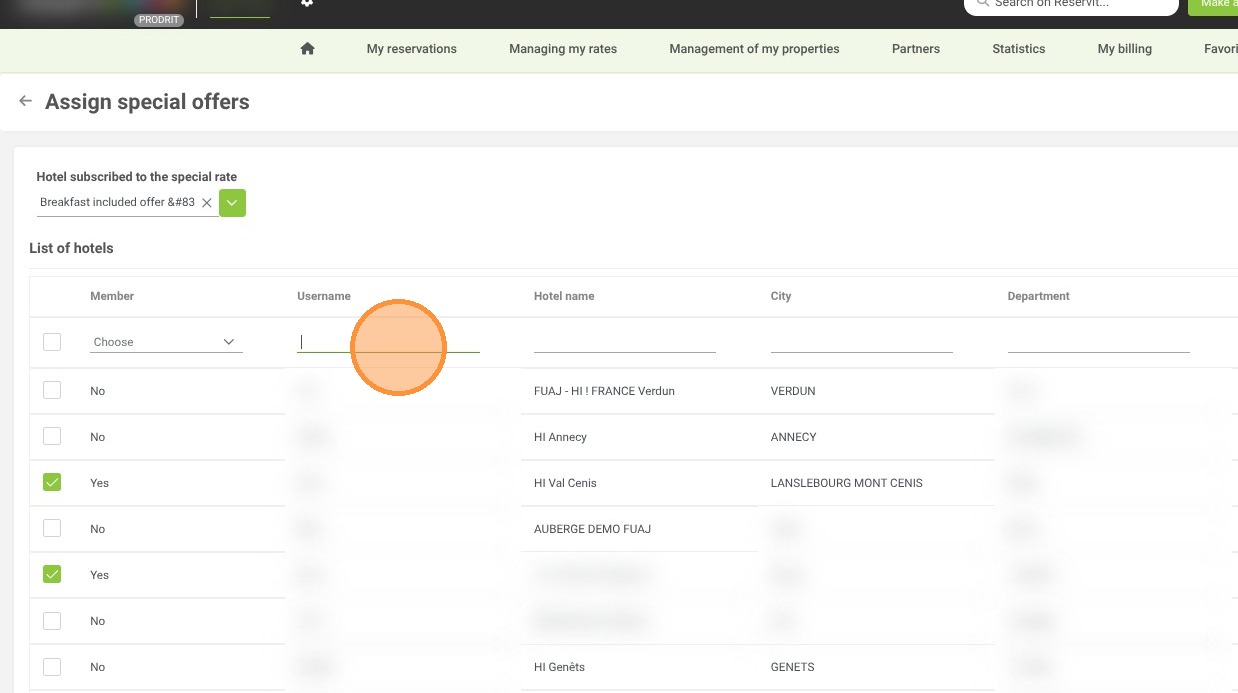
6. You can search for a property using its Reservit ID, Hotel Name, City, Department, or Region.
7. Once the selection is made, click on "Save".