Article summary: This guide explains how to customize your automated pre-stay and post-stay emails within your Reservit multi-property Central Reservation System (CRS). You will learn how to configure precise sending schedules, insert personalized tags like guest names, and format your messages to seamlessly align with your brand. Mastering these automated communications allows you to boost customer engagement, upsell services before arrival, and easily gather valuable feedback after departure.
The 5 key steps to edit your automated guest emails:
-
Access the email settings: Navigate to the "Client Stay Emails" section in your dashboard and select the specific pre-arrival or post-stay template you wish to modify.
-
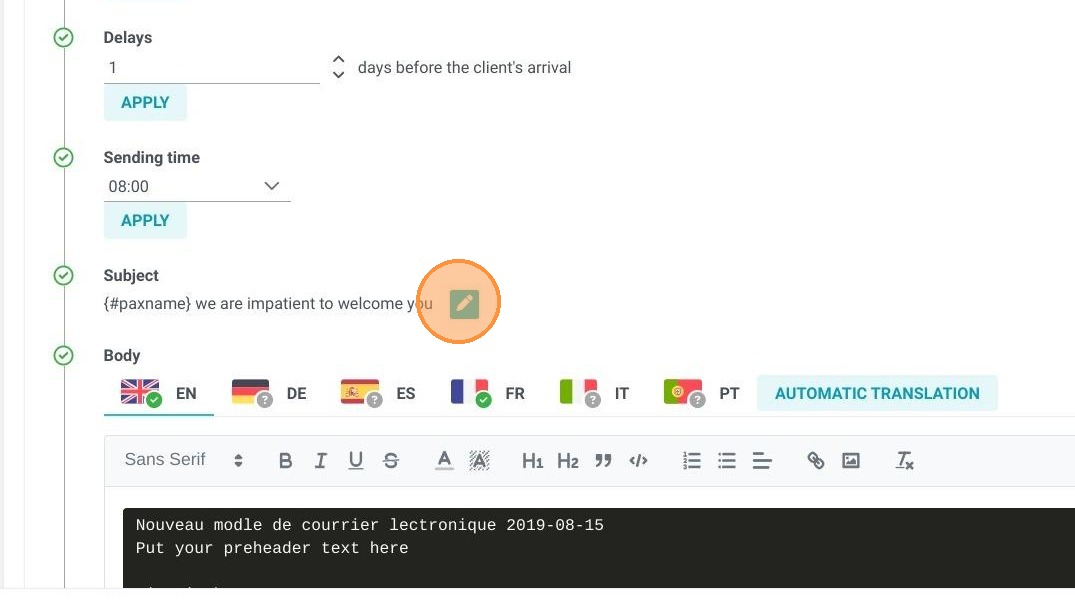
Define delivery schedules and recipients: Choose the exact day and time you want the email to automatically trigger, and securely add any necessary internal CC or BCC email addresses.
-
Personalize the subject and content: Utilize dynamic tags (such as 'paxname') to automatically populate the guest's specific booking details directly into the subject line and email body.
-
Enhance your message design: Format your text, attach important documents, or utilize the HTML import feature to upload highly visual, fully customized brand templates.
-
Preview and activate: Click the eye icon to preview your customized email exactly as the guest will see it, then save your changes to activate the automated delivery.
Why follow this guide? Automating your guest messaging saves your front desk hours of repetitive manual work while ensuring that absolutely no customer misses vital check-in information. By optimizing these automated touchpoints, you deliver a highly professional, personalized guest experience that reduces front desk inquiries and strengthens brand loyalty effortlessly.
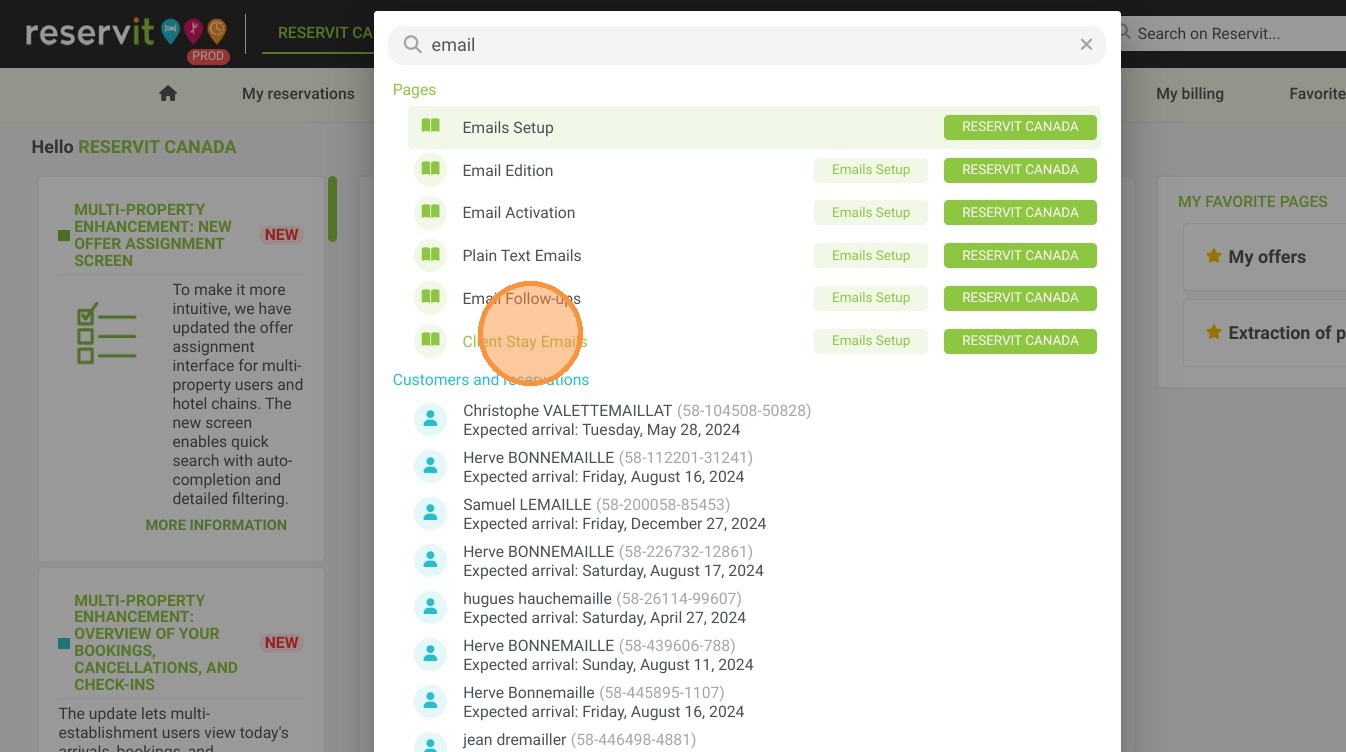
1. Click "Client Stay Emails"
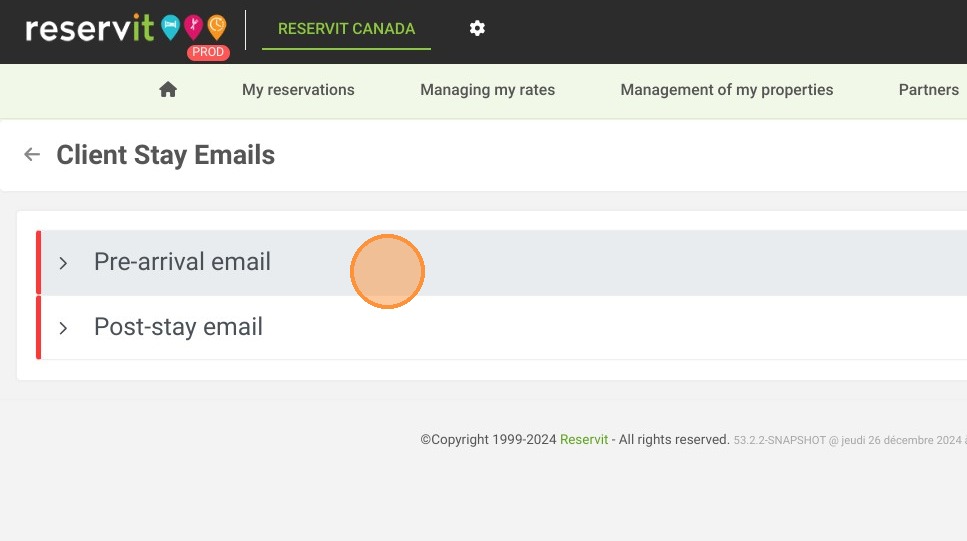
2. Click ''Pre-arrival email''
Alert: If you're not comfortable with e-mail editing involving the use of tags, we offer the Reservit Premium service. We can then configure your e-mail for you.
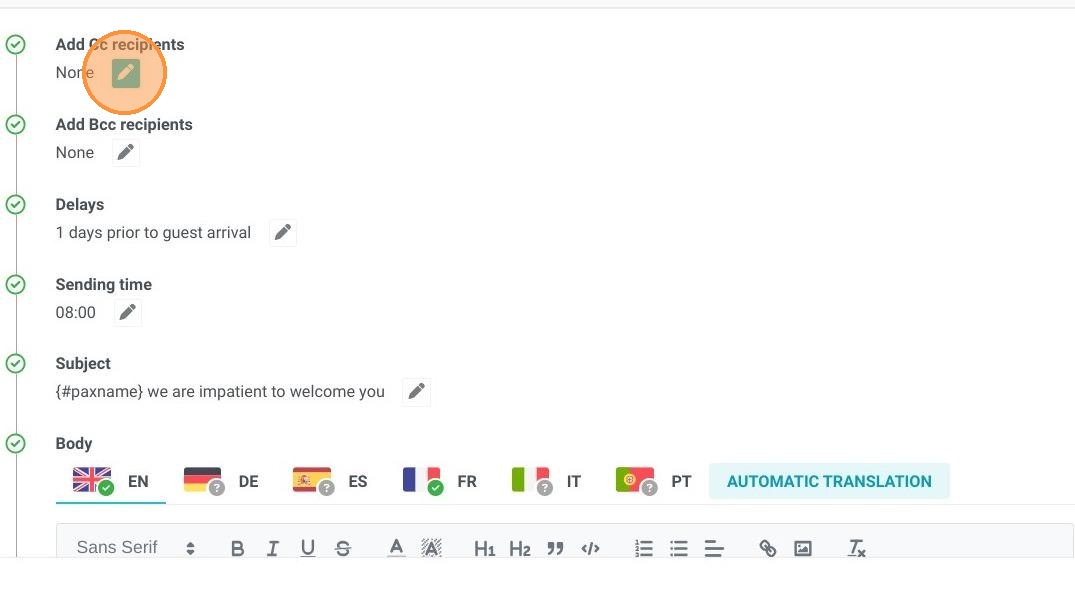
3. "Add Cc recipients" enables you to copy the customer's post-stay email to the email address of your choice. Please note that the client can see this address when they receive the email.
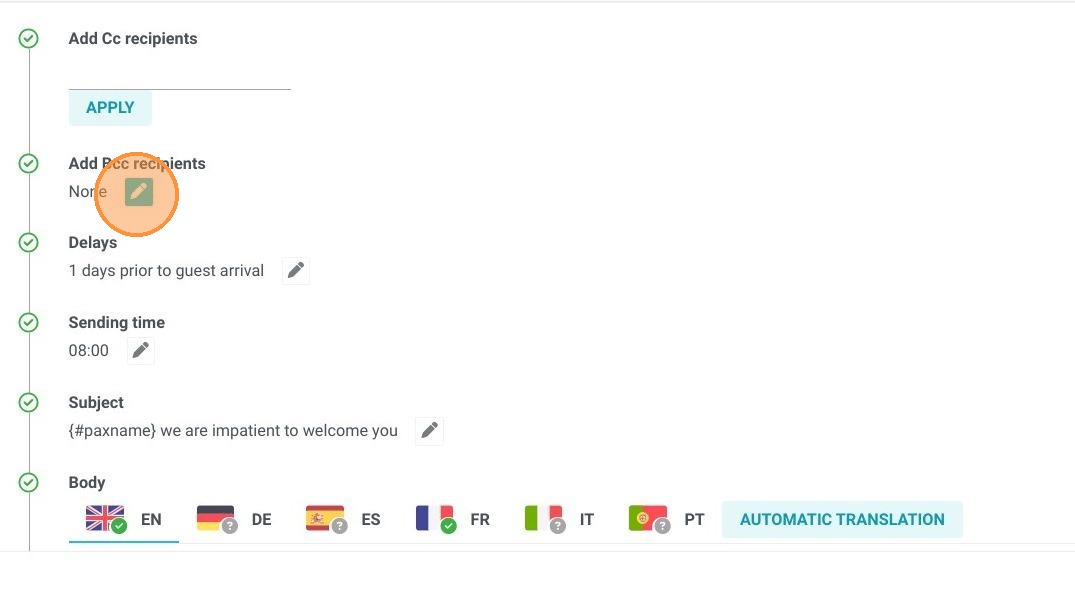
4. "Add Bcc recipients" lets you copy one or more e-mail addresses of your choice into the customer's post-stay email. This address will not be visible to the client upon receipt of the e-mail.
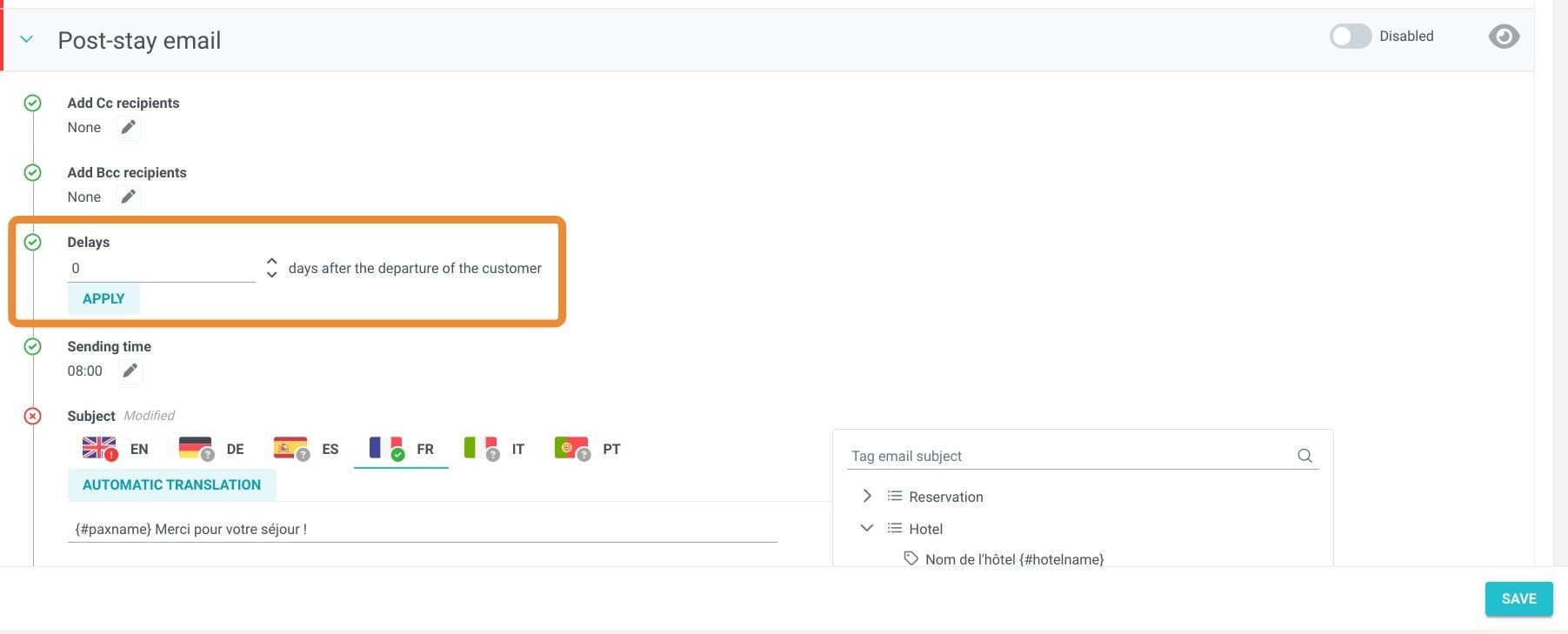
5. Choose the number of days after the customer's departure to send the e-mail. If you want the e-mail to be sent on the day the customer leaves, enter 0.
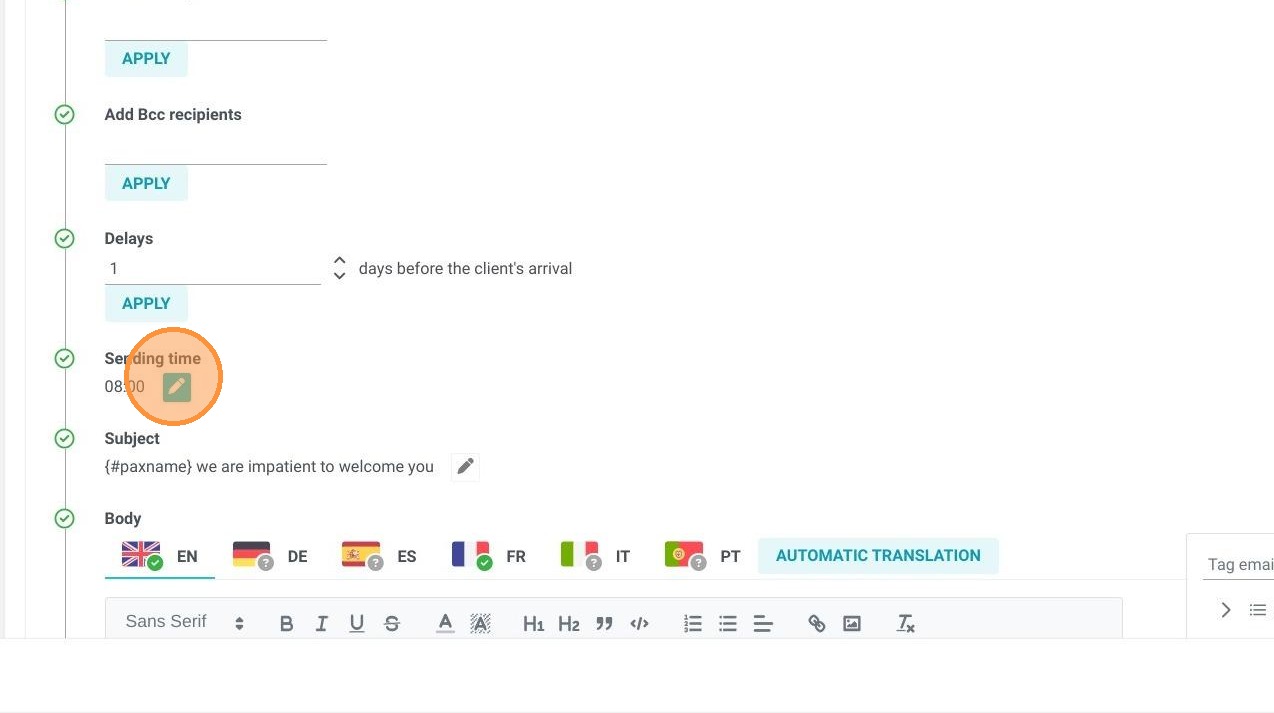
6. Select the time that you want the email sent. The time is based on the time zone of your establishment's location.
7. The "Subject" field lets you personalize the subject of the email. For example, if you want to set the name of the client who made the booking, you can choose the tag 'paxname'. The customer's name will then be automatically personalized.
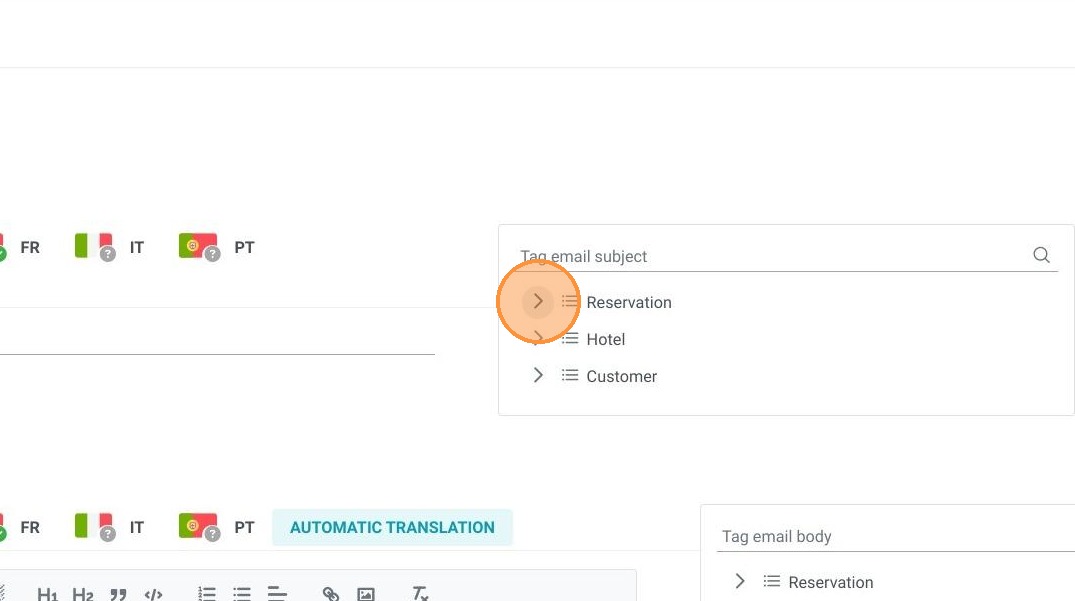
8. Several tags are available for the "Subject" area. Our recommendation is a maximum of two.
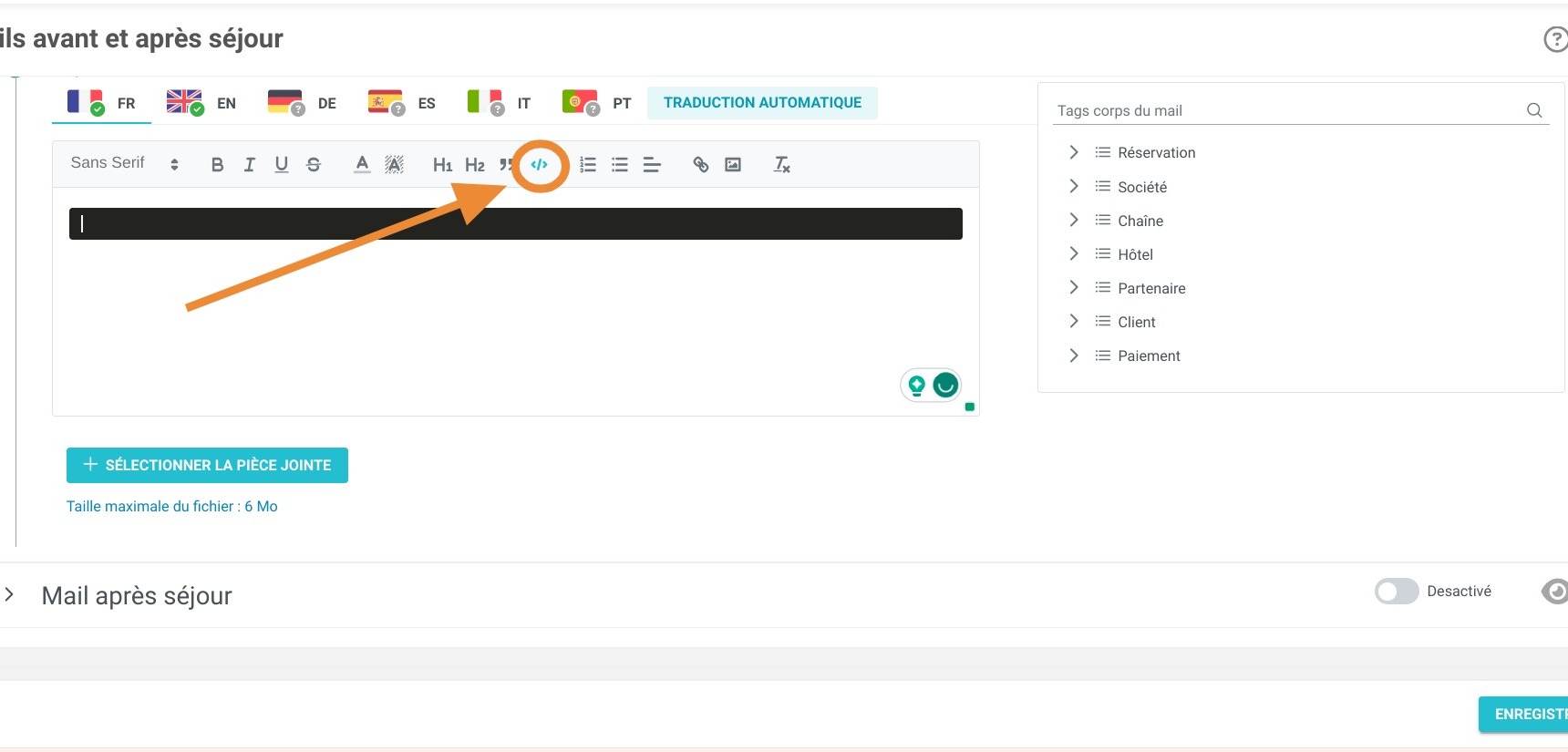
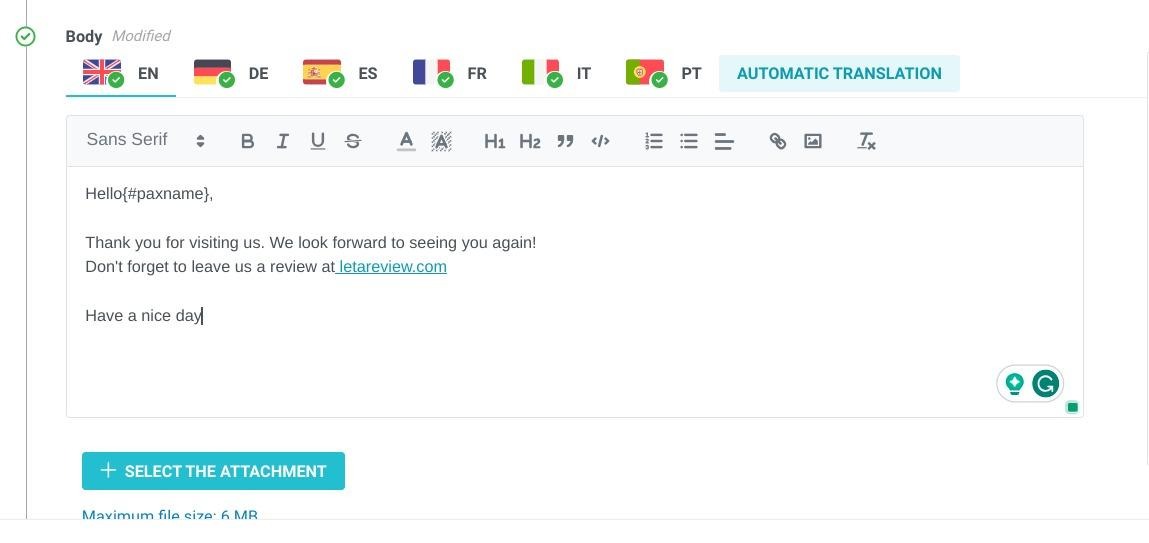
9. You can then write your e-mail using the various tags offered to make your e-mails personalized. You can also easily add images and links. Your text can also be formatted according to the fonts available (it is not possible to add fonts).
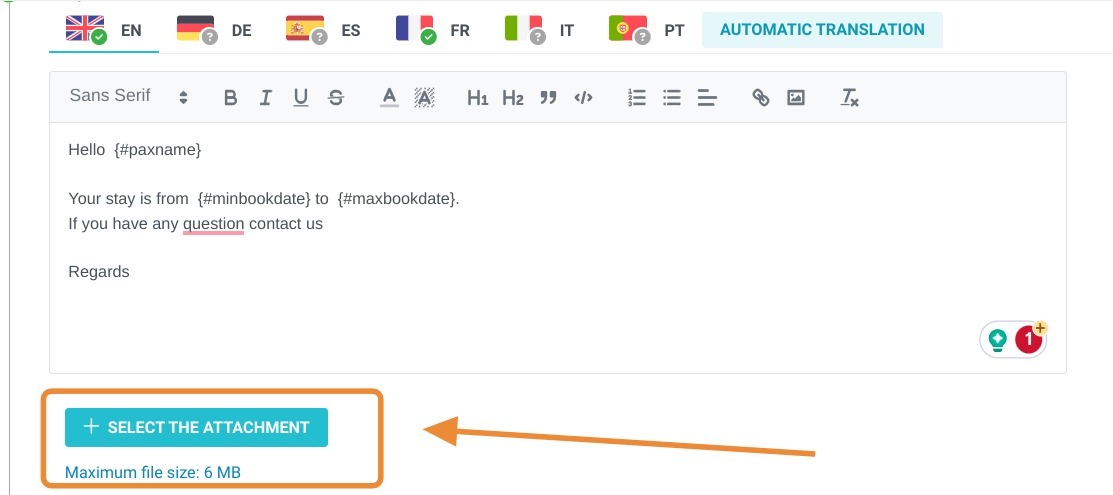
Tip: You can add an attachment to your e-mail.
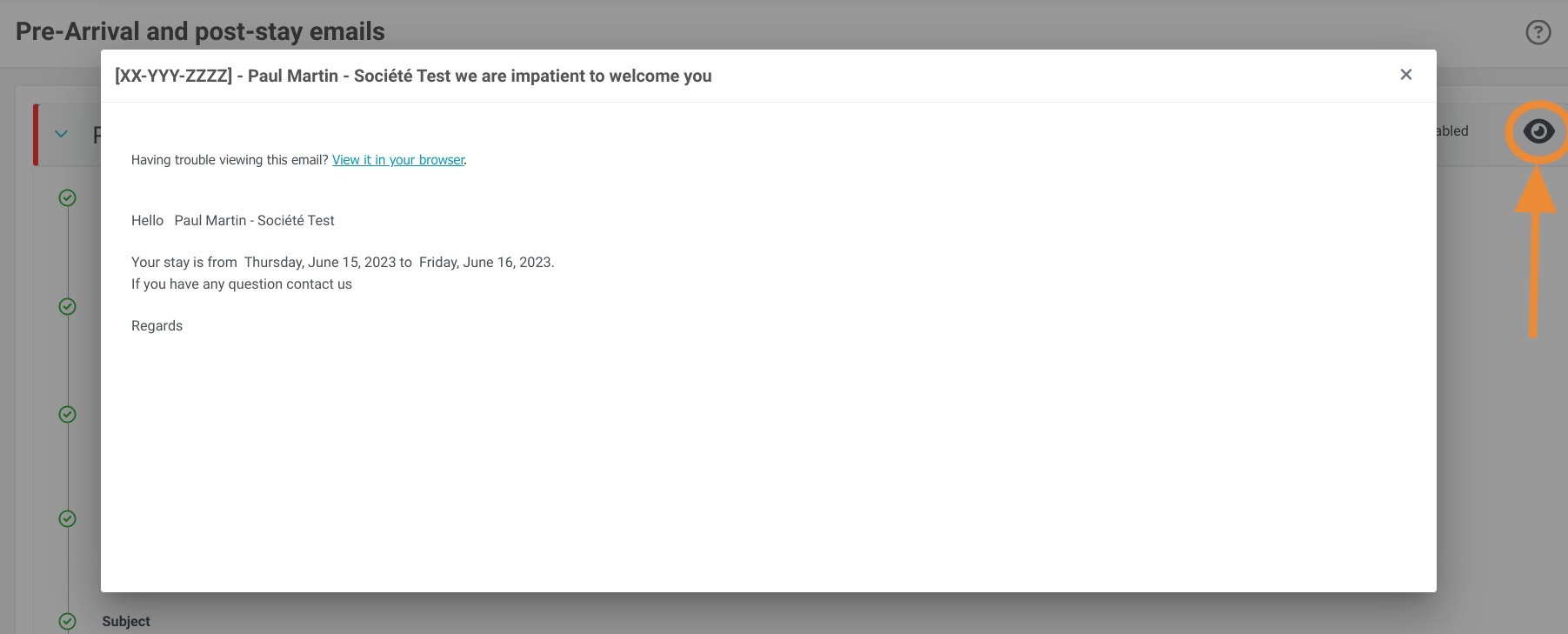
10. Once the e-mail has been created and customized, you can preview it by clicking on the eye.
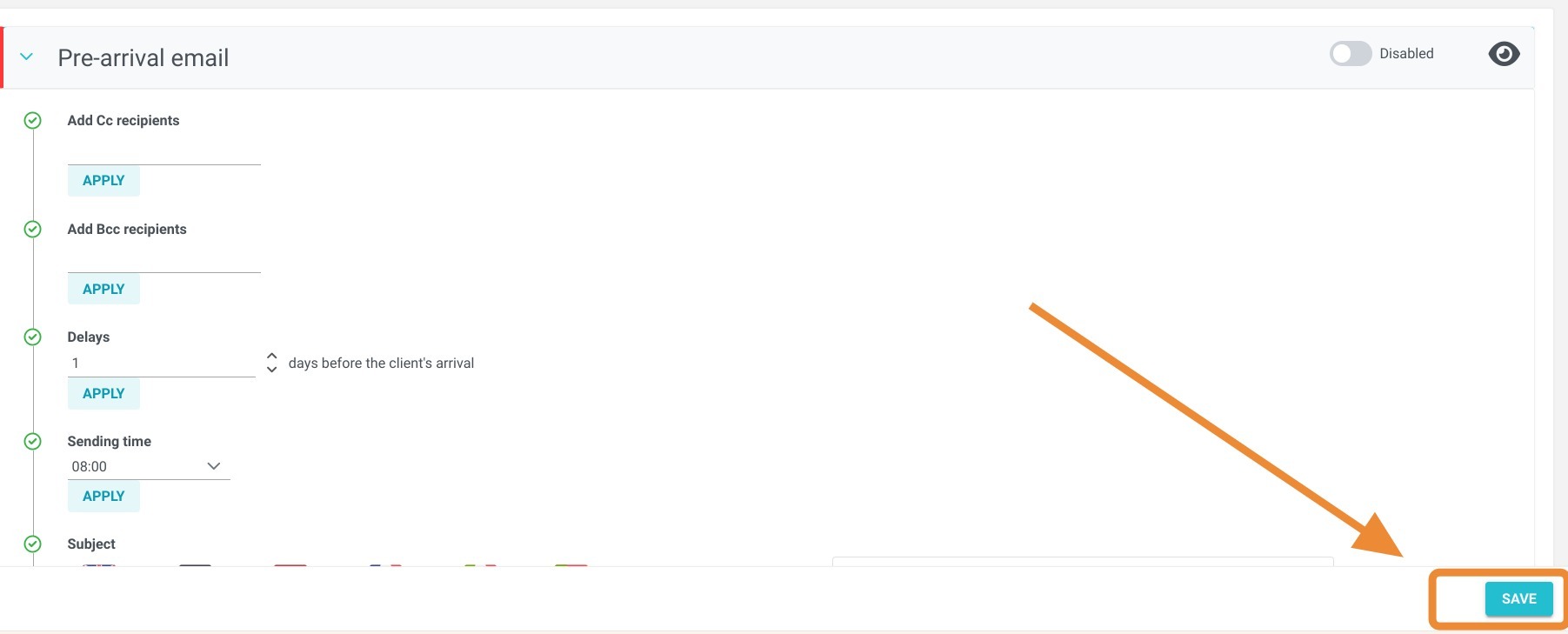
11. Finally, don't forget to save your changes by clicking on "SAVE".
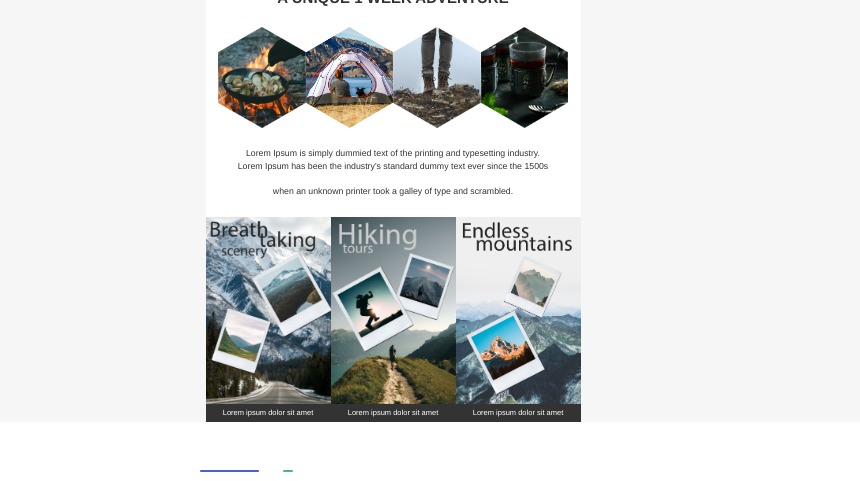
12. If you'd like an e-mail with a lot of visuals and a lot of personalization, that's perfectly possible. You'll need to import your e-mail in HTML format.