

Article summary: This guide explains how to seamlessly transfer a guest's reservation from one property to another within the Reservit Multi-Properties system. You will learn how to accurately adjust pricing during the move, manage automated guest notifications, and properly handle integrated payments and security deposits based on your payment processors. Mastering this process ensures smooth guest relocations while maintaining perfectly accurate accounting and secure billing across your entire portfolio.
The 5 key steps to transfer a reservation between properties:
-
Initiate the transfer: Simply click and drag the reservation from its current establishment to the new destination directly on your multi-properties management calendar.
-
Adjust pricing and notifications: Use the pop-up modal to keep the original unit price, apply the destination's rate, or enter a custom price, then choose whether to send an automated modification email to the guest.
-
Verify the status change: Note that once the booking is successfully moved, it will automatically be marked as canceled in the original property's system.
-
Manage existing payments: Review the billing account; if both properties share the same payment interface, payment lines transfer automatically. If they differ, you must manually duplicate the payment lines in the new account.
-
Update deposits and future debits: If the receiving property uses a different payment gateway, you will need to manually re-issue payment links, contact the guest for scheduled secondary debits, and manually activate their security deposit.
Why follow this guide? Following this comprehensive guide prevents costly billing errors and double-charges when relocating guests between your hotels. It saves your front desk staff from administrative confusion by clarifying exactly how payments and deposits behave during a transfer, guaranteeing a seamless and secure experience for your clients.
Tip: Reservations can be moved from one establishment to another by clicking and dragging directly from your multi-properties management calendar.
Moving your reservation
1. When transferring the booking, the modal proposes to keep the unit price or to adjust it to the destination price, or to insert a new price.
Note: If there are options, the option price is given in the modal, but cannot be changed.
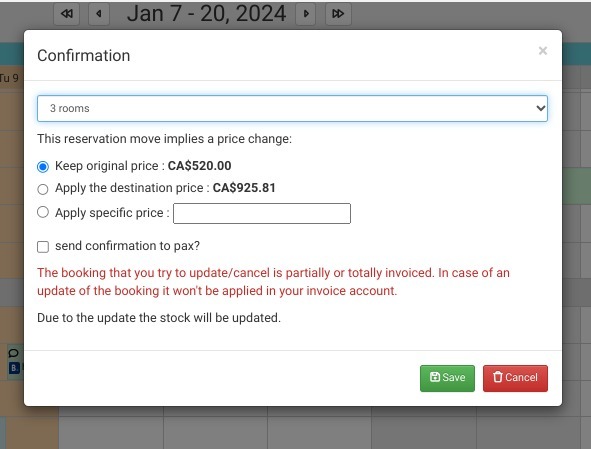
Alert: Once moved, the reservation will appear as canceled in the original property.
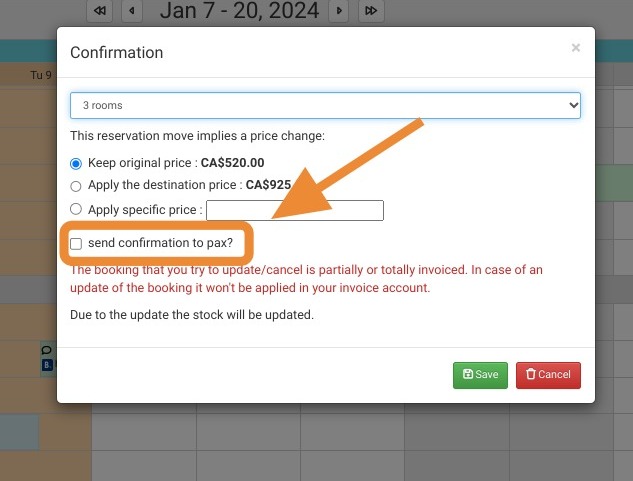
2. When moving the booking, you may or may not send the customer an e-mail to modify the booking.
Payment management in the billing account for a moved reservation
3. Depending on the payment interfaces configured, the migration of the payment line will not be the same.
Option 1: Receiving property with the same payment interface as the sending property
The payment line is moved to the recipient's billing account and an internal comment is automatically added.
Option 2: Receiving property with a different payment interface from the sending property.
The payment line must be duplicated in the recipient's billing account, and a comment added manually. No action is taken on the new account (no direct debit), even if the property has an active payment interface.
4. Payment management integrated into the booking creation.
Depending on the payment interfaces configured, the migration of the payment line will not be the same.
Option 1: Receiving property with the same payment interface as the sending property.
The payment line is moved to the recipient's billing account and a comment is added.
Option 2: Receiving property with a different payment interface from the sending property.
The payment line is duplicated in the recipient's billing account, and a comment is added manually. No action is taken on the new account (no direct debit), even if the property has an active payment interface.
5. Double direct debit management
Option 1: Receiving property with the same payment interface as the sending property.
The line for the first payment is transferred to the receiving property's account. The order for the second direct debit is retained on the new property and added to it.
Option 2: Receiving property with a different payment interface from that of the sending property.
The line for the first payment must be duplicated in the recipient's billing account, and a comment added manually. The second direct debit order is canceled. The receiving property must contact the customer to make the second debit.
6. Payment link management
Option 1: Receiving property with the same payment interface as the sending property.
The account line is transferred and a comment is added to the details.
Option 2: Receiving property with a different payment interface from that of the sending property.
If the payment link was not consumed when the reservation was transferred, the link will have to be generated again manually by the receiving property.
7. Management of security deposits
Option 1: Receiving property with the same payment interface as the sending property.
The deposit is stored on the interface.
Option 2: Receiving property with a different payment interface from that of the sending property
The deposit order is canceled on the sending property's payment interface. The receiving property must activate the deposit manually.