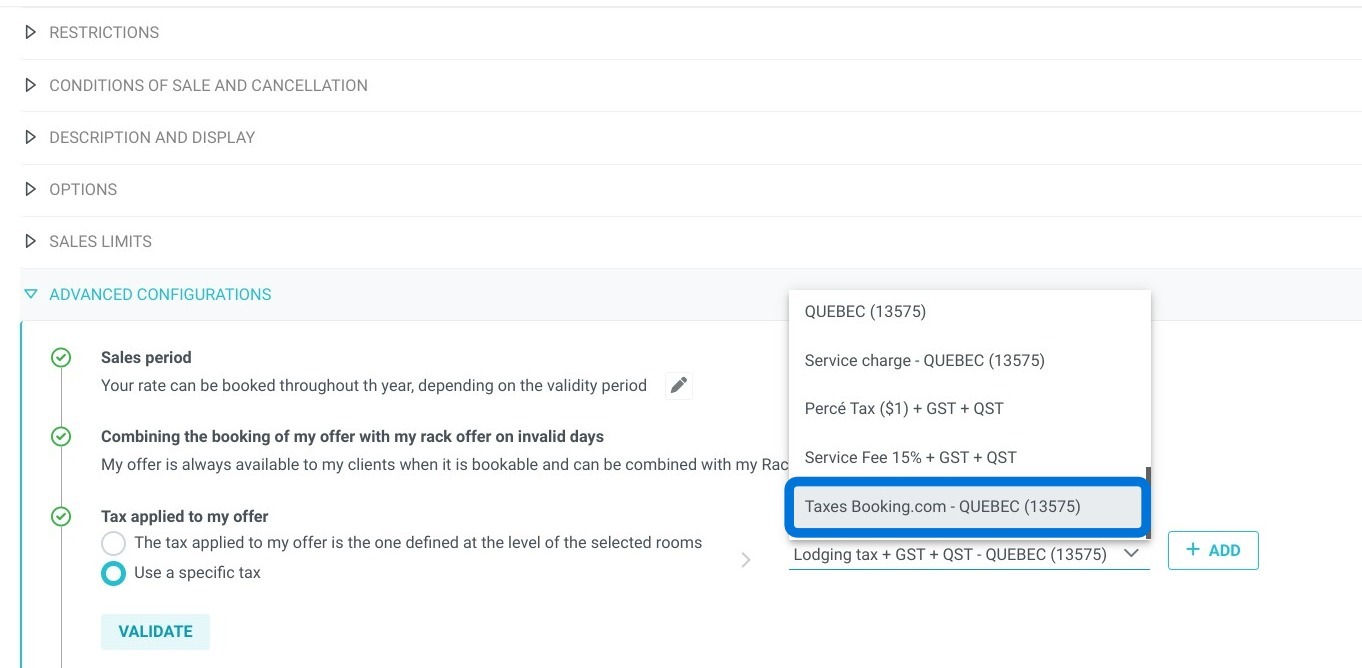
Article Summary: This step-by-step tutorial explains how to assign a specific tax rate to your Booking.com offers within Reservit Accommodation to resolve virtual card payment errors in Quebec. You will learn how to access your advanced rate configurations and override the default tax to match the exact 14.97% rate required by the platform. Mastering this quick configuration ensures your OTA transactions process smoothly without payment rejections caused by minor tax rounding discrepancies.
The 4 key steps to assign a specific tax to Booking.com:
-
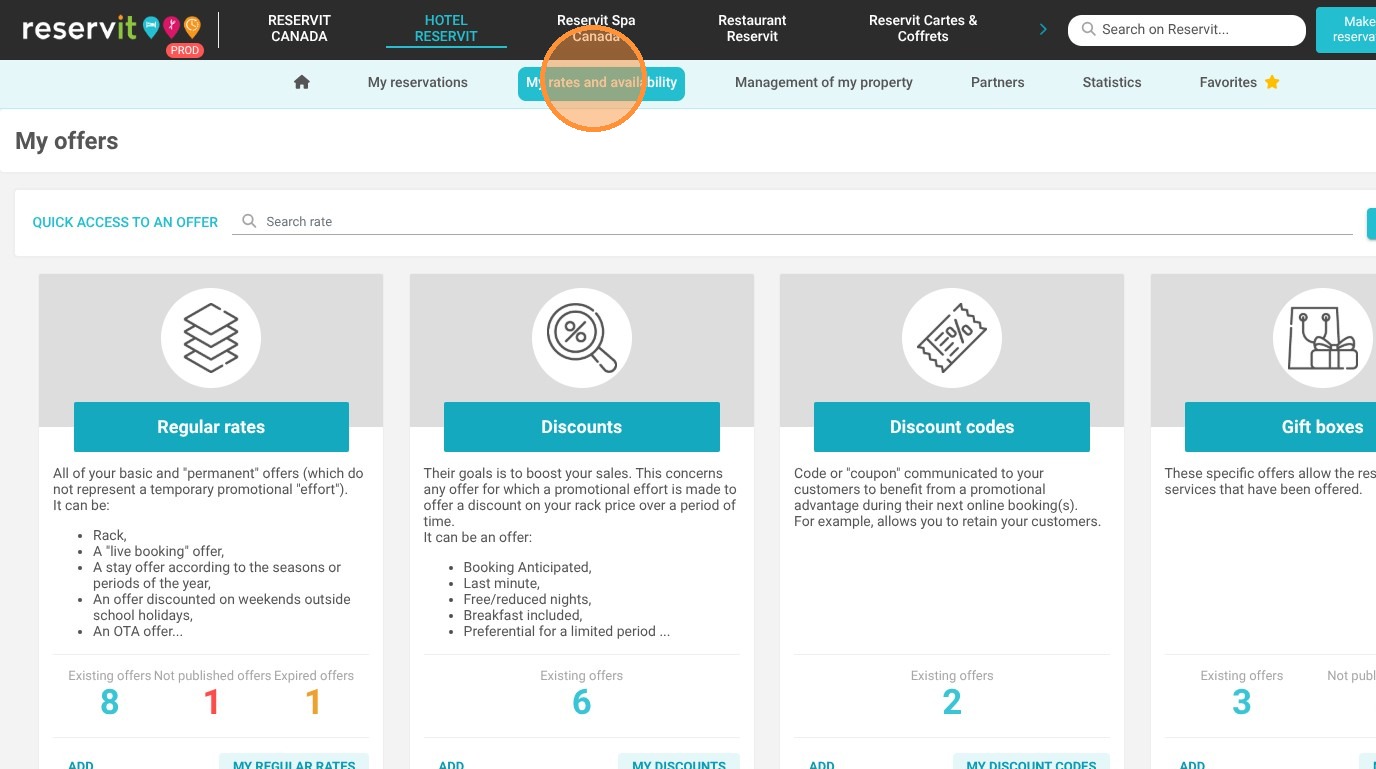
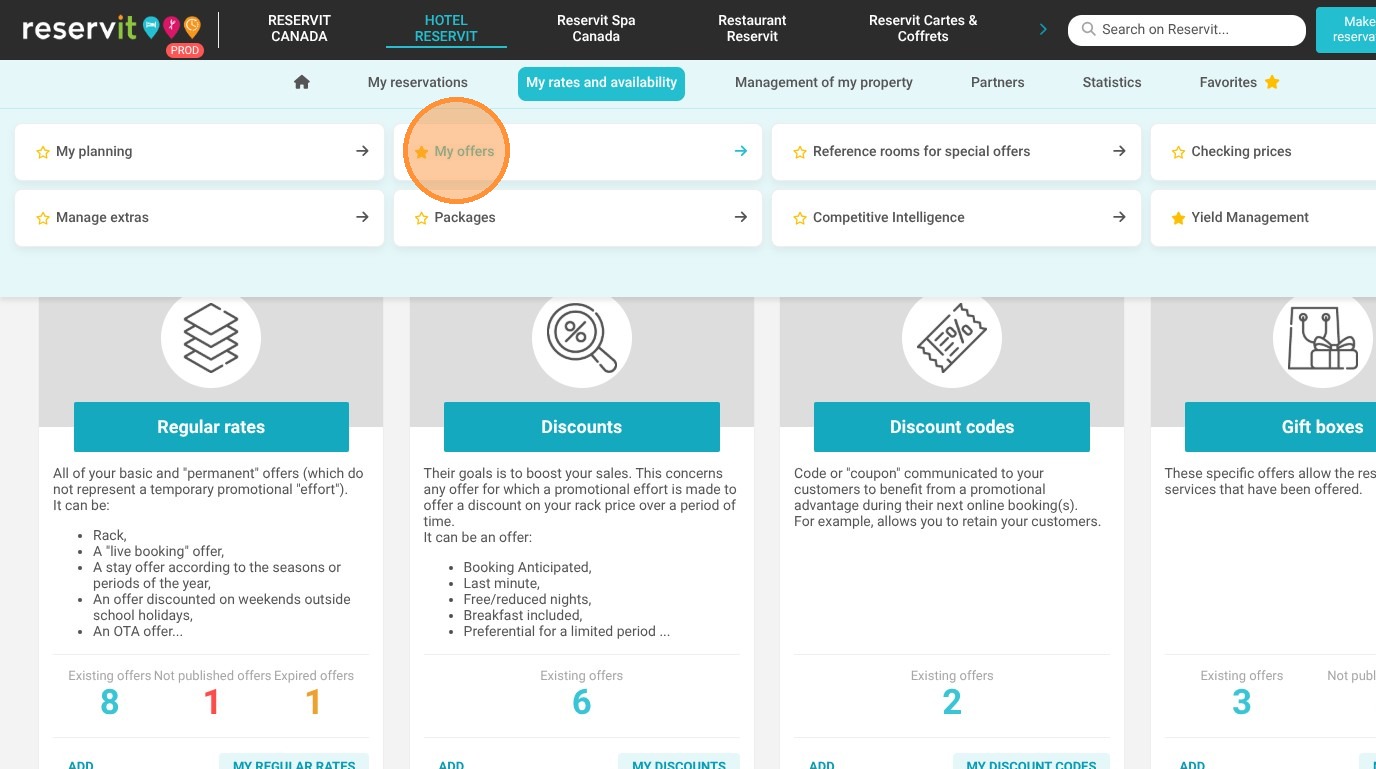
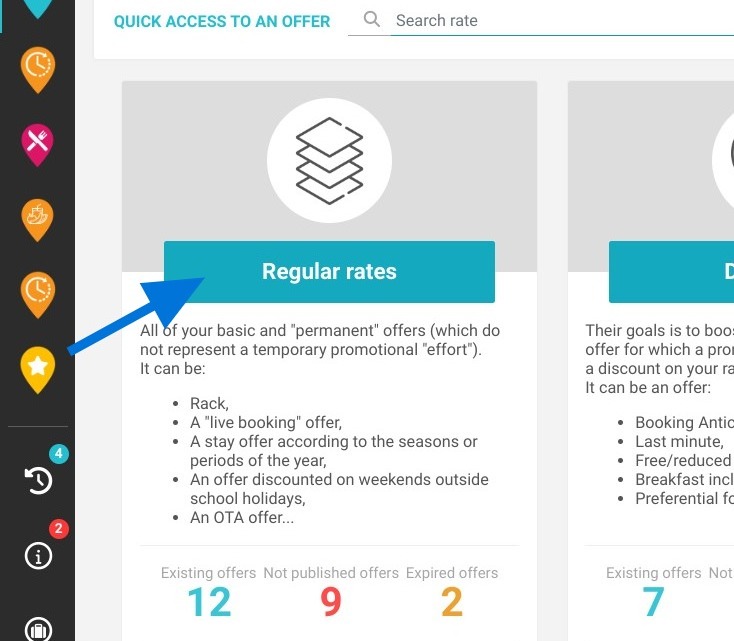
Access your regular rates: Navigate to the "My rates and availability" menu, open "My offers," and select the regular rates category.
-
Open advanced configurations: Click on the specific pricing plan linked to your Booking.com distribution to open its advanced settings.
-
Enable specific tax usage: Click on the currently applied tax field and select the "Use a specific tax" option to override the default rules.
-
Apply and save: Choose the dedicated Booking.com tax from the dropdown menu, validate your selection, and save the offer to finalize the setup.
Why follow this guide? Following this guide immediately resolves frustrating virtual credit card (VCC) payment failures caused by Booking.com applying a 14.97% tax instead of the standard 14.975% in Quebec. By correctly assigning this custom tax rate, you prevent transaction declines, ensure seamless OTA payouts, and save your accounting team valuable troubleshooting time.
1. Click "My rates and availability" then "My offers"
2. Click on your regular rates.
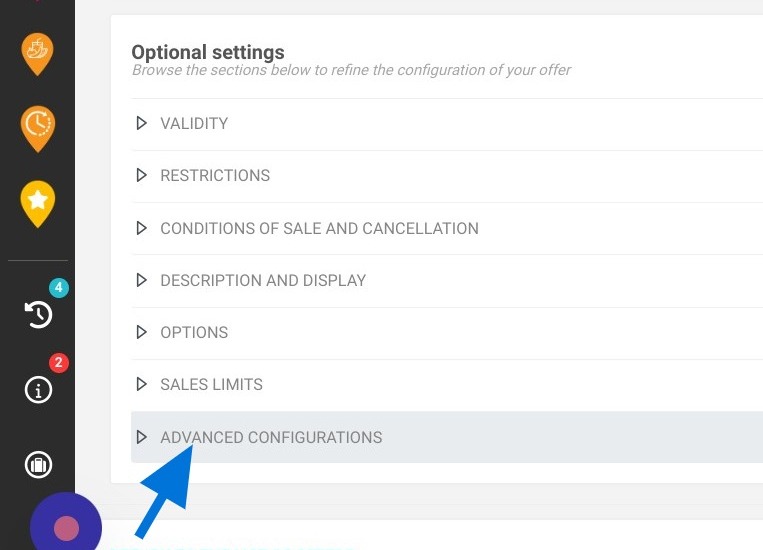
3. After you have clicked on your pricing plan, click on the advanced configurations.
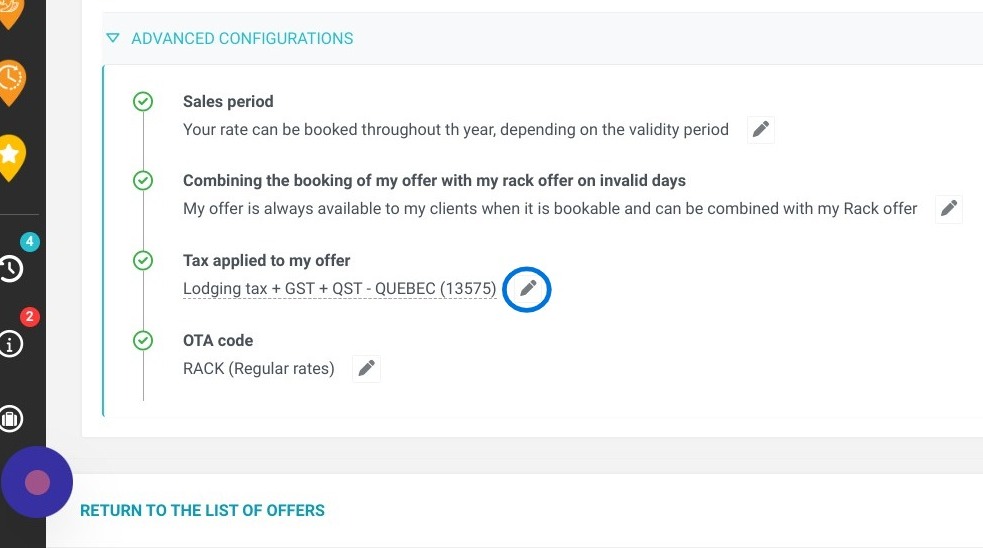
4. Click on the current tax, then click on "Use a specific tax".
5. Select the Booking tax from the dropdown list. Then, validate and save.