Article Summary: This tutorial explains how to give Reservit permission to view your Booking.com extranet so that our support team can help you faster. You will learn how to set the access rights of your connectivity provider (channel manager) directly from your partner account. By enabling this permission, you allow our team to diagnose and fix rate and availability synchronization issues much more quickly.
The 3 Key Steps to Allow Access to Your Booking.com Account:
-
Open your account settings: Log in to your Booking.com extranet and click your account icon (top right) to open the settings menu.
-
Open the connectivity settings: Select "Connectivity provider" to manage the connection with your channel manager.
-
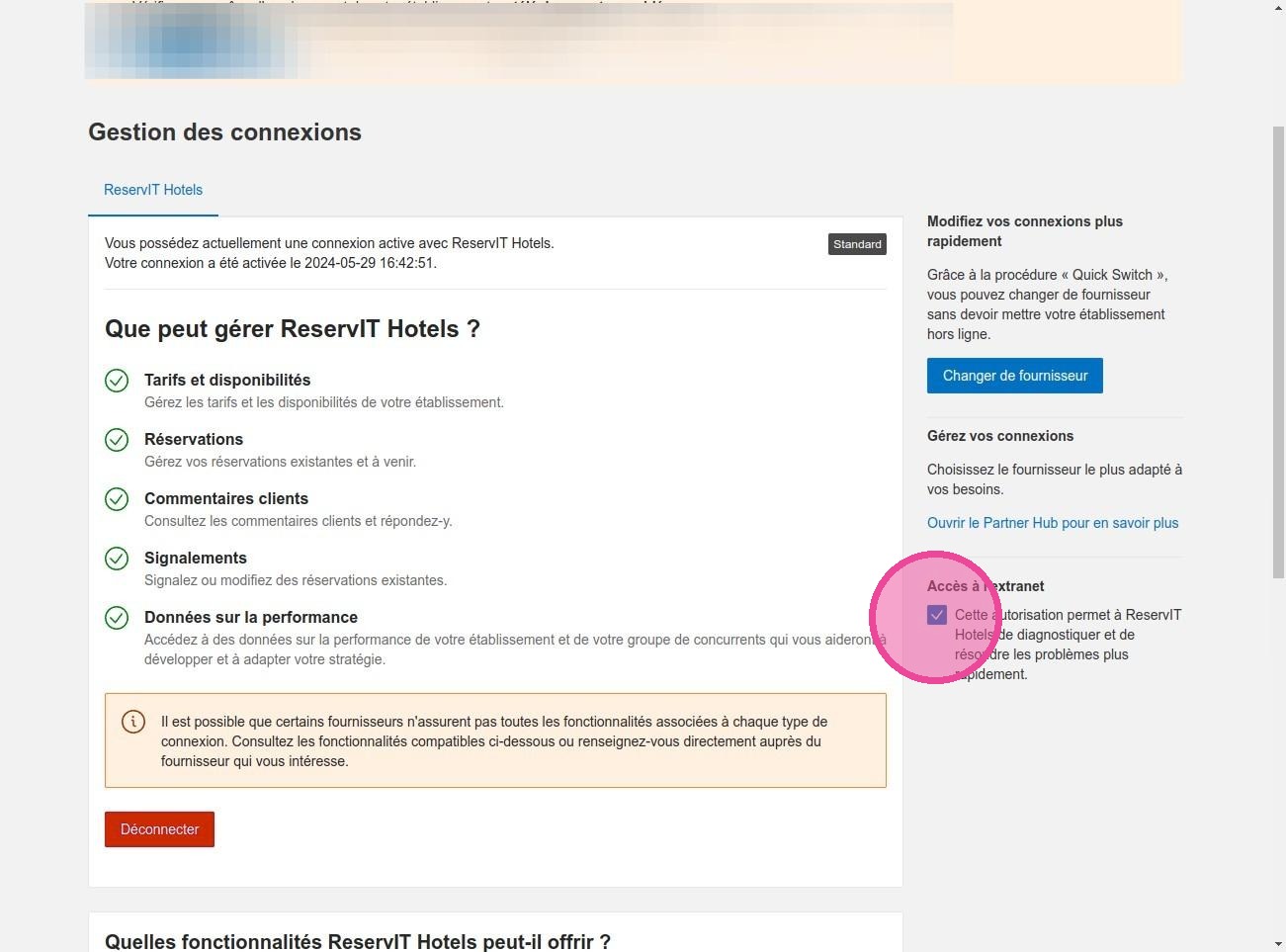
Enable the diagnostic permission: Check the permission that allows Reservit Hotels to diagnose and solve problems faster. Your account is now accessible to our account managers.
Why Follow This Guide? Without this explicit permission in your extranet, our team cannot see the information needed to analyze your data and assist you when there is an issue with the channel. Enabling it ensures a fast technical response and avoids long interruptions of your online sales.
1. In your Booking.com extranet, click this icon to open the user settings of your account.
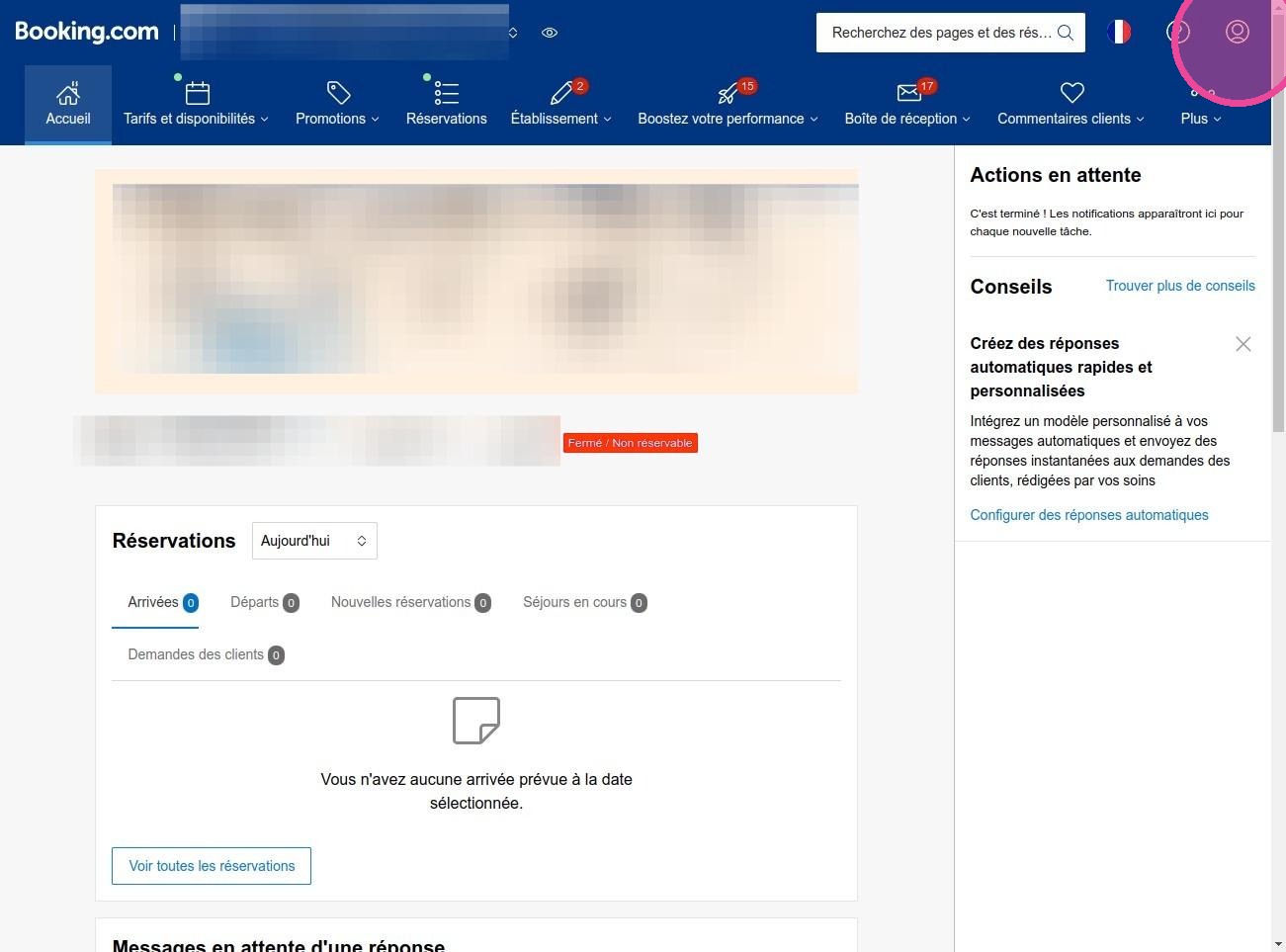
2. Then click "Connectivity provider".
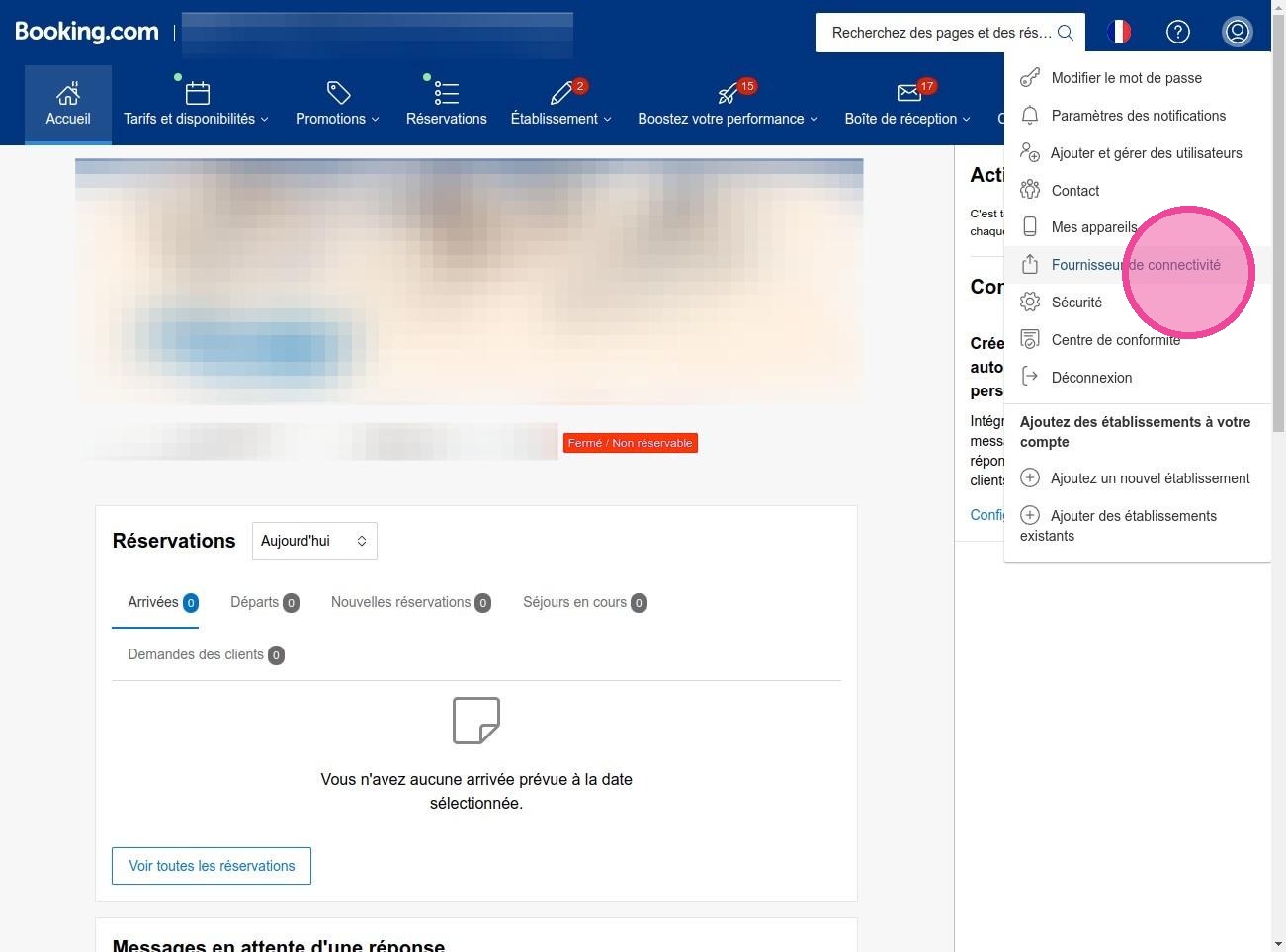
3. Check the permission stating that it allows Reservit Hotels to diagnose and solve problems faster ("Cette autorisation permet à Reservit Hotels de diagnostiquer et de résoudre les problèmes plus rapidement" on the screenshot). Your Booking.com account is now accessible to Reservit's account managers.
Related article: Information Shared Between Reservit and Your Distribution Channels