

Article summary: This tutorial shows you how to modify or cancel a table booking, directly from the homepage (table layout) or from reservation management. You will learn how to display the modify and cancel buttons, change the date, time or number of guests, and find a cancelled booking.
The 3 key steps to modify or cancel:
-
Display the buttons: Swipe the booking card to the left, on the Access to Table Layout page.
-
Modify: Change the information in the booking window, then click CONFIRM.
-
Cancel: Click the red button, then confirm.
Why follow this guide? A guest who changes the time or cancels frees up seats: by updating the booking right away, your table layout and your online availability stay accurate.
From the homepage
1. On the Access to Table Layout page, choose the date and service of the booking.
2. Swipe the booking card to the left: with your finger on a tablet or touch screen, or by holding down the mouse button. Two buttons appear: modify (green, pencil) and cancel (red).
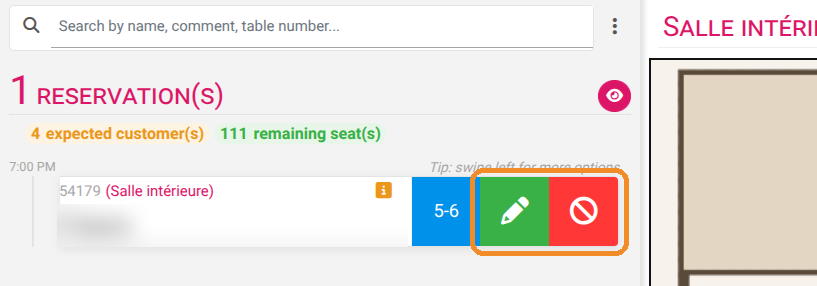
The tip "swipe left for more options" is shown above the list of bookings.
Modify a booking
3. Click the green pencil button: the booking window opens with the information already filled in.
4. Change what needs to be changed: date, HOUR, NUMBER OF GUESTS (click ... to enter more than 4), contact details, features or comment.
5. Under CONFIRMATION, leave None if the guest does not need a new confirmation, or choose how to send it.
6. Click CONFIRM.
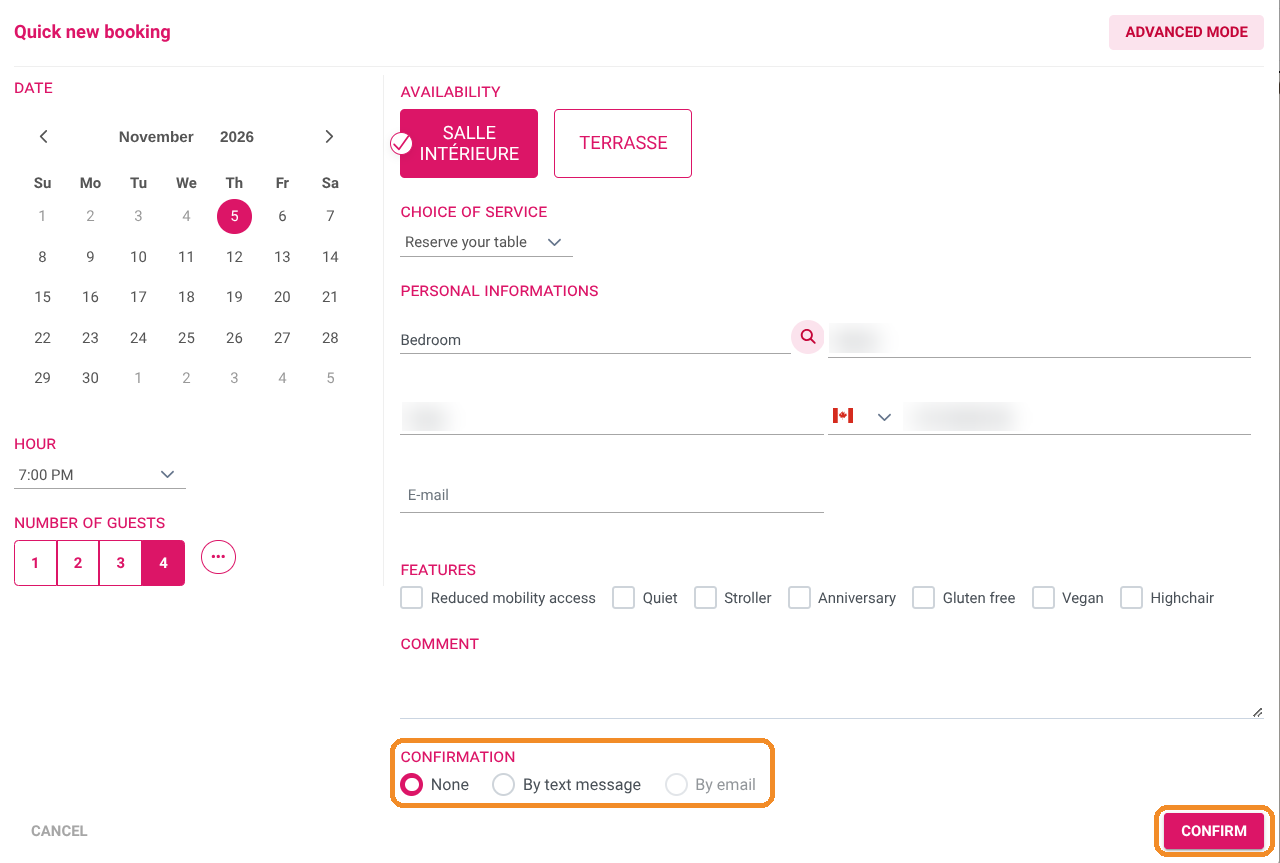
Each time you modify a booking, CONFIRMATION goes back to None: the guest receives nothing until you choose a sending method.
If you increase the number of guests, check that the assigned table is still large enough, and change it if needed (see the tutorial "How to Assign a Table to a Booking").
Cancel a booking
7. Swipe the card to the left, then click the red cancel button.
8. In the CANCELLATION OF YOUR RESERVATION window, click CONFIRM.
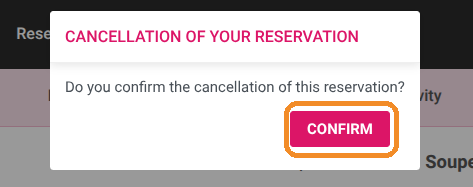
This window has no cancel button: once it is open, the only way to go on is to confirm. Check that you swiped the right booking before clicking the red button.
9. The booking disappears from the table layout and its table is freed. You can still find it in My reservations > Reservation management, with the status CANCEL.
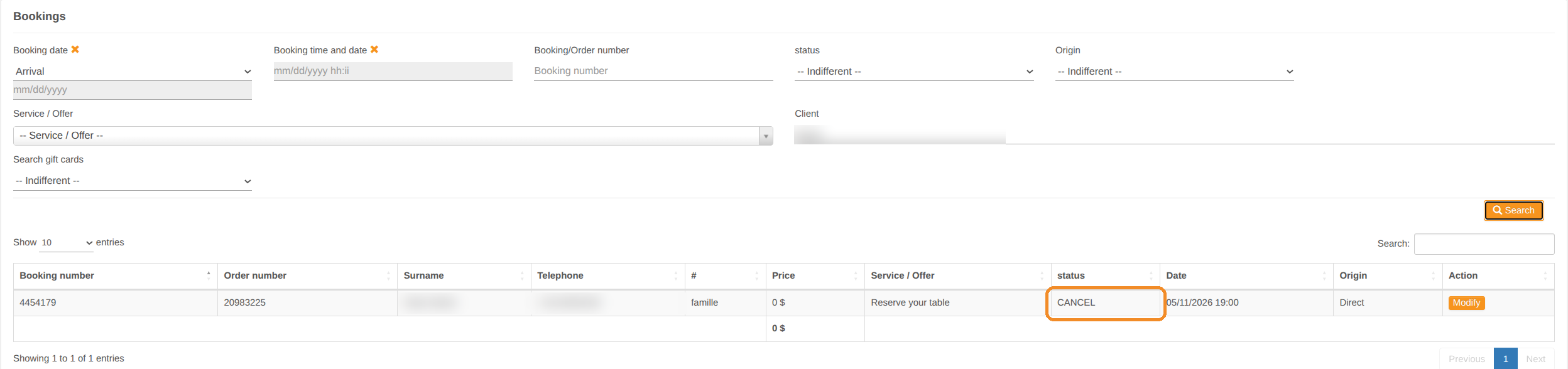
From reservation management
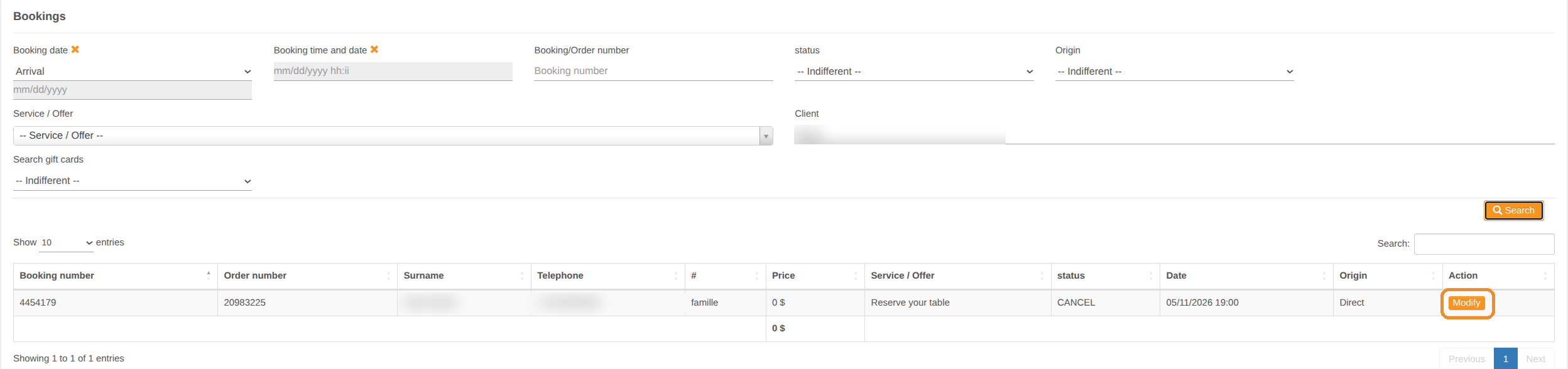
10. Go to My reservations > Reservation management.

11. Search for the booking (for example by the guest's name in Client), then click Search.
12. Click Modify in the Action column to open the booking form.
13. Change the information (number of people, contact details, comments), then click Edit at the bottom of the form.
In the form, the Send confirmation box is unticked by default: tick it only if you want to send the confirmation to the guest again.