

Article summary: This tutorial shows you how to find a table booking, either for the service displayed on your homepage or among all your bookings. You will learn how to use the search criteria, open a booking form, view its history and display the email sent to the guest.
The 4 key steps to find a booking:
-
Quick search: Type a name, a comment or a table number in the search field of the Access to Table Layout page.
-
Full search: Use My reservations > Reservation management and its criteria.
-
History: Open the booking form and click Historical to see who did what, and when.
-
Emails: With Booking emails, display the email sent to the guest.
Why follow this guide? When a guest calls to check a booking or disputes a change, you find the booking, its changes and the email they received in a few seconds.
Quick search on the homepage
1. On the Access to Table Layout page, choose the date and the service.
2. Type the guest's name, a word from the comment or the table number in the Search by name, comment, table number... field: the list is filtered as you type.
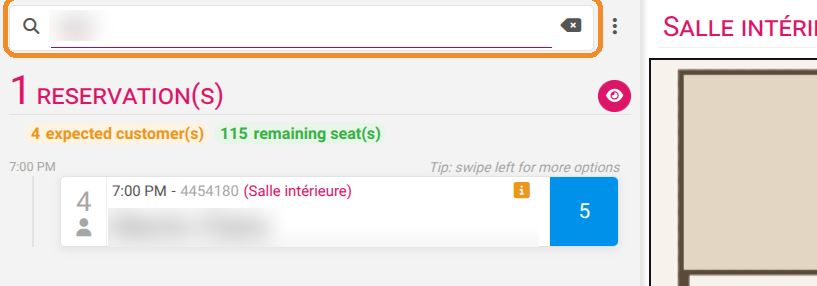
This search only covers the date and service displayed. If no booking matches, change the service or use reservation management.
Search all your bookings
3. Go to My reservations > Reservation management.

4. Fill in one or more criteria:
-
Client: last name, first name, nickname, company or phone number;
-
Booking/Order number;
-
Booking date: choose Arrival (date of the meal) or Creation (date the booking was taken), then the date;
-
status (Confirmed bookings, Bookings on request, Cancelled bookings) and Origin (Direct, Website, Accommodation);
-
Service / Offer.
5. Click Search.

6. In the results table, click Modify in the Action column to open the booking form.
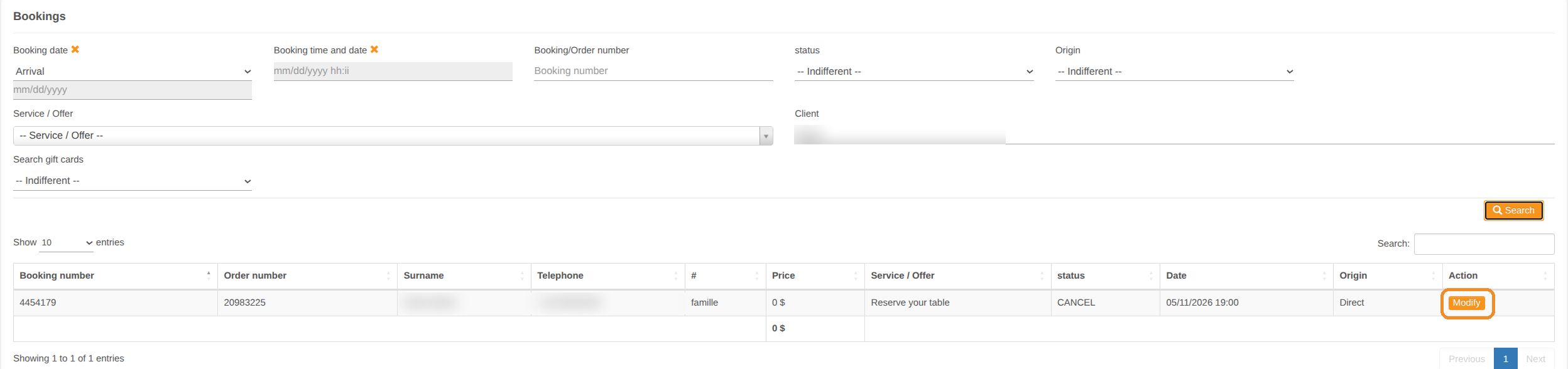
The Search: field above the table filters the rows already displayed, without running a new search.
View the history
7. At the bottom of the form, click Historical.
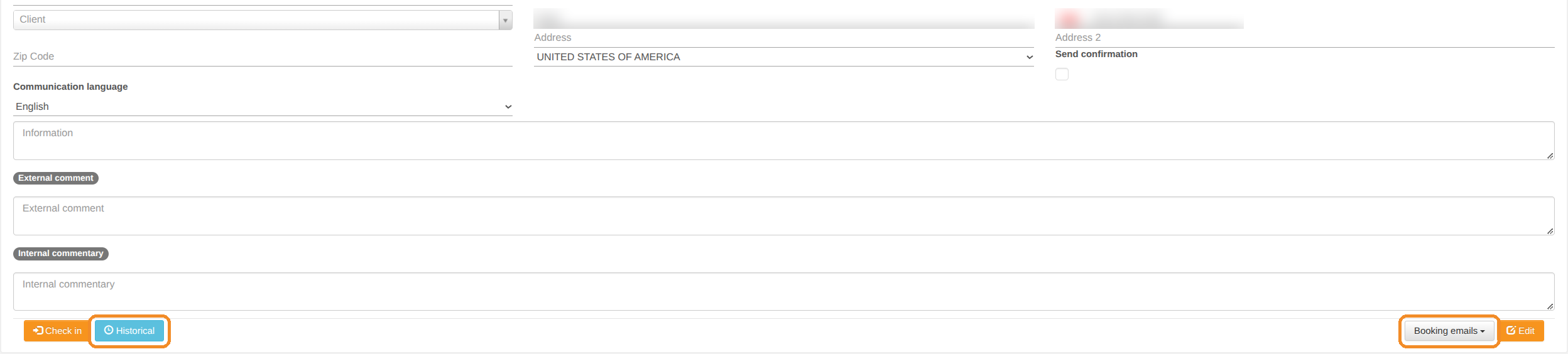
8. The Booking history window lists each action: date, type (creation, update), old and new value, user and information (for example "Status change").

This history is kept for 90 days.
Display the guest's email
9. At the bottom of the form, click Booking emails, then View customer email.
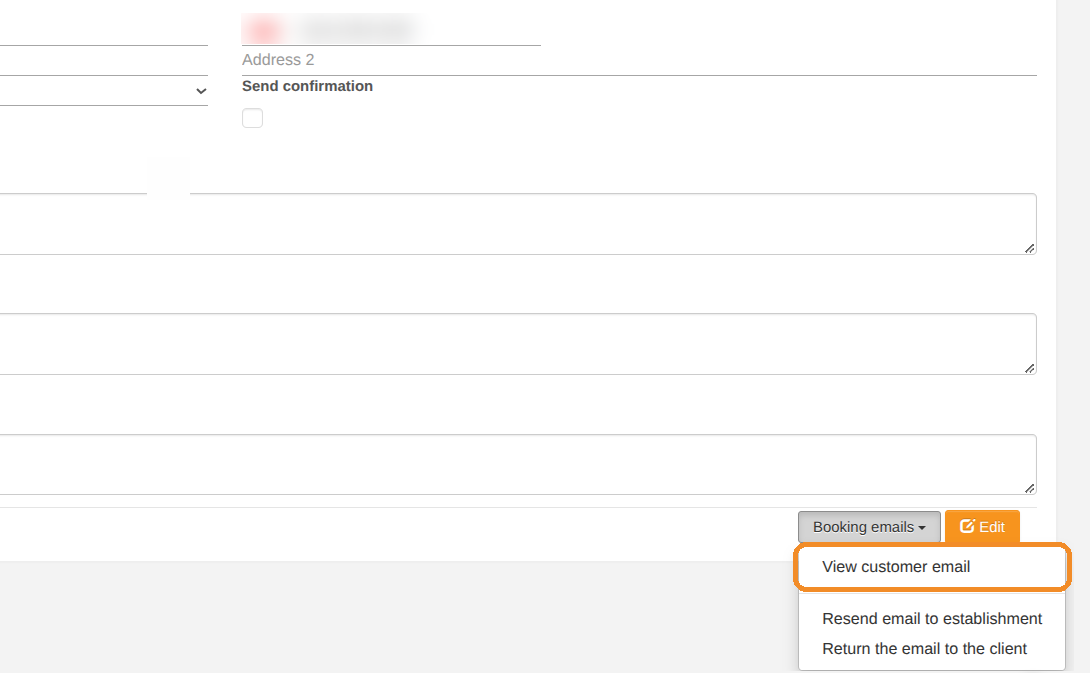
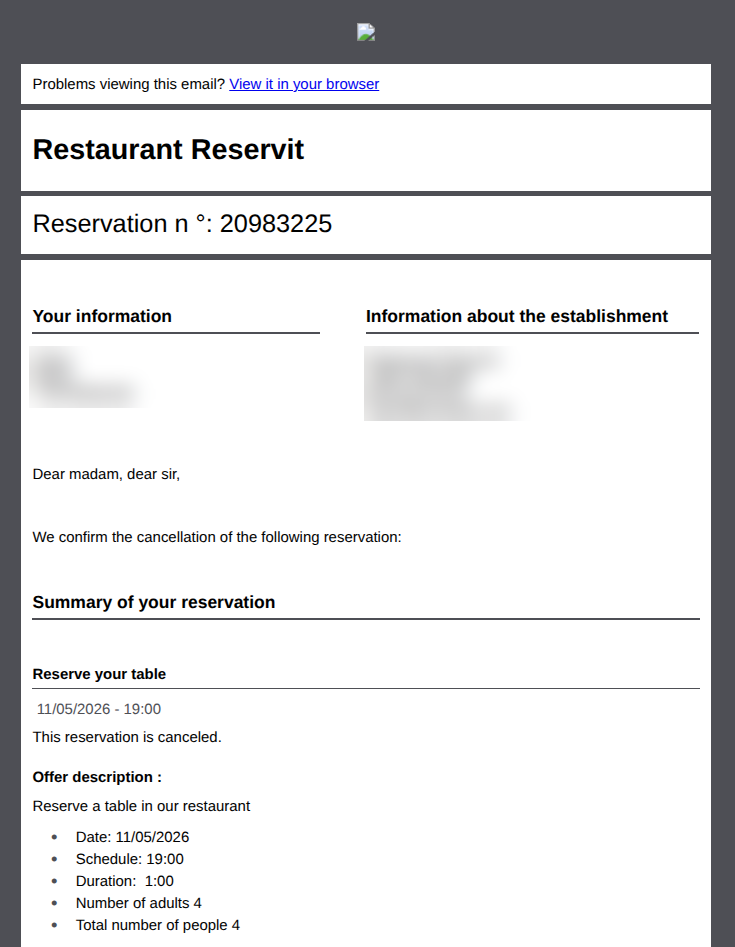
10. The email intended for the guest opens in a new tab: contact details, summary of the booking and comment. For a cancelled booking, it is the cancellation email.
The options Resend email to establishment and Return the email to the client really send the email. Use them only if you want to send it again.
The number shown in the email ("Reservation n°") is the order number, visible in the Order number column of reservation management.