Help for use
Auto Light Dark
Auto Light Dark

Mastering the Reservit Restaurant Homepage: Management and Tracking of Your Bookings

Article Summary:

This tutorial explains how to get started with your Reservit Restaurant software homepage for optimal management of your meal services and floor plan. You will learn how to navigate between different dining areas, handle special guest requests, and assign tables in just a few clicks. Master these features to get a clear overview of your operations and streamline your team's workflow.

The 4 key steps to using the Reservit Restaurant homepage effectively:

  • Navigation and service selection: Easily change the date, time, and service type (breakfast, lunch, dinner), and navigate between your different dining rooms.

  • Searching and viewing guest profiles: Quickly locate a reservation using the search bar and anticipate guest needs (allergies, birthdays, comments) thanks to detailed pictograms/icons.

  • Table management and assignment: Instantly see already assigned tables (in blue) and easily seat pending bookings (in pink) directly from the interface.

  • Display filtering: Use the funnel filter tool to isolate relevant data, such as displaying only bookings that still need a table assigned.

Why follow this guide?

By mastering your homepage overview, you save valuable time during peak rush hours and avoid seating mistakes or overlooked guest requests. It ensures optimized internal organization and smooth service, guaranteeing a seamless guest experience right from arrival.


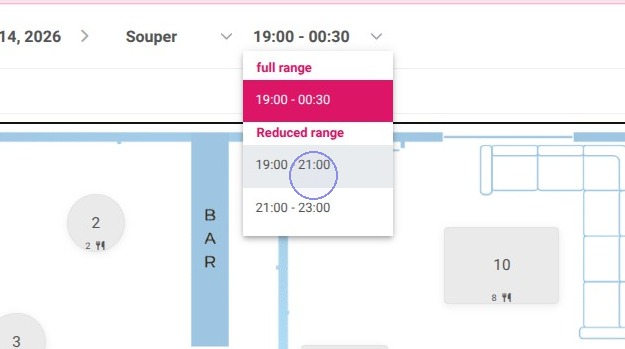
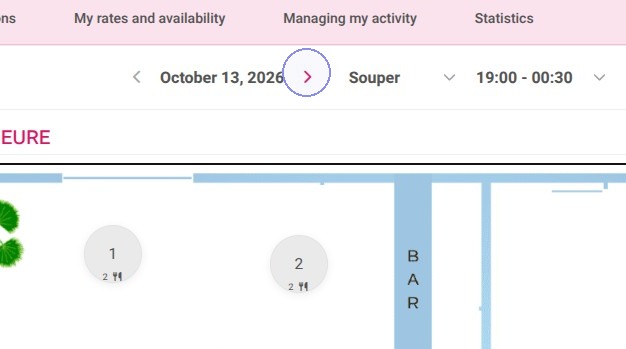
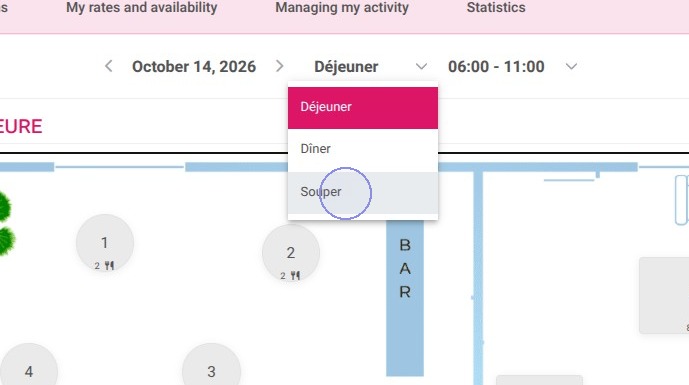
1. When you arrive on the homepage, today's date is selected by default, but you can easily change the date using the chevron arrow.

You can also adjust the service you wish to view (breakfast, lunch, dinner ) and the service hours.
https://colony-recorder.s3.us-west-1.amazonaws.com/files/2026-10-13/5a02713f-6f2c-4956-97f0-b5e901662071/action-e9913a47ff764df7b4bd4b6ca67b994c_e9926ad64c554214b04469f91d1ccbf0_text_export.jpeg
https://colony-recorder.s3.us-west-1.amazonaws.com/files/2026-10-13/551f61a0-0e1c-429d-8afc-942e007f52ae/action-6cabd9661d5e43039abb85abaad0a234_e3d05e4a16414dd4856a878cd565d33b_text_export.jpeg
https://colony-recorder.s3.us-west-1.amazonaws.com/files/2026-10-13/a2987925-1c48-47d5-9f8b-d066f68f14e9/action-6a9a3350bba04a1b98e1b33d8a83d88f_ce2518256f8044b7995a30a8f179fea2_text_export.jpeg

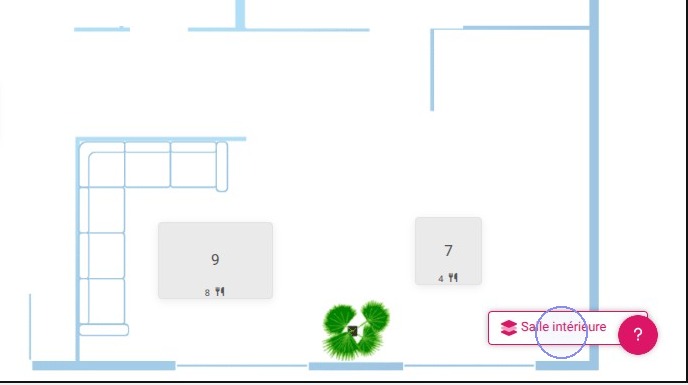
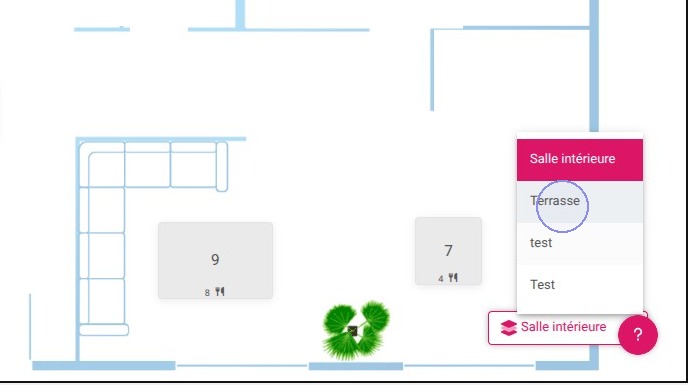
2. If you have multiple dining rooms, you can switch the room view by clicking the button at the bottom right.
https://colony-recorder.s3.us-west-1.amazonaws.com/files/2026-10-13/3842c5a2-916f-4566-bdcd-edd9759b9a53/action-ca3282cdf645453a9efcc292a57cb21d_0d5fca1f6cb049bd9004e8d0229d8711_text_export.jpeg
https://colony-recorder.s3.us-west-1.amazonaws.com/files/2026-10-13/7555c7ef-60f9-4b2d-a4b5-c3b59bcc3966/action-5aed9ebca9484ce8b3d94885d9ce5476_6e3c478e71a2477086606334beb97662_text_export.jpeg

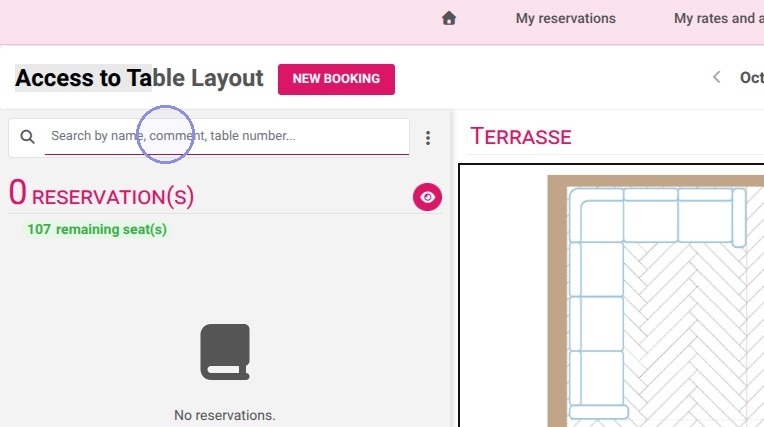
3. Use the advanced search bar to find today's reservations by name, note/comment, or table number.
https://colony-recorder.s3.us-west-1.amazonaws.com/files/2026-10-13/815bccdc-4db2-485d-aee9-989908c79142/action-fdfc9d038f014369838b5a92e2f59702_b7e317a016df486397a0cf1f10506f4a_text_export.jpeg

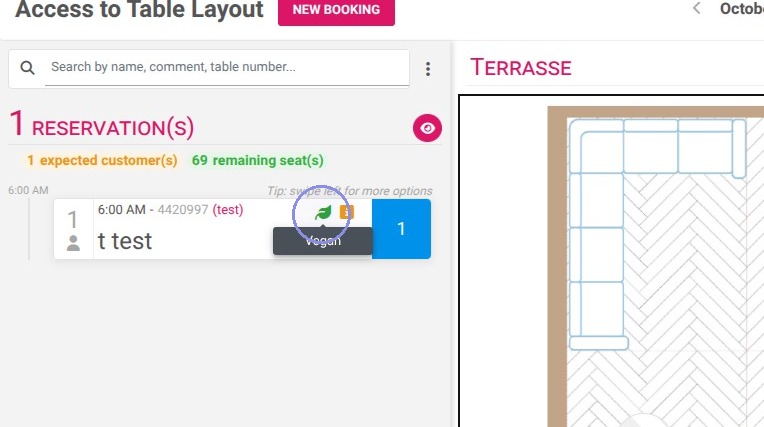
4. Review your reservations and check pictograms to see if guests requested a quiet area, have dietary requirements, are celebrating a birthday, or left a comment on their booking.

You can also see the total number of expected guests and the remaining covers available for that service.
https://colony-recorder.s3.us-west-1.amazonaws.com/files/2026-10-13/193dbb0f-18da-4b99-a552-2d92c797cb8c/action-57af73dbb3584514b2499a64759606a4_f05c155cdc974cbcb00ce35fd3564985_text_export.jpeg

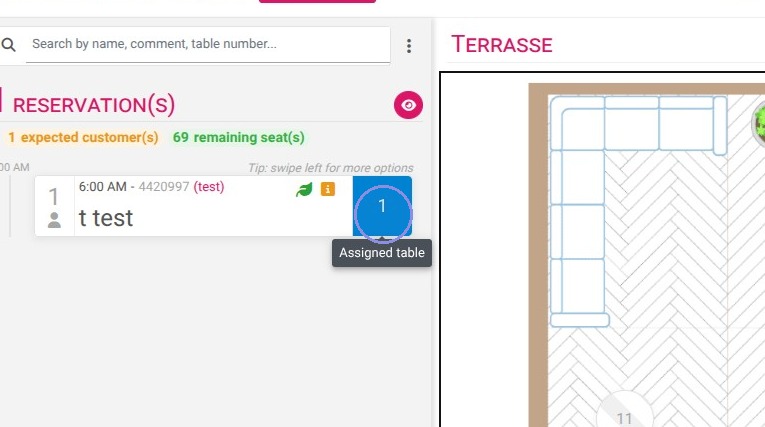
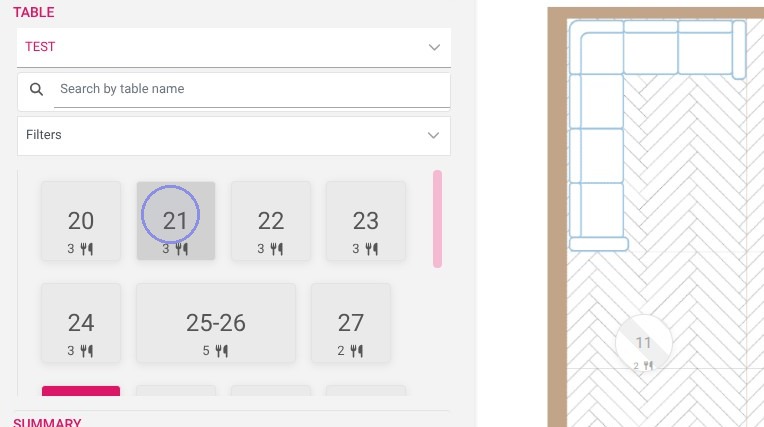
5. In blue, you see which table the reservation has been assigned to (for example, Table 1).

You can change the table assignment at any time by clicking on it and selecting a new table for the guest.
https://colony-recorder.s3.us-west-1.amazonaws.com/files/2026-10-13/68c4a511-59f8-437f-9e4d-dbaab4bf41d9/action-fceafeb4060e41a6b74dd30180652fac_3f55215f960a4f6fad6838651128498f_text_export.jpeg
https://colony-recorder.s3.us-west-1.amazonaws.com/files/2026-10-13/ba361c90-504d-4c63-9620-a11020b371bf/action-d061ff6f7730429086269300751f711b_dfb5c30e1e594ec3b8d673fb03f32825_text_export.jpeg
https://colony-recorder.s3.us-west-1.amazonaws.com/files/2026-10-13/f1246286-26e0-4c54-a37d-3bee417fc0c4/action-75e8d1984ae54fbba3aee60b4a58d15d_d43faa32b31743bfb25f00a1bc1cdc02_text_export.jpeg

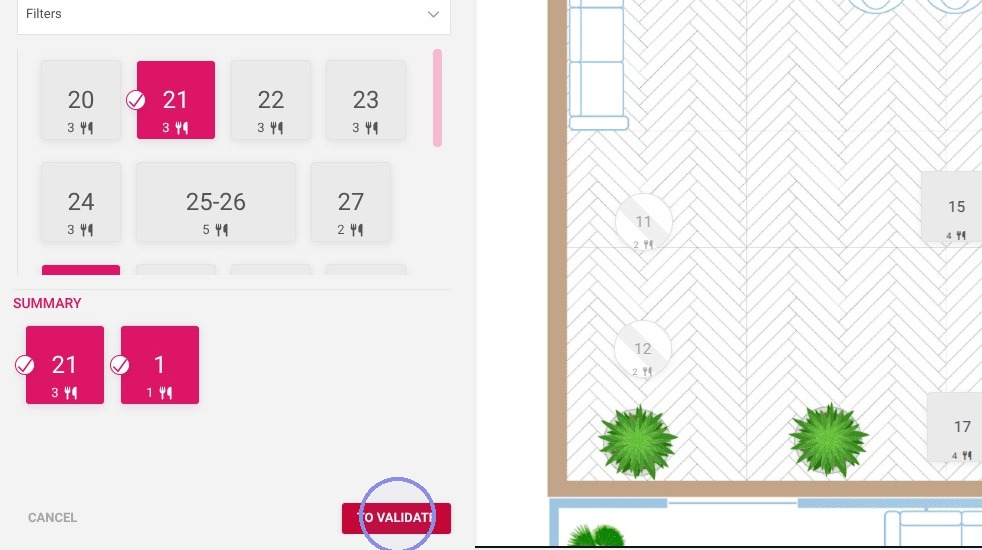
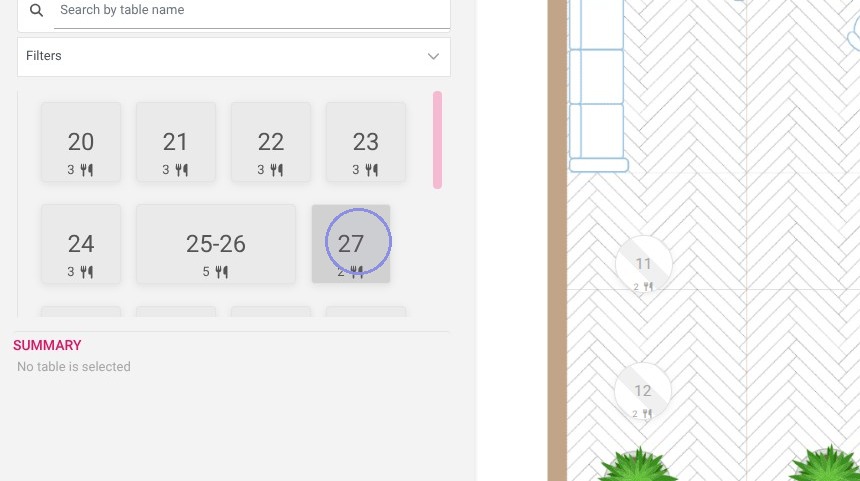
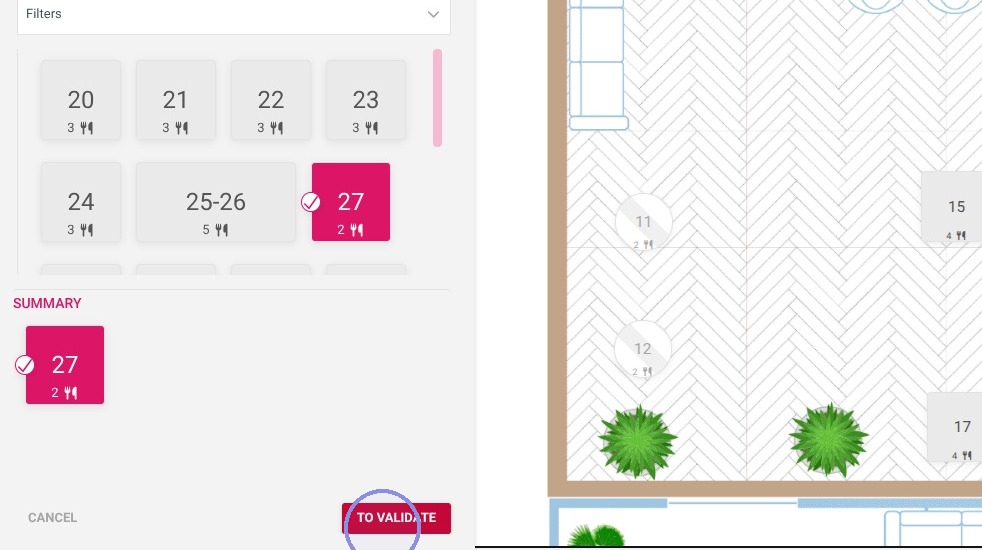
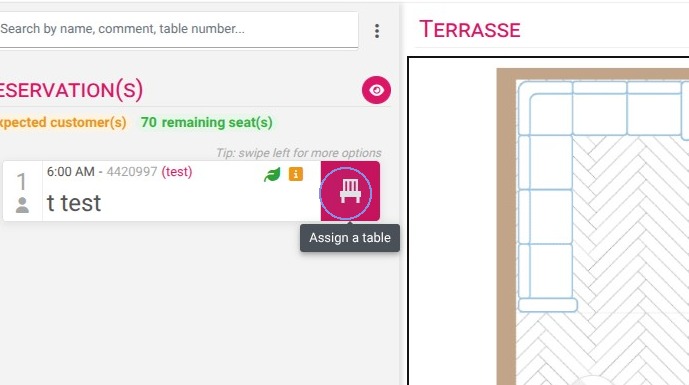
6. In pink are reservations that do not yet have an assigned table.

Click on the reservation, then select the table you want to assign to it.
https://colony-recorder.s3.us-west-1.amazonaws.com/files/2026-10-13/d2d33206-014e-405f-b2ff-129a5f9a986c/action-85d6fed526734c1e8e4d584a4e0f78f6_1a13e515300242f38639a62ac966498c_text_export.jpeg
https://colony-recorder.s3.us-west-1.amazonaws.com/files/2026-10-13/70a2712f-ec28-4f9b-a102-bb0a092c1a0e/action-68a5ce0ba8fe48578a0c34739449ff79_dca40938e7a84cb9a1acf15e06177a82_text_export.jpeg
https://colony-recorder.s3.us-west-1.amazonaws.com/files/2026-10-13/c0dc83b8-320c-4063-be48-2a6ce028c477/action-f22ce3123fc84e518eb27301afd2f6c8_8f77186bebce4a18a3d45ed6309439a2_text_export.jpeg

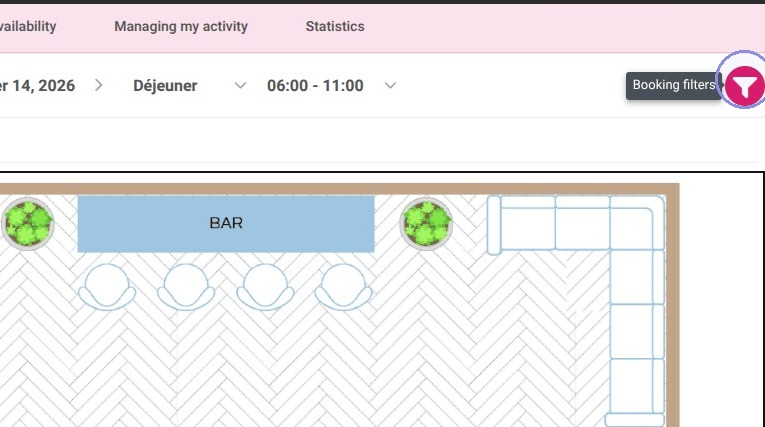
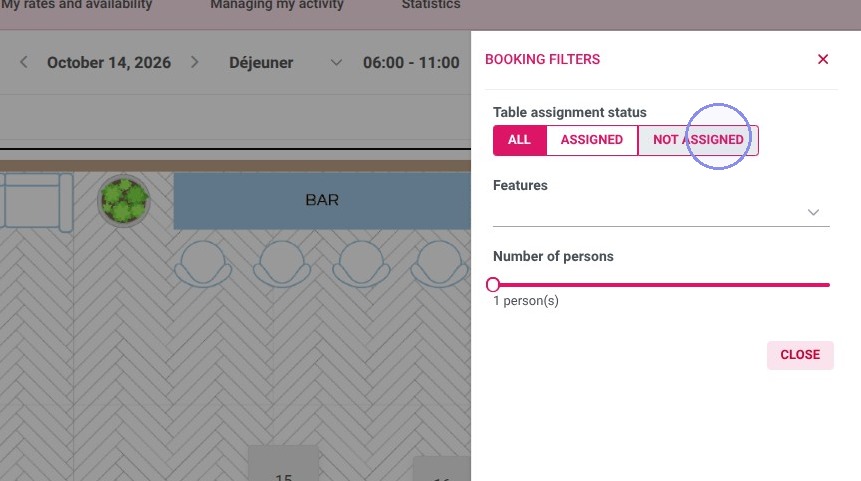
7. The funnel icon on the right allows you to filter the page view.

For example, you can choose to display only reservations that have not yet been assigned a table.
https://colony-recorder.s3.us-west-1.amazonaws.com/files/2026-10-13/2ab81dfd-b9a1-4458-8100-a1383c697468/action-d9a7e3eb0734482993159ebcce64896e_387a3cbadeda4c2798f888c8abd01c30_text_export.jpeg
https://colony-recorder.s3.us-west-1.amazonaws.com/files/2026-10-13/b7d60fee-4e3e-4dea-9f09-39051d74a5a9/action-faca573fb29a412b9adbcafab2dcf663_9fd699ab635648c0a65befa6e37a390c_text_export.jpeg