Article summary: This tutorial shows you how to close a service (a closing night, a public holiday, a private event) or adjust the number of seats you offer, from the reservation schedule of Reservit Restaurant. You will learn how to change a single time slot, how to close one or more services over a whole period, and how to reopen. Closed time slots are no longer offered on your online booking pages.
The 4 key steps to manage your availability:
-
Open the schedule: Go to My reservations > Reservation schedule and choose the date.
-
Change a time slot: Click the cell of a table type and a time slot to change its Total inventory or switch it to Closing.
-
Close a period: With INVENTORY MANAGEMENT, close one or more services over one or more periods, in a single step.
-
Reopen: Set the usual inventory of each table type again.
Why follow this guide? Closing your services in advance prevents online bookings on a night when you are closed, and adjusting your inventory lets you limit the number of guests during a service with reduced staff.
Closing applies to table types (for example "Table famille"), not to a specific table of your table layout. To remove a single table, reduce the inventory of its table type.
Open the reservation schedule
1. Go to My reservations > Reservation schedule.

2. Click CHANGE MY DATE to choose the day, or TODAY to go back to today's date.
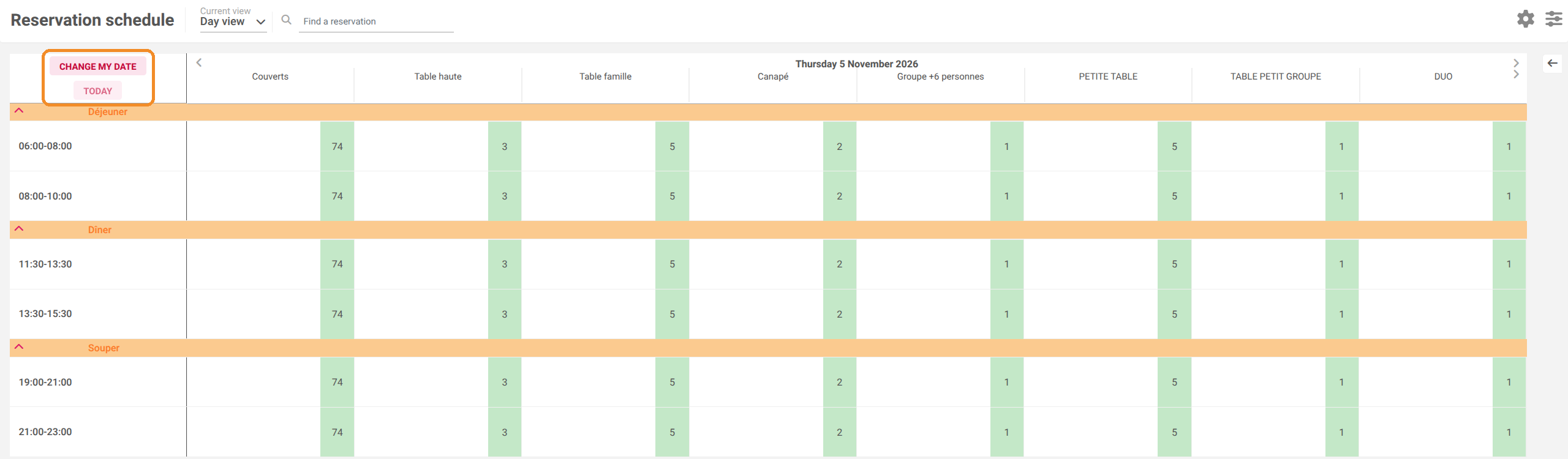
Each column is a table type and each row is a time slot, grouped by service. A green cell shows the available inventory; a red cell with a triangle shows an inventory of 0; a red cell with a padlock shows a closed time slot.
Change or close a single time slot
3. Click the cell of the table type and time slot you want to change: the INVENTORY window opens.
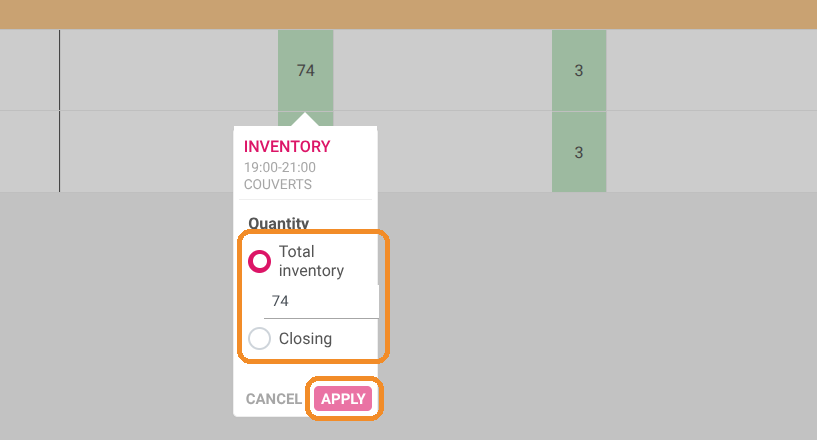
4. To change the number of seats, select Total inventory and enter the new value. To close this time slot, select Closing.
5. Click APPLY. The message Modification of the schedule - update completed confirms the change.
The Total inventory must be at least 1. To stop offering this time slot altogether, use Closing.
Close one or more services over a period
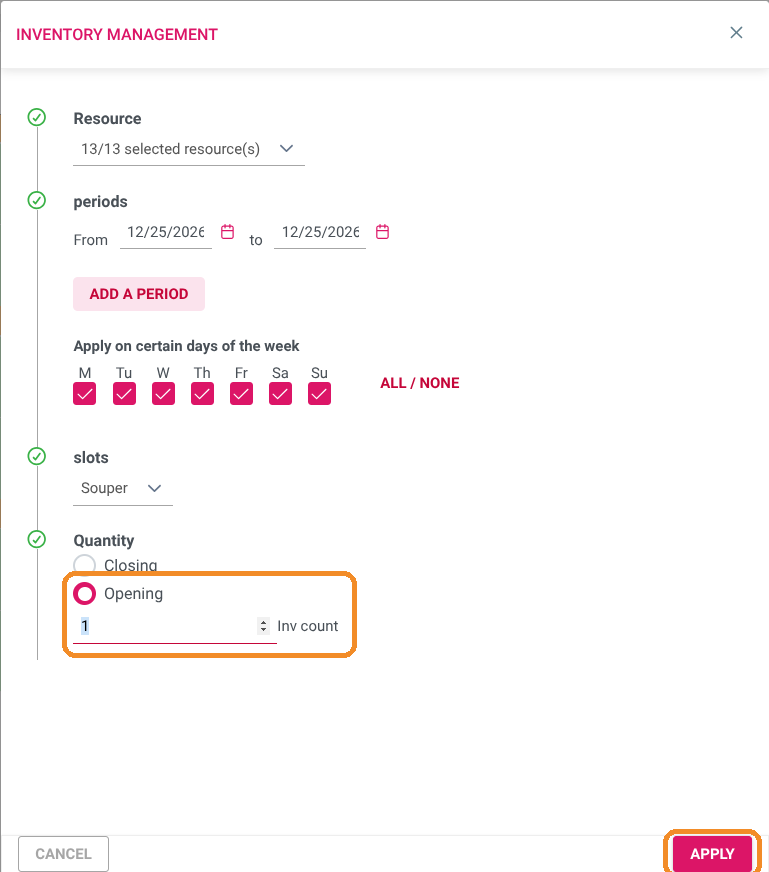
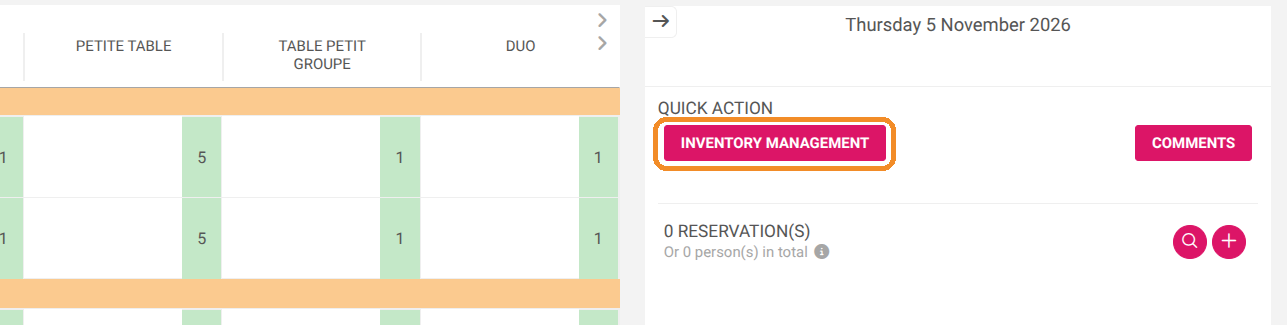
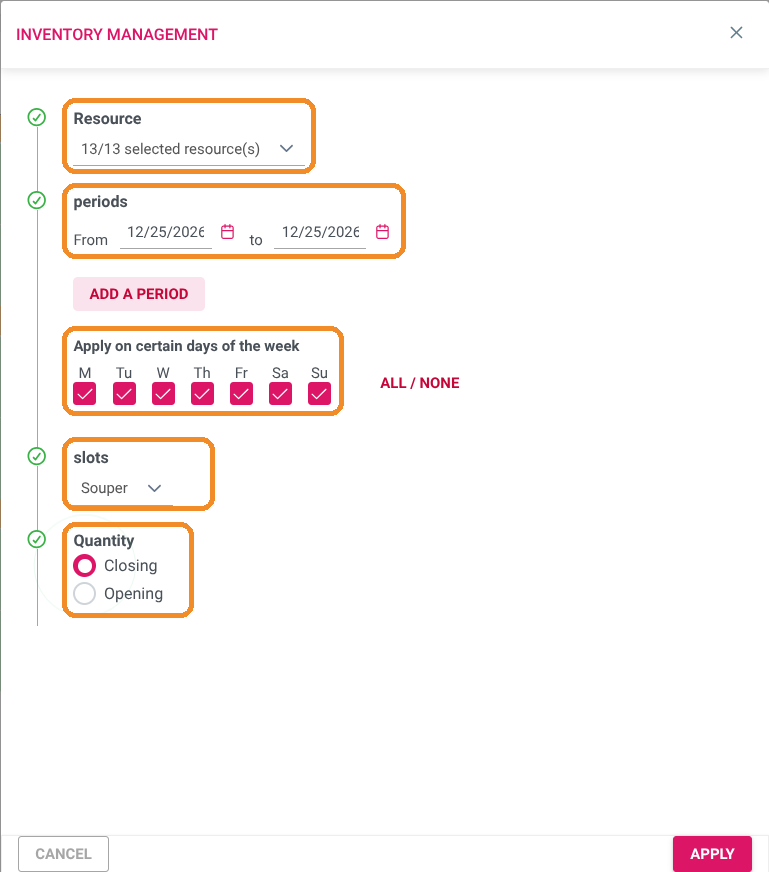
6. Open the right-hand panel of the schedule (arrow at the top right), then click INVENTORY MANAGEMENT under QUICK ACTION.
7. In Resource, tick the table types to close. The box at the top of the list selects all table types.
8. In periods, enter the From and to dates. Click ADD A PERIOD to close several periods in one go.
9. In Apply on certain days of the week, untick the days you do not want to close (for example, to close only the Mondays of the period).
10. In slots, tick the service or services to close (for example your evening service).
11. In Quantity, select Closing, then click APPLY.
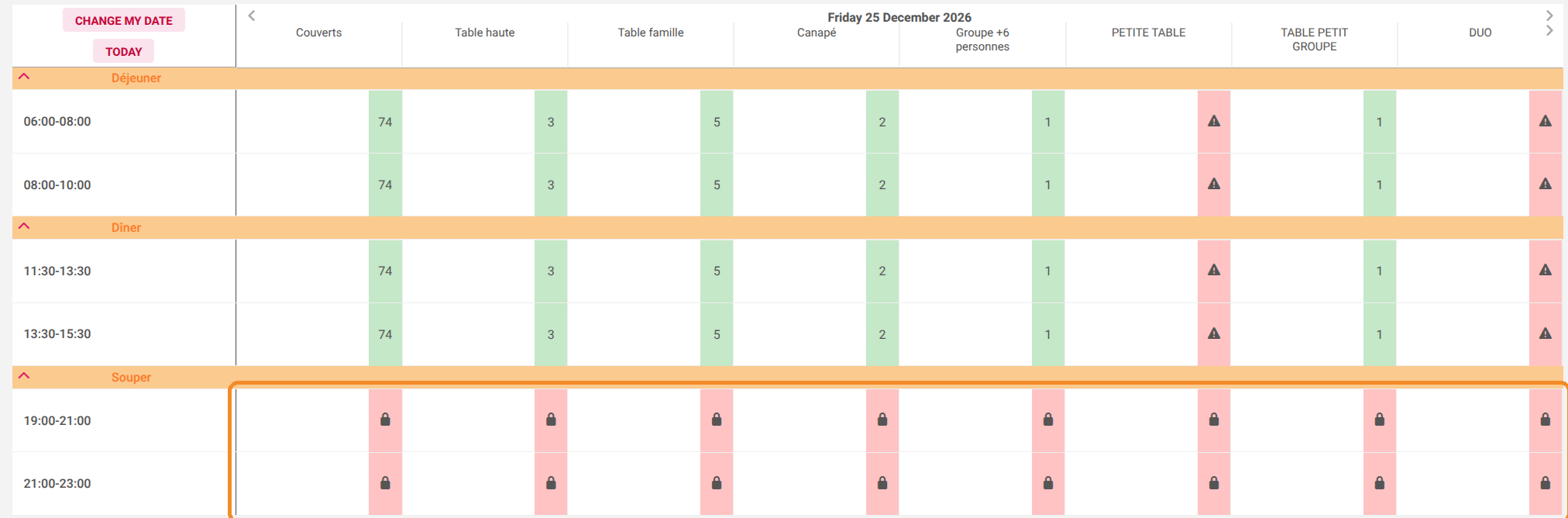
Closed time slots no longer appear on your online booking pages. In the Quick new booking window, a warning icon shows the rooms with no availability.
Reopen a service
12. To reopen a time slot, click its cell, select Total inventory, enter the usual inventory of this table type, then click APPLY.
In INVENTORY MANAGEMENT, the Opening option applies the same inventory (Inv count field) to all the table types you ticked. To reopen a period, do it one table type at a time, each with its usual inventory (you will find it on another service of the same day).