Article summary: This tutorial provides a complete walkthrough on how to create, edit, and configure your dining services within the Reservit Restaurant platform. You will learn how to set up meal schedules, allocate specific tables, adjust pricing, and build in buffer times for table turnover. Optimizing these settings ensures your online booking engine is accurate, ultimately maximizing your restaurant's reservations and revenue.
The 5 key steps to edit and configure a dining service:
-
Access Service Settings: Navigate to "My rates and availability" from your dashboard, select "Services," and click on "Services Setup" to add a new schedule.
-
Define Core Details: Enter the name and description of your service (e.g., Breakfast, Dinner) and configure the seating duration, including hidden buffer time for your staff to clear tables.
-
Assign Tables and Times: Open the service status, select which specific tables are available for this meal, and customize the available arrival times and party sizes.
-
Set Pricing and Validity: After your initial save, reopen the service to configure pricing (or set to $0 for on-site payment) and apply date restrictions or specific days of the week.
-
Add Visuals and Publish: Upload appealing photos to showcase your menu or dining room, then save your final changes to update your online booking widget.
Why follow this guide? Properly configuring your services automates your table management, preventing double-bookings and optimizing your daily table turnover rate. This setup secures your operational flow, saving your front-of-house staff valuable time while delivering a flawless online reservation experience for your guests.
1. In order to have bookings, you need to create all the services that you offer, such as: breakfast, lunch, dinner, etc.
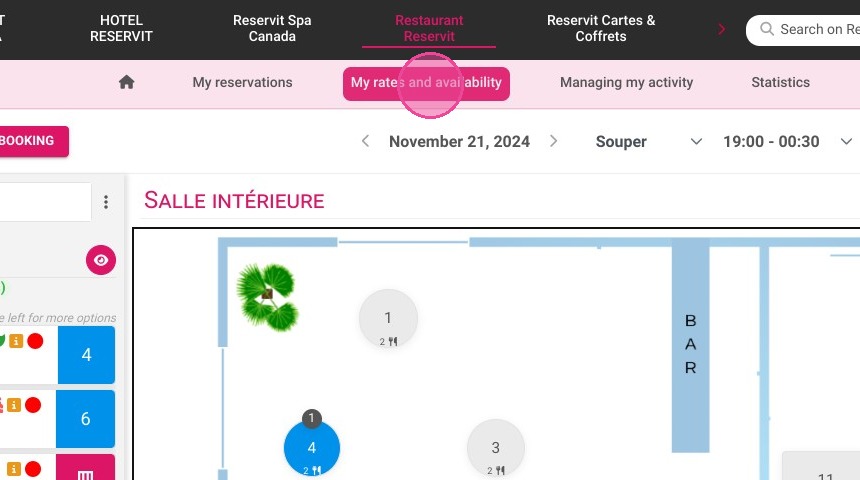
Click on "My rates and availability".
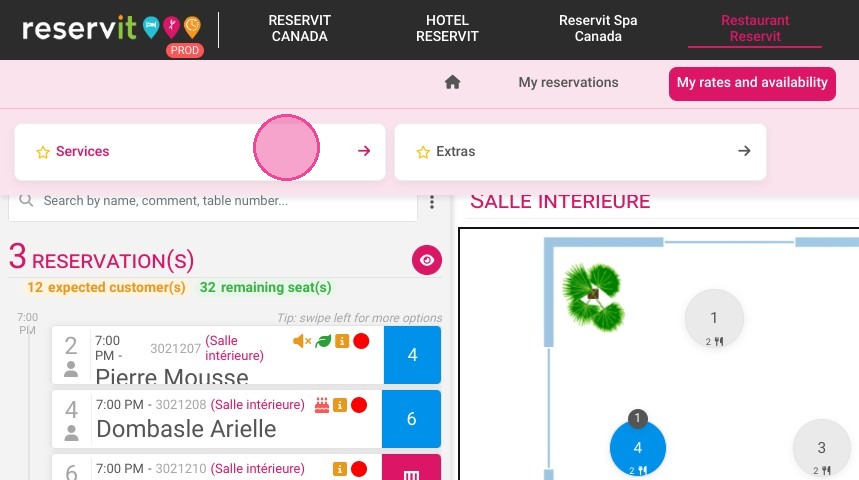
2. Click on "Services".
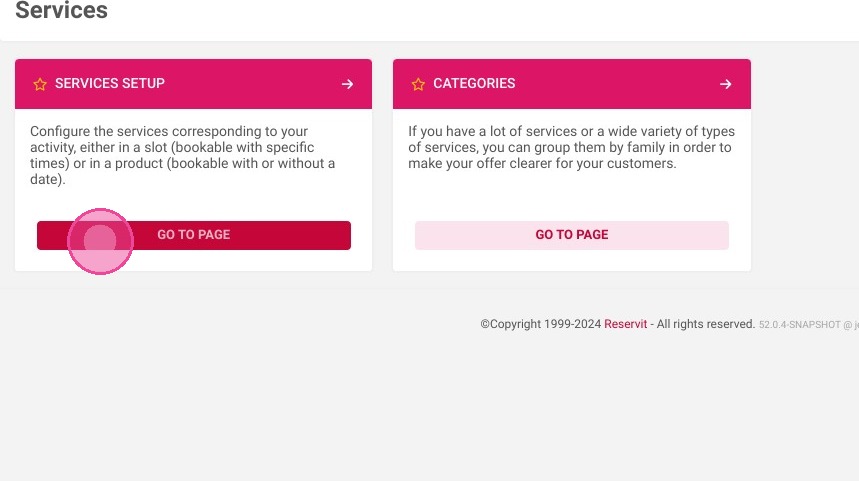
3. Go to "Services Setup".
4. Click on "Add a schedule"
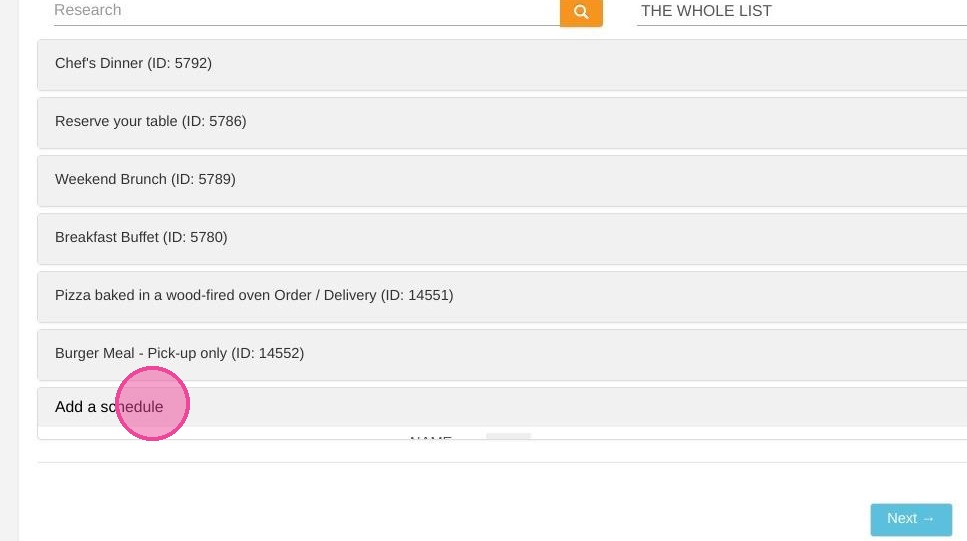
5. Enter the name of the service as below.
You can add a description, for example your menu.
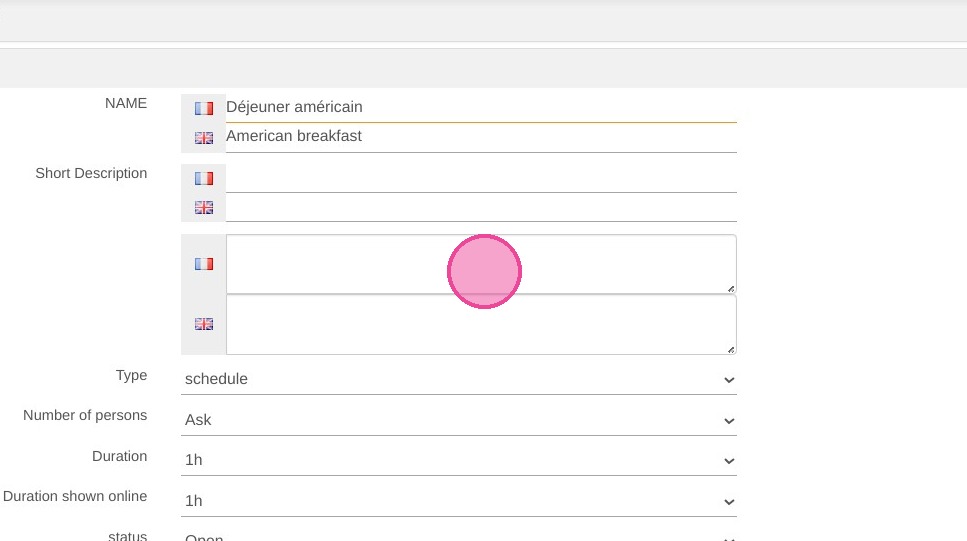
6. You can choose whether to ask for the number of guests per booking.
You can set the booking duration. For example, set the duration to 1h15 and the duration shown online to 1h.
The guest will only see a one-hour booking, and your staff will have 15 minutes to prepare the table for the next guest.
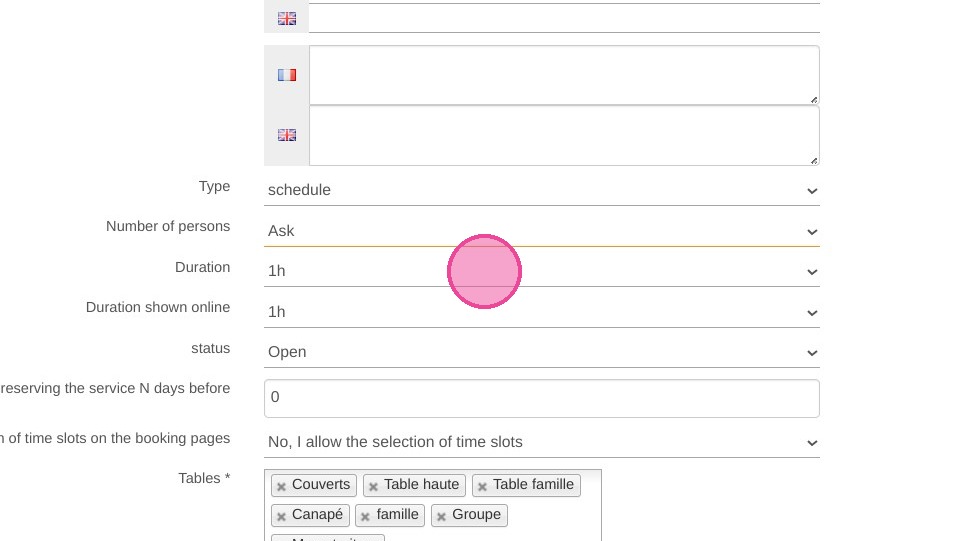
7. Status: should be open if you want to take reservations.
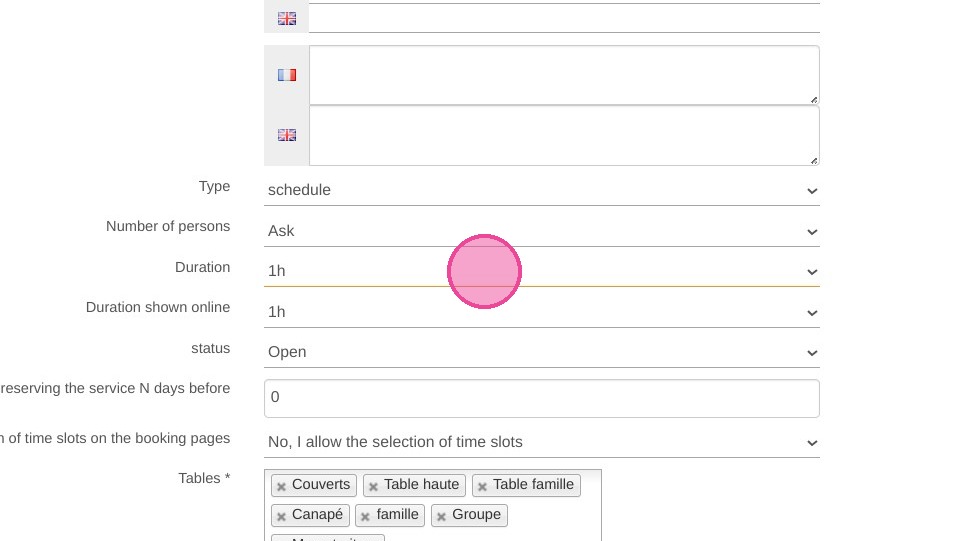
8. Tables: You will have to select the tables that can be booked for this service
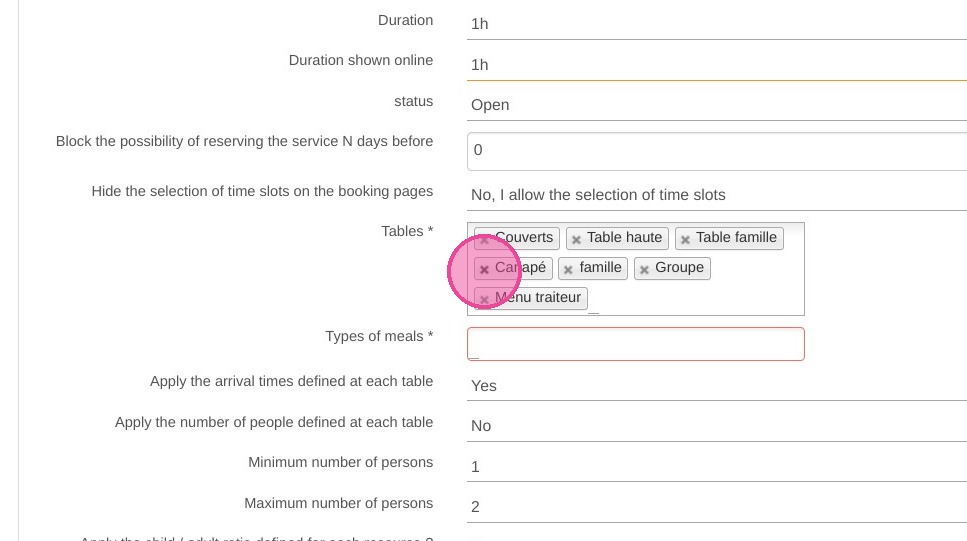
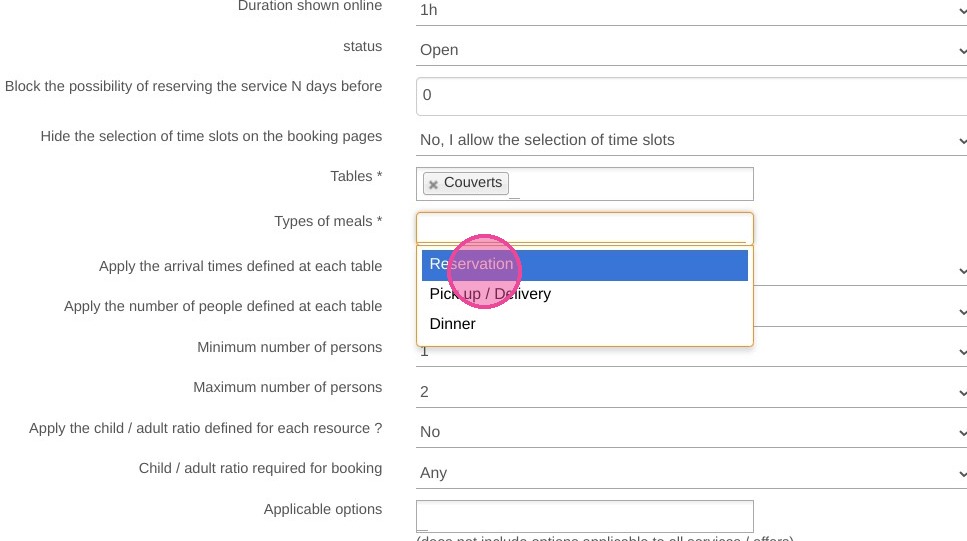
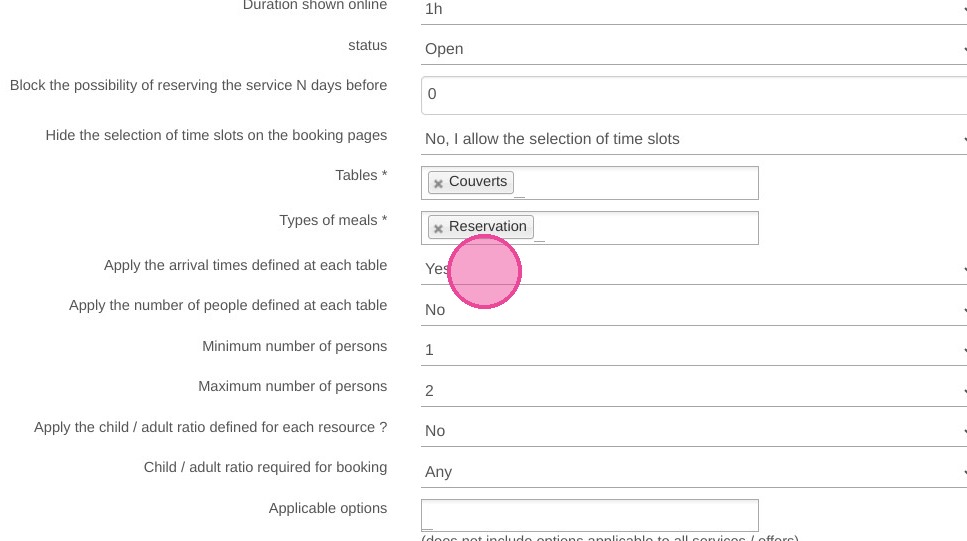
9. Select the type of meal it refers to.
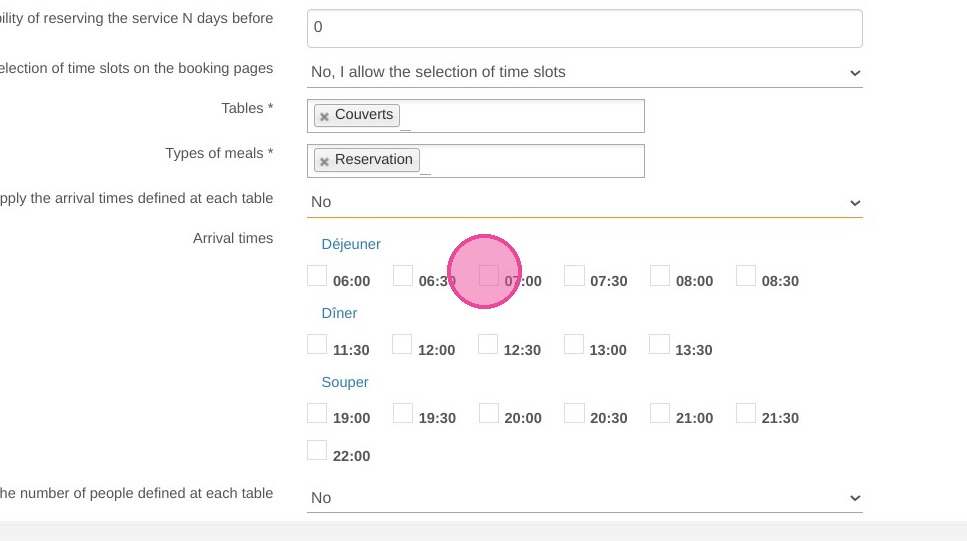
10. You can customize the arrival times and number of persons per booking.
11. For example, here I want to select the hours available for the american breakfast.
12. If you have Reservit Accommodation, you can allow this service to be booked together with the accommodation.
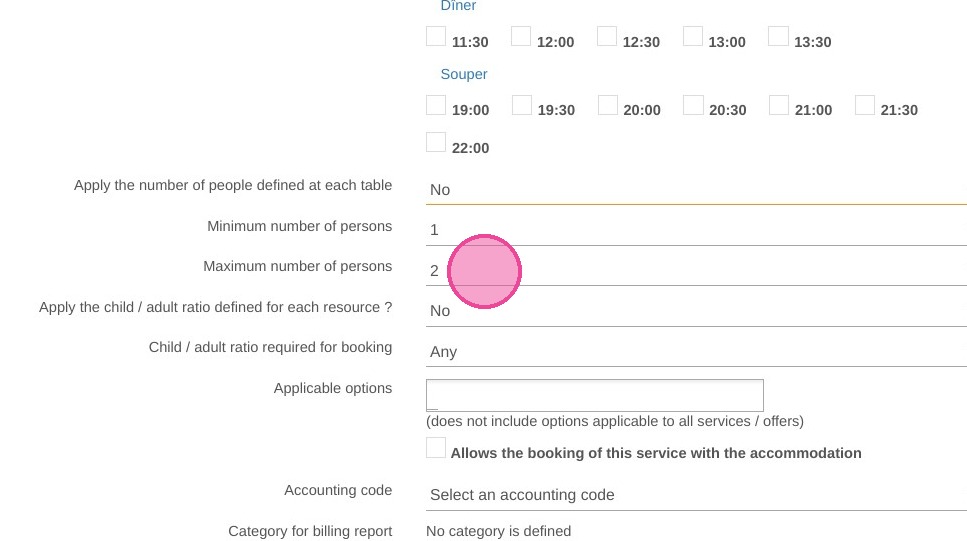
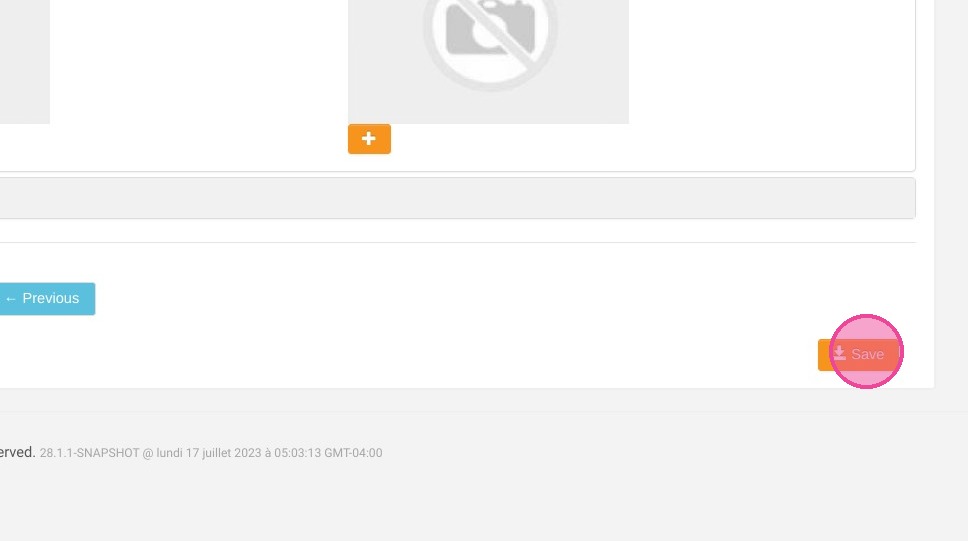
13. Click "Save"
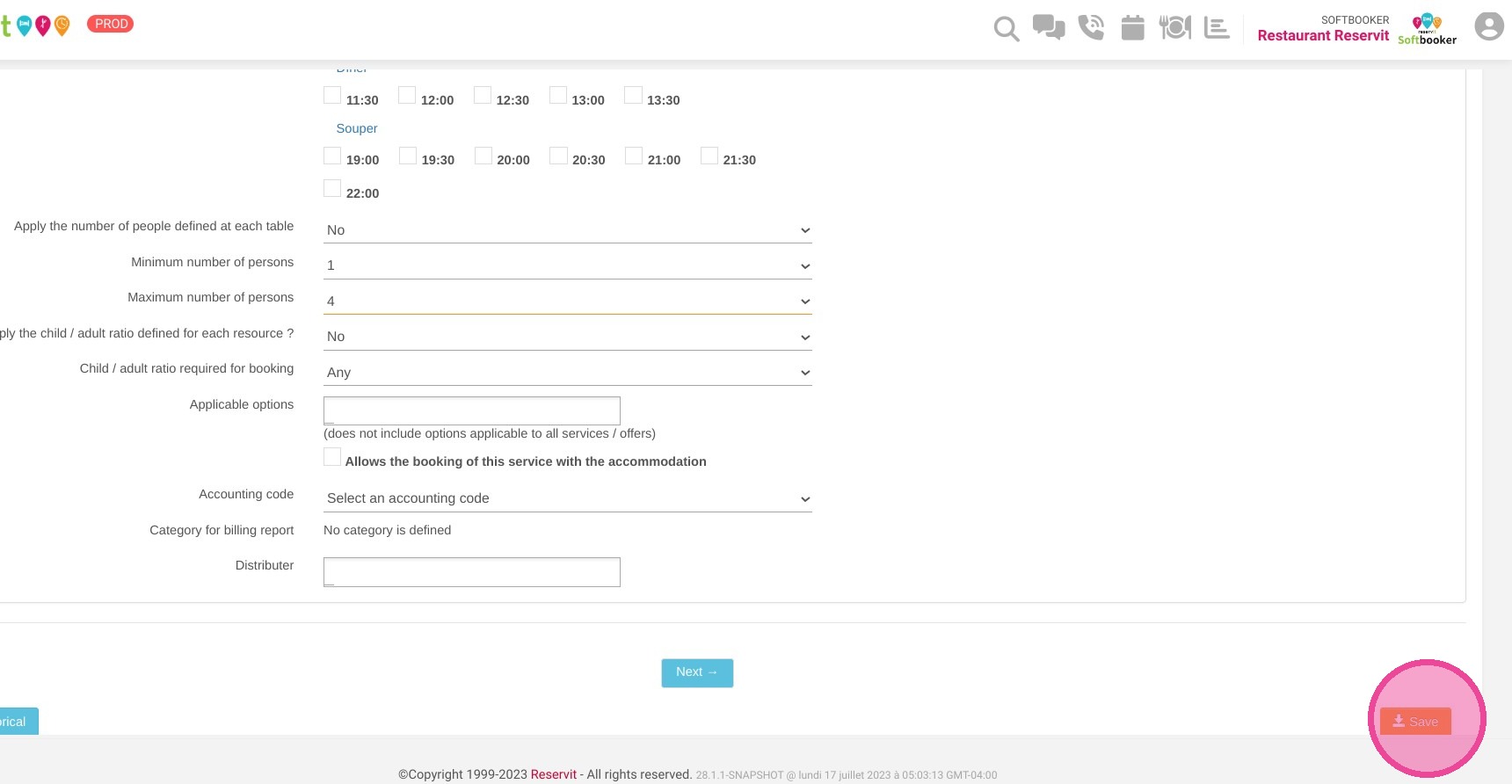
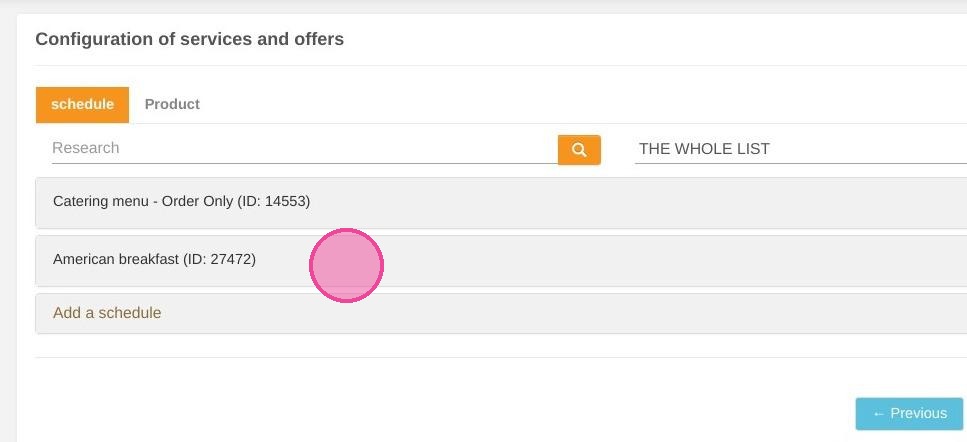
14. After saving, go back in your service in order to set up the prices and add restrictions or photos.
15. Click "Prices"
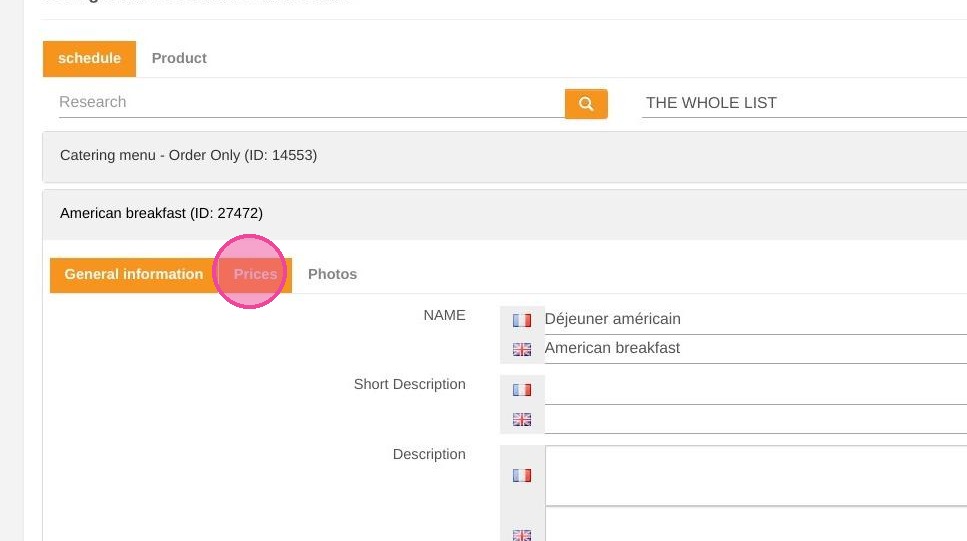
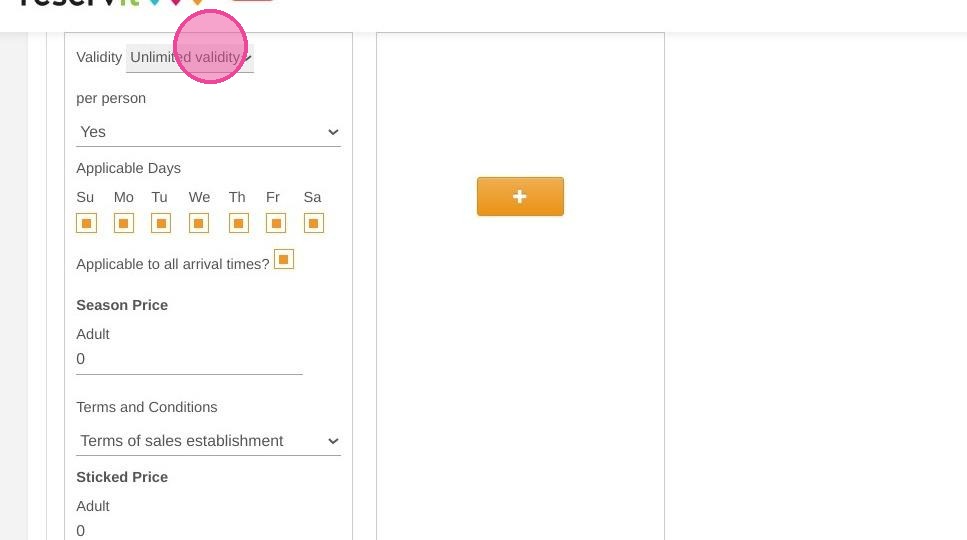
16. You can change the validity if the service is not offered year-round.
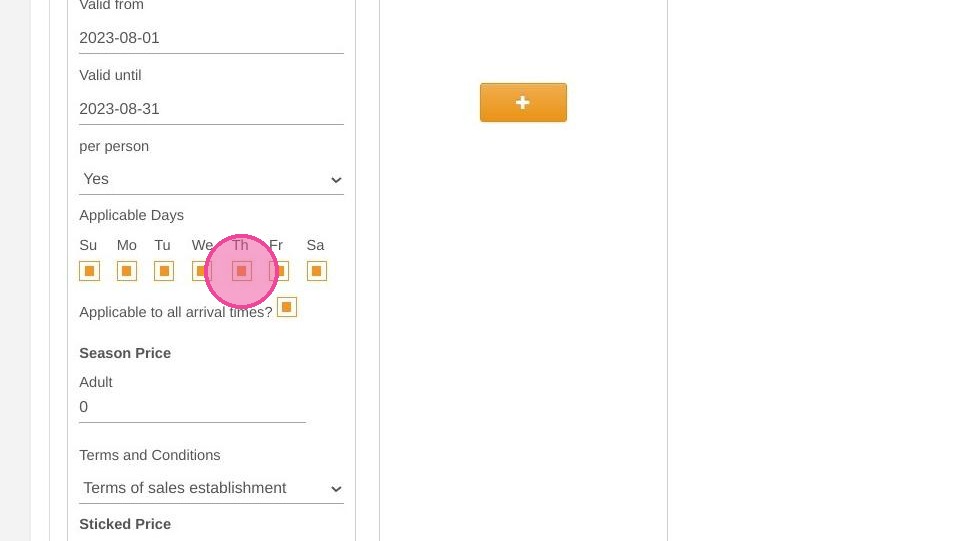
17. Then, you can choose if you offer this service only on specific days.
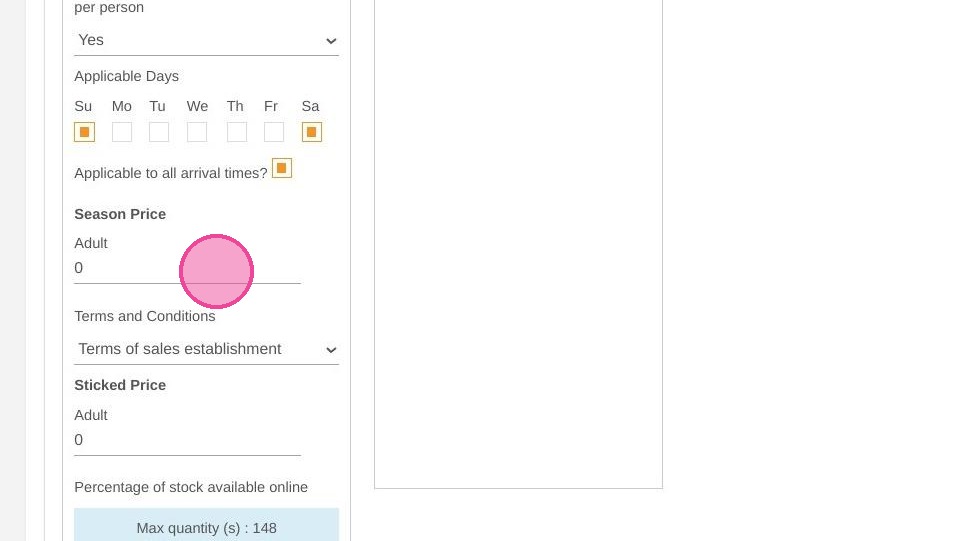
18. Price section: Enter $0 if you only want the client to book a time slot and pay on site, or add a price if you have a specific one for this menu.
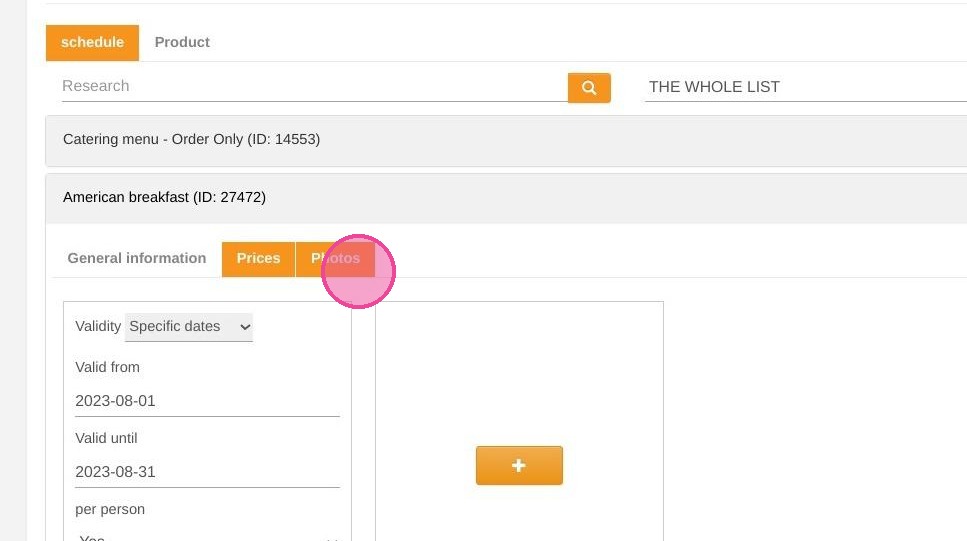
19. Click "Photos" and add your photos
20. Click "Save"