Article Summary: This step-by-step tutorial explains how to easily set up and configure service categories within Reservit Restaurant. You will learn how to intuitively organize your meals, translate category names for international guests, and generate direct booking links to streamline your online reservation process. Categorizing your offerings effectively makes it much easier for your customers to navigate your menu and book exactly what they are looking for.
The 5 key steps to set up your service categories:
-
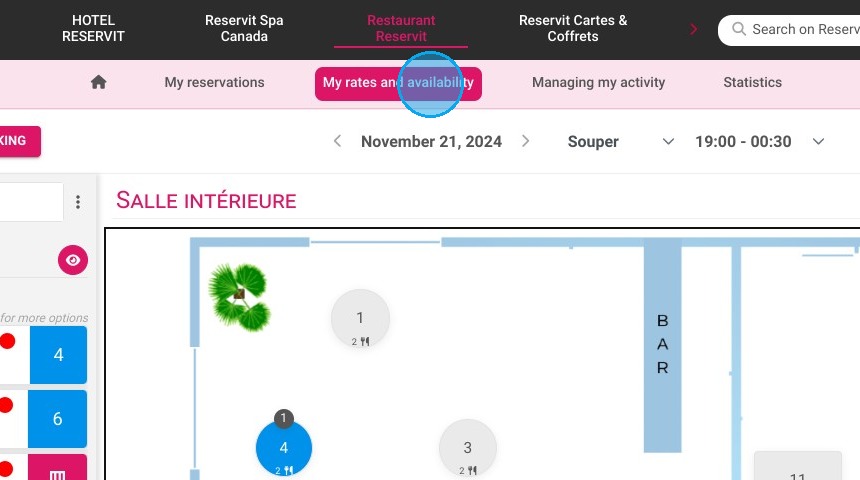
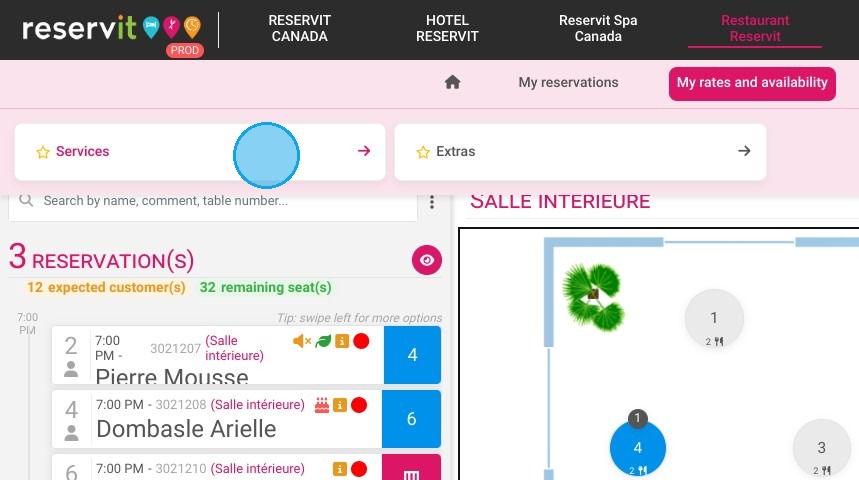
Access your service settings: Navigate to the "My rates and availability" menu and click on "Services."
-
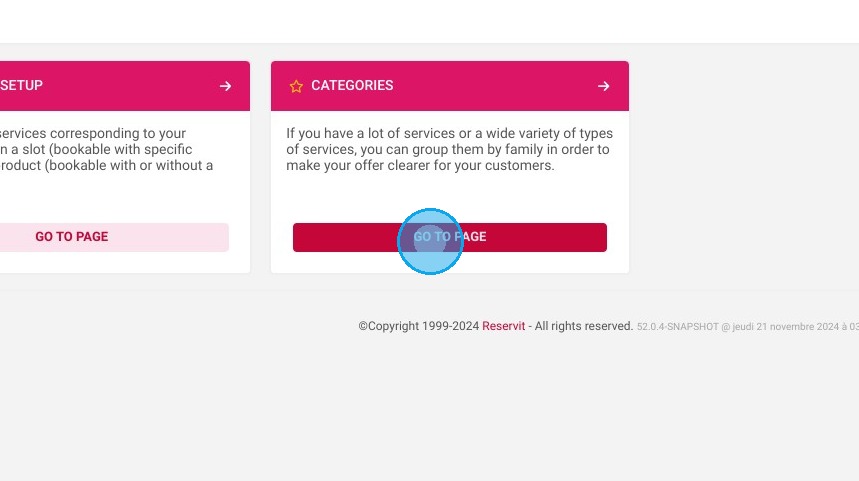
Open the categories dashboard: Select the "Categories" tab to view and manage how your current services are organized.
-
Create a new category: Click "Add a meal," then enter your new category's name in multiple languages and select the appropriate activity type.
-
Save your configuration: Click "Save" to ensure your new category is officially recorded and applied to your system.
-
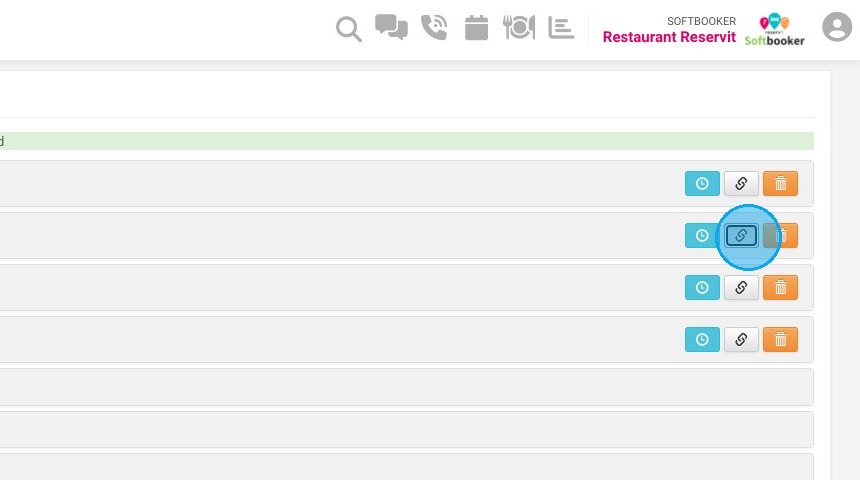
Integrate direct links: Copy the newly generated category link to embed directly onto your website, allowing guests to bypass general menus and access specific services instantly.
Why follow this guide? Structuring your restaurant's services into logical, easy-to-read categories significantly improves the booking experience, reducing customer friction and increasing your conversion rates. By utilizing the direct category links on your website, you optimize your sales funnel and effortlessly guide guests right to their preferred dining options.
1. Click "My rates and availability"
2. Click on "Services"
3. Go to "Categories"
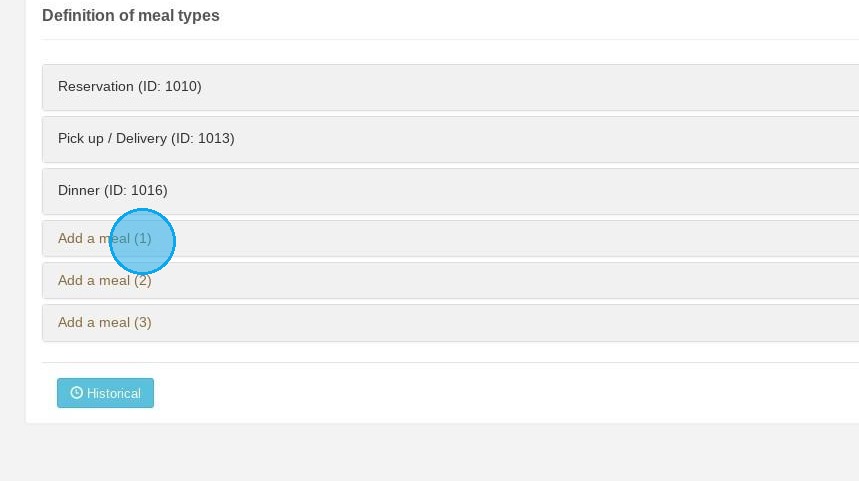
4. Click "Add a meal"
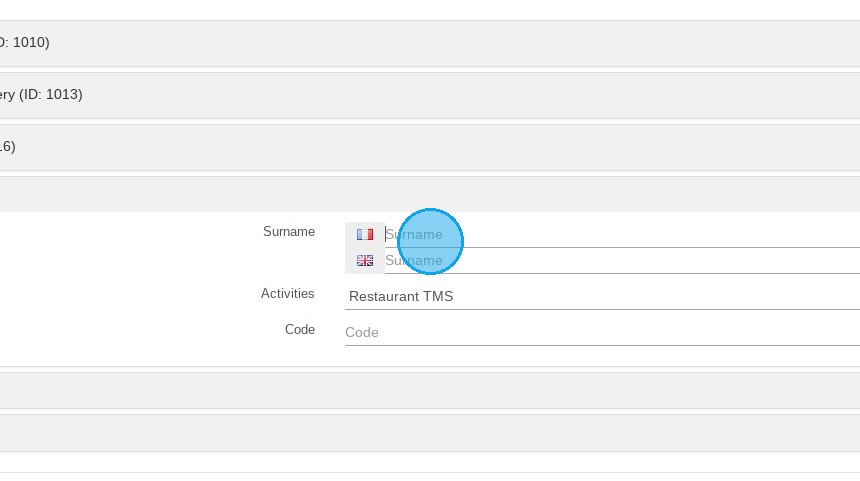
5. You can enter the name in different languages. You can also choose the type of activities if you offer more than one.
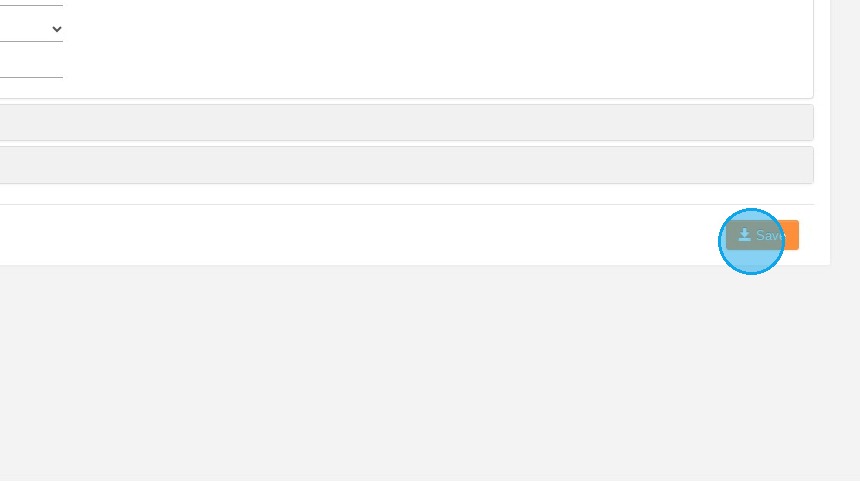
6. Don't forget to save your changes and click "Save"
7. You can use the category link to redirect directly to that category from your website.