

Article summary: This tutorial shows you how to get the address of your online booking page: the general page of your restaurant, or a page dedicated to a specific service (for example your evening table) or to a meal type that groups several services. You can place this link on your website, your social networks or your Google Business Profile.
The 4 key steps to get your booking links:
-
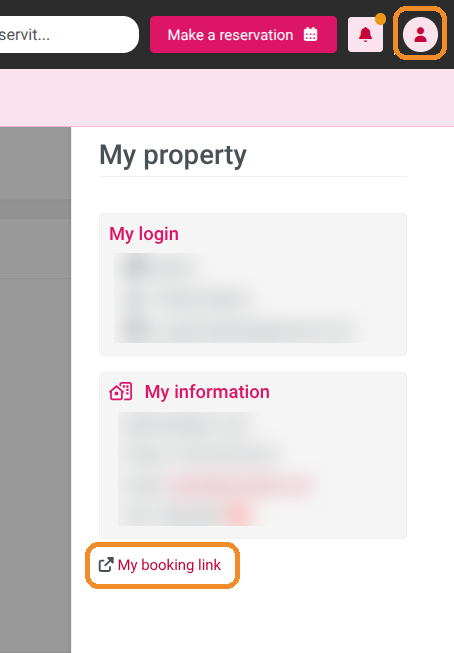
General link: Click the person icon at the top right, then My booking link.
-
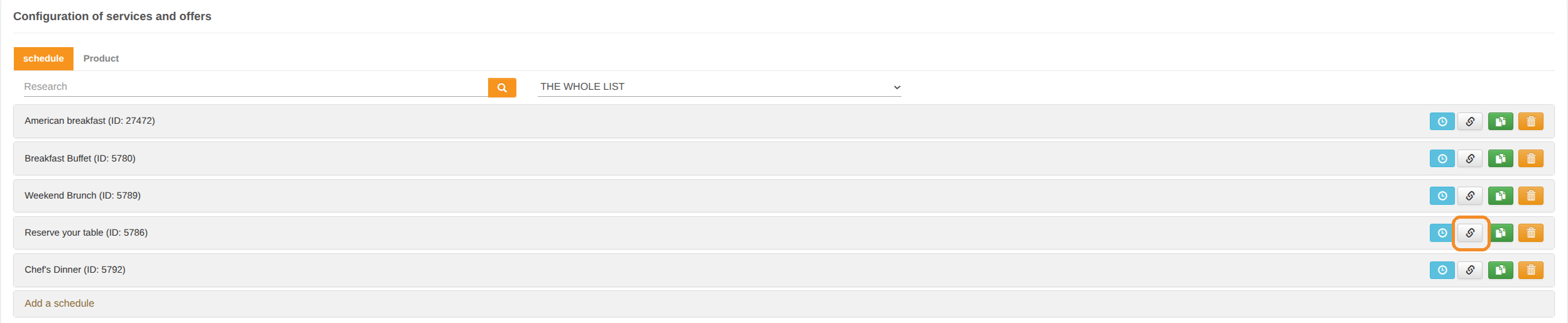
Link to a service: In SERVICES SETUP, click the chain-link button of the service.
-
Link to a meal type: In CATEGORIES, click the same button.
-
Copy the address: The booking page opens in a new tab: copy the address from the browser's address bar.
Why follow this guide? A "Book" button on your website that leads straight to the right page saves you phone calls and lets your guests book at any time.
General link of your restaurant
1. Click the person icon at the top right of the screen, then My booking link.
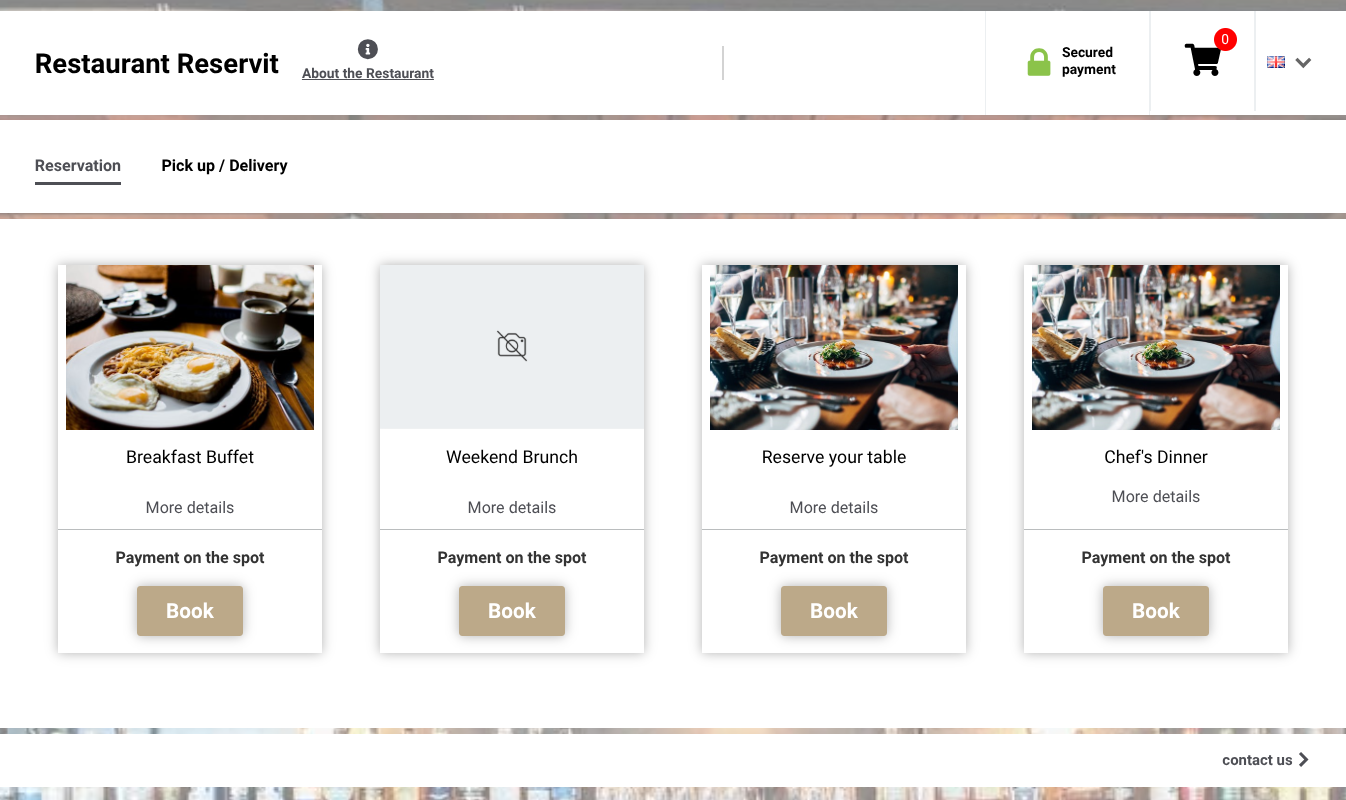
2. Your restaurant's booking page opens in a new tab, with all your services and their Book button. Copy the address shown in the browser's address bar and paste it on your website.
This link is also available in the setup assistant (Wizard).
Link to a specific service
3. Go to My rates and availability > Services.

4. In the SERVICES SETUP tile, click GO TO PAGE.
5. On the service's row, click the grey chain-link button (second button on the right).
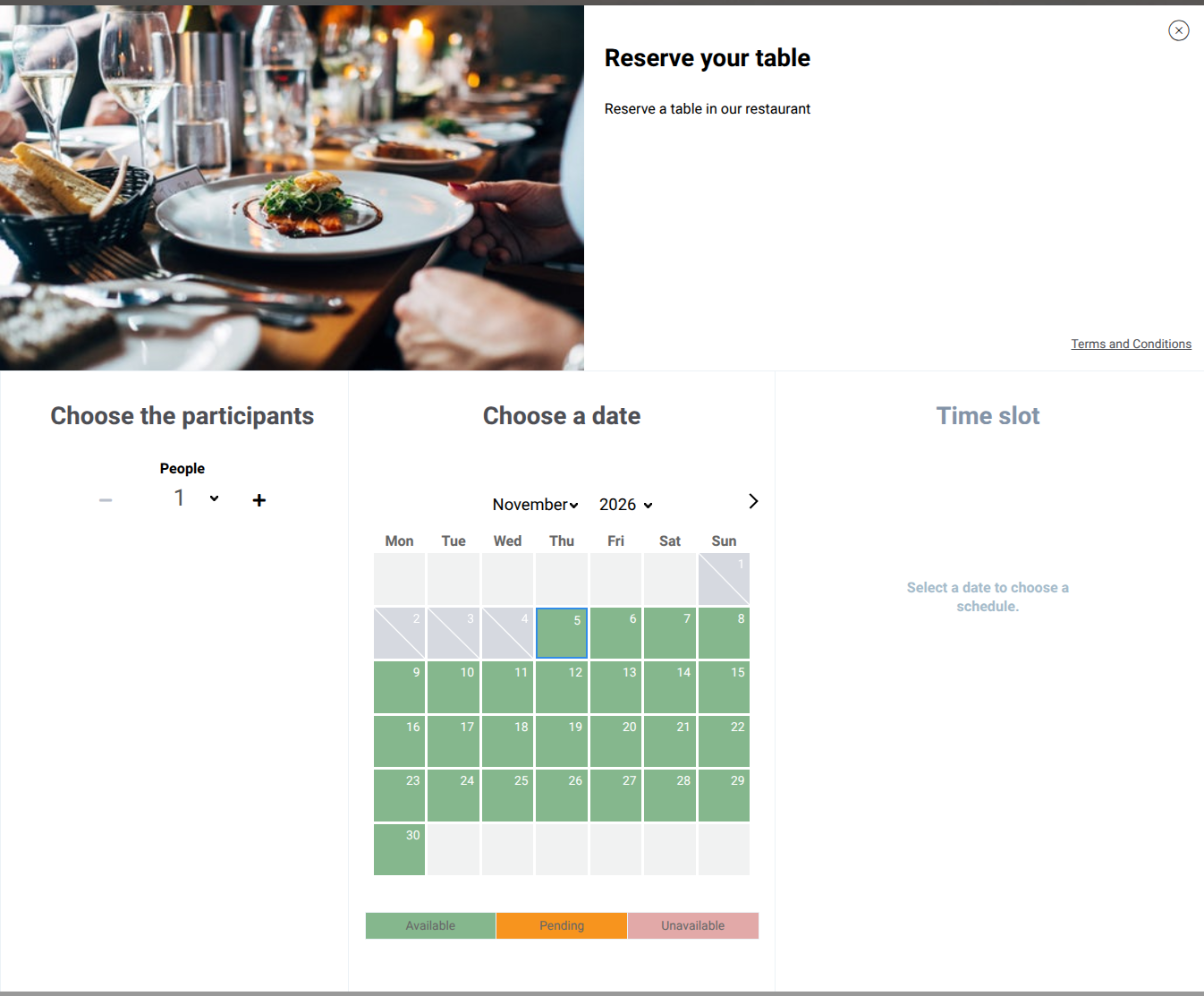
6. The booking page of this service opens in a new tab: your guest directly chooses the number of people, the date and the time slot.
7. Copy the address shown in the browser's address bar and paste it on your website.
If the page opens in French, add &lang=EN at the end of the address to display it in English, then copy the full address.
Link to a meal type
8. Go to My rates and availability > Services, then in the CATEGORIES tile, click GO TO PAGE.
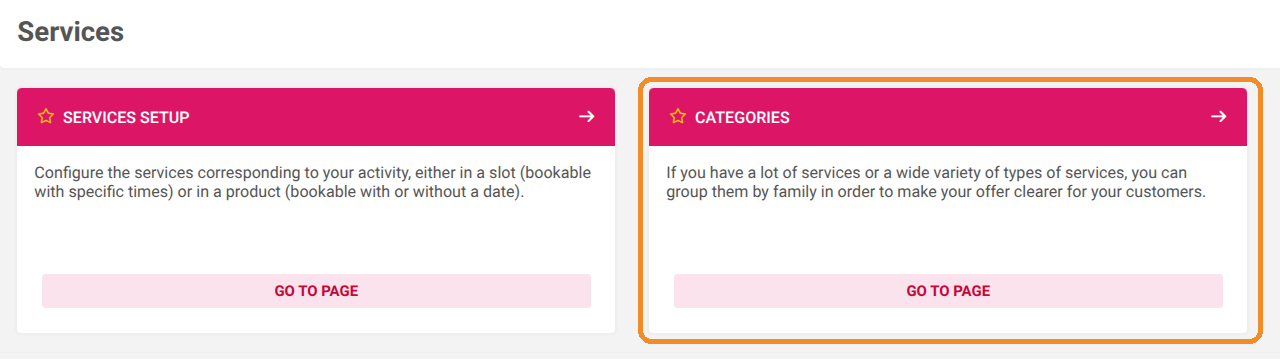
9. On the Definition of meal types page, click the chain-link button of the meal type.

10. The booking page opens with all the services of this meal type, each with its Book button: copy the address from the browser's address bar.
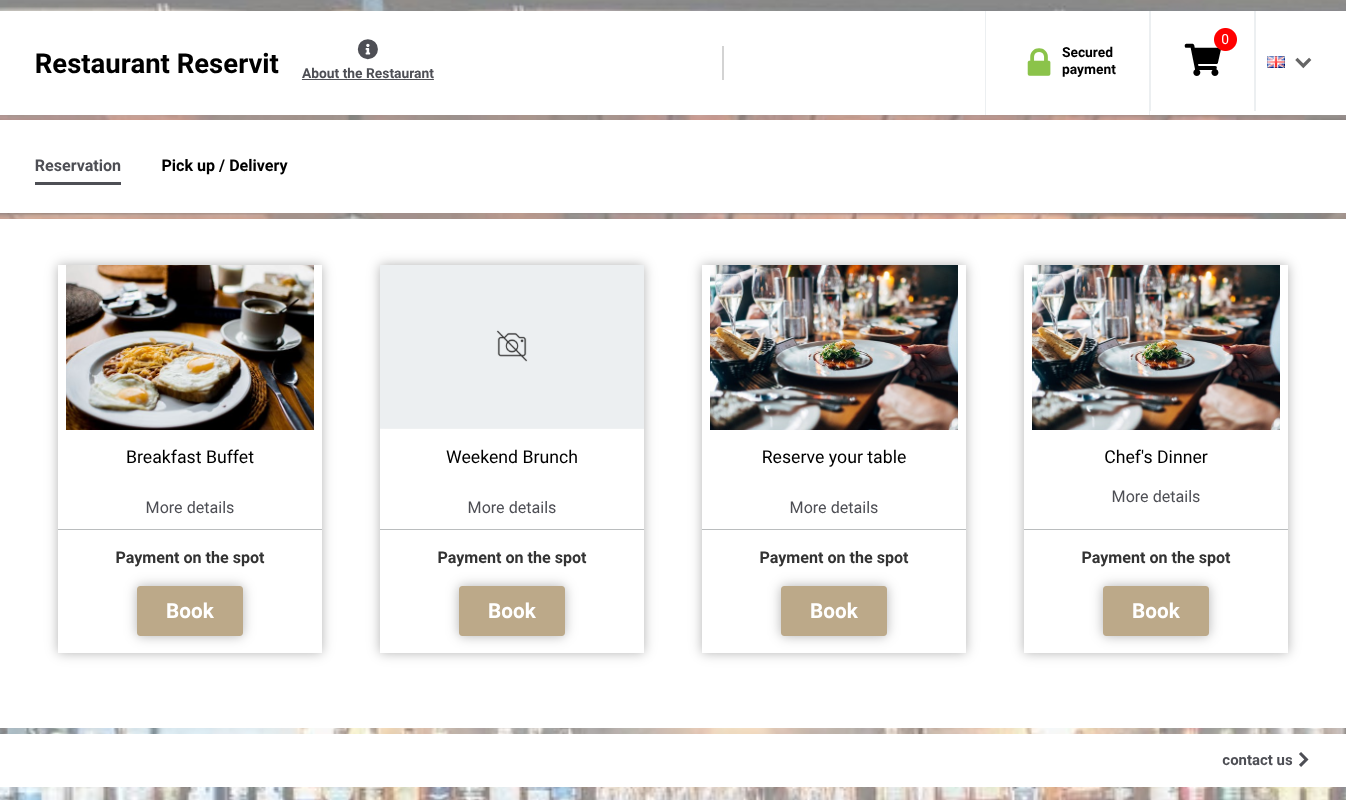
A meal type link is useful to separate your offers, for example table booking on one side and pick-up or delivery on the other.
A service that is closed or has no online availability does not appear on the booking page, even if the link is on your website.