

Article summary: If your property also offers rooms with Reservit Accommodation, your guests can book a table while booking their stay. This tutorial shows you how to choose which services are offered with the accommodation and how to block them on the day of arrival or departure.
The 3 key steps to offer the restaurant with the accommodation:
-
Have your two properties linked: The link between your hotel and your restaurant is created by Reservit.
-
Choose the services offered: In each service's form, tick Allows the booking of this service with the accommodation.
-
Block certain days: Prevent booking on the guest's day of arrival or day of departure.
Why follow this guide? A guest who books a table at the same time as a room is a guaranteed cover: you fill your dining room in advance and the guest only has one booking to make.
To link your restaurant to your accommodation, contact Reservit support.
Open a service form
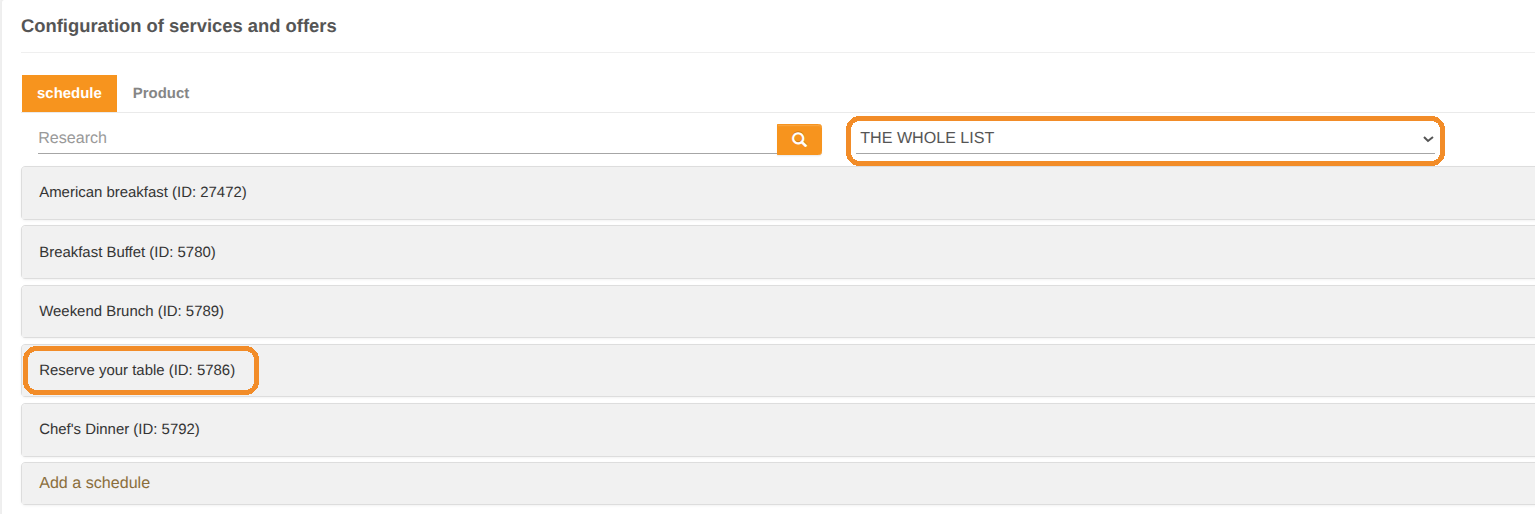
1. Go to My rates and availability > Services, then in the SERVICES SETUP tile, click GO TO PAGE.
2. To see at a glance what is already offered, choose services can be booked with the accommodation in the list at the top of the page (by default THE WHOLE LIST).
3. Click the name of the service to open its form, General information tab.
Offer the service with the accommodation
4. At the bottom of the General information tab, tick Allows the booking of this service with the accommodation.
5. If needed, tick Block the reservation of this service on the day of arrival at the accommodation (for example for a lunch served before check-in time) and/or Block the reservation of this service on the day of departure from the accommodation (for example for a dinner after check-out).
6. Click Save at the bottom of the page.

If the message "This field is generally enabled in your school configuration." is displayed, the box is ticked and greyed out: all your services are already offered with the accommodation. You can still set the arrival day and departure day blocks, service by service.
Offer all your services at once
7. Go to Managing my activity > Property Setup, then in the PROPERTY INFORMATION tile, click GO TO PAGE.
8. Type "accommodation" in Find a setting: in the schedule section, Allow the reassembly of all services with accommodation. shows whether all your services are offered automatically (Yes) or whether you choose them one by one in their form (No).
9. Choose Yes or No, then click Edit at the bottom right to save.

The service must also be open for online booking (status Open and inventory available online) to be offered during a room booking.
Find these bookings
10. Table bookings made during a room booking arrive in your restaurant like the others. In My reservations > Reservation management, choose Accommodation in Origin to display them.
The guest receives a single confirmation email for their stay and their table.