Article Summary: This tutorial explains how to customize and manage the list of housekeeping tasks directly in Reservit. You will learn how to add new tasks for a given unit status, and how to edit or delete existing tasks for your housekeeping staff. Mastering this setup helps you streamline your daily operations and standardize the quality of cleaning across your property.
The 5 Key Steps to Set Up Your Housekeeping Task Lists:
-
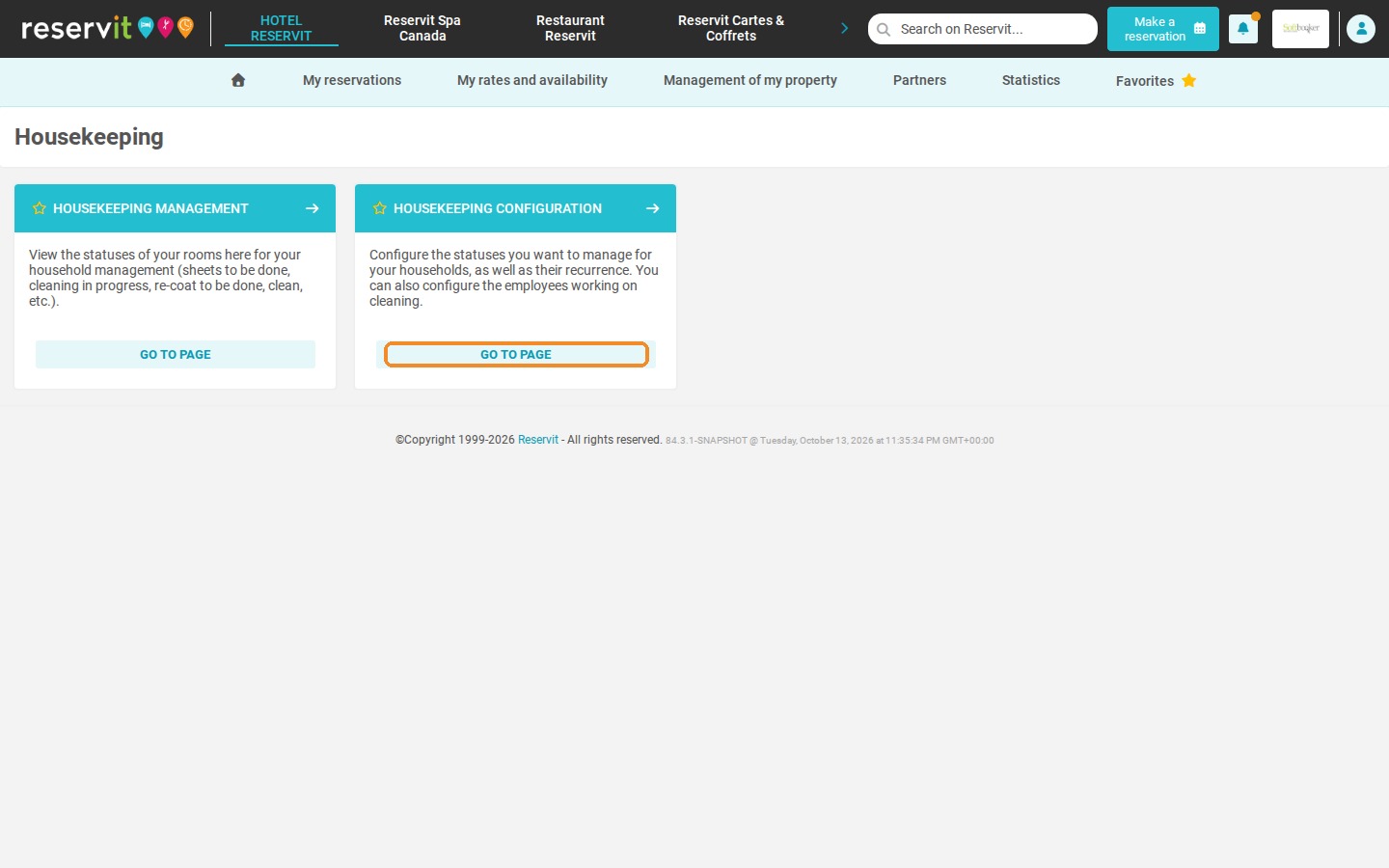
Open the housekeeping settings: Click "Management of my property" > "Housekeeping", then "GO TO PAGE" on the "HOUSEKEEPING CONFIGURATION" tile.
-
Open the tasks: Click the "Tasks" tab to see the to-do lists set up for each cleaning status.
-
Create a new task: Click "ADD" next to the to-do list of the status concerned.
-
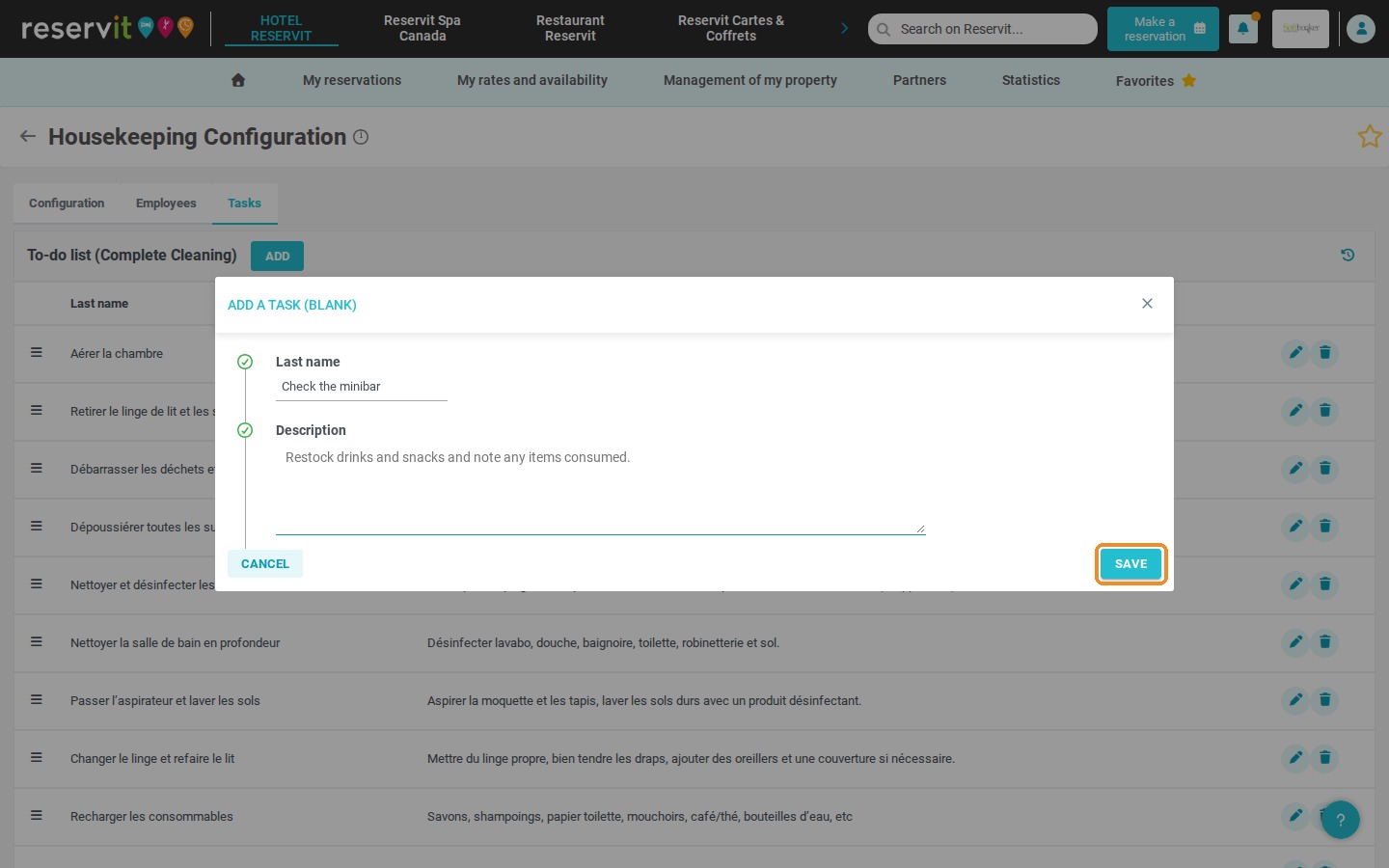
Describe and save the task: Enter a clear name and a detailed description (specific instructions for your team), then click "SAVE".
-
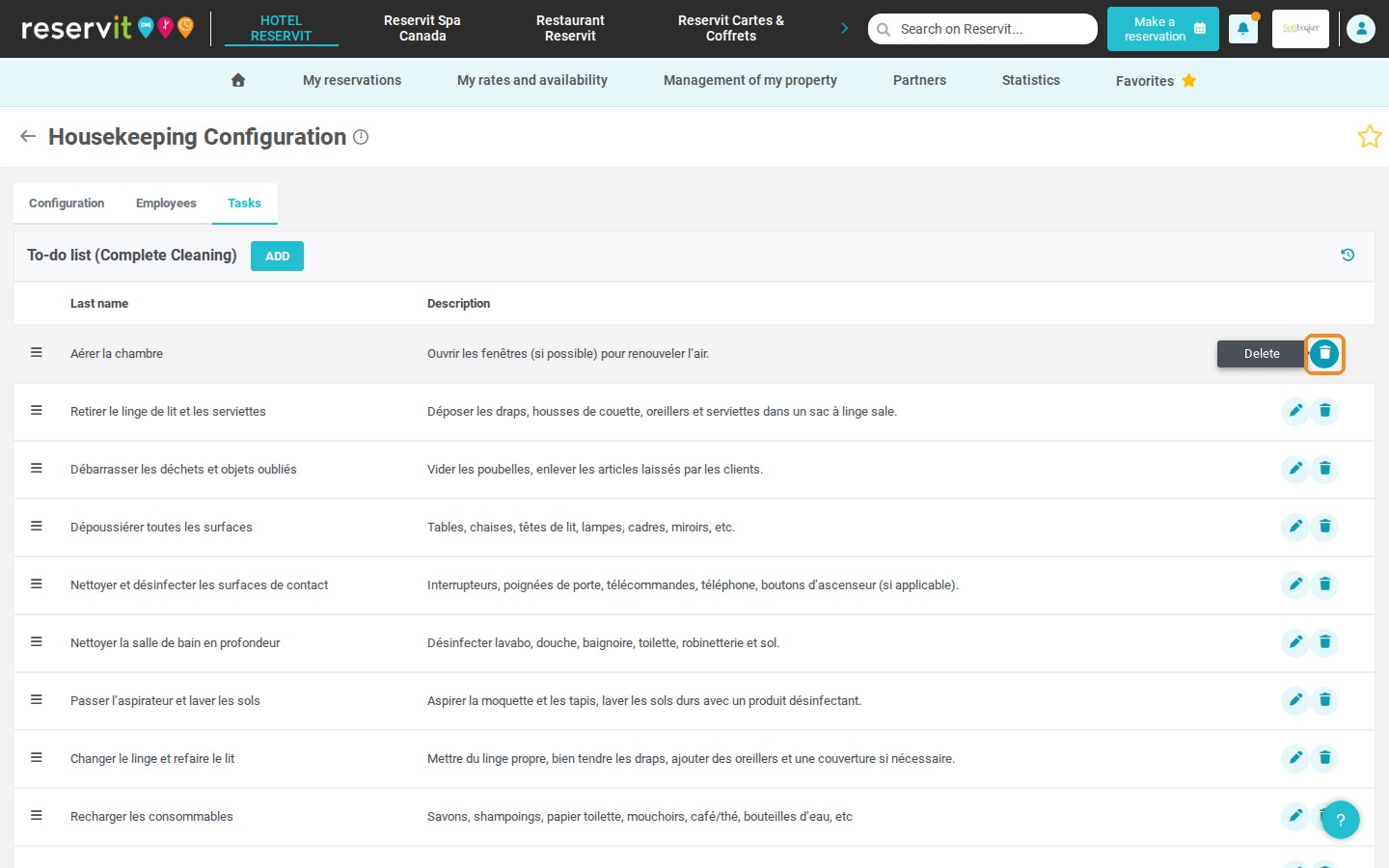
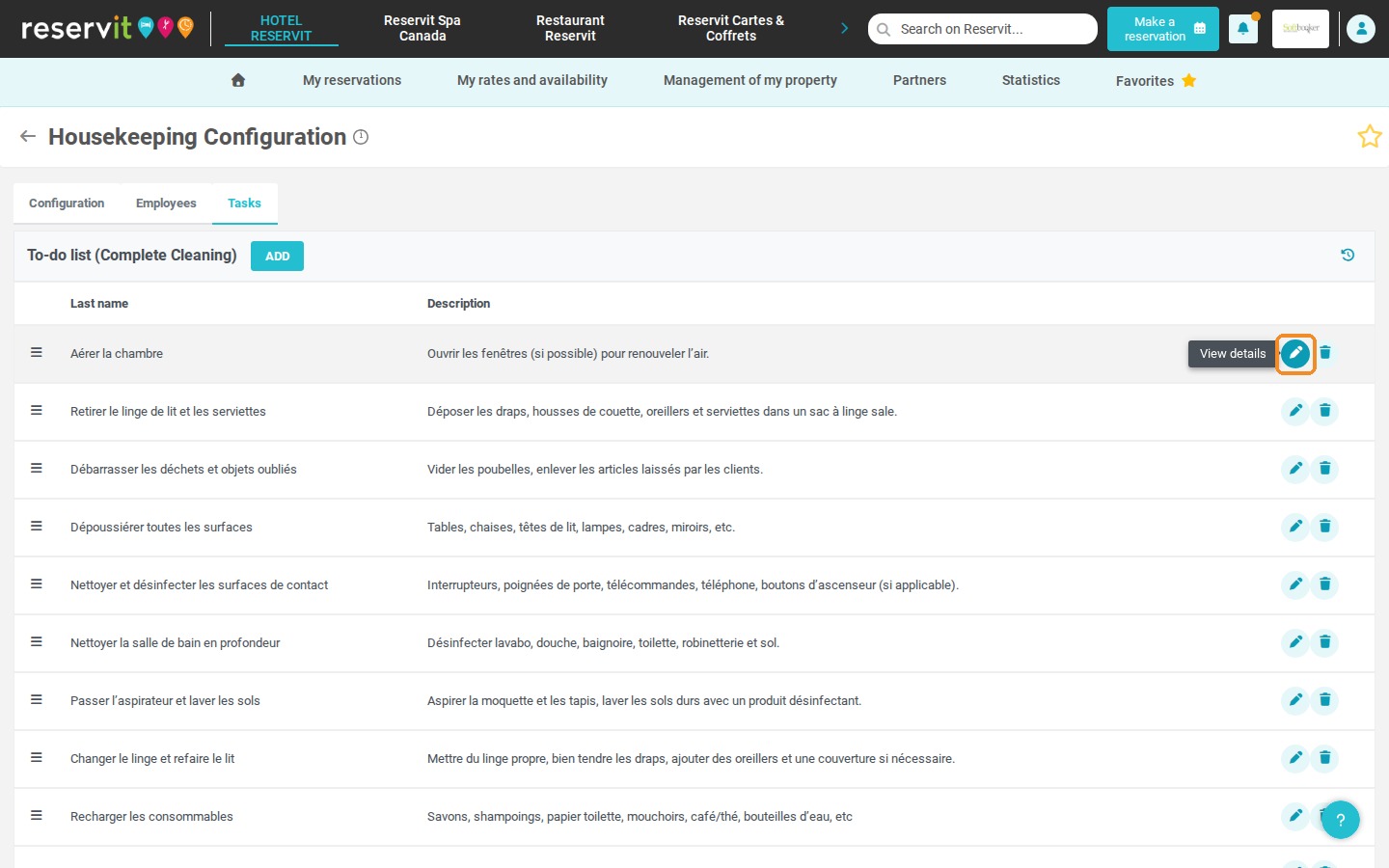
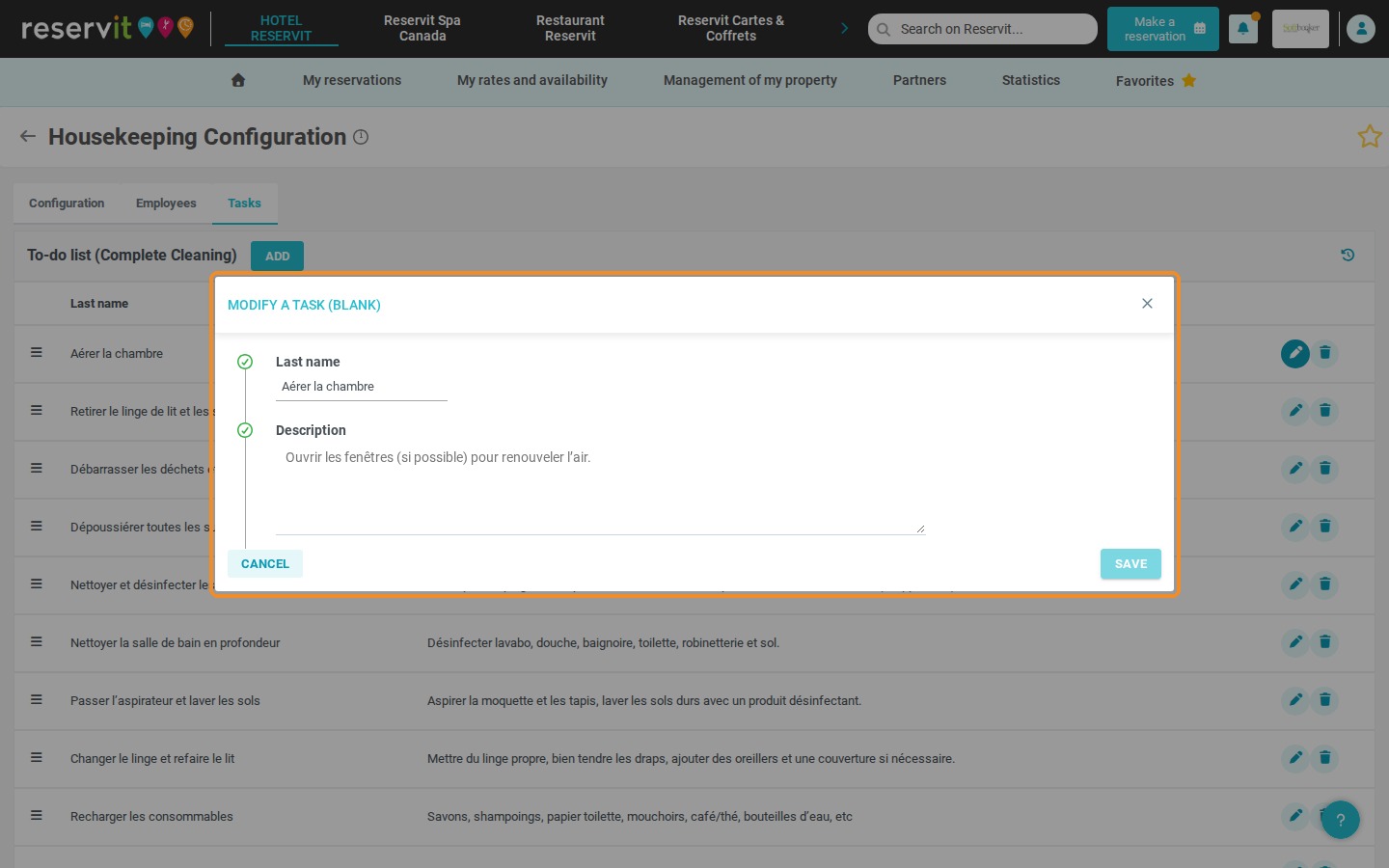
Manage existing tasks: Use the pencil icon to correct or complete a task, or the trash can icon followed by a confirmation to delete an obsolete task.
Why Follow This Guide? Well-defined cleaning checklists guide your housekeeping staff precisely every day and structure the quality control carried out by your governesses. It is the best way to improve internal communication, reduce oversights and make sure every unit is prepared according to your property's standards.
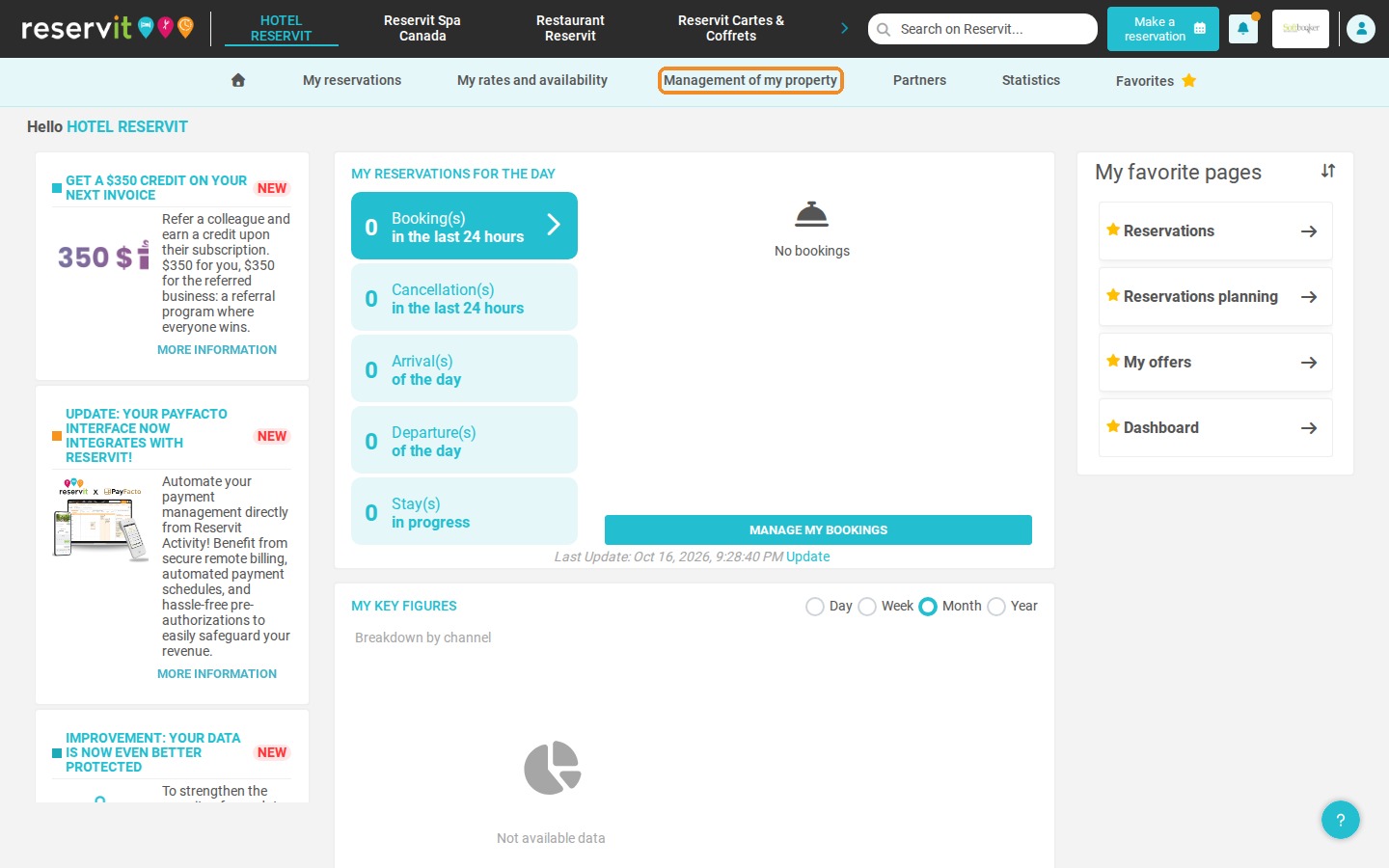
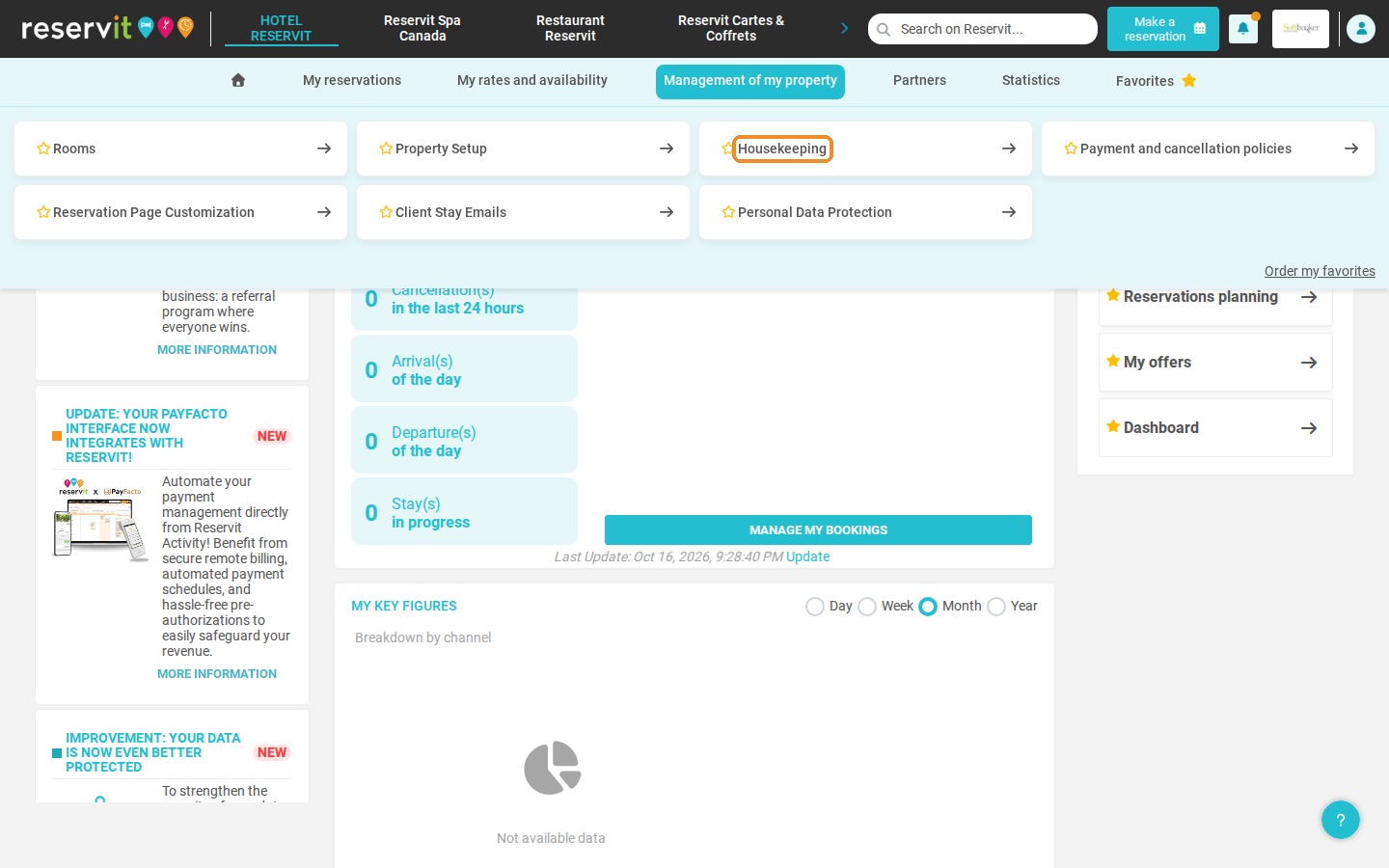
1. Make sure your property is selected at the top of the screen, then click "Management of my property" > "Housekeeping".
2. On the "HOUSEKEEPING CONFIGURATION" tile, click "GO TO PAGE".
3. Click the "Tasks" tab.
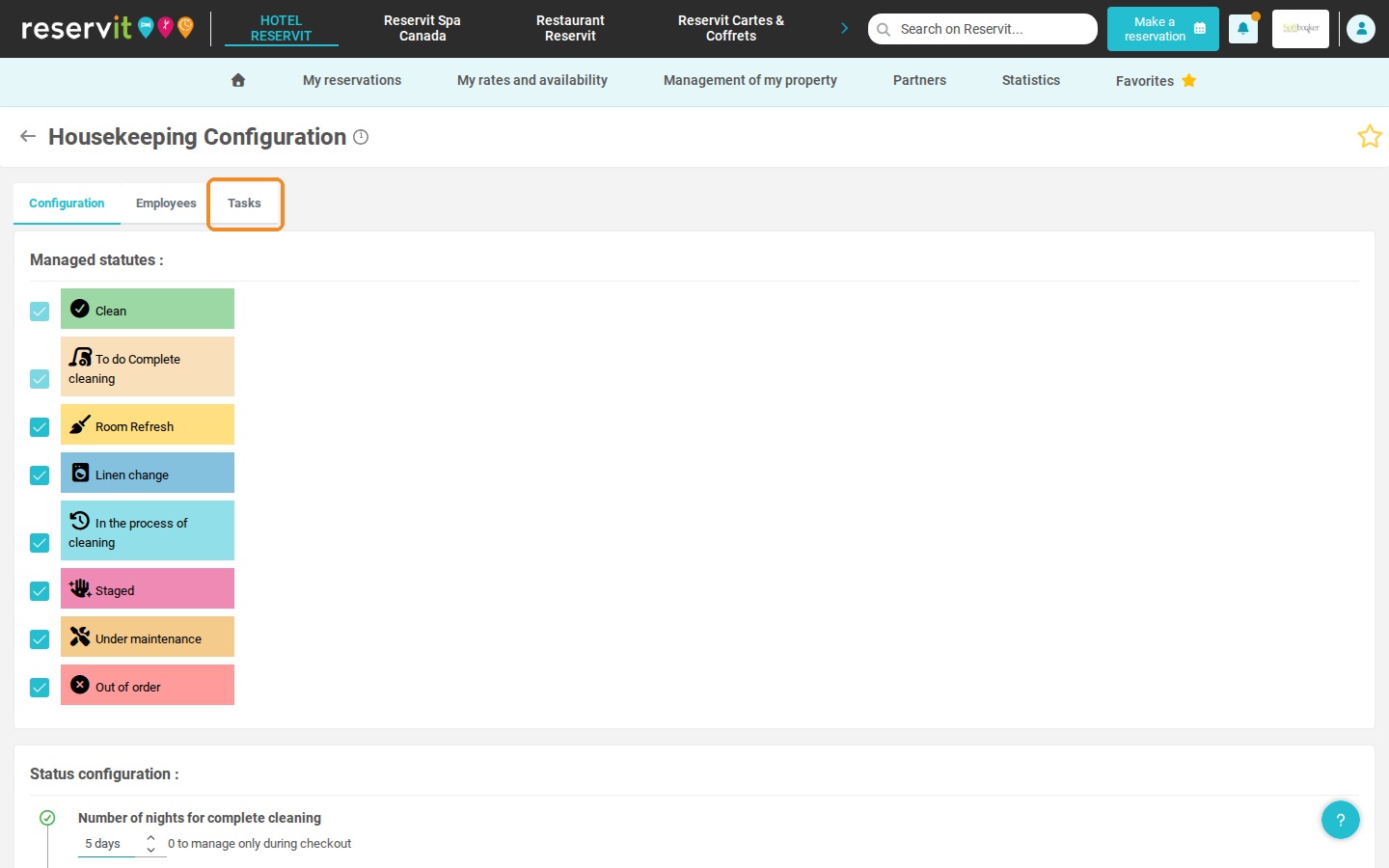
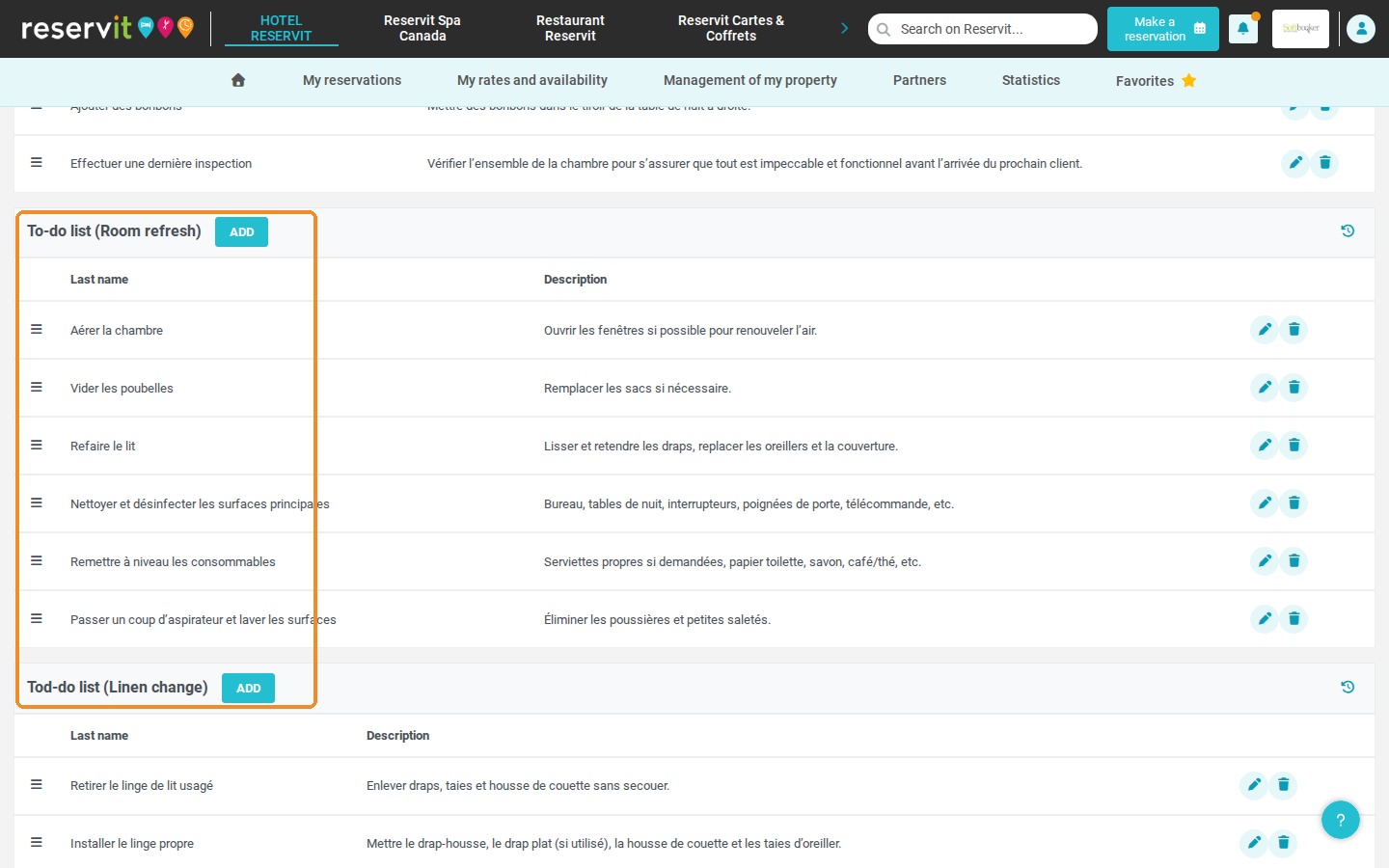
4. Click "ADD" to create a new task for a unit status. There is one to-do list per cleaning status, for example "To-do list (Complete Cleaning)" and "To-do list (Room refresh)", plus a "Linen change" list if you use this status.
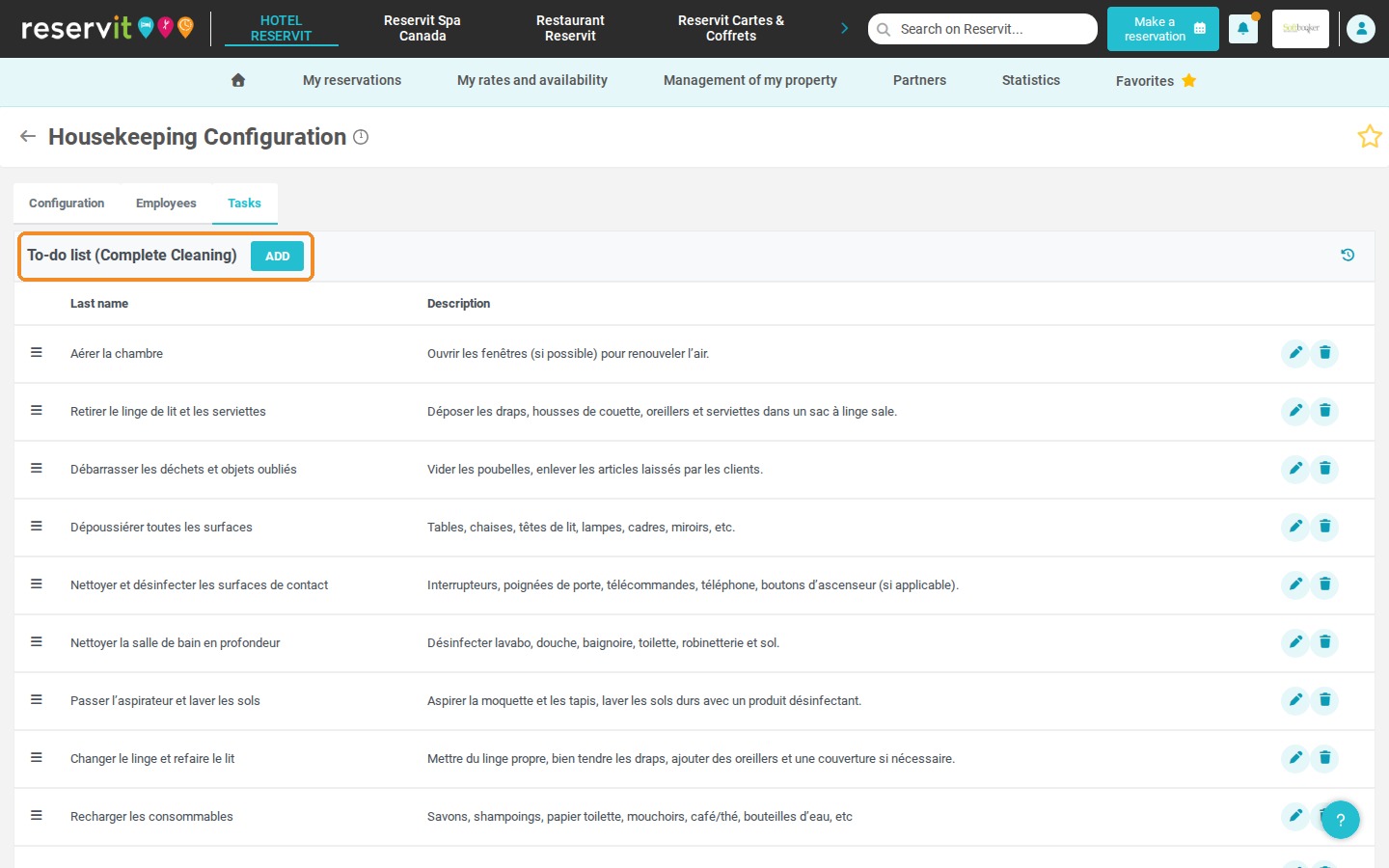
5. Enter the name of the task, then its detailed description.
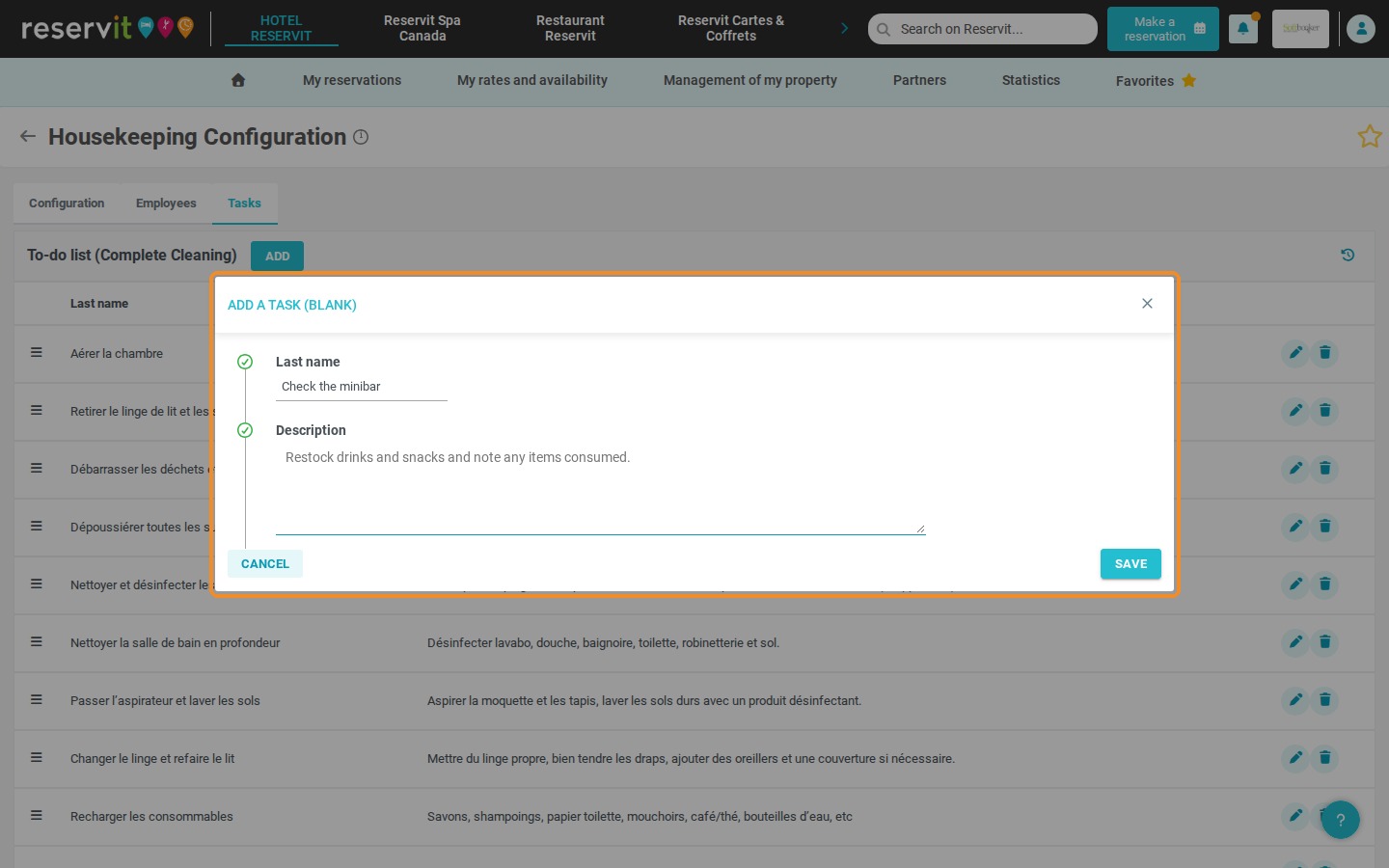
6. Click "SAVE" to finish creating the task.
7. To edit a task, click the pencil icon ("View details"). Make your changes in the "MODIFY A TASK" window, then click "SAVE".
8. To delete a task, click the trash can icon ("Delete"), then confirm the deletion.