

Article summary: This tutorial explains how to let your guests choose the member of your team (guide, instructor, practitioner) when they book online. Guests then only see the dates and times when this person is available.
The 3 key steps:
-
Prepare your team: your team members are created and linked to the activity.
-
Turn on online choice: set Choice of staff member in booking pages to Yes.
-
Check: look at the See availabilities of list on your booking page.
Why follow this guide? Your regular guests book with the person they know, and each team member receives the bookings meant for them.
Before you start
Your team members must be created and linked to the activity (Assign staff to this benefit? set to Yes in the activity). See the tutorial "How to Manage Your Team and Staff in Reservit Activities".
Turn on the choice of team member
1. Go to Managing my activity > Property Setup > Property information, Staff management section.
2. Check that Activate personnel management is set to Yes.
3. Set Choice of staff member in booking pages to Yes, then click Edit at the bottom of the page to save.

What your guests see
On your booking page, above the calendar, the See availabilities of list offers Everybody (default choice) and the name of each team member linked to the activity.
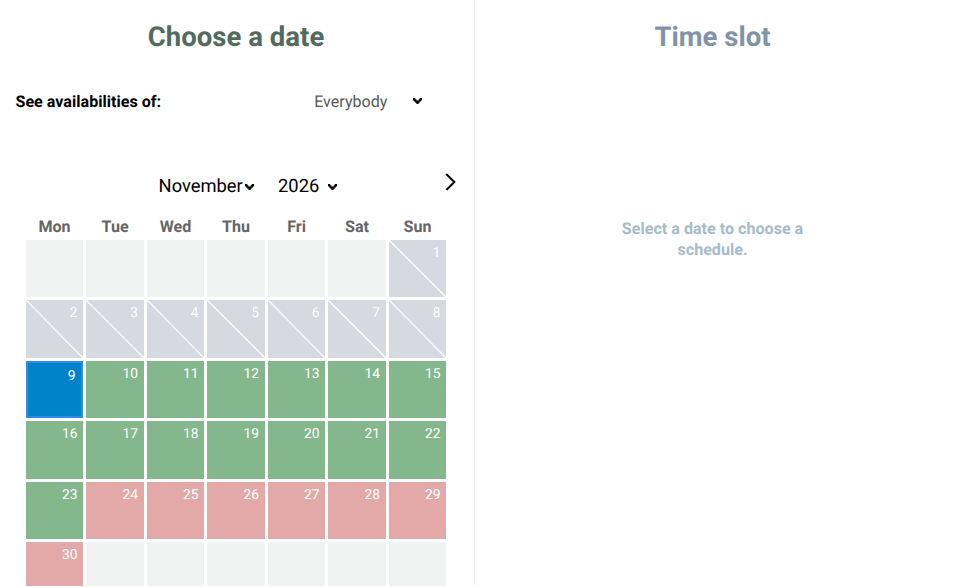
When guests choose a name, the calendar and times update: only the days and times when this person is available remain.
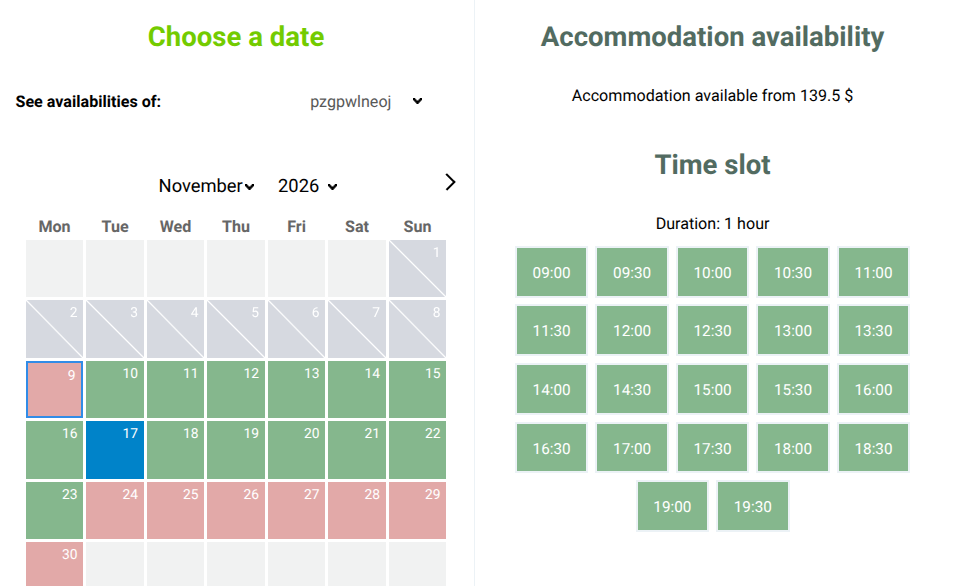
If guests keep Everybody, an available team member is assigned to the booking: their name appears next to the time in the shopping cart.
The name shown to guests is the one entered in the team member's record. Use a first name or a name your guests will recognize.