

Article summary: An activity set up in Reservit Activities may not show on your booking page, or may show with no time available. This tutorial gives you the list of points to check, in order, so you can find the cause and fix it yourself.
The 4 key points to check:
-
The activity: it is open and linked to a resource and a category.
-
The price: it covers the requested date, day of the week and time.
-
Availability: the resource, the staff and the arrival times allow the booking on that day.
-
Booking deadlines: the deadline before reservation, the booking hour limit and the N-days block do not close the sale.
Why follow this guide? An activity that does not show online means lost bookings without you knowing it. These checks take a few minutes and solve most cases without calling support.
1. Check the activity itself
1. Go to My rates and availability > Services > SERVICES SETUP > GO TO PAGE, then click the name of the activity.
2. In the General information tab, check:
-
status: Open (a closed activity does not appear online);
-
Resources and Offers types: at least one resource and one category are selected;
-
Arrival times: the times you want to sell are ticked;
-
the gift-only box (Can be offered in the English interface): unticked, unless the activity is only sold as a gift voucher.
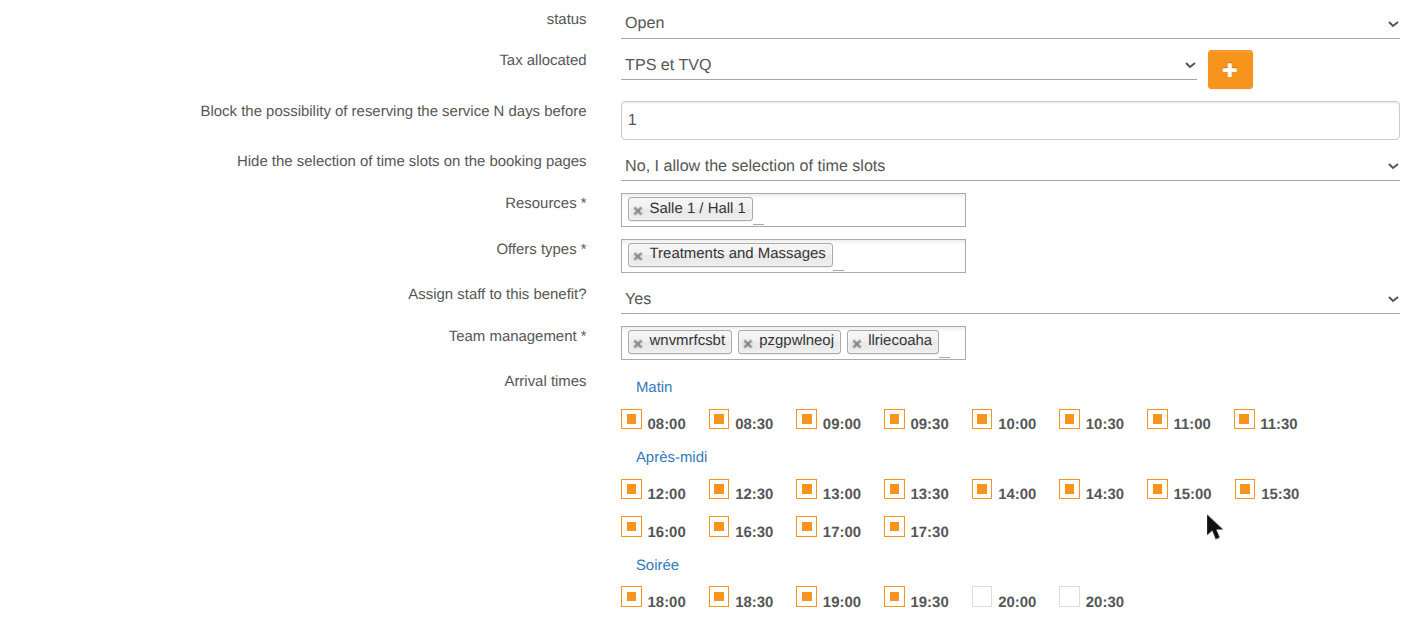
A category with no bookable activity is not shown online: if a whole category has disappeared, check the activities it contains.
2. Check the price
3. Open the Prices tab of the activity and check that a price covers the requested date:
-
Valid from and Valid until include the date;
-
the matching day is ticked in Apply to following dates;
-
Apply to following time slots is ticked, or the requested time is one of the price's time slots;
-
a price is entered.
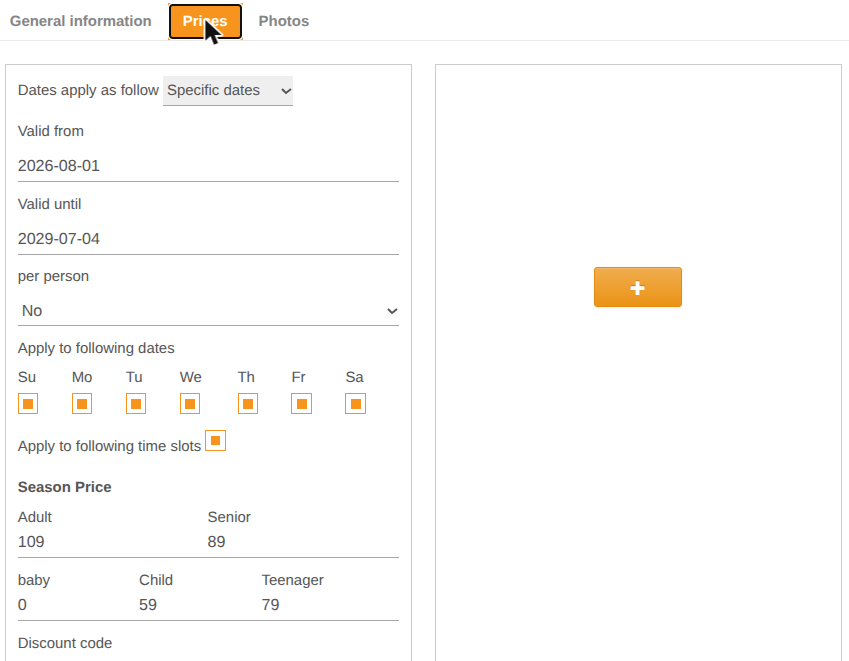
A $0 activity is only offered online if Accept reservations at 0 is set to Yes (Managing my activity > Property Setup > Property information, Online booking section).
3. Check availability
4. The resource: in Managing my activity > Resources > Resources Setup, check that the activity's resource has an Open Default status, a quantity above 0 in Total number of resources for that day, and a Maximum number of persons large enough for the requested group.
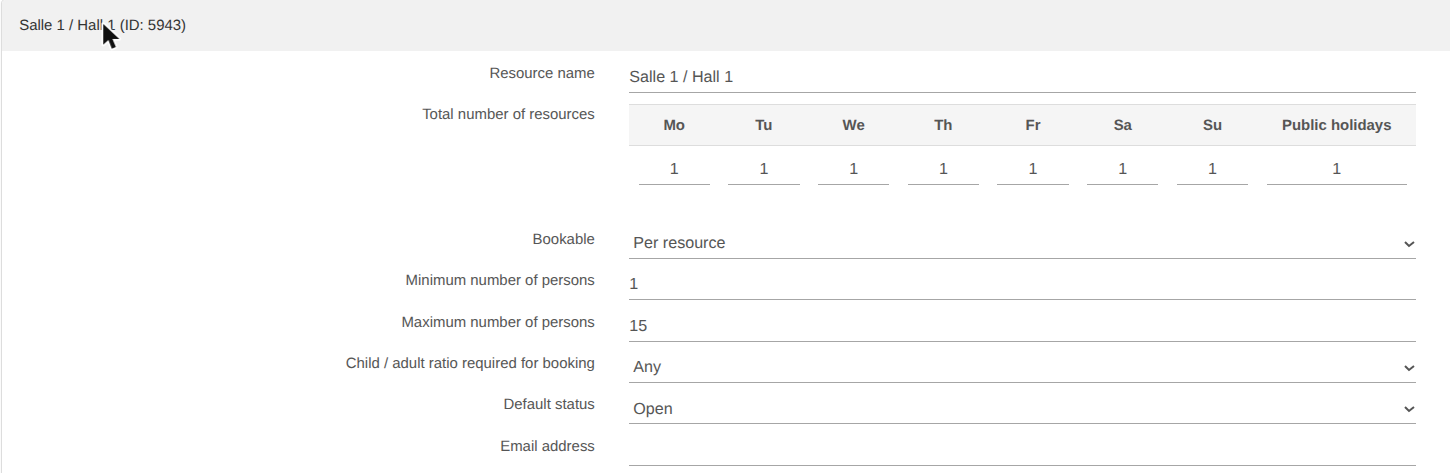
5. The day's stock: the resource may be full or closed that day. Check it in the schedule (see the tutorial "How to Close Availability Slots and Block Bookings in Reservit Activities").
6. The staff: if Assign staff to this benefit? is set to Yes, at least one selected team member must be available at the requested time (see the tutorial "How to Manage Your Team and Staff in Reservit Activities").
7. The number of guests: customers cannot book for more people than the Maximum number of persons of the activity or the resource.
4. Check booking deadlines
8. In the activity, Block the possibility of reserving the service N days before prevents online booking during the N days before the activity.
9. In Managing my activity > Property Setup > Property information, Schedule and duration section:
-
Deadline before reservation (in minutes): a time too close to the current time is no longer offered;
-
Define a maximum reservation time and Booking hour limit: after this time, no more online bookings for the same day. If you chose the per-service option, the time is set with the blue clock button on the line of each activity.

To quickly find a setting in Property information, type a word (for example "deadline" or "hour") in the Find a setting field at the top right.
Settings with an orange label are managed by Reservit, for example the Institution status. If your whole property no longer appears online, contact support.