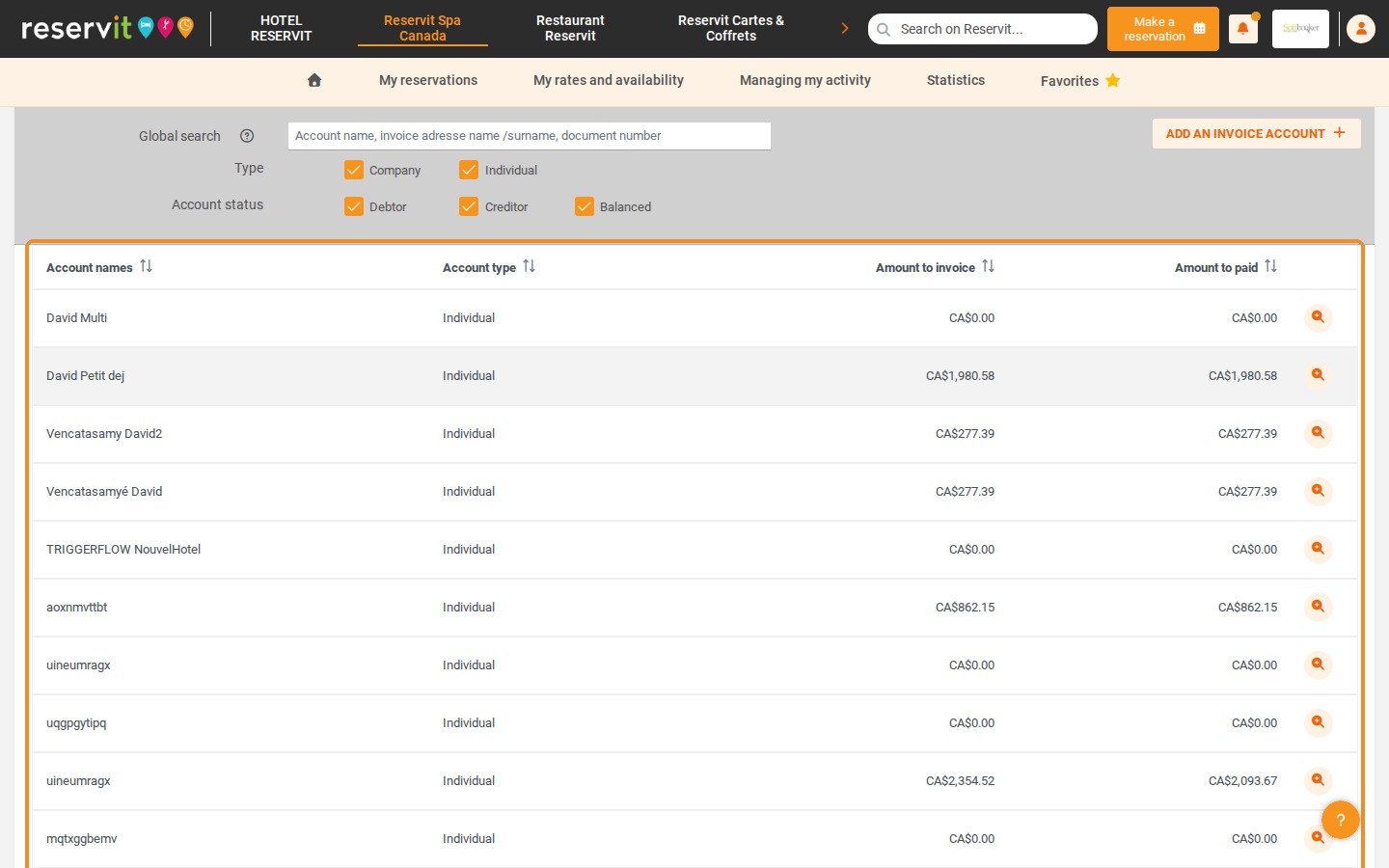
Article Summary: This tutorial explains how to access your customers' billing accounts and manage all your billing documents in Reservit Activities. You will learn how to add lines to an account, transfer lines from one account to another and find the documents, addresses and guests linked to each account. You will also see how to filter your invoices and credit notes in the Invoice List and print, download, send or export them in a few clicks.
The 5 Key Steps to Manage Your Billing Accounts and Documents:
-
Open the billing account: Click "My reservations" > "Billing Management", then "GO TO PAGE" on the "BILLING ACCOUNTS" tile and click the magnifying glass of the account.
-
Add new lines: Click "NEW LINE", enter the line manually or pick an existing service in "Recover an existing line", then click "CONFIRM".
-
Transfer lines: Select one or more lines, click "TRANSFER LINES" and choose the destination account, or create one with "ADD AN INVOICE ACCOUNT".
-
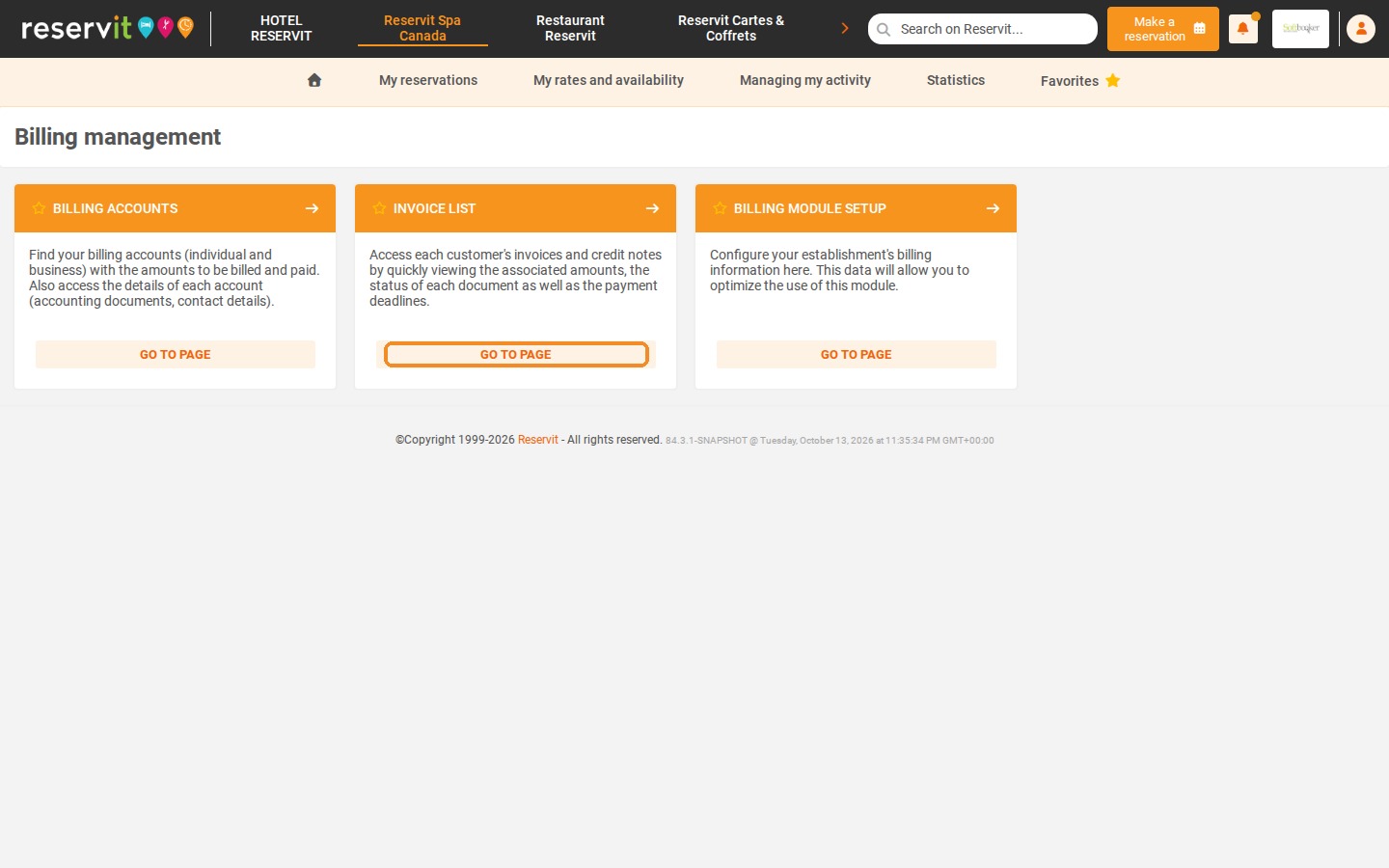
Use the Invoice List: In "Billing Management", click "GO TO PAGE" on the "INVOICE LIST" tile to see all your invoices and credit notes and filter them.
-
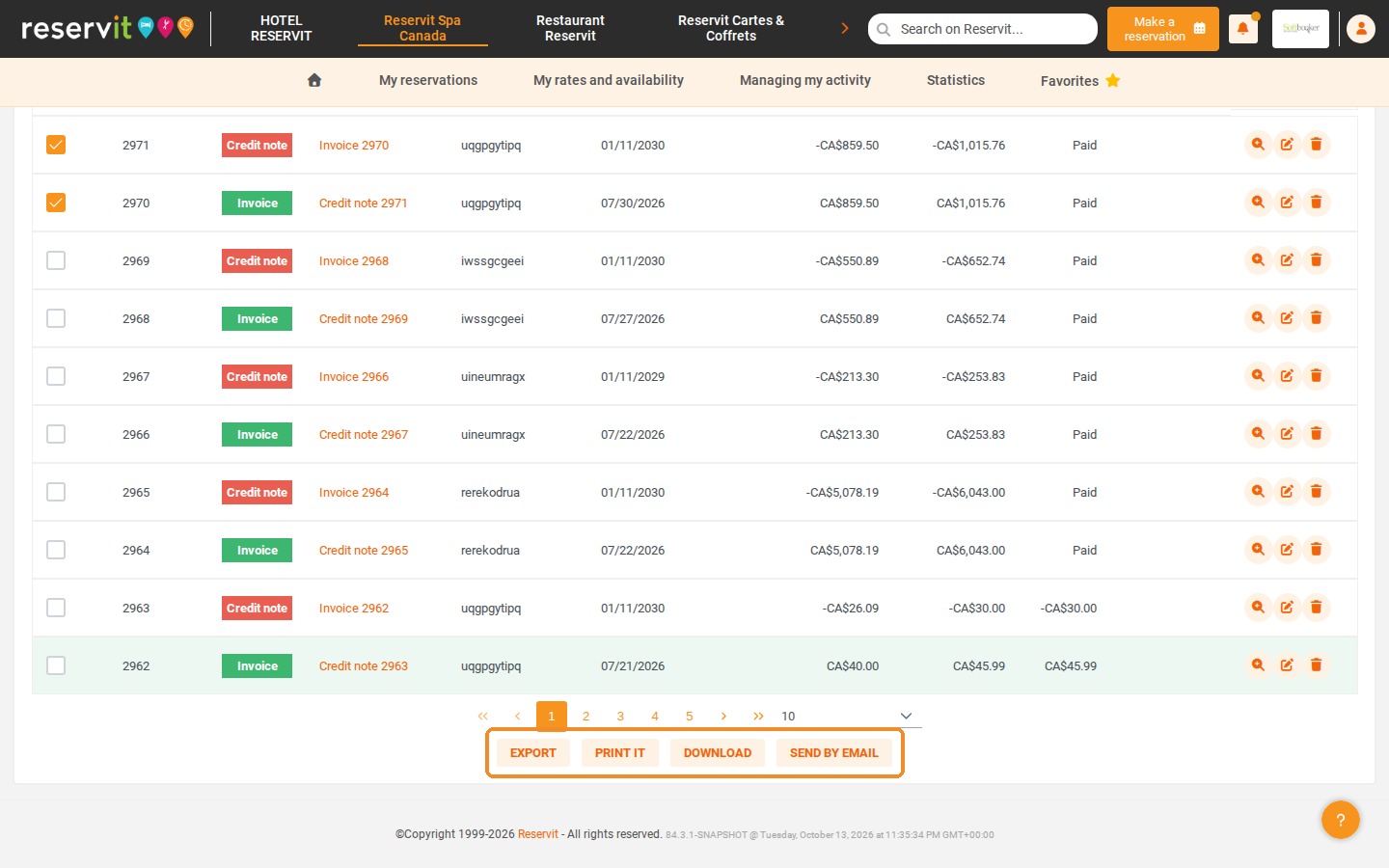
Process your documents: Select one or more documents, then click "EXPORT", "PRINT IT", "DOWNLOAD" or "SEND BY EMAIL".
Why Follow This Guide? Billing accounts let you handle everyday special cases, such as group bookings, split bills or invoices to be issued to a company. Centralizing your invoices and credit notes in a single list saves you time on administrative tasks and gives your customers fast, accurate answers.
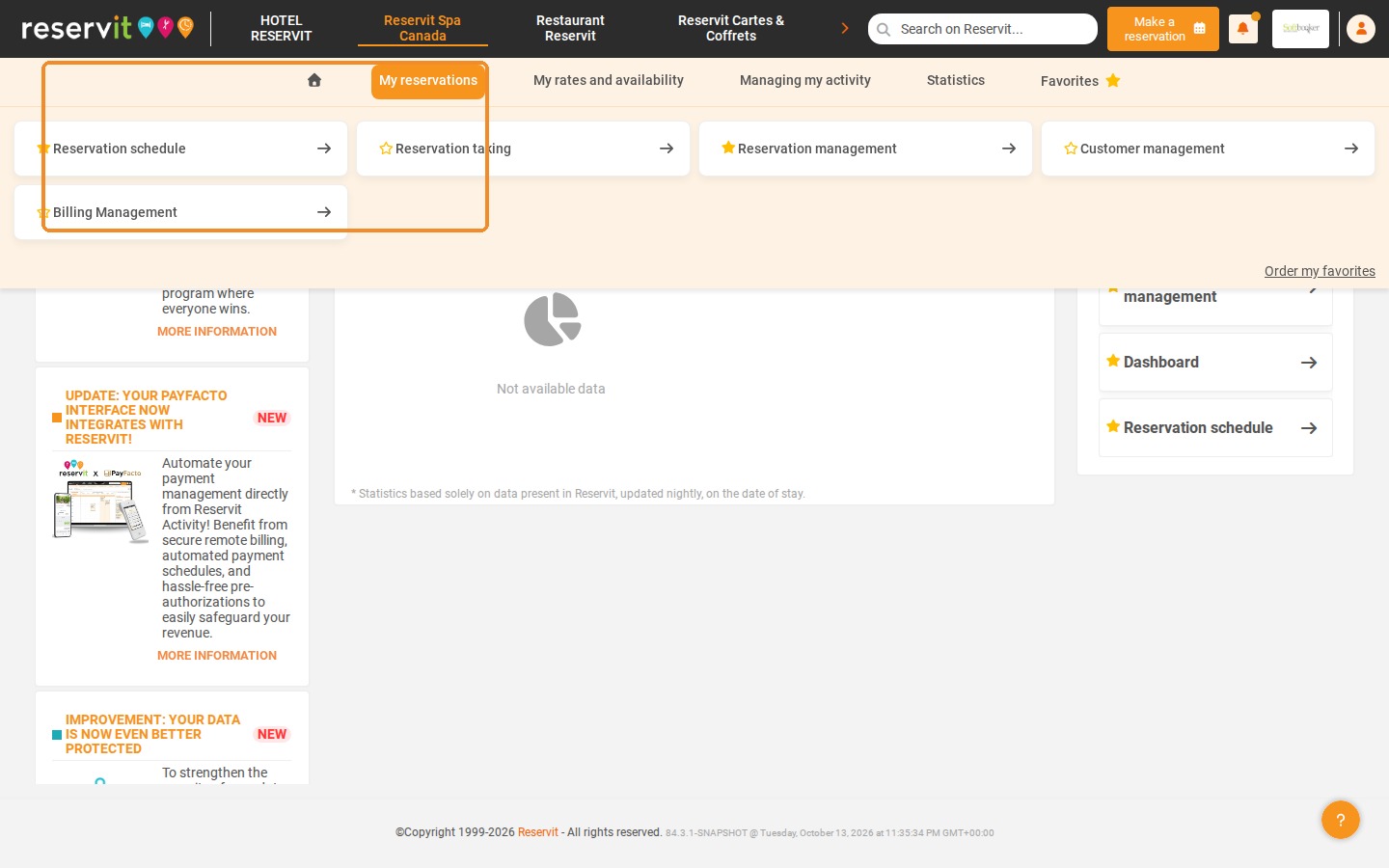
1. To open a billing account, click "My reservations" > "Billing Management". You can also open it directly from the reservation of your customer.
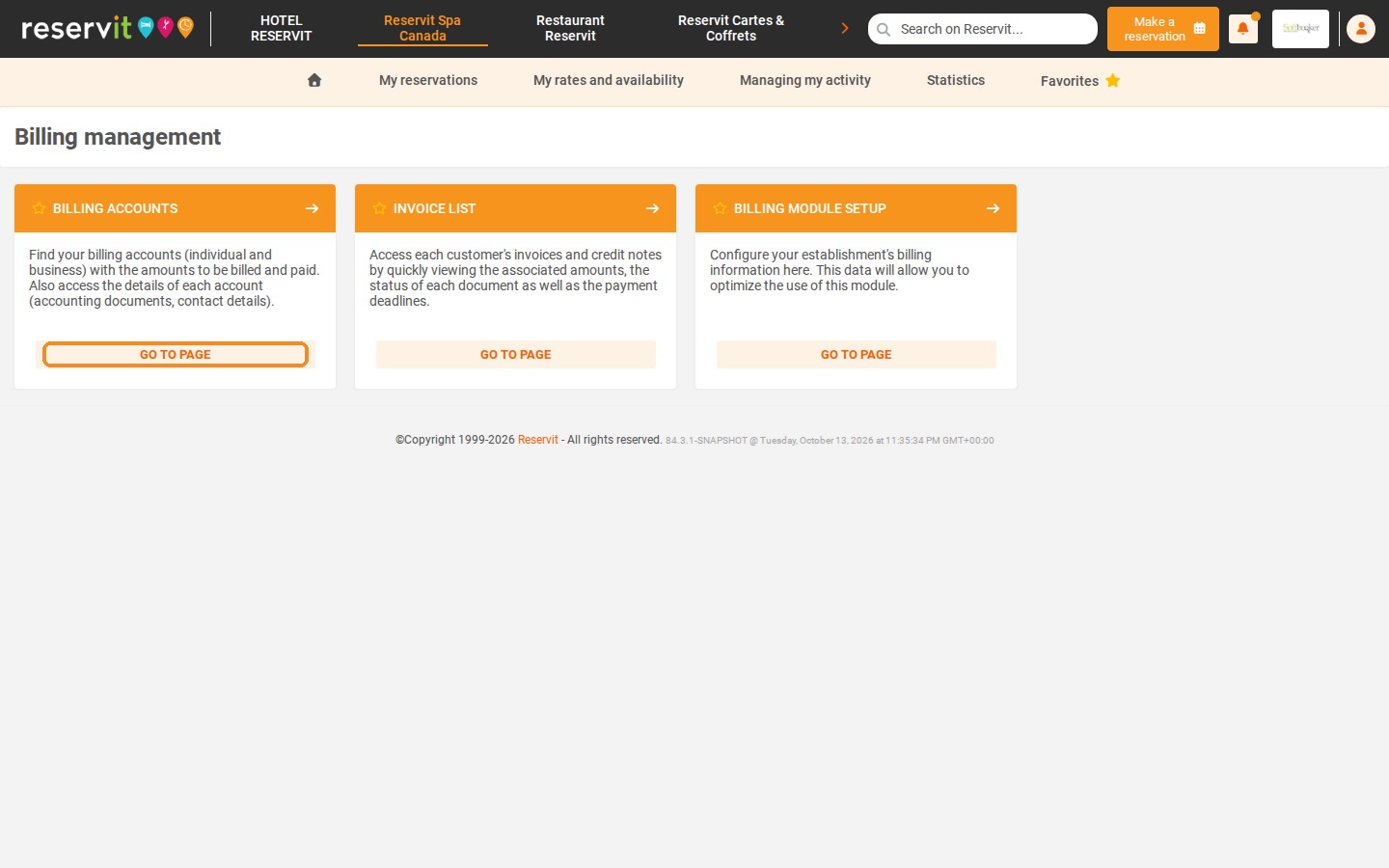
2. Click "GO TO PAGE" on the "BILLING ACCOUNTS" tile.
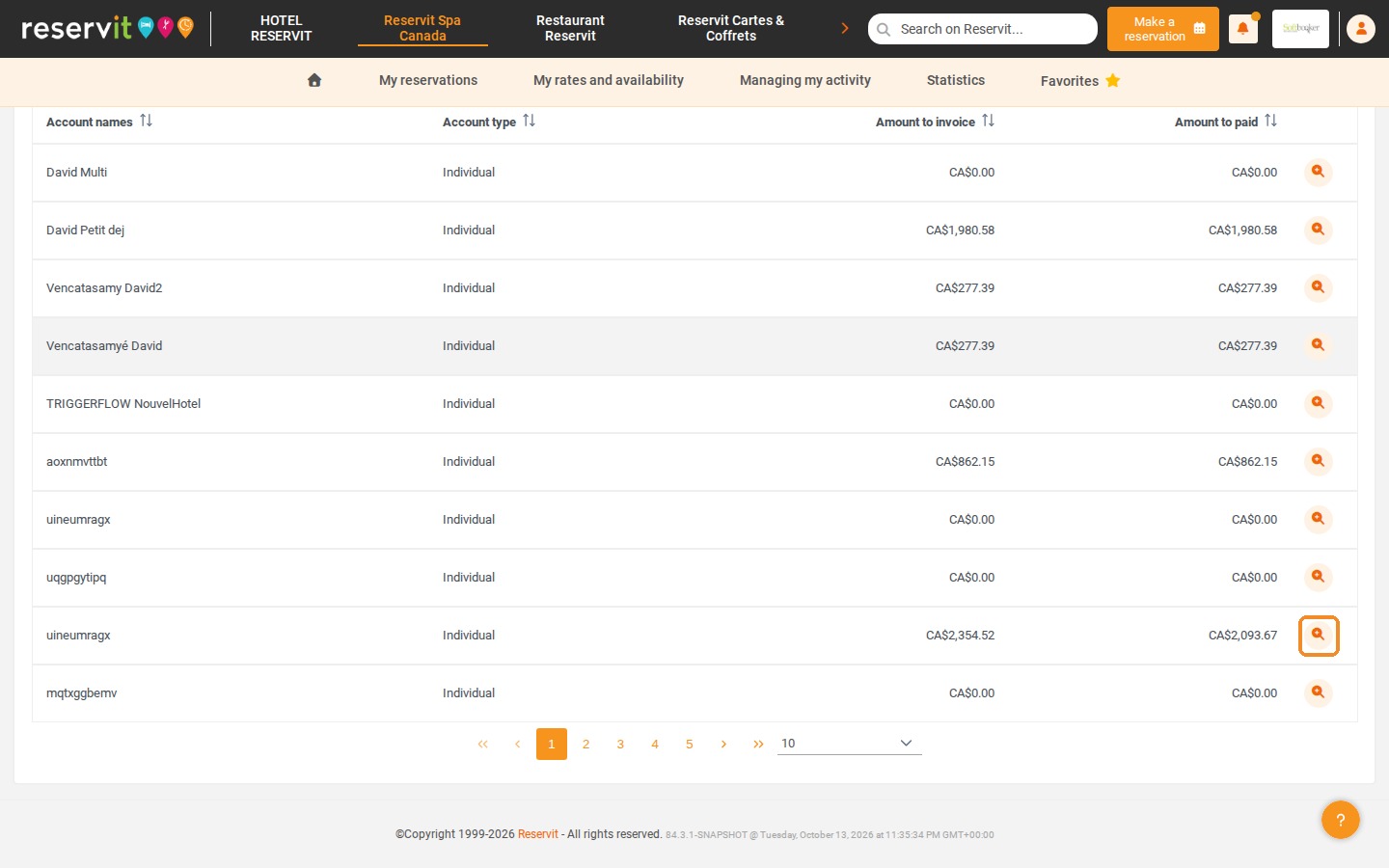
3. Click the magnifying glass of the account of your choice.
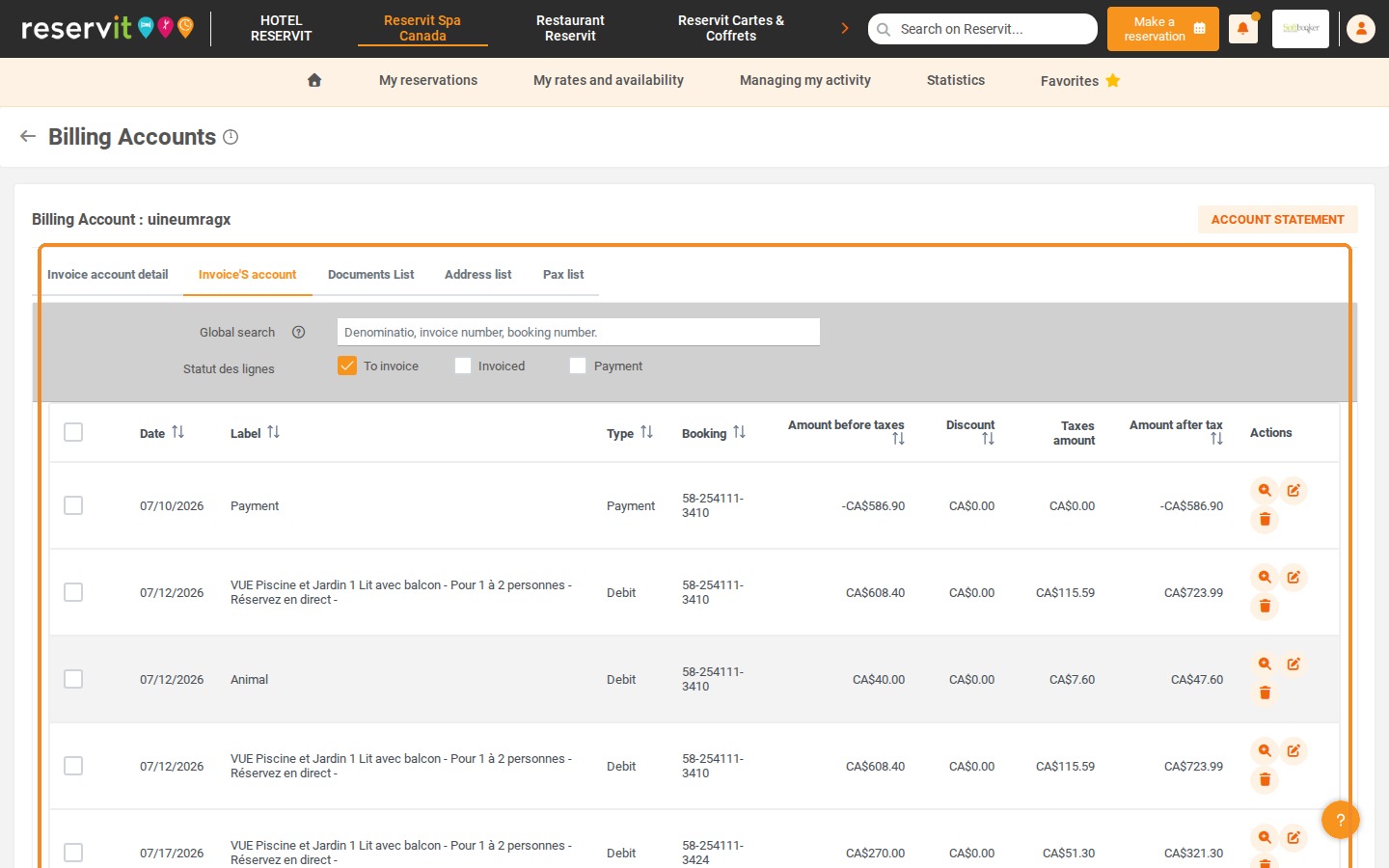
4. In the "Invoice'S account" tab, all the billing lines linked to this account are listed. Use the "To invoice", "Invoiced" and "Payment" boxes to filter them.
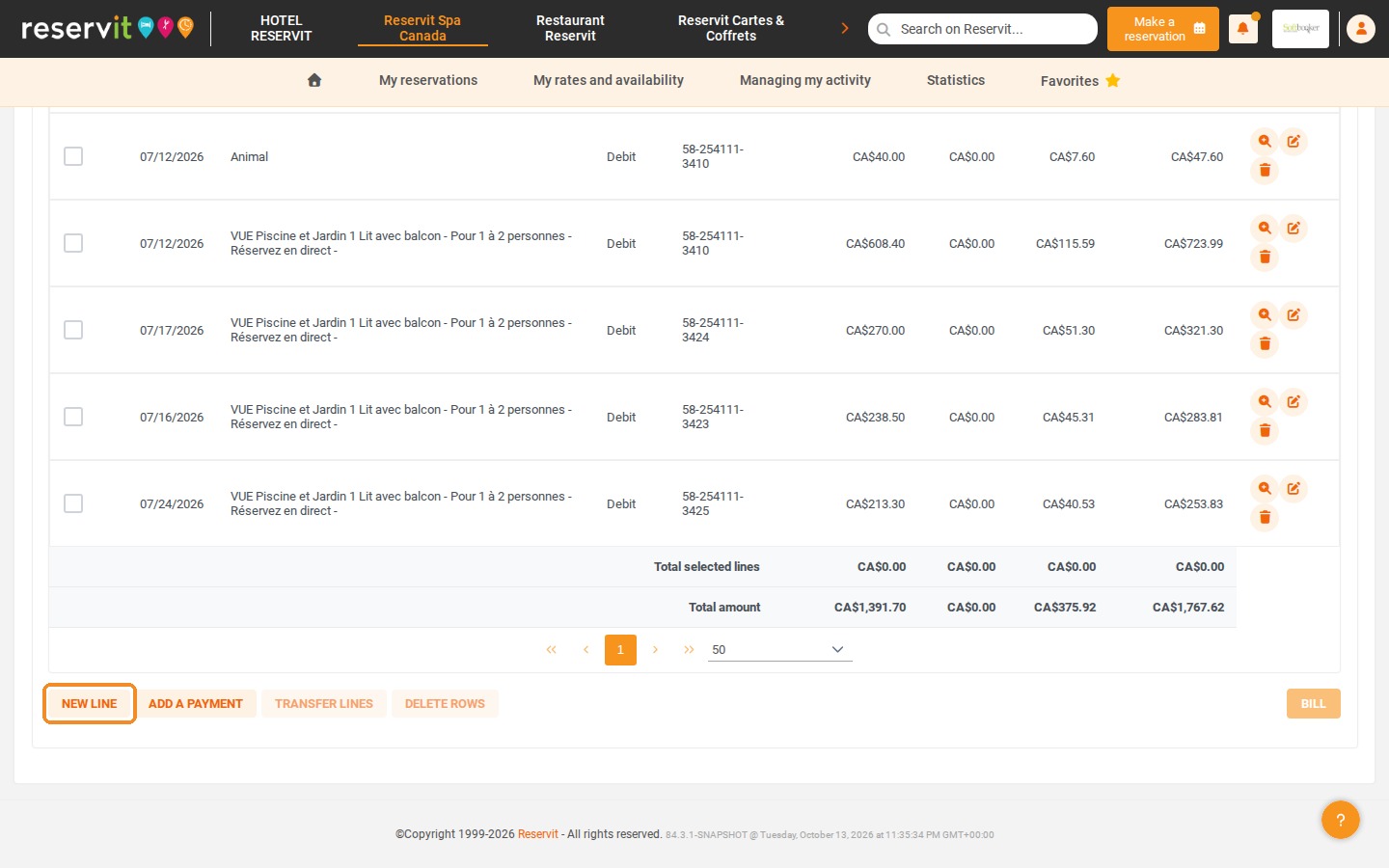
5. To add new items to be billed, click "NEW LINE".
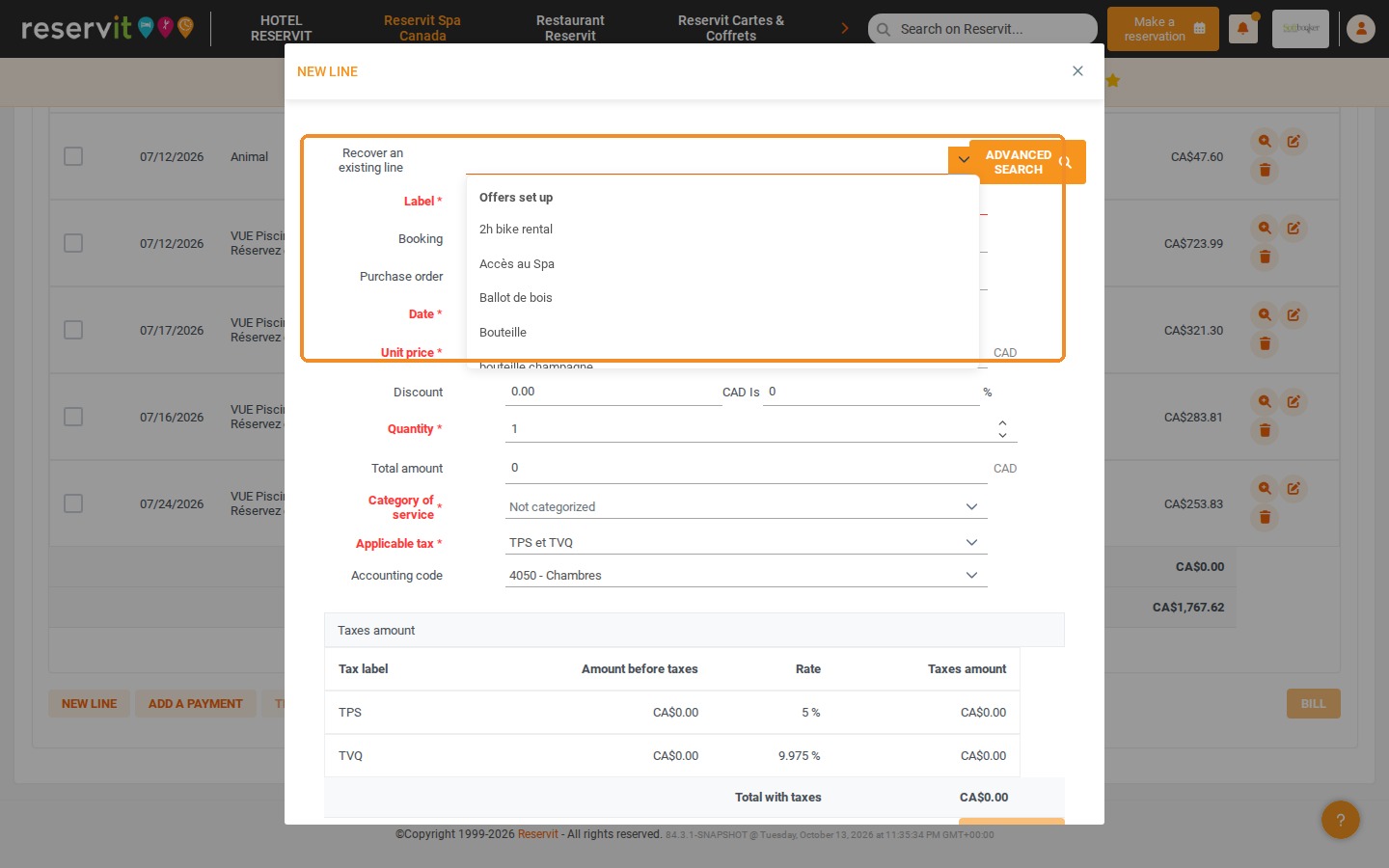
6. You can fill in all the fields manually ("Label", "Date", "Unit price", "Quantity", "Category of service", "Applicable tax"), or use the services already set up in the system: choose one in the "Recover an existing line" list, or click "ADVANCED SEARCH".
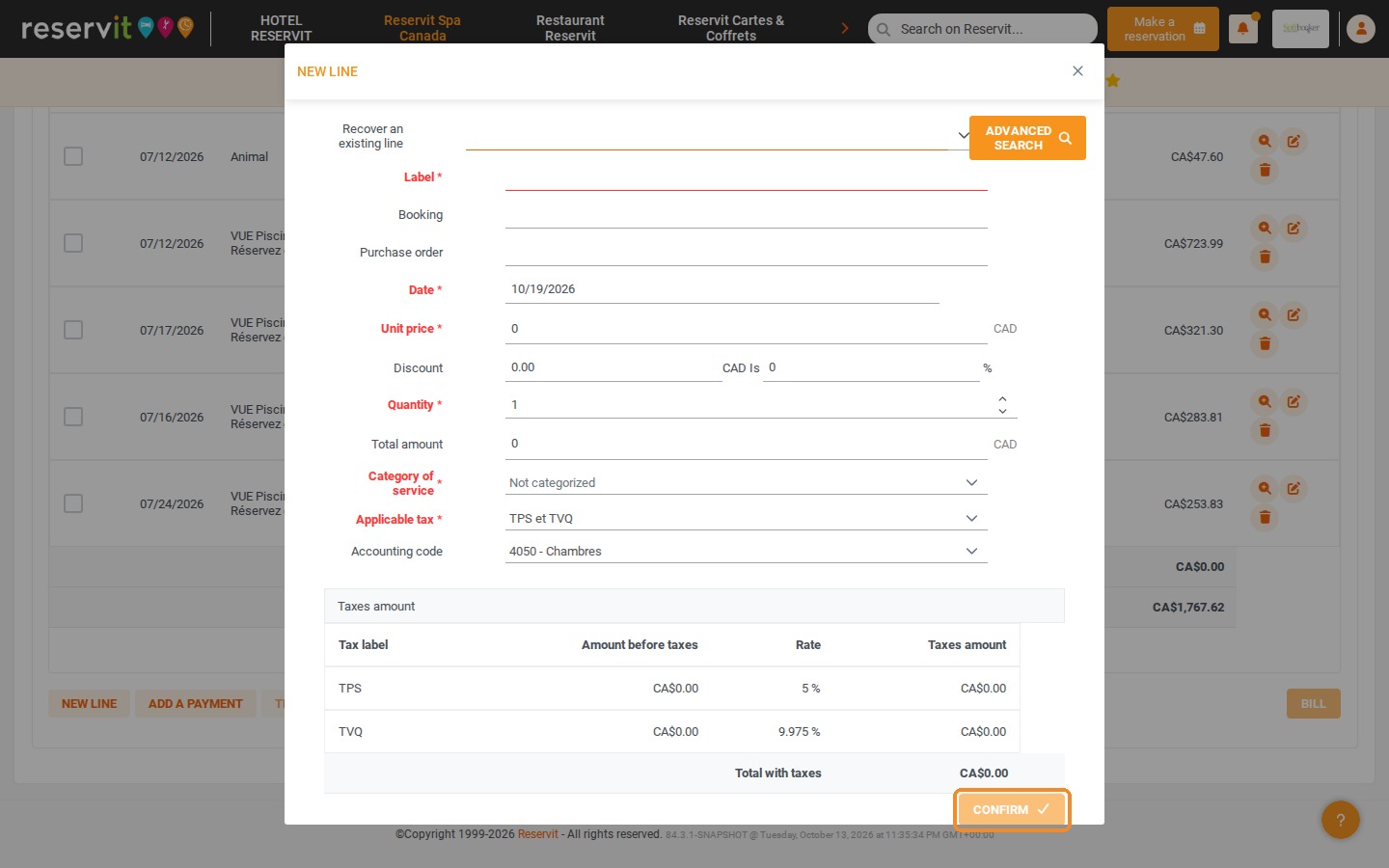
7. Click "CONFIRM" to add the new line.
8. You can transfer one or more lines to another billing account: tick the boxes of the lines, then click "TRANSFER LINES".
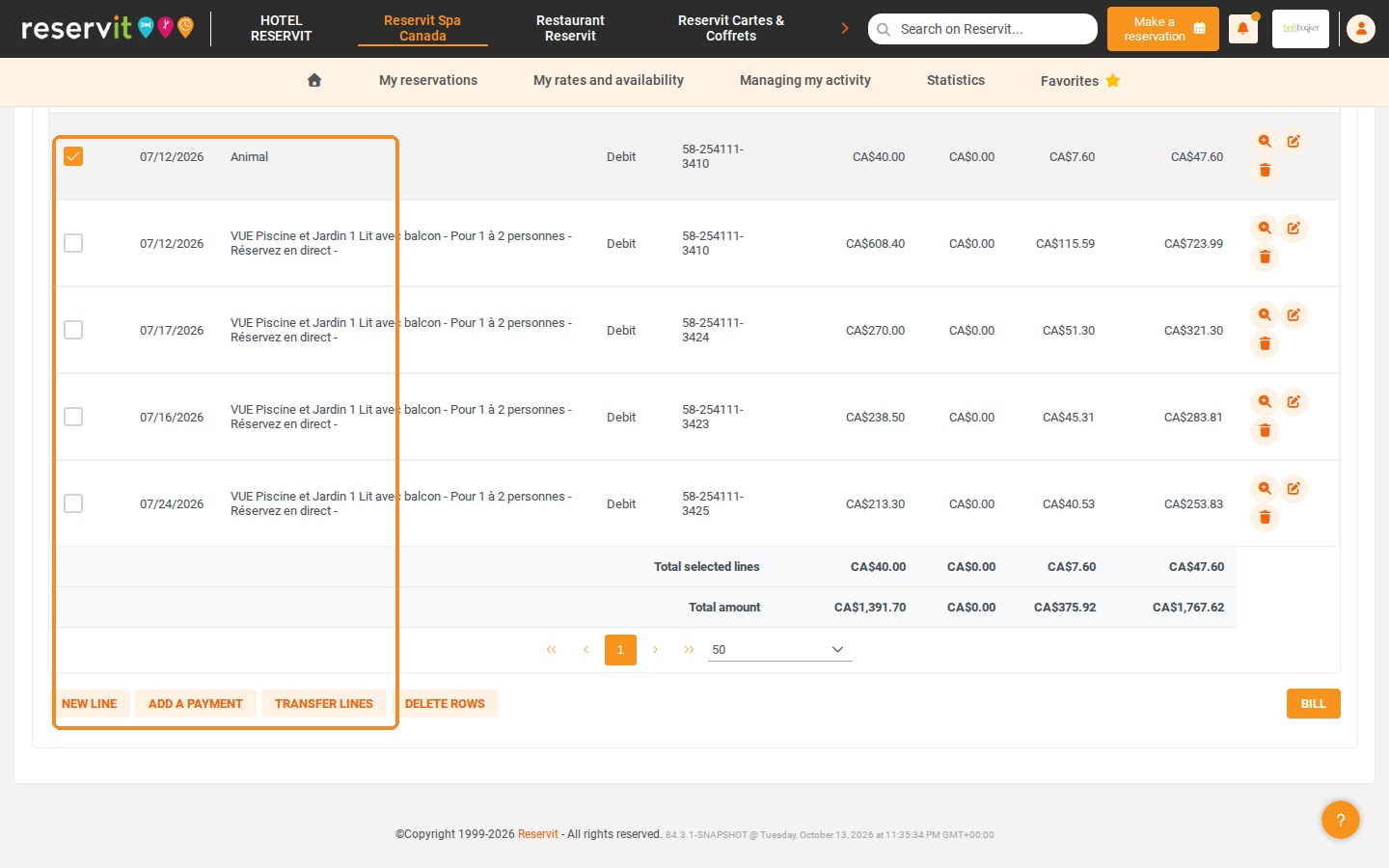
9. In the "TRANSFER LINE" window, select the existing account to which you want to transfer the lines, or create a new one with "ADD AN INVOICE ACCOUNT".
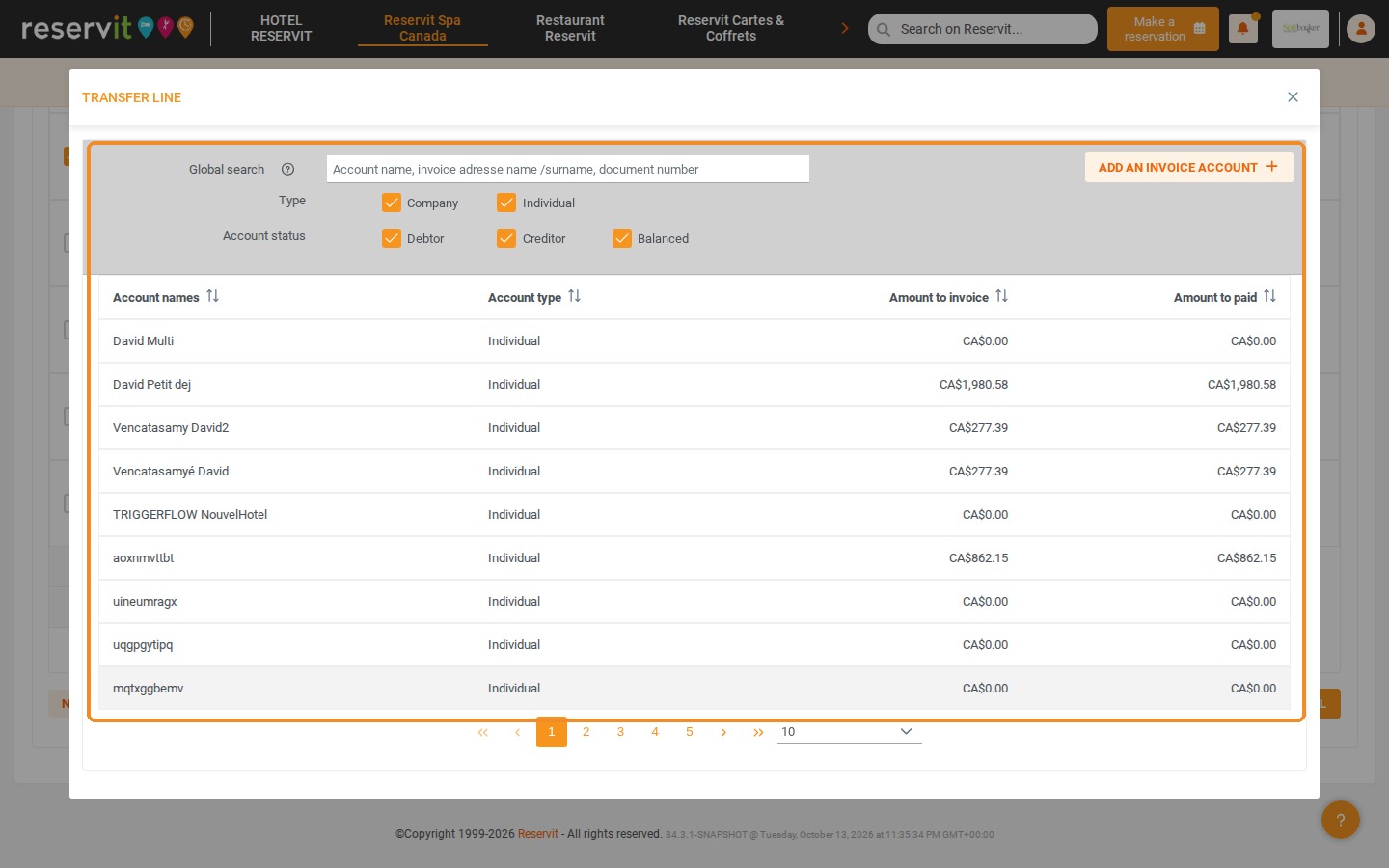
10. Several other tabs make up the billing account. The "Documents List" tab gathers all the invoices and credit notes created for this account.
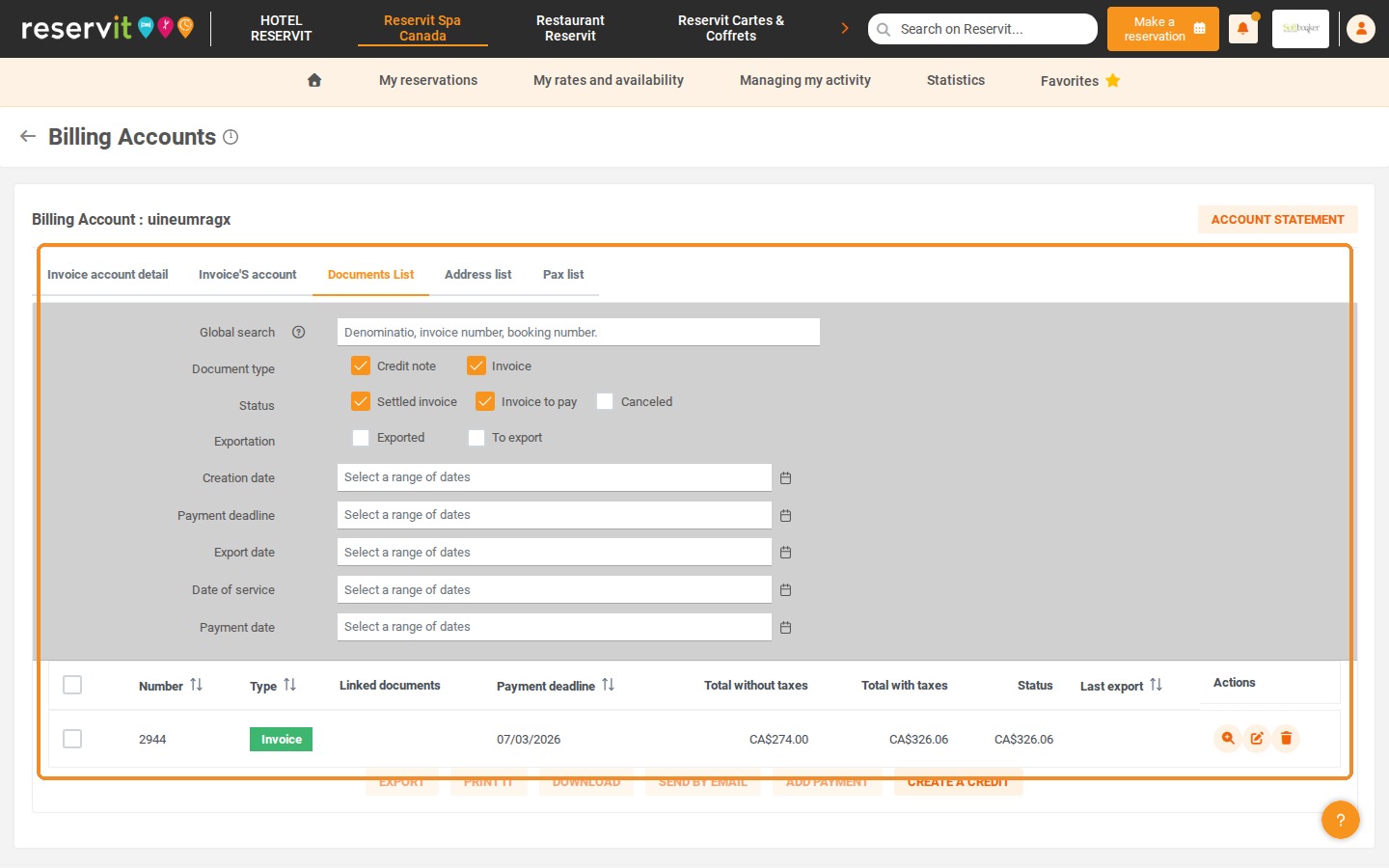
11. The "Address list" tab contains the billing addresses of the account.
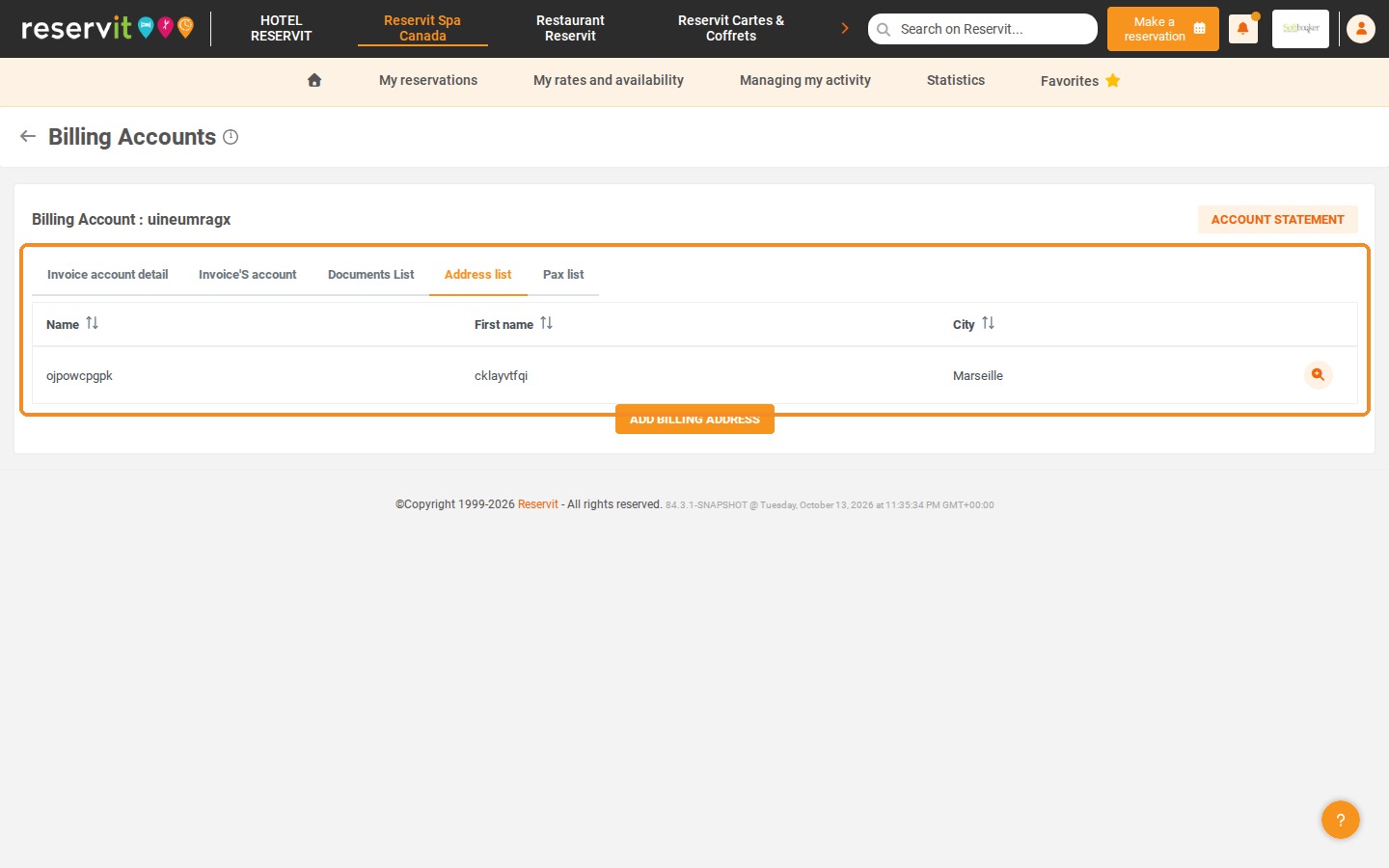
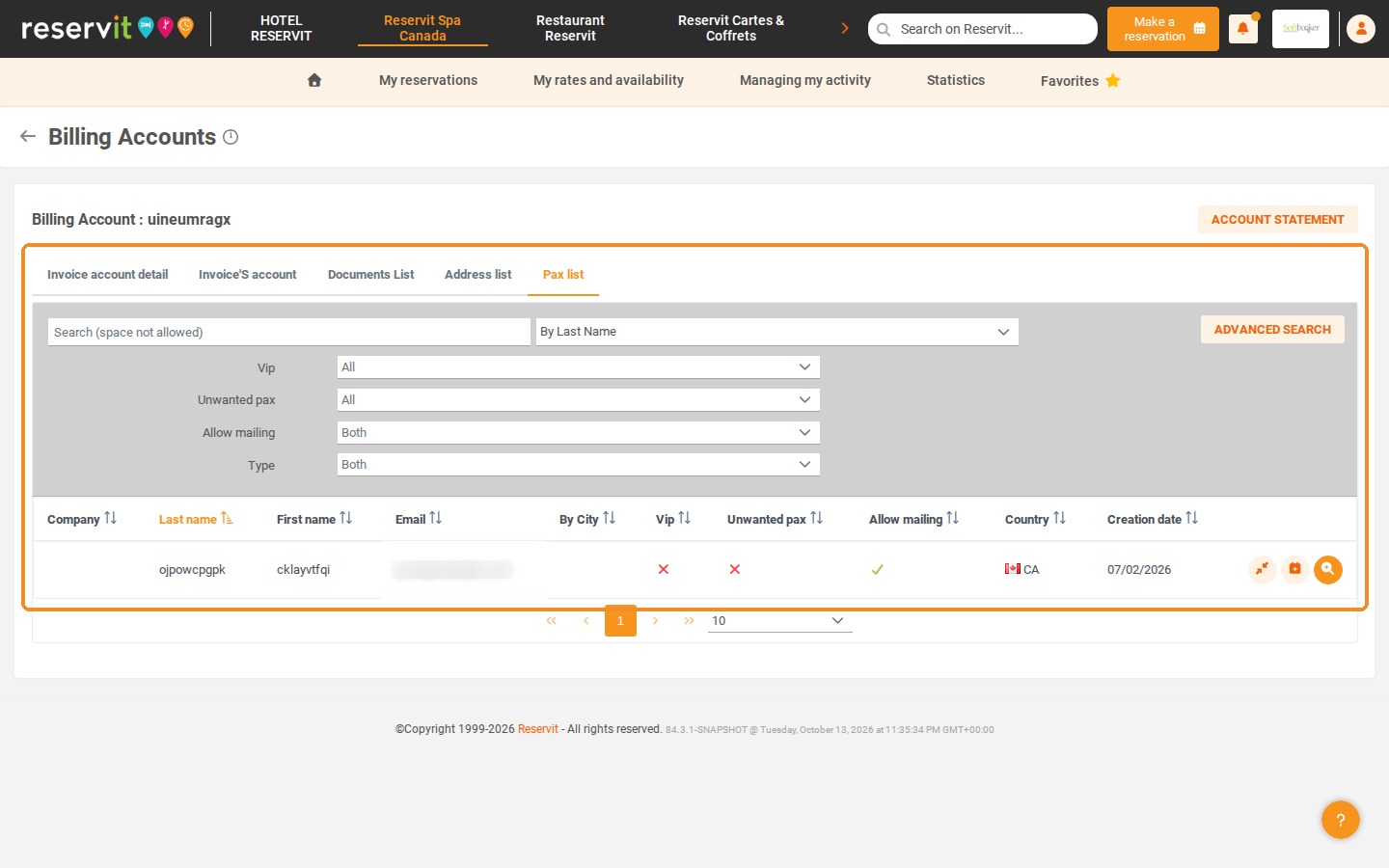
12. The "Pax list" tab contains more detailed information on the customers linked to the account.
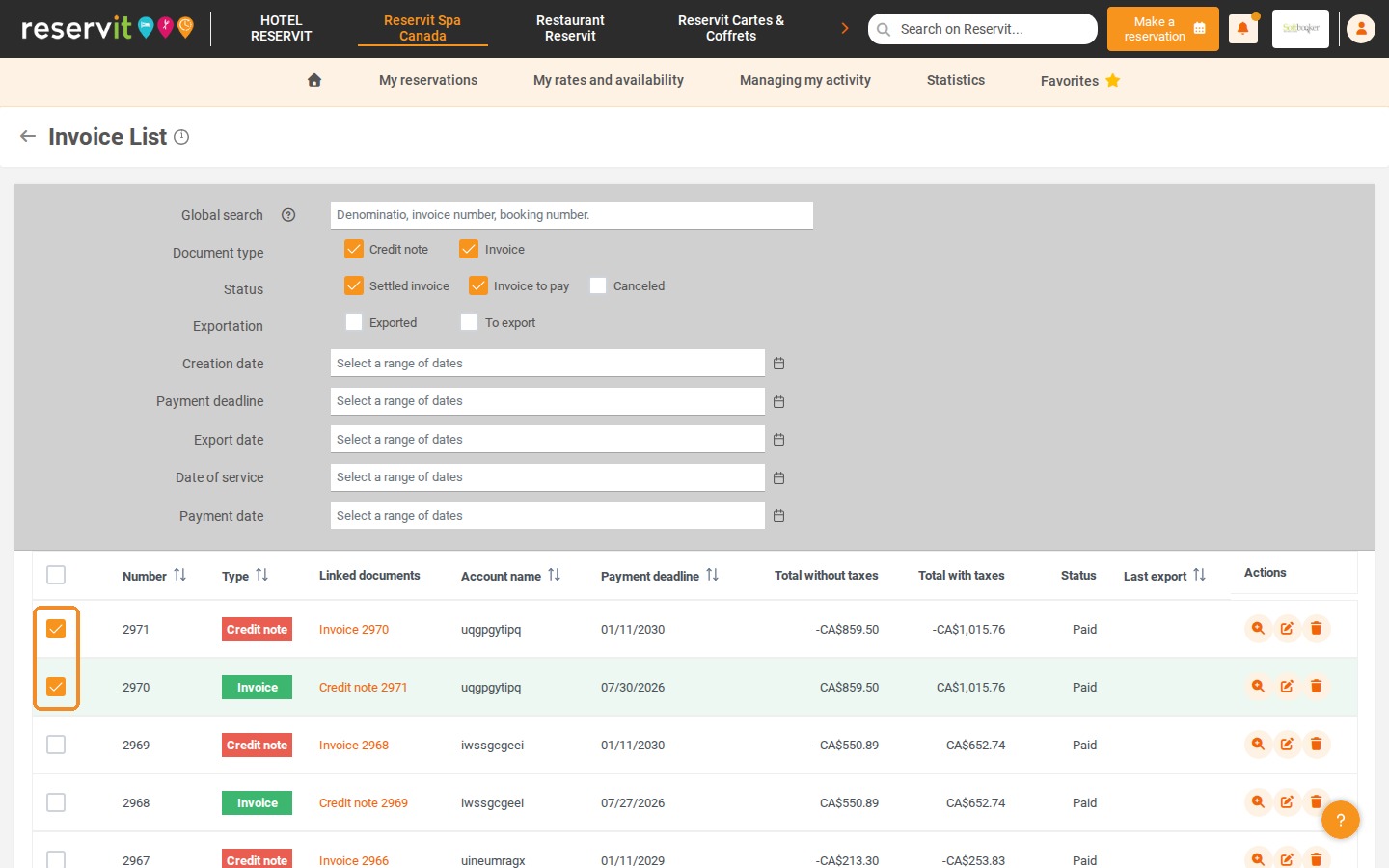
13. To find all the invoices and credit notes of your property, click "My reservations" > "Billing Management", then "GO TO PAGE" on the "INVOICE LIST" tile.
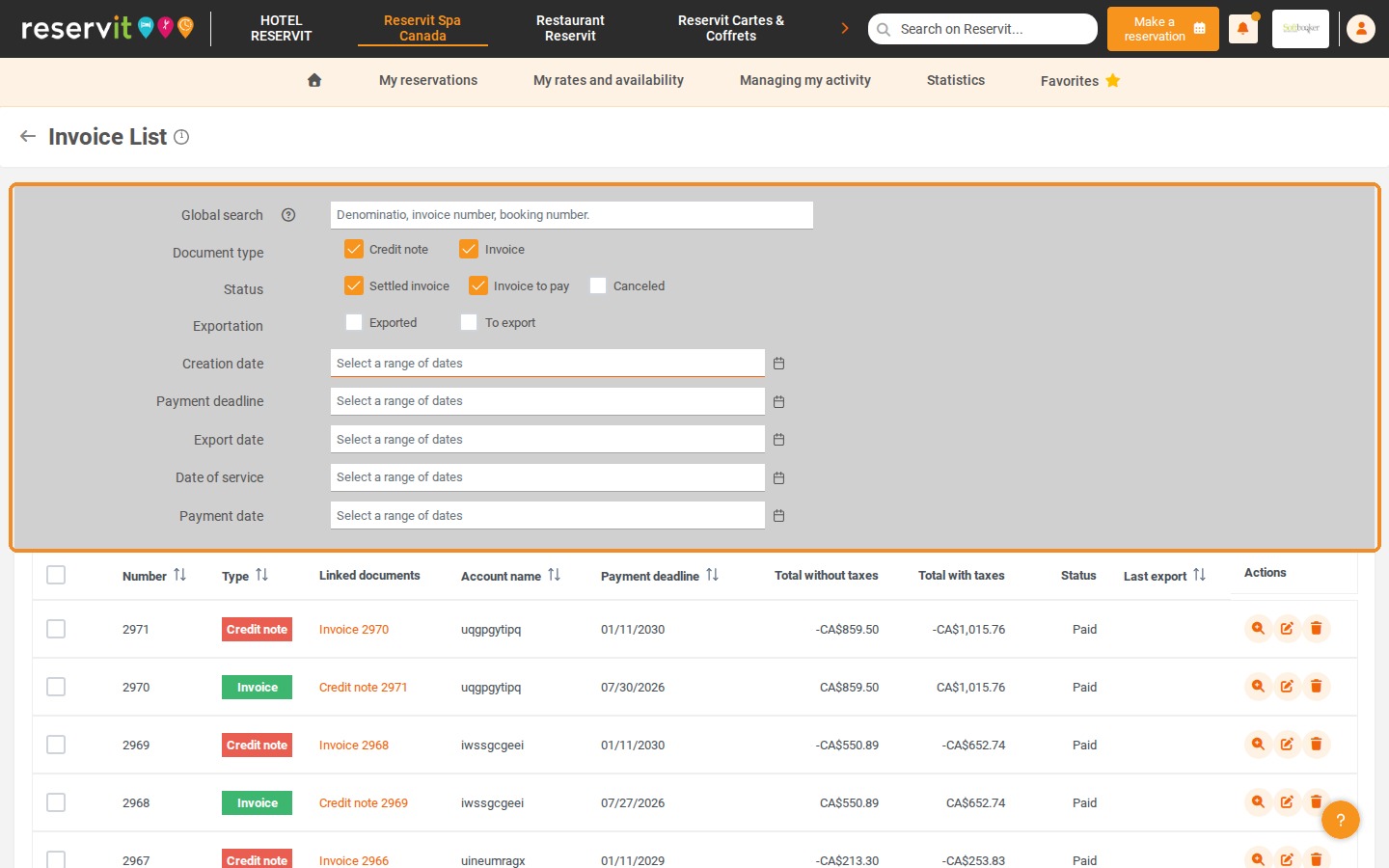
14. Use the filters to find the documents of your choice: "Global search", "Document type", "Status", "Exportation" and the date ranges ("Creation date", "Payment deadline", "Export date", "Date of service", "Payment date").
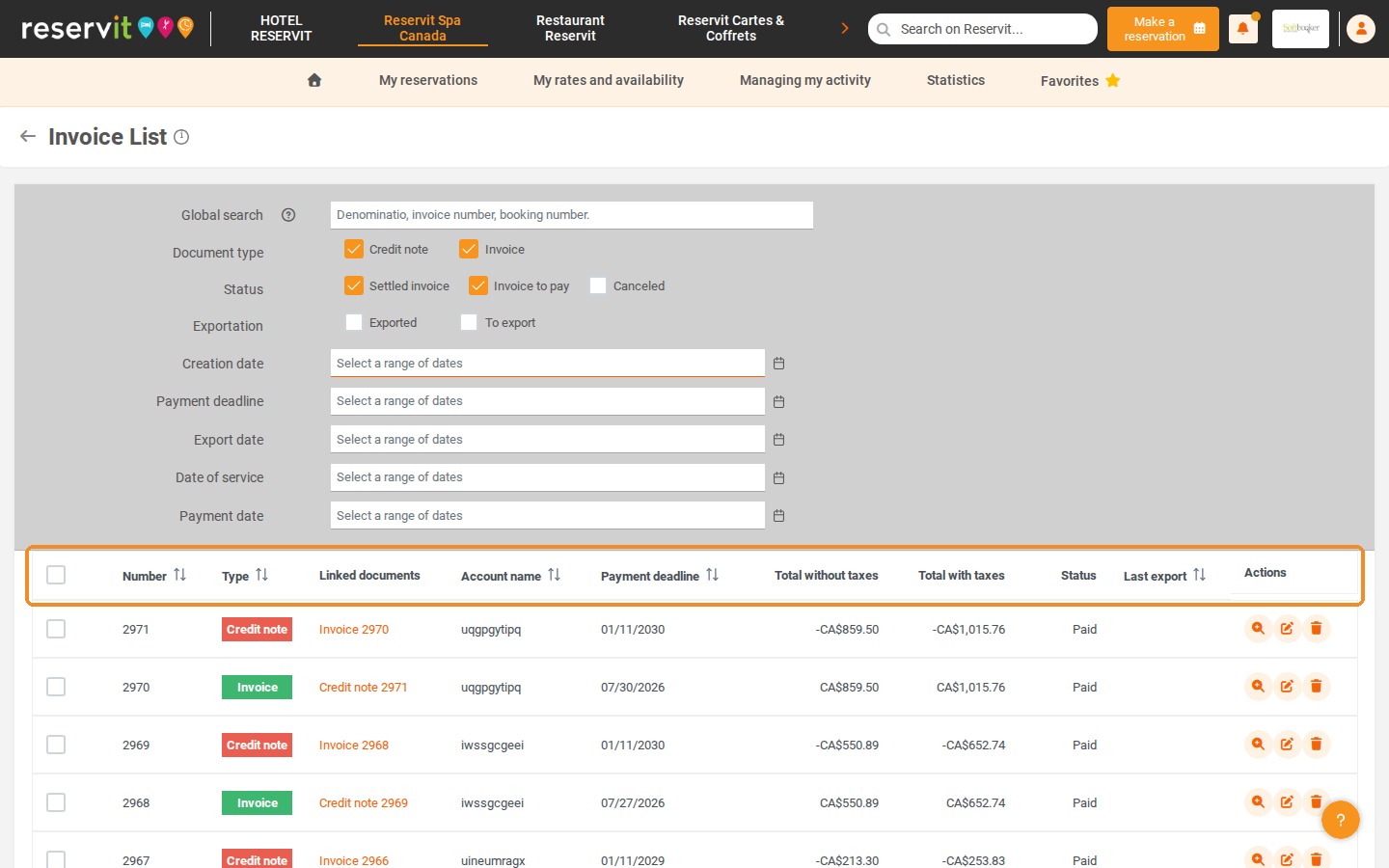
15. You can also sort the list by clicking the arrows of the column headers ("Number", "Type", "Account name", "Payment deadline", "Last export").
16. Select one or more documents by ticking their boxes.
17. You can then export them, print them, download them or send them by email to your customer, using the "EXPORT", "PRINT IT", "DOWNLOAD" and "SEND BY EMAIL" buttons.
18. To see all the billing accounts of your property, click "My reservations" > "Billing Management" > "BILLING ACCOUNTS". Click the magnifying glass of an account to go back to its details, as shown at the beginning of this tutorial.