Article Summary: This step-by-step guide demonstrates how to efficiently manage your activity inventory and availability using the Reservit Activities planning module. You will learn how to make immediate adjustments to individual resource time slots as well as execute bulk updates across multiple dates. Mastering these inventory controls ensures accurate online scheduling, prevents overbookings, and maximizes your operational capacity.
The 5 Key Steps to Manage Inventory in Reservit Activities:
-
Access the Planning Inventory: Open your schedule in the Reservit Activities module to view all active resources and time slots.
-
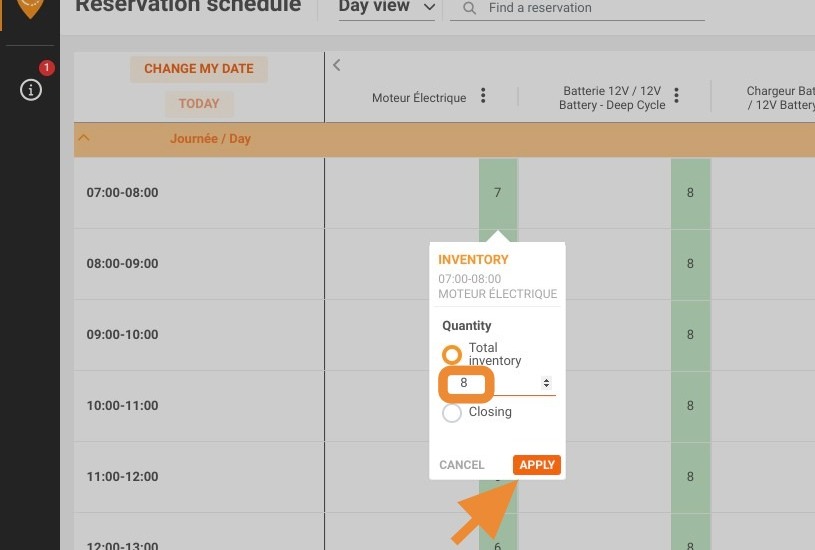
Make Single-Slot Adjustments: Select specific time slots or resource stock items directly on the schedule grid to apply instant single-slot availability updates.
-
Launch Bulk Inventory Management: Click any open box on the grid to open the right-hand panel and navigate to the "Inventory Management" tool for mass edits.
-
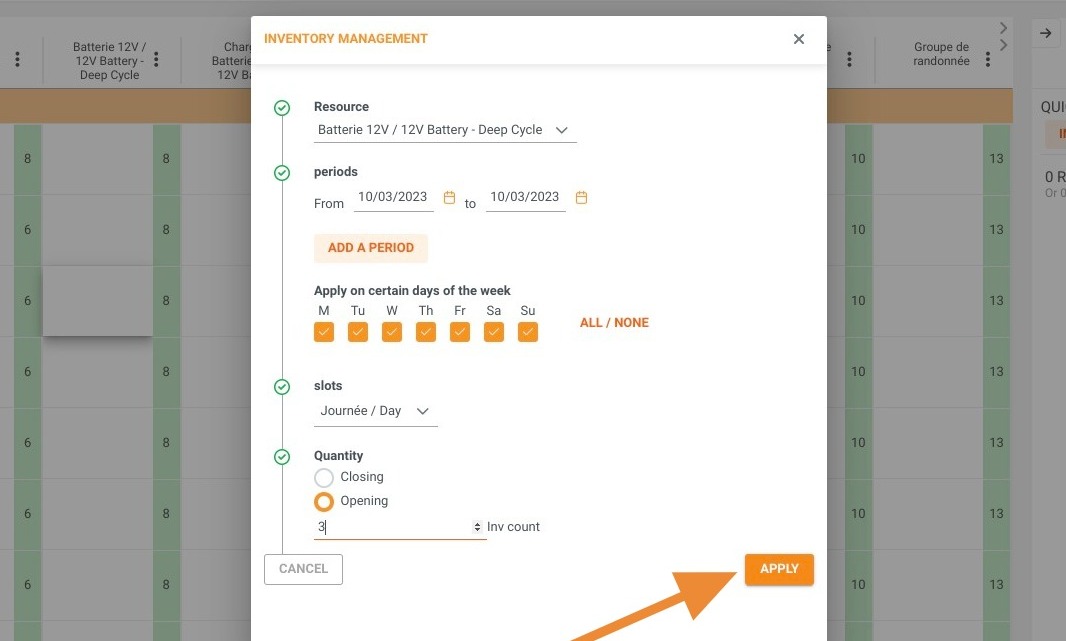
Set Date Ranges and Time Slots: Specify the exact date period and time slots you want to modify simultaneously across your activity schedule.
-
Adjust Status, Quantities, and Save: Select whether to open or close the selected inventory, enter the updated stock capacity, and click "APPLY" to finalize changes.
Why follow this guide? Following this guide helps you streamline daily scheduling tasks, drastically reduce manual data entry errors, and maintain real-time inventory control across all your activity channels.
Managing your inventory by time slot/resource
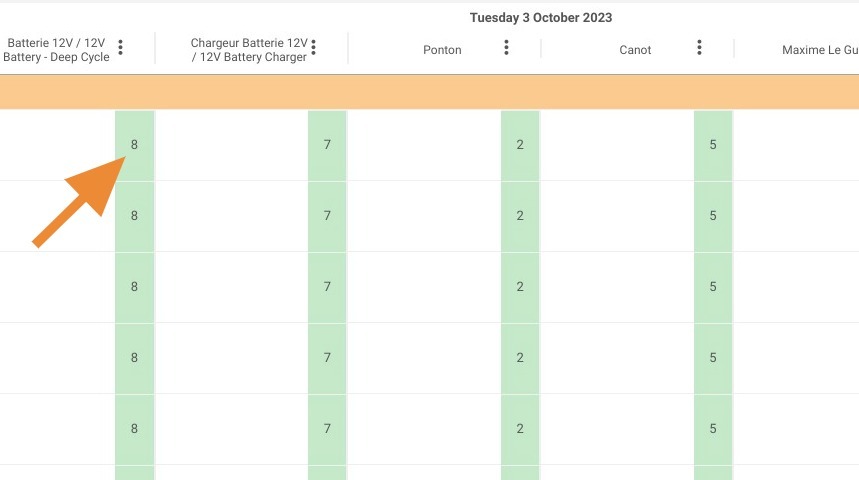
1. Click on the inventory.
2. Click on the resource stock at the desired slot then apply.
Managing your inventory in bulk
3. Click in any white box.
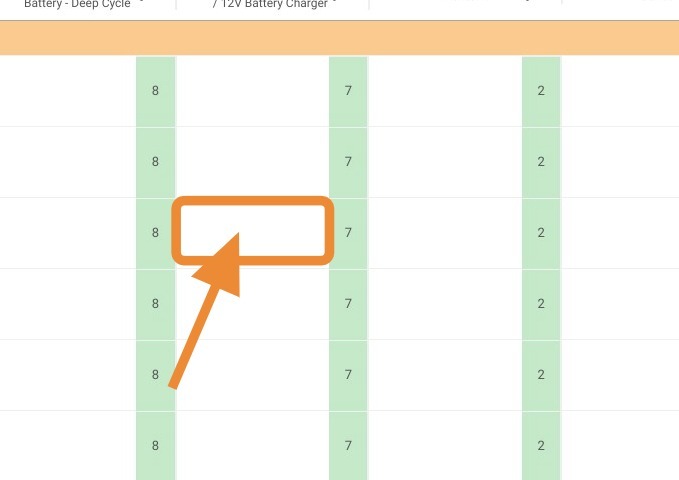
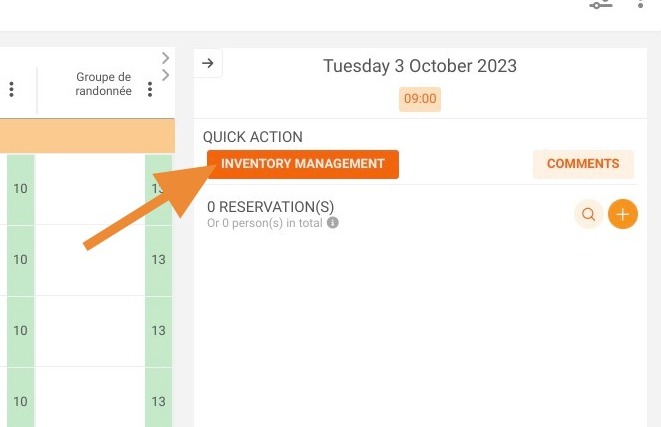
4. A panel opens on the right side of your page. Click on Inventory Management.
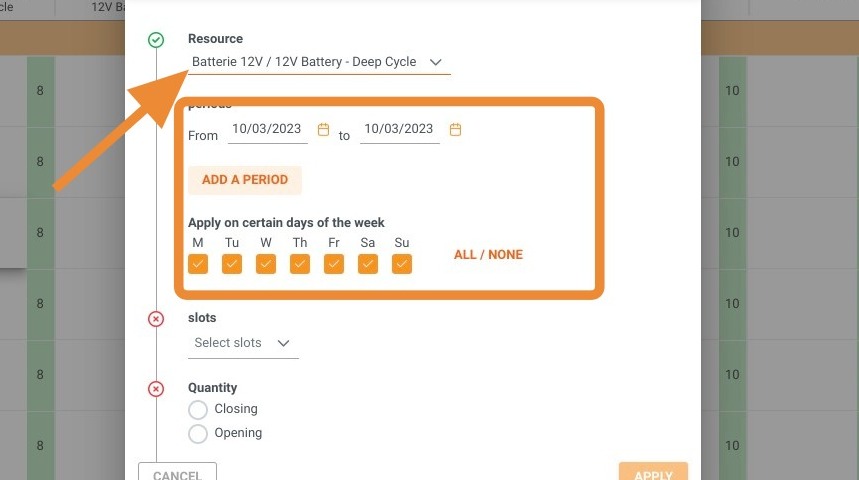
5. Then select the period for which this change will take effect.
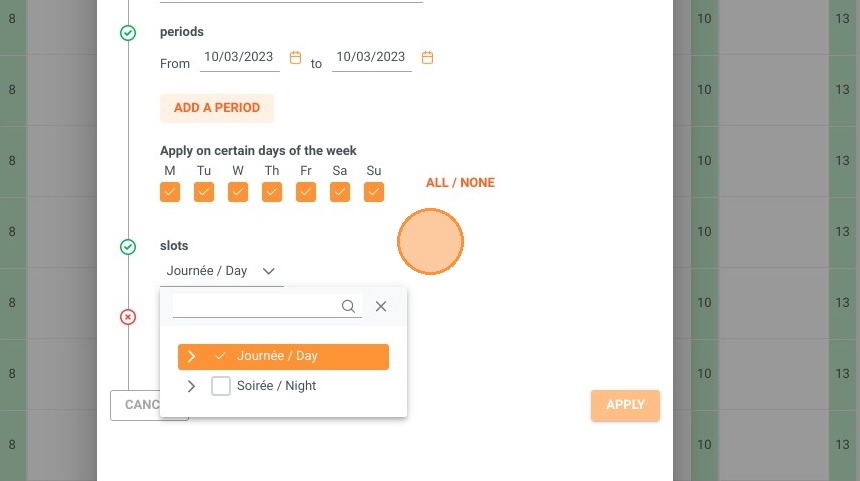
6. You have to select your slot.
7. Choose whether you want to close or open your inventory, and enter the quantity.
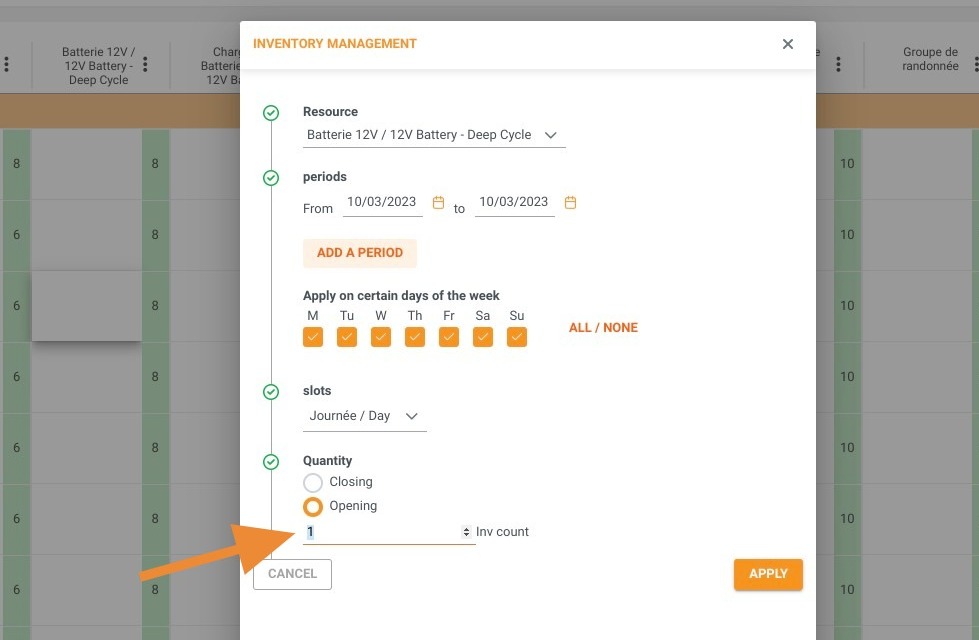
8. Click "APPLY"