Article summary: This practical guide explains how to configure a booking hour limit for your services within the Reservit Activities platform. You will learn how to automatically close daily online sales at a specific time of day, ensuring your team has adequate notice for upcoming arrivals. Implementing this automated cutoff time allows for smoother daily operations and prevents unmanageable last-minute reservations.
The 4 key steps to set up a booking hour limit:
-
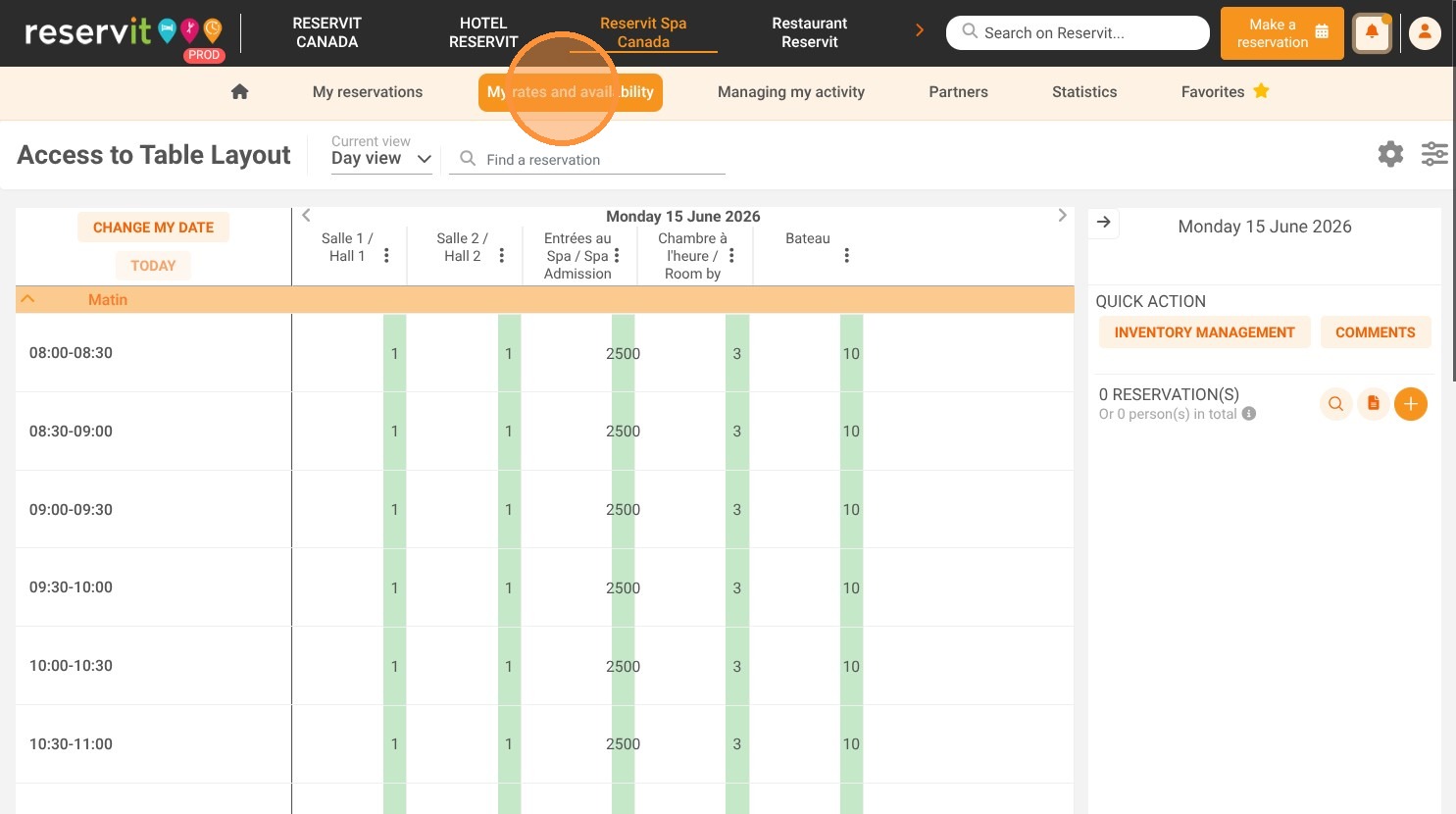
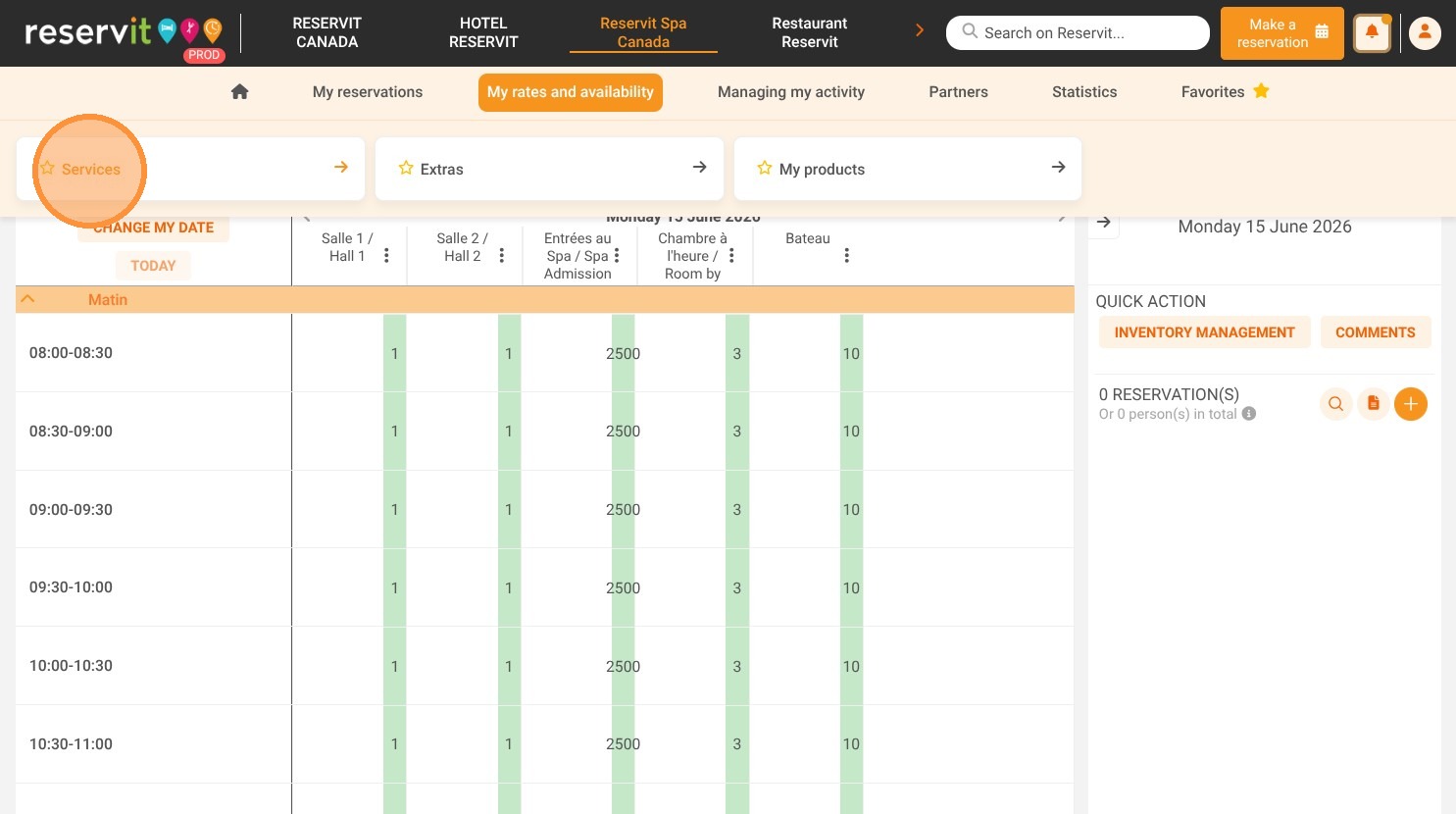
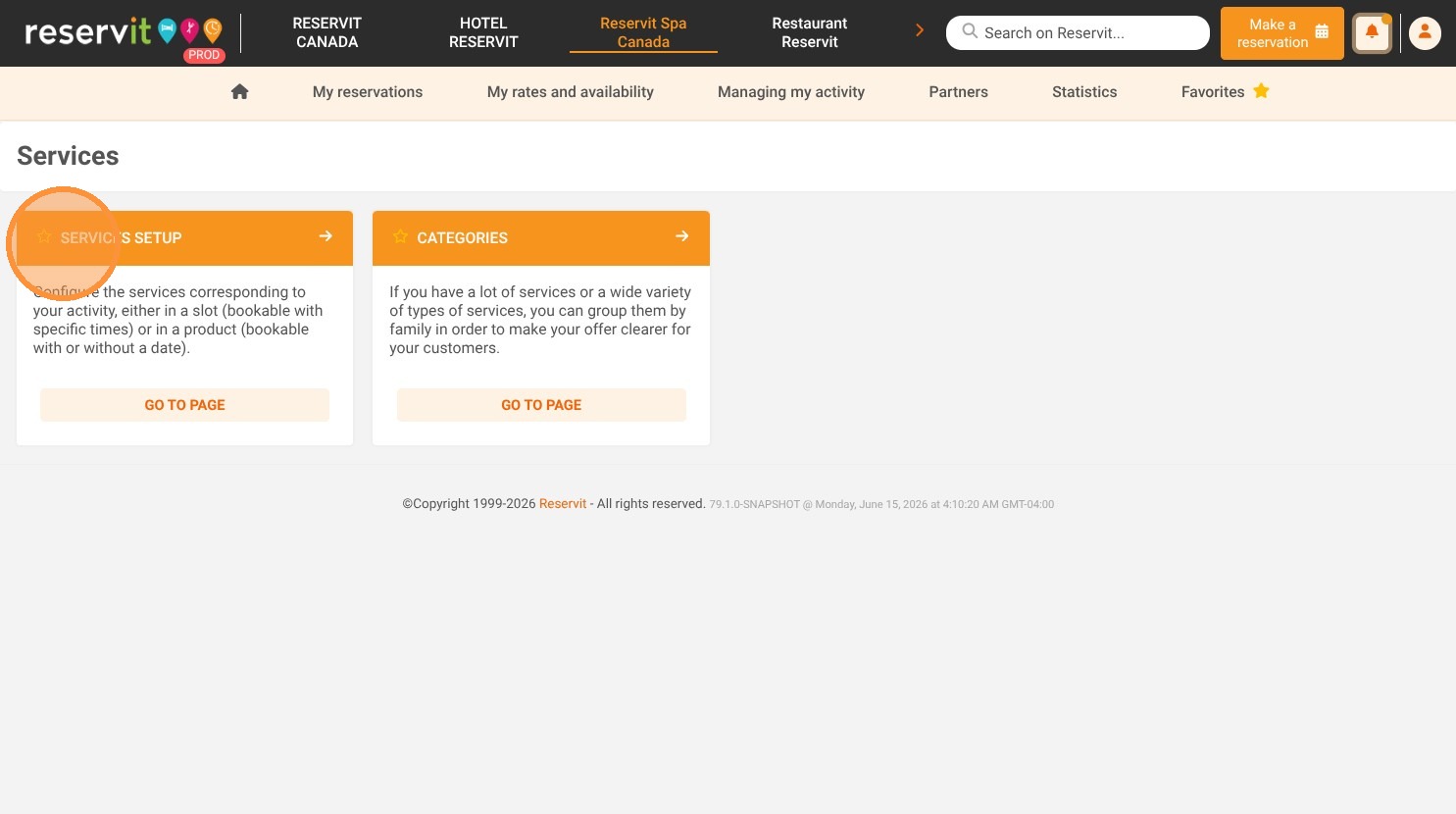
Access the service settings: Navigate to "My rates and availability" from your dashboard, open the "Services" menu, and select "Services Setup."
-
Select your specific service: Choose the exact activity or service you want to apply the time restriction to.
-
Configure the cutoff time: Click on the "Booking hour limit" option and enter the maximum reservation time for that specific service.
-
Save your configuration: Click "Save" to immediately apply the automated sales closure to your online booking engine.
Why follow this guide? Setting an automated booking cutoff time protects your staff from unexpected last-minute arrivals and guarantees you have enough time to prepare your resources. This automation eliminates the need to manually monitor and close daily sales, significantly streamlining your daily operational management.
1. Select "My rates and availability," then "Services," and finally "Services Setup."
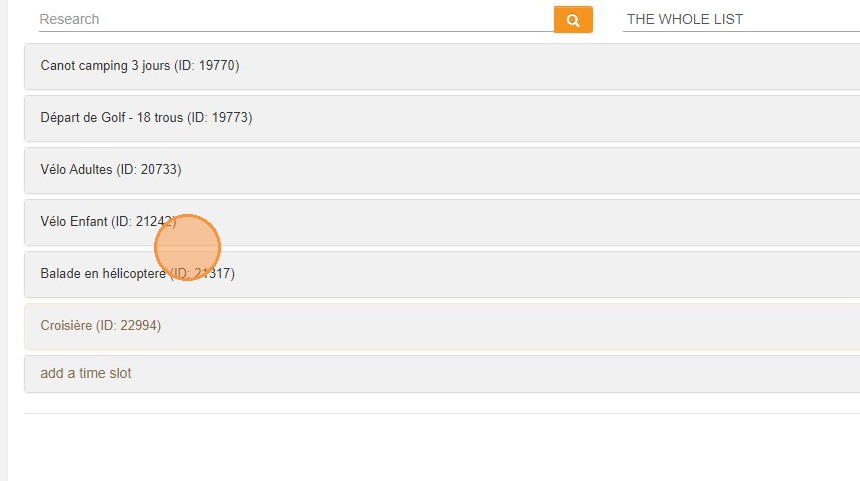
2. Click on your service
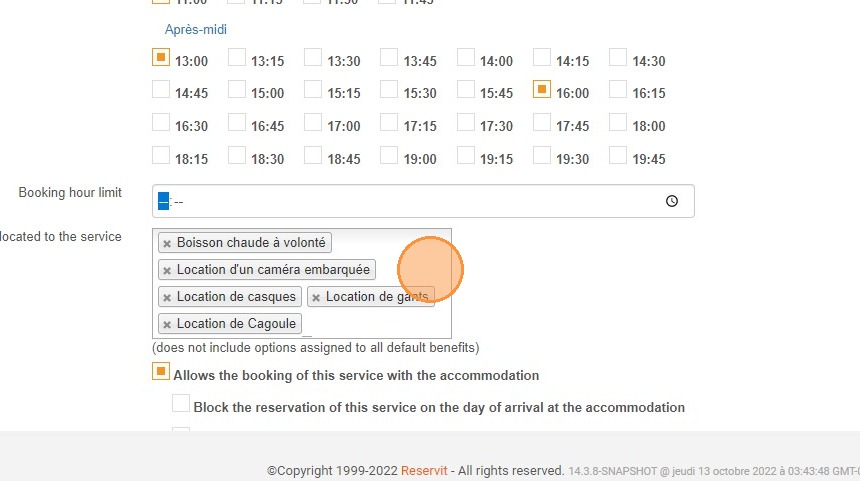
3. Click on Booking hour limit.
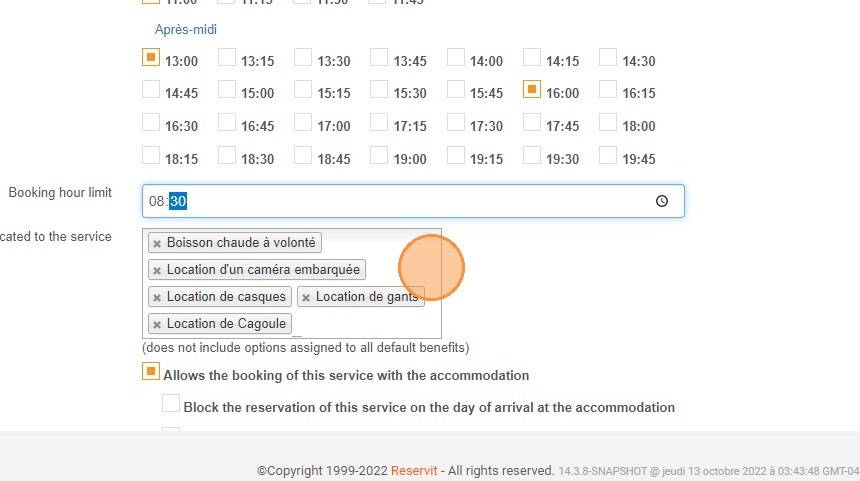
4. Enter the maximum reservation time for this service
5. Click "Save"