Article summary: This step-by-step guide explains how to quickly search for same-day bookings within your Reservit Activities schedule. You will learn how to navigate your calendar periods, use reference numbers to locate specific reservations, and easily filter daily booking details. Mastering these search features will help you efficiently manage your daily reservations and handle arrivals with total confidence.
The 4 key steps to search for same-day bookings:
-
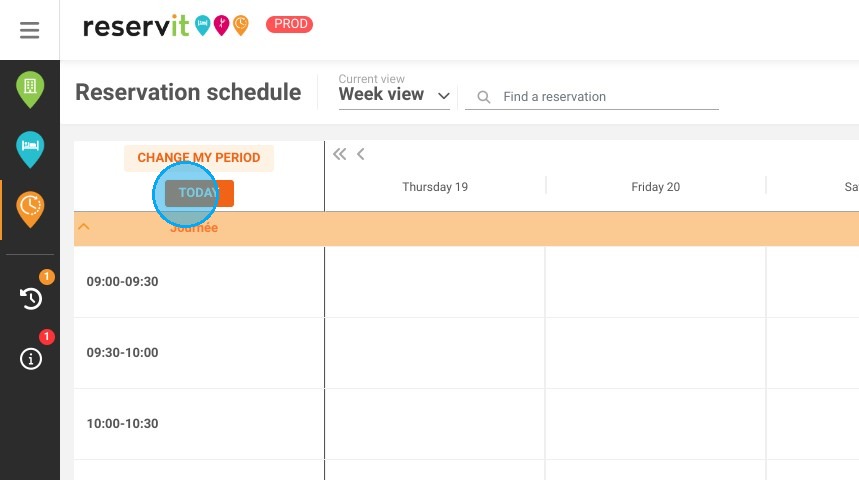
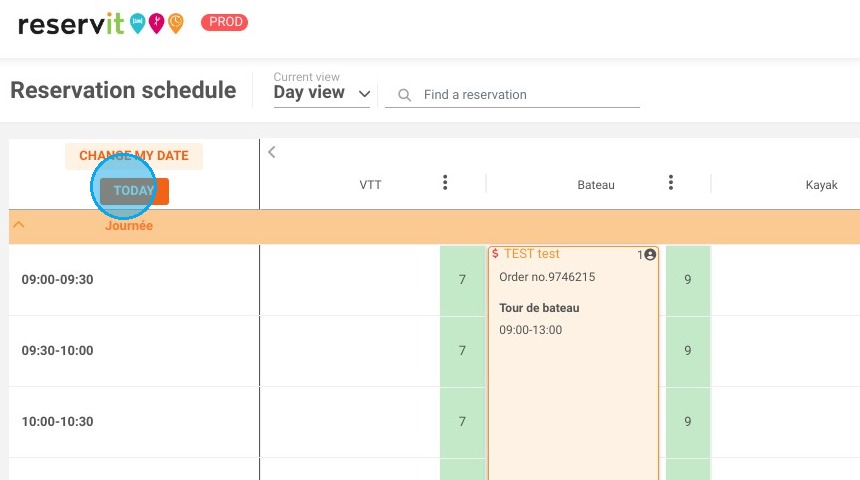
Navigate to the current period: Click the "Today" button on your main reservation schedule or day view to instantly jump back to the current date.
-
Search by reference number: Use the quick search bar at the top of your screen to instantly locate a specific reservation if you already know its reference code.
-
Open the daily view panel: Click on the specific day you want to manage in your calendar to reveal a dedicated side window displaying all reservations for that date.
-
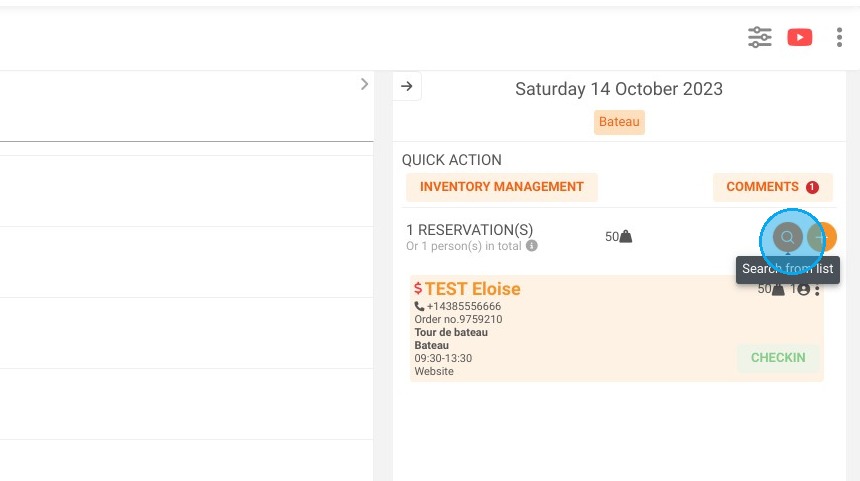
Filter specific daily reservations: Use the magnifying glass icon within the daily bookings window to pinpoint a particular client or booking among the day's scheduled activities.
Why follow this guide? Following this guide ensures you can instantly locate critical client information during busy operational periods, saving your front-desk staff valuable time. Quickly finding reservations eliminates check-in delays and guarantees a smoother, more professional arrival experience for your guests.
1. If the reservation schedule does not show the correct period, you can click on the Today button at any time to change the period
2. This is also possible on the day view, if the day selected in the period was not the right one
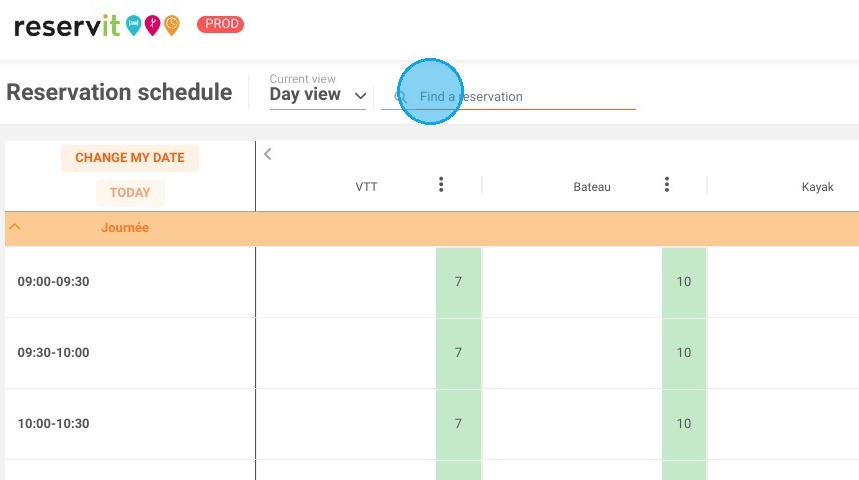
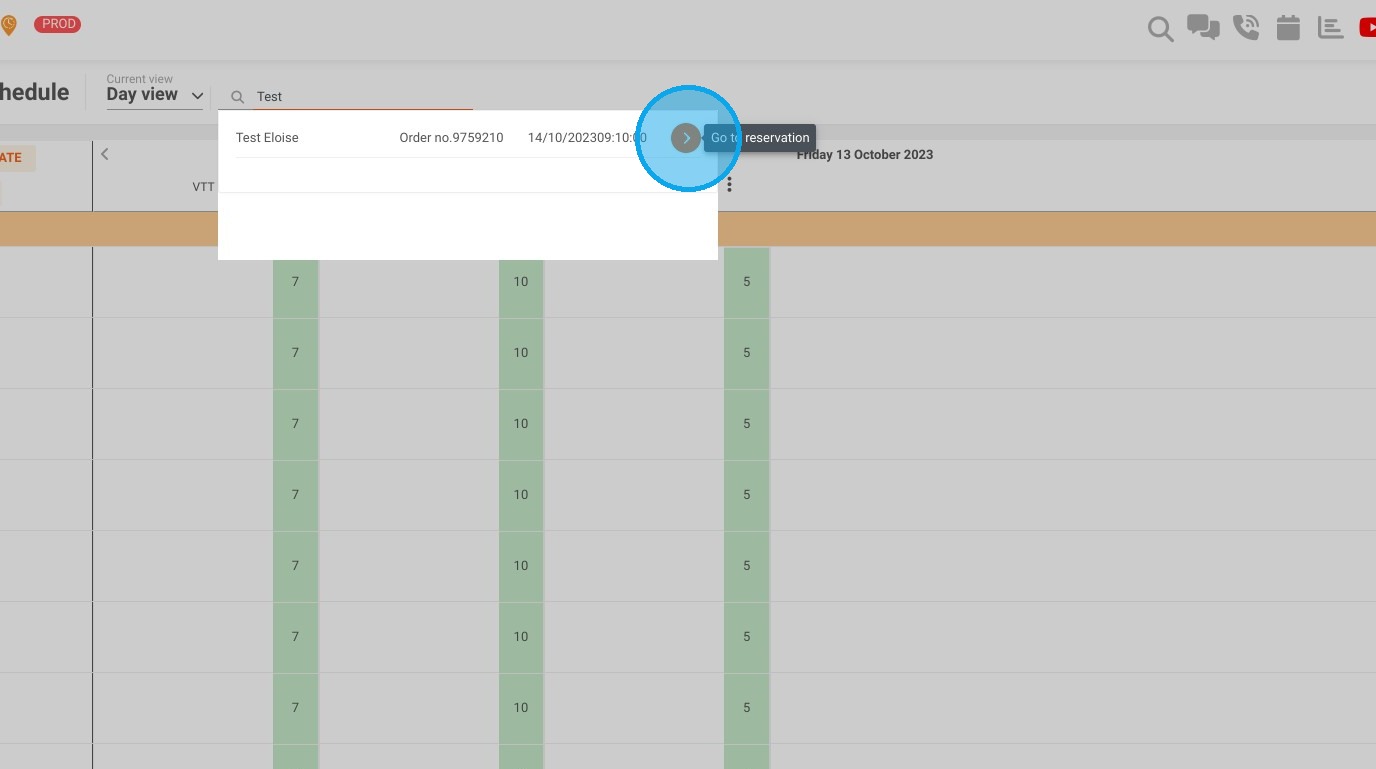
3. It is also possible to search for a reservation directly in the search bar if you know its reference number
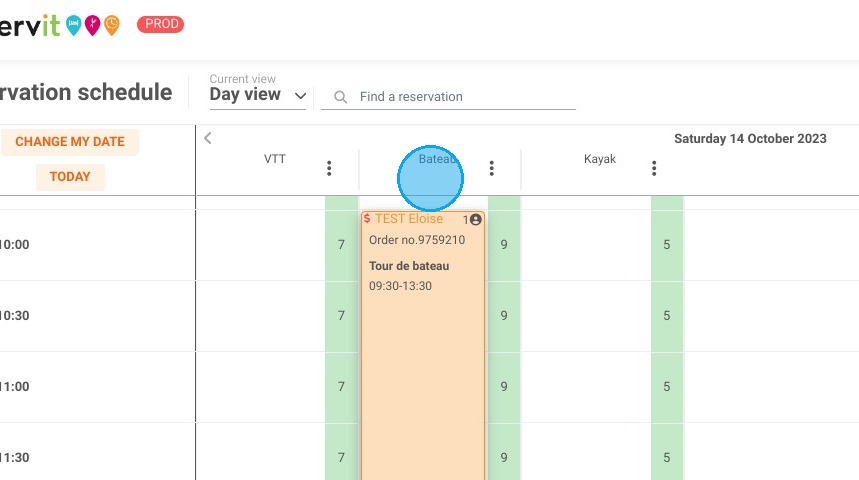
4. When you click on the day of your choice, a window with the day's bookings appears on the right. You can use the magnifying glass to search for a specific reservation