Article summary: This practical tutorial explains how to efficiently navigate your booking calendar and view your schedule based on specific dates or periods within Reservit Activities. By learning to seamlessly jump between different time frames, you can anticipate upcoming bookings, easily manage future inventory, and streamline your daily reception tasks.
The 3 key steps to navigate your planning dates:
-
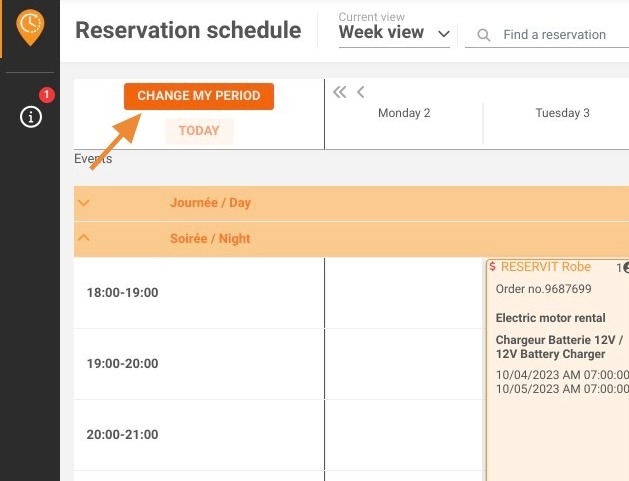
Access the period settings: Click on the "Change my period" or "Change my date" option located on your main planning dashboard.
-
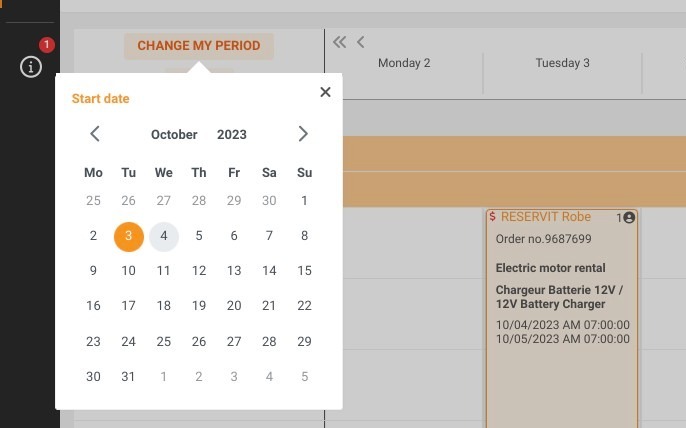
Select your specific time frame: Choose the exact past or future dates you need to review to instantly update your calendar display.
-
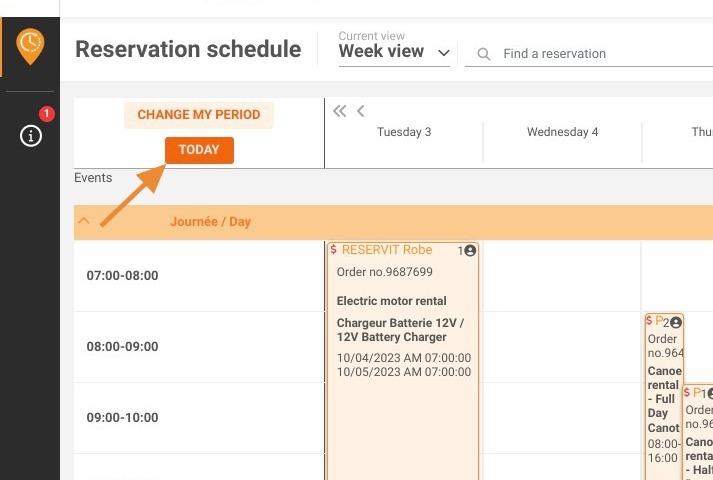
Return to the current day: Click the "Today" shortcut to quickly snap back to your current daily schedule and resume immediate operations.
Why follow this guide? Mastering your calendar navigation eliminates unnecessary clicking and saves your front-desk staff valuable time, ensuring fast, accurate answers when handling future booking inquiries or checking upcoming availability.
1. Click on Change my period or change my date.
2. Select the new date or period.
3. To return to the current day, click "Today".