Article Summary: This practical guide explains how to easily access and utilize the Money Owed Report within Reservit PMS to track outstanding guest payments. You will learn how to navigate the statistics dashboard, decode color-coded billing data, and export your daily unpaid sums. Mastering this financial reporting feature ensures transparent accounting and helps your property efficiently recover all pending balances.
The 4 key steps to access the money owed report:
-
Navigate to the Statistics Dashboard: Go to the "Statistics" menu and proceed to the designated reporting page to open your property's financial data.
-
View Today's Report: Access the automatically generated dashboard, which defaults to today's date, displaying all currently unsettled customer sums.
-
Analyze Billing Data: Review the color-coded entries to quickly identify charge origins, where black indicates items reserved at booking and green highlights services added during invoicing.
-
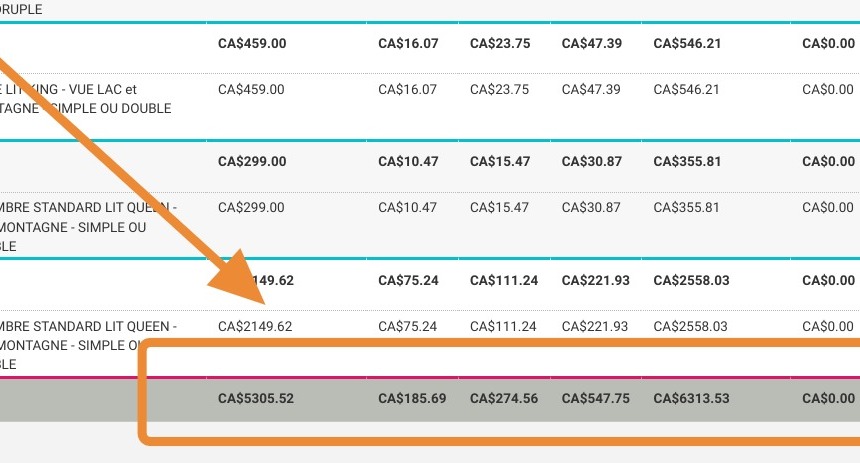
Export and Review Totals: Check the daily totals at the bottom of the page and use the built-in tools to print or export the comprehensive report for your accounting records.
Why follow this guide? Following this tutorial optimizes your revenue recovery process by providing a clear, daily overview of all outstanding guest folios. It streamlines your financial reconciliation, preventing lost revenue and ensuring accurate bookkeeping during shift closures.
Tip: Money owed report represents all sums not settled by the customer, whether sent for invoicing or not. Once paid, they will no longer appear in the money owed report. This report is generated on a daily basis.
1. Click "Statistics"
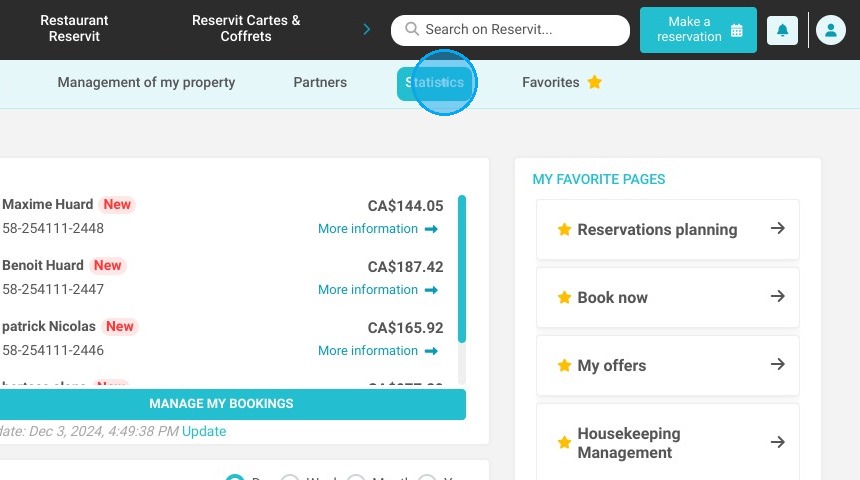
2. Click here.
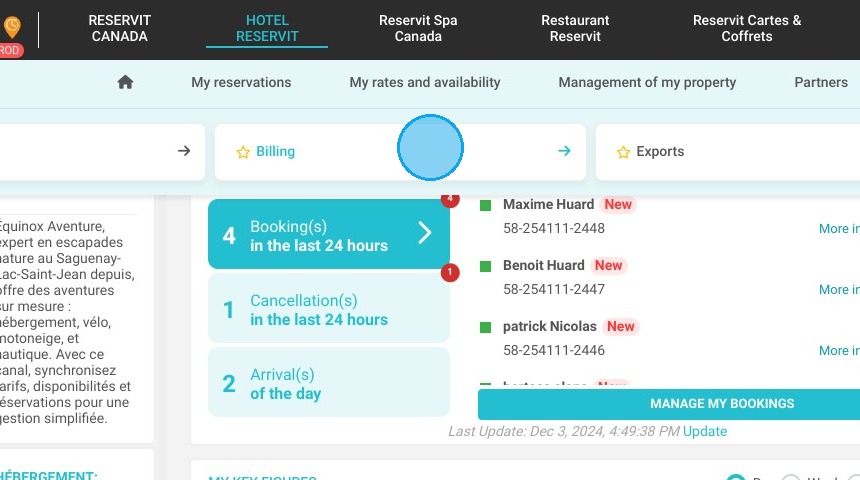
3. Click "Go to page"
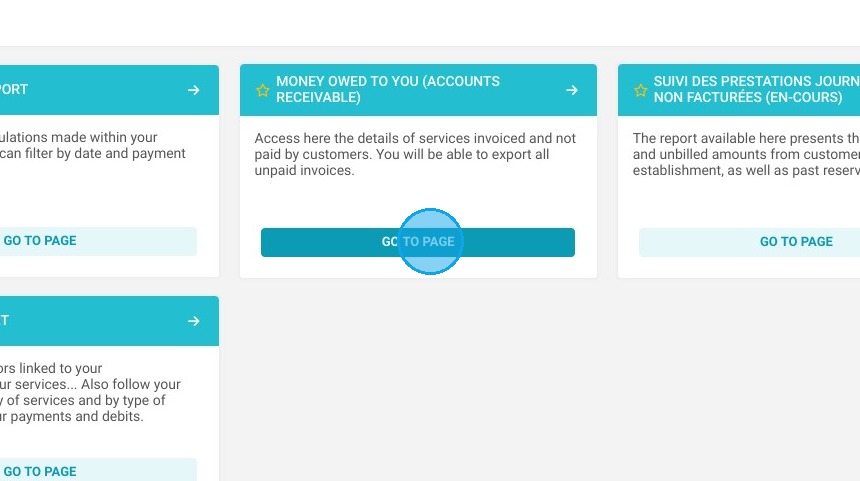
4. The report is displayed for today's date.
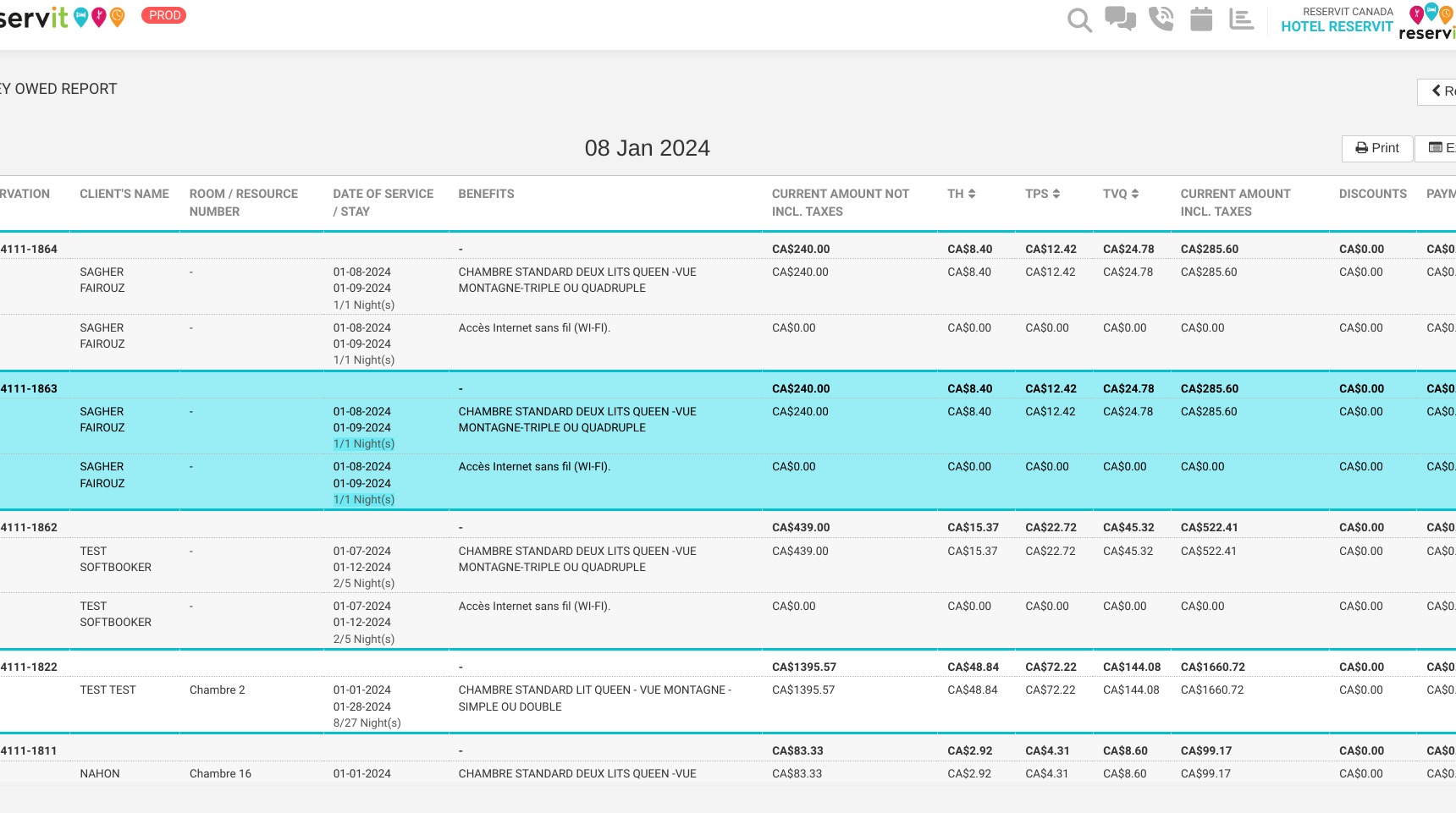
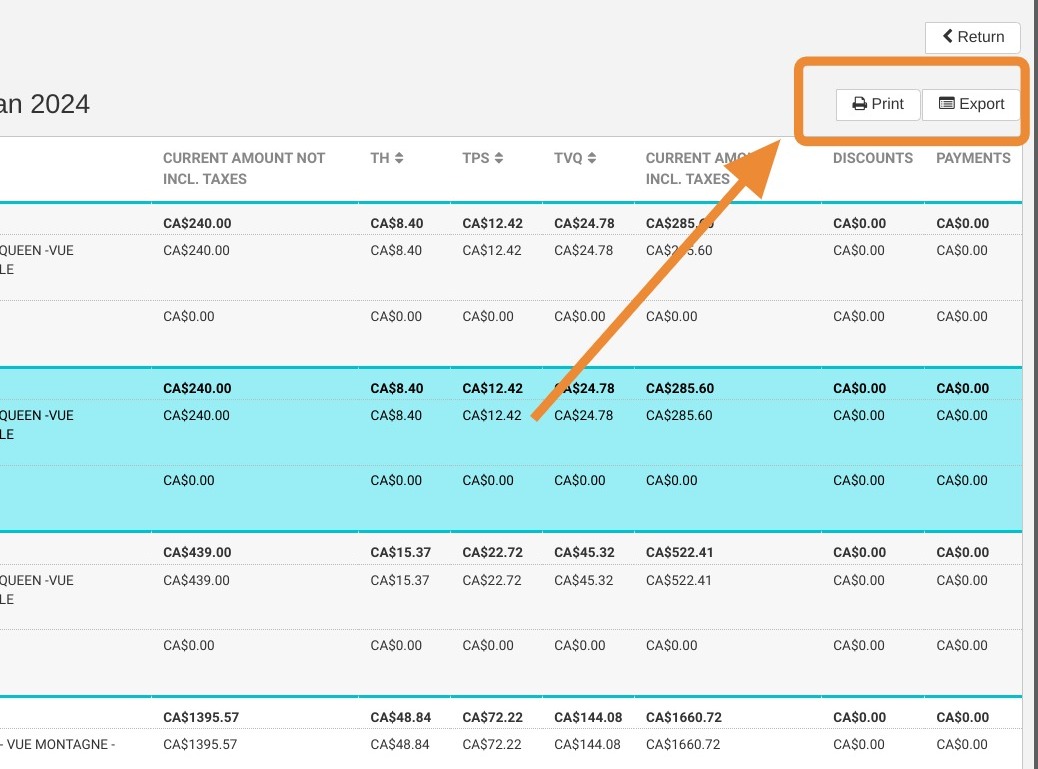
5. You can print or export this report
Tip: Services and payments written in black are linked to services reserved at the time of booking.
Services and payments written in green are linked to services added at the time of invoicing.
6. Daily totals are shown at the bottom of the page.