Article Summary: This essential guide explains how to effectively manage your accounts receivable and track outstanding guest invoices within the Reservit PMS. You will learn how to access the "Money Owed to You" report, quickly identify overdue payments using visual color indicators, and filter your financial data by specific payment deadlines. Mastering this financial reporting feature ensures highly accurate accounting, helps you efficiently recover unpaid sums, and streamlines your property's revenue tracking.
The 4 key steps to manage accounts receivable:
-
Access the Receivable Report: Navigate to the "Statistics" menu, select "Billing," and click on "Money Owed to you" to open your accounts receivable dashboard.
-
Identify Overdue Invoices: Review the generated report to locate all invoices currently in "To be paid" status, paying special attention to lines in red font, which indicate past-due deadlines.
-
Filter and Analyze Data: Use the specific drop-downs to select payment limits and sort by date, ensuring you review any partial payments applied to accurately calculate outstanding balances.
-
Export and Print Records: Utilize the built-in action buttons at the bottom of the page to easily print or export the comprehensive financial report for your bookkeeping and direct collection efforts.
Why follow this guide? Following this tutorial helps you prevent revenue loss by giving you a clear, organized overview of all pending guest balances and overdue accounts. It dramatically optimizes your financial tracking, ensuring timely payment follow-ups and perfectly accurate accounting without the risk of manual tracking errors.
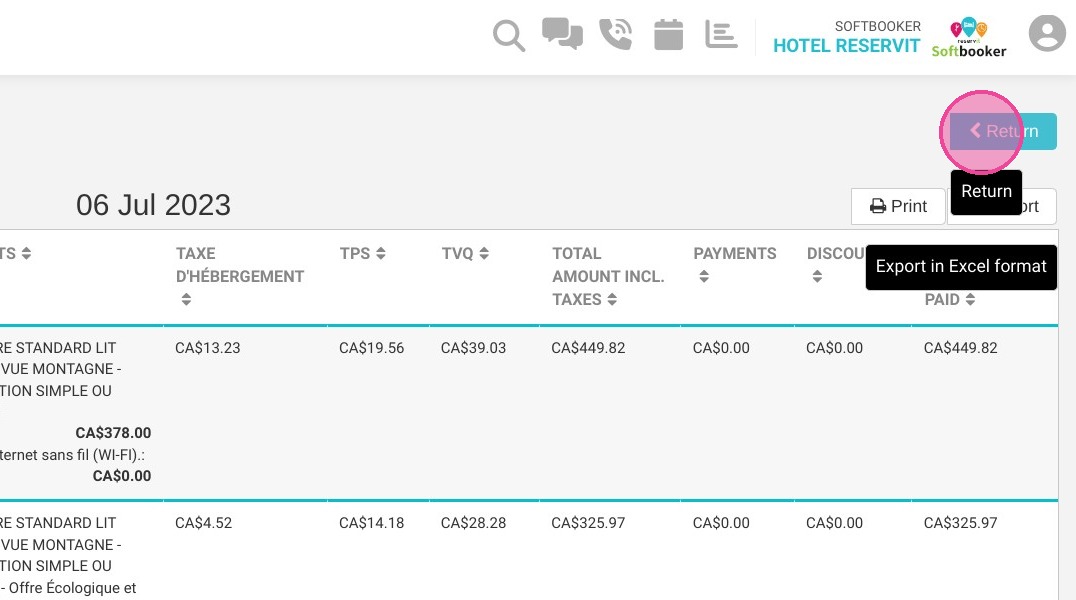
Alert: Invoices included in this report are only those in "To be paid" status. As soon as an invoice changes its status to "invoices paid", it no longer appears in the report.
Tip: Lines in red font correspond to invoices that have passed the payment deadline.
If one or more payments are associated with an invoice, the sum of these must appear in the "Payments" column. This will allow you to calculate the outstanding balance.
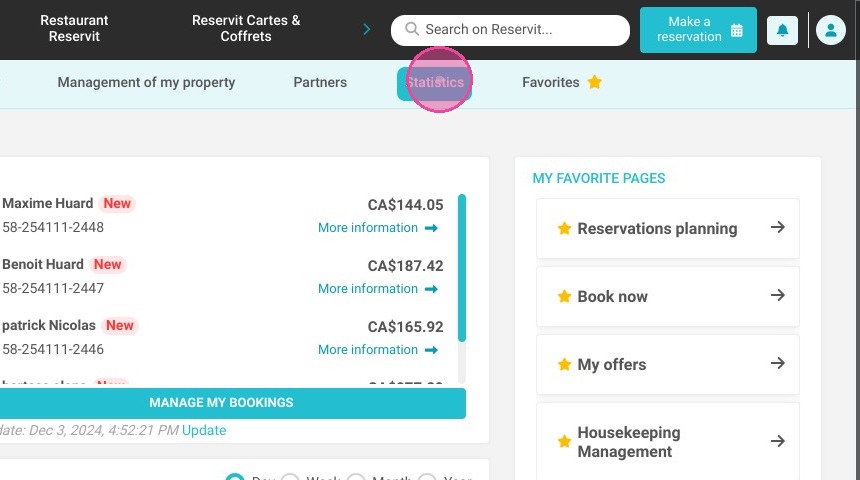
1. Click "Statistics"
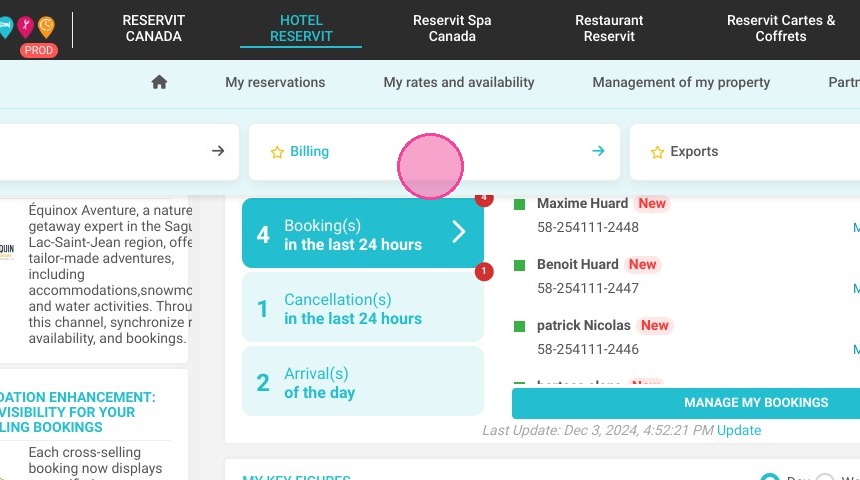
2. Then "Billing"
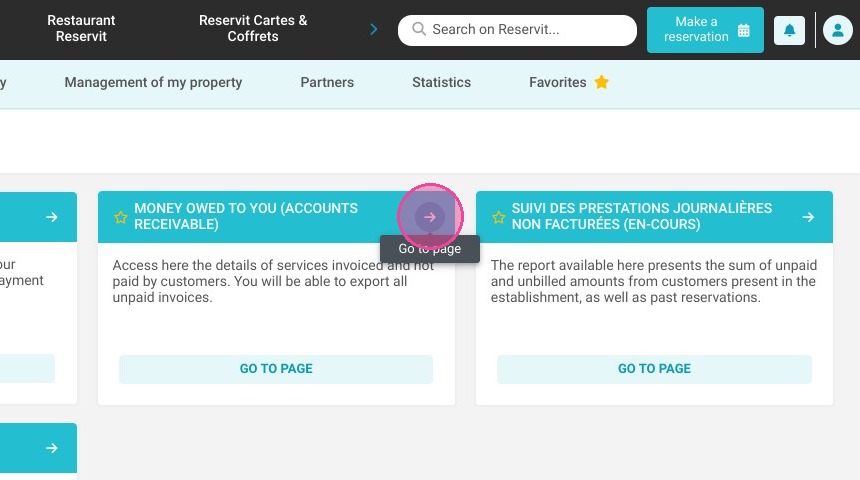
3. And "Money Owed to you (Accounts Receivable)"
4. You have "Invoice No."
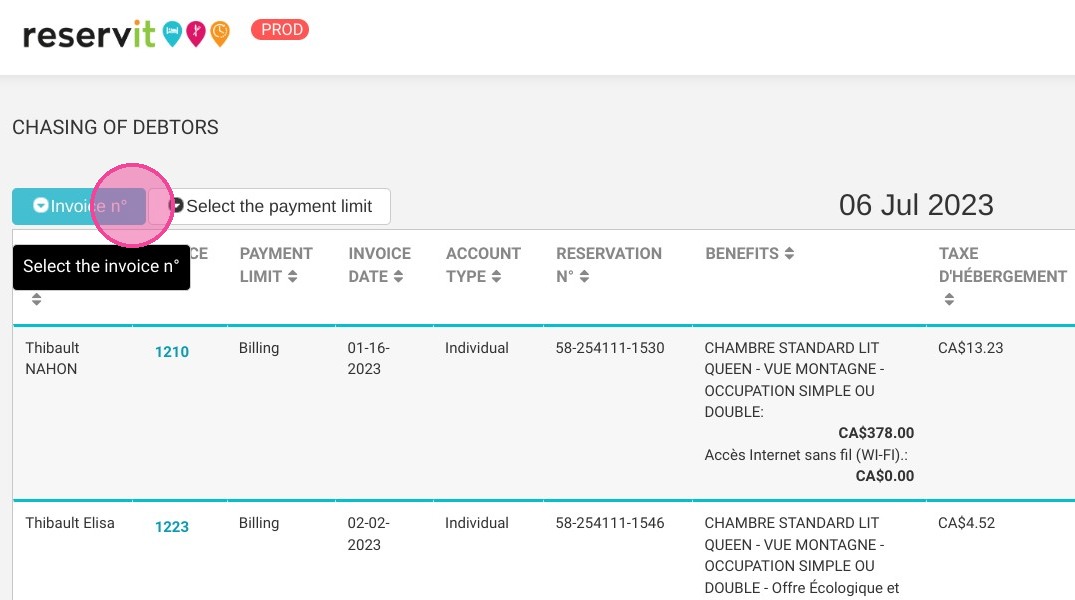
5. You can "Select the payment limit"
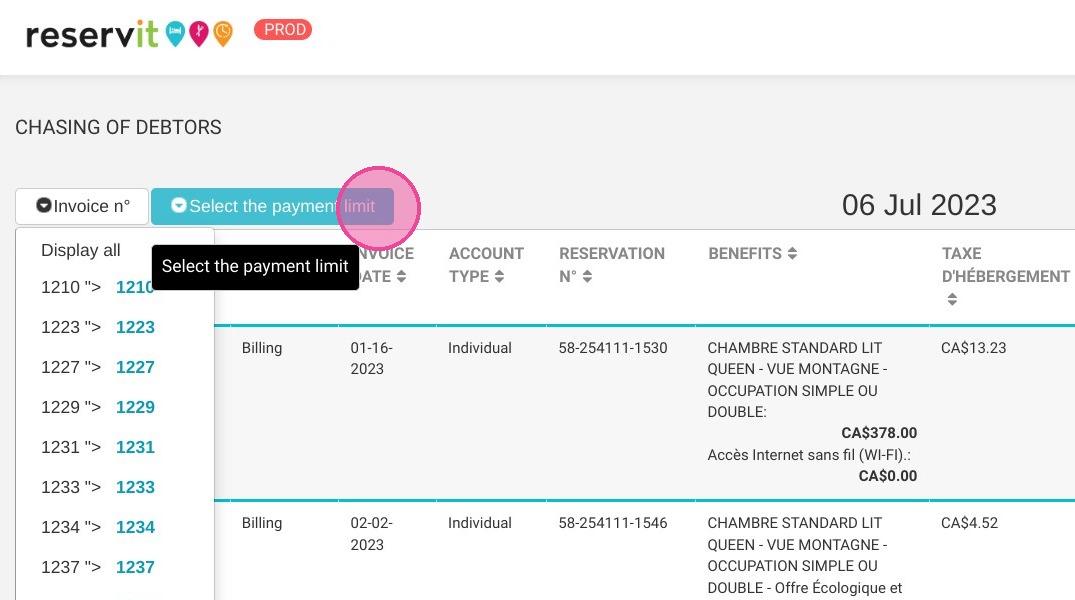
6. Here you have the date.
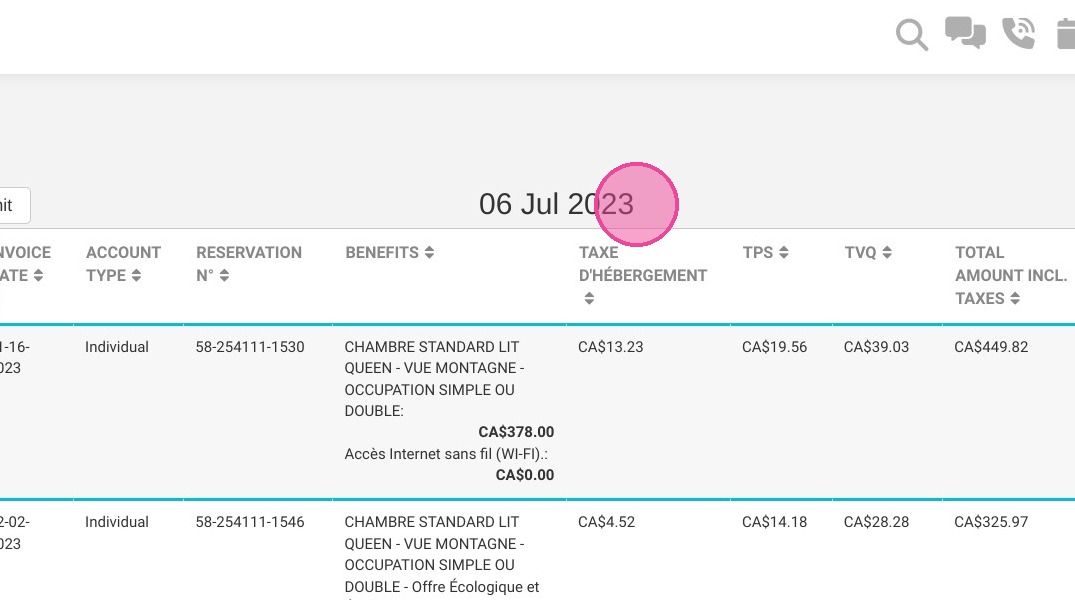
7. You can "Print"
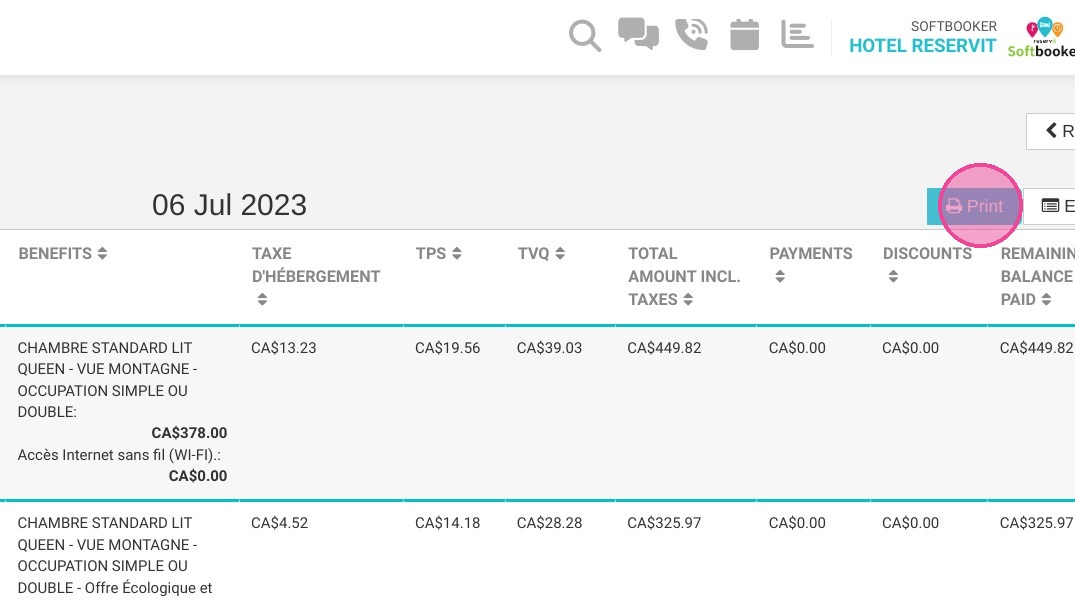
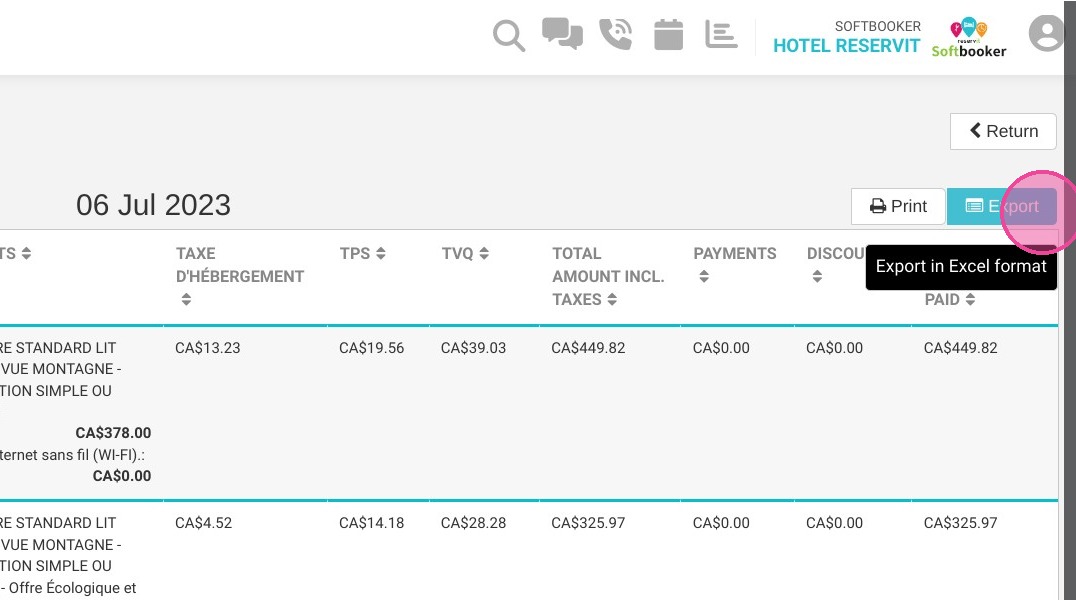
8. You can "Export"
9. And "Return"