Article Summary: This comprehensive guide provides step-by-step instructions on how to exclude specific rooms or lodgings from your Reservit PMS statistics dashboard. You will learn how to adjust your physical unit settings so that closed, out-of-order, or specialized rooms do not negatively skew your occupancy rate and revenue per available room (RevPAR) calculations. Mastering this configuration ensures your property's performance metrics remain highly accurate and reflective of your actual sellable inventory.
The 4 key steps to exclude a lodging from your statistics:
-
Access Physical Units: Navigate to "Management of my property," select your specific unit type (e.g., "Rooms"), and click on "Physical Units" to view your inventory.
-
Edit Room Details: Locate the specific accommodation you wish to hide from your reports and click on "view details" to open its configuration profile.
-
Exclude from Statistics: Check the box labeled "Do not take into account in the statistics" and click "Save" to successfully apply the exclusion rule.
-
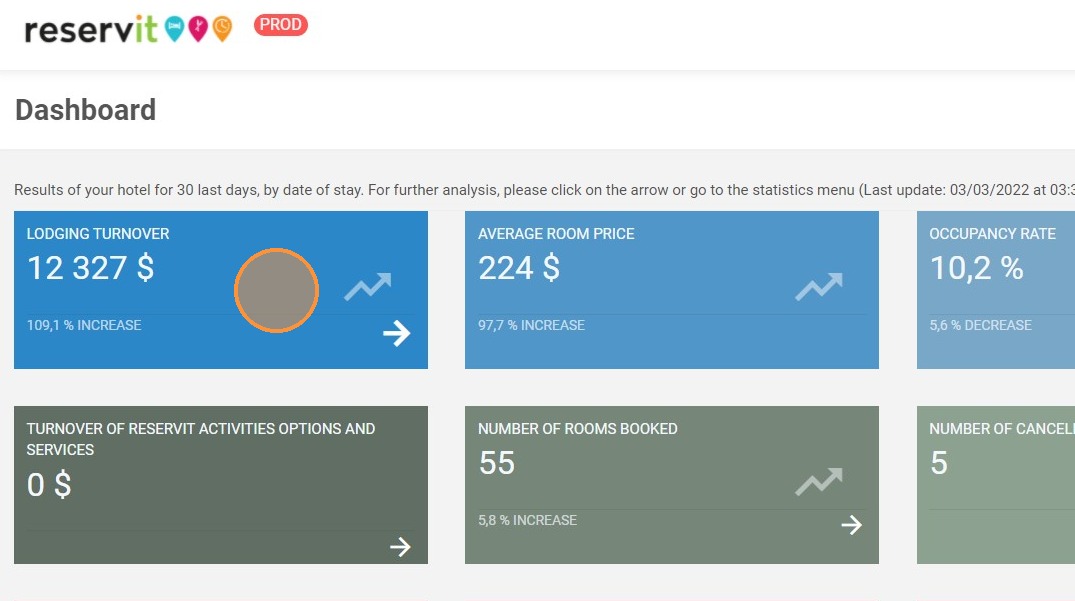
Review Your Dashboard: Navigate to your statistics dashboard to verify that the excluded unit no longer impacts your Occupancy Rate (OR) or RevPAR, noting that your total turnover will remain unaffected.
Why follow this guide? Following this tutorial prevents unsellable or owner-occupied rooms from artificially lowering your property's occupancy rates and core performance metrics. It optimizes your data analysis process, ensuring your management team makes strategic pricing and revenue decisions based on perfectly clean, accurate statistics.
1. Click "Management of my property"
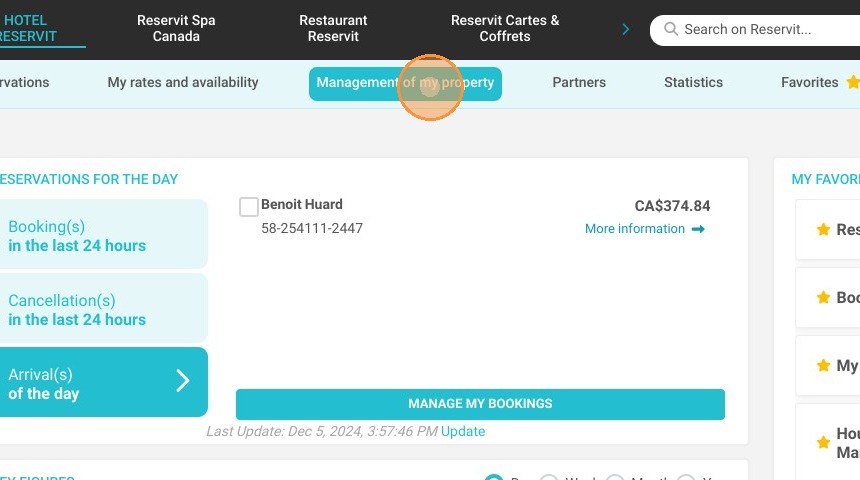
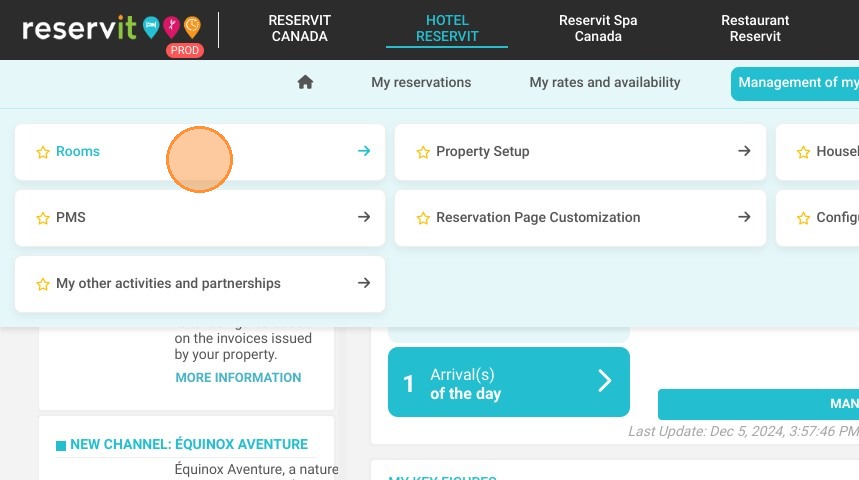
2. Then "Rooms" (or any kind of unit)
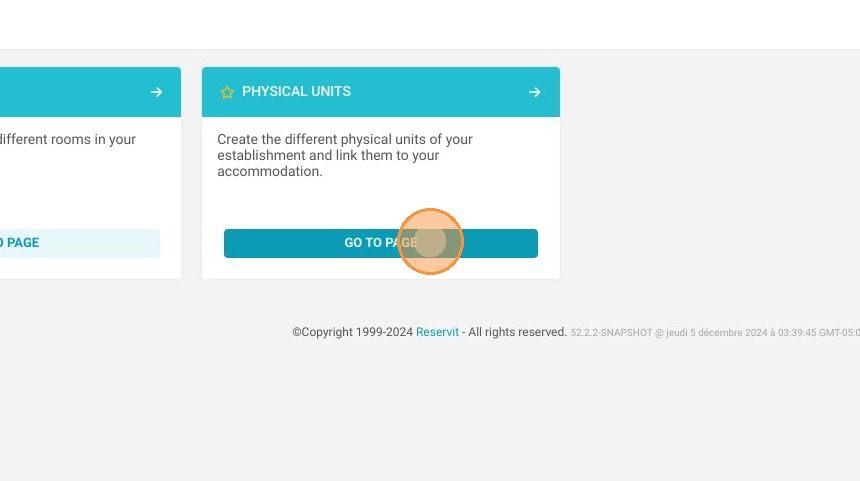
3. Then "Physical Units"
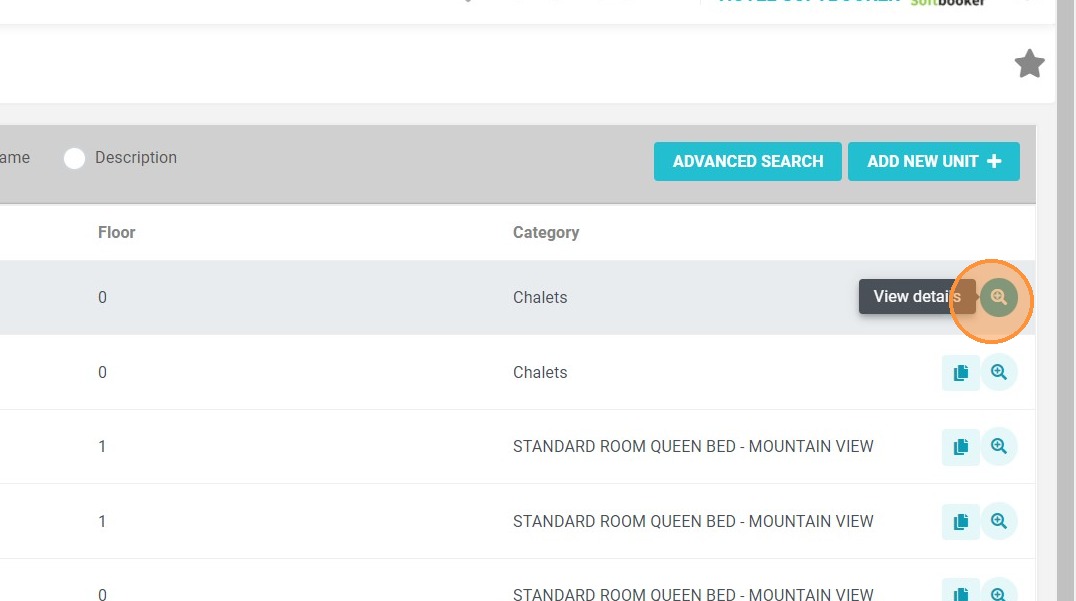
4. Click on "view details" of the accommodation
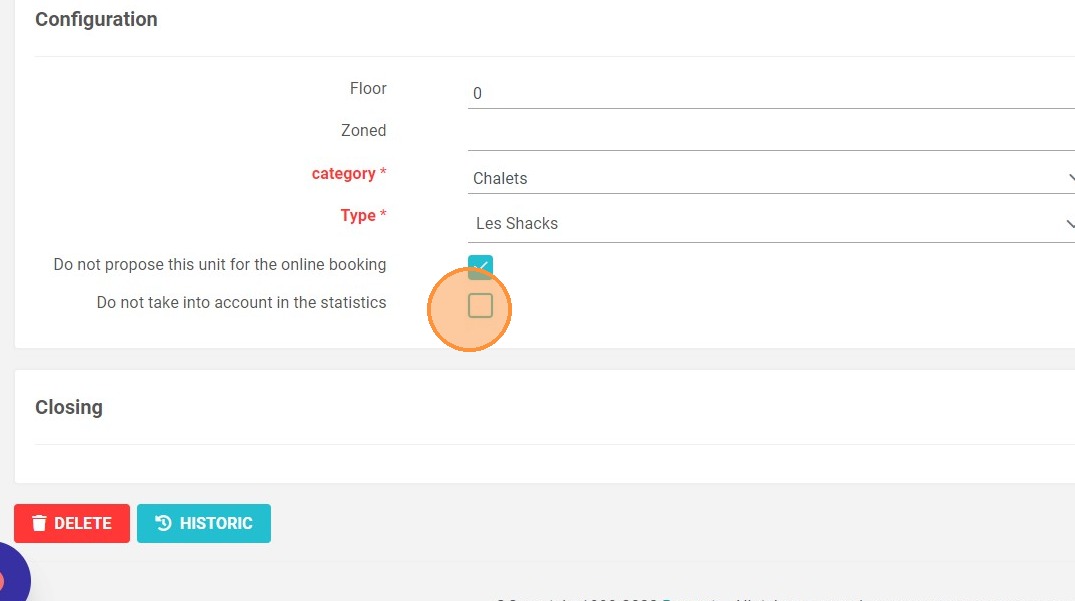
5. The field "Do not take into account in the statistics", once checked, allows the room/accommodation not to be taken into account in the statistics dashboard. Closed rooms will also not be taken into account in the fields (see below).
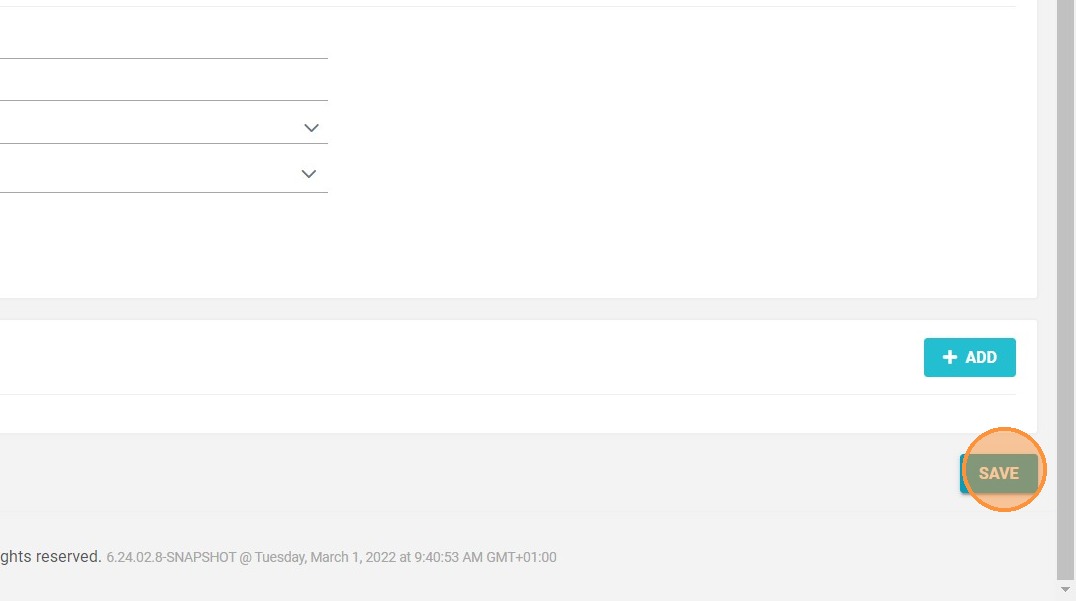
6. Don't forget to click on "SAVE" once the box is checked.
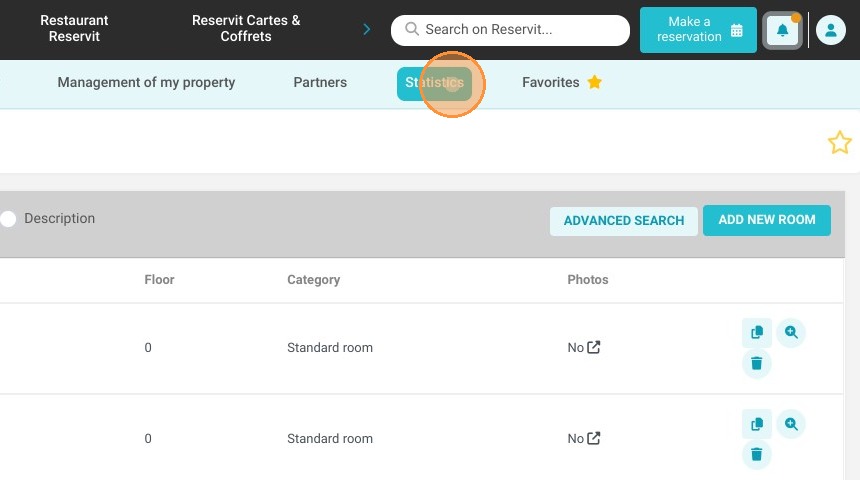
7. Click "Statistics"
8. Then ''Dashboard''
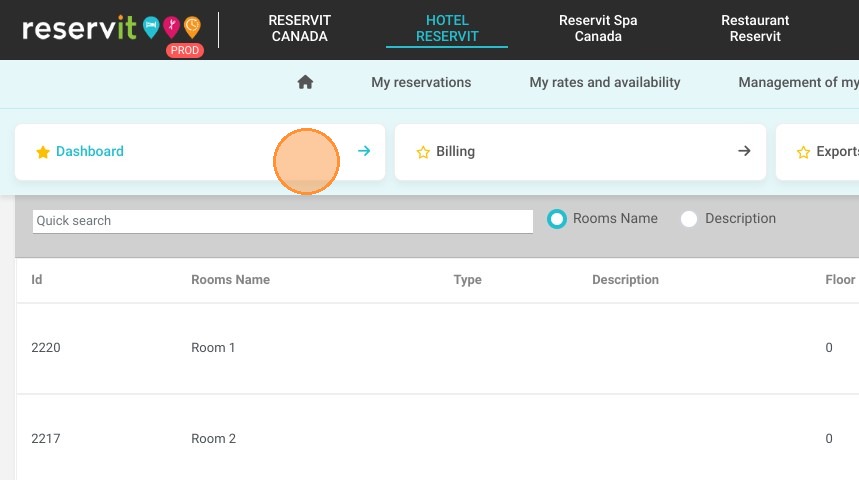
9. Once the box is checked, the data related to this accommodation will not be reported in the occupancy rate (OR)
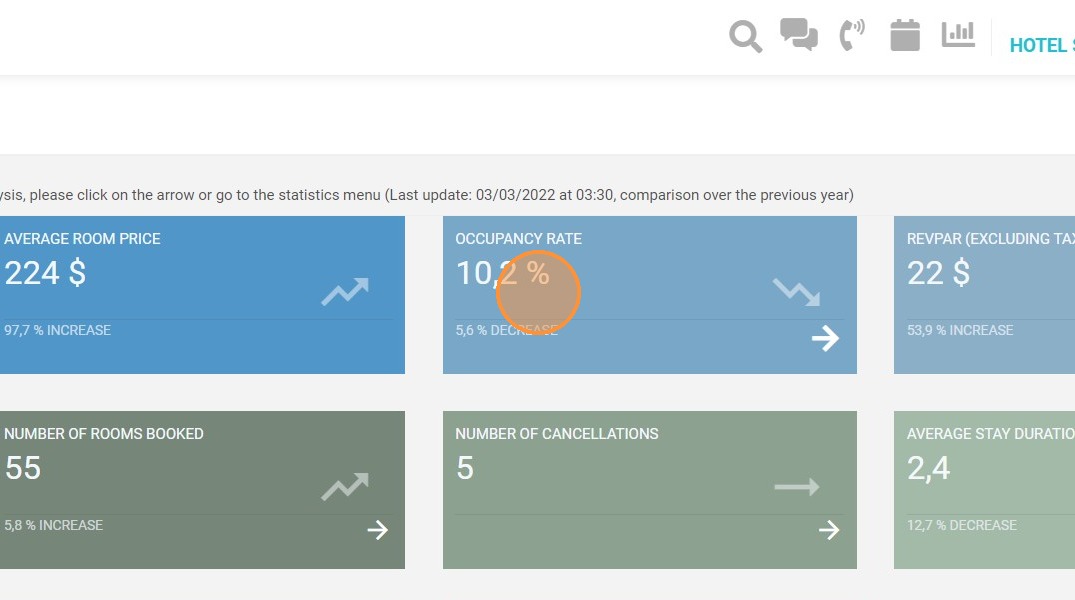
10. Once the box is checked, the data related to this accommodation will not be reported in the revenue per available room (RevPAR)
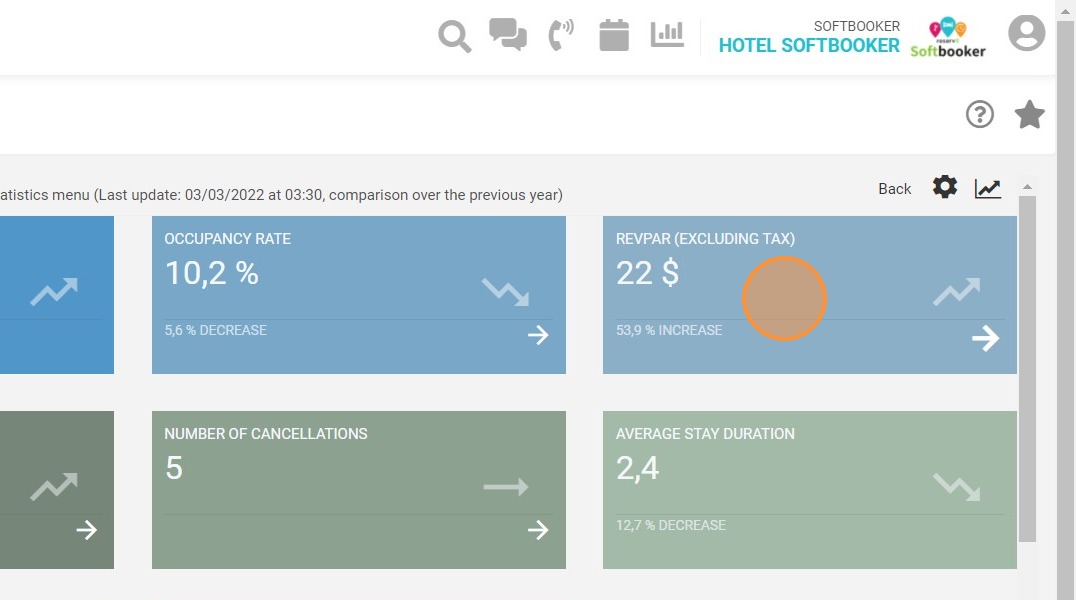
11. Closed rooms are no longer counted in the number of rented rooms and deducted from the available rooms
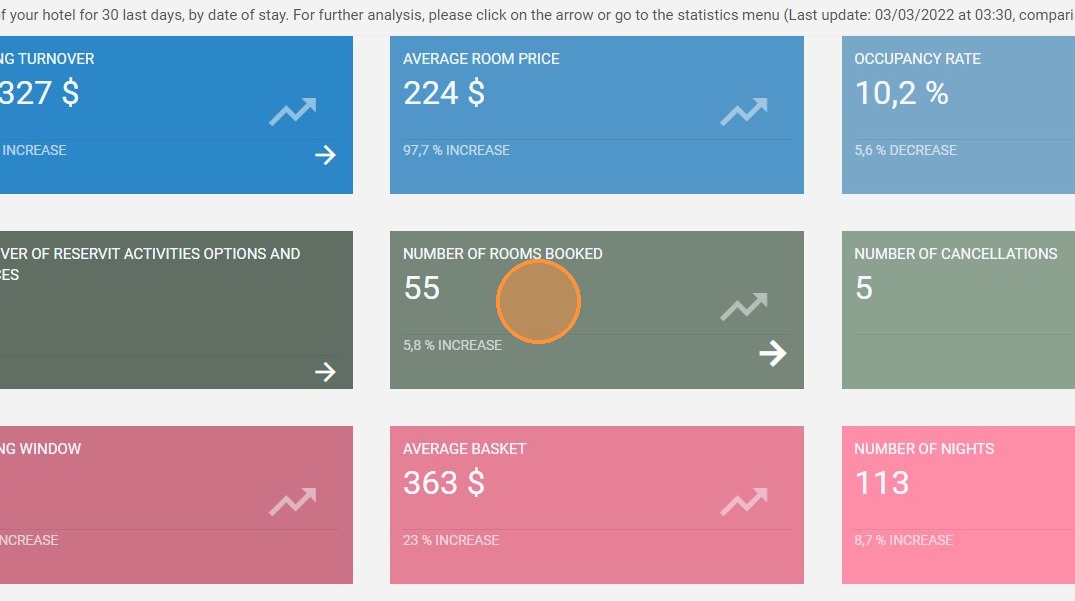
12. The turnover takes all values whether the box is checked or not. This change has no impact on the turnover.