Article summary: This step-by-step guide explains how to easily apply promotional discounts to your invoices within the Reservit Gifts & Certificates system. You will learn the two main methods for discounting: deducting a fixed amount or percentage from the entire invoice, and applying a specific price reduction to an individual service line. Mastering these billing tools allows you to efficiently manage customer compensation and special offers while maintaining perfectly accurate financial records.
The 4 key steps to apply a discount to an invoice:
-
Access the customer's billing: Navigate to the specific reservation and open the customer's billing account to view the available service lines.
-
Discount the entire invoice (Method 1): Select all reservation lines, generate the Proforma invoice, and click "Add Discount" to apply a global percentage or fixed-amount deduction to the overall total.
-
Discount a specific service (Method 2): Alternatively, click the pencil icon next to a single account line to edit it, and enter your fixed or percentage discount directly into that specific service's details.
-
Validate and finalize: Watch the outstanding balances update automatically, confirm your changes by clicking "Validate," and generate the final invoice to display the clearly itemized promotion.
Why follow this guide? Correctly processing discounts ensures your accounting stays perfectly balanced and eliminates the risk of manual calculation errors at the front desk. It empowers your staff to quickly apply marketing promotions or resolve customer service issues on the spot with complete confidence.
Alert: To apply a discount on a specific service or on an invoice in general, go to your customer's billing account
1. 1st possibility:
You can apply a discount to the entire invoice. To do so, select all the lines of the reservation and click on invoice.
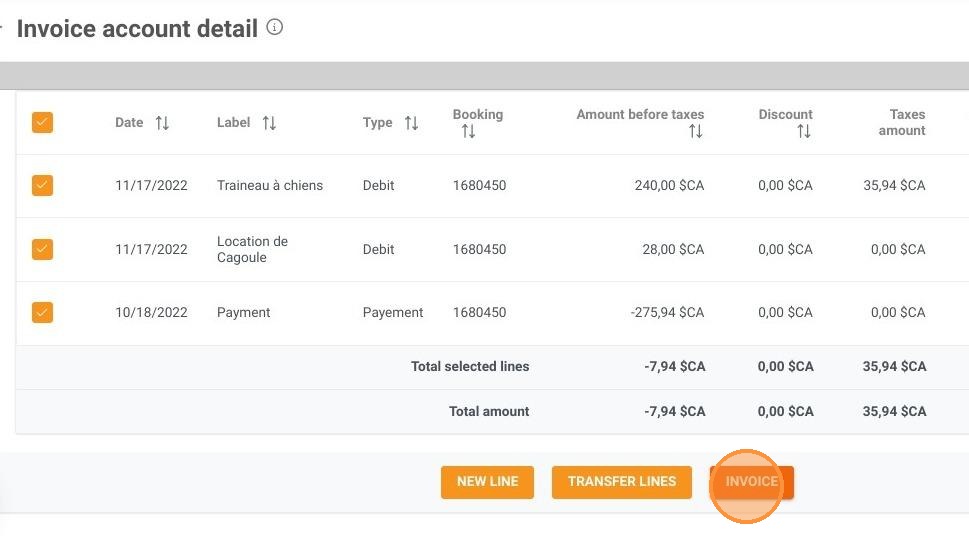
2. When you go to the Proforma invoice, you have the "Add Discount" button that appears. Click on it.
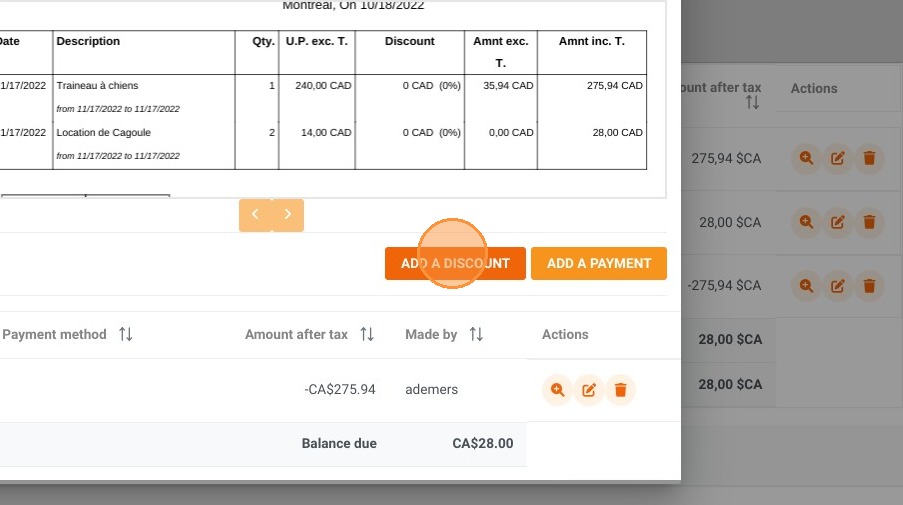
3. A window will appear allowing you to choose a discount of a fixed amount or a percentage and click on "Apply".
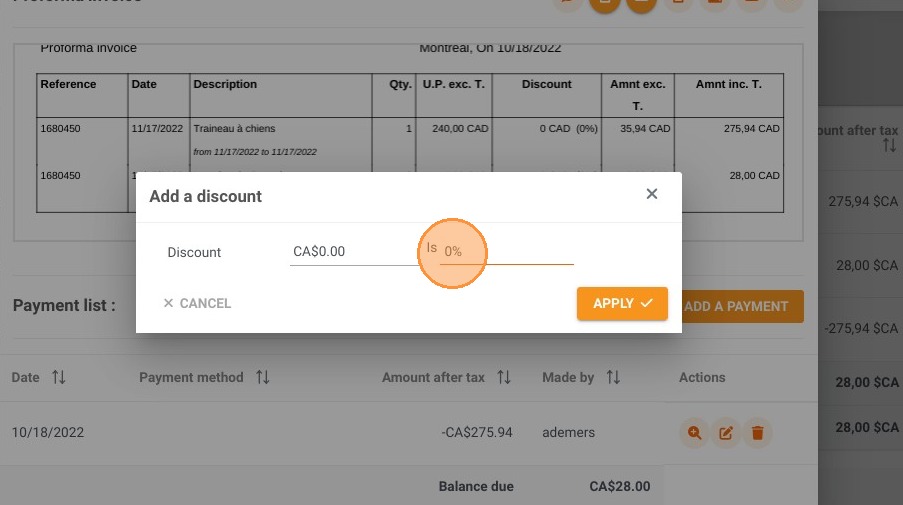
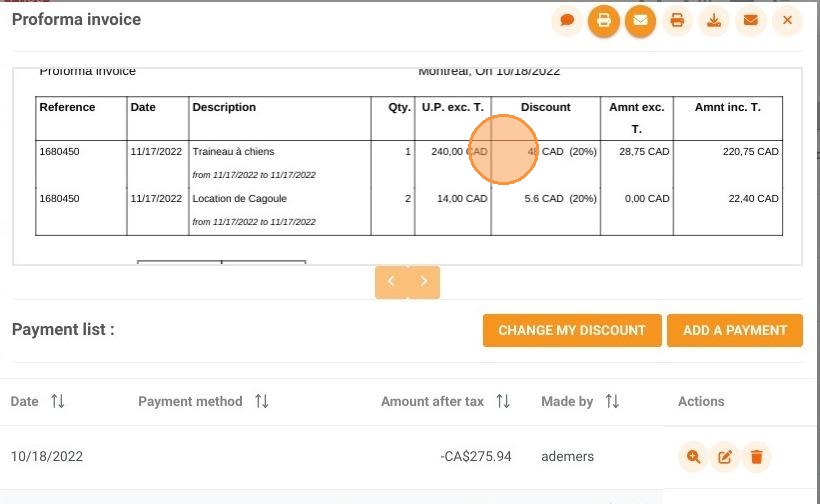
4. Here we have entered a discount of 20% which is a $48 discount on the price before taxes of the reservation for the first service.
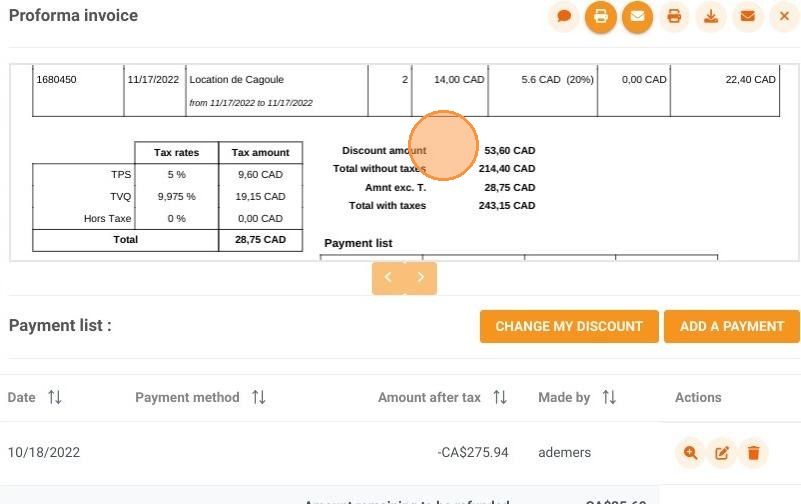
5. The discount amount, "53.60 CAD", also appears in the detail of the reservation amounts and the outstanding balance has been modified.
Alert: We just saw how to add a discount to an entire invoice. The tutorial for the 1st possibility to add a discount is over.
6. 2nd possibility: Add a discount on a specific account line (service).
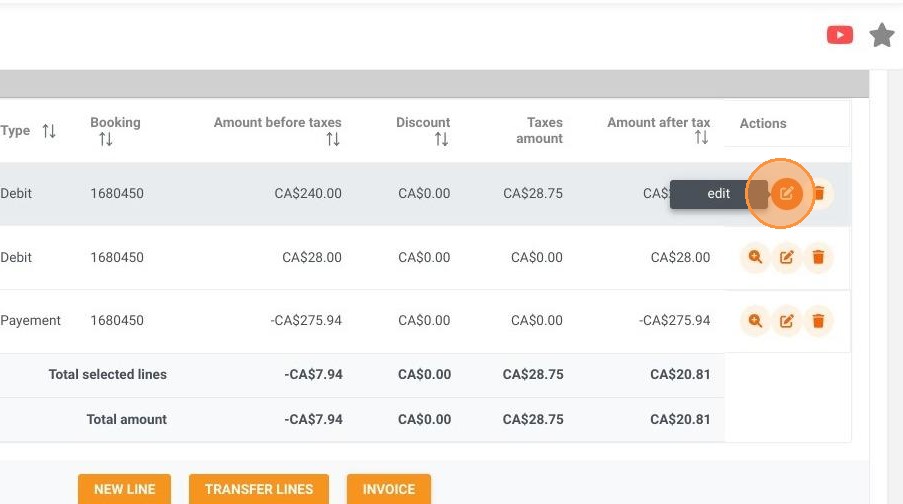
In the billing account, click on the icon with the pencil to edit the line on which you want to apply your discount.
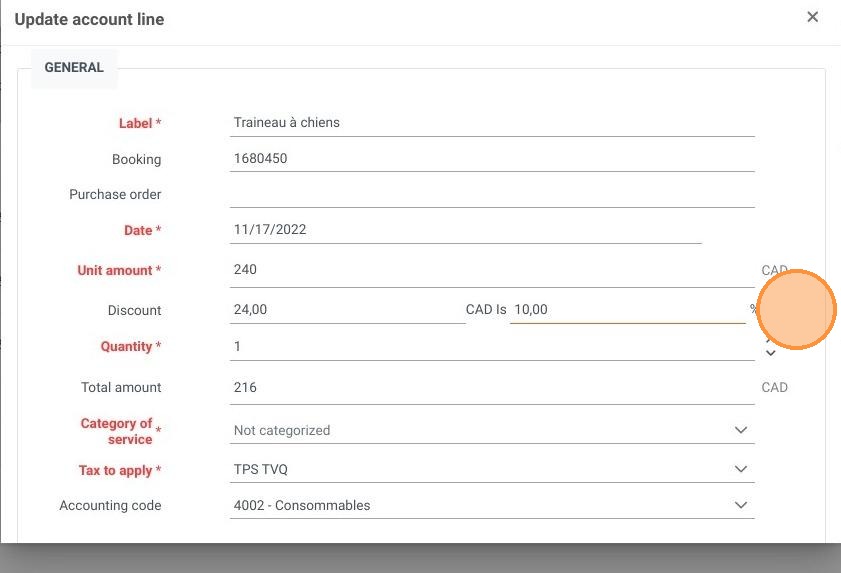
7. In the Discount field, enter the fixed or percentage amount you wish to apply to this service.
You will see the total amount decrease automatically.
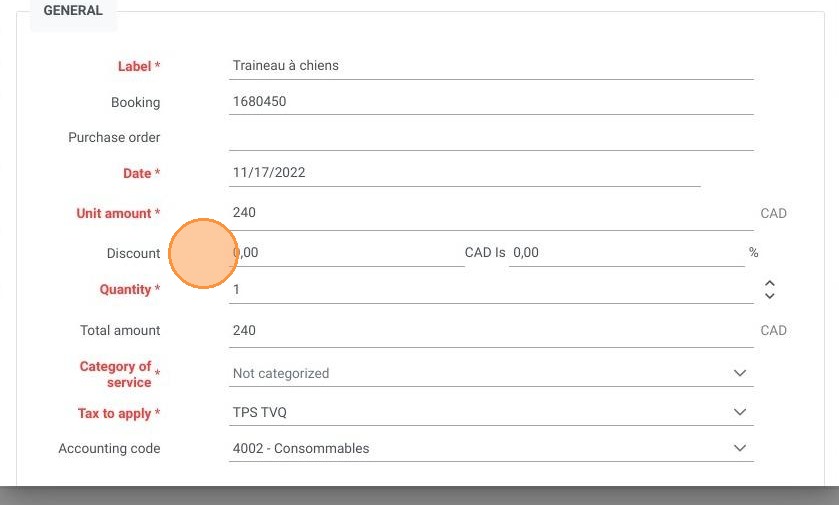
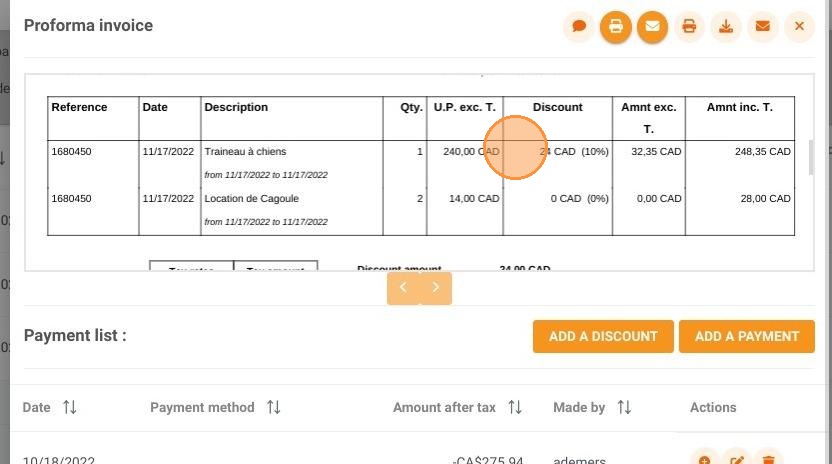
8. We have indicated here a 10% discount on this service, which is $24.
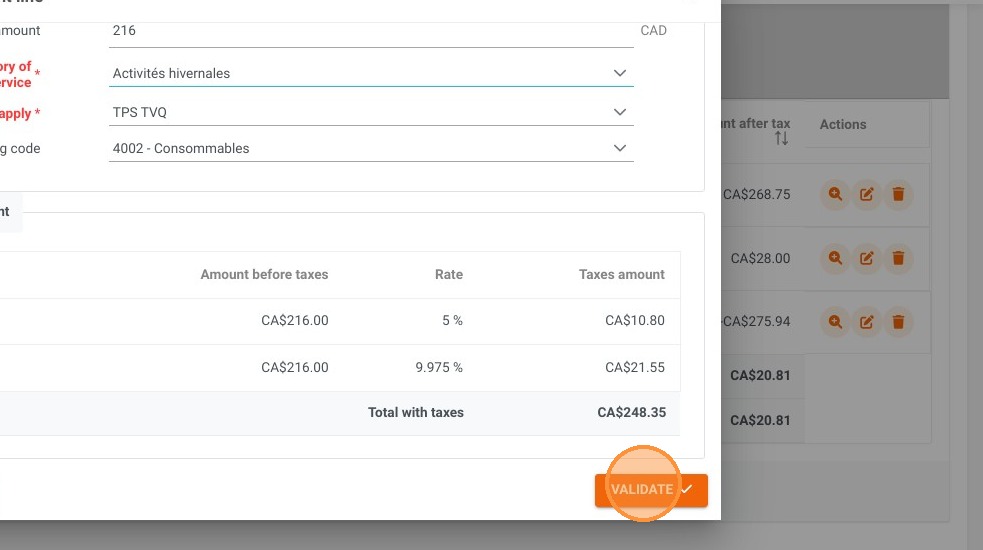
9. Click on "Validate" to confirm the changes.
10. When you bill your reservation, you will see the discount appear on your invoice.
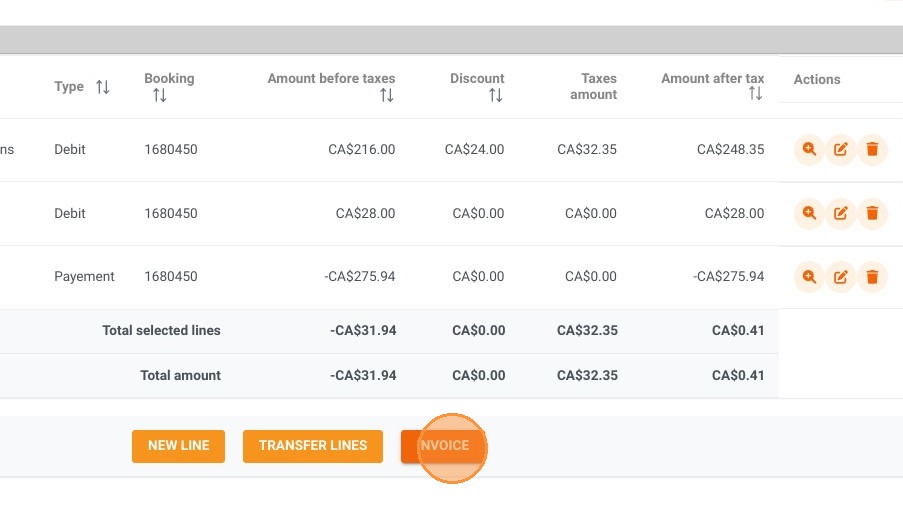
11. The tutorial for the 2nd possibility, to add a discount on a specific service, is finished.