Article summary: This guide provides a comprehensive overview of how to efficiently track and manage your sold gift cards and certificates directly from your Reservit dashboard. You will learn how to quickly search for specific products, interpret visual status indicators, and utilize quick action shortcuts to redeem vouchers or modify bookings. Mastering the "My Products" menu ensures a seamless redemption process and elevates the guest experience at your front desk.
The 4 key steps to manage your gift cards and certificates:
-
Search for products: Easily locate specific vouchers using the search bar by entering the reservation ID, order ID, buyer's name, or beneficiary's name.
-
Identify product status: Instantly recognize a voucher's current validity through simple color codes (Green for valid, Orange for expired, and Red for used).
-
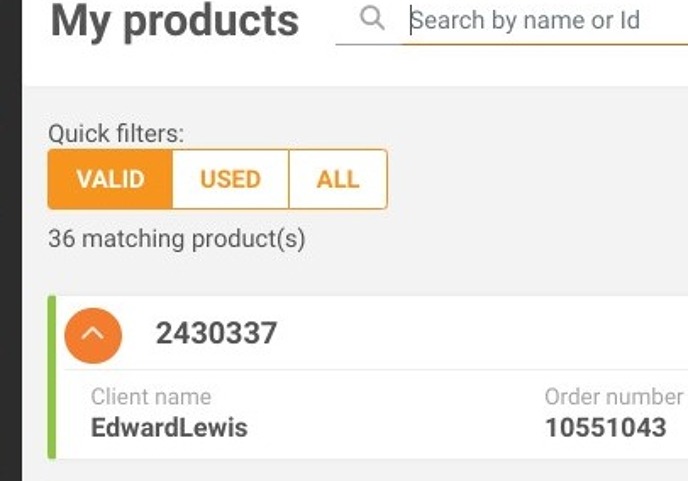
Filter your dashboard: Utilize the quick filter buttons at the top of your screen to instantly sort and display products based strictly on their current status.
-
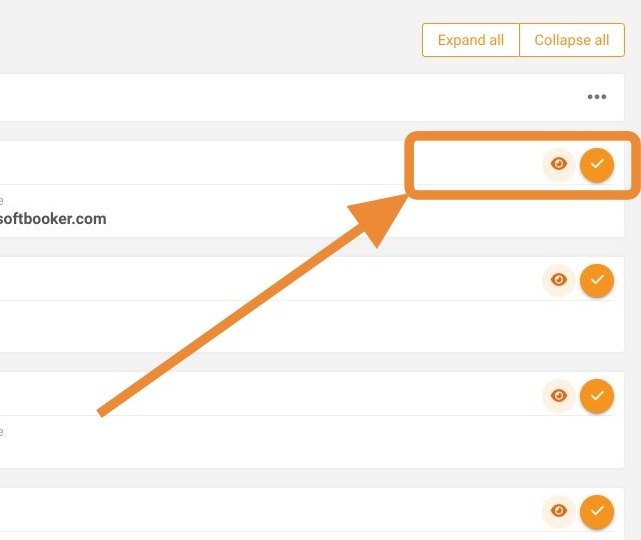
Utilize action shortcuts: Click the intuitive icons on the right side of the screen to edit reservation details (Eye), mark a product as consumed (Validation), or quickly create a new booking linked to that voucher (Phone).
Why follow this guide? Navigating the gift card dashboard effectively streamlines your front desk operations and prevents costly duplicate redemption errors. It empowers your staff to instantly verify, modify, and process guest vouchers, saving valuable time during check-in or booking inquiries.
Tip: From this menu, you can manage gift cards and certificates linked to your software, conveniently accessible via the Home Page or the "My products" section.
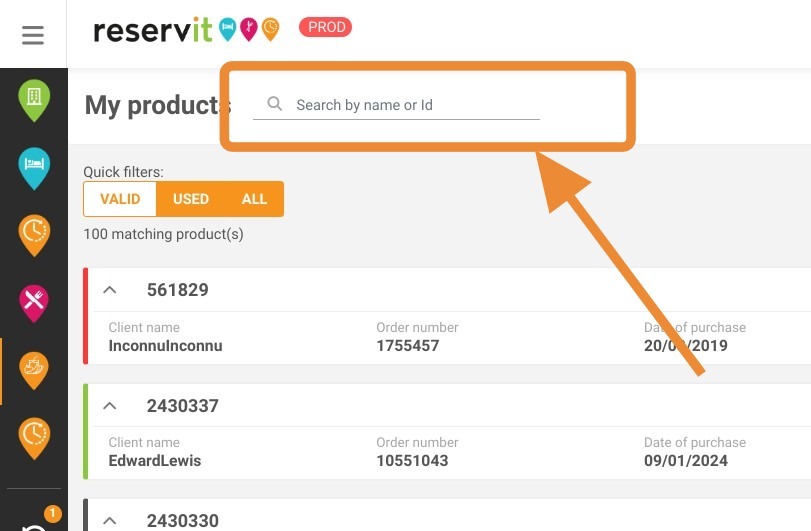
1. The search field allows you to find a product according to:
-
Reservation ID
-
Order ID
-
Reservation name
-
Beneficiary name
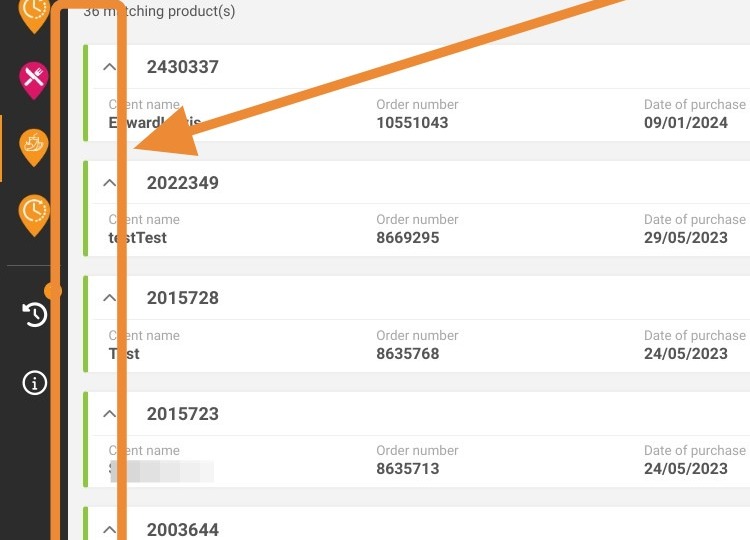
2. Color codes indicate product status:
-
Green = Valid
-
Orange = Expired (not applicable in Quebec, where products have no expiration date)
-
Red = Used
Tip: You can also use the quick filter buttons to access products according to their status.
3. On the right you'll find the following shortcuts:
-
Eye: Takes you back to the reservation where you can make changes.
-
Validation: Passes the product into use.
-
Phone: Takes you directly to the reservation system to create a reservation and consume the product (if consumption is possible).