

Article Summary: Discover how to easily update the design and visuals of your gift vouchers and gift certificates directly from your Reservit interface. This step-by-step tutorial explains how to upload your own header banner and logo to create documents that align perfectly with your brand identity. By customizing these graphic elements, you strengthen your property's brand image and provide a professional, attractive purchasing experience for your guests.
The 5 Key Steps to Customize Your Reservit Gift Vouchers:
-
Access property settings: Log into your interface, click on "Managing my activity", then navigate to "Property Setup" and "Property information".
-
Open the visual configuration tool: Click on the "Customization of the booking page" tab to access the design options.
-
Add the header banner: Go to the "Header Image" section to upload the visual that will appear at the top of the gift voucher (recommended size: 800x300 px or an exact multiple).
-
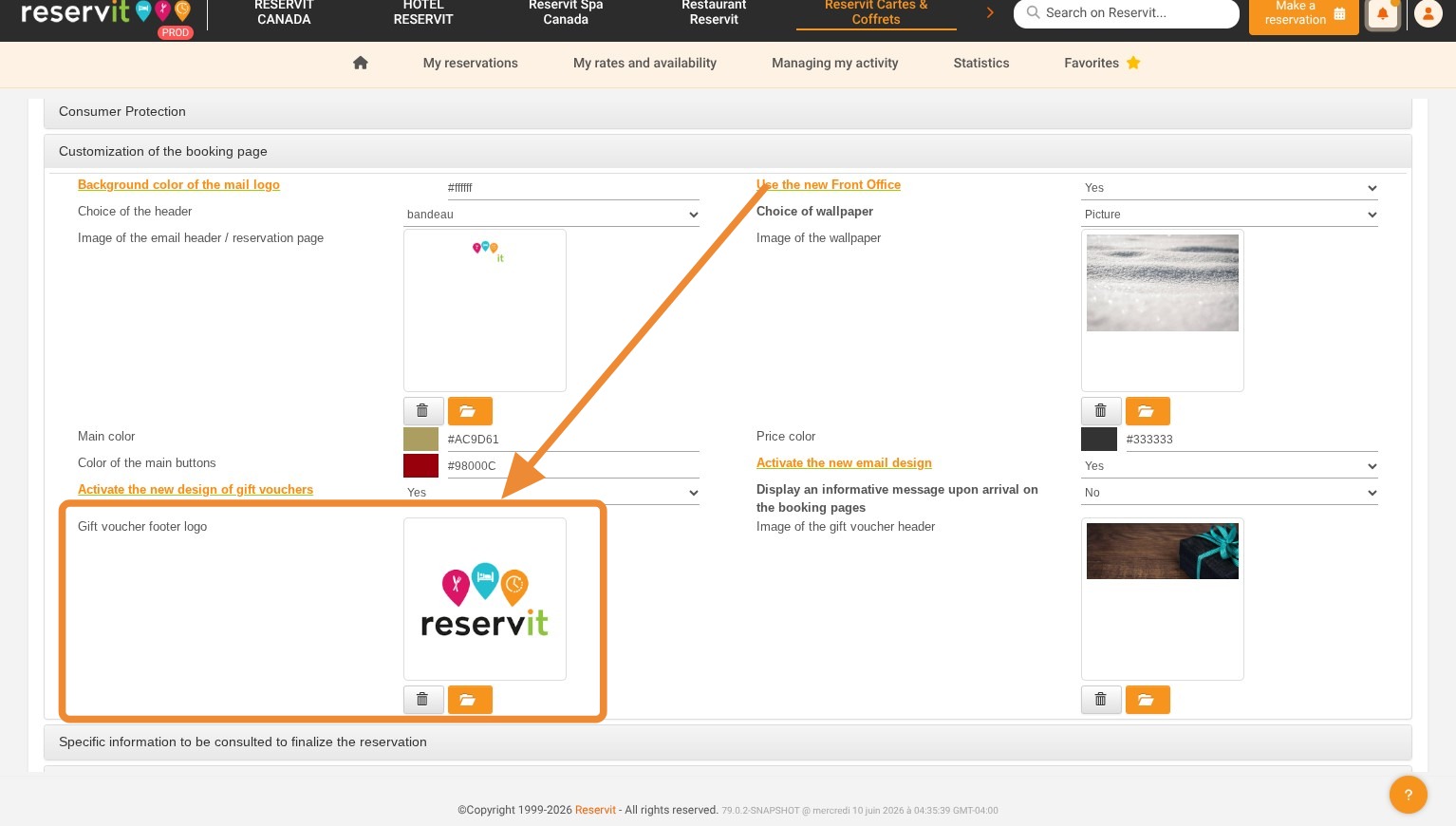
Integrate your brand logo: Scroll down to the "Gift Voucher Footer Logo" section to insert your company's logo.
-
Save your changes: Click the "Edit" button to save your new configuration and update your visuals.
Why follow this guide? This guide helps you save time when setting up your online store while avoiding image resizing errors thanks to the provided recommended dimensions. A successful customization optimizes the perception of your offers and professionally boosts the sales of your gift packages.
1. Click "Managing my activity" then "Property Setup" and "Property information"
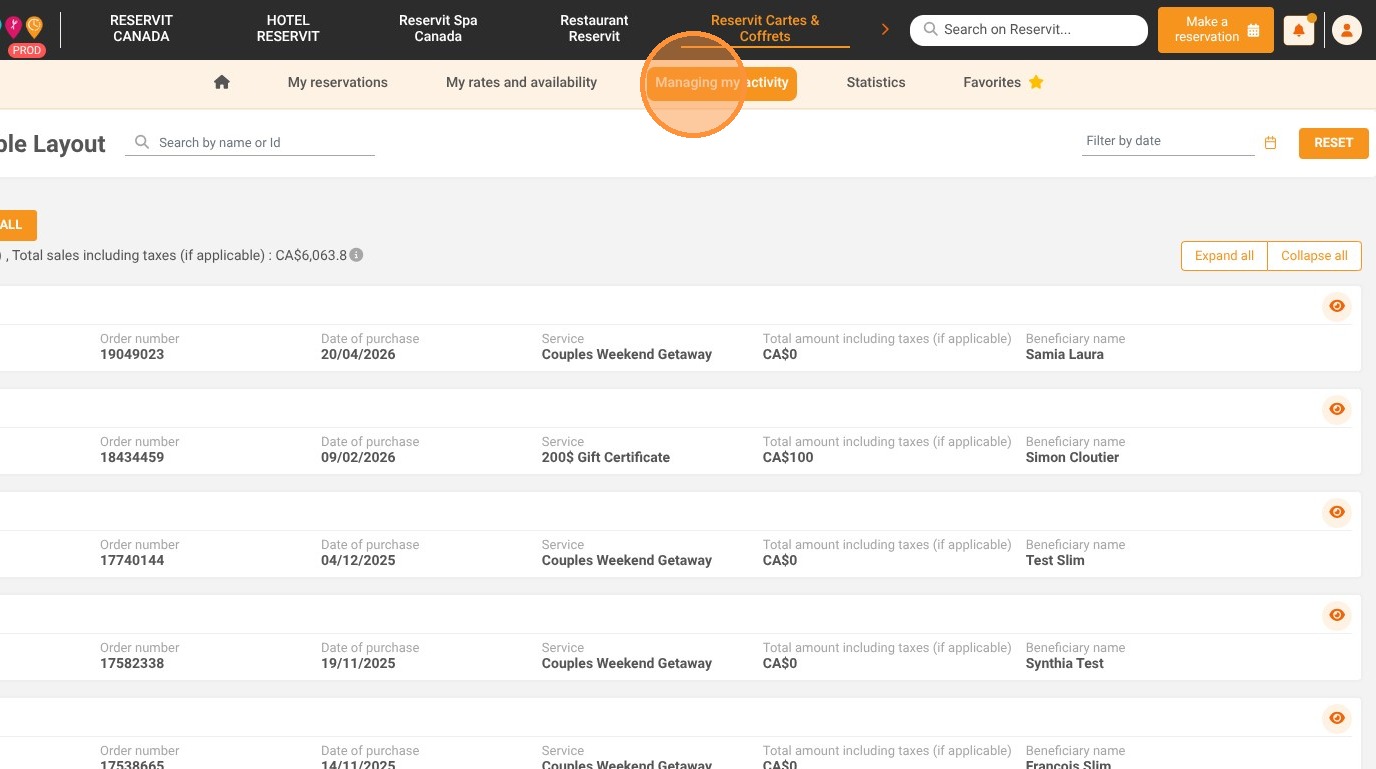
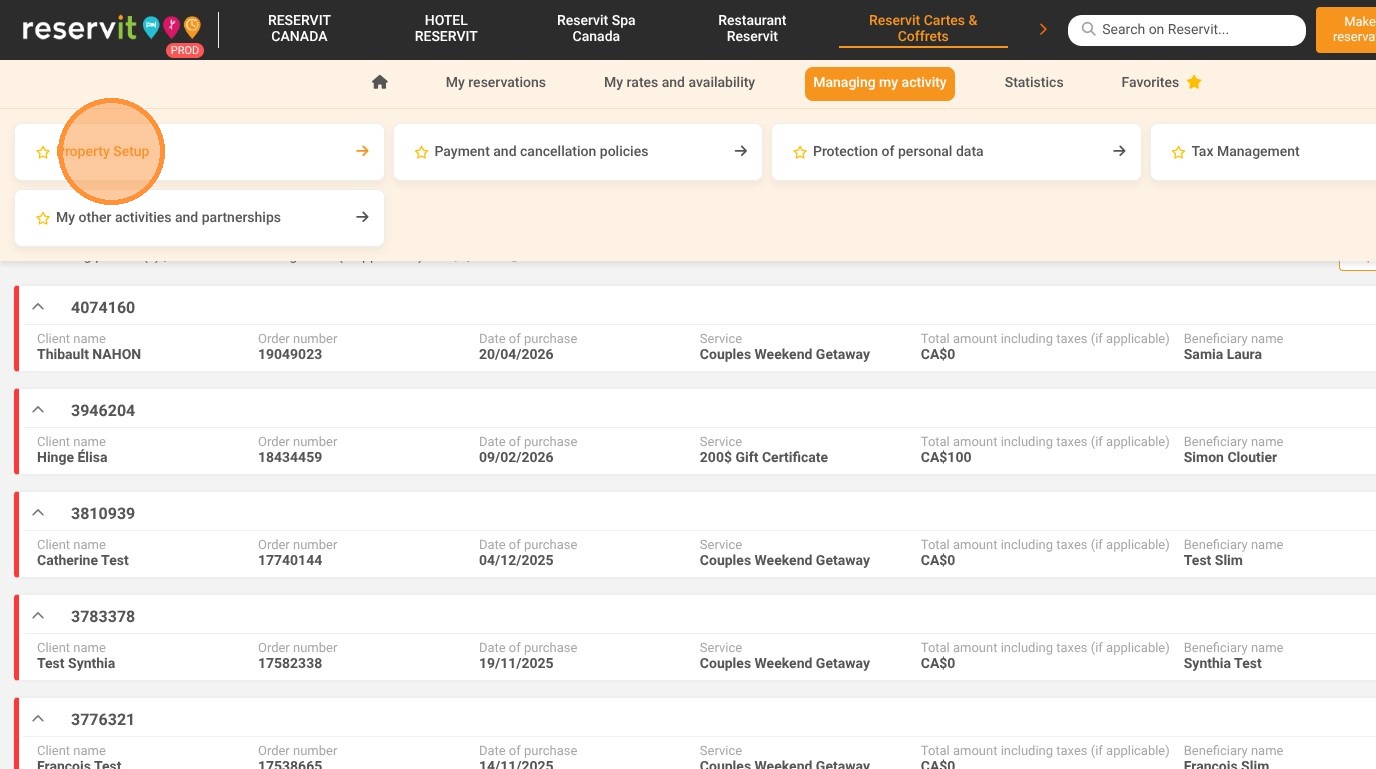
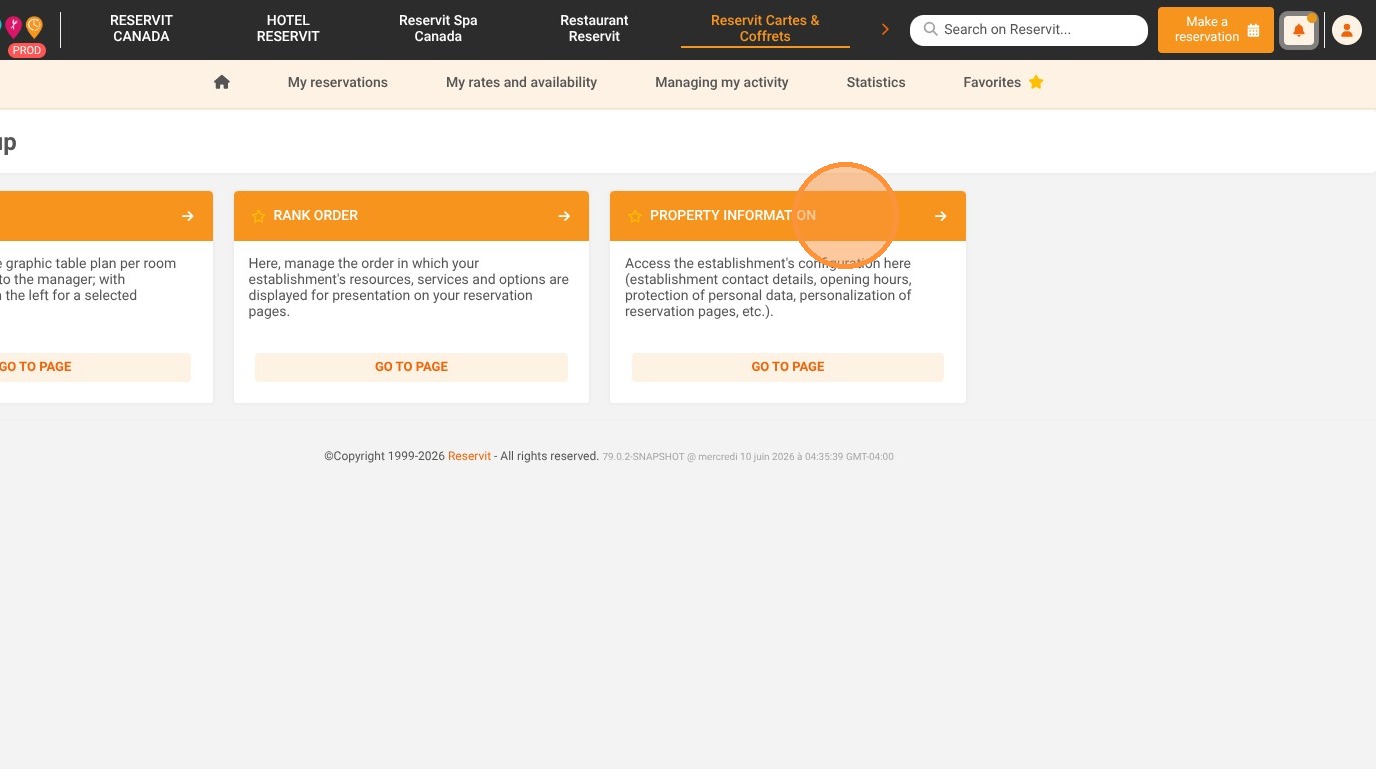
2. Click "Customization of the booking page"
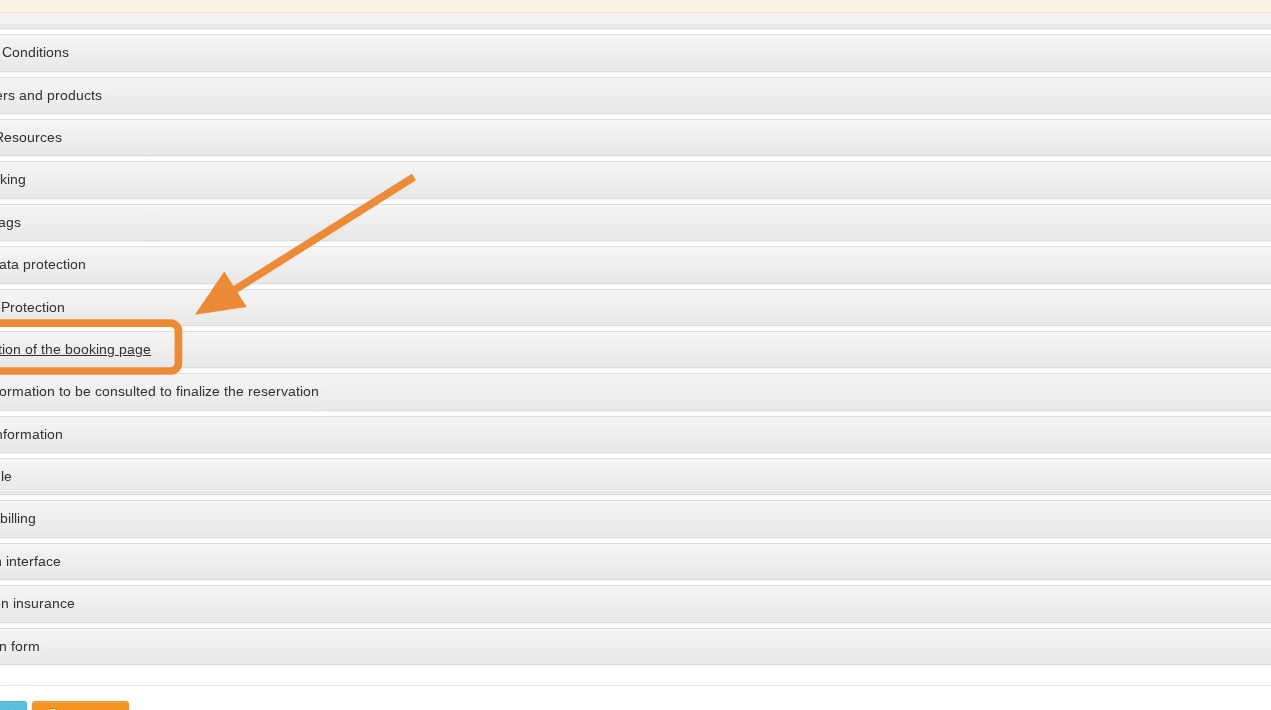
3. To customize the banner at the top of the page, go to the “Header Image” section.
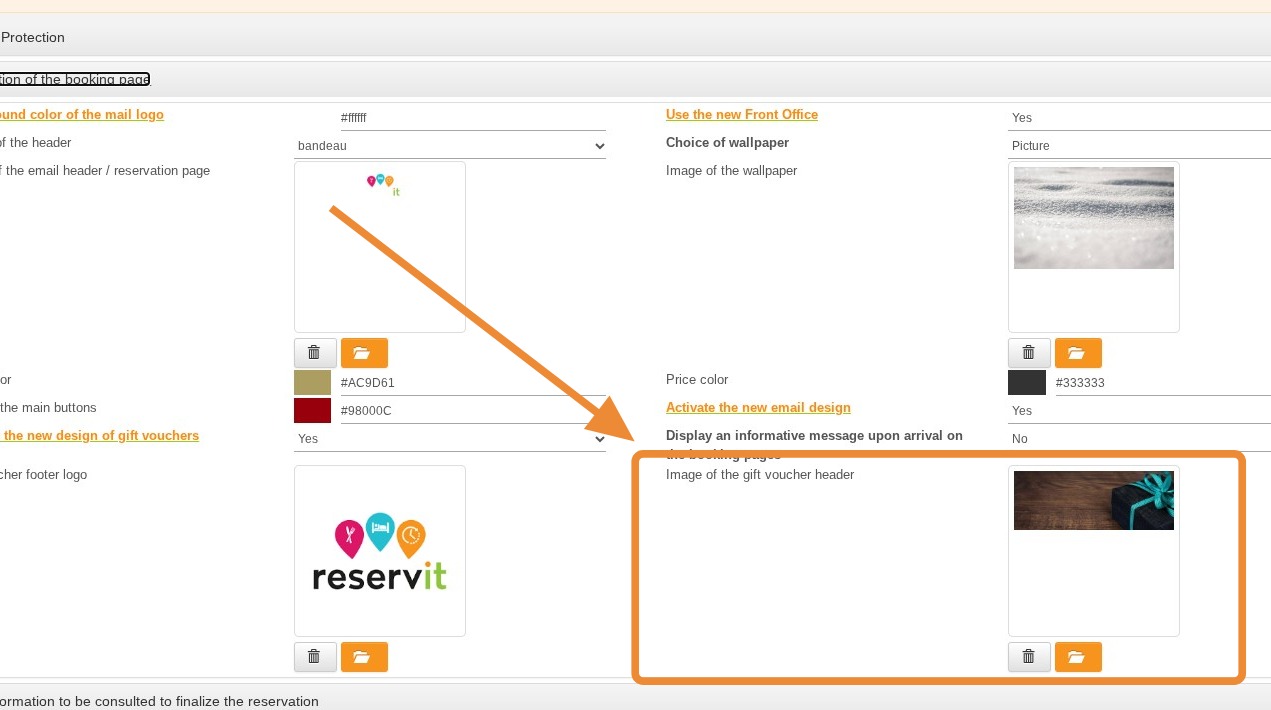
4. To customize the logo at the bottom of the page, go to the “Gift Voucher Footer Logo” section.
Tip: The gift voucher generated in PDF format is designed as a portrait-oriented page, measuring approximately 800 pixels wide by 1,100 pixels high. The space reserved for the package banner is located at the very top of this page. The exact required size for this visual is therefore 800 pixels wide by 300 pixels high.
When creating your header file, you must keep this 800x300 px ratio, or use an exact multiple for better resolution, such as 1600x600 px, 2400x900 px, 3200x1200 px, etc.
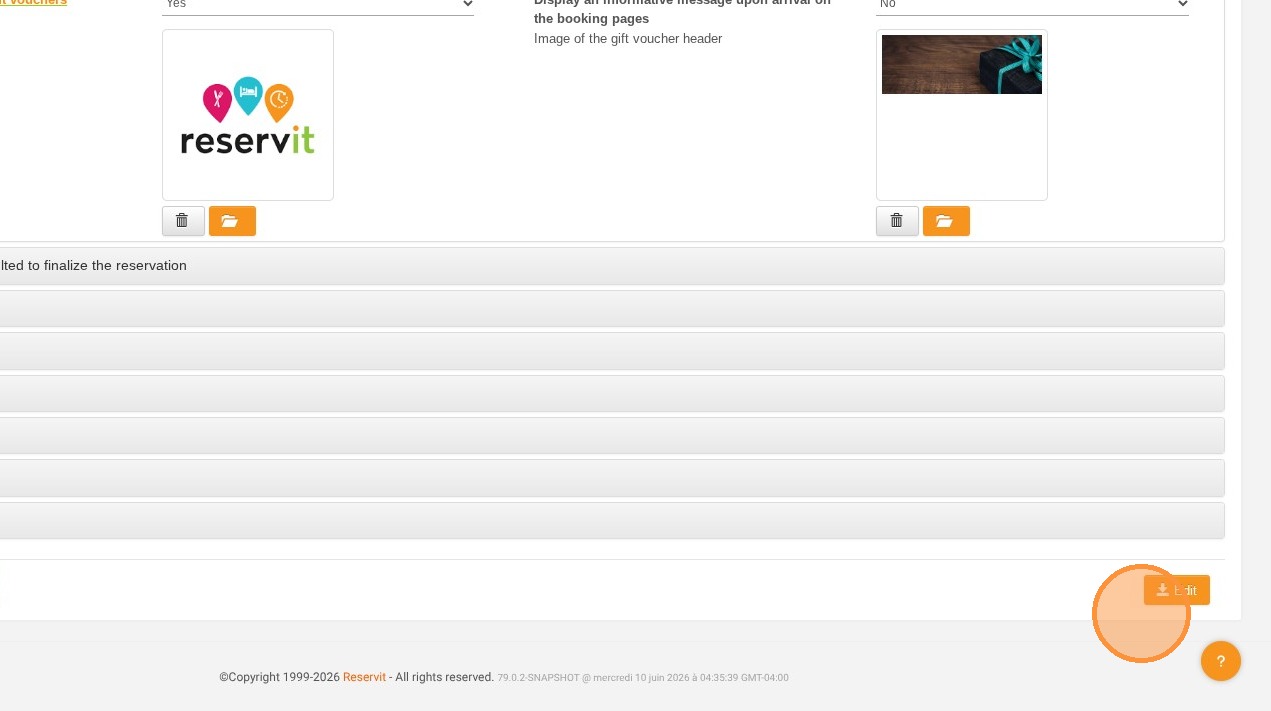
5. Click “Edit” to save your changes
Tip: If no changes appear, your browser may be the cause. Try clearing your cache or opening a private browsing window.