Article summary: This step-by-step tutorial explains how to quickly cancel a gift card or gift certificate directly within your Reservit management system. You will learn how to accurately locate specific vouchers, navigate to their booking details, and properly update their status to reflect a cancellation. Mastering this simple process ensures that your inventory remains accurate and your financial records are always perfectly up-to-date.
The 4 key steps to cancel a gift card:
-
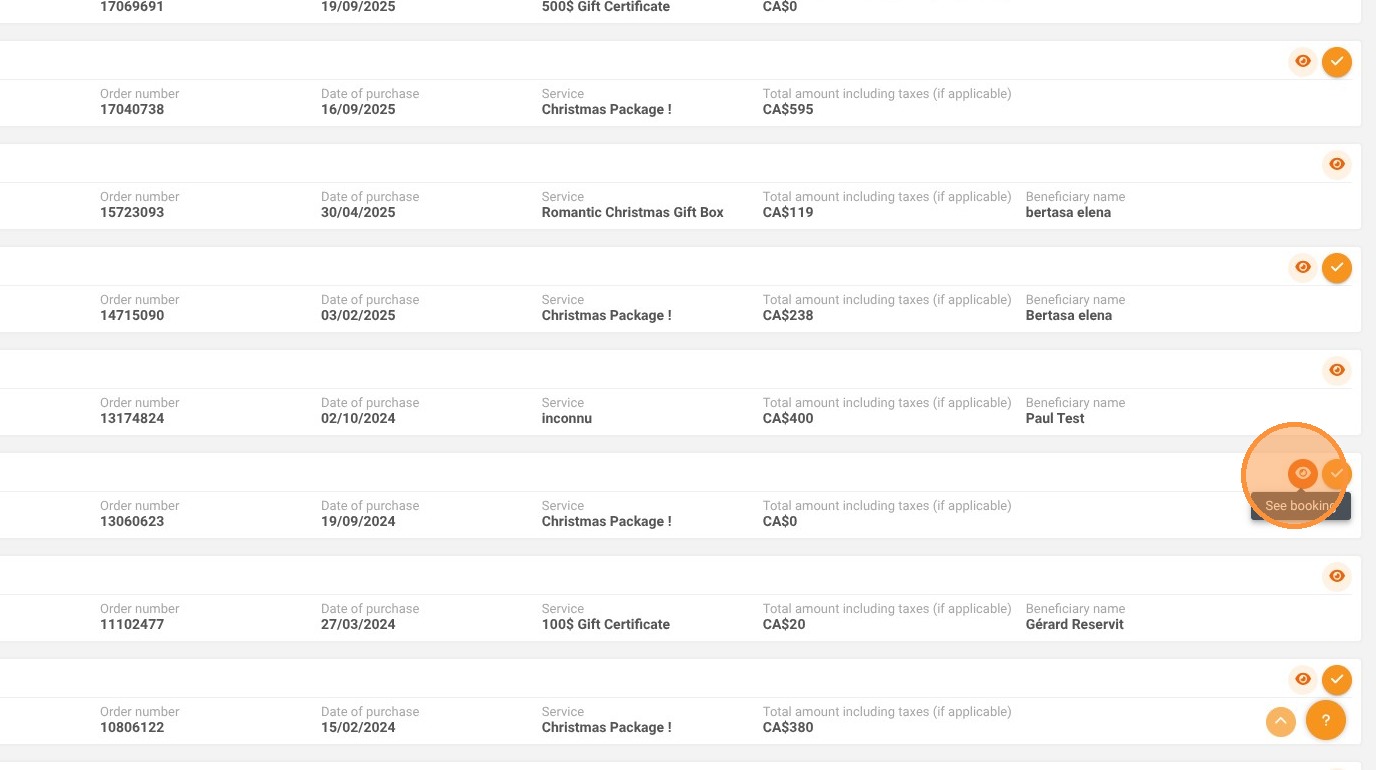
Locate the voucher: Search for the specific gift certificate in your dashboard and click the eye icon to access its detailed view.
-
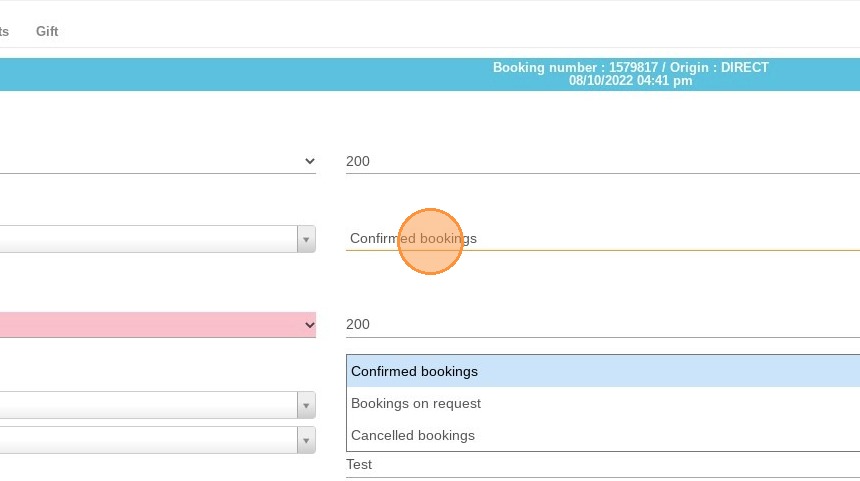
Review the current status: Once inside the reservation details, locate the section displaying the current status of the gift card.
-
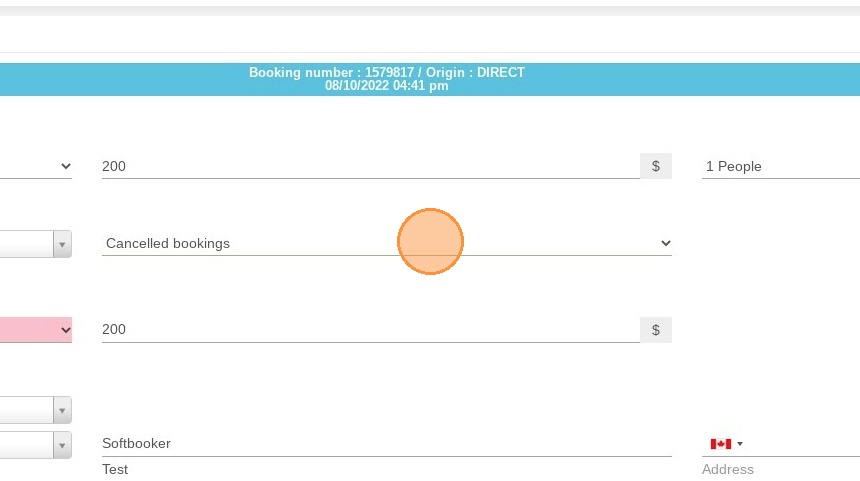
Update the status: Click on the status dropdown menu and select the appropriate option to cancel or void the certificate.
-
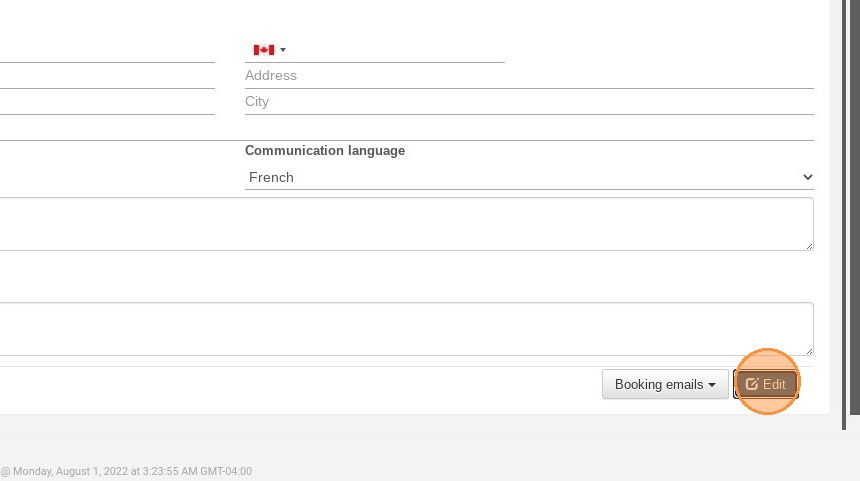
Save your changes: Click the "Edit" button at the bottom of the page to finalize the update and formally record the cancellation in the system.
Why follow this guide? Following this precise workflow ensures that canceled or refunded gift cards are immediately voided in your system, preventing costly accidental redemptions and accounting discrepancies. It empowers your staff to quickly handle guest cancellations and booking modifications, maintaining a smooth and secure operational flow.
1. Locate your gift certificate and select the eye icon to view the specific details.
2. Once in the details, you can see the status.
3. Click on the dropdown to update it.
4. Click on "Edit" to save the changes.