Help for use

How to Set Up and Sell Gift Cards (Gift Certificates) in Reservit

Article summary: This comprehensive guide walks you through setting up and selling digital gift cards or certificates using Reservit Gifts & Certificates. You will learn how to create specific product categories, customize card values, and seamlessly integrate Stripe for secure online payment processing. Mastering this setup allows you to easily generate additional revenue and offer flexible gifting options to your future guests.

The 5 key steps to set up your gift cards:

  • Create a product category: Navigate to your service settings to establish a dedicated "Activities" offer type (such as Gift Certificates) and insert your accounting codes.

  • Add the gift card details: Set up the new product by defining its name and description in both English and French, ensuring you bypass unnecessary fields like "Date" or "Number of persons."

  • Link your payment processor: Enable secure online checkouts by selecting "Yes" for payments and linking your Reservit system to your Stripe account.

  • Configure pricing and taxes: Re-enter the newly created product profile to accurately input your applicable taxes and set the specific monetary values for each card.

  • Finalize visuals and terms: Upload engaging photos, define your specific terms and conditions for redemption, and use the generated direct link to start selling online immediately.

Why follow this guide? Properly configuring your gift certificates ensures secure, automated payment processing and prevents future accounting or redemption errors. This straightforward setup unlocks a lucrative new revenue stream, allowing your business to effortlessly sell gifts 24/7 without adding extra manual work for your front desk staff.

Tip: To begin with, we will establish a product category specifically for the sale of gift cards and certificates.

Creation of the category to sell the gift card

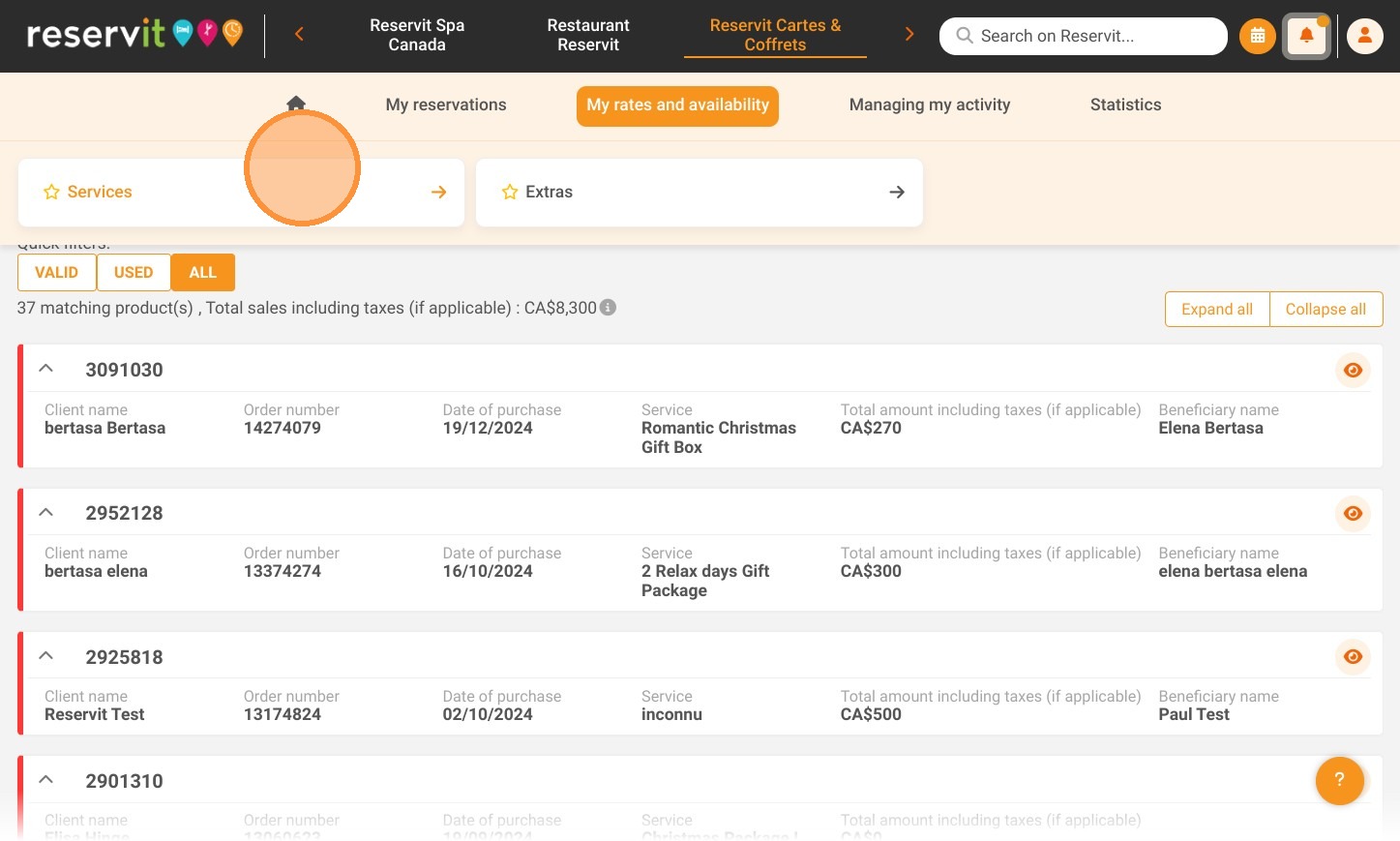
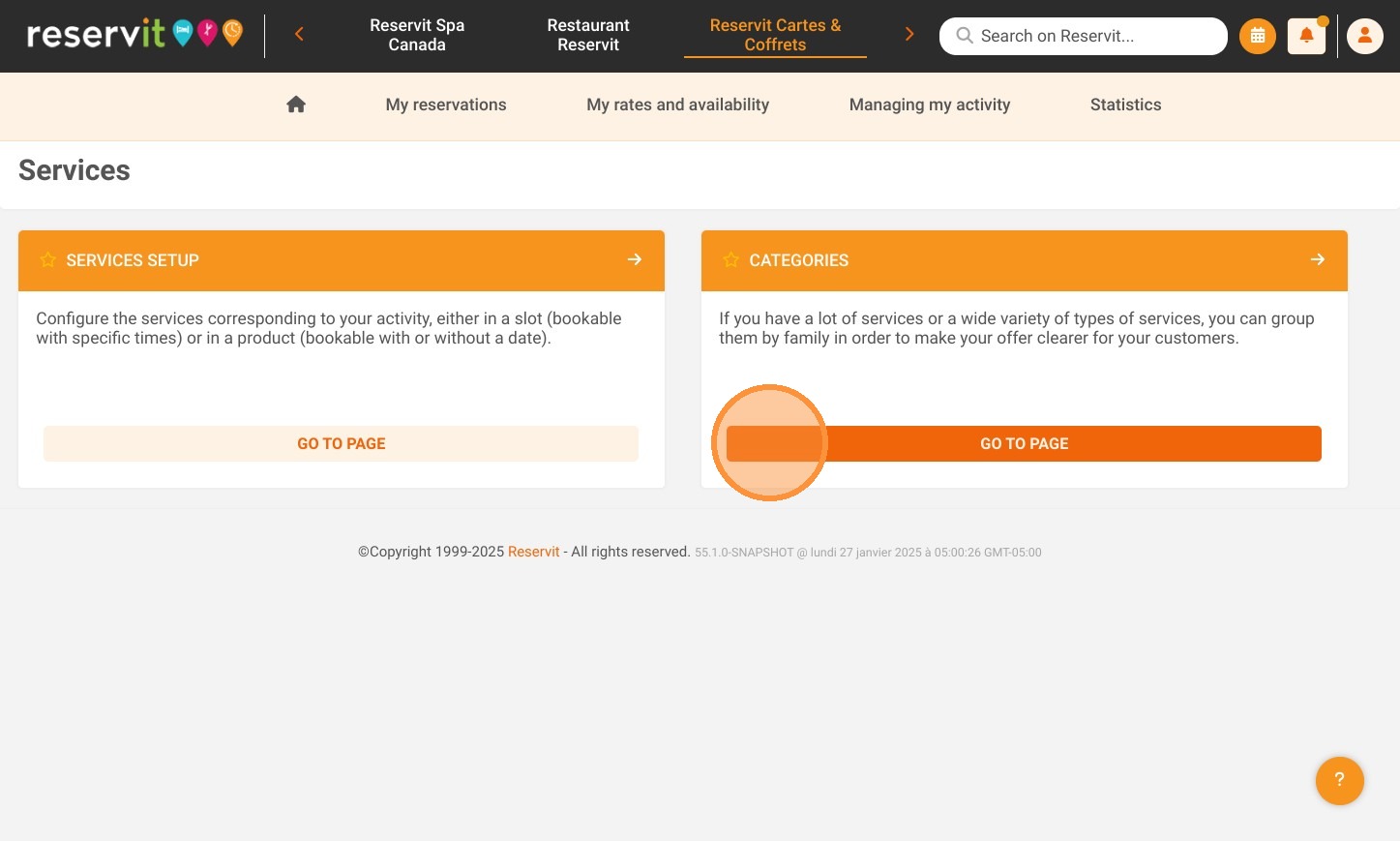
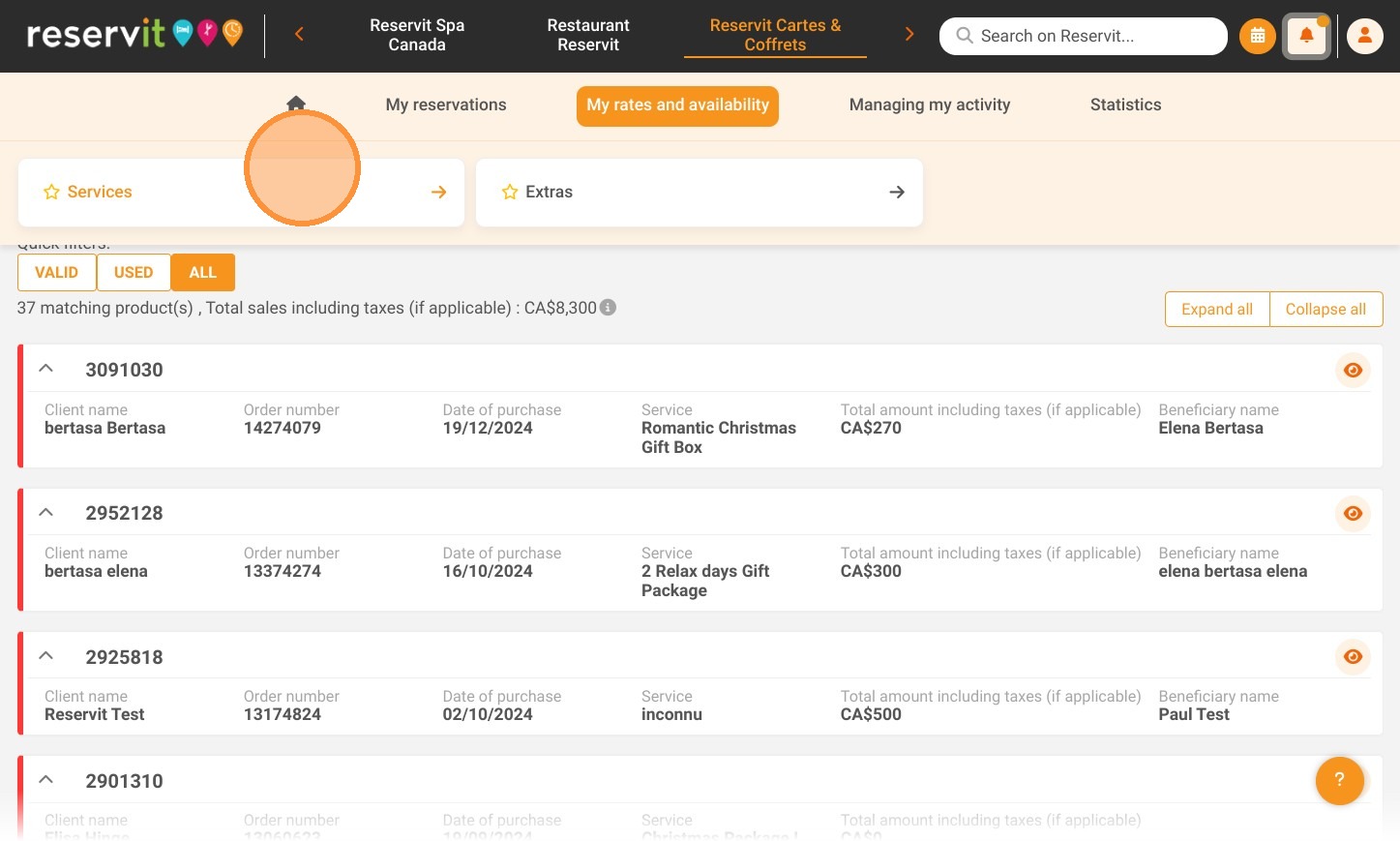
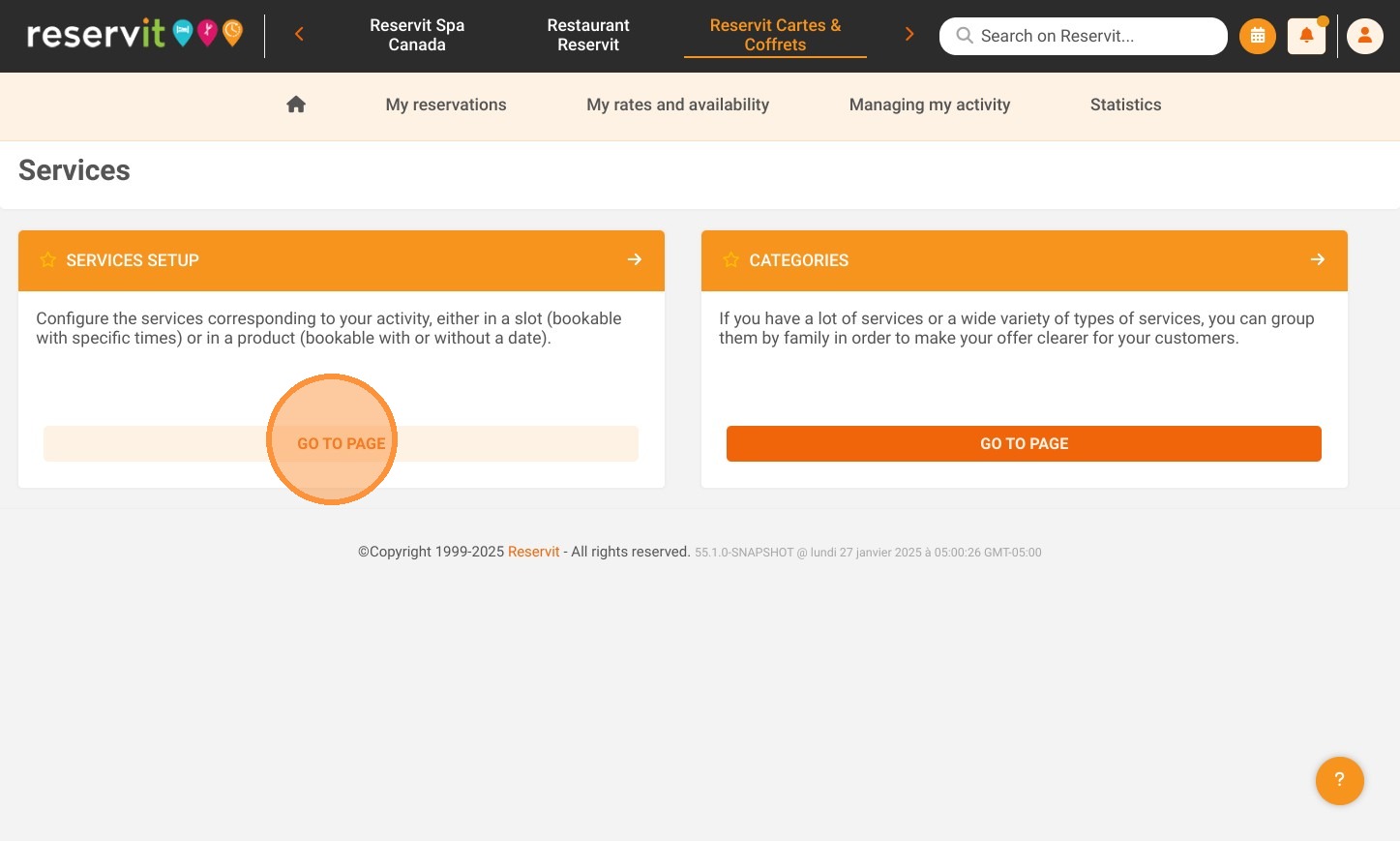
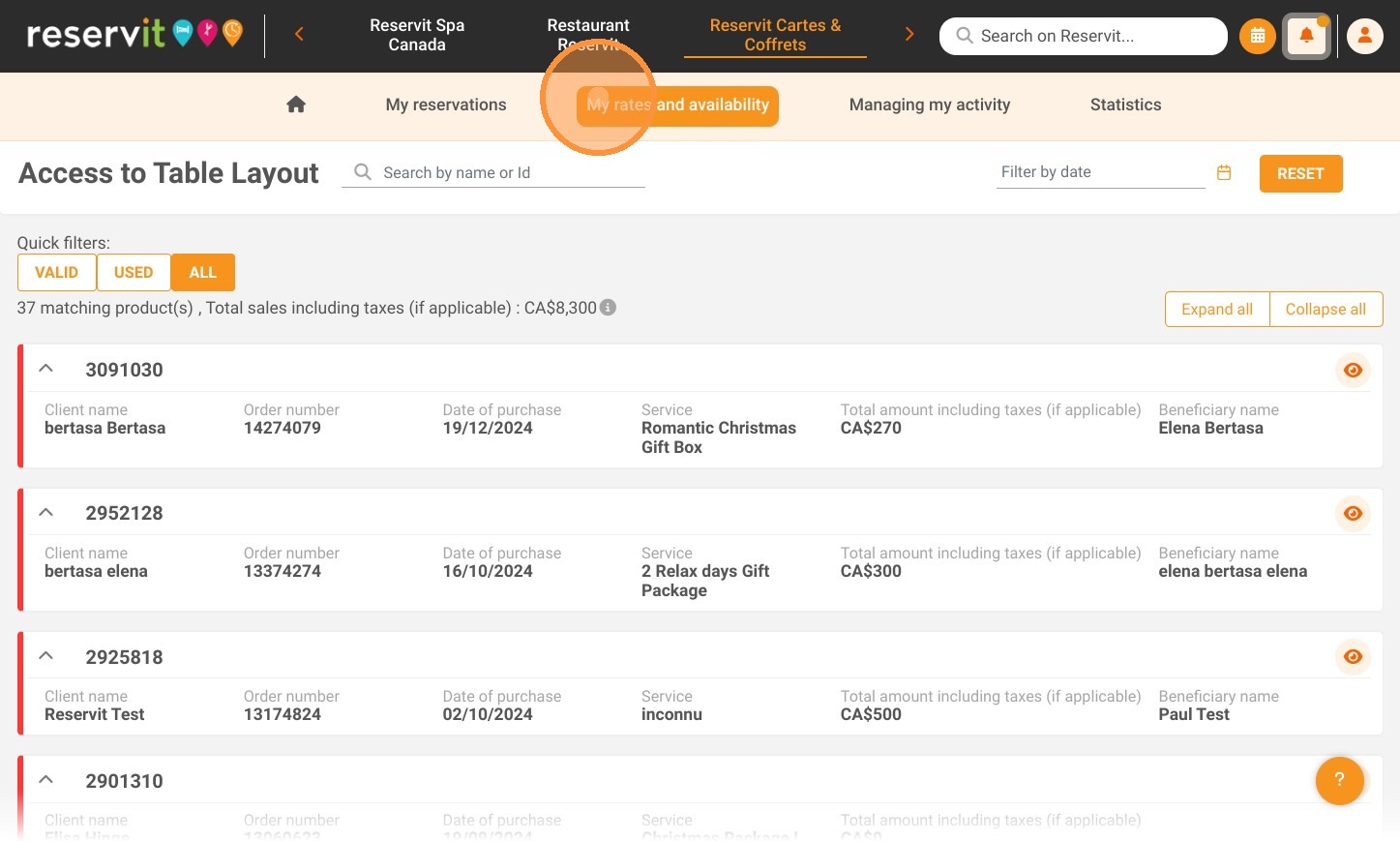
1. Click "My rates and availability" then "Services" and "Categories"
https://colony-recorder.s3.amazonaws.com/files/2025-01-27/250dd125-9bfd-401a-b82e-698c67319f74/ascreenshot_e6929bd76d3544e88cf67ea668b2f48d_text_export.jpeg
https://colony-recorder.s3.amazonaws.com/files/2025-01-27/de3b454e-97b3-45f6-85dc-5ec3506fabfe/ascreenshot_17a29c1fc723442abda886b21c1f067f_text_export.jpeg
https://colony-recorder.s3.amazonaws.com/files/2025-01-27/d4f3ea39-c190-4516-8985-4de1eea9b656/ascreenshot_015fff11c8df481ab0f4851e43f89c32_text_export.jpeg

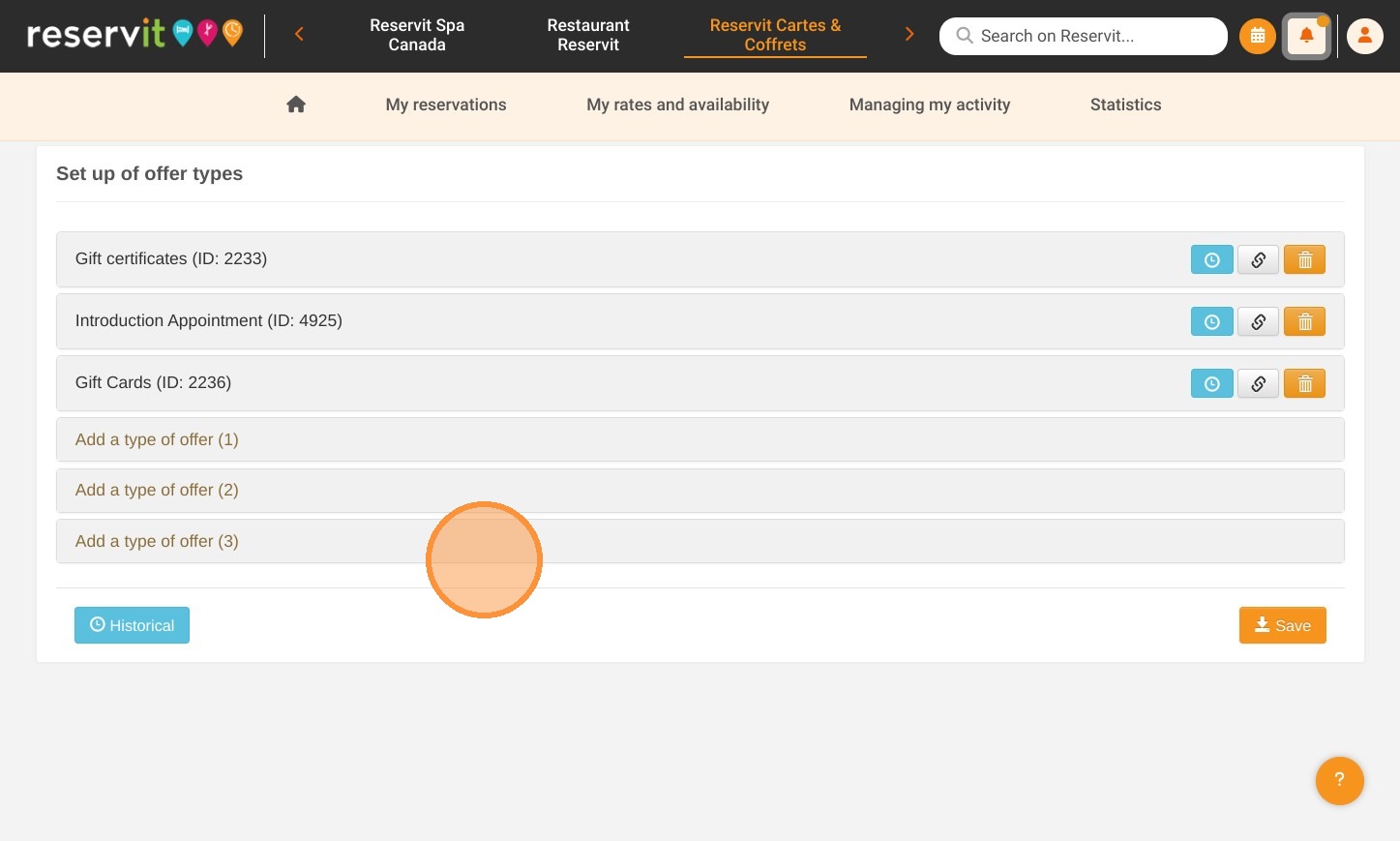
2. Click "Add a type of offer"

https://colony-recorder.s3.amazonaws.com/files/2025-01-27/9b887197-248c-449a-8c35-8b2100d56bc2/ascreenshot_ac67661f43784b64a212ce2c262244f2_text_export.jpeg
https://colony-recorder.s3.amazonaws.com/files/2022-08-09/79161b52-0a3d-4977-bd2e-6f7872873714/user_cropped_screenshot_bb57bade45b34e6aab6ac4bdf55d35bb_text_export.jpeg

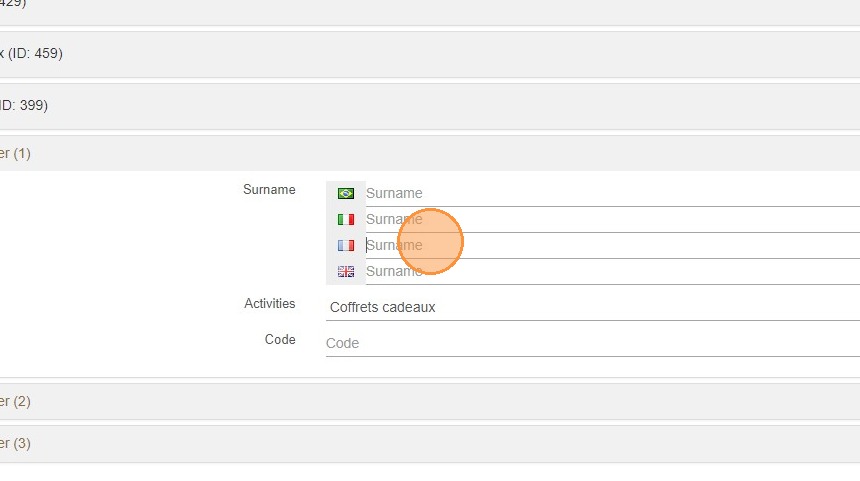
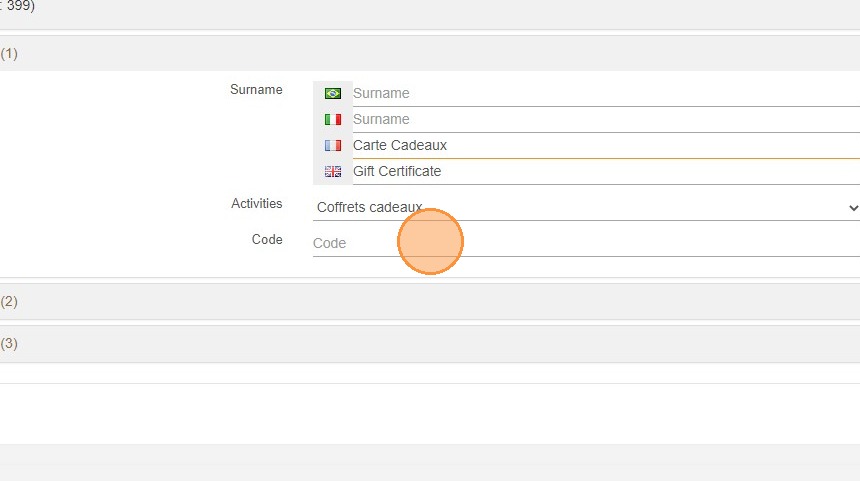
3. Insert the name of your offer type both in French and English.
https://colony-recorder.s3.amazonaws.com/files/2022-08-09/89babcc0-b850-477d-8ea0-cef9cb7ab6dc/ascreenshot_1ce29db3a1874d1690923ecc06b8c6cc_text_export.jpeg

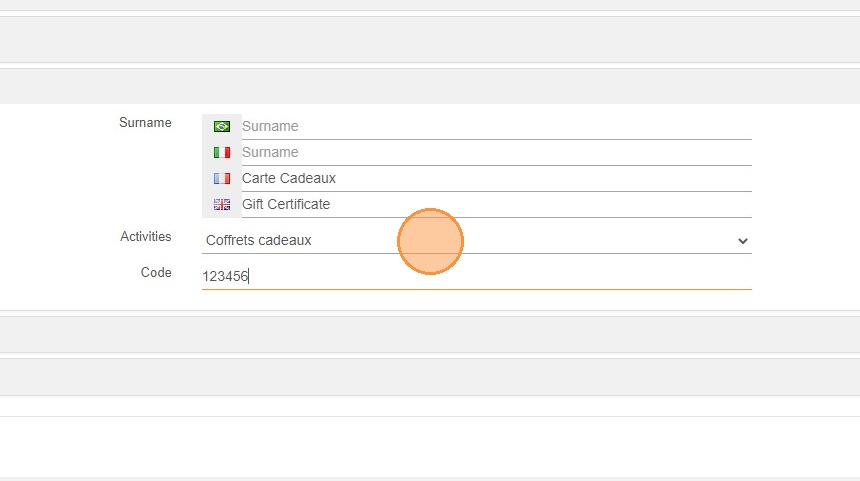
4. Choose your ''Activities'' type such as Gift Certificate.
https://colony-recorder.s3.amazonaws.com/files/2022-08-09/d4921d0c-edbe-4a69-8c3e-81b26e941e47/ascreenshot_35e720b6051f48f89981db13f96563e8_text_export.jpeg

5. Click the "Code" field to insert your accounting code if applicable.
https://colony-recorder.s3.amazonaws.com/files/2022-08-09/fc192b33-d285-470c-a9ff-c2fa17c82844/ascreenshot_950a5a66e16d456596942df3bbbf8cfd_text_export.jpeg

6. Save the modification

Creation of the Gift Card

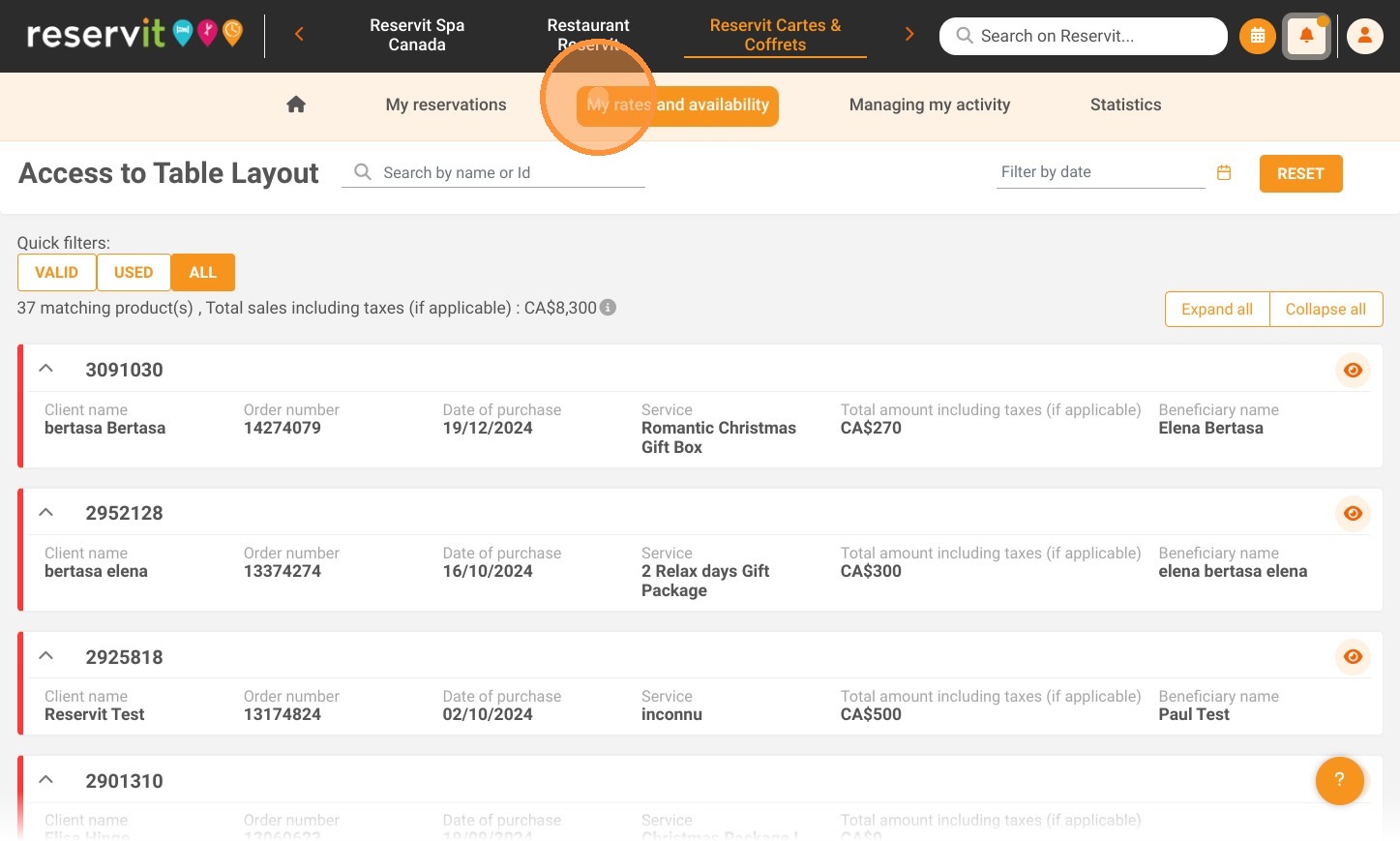
7. Click "My rates and availability" then "Services" and "Service Setup"
https://colony-recorder.s3.amazonaws.com/files/2025-01-27/250dd125-9bfd-401a-b82e-698c67319f74/ascreenshot_a0641e8c2e474827b48eb4f13aa92df9_text_export.jpeg
https://colony-recorder.s3.amazonaws.com/files/2025-01-27/de3b454e-97b3-45f6-85dc-5ec3506fabfe/ascreenshot_5c6550e2ba974edf93671e50496ea50d_text_export.jpeg
https://colony-recorder.s3.amazonaws.com/files/2025-01-27/d4f3ea39-c190-4516-8985-4de1eea9b656/ascreenshot_28a04397dfc942ebbeccf90f25c82f62_text_export.jpeg

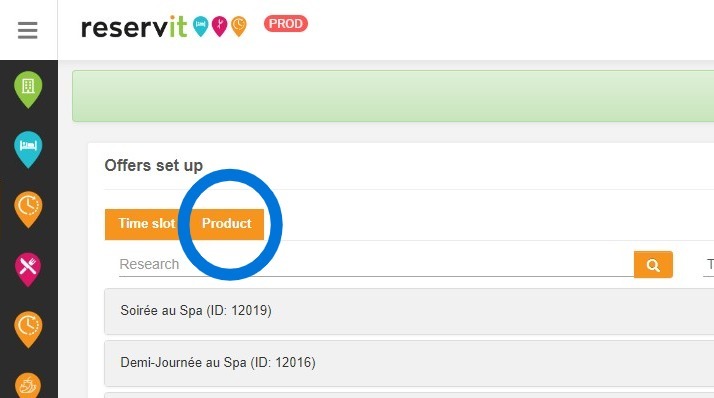
8. Click "Product"

https://colony-recorder.s3.amazonaws.com/files/2022-08-09/9e10ff1c-0bf8-43fb-9635-acc231cb3518/user_cropped_screenshot_62024f644d954b9ea9794e98e9b5adf4_text_export.jpeg

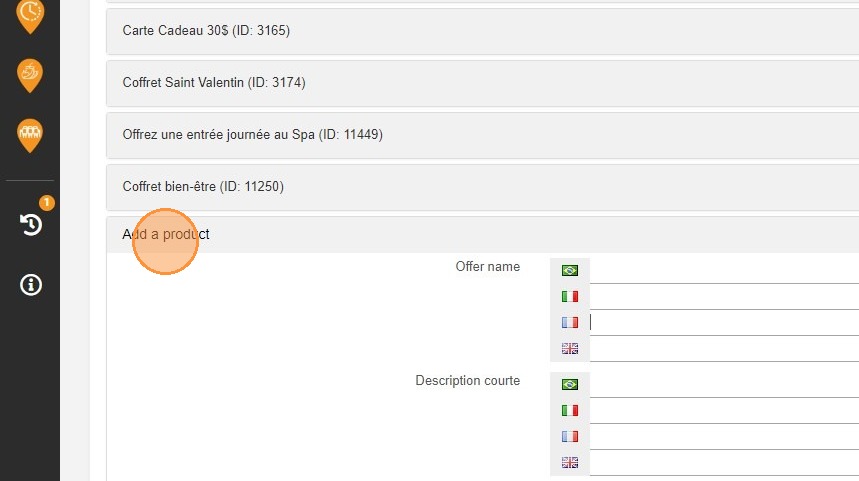
9. Click on ''Add a product"

https://colony-recorder.s3.amazonaws.com/files/2022-08-09/90785179-6c25-4819-8872-6278eeb05279/user_cropped_screenshot_f3705d66a7e742b99c6b244ba2cf12ac_text_export.jpeg

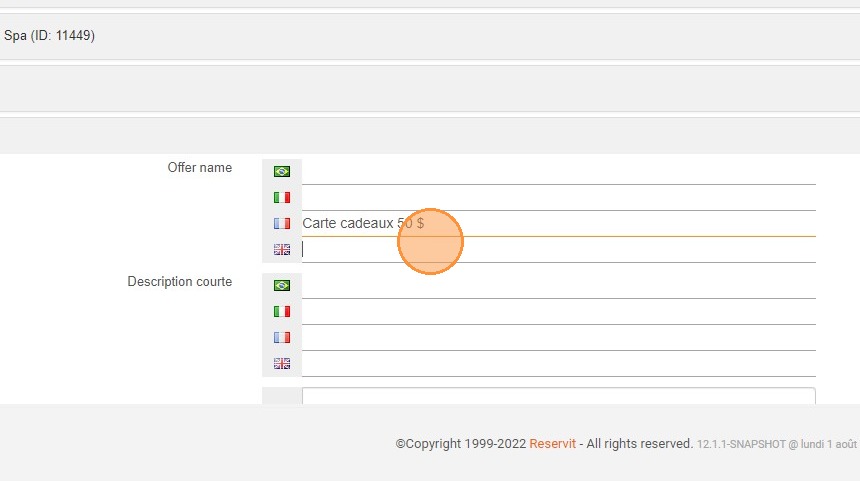
10. Fill in the information, the name of the service, for example "$50 gift card". You can have several gift cards with different amounts. Then, add a description.
https://colony-recorder.s3.amazonaws.com/files/2022-08-09/4769192c-c7a1-4e0c-9928-de80d88f2df8/ascreenshot_882775f18e1e48db9aaa589b4cb7a4b5_text_export.jpeg

Tip: Do not forget to enter the information both in English and in French!

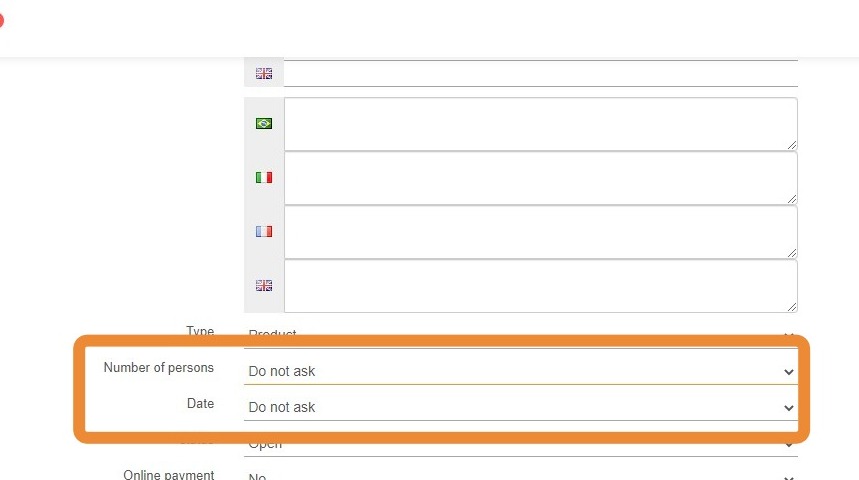
11. Select "Do not ask" for the fields ''Number of persons'' and ''Date"

https://colony-recorder.s3.amazonaws.com/files/2022-08-09/9f064401-2834-4b39-b9ef-8151c9d8f6fb/user_cropped_screenshot_e10038f55aed413185aeee4a585d65d1_text_export.jpeg

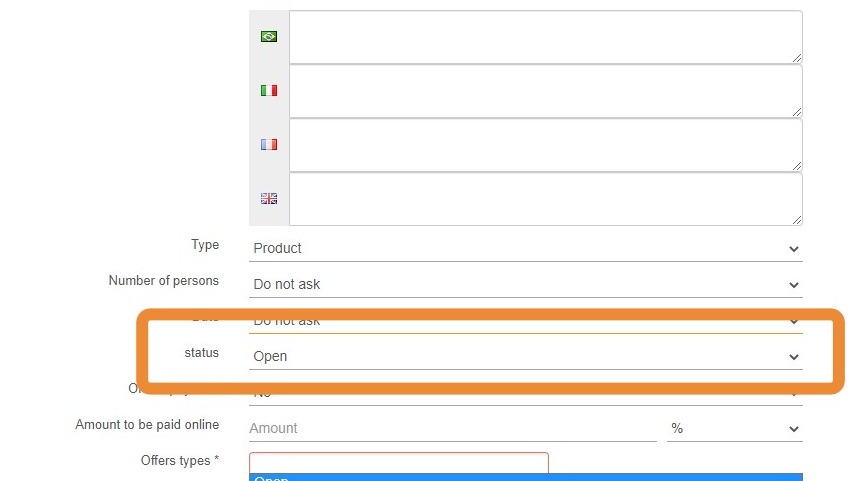
12. Choose the "Open" status if you want the map to be displayed online

https://colony-recorder.s3.amazonaws.com/files/2022-08-09/49fe3d67-b766-40f6-9540-6234506ed172/user_cropped_screenshot_0576a590f32a4ed1865cb9d9d9227834_text_export.jpeg

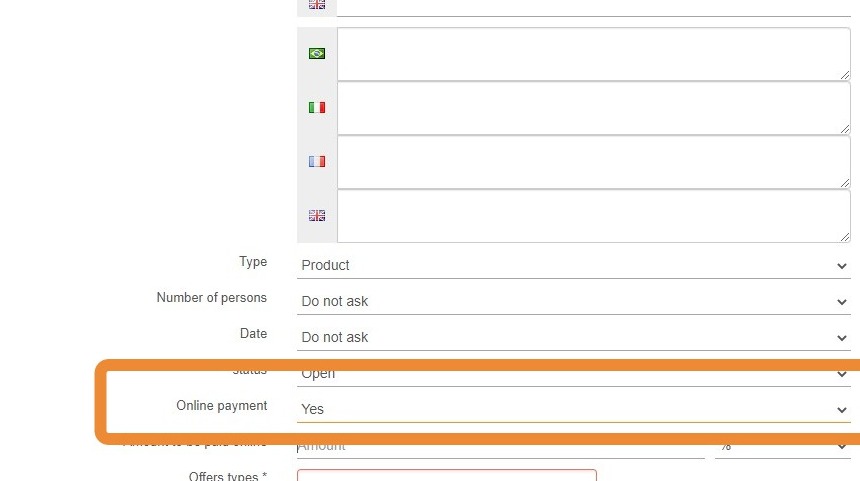
13. Select YES for payment. Make sure your Stripe account is linked to reservit to do this.

https://colony-recorder.s3.amazonaws.com/files/2022-08-09/11676cd7-9809-40a6-9fd1-c996b0a28d43/user_cropped_screenshot_5acf4a4cad1b47cc8a1832ec6678d399_text_export.jpeg

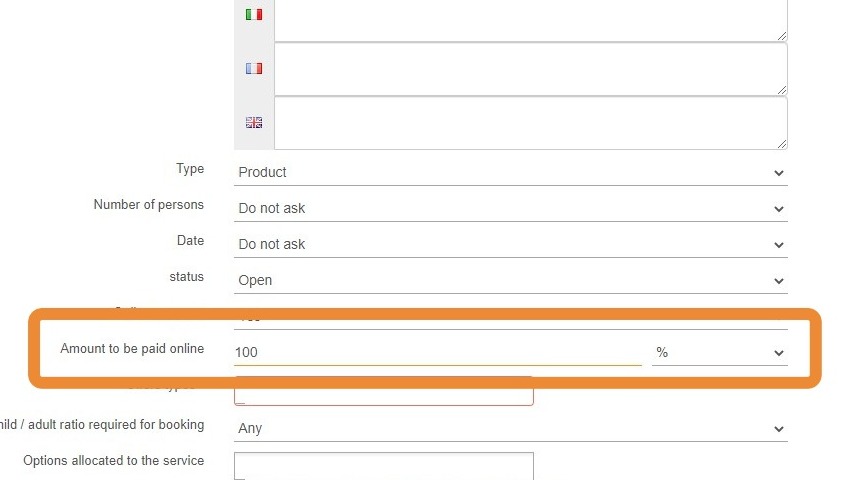
14. Enter the amount or percentage that will be charged to the customer's credit card.
https://colony-recorder.s3.amazonaws.com/files/2022-08-09/e4d558f8-e08d-4fc9-84d2-a20d85259551/user_cropped_screenshot_78058afe068c47e8907d5df619b14777_text_export.jpeg

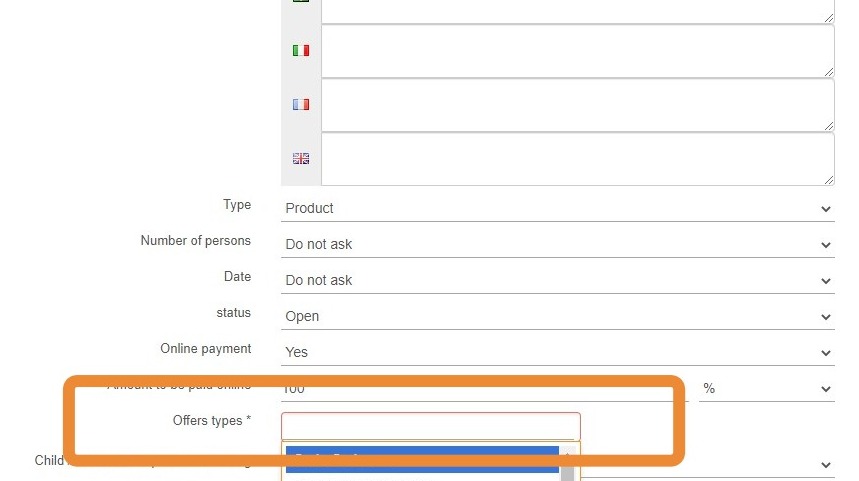
15. Link to the Gift Certificate offer type created at the firsts steps

https://colony-recorder.s3.amazonaws.com/files/2022-08-09/80b6eac4-ea5d-4618-a46b-d1b2bb279867/user_cropped_screenshot_174113f8cfc2474fb10479c57a92c0a6_text_export.jpeg

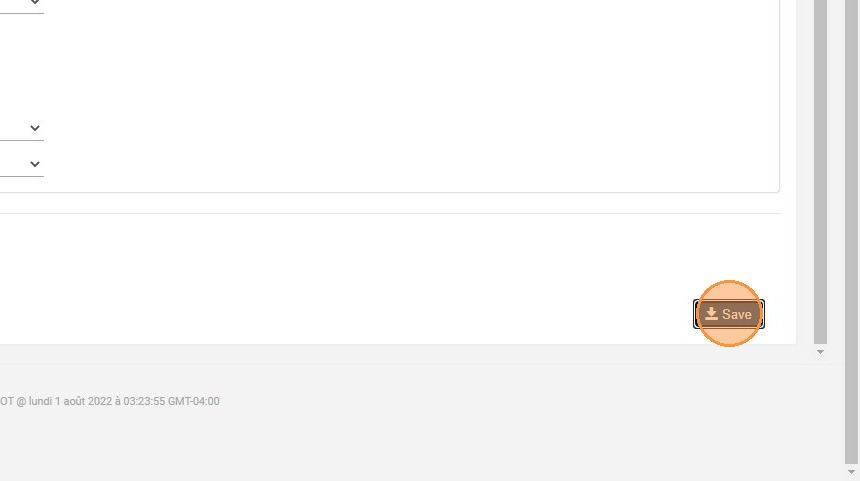
16. Click "Save"

https://colony-recorder.s3.amazonaws.com/files/2022-08-09/b4f0494e-8ce6-4d5f-a6b3-0706210f9a3a/user_cropped_screenshot_052fd4445244473fa8a221a000fbd2eb_text_export.jpeg

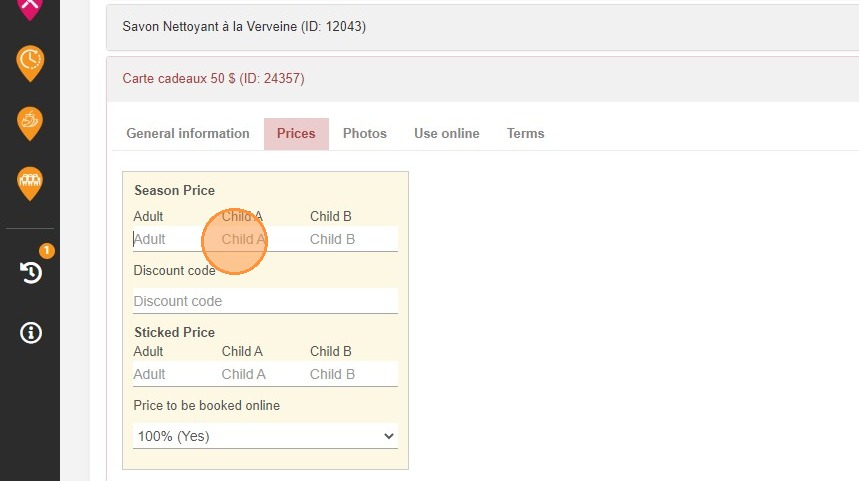
17. Click the "Adult" field.

https://colony-recorder.s3.amazonaws.com/files/2022-08-09/0b4e158a-895d-4586-8ff3-c5207346d586/ascreenshot_fa09266d8c6048078dabeeae6a200c54_text_export.jpeg

18. You will now see the product in red, meaning that the configuration is not finalized.
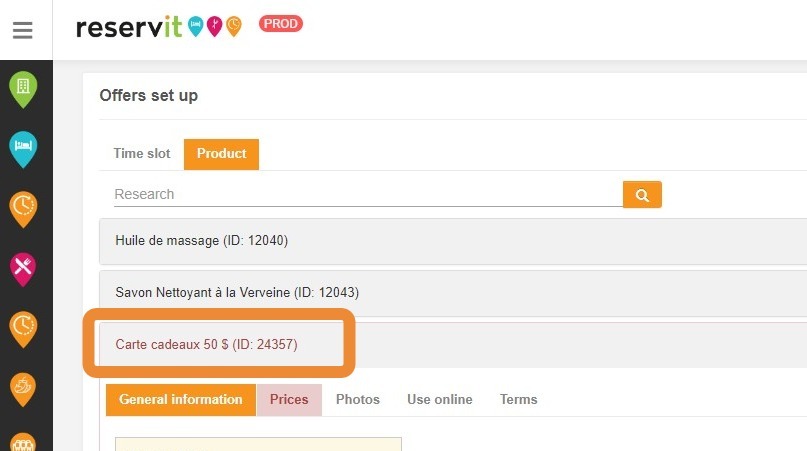
https://colony-recorder.s3.amazonaws.com/files/2022-08-09/78b1b8de-0685-4cd2-898a-e7478c3037b2/user_cropped_screenshot_5dc2e3f1601f4d94ba25b8082aac3c6e_text_export.jpeg

19. In "General Information", you can now enter the taxes
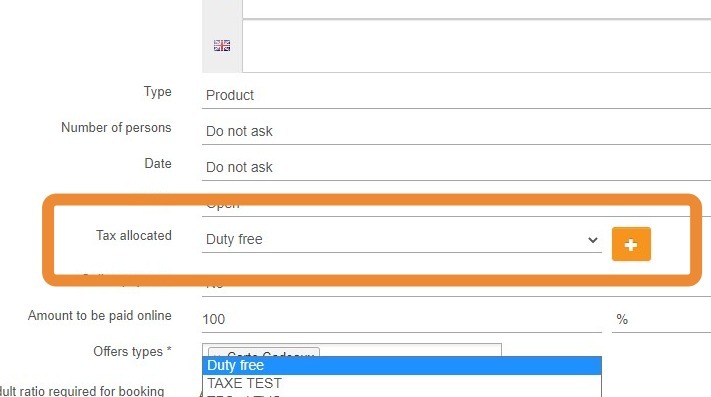
https://colony-recorder.s3.amazonaws.com/files/2022-08-09/d8e378c0-80b2-4cb2-a368-26bbf70feb3d/user_cropped_screenshot_f14cb6ade1f24934ba93f4dd3ee2f241_text_export.jpeg

20. Then go on "Prices" and setup your rates
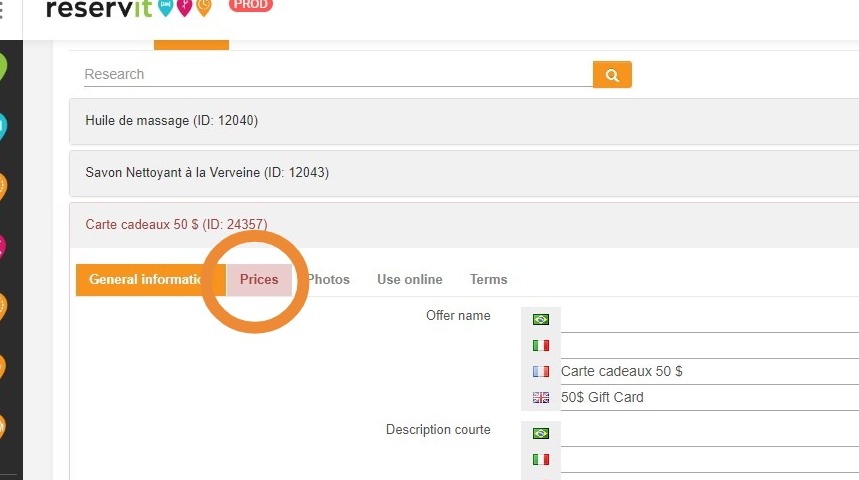
https://colony-recorder.s3.amazonaws.com/files/2022-08-09/0c5cf7a8-0b8c-46c3-b71b-9086847928e5/user_cropped_screenshot_5fa72f14a79e4fda9d4acee3a92e9282_text_export.jpeg

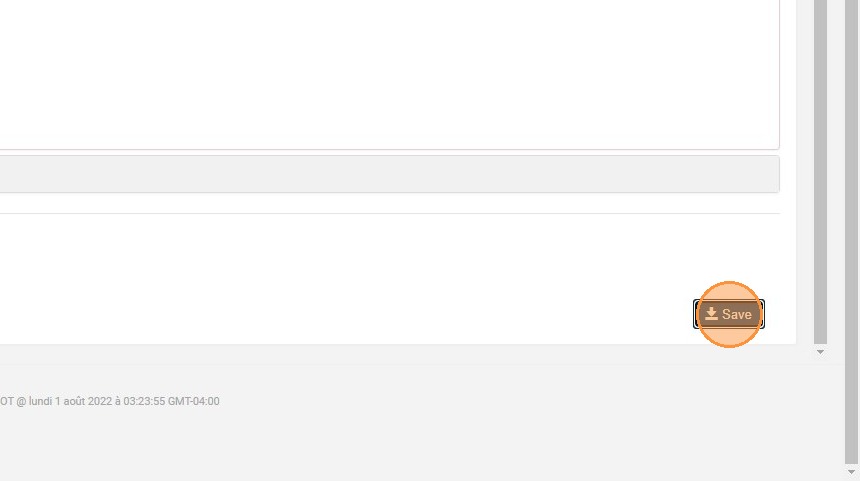
21. Click "Save"

https://colony-recorder.s3.amazonaws.com/files/2022-08-09/6316b501-25f5-49c3-bc8d-cac28c96d110/user_cropped_screenshot_f3059a690d864a37906194e6a8005e79_text_export.jpeg

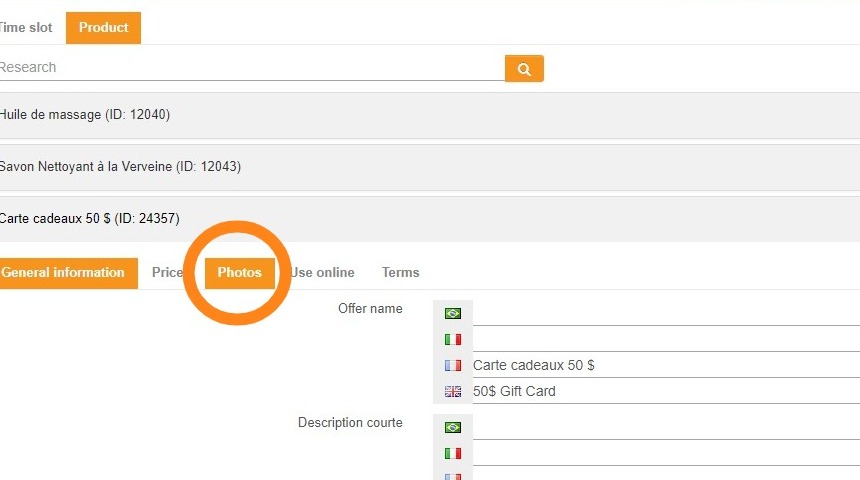
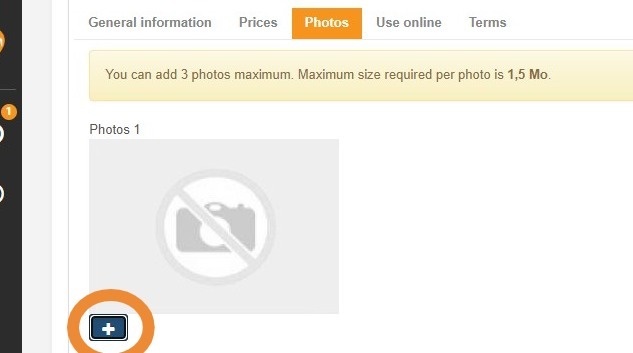
22. Click "Photos"

https://colony-recorder.s3.amazonaws.com/files/2022-08-09/df81e2d1-f312-4e80-ac23-bbd8d9f26837/user_cropped_screenshot_74b43304c49d4f2a9063c463e4779924_text_export.jpeg

23. Click one the "+"

https://colony-recorder.s3.amazonaws.com/files/2022-08-09/a70ef910-7aca-47ad-9a5e-e006bfc64598/user_cropped_screenshot_f3a109b772384be1acafcb9427d76cfb_text_export.jpeg

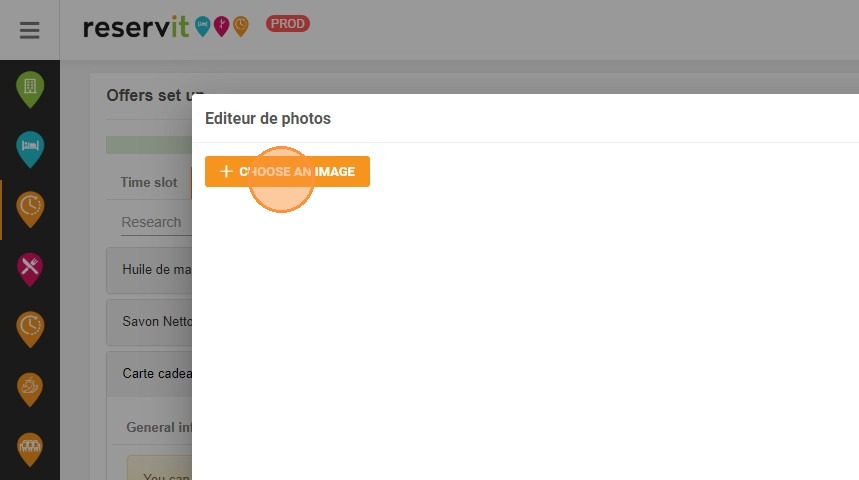
24. Click "CHOOSE AN IMAGE"

https://colony-recorder.s3.amazonaws.com/files/2022-08-09/bfad987c-b3a3-4d46-82fb-bd04a8a16164/ascreenshot_0a4abf932e854715a947648d05dd7217_text_export.jpeg

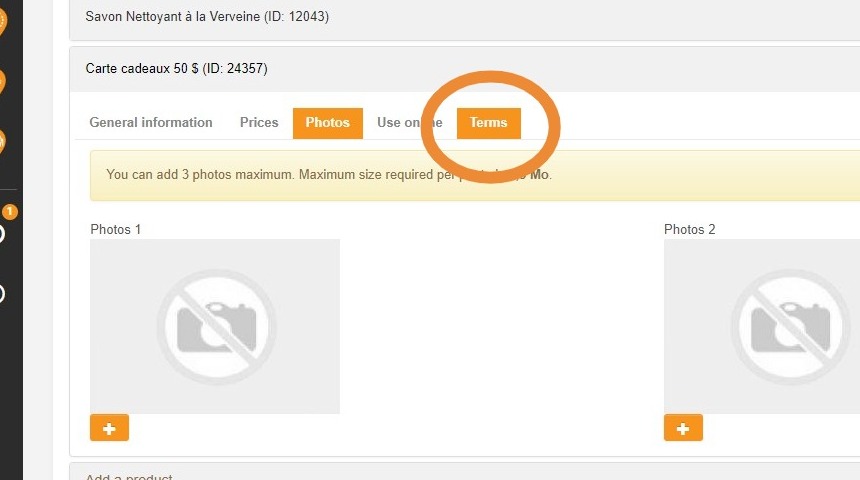
25. Click "Terms"

https://colony-recorder.s3.amazonaws.com/files/2022-08-09/0262caf9-71b0-485c-bd7e-5ccacf83c306/user_cropped_screenshot_bbebc32607f242ebb3fb6bc2d8957a67_text_export.jpeg

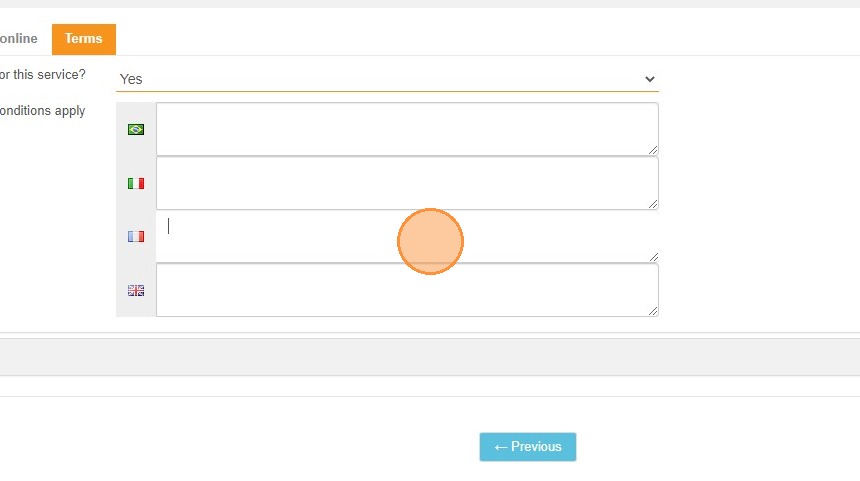
26. Select ''Yes'' in order to add to specific terms for your gift card.

https://colony-recorder.s3.amazonaws.com/files/2022-08-09/e3fd0dd1-41c7-487c-a6c3-35dd2482915c/ascreenshot_d9456276e0834752bccb7eaed0b8d348_text_export.jpeg

27. Click "Save"

https://colony-recorder.s3.amazonaws.com/files/2022-08-09/1a16b991-fca7-45ae-9d2f-5392d8a162d7/ascreenshot_3a997540e6f143f0ae9c3e00a3b64bcc_text_export.jpeg

Tip: Your gift card is now created !

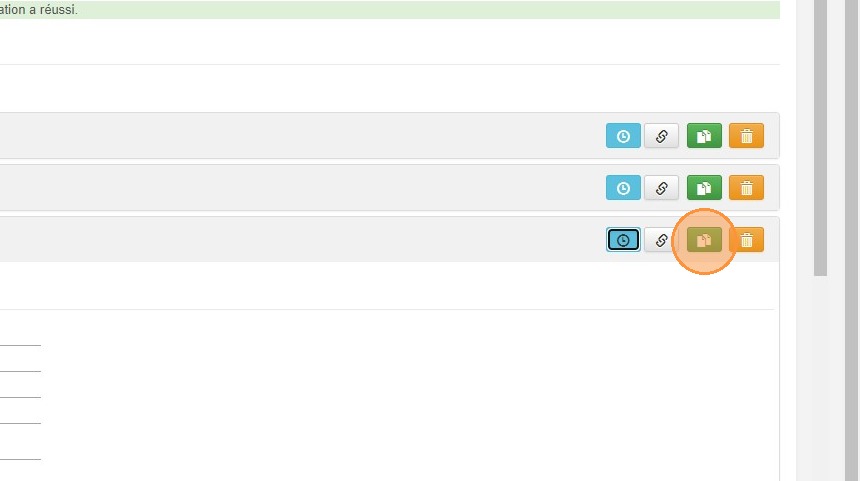
28. With this 4 buttons you can:
1 - See the changes made in the setup of this card
2 - Generate a direct link to gift card
3 - Copy the gift card
4 - Delete the gift card
https://colony-recorder.s3.amazonaws.com/files/2022-08-09/6c9e0c48-4d22-42fd-aef6-8e4508a13df4/ascreenshot_d1c324ac384e4e5d88ab3cee2e99a760_text_export.jpeg