Article Summary: This step-by-step tutorial explains how to effectively assign booking extras to specific accounting categories within Reservit PMS. You will learn how to configure your property setup for revenue breakdown and accurately map individual add-ons so they appear correctly on your financial turnover reports. Mastering this configuration ensures precise revenue tracking and perfectly aligns your reservation options with your back-office accounting logic.
The 5 key steps to assign options to accounting categories:
-
Access your PMS setup: Navigate to "Management of my property," click on "Property Setup," and open the "Reservit PMS Setup" section.
-
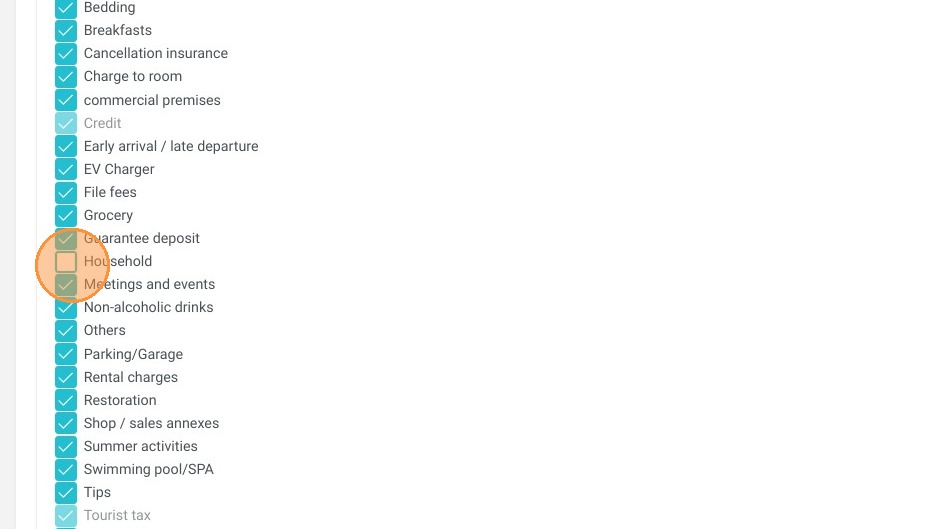
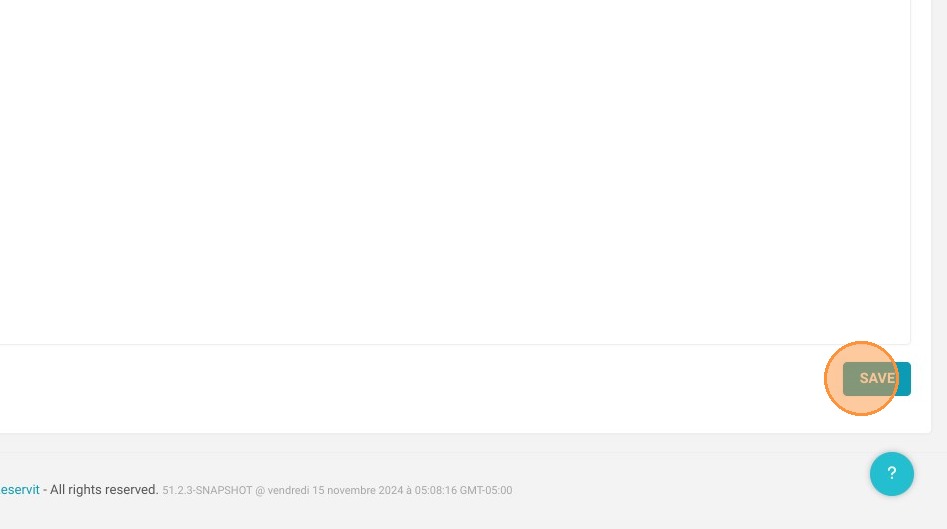
Define your revenue breakdown categories: Click on "Selection of option categories," tick the options you want to use for your revenue breakdown, and save your choices.
-
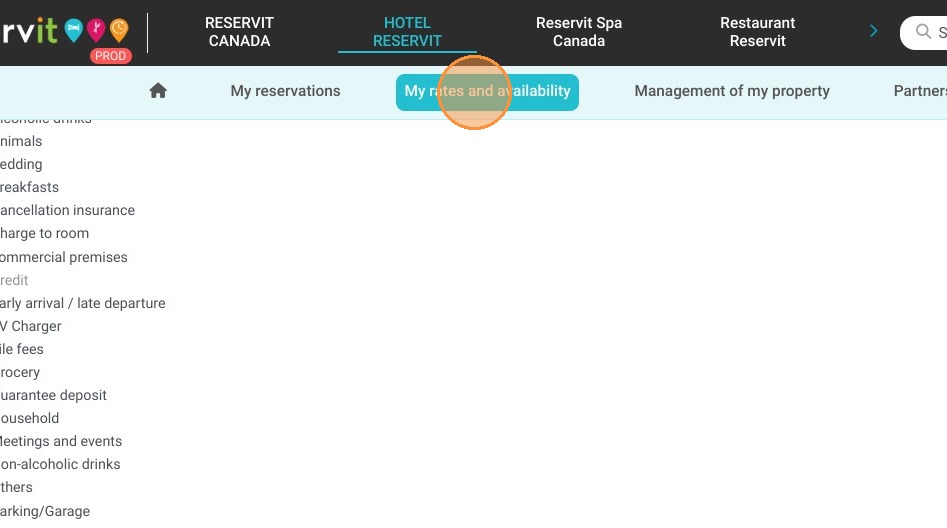
Open your extras management: Go back to the main menu, click on "My rates and availability," and open the "Manage extras" dashboard.
-
Edit your targeted extra: Select an existing option that you wish to modify, or create a brand new extra to assign its accounting rules.
-
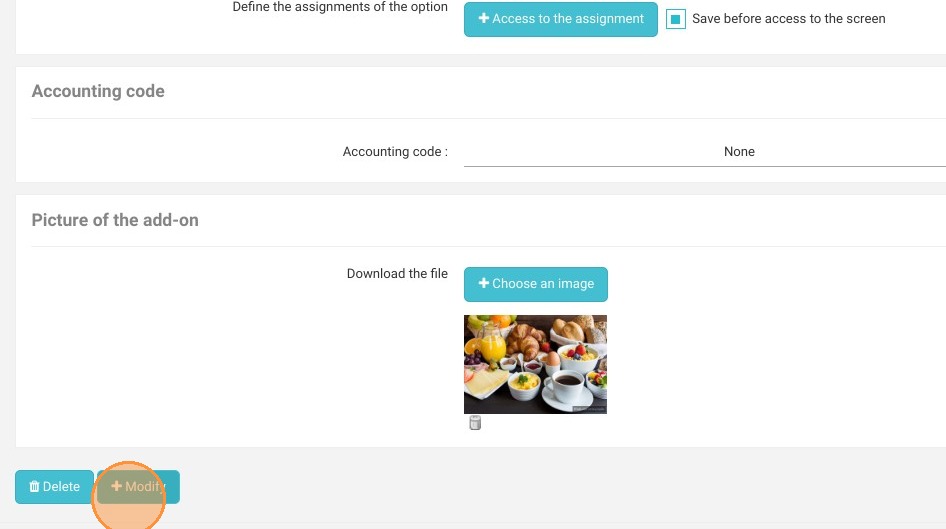
Map the category and save: Use the dropdown to assign the specific option category that will appear in your turnover report, then click "+ Modify" to secure your configuration.
Why follow this guide? Following this exact mapping process guarantees that every sold extra is correctly categorized in your turnover reports, preventing frustrating discrepancies in your financial data. It eliminates manual accounting corrections, saving your team valuable administrative time while ensuring a flawless revenue overview.
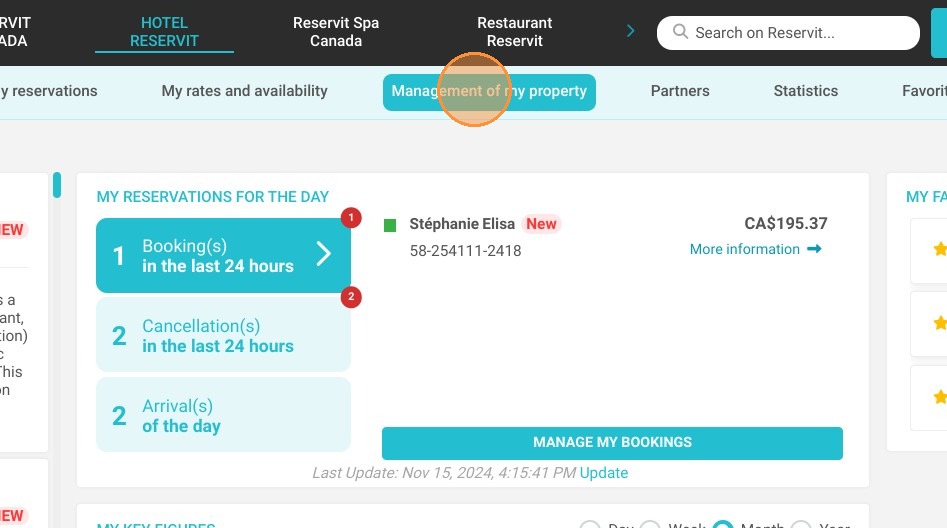
1. Click "Management of my property"
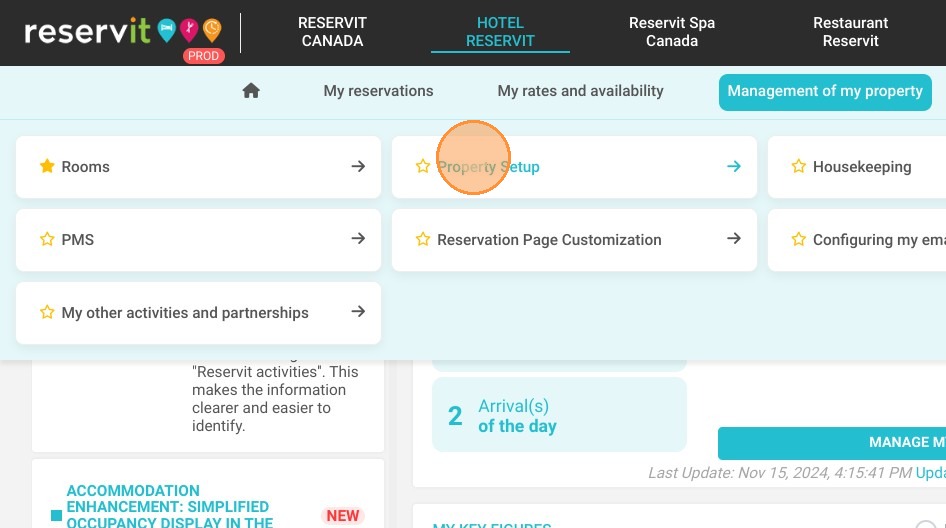
2. Click "Property Setup"
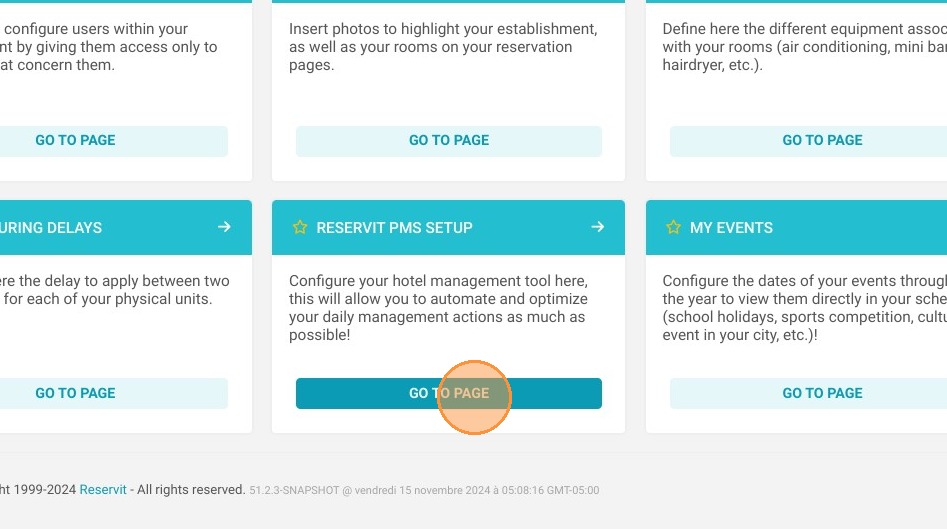
3. Click "Reservit PMS Setup"
4. Click "Selection of option categories"
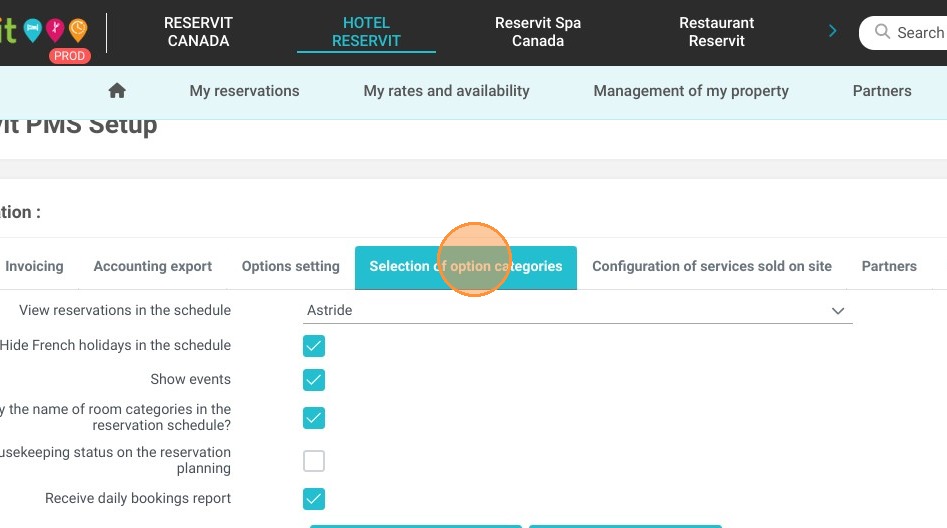
5. Tick or untick the options that will be used for your revenue breakdown
6. Click "SAVE"
7. Click "My rates and availability"
8. Click "Manage extras"
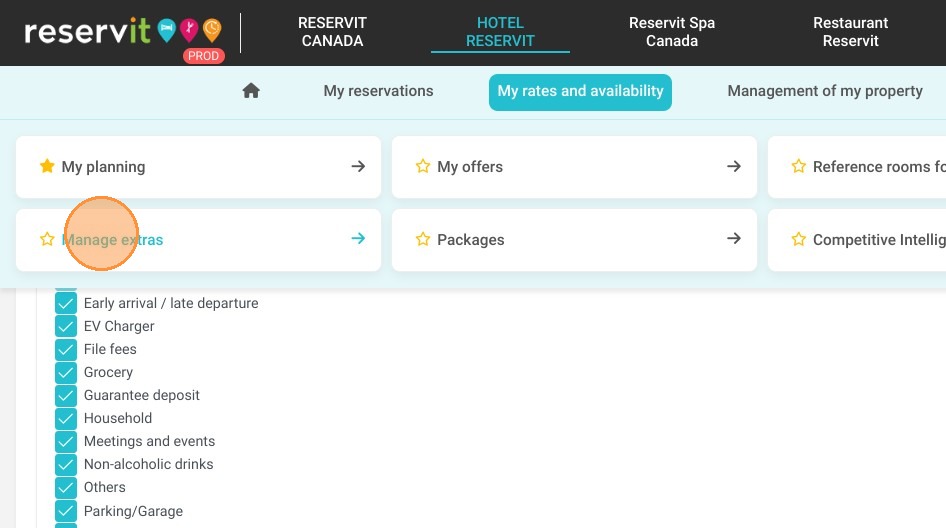
9. Click "Manage extras"
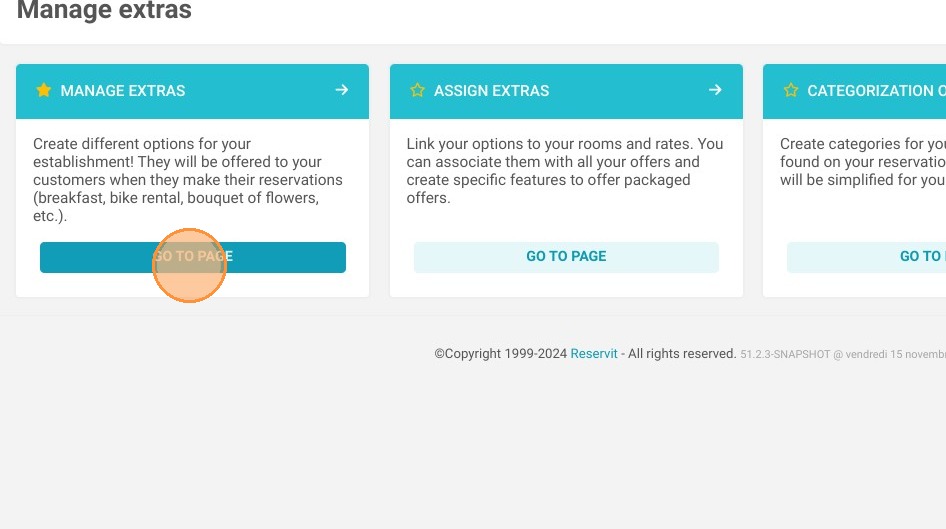
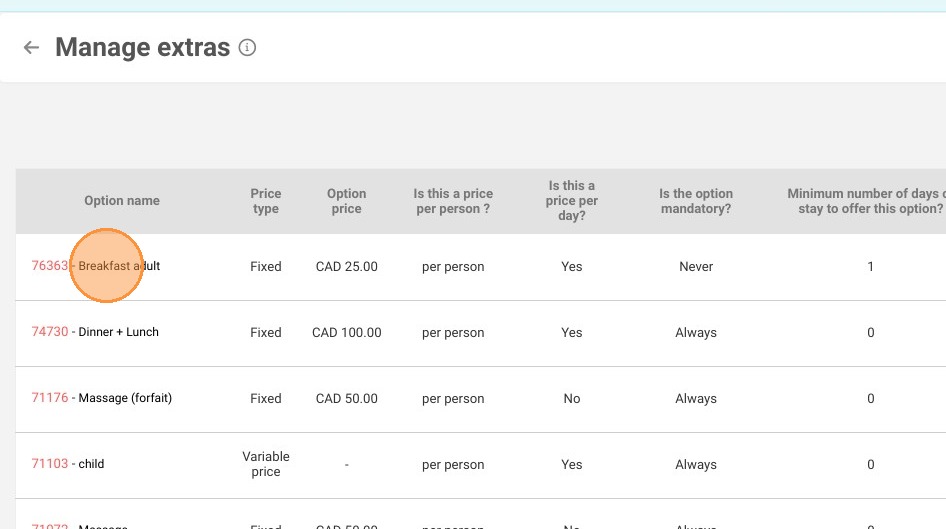
10. Select the extra you wish to edit or just create another one.
11. Select the option category that will appear in the turnover report.
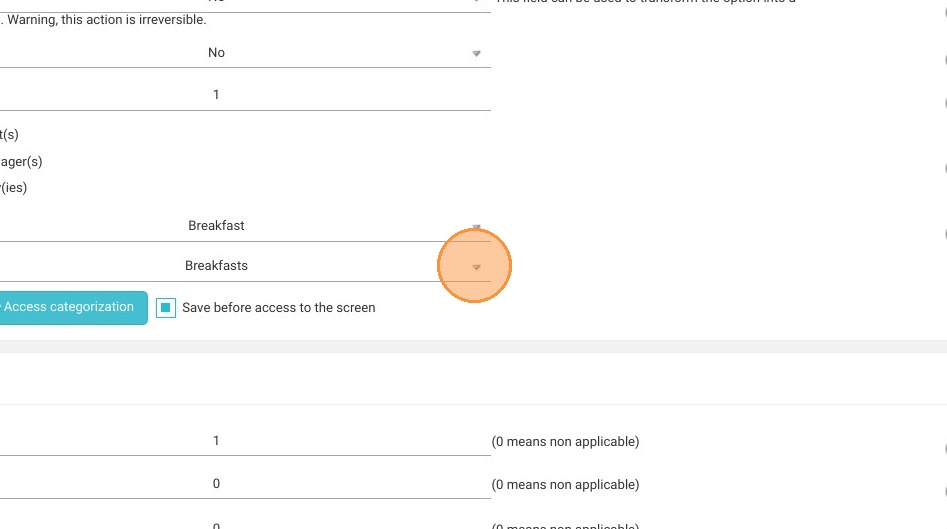
12. Do not forget to click on "+ Modify" to save your work and to do it on every extra if you need.