

Article Summary: This step-by-step tutorial explains how to logically group your booking options and extras into themed categories within Reservit Accommodation. You will learn how to create visually appealing categories for your services—such as spa treatments, restaurant meals, or room add-ons—and seamlessly assign your existing extras to them. By organizing your additional offerings, you provide a cleaner, more intuitive booking experience for your guests while boosting your upselling potential.
The 4 Key Steps to Categorize Your Booking Options:
-
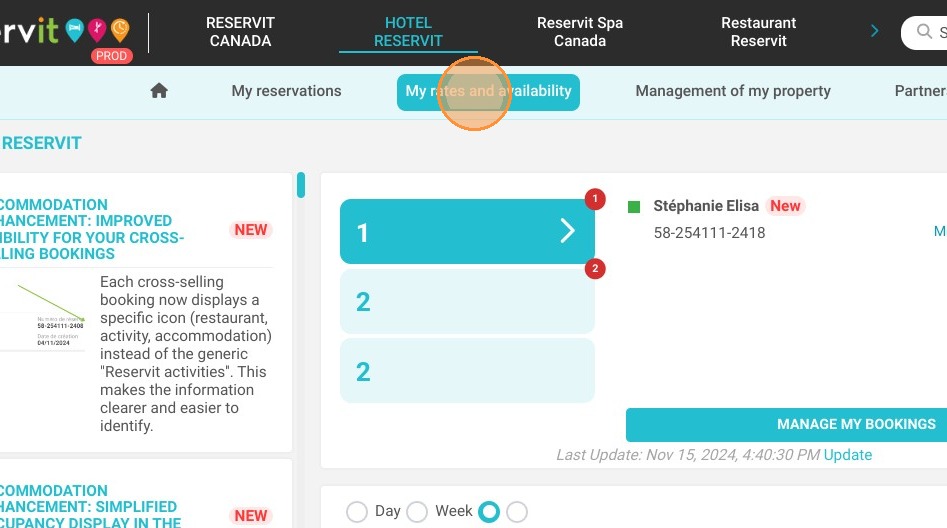
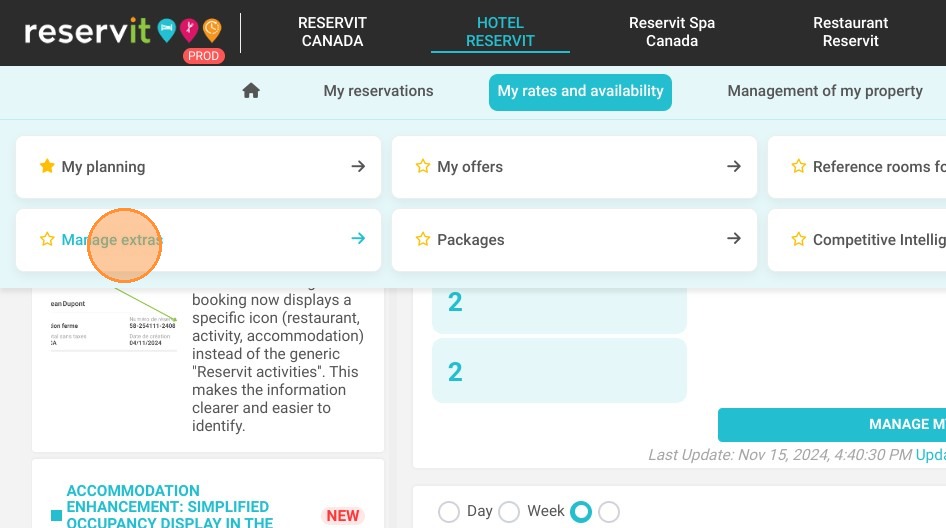
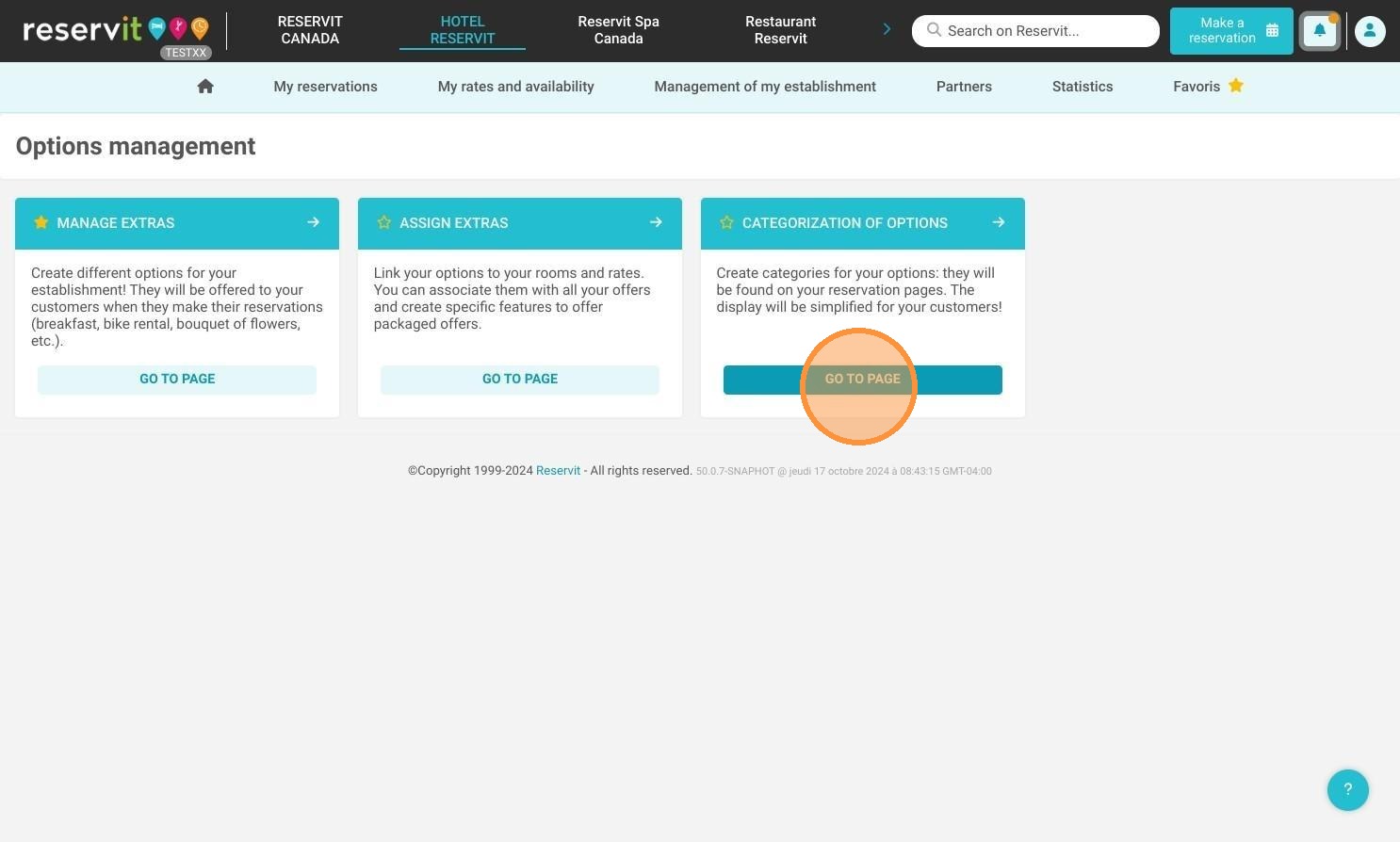
Access the categorization menu: Navigate to "My rates and availability," select "Manage extras," and click on "Categorization of options" to begin.
-
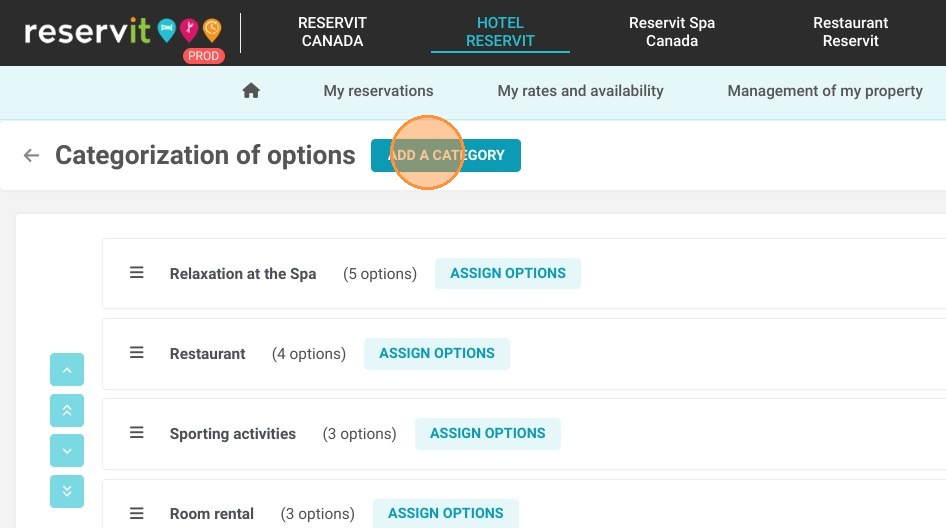
Create a new category: Click "ADD A CATEGORY," enter a themed name and description (using the automatic translator for multiple languages), and upload an illustrative image.
-
Arrange the display order: Use the "ORDER MY OPTIONS" button to set the exact sequence in which your categories will appear to guests on your booking engine.
-
Assign your extras: Click "ASSIGN OPTIONS," select the specific services or add-ons you want to group under your newly created theme, and save your changes.
Why Follow This Guide? Grouping your options into well-defined categories streamlines the customer journey by preventing your booking pages from looking cluttered. This strategic organization not only improves the user experience but also increases the visibility of your add-on services, making it easier to drive cross-selling revenue with minimal administrative effort.
Tip: Are you currently utilizing Reservit for Activities, Spa, Conference, or Restaurant services? This feature also enables you to integrate these offerings into your reservation pages and organize them accordingly.
Create an option category
1. Click "My rates and availability"
2. Click "Manage extras"
3. Click "Categorization of options"
4. Click "ADD A CATEGORY"
5. Enter the name of your theme in English and French.
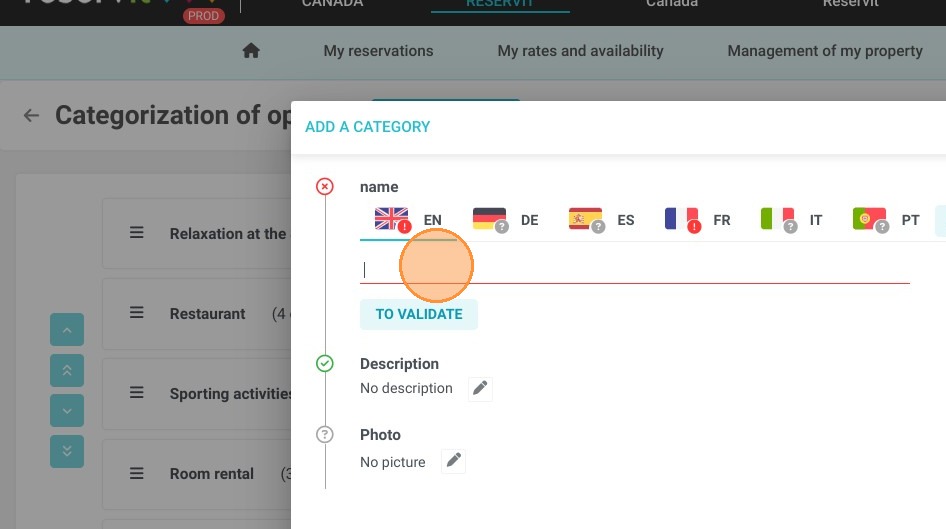
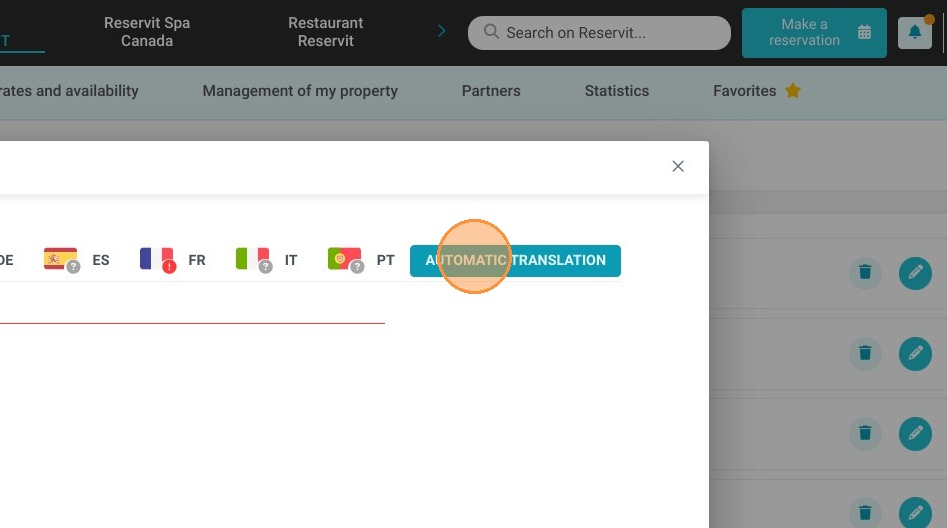
6. The automatic translator is also available by clicking on "AUTOMATIC TRANSLATION"
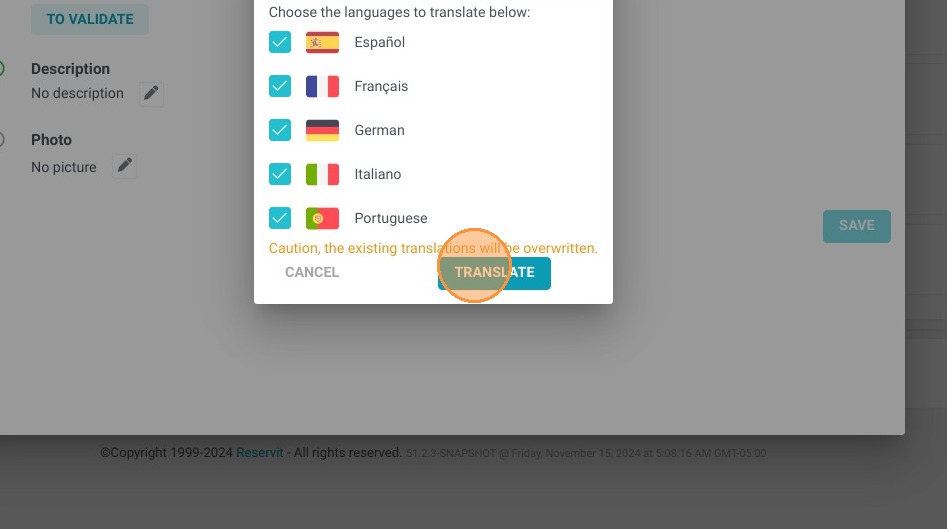
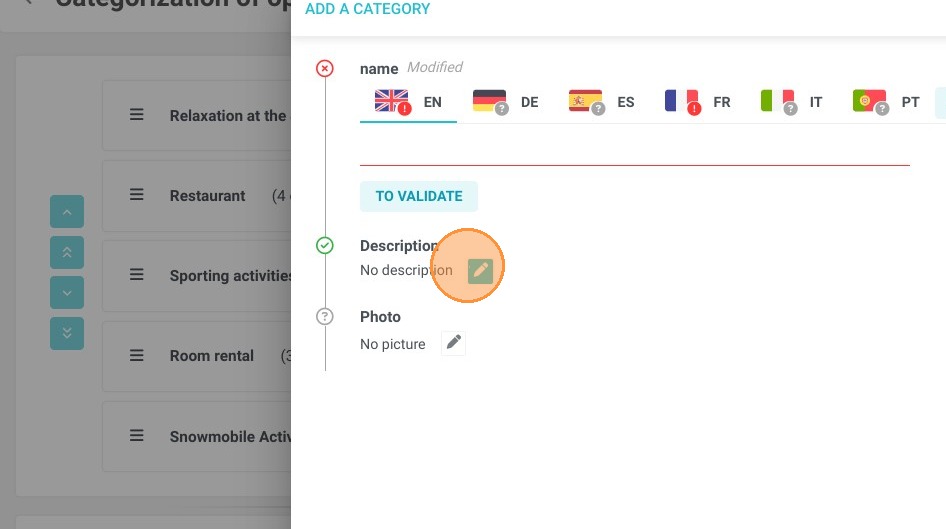
7. Enter a description of your theme in English and French. The automatic translator is also available. Don't forget to "VALIDATE".
8. Finally, illustrate your option category with an image.
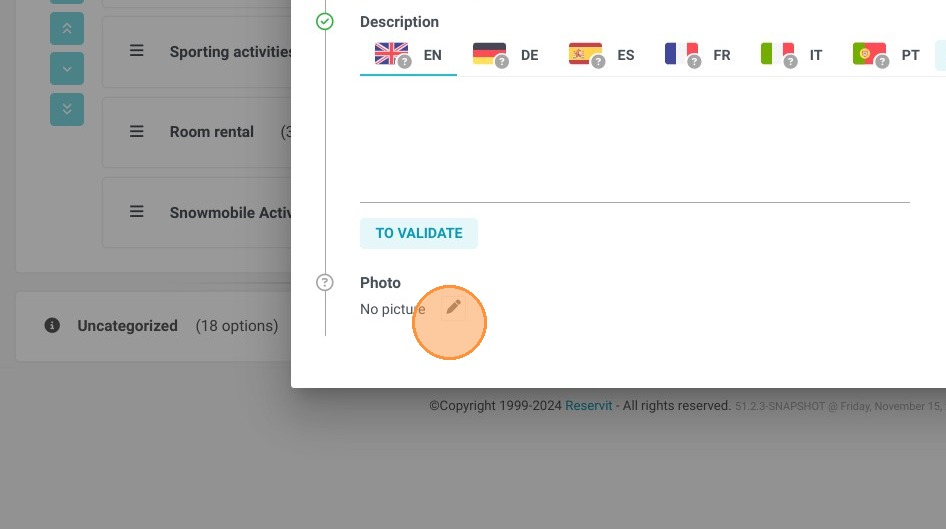
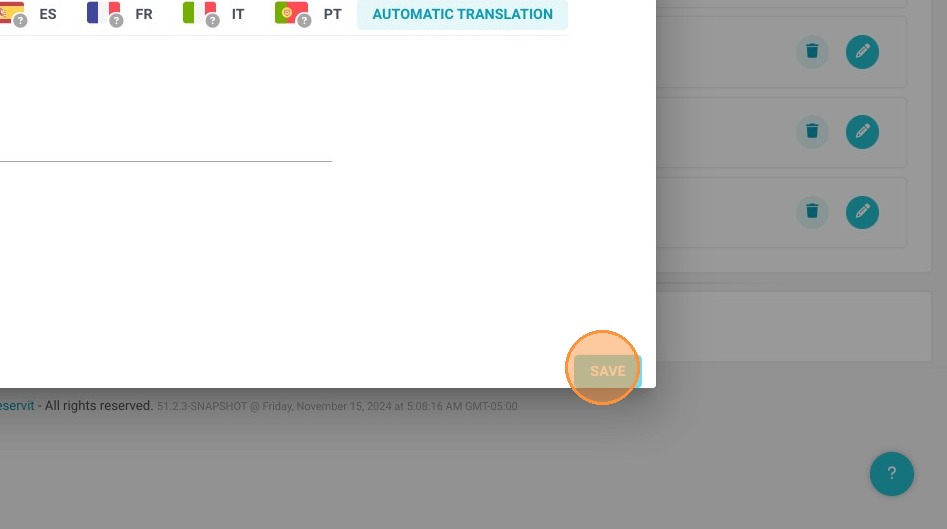
9. Click SAVE.
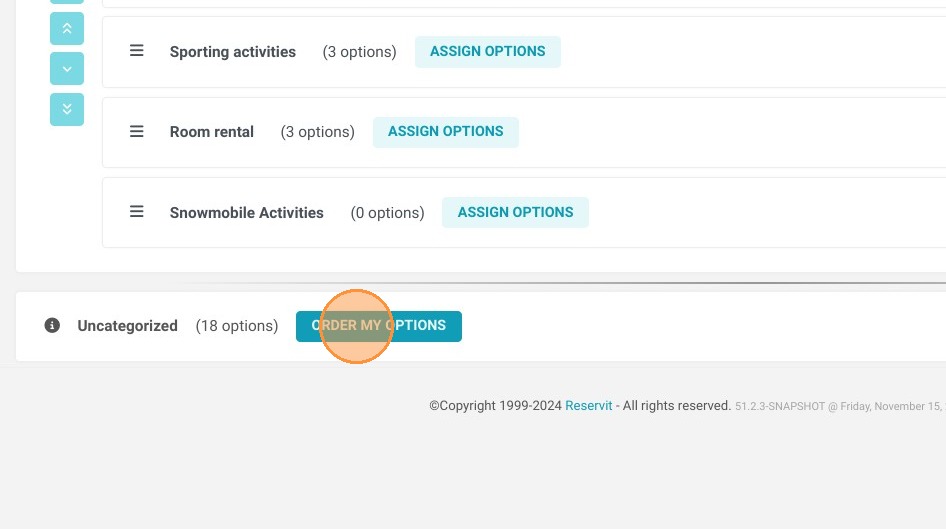
Order the display of your option categories
10. The "ORDER MY OPTIONS" button lets you choose the general display order of your options.
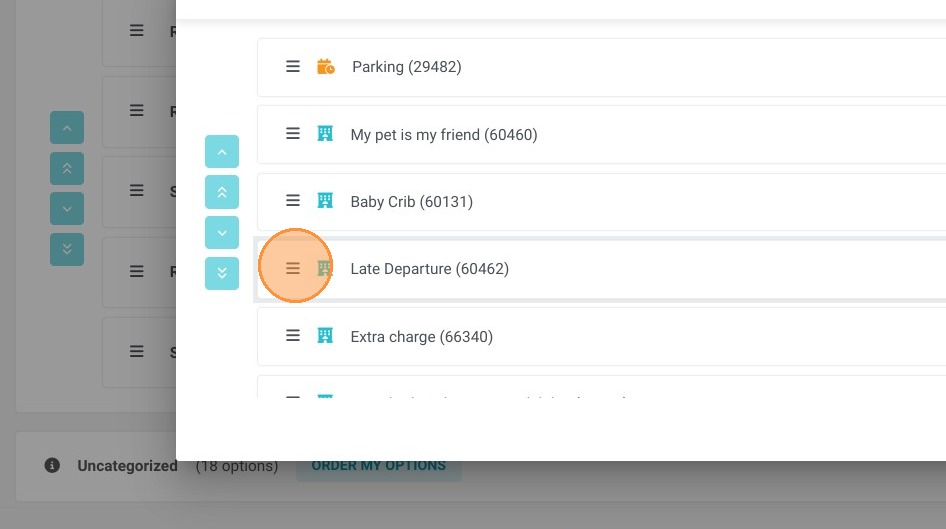
11. Arrange your categories in the desired order.
Don't forget to click on "SAVE" once the order has been set.
Assign your options to your categories
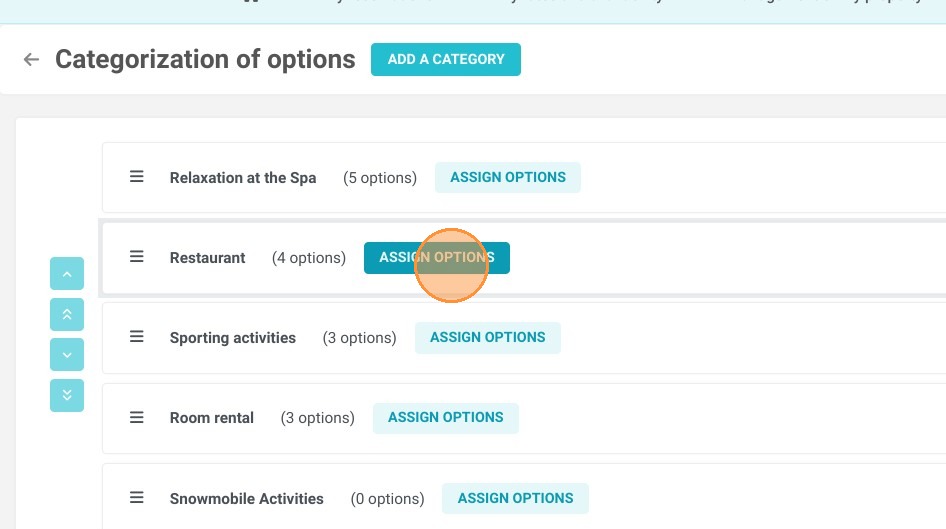
12. Click "ASSIGN OPTIONS"
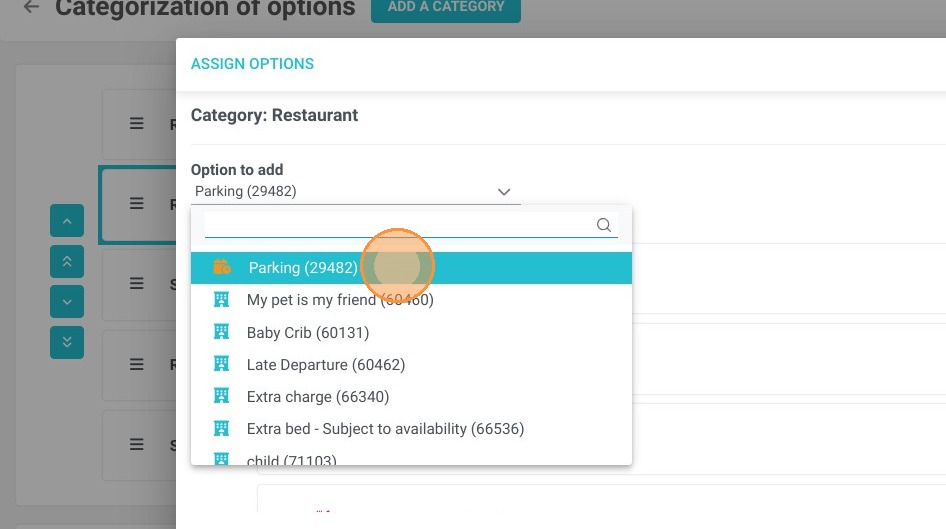
13. Then select the options to be added to the chosen category
14. Click "SAVE"
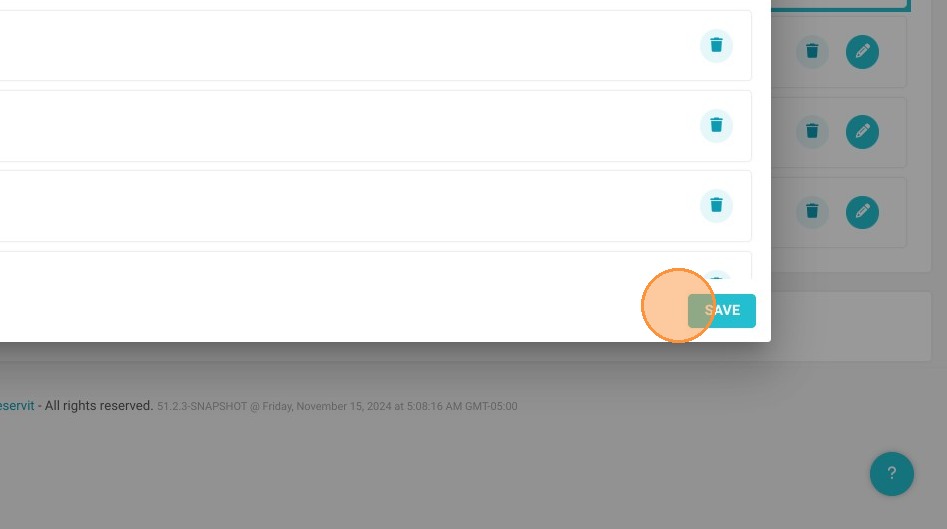
Tip: You can then edit or delete an option category from this screen.